Proxy Configuration using CAR Library Script
Qualys Cloud Agent for Windows supports proxy configuration using library scripts available in Custom Assessment and Remediation (CAR) application. Using library scripts can help you automate your proxy configuration workflows.
Perform the following steps to configure the proxy using CAR library scripts.
- In the CAR application, navigate to Library > Library window.
- Locate the scripts available for Qualys Cloud Agent.
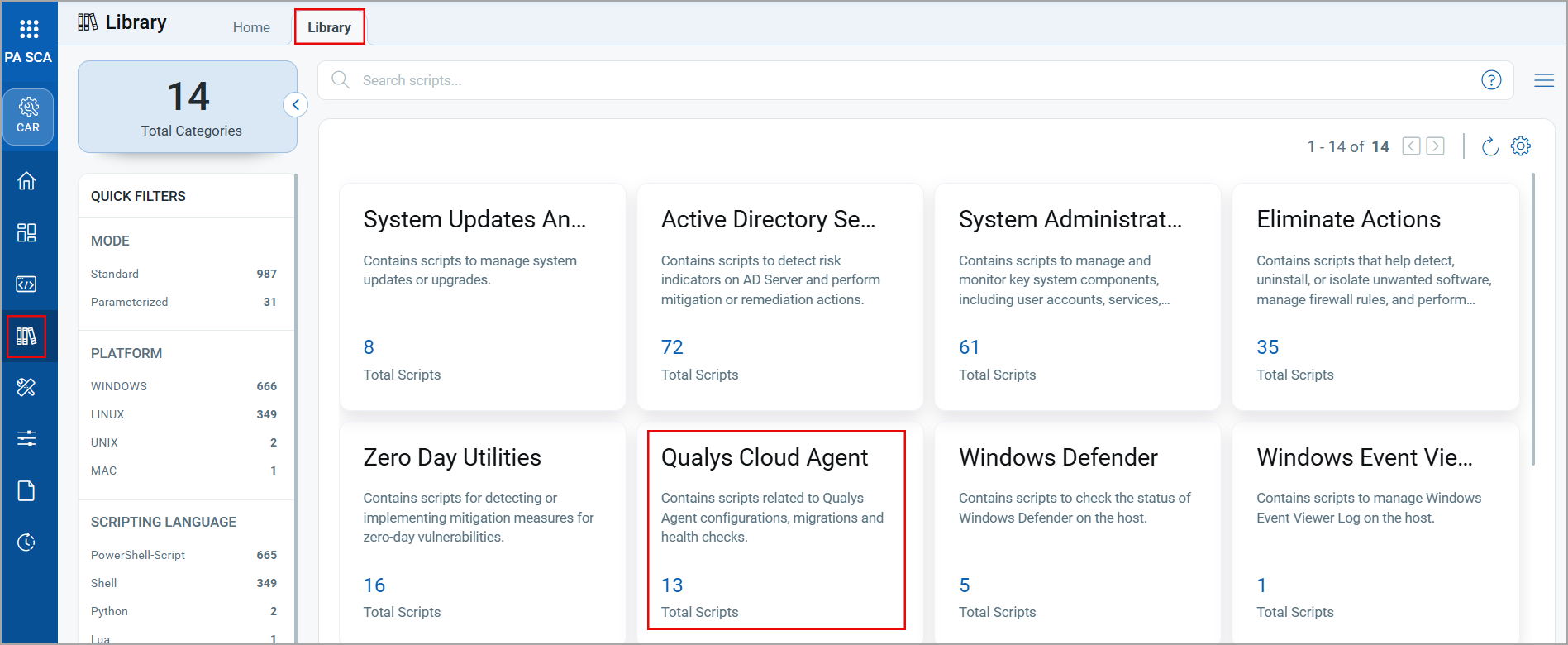
- In the Cloud Agent script library, select the Configuration script for Linux Cloud Agent.
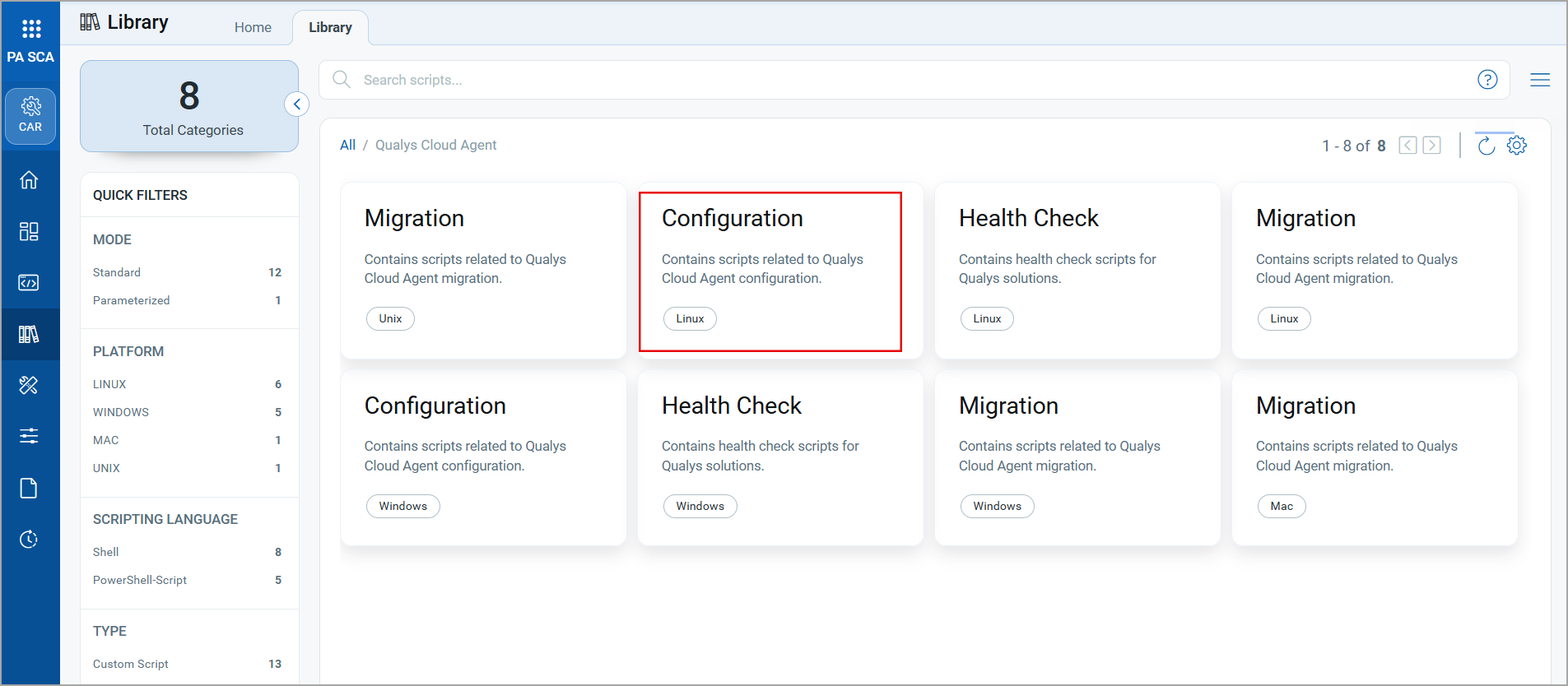
- From the available Configuration scripts library, select the proxy script.
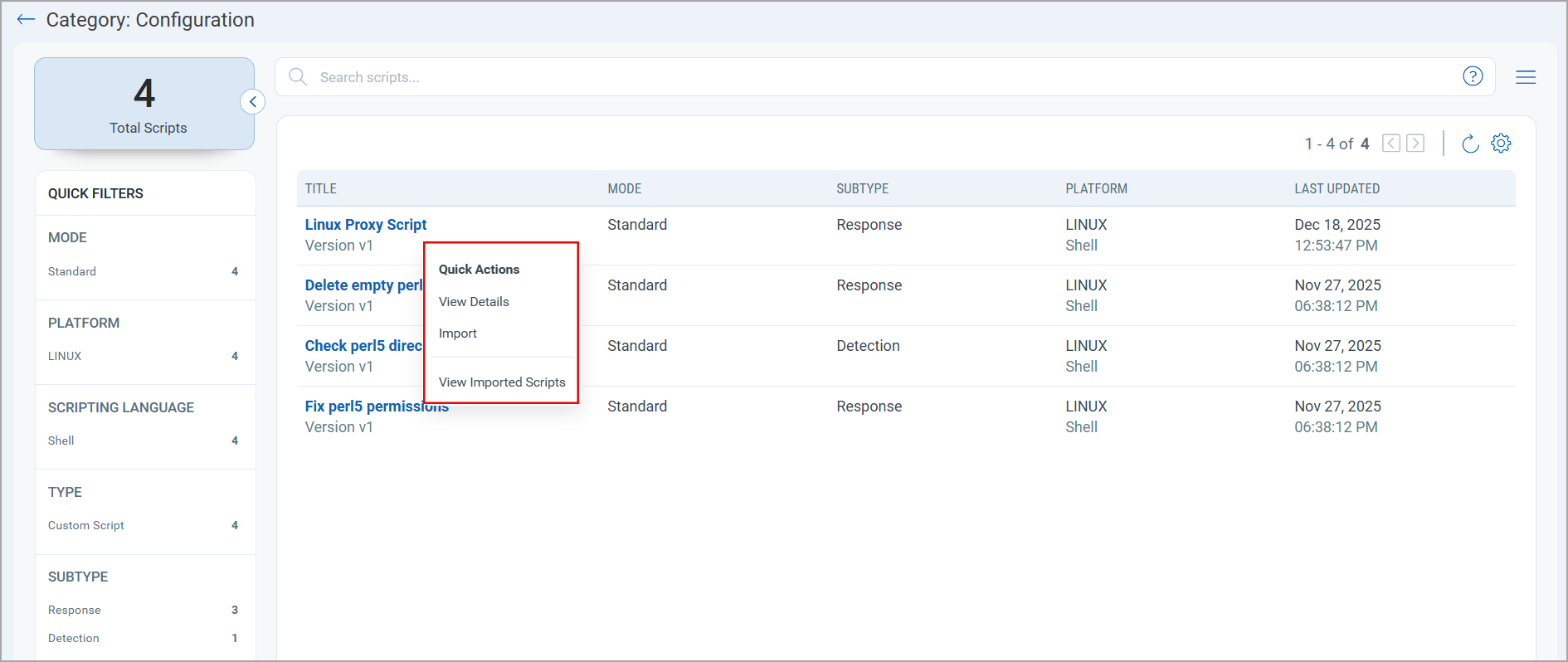
- From the Quick Actions menu, click Import. The the Import Script window is displayed.
- In Import Script window, provide the required information, such as Name, Category, Type of Script, and Subtype. and select the Import script in approved state checkbox.
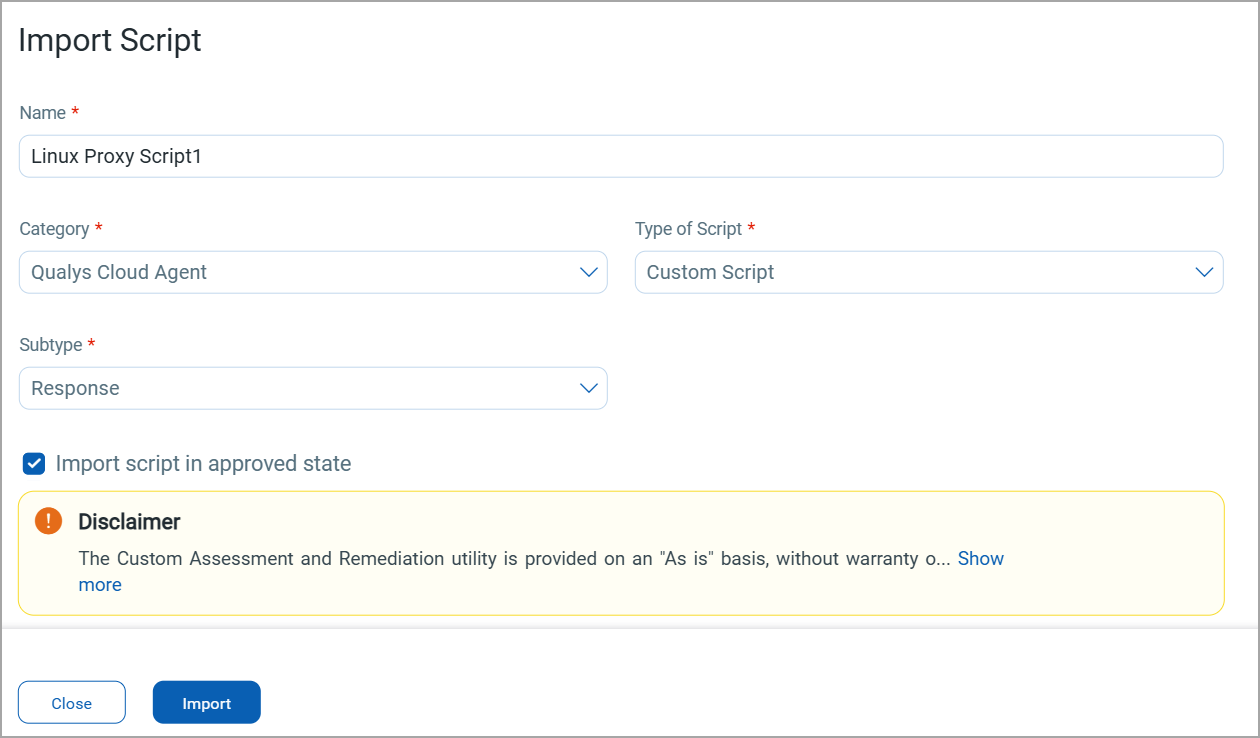
- Click Import. The imported script is displayed in Configuration script list.
- In the Quick Actions menu for imported script, click View Details.
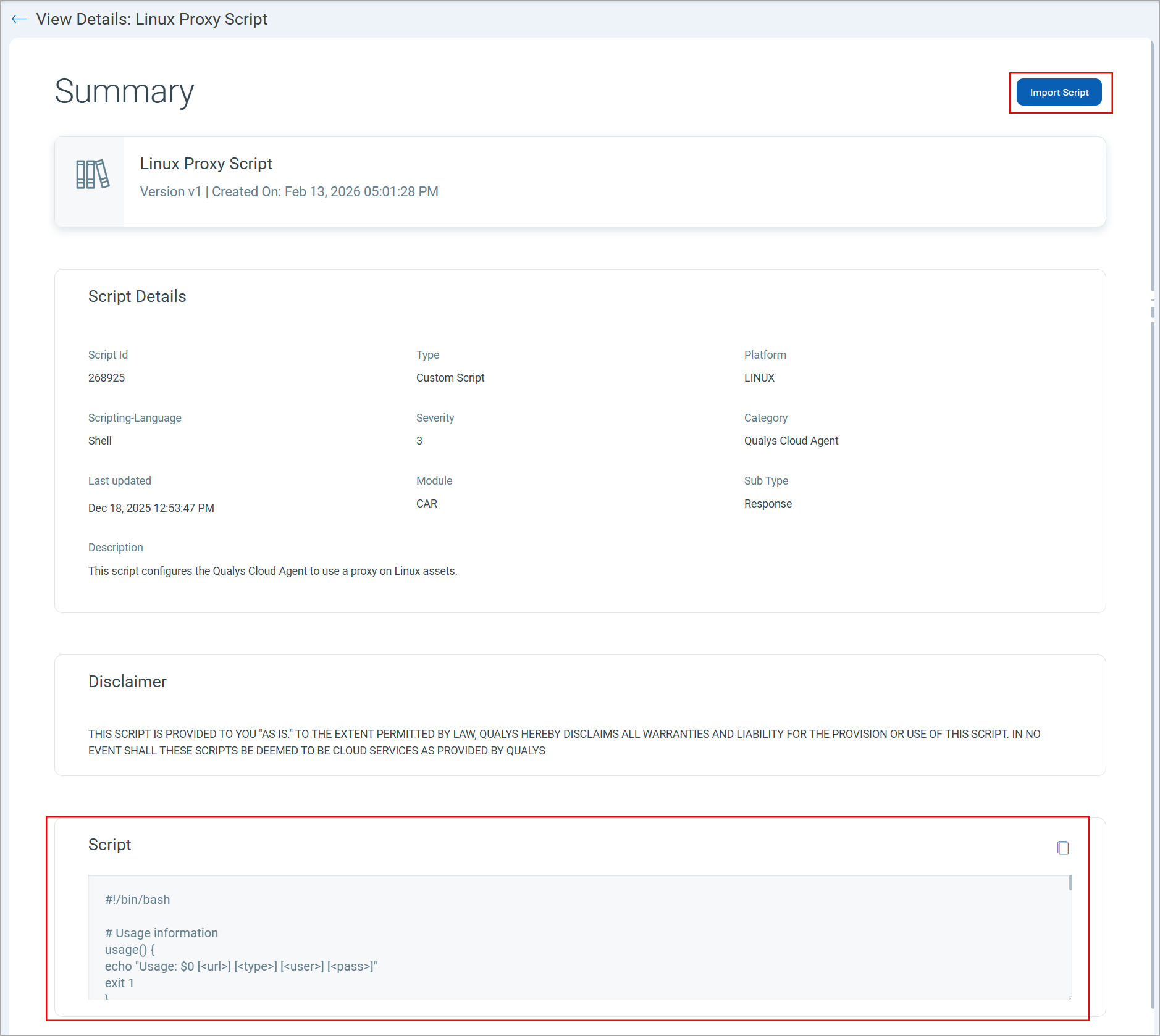
- In the Script section, the proxy details, such as proxy URL, proxy type, and credentials, are displayed. The following code block highlights the proxy details section of the script.
Sample Script
#!/bin/bash # Usage information usage() { echo "Usage: $0 [<url>] [<type>] [<user>] [<pass>]" exit 1 } PROXY_URL="$1" # proxy URL with https or http (https://10.10.1.2:8080) PROXY_TYPE="$2" # https or tls PROXY_USERNAME="$3" PROXY_PASSWORD="$4" # Parse command-line arguments - In the Quick Actions menu click View Imported Scripts to view the imported scripts. You can use these scripts for the proxy configuration.
- In the Scripts > Scripts window, select the imported script.
- In Quick Actions menu, click Edit. The Edit Script window opens. You can edit the proxy parameter here.
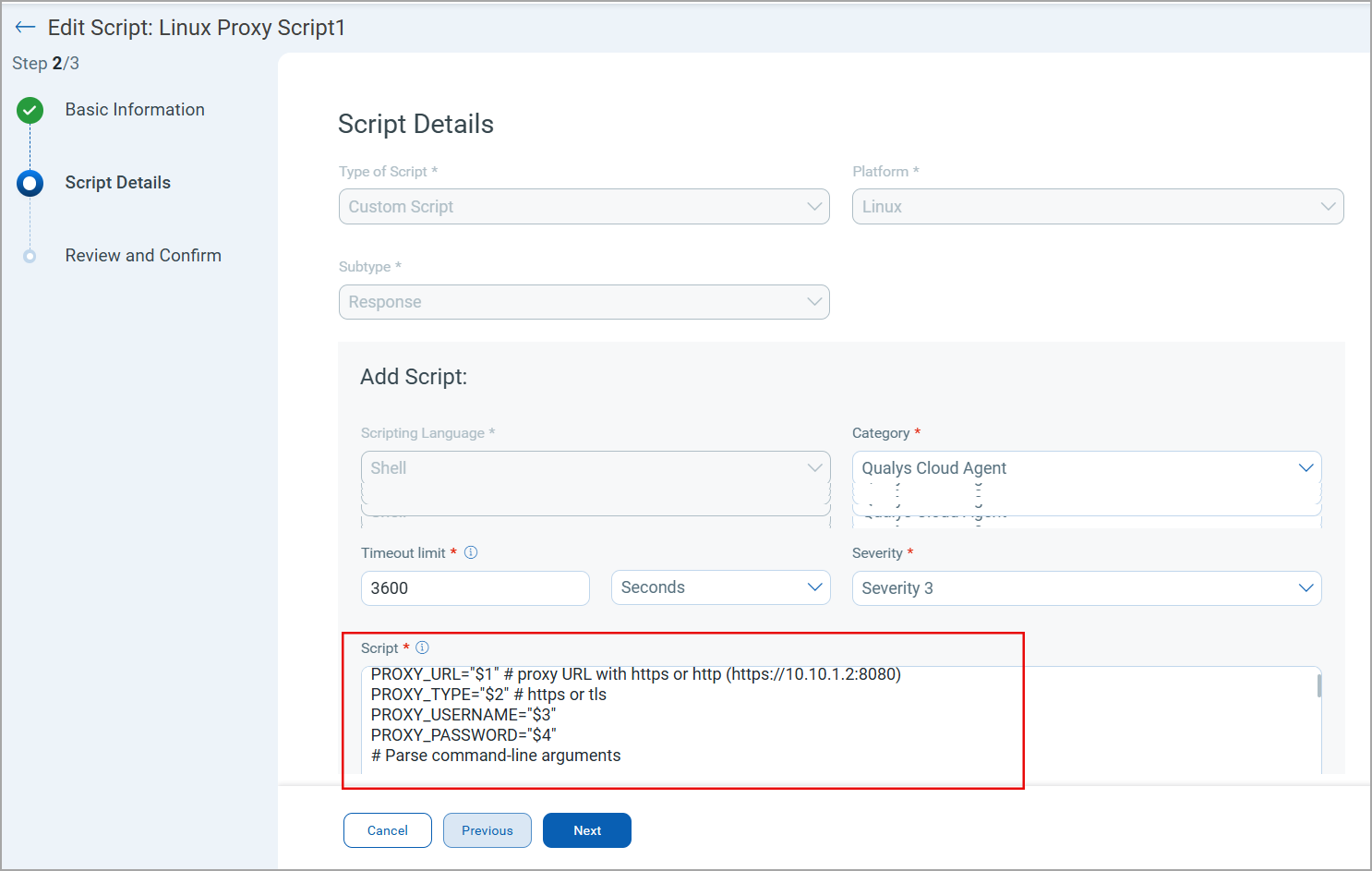
- You can run this edited script for proxy configuration.