Software Composition Scan Profile - Linux
To create a new profile for the SwCA scan on Linux assets, click Create > Linux Scan Profile.
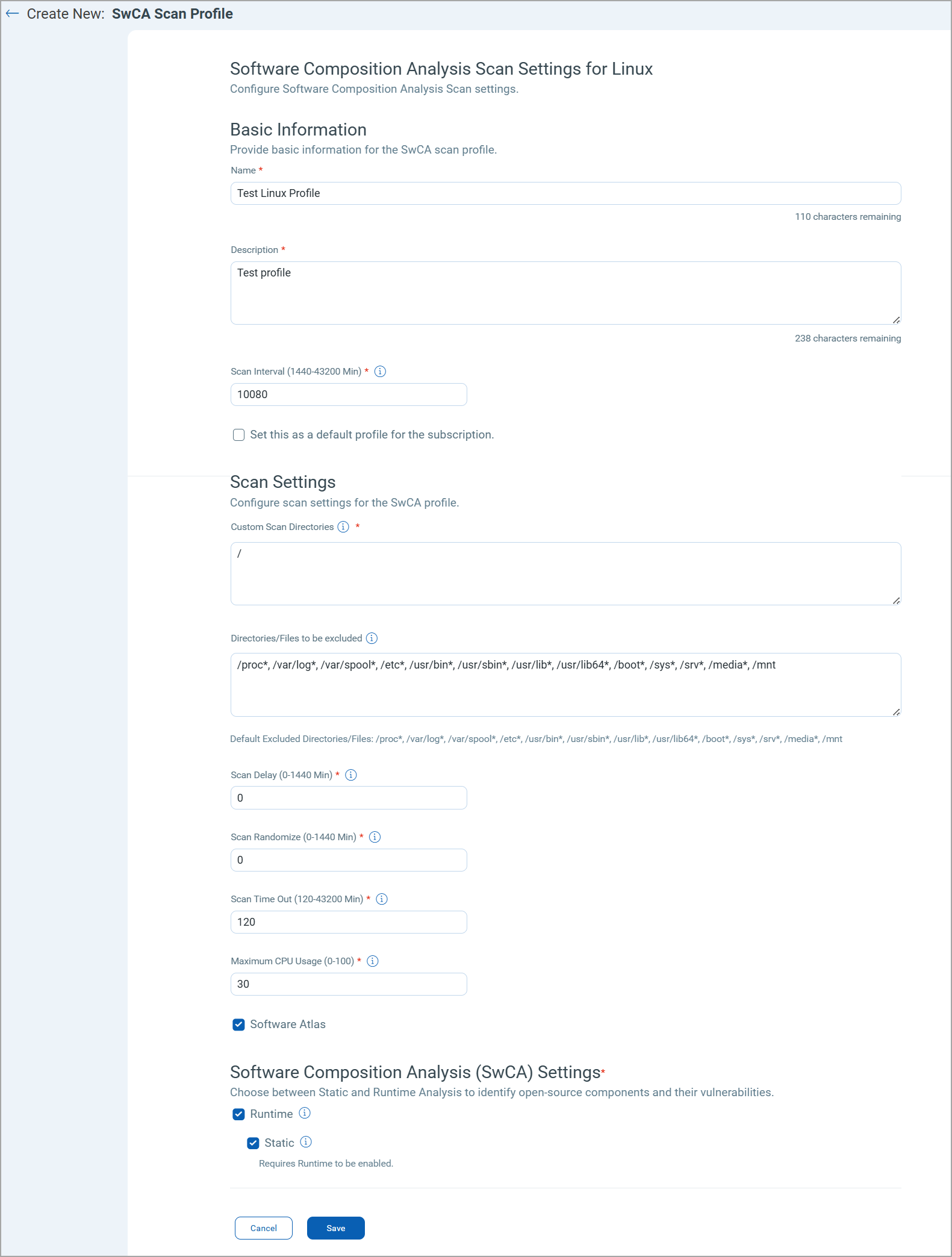
In the Create New - SwCA Scan Profile page, enter the following information:
- Basic Information
- Enter Name and Description for the new scan profile.
- Scan Interval - Define the interval, in minutes, at which Cloud Agent scans the assets associated with this profile. The default value is 10080 minutes.
If you want to set this scan profile as a default software composition analysis scan profile for your subscription, select the Set this as a default profile for the subscription check box. This will be a user-defined default profile. - Scan Settings
You can define the scope for the SwCA scan by adding directories to be included in the scan. You can also define the files or directories that you want to exclude from the scan.
Custom Scan Directories
You can define the directories to be included in the scan. By default, the */ directory is included for scanning. You can enter multiple directories separated by a comma.You must enter at least one directory in the Custom Scan Directories field. The directories added in this field are scanned only once, even when the Include all Local Drives check box is selected.
Do not end the directory list with a comma (,) to avoid errors while creating the SwCA scan profile.
Ensure that only the absolute path is supported. The field does not support wildcard characters and regular expressions.Include only specific directories in the scan scope to reduce CPU and memory consumption.
Directories/Files to be excluded
You can exclude specific files or directories from the SwCA scan. To define the files/directories to be excluded, you can enter multiple directories separated by a comma.Do not end the directory list with a comma (,) to avoid errors while creating the SwCA scan profile.
Ensure that only the absolute path is supported. The field does not support wildcard characters and regular expressions.Exclude the directories that contain the relevant data for the SwCA scan to reduce CPU memory consumption.
Scan Delay - Define the time in minutes to delay the start of the scan, both for new installs and interval scans. The time range is 0 - 1440 minutes. A Scan Delay of 0 means no delay is added to the start of the scan.
Scan Randomize - A range of randomization is added to the Scan Delay to offset scanning. For example, if the value for Scan Randomize is set to 60, then a random value between 1 and 60 is calculated and used to delay the start of the next scanning interval. The range for Scan Randomize is 0 - 1440 minutes.
Scan Time Out - Define the maximum time after which the scan is terminated. The default value is 120 minutes.
Minimum CPU Usage - Enter the maximum CPU consumption allowed for the SwCA scan process. However, a momentary spike can occur in CPU usage.
Valid range - 0-100%. Default value - 30%.Software Atlas
Select this checkbox to enable the software to component mapping data collection. If enabled, the SwCA automatically collects software to component mapping data at regular intervals. This option is disabled by default.
To learn more about this feature, refer to Software Atlas (Software to Component Mapping).Software Composition Analysis Settings
Select the Runtime or Static checkbox to select the settings for Software Composition Analysis.
This feature is supported only on Windows, Linux, and Linux_Ubuntu platforms and will be available only when the Windows and Linux agent binaries with SwCA Runtime Analysis support is available. For the supported platform and Windows agent version, refer to Features by Agent Version section in the Cloud Agent Platform Availability Matrix.
Runtime: Select this checkbox to scan the software components in the production environments to detect runtime software components (open-source software, libraries and associated vulnerabilities) of installed application.The Software Component Analysis Settings feature is available for Linux Intel Cloud Agent 7.3.0 and later versions.
Static: Select this checkbox to scan the development (build) environments to detect software components (open-source software, libraries and associated vulnerabilities) of application.You must select the Runtime checkbox to enable the Static analysis for the SwCA Configuration profile.
- Click Save to save the SwCA scan settings that you have configured.