Cloud Agent Application Release 2.8
August 19, 2026
Enhanced Cloud Agent User Interface
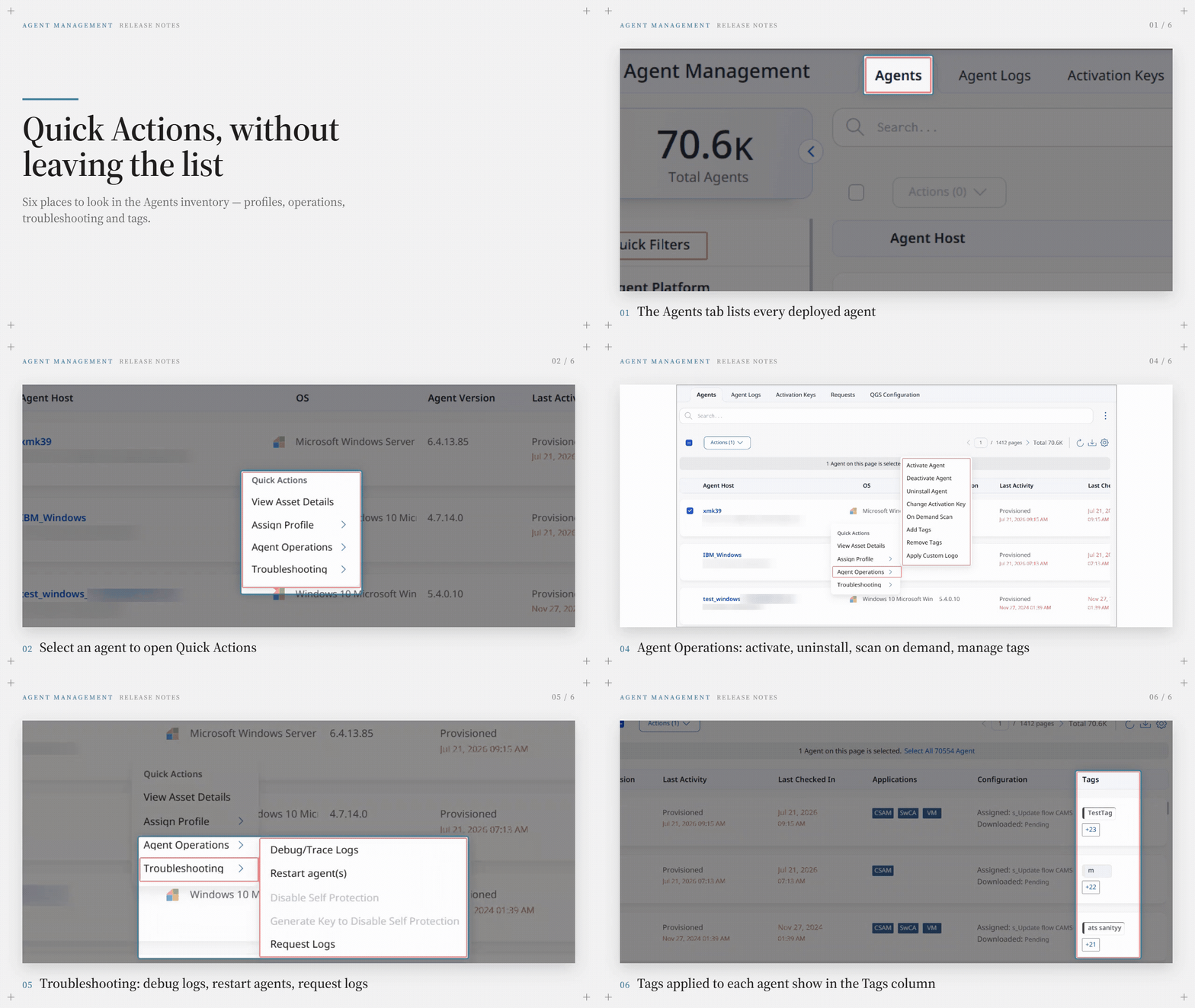
We have introduced an improved user experience for the Agents tab in Cloud Agent user interface. You can see updates across menus, fonts, colors, typography, and buttons, making the interface more intuitive and easier to use. This release features User Interface and design system enhancements that improve visual consistency, readability, and usability across the application, resulting in a cleaner, more intuitive user experience.
The enhanced Cloud Agent user interface is planned for a phased implementation. Contact Qualys Support to enable this feature.
The following are the important updates to the Agents tab:
Intuitive Menus
We revamped the Actions, Quick Actions, and Settings menus, properly categorizing all available options. The new menus offer easier and more intuitive workflows for Cloud Agent actions.
Advance Quick Filters
New Cloud Agent user interface now has advanced Quick Filters to help with Cloud Agent search. You can use Quick Filters to search Cloud Agent based on host operating system, agent version, activation key, activated applications, and configuration profiles assigned to the agent.
To learn more about the enhanced Agents tab, refer to Cloud Agent online help.
Revamped Troubleshooting Menu
We introduced a new option in the Quick Actions and Actions menu to Disable Cloud Agent Self-protection. Now, you can generate a key to disable self-protection for one Cloud Agent at a time. Earlier, only a subscription-level key could be generated.
Assign SwCA Configuration Profile
We introduced a new option in the Quick Actions menu to assign the Software Composition Analysis (SwCA) Configuration profile directly from the Agents tab.
Tags Column
We also added the Tags column to the Activation Keys page. The Tags column lists all tags assigned to an activation key. This helps you get all the tag-related information upfront.
Track Scan and Report Download Status with the Requests Tab
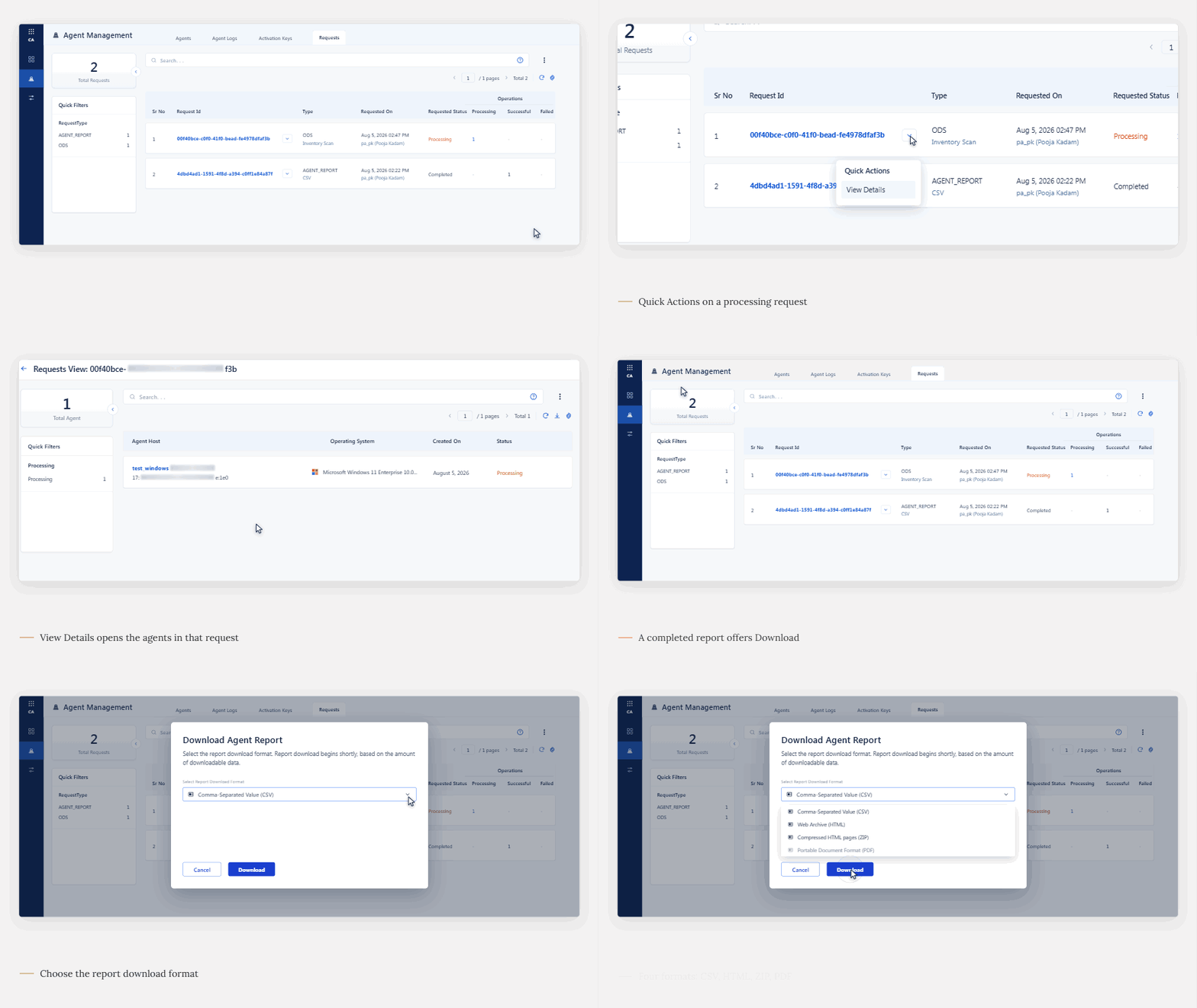
The Agent Management window now includes a dedicated Requests tab to track agent report downloads, on-demand vulnerability scans, and vulnerability scan status. Previously, there was no option in Cloud Agent user interface to track these actions.
This feature has limited availability. Contact your Technical Account Manager or Qualys Support to activate it for your subscription.
The Request tab helps you with your day-to-day activities by providing the following benefits:
- One point solution to track all submitted requests, request IDs, and processing status.
- Instant confirmation for Cloud Agent report download and on-demand scan progress.
- Track any request to view processing details for an individual Cloud Agent.
- Detailed Cloud Agent-level information for on-demand scan progress and status.
- Quick Actions to download Cloud Agent report.
- Filter required requests using new search tokens in the Requests tab.
By default, the Request tab maintains the request history for the last 7 days. Requests older than 7 days are automatically archived.
Behavioral Notes for Requests Tab
The following are the important behavioral notes for the Requests tab.
- The Request tab only displays the status for report download, on demand scans, and vulnerability scans. The other scan type request status is not displayed.
- To view the correct status for scan requests, the scanned asset must have a compatible Cloud Agent installed. If the host asset does not have a compatible Cloud Agent, the scan status is displayed as Processing even if the scan is successfully completed.
Optimized Report Download
We have optimized the report download formats for Cloud Agent reports. The Cloud Agent report can now be downloaded in CSV, HTML, ZIP, or PDF formats.
Search Tokens for Request Tab
We introduced the following new tokens in the Requests tab to filter the report download and scan requests.
| Search Token | Syntax | Description |
|---|---|---|
| request.requestType | request.requestType:<request_type>Valid values - AGENT_REPORT, ODS |
Search the requests based on the request type, such as report download or on demand scan. |
| request.status | request.status:<status_value> |
Search agent hosts based on the request status, such as Accepted, Completed, Error, and so on. |
Control User Permissions with Tag-based Access
We are introducing the Tag-based User Access for Cloud Agent. Tag-based access provides precise, scalable permission control, ensuring that each user can view and edit only the assets assigned to them.
Instead of assigning individual assets one by one, administrators assign tags to a user's scope. This approach reduces administrative overhead, enforces least-privilege access, and keeps visibility aligned with your organizational structure.
By default, the tag-based user access feature is disabled. Contact Qualys Support to activate it for your account.
How Does Tag-based Access Work
The following are operational notes for tag-based access.
- An administrator user assigns, adds, or removes tags.
- The agent list shows only the Cloud Agents for in-scope assets.
- Cloud Agent source information is restricted to in-scope assets.
- Users can add only-in-scope tags to the agents. Tag actions such as remove, edit, change color, and add to favorites are disabled for out-of-scope tags.
- Agent operations, including on-demand scan, troubleshooting, remote log, and uninstall, run only on in-scope agents.
- Activation key lists, configuration profiles, database assessment profiles, manifest version control, and agent version control are limited to in-scope assets or tags.
- A Show all tags option displays every asset tag with a clear distinction for in-scope and out-of-scope tags.
- Every change to a user scope is recorded in the audit log, giving you a clear trail for compliance and review.
Exceptions for Tag-based Access
The following privileged users operate outside tag-based scoping to support administration and platform operations.
- Superusers see all assets and tags.
- Full-access users have permission to access all assets. Their scope cannot be modified, and the UI displays an appropriate message.
- System users who manage backend operations.
Tags follow the parent-child hierarchy. When a parent tag is assigned to a user, all child tags are automatically included in the user's scope.
To learn more about tag-based access, refer to Cloud Agent Online Help.
New Application - Qualys TruConfirm
Cloud Agent now supports activating a new Qualys application, TruConfirm, from the Cloud Agent user interface.
Qualys TruConfirm helps you validate the exploitability of vulnerabilities detected on your assets. TruConfirm provides a proof-based prioritization for vulnerable assets. It helps security teams prioritize real risks, reduce false positives, and focus remediation efforts on the most critical threats.
To activate TruConfirm, navigate to Agent Management > Agents tab. From the Quick Actions menu, select Activate Agent.
You can also configure the CPU usage limit for TruConfirm in Cloud Agent configuration profile. The CPU limit used by the Cloud Agent is automatically applied to the TruConfirm.
Configure Additional Cloud Agent Settings in New Tab
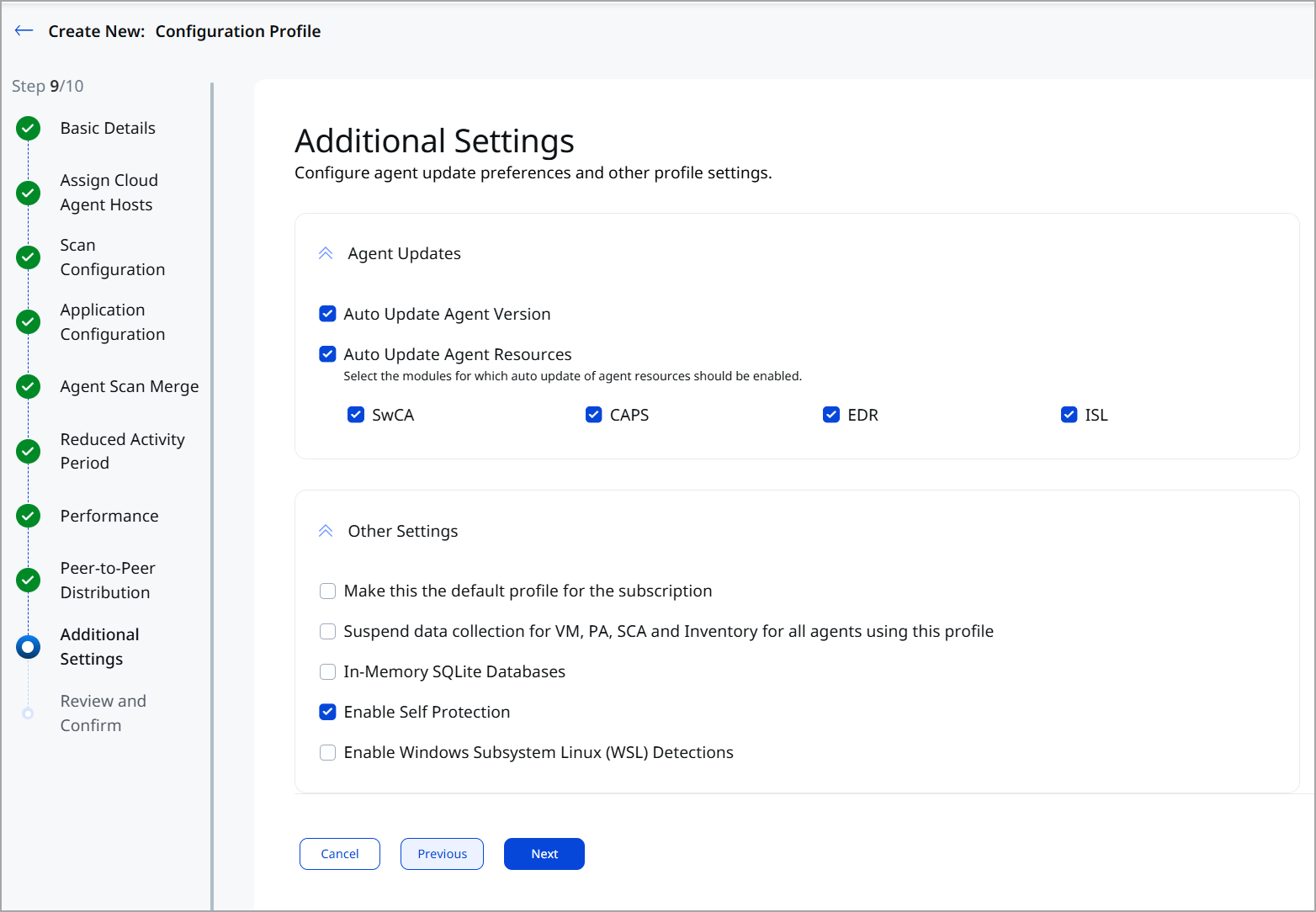
We introduced a new tab, Additional Settings, in Cloud Agent user interface. The Additional Settings tab provides you with the following options:
- Make this the Default Profile for the Subscription: Marks a profile as the one automatically applied to all newly installed Cloud Agents in the subscription.
- Suspend Data Collection: Stops future VM, PC, SCA, and Inventory scans for all agents on this profile while still allowing auto-updates, manifest updates, and configuration updates.
- Use In-memory SQLite Database: Loads the agent's SQLite database into memory to improve system performance, at the cost of higher memory usage (disabled by default).
- Enable Cloud Agent Self-protection: Turns on self-protection for agents using this profile, guarding the agent's files/processes from tampering (disabled by default).
- Enable Windows Subsystem Linux (WSL) Detection: Turns on detection of WSL instances/software running on Windows hosts by the Cloud Agent.
The Additional Settings tab provides you a dedicated place to configure additional settings for your Cloud Agent. Previously, all these options were available in the Basic Details tab of the Configuration Profile workflow.
To access the Additional Settings tab, navigate to Configuration > Configuration Profile tab. In the Configuration Profile create or edit workflow, navigate to the Additional Settings tab.
To learn more about these options, refer to Cloud Agent Online Help.
Control Secondary Binary Updates
Cloud Agent now gives you control over secondary binary updates, such as SwCA, Cloud Agent Passive Sensor (CAPS), and Deep Scan. This prevents unplanned changes in sensitive environments and keeps binary updates aligned with your maintenance schedule. This enhancement also offers a test window for newly released binary versions before deploying them on critical assets.
To control the secondary binaries from auto-updating, navigate to Configuration Profile > Additional Settings tab. Select the Auto Update Agent Resources option to auto-update the secondary binaries.
| Required Application Version | Cloud Agent for Windows 7.1 |
To learn more about this feature, refer to Cloud Agent Online Help.
Independent Activation for ETM Identity
We have updated the ETM Identity activation workflow to support independent activation. You can now activate ETM Identity without activating the dependent Qualys applications, such as Vulnerability Management (VM) and Policy Audit (PA). This removes dependency on the other applications to use ETM Identity features.
Previously, ETM Identity could be activated only if the VM or PA for the asset was activated.
We recommend activating Qualys VM and PC to leverage the full functionality of ETM Identity.
Updated Default Ports for Peer-to-Peer Distribution
We have updated the default transfer and admin ports for peer-to-peer distribution to 7400 and 7401, respectively. These new ports avoid security conflicts in user environments and provide a clean, risk-free gateway for peer-to-peer content distribution.
Preview Cloud Agent Custom Logo
You can now preview the custom logo before applying it to a Cloud Agent. This enhancement helps you test the custom logo during upload and ensures the correct logo is applied to the asset.
Optimized CPU Limits for SwCA Scans
We have optimized the CPU usage limits for SwCA scans on Linux assets. The new CPU limit range for Linux assets is 10-99%. The optimized CPU limit provides smoother scan performance and reduces scan failures by preventing users from setting CPU usage to very low or very high levels.
Cloud Agent API Release Notes
To learn more about Cloud Agent API updates, refer to Cloud Agent Application 2.8 Release API.