Custom Assessment and Remediation Release 2.9.3
October 15, 2026
This release introduces support for assessing perimeter devices that cannot host the Cloud Agent, scheduling software package deployments, requiring a second reviewer before scripts and packages can run, and finding scripts by describing the task in natural language.
New Feature
Assess Perimeter Devices Without the Cloud Agent
What's New for You
You can now extend custom assessments to perimeter devices without installing the Cloud Agent.
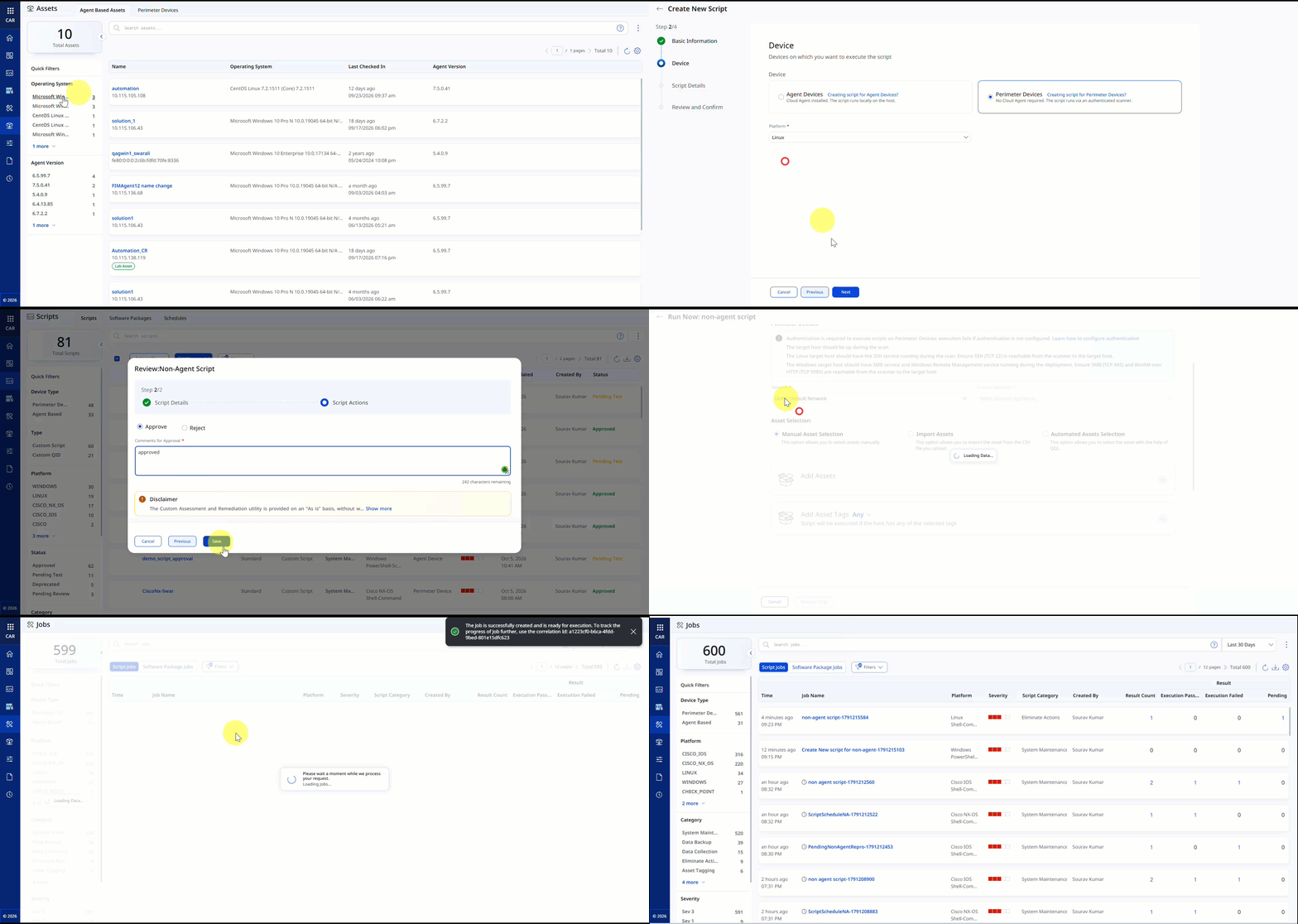
You can now execute CAR scripts on assets that cannot host the Qualys Cloud Agent. This includes network appliances (such as routers, switches, firewalls, load balancers), operational technology systems, and other perimeter devices.
It allows you to continue using the same CAR workflows for script creation, on-demand execution, scheduling, and results management.
Key Benefits
With this new feature, you can:
- Run custom assessments on perimeter devices using Custom Scripts and Custom QID scripts.
- Validate device configurations and operational states using device CLI commands, shell commands, or PowerShell.
- Generate custom vulnerability detections by evaluating script output against Custom QID detection rules and reporting findings in VM/VMDR.
Prerequisites
Before you execute scripts on perimeter devices, ensure that the following prerequisites are met:
- Deploy a Scanner appliance: At least one Qualys Scanner Appliance must be deployed and online in the network where your target devices reside. You can select one scanner per execution.
- Associate devices with a Qualys network: Target devices must be associated with a Qualys network. You select the network during script execution.
- Configure authentication: In VMDR > Scans > Authentication, configure a valid authentication record for the target perimeter devices. Verify the credentials are correct, supported by the target platform, and have sufficient permissions to connect to the asset and execute the required assessment commands or scripts. For more information, refer to Authentication Records and Tag Support for Authentication Records in VMDR.
- Onboard non-agent devices with Tags: Use asset tags to onboard the target non-agent devices for script execution:
- Tag the devices in CSAM: In the CyberSecurity Asset Management (CSAM) module, create and assign a custom tag to the perimeter devices on which you want to execute CAR scripts.
For more information, refer to the Create Asset tags in CSAM. -
- Tag the devices in CSAM: In the CyberSecurity Asset Management (CSAM) module, create and assign a custom tag to the perimeter devices on which you want to execute CAR scripts.
Perimeter Device Script Creation Workflow
To access this feature, go to Scripts > Create > New Script. On the Device page, select Perimeter Devices, then select the required Platform.
Supported Platforms and Scripting Languages for Perimeter Devices
| Platform | Script language |
|---|---|
| Windows | PowerShell-Command, PowerShell-Script |
| Linux | Shell, Shell-Command |
| Cisco IOS, Cisco NX-OS, Cisco ASA, Cisco Firepower | Shell-Command |
| Juniper JunOS, Arista EOS, F5 BIG-IP, Fortinet FortiGate, Check Point | Shell-Command |
On the Script Details page, select Custom Script, or Custom QID, choose the Scripting Language, enter all the required script content, and save the script.
You cannot change the target device type after saving the script.
To execute an approved perimeter device script, select Run Now from the Quick Actions Menu, choose the required Network, Scanner Appliance, target Assets, and Tags, then confirm and launch the execution. The script executes only on perimeter devices.
Once you execute the script for perimeter devices, you can view the script results on the Jobs page.
For more information, refer to Perimeter Devices.
New Feature
Schedule Software Packages for Automated Deployments
What's New for You
You can now schedule approved software packages to deploy once or on a recurring basis to target assets, reducing the need for manual deployments.
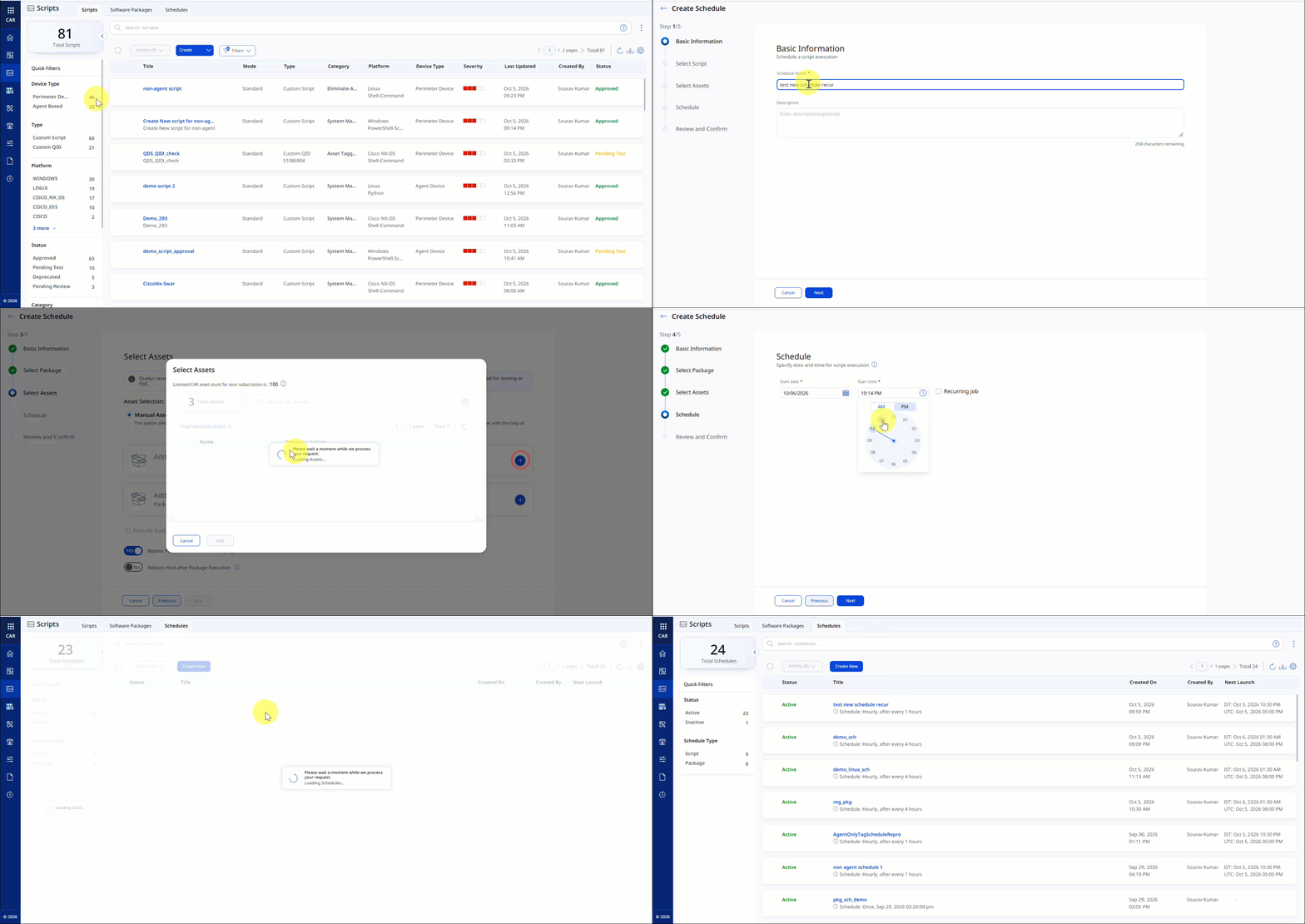
Previously, software packages could run only on demand by using the Run Now or Test Now options. With scheduling support, you can run packages at a specific time or on a recurring schedule, helping you automate routine software installations, updates, and uninstalls across your environment.
Key Benefits
With this new feature, you can:
- Automate routine software deployments without manually starting each run.
- Deploy during maintenance windows or off-peak hours by using one-time or recurring schedules.
- Use the same scheduling workflow and schedule settings that you use for scripts.
Schedule Software Package
You can now schedule a software package directly from the Schedules tab.
To create a schedule from the Schedules tab, select Create New. On the Select Script or Package page, select the Select Package option, Add the Package, and then choose the package that you want to schedule.
On the Select Assets page, select the target assets and configure the required settings. On the Schedule page, specify the start date and time for a one-time schedule, or select the Recurring Job check box to repeat the deployment on an Hourly, Daily, Weekly, or Monthly basis. Select Save to save the schedule in an inactive state, or select Save and Activate to activate the schedule immediately. For more information, refer to Schedule Package Execution.
The Schedule Details page displays the package information, including the Package ID and Package name.
You can only schedule software packages that are in the Approved state.
If the Secondary Approval Workflow is enabled and you modify an approved package, its active schedules are automatically deactivated. After the package is approved again, you must manually reactivate the schedules.
New Feature
Require Second Reviewer Before Scripts and Packages Run
What's New for You
You can now require a second-level review for CAR scripts and software packages. When you enable this workflow, another authorized user must review and approve the script or package before anyone can schedule or execute it in production.
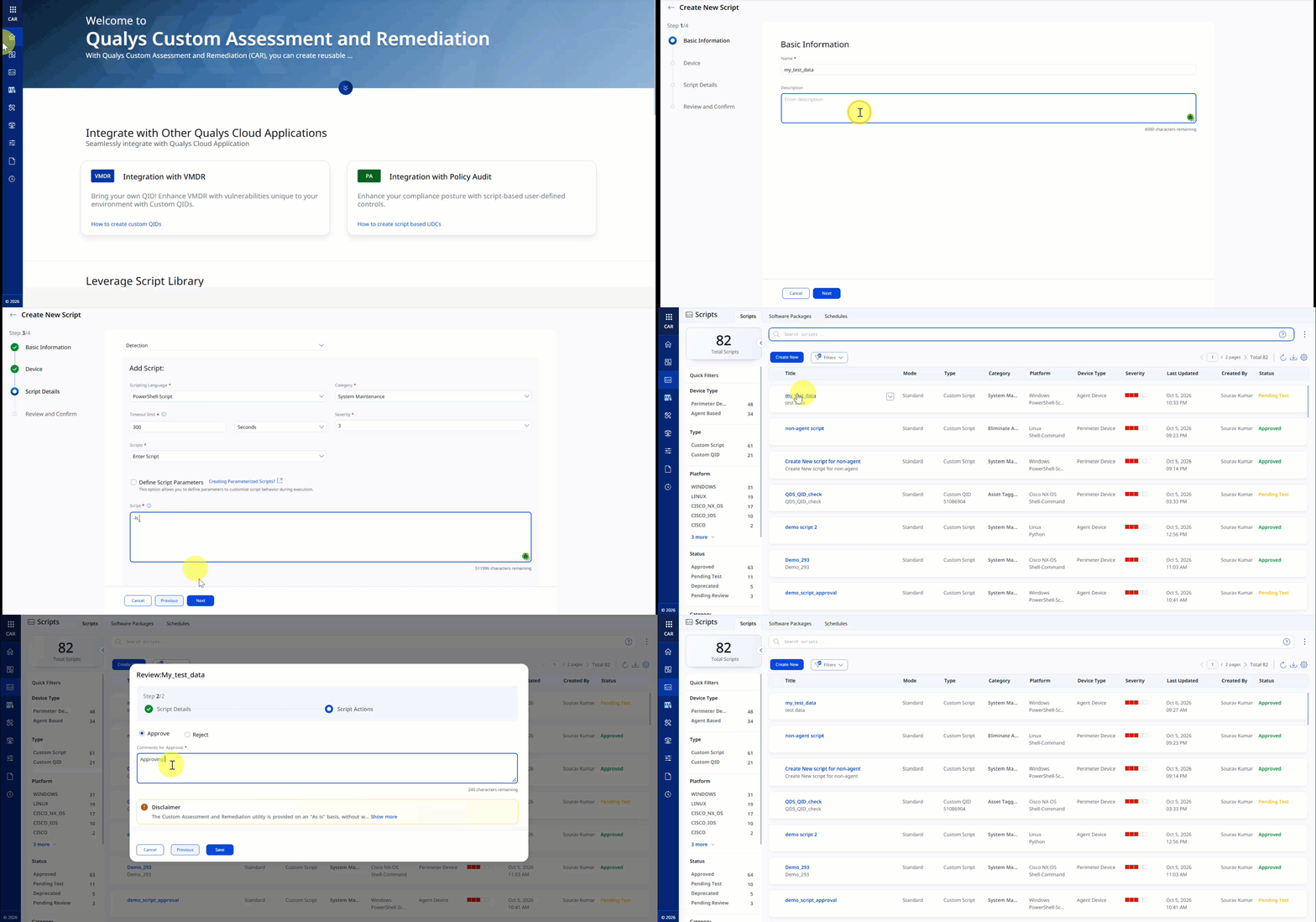
You can now enable an independent, second-level approval workflow before approving a script or software package. Users cannot approve their own scripts or packages, even if they have approval permission. Another user with approval permission must review and approve them before they can be scheduled or executed.
Key Benefits
- Supports an independent review before approval.
- Reduces the risk of unreviewed changes running in your environment.
- Supports compliance and audit requirements.
- Improves accountability.
Turn On Secondary Approval Workflow
To access this feature, navigate to the Configuration > Setup tab and then turn on Secondary Approval Workflow.
Enabling the Secondary Approval Workflow immediately deactivates schedules for all currently approved scripts and packages. Before enabling this setting, review your approved scripts or packages.
After enabling the workflow, create the required script or package. The created script or package is placed in the Pending Test state and must be approved before execution. The user who creates the script or package may reject it; however, approval must be performed by a different user with the appropriate approval permission.
You can approve your script when the Secondary Approval Workflow is turned off.
If you modify an approved script or package, CAR returns it to the Pending Test state. Another authorized user must review and approve it again. CAR automatically deactivates any active schedules associated with the script or package. After another authorized user approves the script or package, you must manually reactivate the schedules.
The Secondary Approval Workflow setting is visible only to users with the required permission. Contact your Technical Account Manager (TAM) and, if required, assign this permission to your role.
When you turn off the Secondary Approval Workflow, future scripts and packages no longer require secondary approval. Existing script, package, and schedule statuses remain unchanged.
For more information, refer to Configuration.
New Feature
Find Scripts by Describing Your Task
What's New for You
You can find scripts on the Library home page by typing a plain-language description of the action you want to perform, with no need to know the script name or QQL fields.
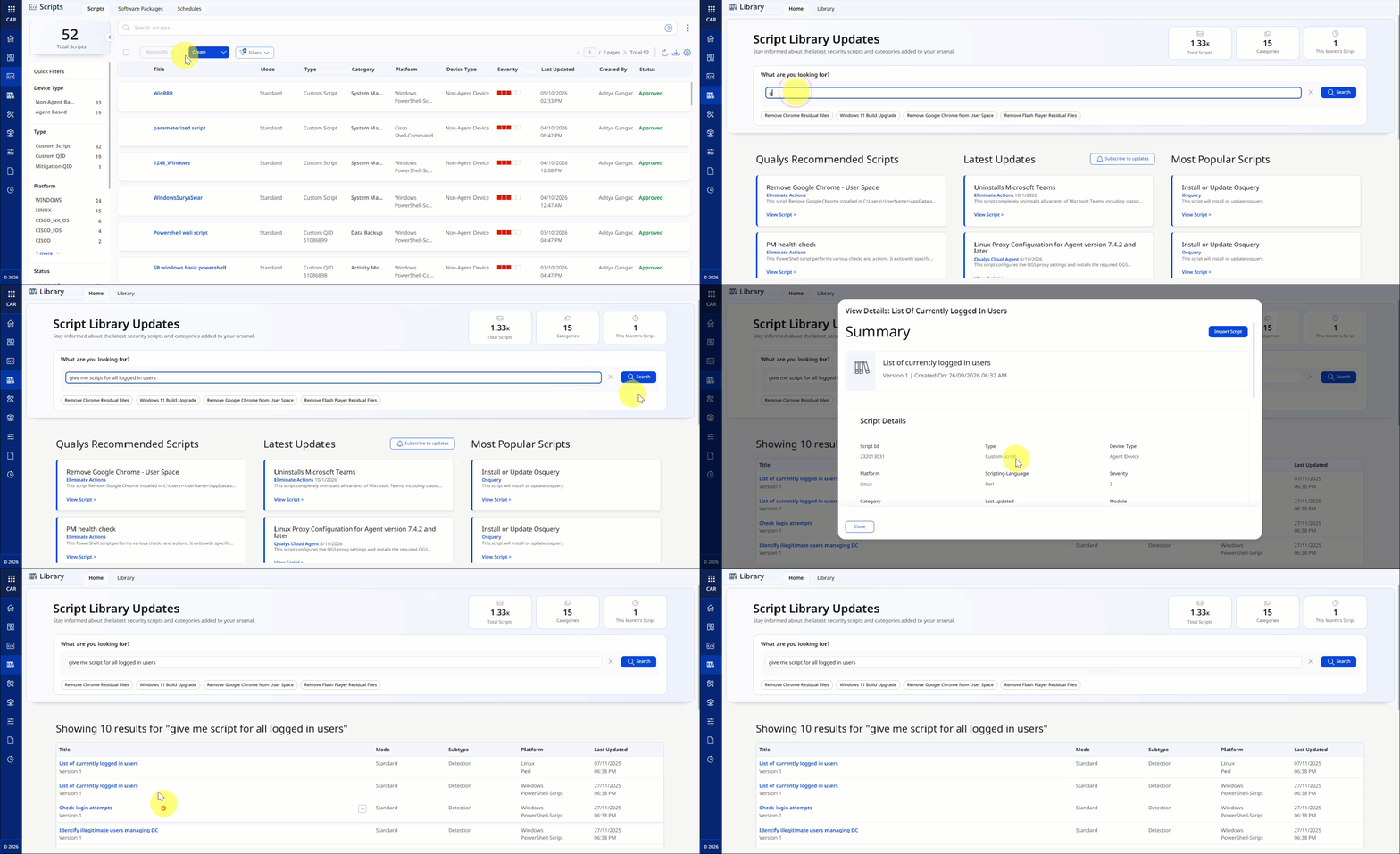
This semantic search returns scripts that closely match your request's intent, even if you do not know the script name or the required QQL fields.
To find a script with semantic search, go to Library > Home. In the What are you looking for? field, type the action you want to perform.
For example, type Give me a script that lists all users then select Search. In the search results, open a script to review its details or select Import to use it.
For more information, refer to Scripts Library.
Token
New QQL Tokens
The following table provides the new QQL token added in this release:
| Token | Tab | Description |
|---|---|---|
| script.deviceType | Scripts, Jobs | Use this token to filter scripts and jobs by type: agent-based or non-agent-based or all.
Example: |
API Enhancements
For information on API enhancements, refer to the Custom Assessment and Remediation 2.9.3 API Release Notes.