View PQC Support Details
Post-quantum cryptography (PQC) refers to cryptographic algorithms designed to remain secure against attacks by quantum computers. The PQC replaces the public-key algorithms with new mathematical methods that are secure against attacks from quantum computers.
Once your host sites are resolved and scanned, the listed certificates display the PQC support status on the Monitored tab. You can also view the PQC-supported certificates on the Assets tab under the Assets and Host Instances tabs.
Prerequisites
You must include QID 38994 in your option profile for PQC support, as this QID reports whether the server supports the PQC key exchange algorithm.
PQC Supported Status
The PQC SUPPORT column indicates whether a certificate supports PQC key exchange algorithms, based on the scan results and the scan source used. The PQC-supported scan sources include VM, Certificate View, WAS, EASM, and VM_AUTH scans.
The following statuses are displayed on the PQC SUPPORT column:
| Status | Status Icon | Description |
|---|---|---|
| Supported |  |
At least one PQC-supported key exchange algorithm was detected for the certificate. This indicates that the certificate supports post-cryptography based on the detected configuration. |
| Not Supported |  |
The scan source supports PQC detection, but no PQC-supported key exchange algorithms were detected for the certificate. This indicates that the certificate does not currently support post‑quantum cryptography. |
| Not Applicable |  |
PQC status is not available because the certificate was manually imported or the scan source used does not support PQC detection, such as agent‑based scans. As a result, the certificate cannot be evaluated for PQC support. |
| Partial Support |  |
Only some of the instances associated with the certificate use PQC‑supported key exchange algorithms. This indicates that the certificate supports post‑quantum cryptography in some deployments but not all. |
View PQC-supported Certificates on the Monitored tab
You can view details such as the organization name, PQC support status, issuer information, PQC-supported algorithms used, host instances, and certificate paths for certificates discovered on your assets.
To view the details, go to the Certificates tab > Monitored.
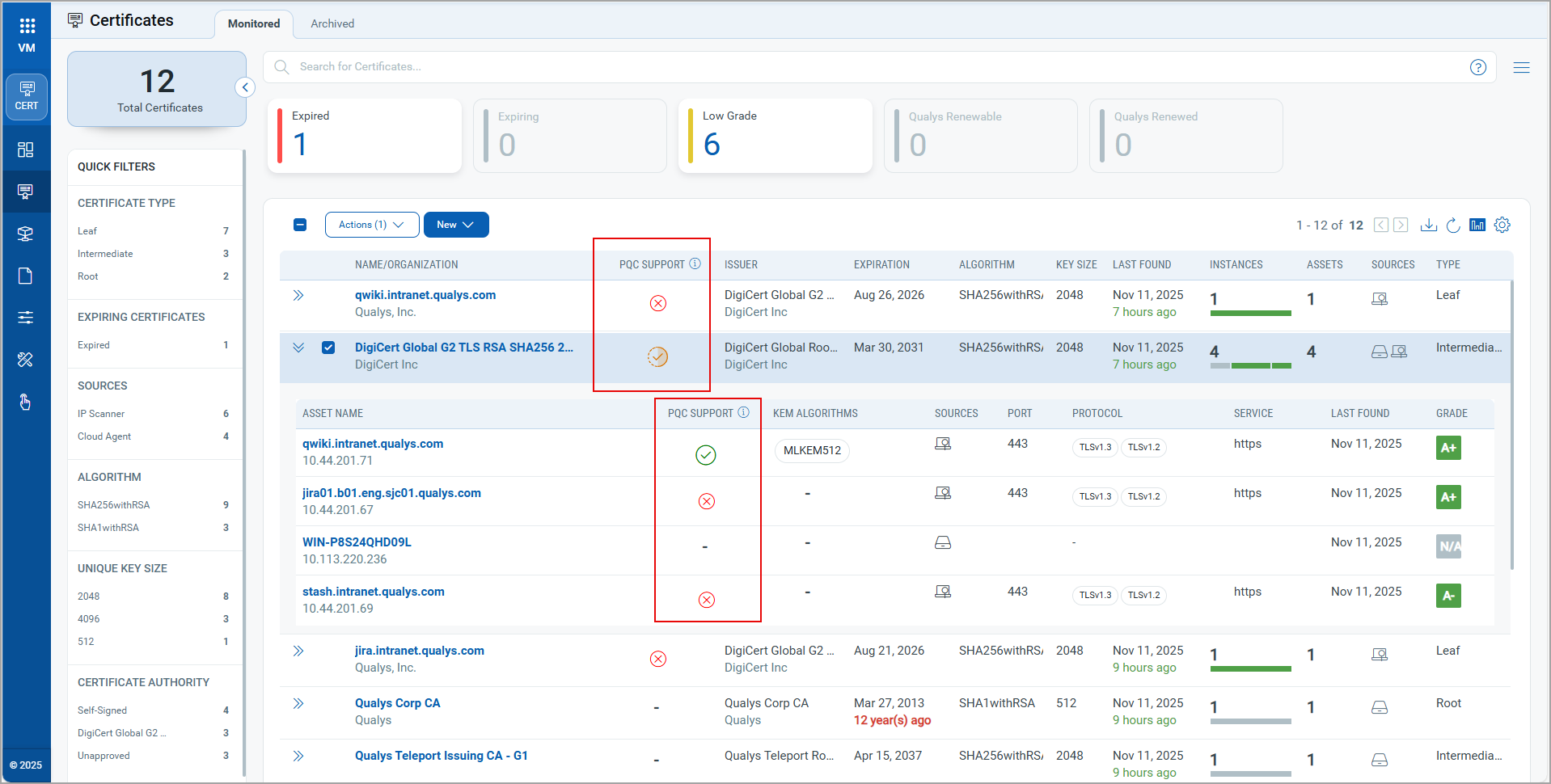
The PQC support status is displayed for each certificate.
The listed certificates indicate the statutes, specifying whether they are PQC-supported, unsupported, partially supported, not applicable, or support available for zero instances. With this, you can ensure the security of the data for the enlisted certificates.
Additionally, you can expand  option to view the listed assets under that particular certificate. If a certificate has more than five associated assets, you can click View All to navigate to the Assets tab and access the complete details.
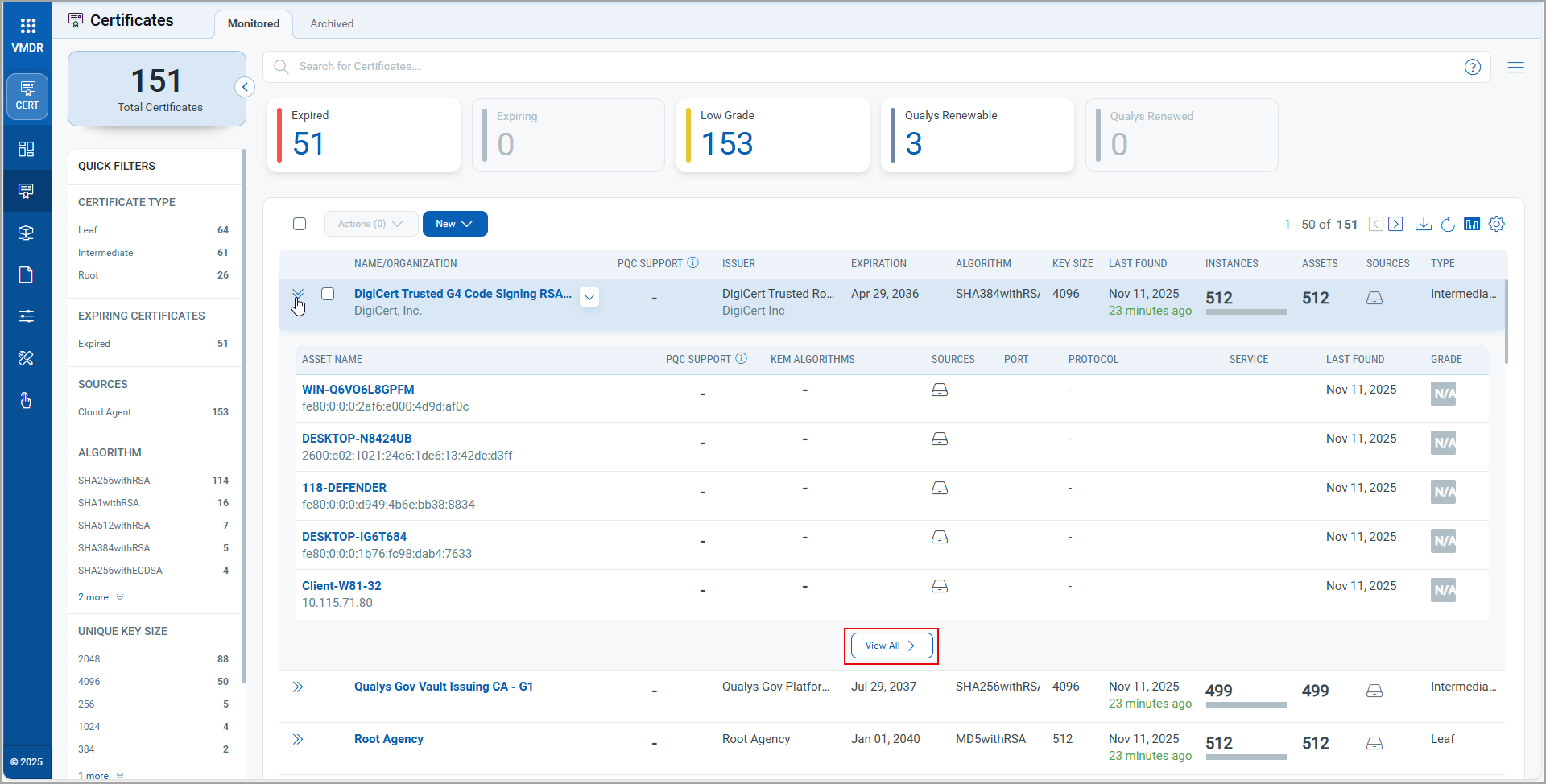
Similarly, you can view the details on the Assets tab under Assets and on the Host Instances tabs.
View PQC-supported Assets on the Assets tab
You can view details such as the asset name, PQC support status, supported OS, PQC-supported algorithms used, host instances, grades, and certificate paths for certificates discovered on your assets.
To view the details, go to the Assets tab > Assets.
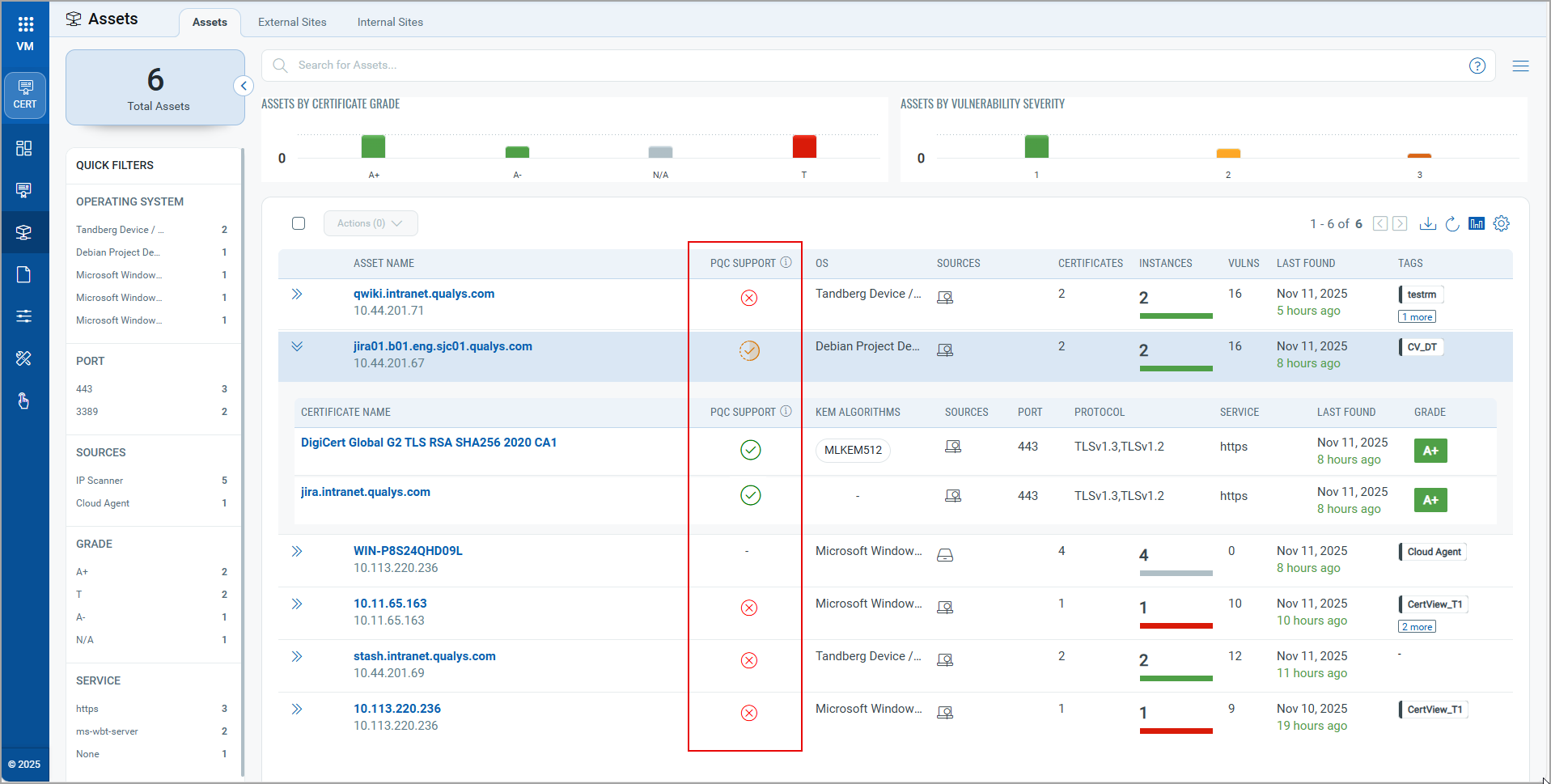
The PQC support status is displayed for each asset.
View PQC-supported Assets on the Host Instances tab
You can view details such as the asset name, PQC support status, PQC-supported algorithms used, host instances, grades, and certificate paths for certificates discovered on your assets.
To view details, go to Certificates tab > Monitored tab. Click View Details in the Quick Actions menu for the selected certificate, then click Hosts.
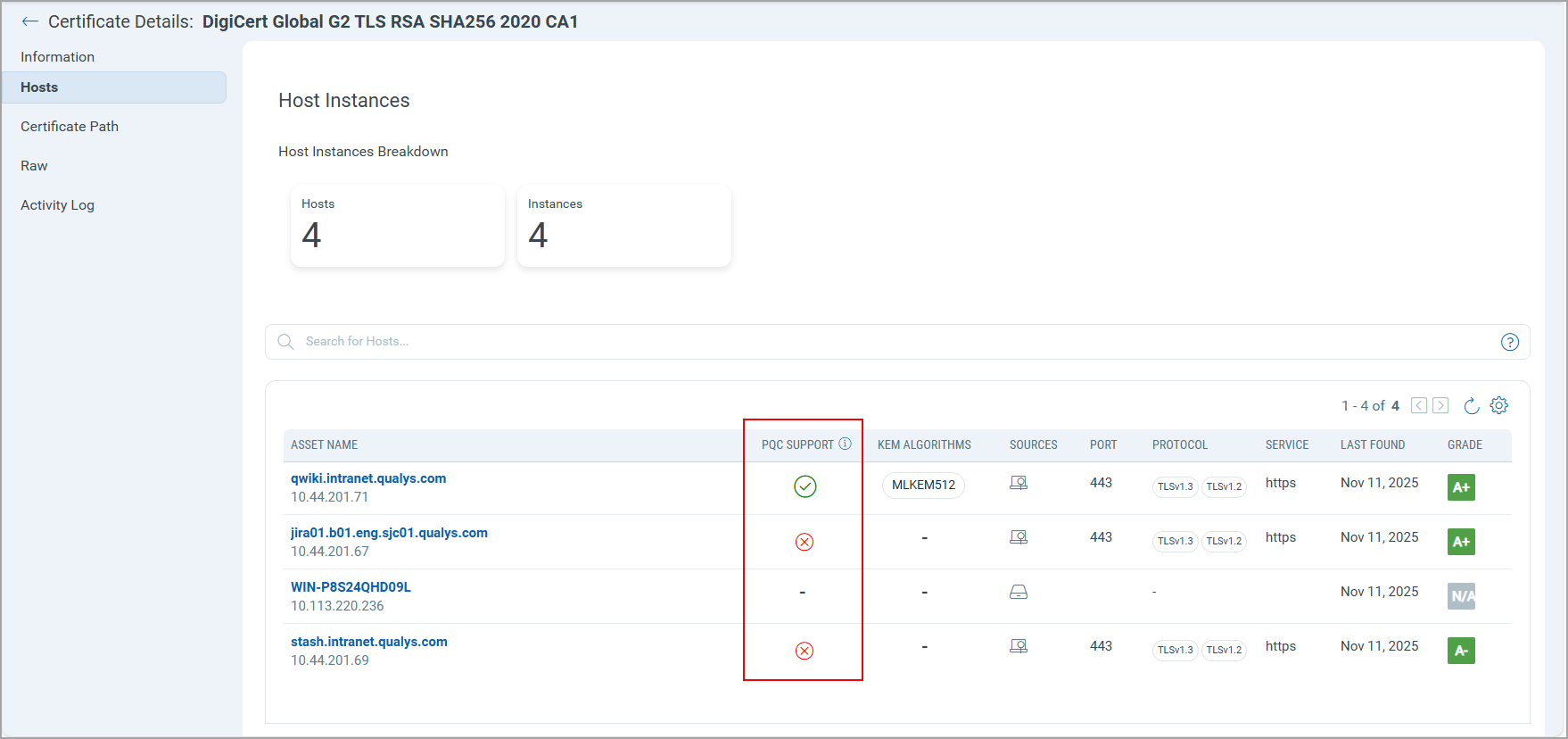
The PQC support status is displayed for each asset.
View Multiple PQC-supported KEM Algorithms on the Certificates and Assets tabs
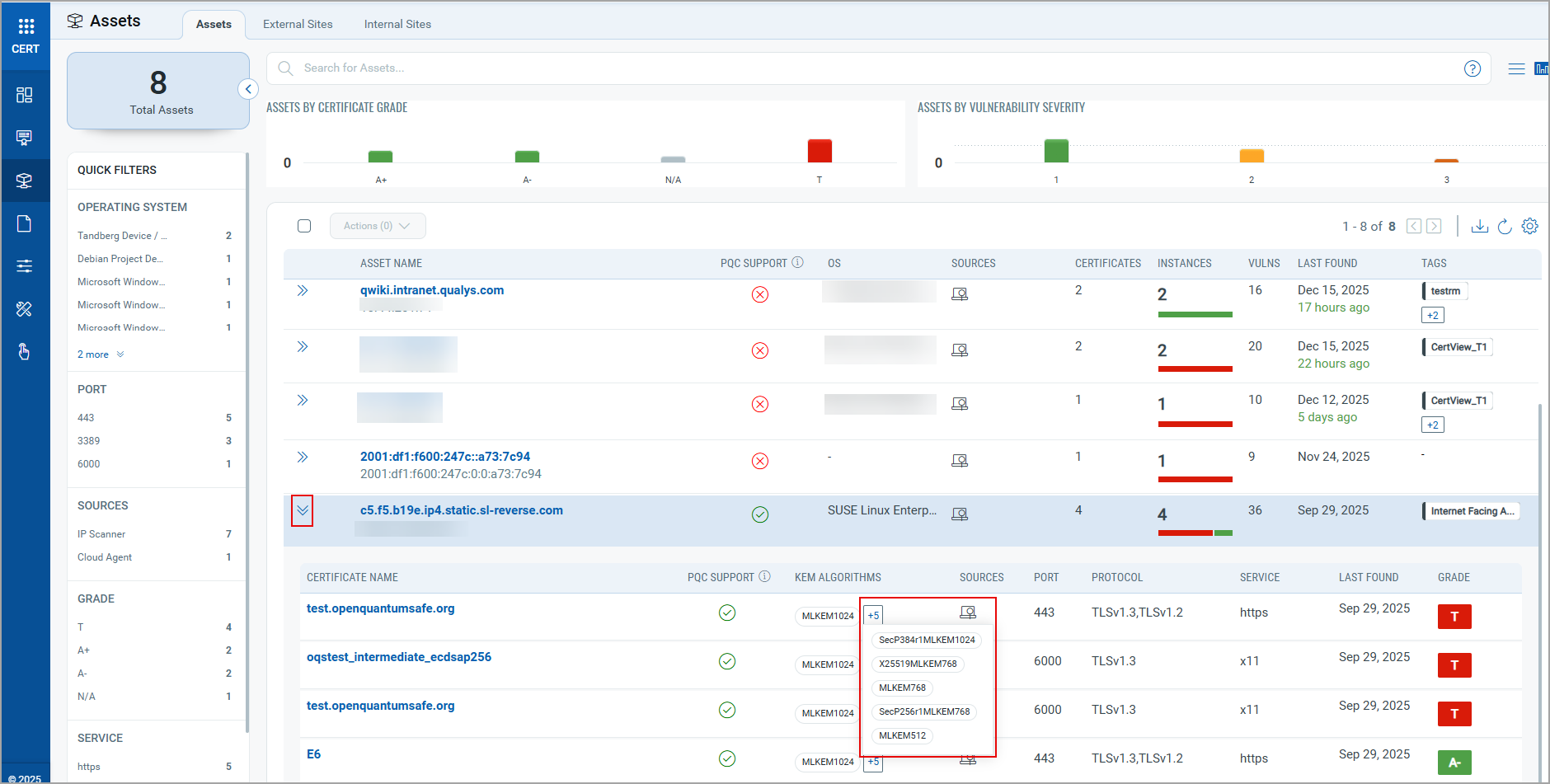
You can view multiple PQC-supported Key Encapsulation Mechanism (KEM) algorithms linked to the certificates and assets on the Assets and Certificates tabs.
To view the functionality, go to the Certificates tab > Monitored sub tab, and click  icon to view associated assets. Click the plus icon in the KEM algorithm column to view the list of all the KEM algorithms for the associated asset.
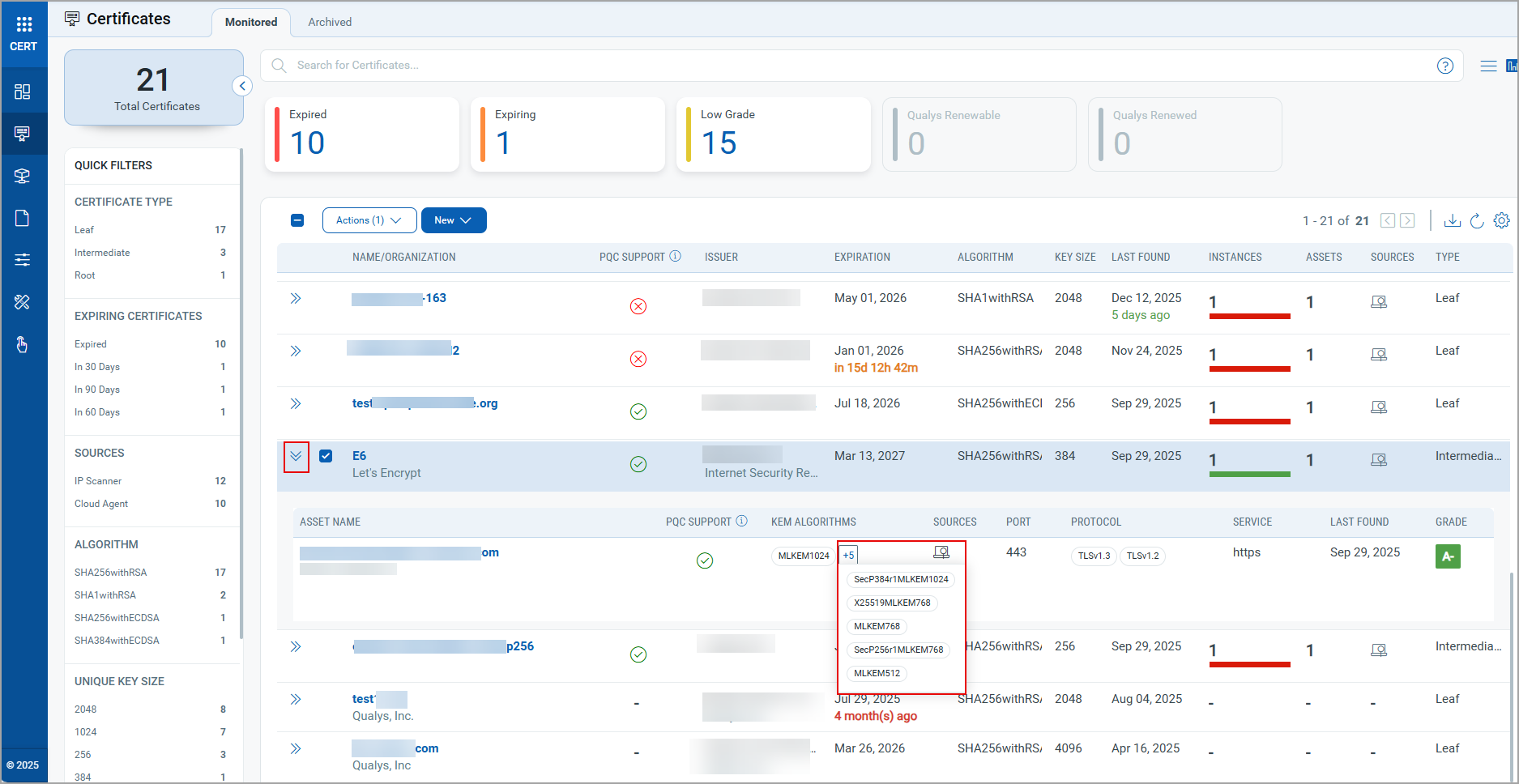
Similarly, you can view this functionality in the Assets Tab.
To view the functionality, go to the Assets tab > Assets subtab, then click icon to view associated certificates. Click the plus icon in the KEM algorithm column to view the list of all the KEM algorithms for the associated certificate.
View PQC-Supported Cipher Suites
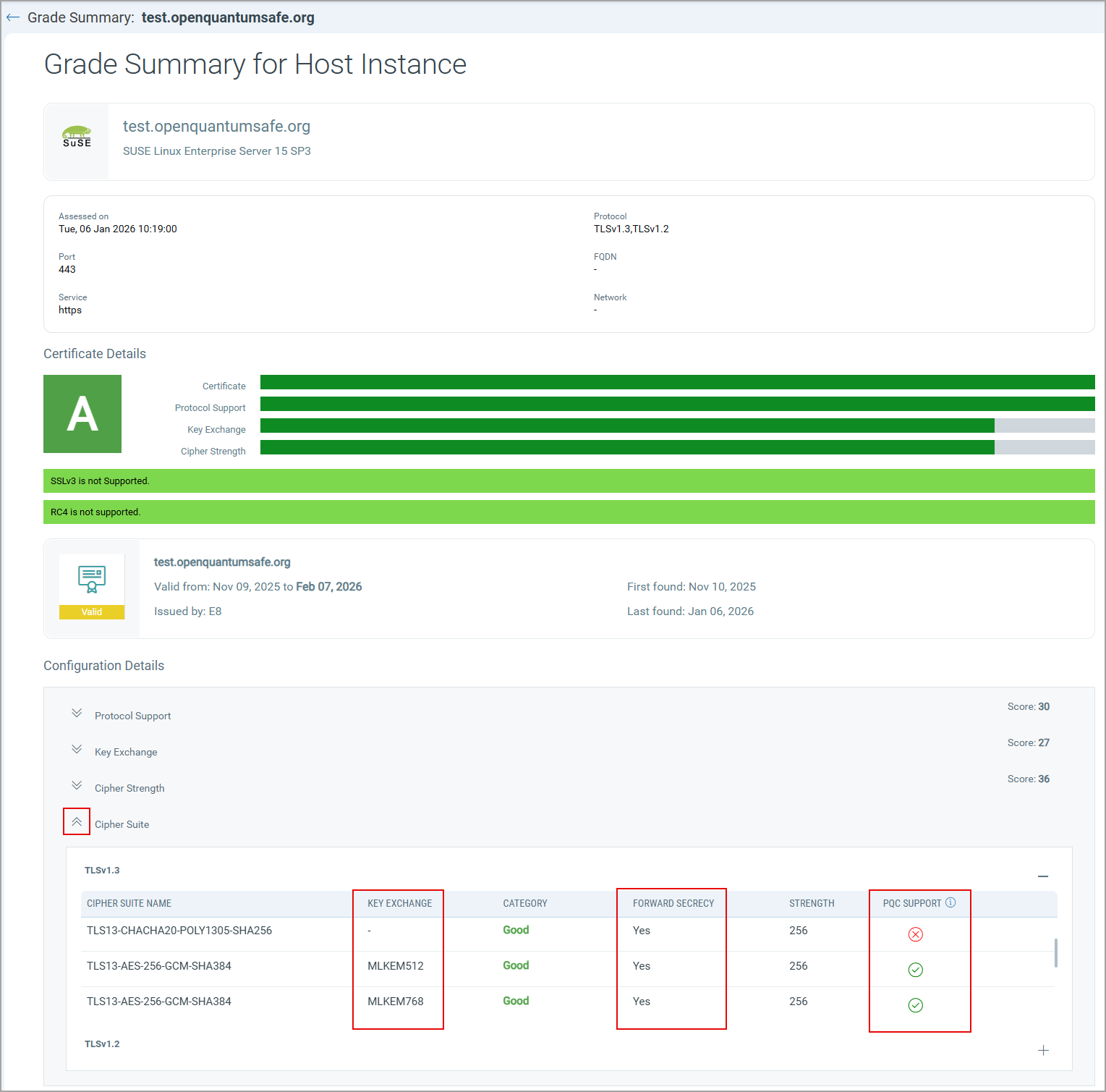
You can view the PQC support for Certificates and Assets tabs at a granular level for each cipher suite.
To view the details under the Certificates tab, go to the Certificates tab > Monitored sub tab, and click icon of a certificate to view the associated assets. Click the Grade icon to access the grade summary. Under the grade summary, expand the Cipher Suite option to view the Cipher Suite details.
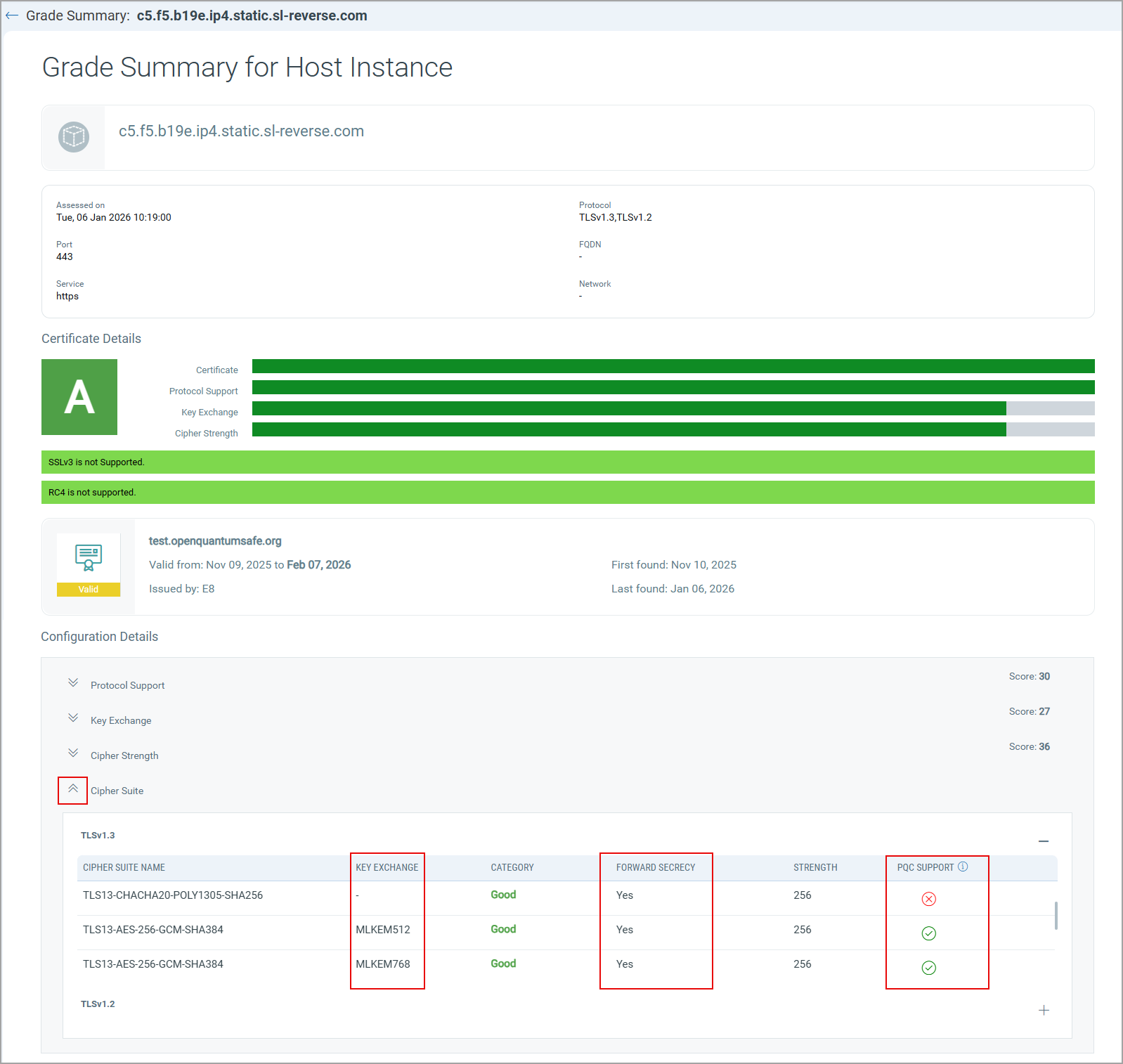
Here, in the Cipher Suite details, you can view the supported Key Exchange Algorithms, and PQC Support, indicating whether the cipher suite is PQC-supported (true or false), along with the other details such as Cipher Suite Name, Category, Strength, and Forward Secrecy support for each cipher suite (Yes or No), indicating whether the Cipher Suite provides forward secrecy, ensuring the session keys remain secure even if the private key is exposed.
Similarly, you can view the Cipher Suite details in the Assets tab.
Go to Assets tab > Assets sub tab, click icon to view associated certificates. Click the Grade icon to access the summary. Under the grade summary, expand the Cipher Suite option to view the Cipher Suite details.
View PQC Asset Readiness Widget
You can view PQC Asset Readiness widget to visualize the quantum readiness of your assets directly from the Certificate View dashboard. This widget provides a summarized, color-coded view of asset configurations based on their TLS version 1.3 and PQC support, helping you quickly assess overall readiness.

The widget categorizes assets into the following states:
- Quantum-Safe Ready (Green): Indicates assets that support PQC requirements.
- Not Quantum-Safe (Red): Indicates assets that do not support PQC requirements.
- TLS 1.3 Enabled (No PQC) (Yellow): Indicates assets using the TLS 1.3 configurations but without PQC support.
- TLS 1.3 Enabled (Blue): Indicates assets using TLS 1.3 configurations only.
- Legacy TLS Detected (Orange): Indicates assets using older TLS versions requiring upgrade.
The widget shows both Internal and External assets. You can choose which group of assets you prefer using the radio buttons.
To add the PQC widget to the dashboard layout, click  icon to view the list of dashboard widgets. Search for Post-Quantum Cryptography (PQC) Asset Readiness widget in the search bar, and click Add to Dashboard to include the widget in your dashboard.