Certificate View Release 4.6
September 22, 2025
Improved Certificate List UI to Show Instance Data for Certificates
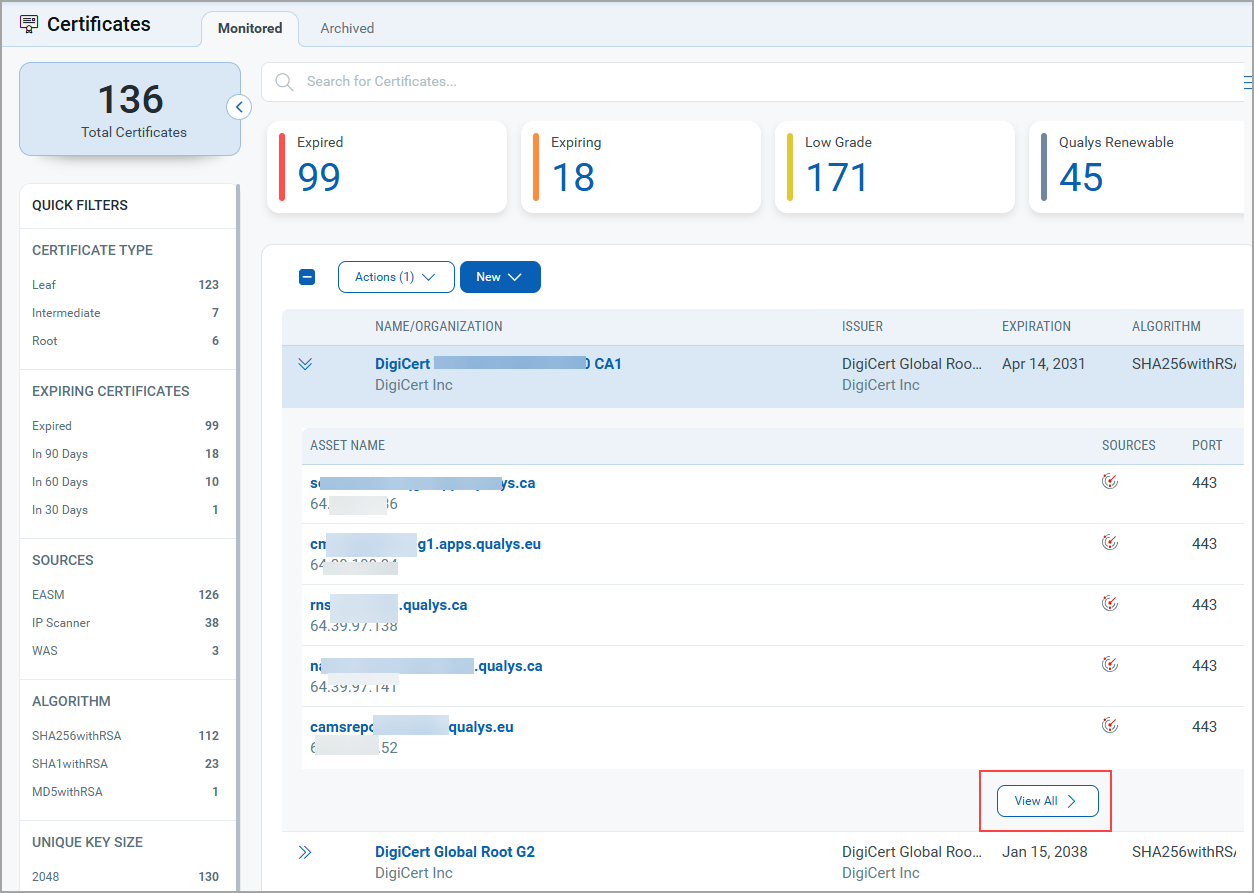
With this release, we have improved the user experience by making it easier to view asset details linked to a certificate. Now, you can view associated assets at a glance by clicking  present in front of list. If a certificate has more than five associated assets, you can click View All to navigate to the Assets tab and access the complete details.
Enhanced User Interface for Direct Navigation to Certificate Grade Summaries
With this release, the user interface has been enhanced to provide a smoother and more intuitive experience by enabling direct navigation to Grade Summary Details through the grade icon.
This enhancement is particularly important as you can quickly assess certificate health and security posture across hosts. By reducing the number of clicks and simplifying access to grading insights it helps:
- Improve visibility into certificate performance at the host level
- Support faster decision-making for remediation actions
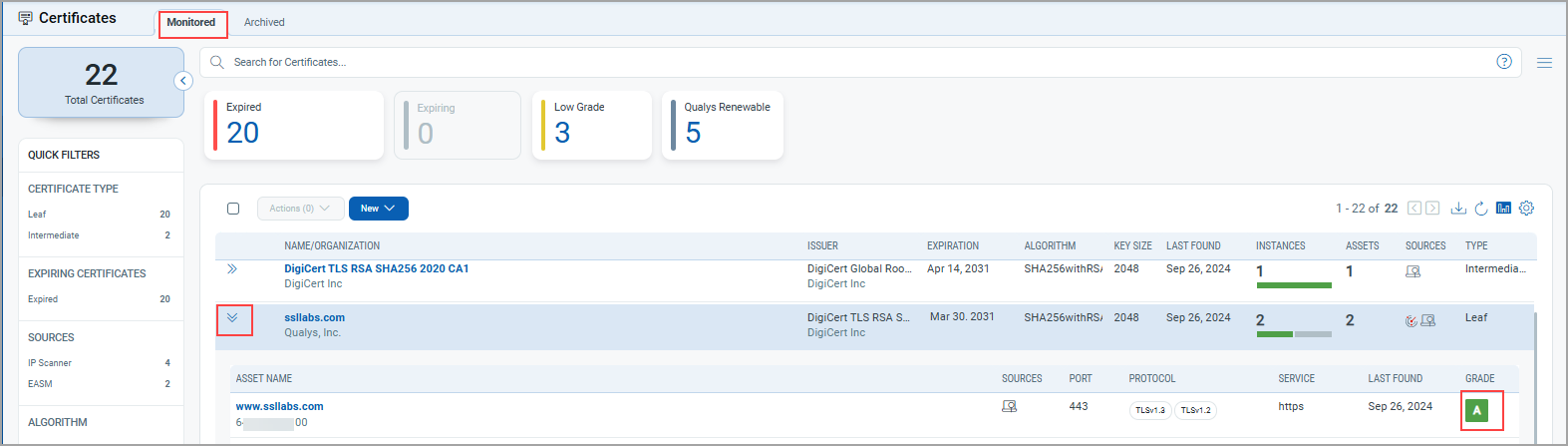
To view this functionality, go to the Certificates tab > Monitored tab, click icon. You can view associated assets at a glance by clicking present in front of list. Click the Grade icon to access the summary. Previously, to view the grade summary details, you would have to go to the Certificate Details page and then, in the sub-tabs, you could view the grade summary.
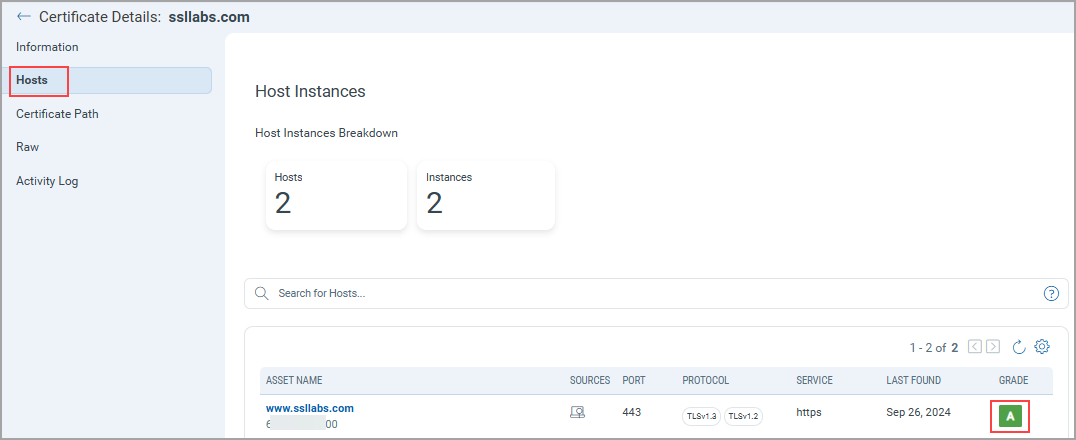
Additionally, you can view this functionality in Certificate Details and Assets Details page.
Go to the Certificates tab > Monitored tab > click View Details for the certificate. To view the grade summary, navigate to the Hosts tab from the Certificate Details page and click the Grade icon. Previously, there was a link in a separate column to access the grade summary details; now, we have made the Grade icon clickable for easier access.
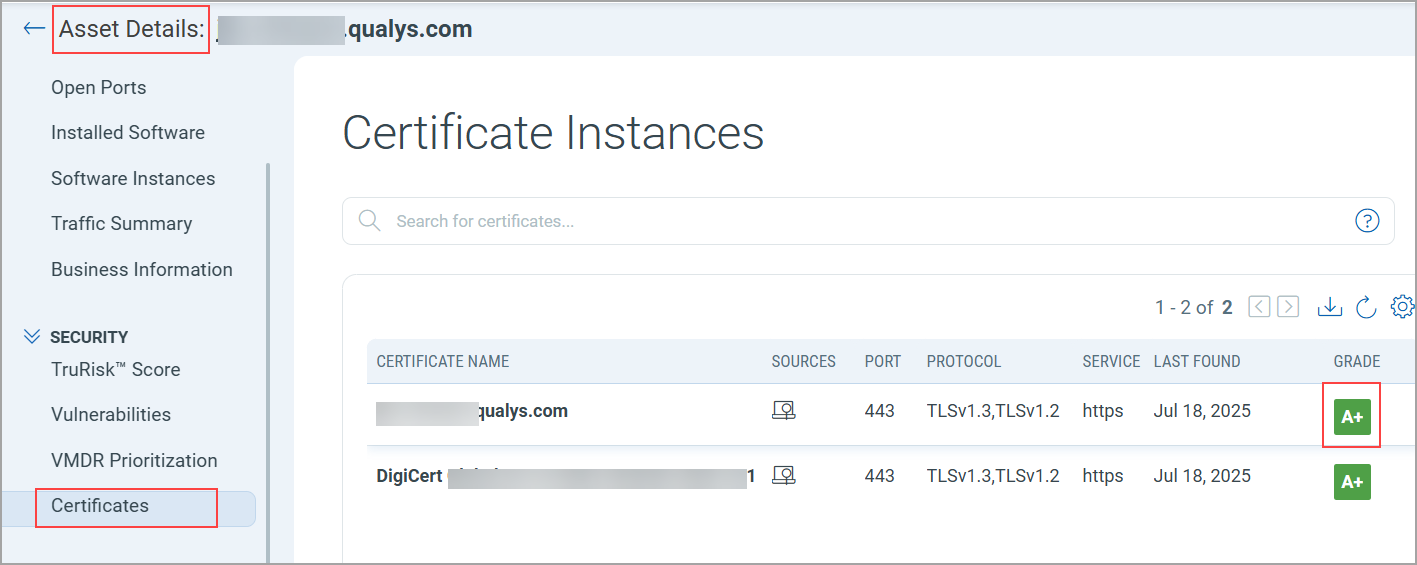
Go to the Assets tab and click View Details for the asset. Then, from the Asset Details page, navigate to the Certificates tab and click the Grade icon to access the summary. Previously, there was a link in a separate column to access the grade summary details; now, we have made the Grade icon clickable for easier access.
API Features and Enhancements
With this release, the List CertView Certificates (v2) API now supports the NOT_EQUALS operator for the asset.tagName filter. For details, refer to Certificate View Release 4.6 API release notes.
Issues Addressed
The following reported and notable customer issues are fixed in this release:
| Category/Component | Description |
|---|---|
| Alerting | Fixed an issue where the Certificate View alert rule Certificate expiring within 30 days generated over 100 duplicate alert emails for a single certificate. This occurred because non- Certificate View events were incorrectly processed by the rule. We have optimized the alert logic to improve scalability and maintainability. The Certificate View module alert rule now directly generates matched events for the notification service, resulting in enhanced performance and more efficient alert processing. |
| Data Discrepancy | Fixed an issue where the leaf certificate imported by the user was incorrectly linked to an expired Root CA certificate, despite a valid version of the Root CA already being present in the inventory. The logic has now been improved to ensure that leaf certificates are correctly linked to valid root certificates, not expired ones. |
| Documentation | Updated the product documentation to assist users in integrating alert notifications with Microsoft Teams channels using the Post to Teams Channel feature. The enhanced guide provides step-by-step instructions, configuration details, and best practices to streamline the setup process, enabling users to receive real-time alerts directly in Microsoft Teams environment. |