Sensitive Data
The Sensitive Data tab in Investigate highlights exposed secrets, such as access keys, credentials, tokens, and certificates, found within your AWS EC2 instances, Azure VMs, and GCP instances. It also detects secrets like embedded keys and credentials during container image scans, letting you identify and address these risks without leaving the Investigate workspace.
Cloud resources and container images are covered together in one place, so nothing falls between the cracks. Severity, at-risk accounts and clusters, and a 7-day trend are summarized up front so you know where to look first, and you can open any finding for full context, down to the raw detection payload, without losing your place in the list.
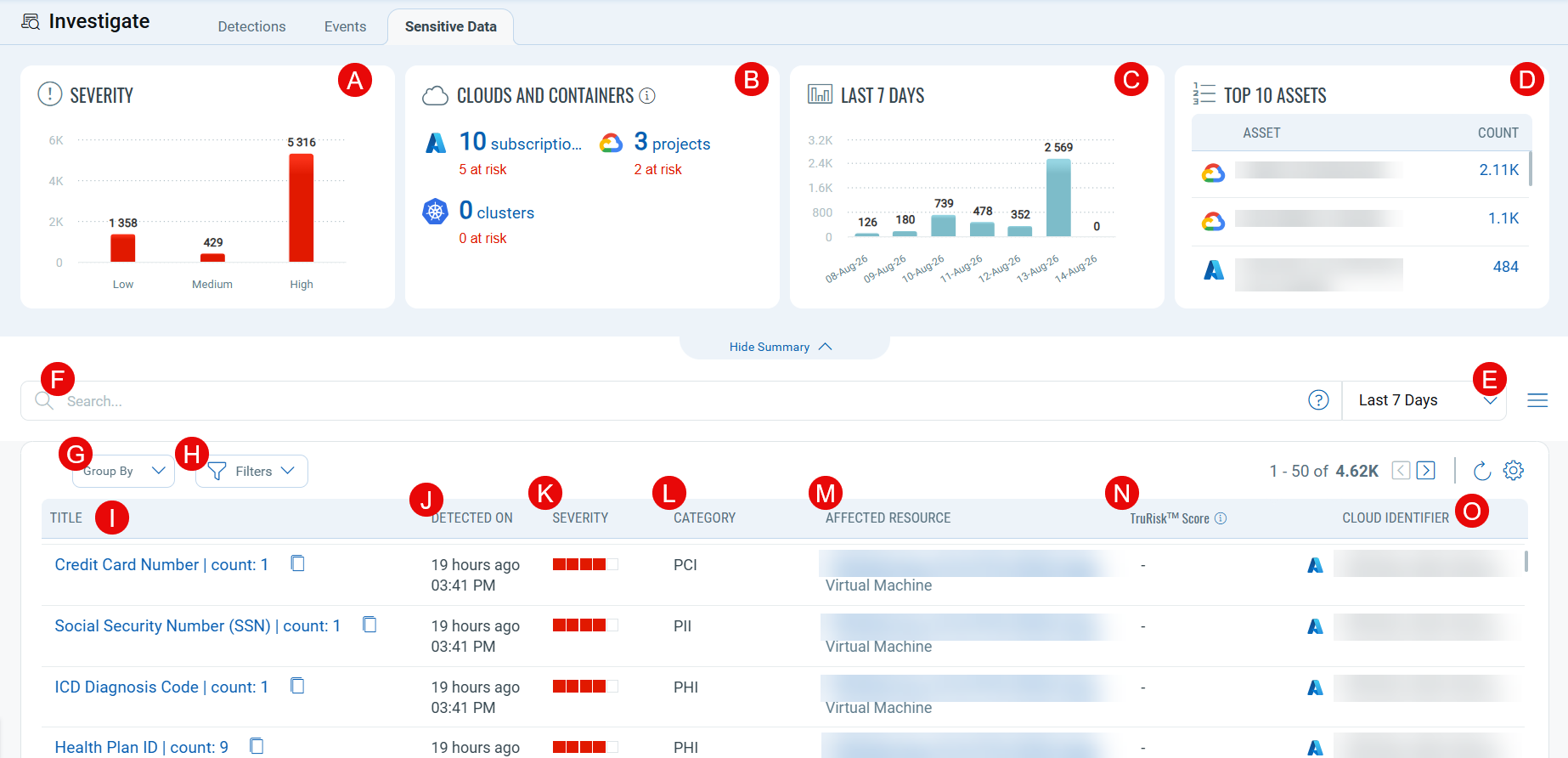
The Sensitive Data tab consists of the following components:
Summary Cards
The dashboard header contains four key metric cards:
- SEVERITY: Shows the severity distribution (Low, Medium, High) of sensitive data findings, for quick insight into critical issues.
- CLOUDS AND CONTAINERS: Shows the number of AWS/Azure/GCP accounts, subscriptions, or projects, and the number of clusters scanned, along with how many of each are at risk.
- LAST 7 DAYS: Presents a daily trend of sensitive data detections over the last 7 days, enabling trend analysis and pattern recognition.
- TOP 10 ASSETS: Lists the assets with the most sensitive data findings, so you can prioritize which resources to remediate first.
Data List
On the main data list screen, you can find multiple columns that present sensitive data findings collected from your cloud resources and container images.
The available columns are:
- Duration: The duration for which you would like to see the Sensitive Data findings. Example:
Today, Last 24 Hr, Last 7 Days, Last 30 Days - Search for Sensitive Data findings: Use QQL tokens to search for specific findings, or filter results based on a specific search criterion. Looking for help with writing your query? click here.
- Group By: Groups the findings list by a selected attribute, such as category or cloud provider.
- Filters: Lets you filter the sensitive data findings by attributes such as category, severity, and resource type.
- TITLE: The type of sensitive data detected (for example, Credit Card Number, Social Security Number (SSN), ICD Diagnosis Code, or Health Plan ID), along with the number of occurrences found. Use the copy icon to copy the finding.
- DETECTED ON: Shows the precise date and time when the sensitive data was detected.
- SEVERITY: Shows the severity level associated with the finding.
- CATEGORY: Shows the classification of the sensitive data found, such as PCI, PII, or PHI.
- AFFECTED RESOURCE: Shows the resource on which the sensitive data was found, for example, a Virtual Machine.
- TruRisk™ Score: Shows the TruRisk score associated with the affected resource.
- CLOUD IDENTIFIER: Shows the cloud provider and identifier of the resource on which the finding was detected.