Cloud Configuration
Investigate Cloud Configurations is a metadata-driven query interface that enables security teams to search, filter, and analyze cloud resources across AWS and Azure environments. Whether you need to assess resource properties, evaluate networking configurations, review identity assignments, or verify compliance-related attributes, this feature puts actionable insight directly at your fingertips.
No scripting. No CLI commands. No external tools required.
At its core, the feature supports two query approaches:
- No-code query builder: Build complex queries using a guided, point-and-click interface, removing the need for scripting or SQL expertise.
- JPQL (JSON Path Query Language): A SQL-like query language for users who prefer direct, expressive query syntax. Refer to Investigating cloud metadata with JPQL for information on how to frame a JSON query.
Investigate Cloud Configurations is currently available in BETA for AWS and Azure environments. To request access, contact your Technical Account Manager (TAM) or Qualys Technical Support.
Key Features and Benefits
Metadata-Driven Search Filter cloud resources by properties, tags, identities, networking configurations, and compliance-related attributes, giving your security team a comprehensive view of your cloud environment.
- No-Code Query Builder: Construct powerful queries without writing a single line of code. The builder accelerates workflows for security practitioners at any experience level.
- JPQL Query Support: For teams that prefer a structured query approach, JPQL offers a SQL-like syntax to query cloud resource data with precision.
- JSON Viewer: Inspect detailed resource metadata inline, without navigating to external tools or consoles.
- Build Control: Convert any validated query into a reusable custom security control for continuous monitoring, turning one-time investigations into scalable compliance workflows.
- Multi-Cloud Support: Query and analyze resources across AWS and Azure from a single, unified interface.
Navigating to Investigate Cloud Configurations
To access the feature:
- Log in to the Qualys Enterprise TruRisk™ Platform.
- Navigate to TotalCloud in the main navigation menu.
- Select the Investigate tab.
- Click Cloud Configuration from the available options.
You will land on the Cloud Configuration query interface, where you can begin building and running queries immediately.
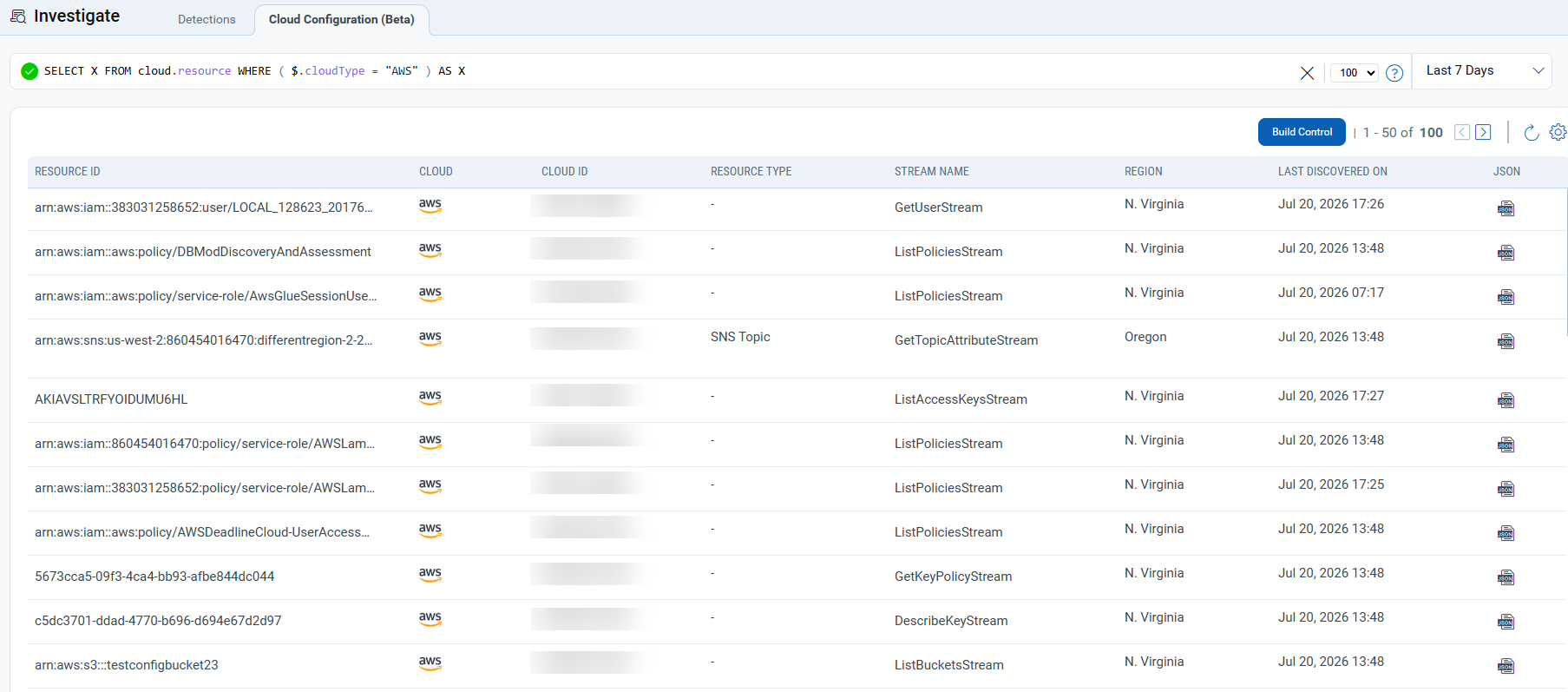
Getting Started: Using the Query Interface
Step 1: Enter a Query
In the query bar at the top of the page, enter a JPQL query to filter your cloud resources. Refer to Investigating cloud metadata with JPQL for information on how to frame a JSON query.
You can use the following syntax as a starting point:
SELECT X FROM cloud.resource WHERE ( $.cloudType = "AWS" ) AS X
This query retrieves all AWS resources from your connected cloud environment. Modify the WHERE clause to filter by additional attributes, such as resource type, region, tags, or compliance status.
Step 2: Use the No-Code Query Builder
If you prefer a guided approach:
- Select the attributes you want to filter by using the available drop-down menus and input fields.
- The builder will automatically generate the corresponding JPQL query.
- Review the generated query in the query bar before running it.
This approach is ideal for building complex, multi-condition queries without requiring SQL or scripting expertise.
Step 3: Review Your Results
Once you run a query, results appear in the resource table below the query bar. The table includes the following columns:
| Column | Description |
|---|---|
| Resource ID | The unique identifier for the cloud resource |
| Cloud | The cloud provider (AWS or Azure) |
| Cloud ID | The provider-specific resource identifier |
| Resource Type | The category or service type of the resource |
| Stream Name | The associated data stream for the resource |
| Region | The geographic region where the resource is deployed |
| Last Discovered On | The date and time the resource was last scanned |
| JSON | An icon to access the full resource metadata |
Step 4: Inspect Resource Metadata with the JSON Viewer
To inspect the full metadata for any resource:
- Locate the desired resource row in the results table.
- Click the JSON icon in the JSON column of that row.
- The JSON Viewer panel will open, displaying the complete metadata object for the selected resource.
Use the JSON Viewer to verify configuration details, review property values, and identify potential misconfigurations or policy violations.
Step 5: Convert a Query Into a Custom Security Control
Once you have validated a query and confirmed it returns the correct results:
- Click the Build Control button located above or within the query interface.
- Follow the prompts to name and configure your custom security control.
- Save the control to activate it for continuous monitoring across your cloud environment.
Custom controls built from validated queries run automatically, enabling your team to detect configuration drift and maintain compliance without the need for repeated manual effort.
Tips for Getting the Most Out of Cloud Configurations
Start Broad, Then Refine
Begin with a high-level query to retrieve a broad set of resources, then add WHERE conditions to narrow your results. This approach helps you understand the scope of your environment before applying granular filters.
Leverage Tags for Targeted Searches
Use resource tags in your queries to quickly identify assets associated with specific projects, teams, or compliance frameworks.
Save High-Value Queries as Controls
Any query that surfaces a recurring compliance risk or configuration pattern is a strong candidate for conversion into a custom security control. This turns ad hoc investigations into automated, continuous monitoring workflows.
Use the JSON Viewer for Deep Inspection
When a resource is displayed in your results but its table columns do not tell the full story, open the JSON Viewer. The full metadata object often contains configuration details that are not surfaced in the standard table columns.
Combine Filters for Precision
Combine conditions such as cloud type, resource type, region, and compliance attribute in a single query to produce highly targeted results. The no-code query builder makes this straightforward, without having to write complex JPQL manually.