Veracode Dynamic Analysis (DAST) v2 Connector
The Veracode DAST v2 Connector ingests web application assets and dynamic application security testing (DAST) vulnerability findings from Veracode into Qualys Enterprise TruRisk Management (ETM). This enables centralized risk analysis and prioritization of application-level vulnerabilities alongside other enterprise risk sources.
Connector Details
High-level details of the Veracode DAST v2 connector.
| Vendor | Veracode |
| Product Name | Veracode DAST |
| Category | Assets |
| Assets Supported | Web Applications |
| Findings Supported | Web Application Vulnerabilities |
| Version | 1.0.0 |
| Integration Type | API Integration (REST) |
| Direction | Unidirectional (Veracode to Qualys) |
| Delta Support | Not Supported |
Connection Settings
User Roles and Permissions
You must generate Veracode API credentials before configuring the connector.
Reference: Veracode API Credentials Documentation
-
You must generate API credentials before you can use the APIs and some integrations.
If you use single sign-on with SAML, you can use the ID and key credentials instead of having to use a separate Veracode Platform API service account to access the APIs.
You can also generate Veracode API credentials with the Identity API.
To complete this task:
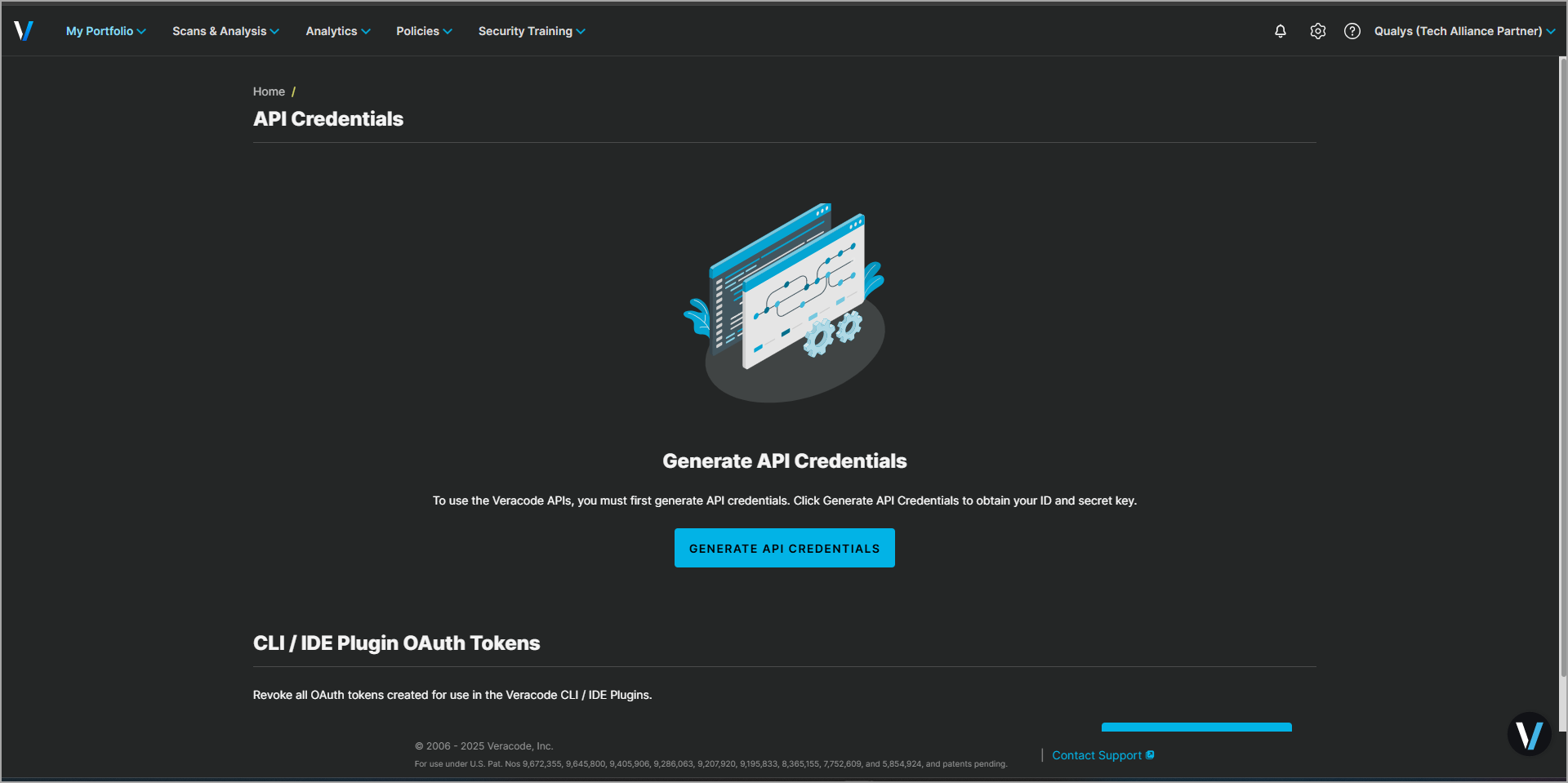
- Sign in to the Veracode Platform.
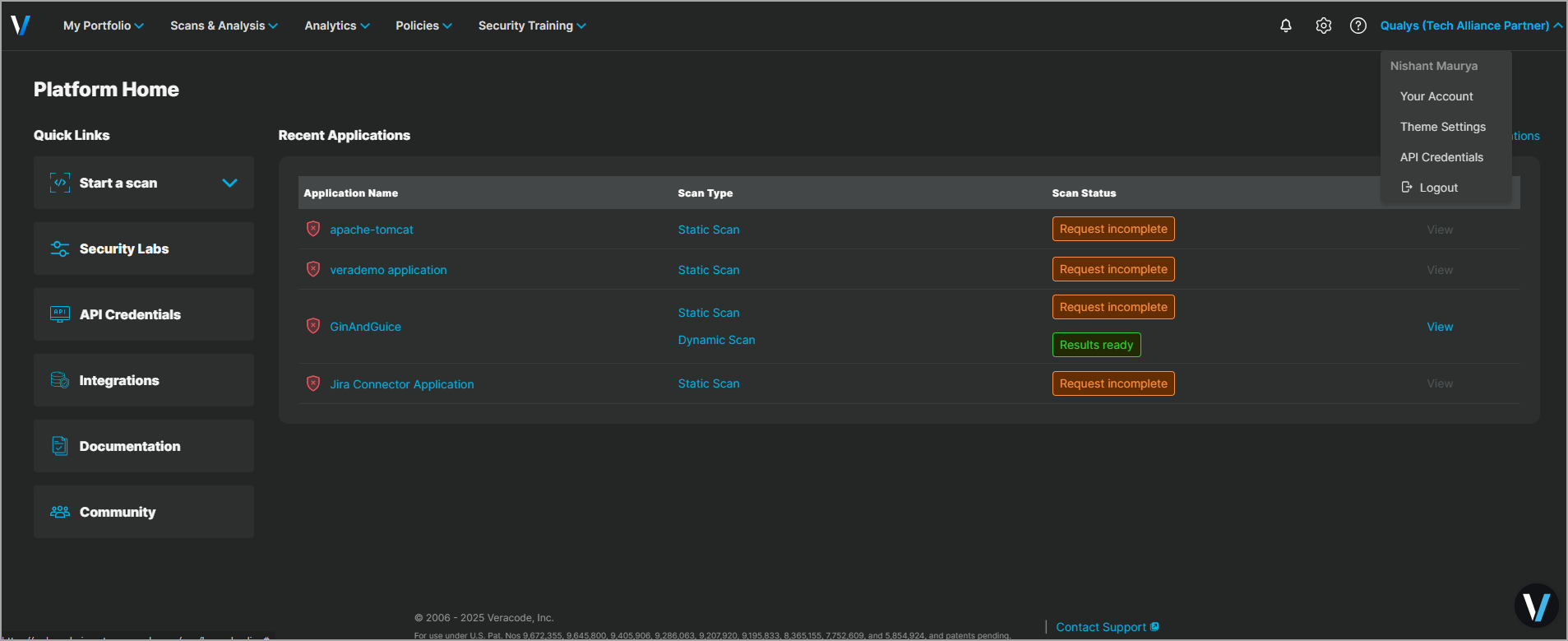
- From the user account dropdown, select API Credentials.
- Select Generate API Credentials.
- Copy the ID and secret key to a secure place.
Required API Permissions
| Entity Type | Permissions |
|---|---|
| Vulnerability Findings | read:vulnerabilities |
Authentication Details
| Name | Key | Type | Description |
|---|---|---|---|
| API ID | api_id |
String | API ID for the Veracode user profile |
| API Key | api_key |
Encrypted String | API key for the Veracode user profile |
Connector Configuration
Basic Details
- Log in to Qualys ETM.
- Navigate to Connectors > Integration.
- Locate Veracode DAST – Connector and click Manage.
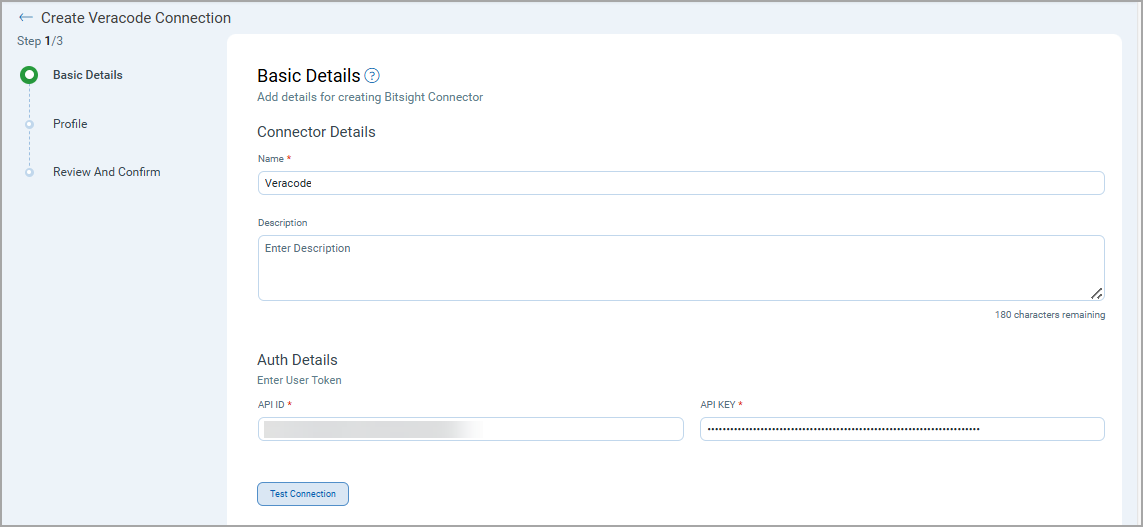
- Provide a Connector Name and Description.
- Enter API ID and API Key.
Profiles
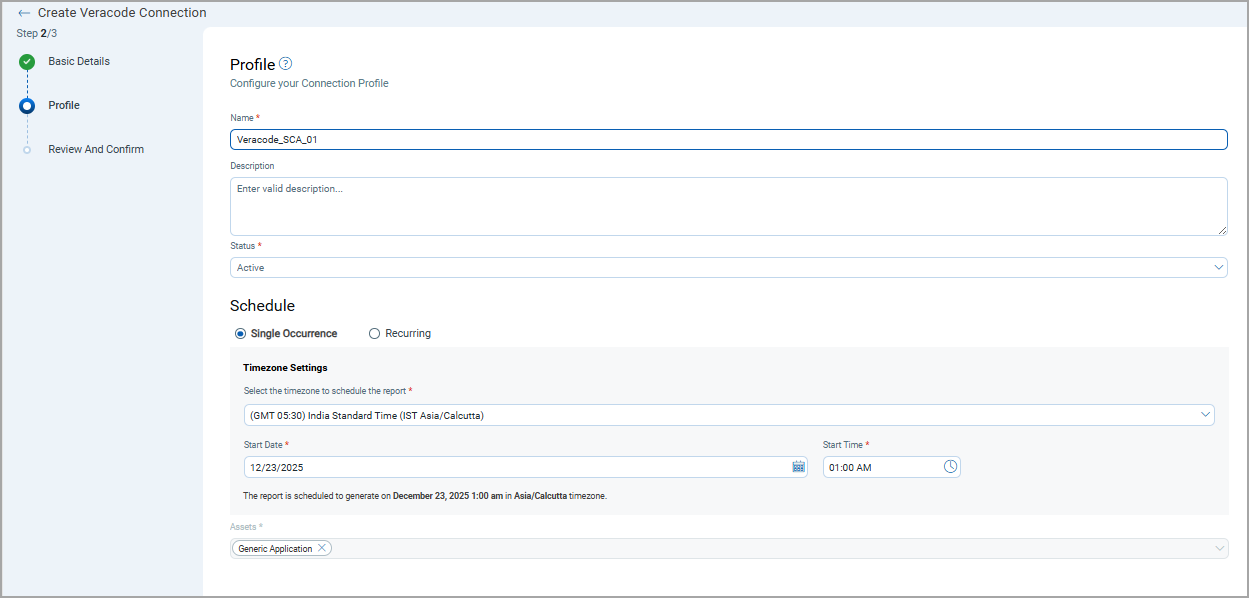
Profiles control the execution and scheduling of the connector.
- Provide a Name and Description.
- Set the Status to Active or Inactive.
- Configure the Schedule (single or recurring).
- The asset type defaults to
CODE_REPOfor this connector.
Review and Confirm
Review the configuration and click Create to activate the connector.
How Does the Connection Work?
On schedule (or on-demand), the connector fetches Veracode DAST findings and imports them into ETM. Profiles define what is synchronized and when. The Veracode DAST- connector performs a full pull on each execution.
In the Connector screen, you can find your newly configured connector listed and marked in the Processed state.
Connector States
A successfully configured connector goes through 4 states.
- Registered - The connector is successfully created and registered to fetch data from the vendor.
- Scheduled - The connector is scheduled to execute a connection with the vendor.
- Processing - A connection is executed and the connector is fetching the asset and findings data.
- Processed - The connector has successfully fetched the assets; it may still be under process of fetching the findings. Wait for some more time for the connector to fetch the findings completely.
The Processed state indicates that the Connector is successfully configured but it is under the process of importing all your assets and findings. This process (specifically for findings) may take some time.
This entire process may take up to 2 hours for completion. Once it is done, you can find the imported data in Enterprise TruRisk Management (ETM).
Viewing Assets and Findings in ETM
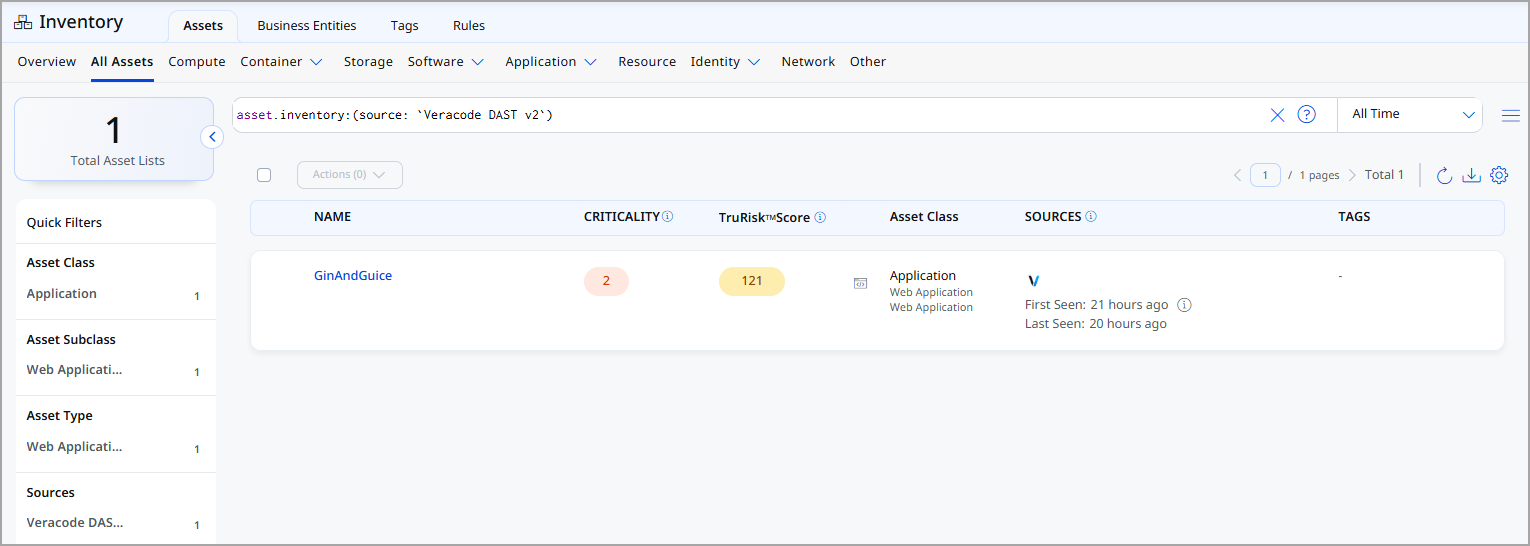
View Assets
Navigate to Enterprise TruRisk Management > Inventory.
Go to Assets to view imported Veracode assets/applications - Assets > Application > Code Repository
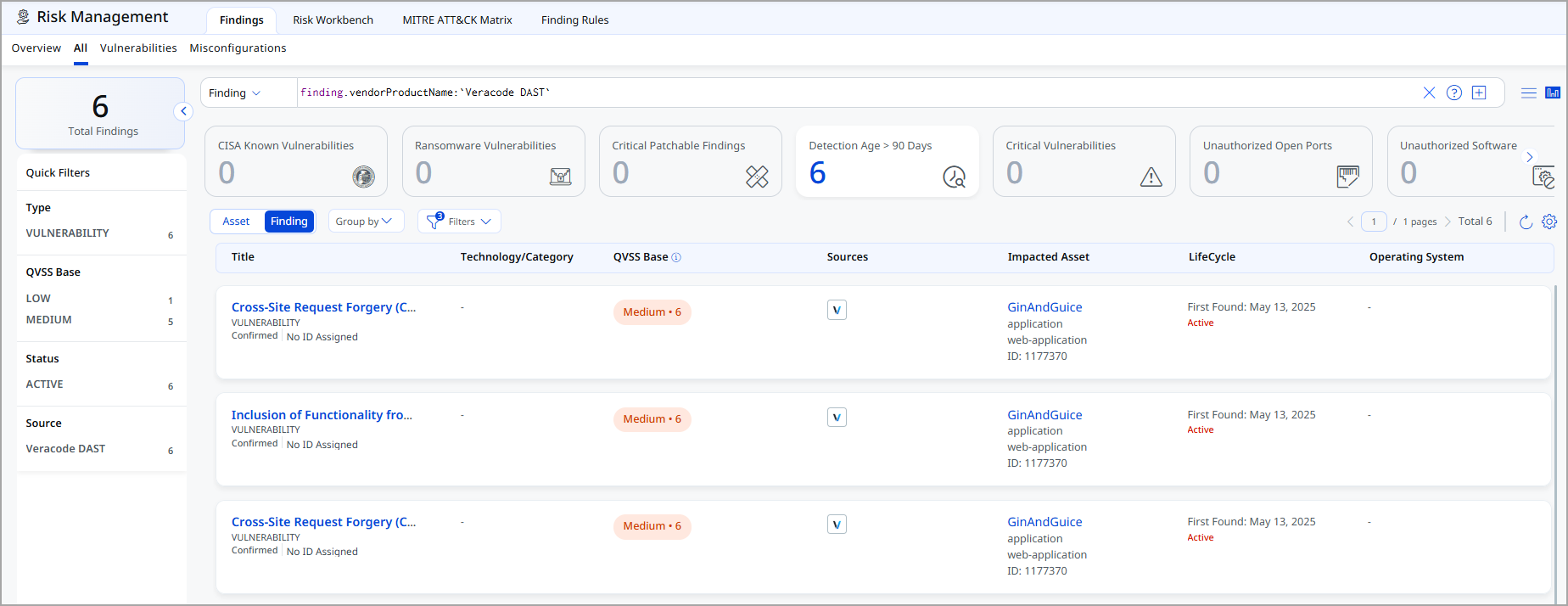
View Findings
Navigate to Enterprise TruRisk Management > Risk Management.
Go to Findings > Vulnerability - Use filter: finding.vendorProductName:"Veracode" to list Veracode findings.
API Endpoints
Here are the APIs executed for the Veracode DASt connection.
| API Function | Endpoint |
|---|---|
| Get Applications & Findings | https://api.veracode.com/appsec/v2/applications/${app_guid}/findings |
| Get Findings Report | https://api.veracode.com/appsec/v1/analytics/report |
Only vulnerability and asset data from the last 6 months is imported due to Veracode API limitations.
Transformation Map
The Veracode DAST – connector uses a default transformation map fetched from the database at runtime. This map converts Veracode application and vulnerability fields into the Qualys schema.
| Source Field | Target Field |
|---|---|
| guid | externalAssetId |
| app_name | assetDetail.name |
| finding_id | externalFindingId |
| severity | findingGroup.findings[].severity |
| status | findingGroup.findings[].findingStatus |
| found_date | findingGroup.findings[].firstFoundOn |
| last_found_date | findingGroup.findings[].lastFoundOn |