Configure the EventBridge Delta Sync
To configure the EventBridge Delta Sync, you must deploy the CloudFormation Template and then select the EventBridge Delta Sync in the Connector configuration wizard.
Deploying the EventBridge CloudFormation Template requires an AWS IAM user or role with permissions to create the following resources:
- EventBridge Rules and API Destinations
- IAM Roles (the CFT creates roles automatically; you must acknowledge this during deployment)
- CloudFormation Stacks and StackSets (for multi-account deployments)
For multi-account deployments using AWS Organizations, the deploying principal must also have permissions to create StackSets and deploy to organizational units (OUs).
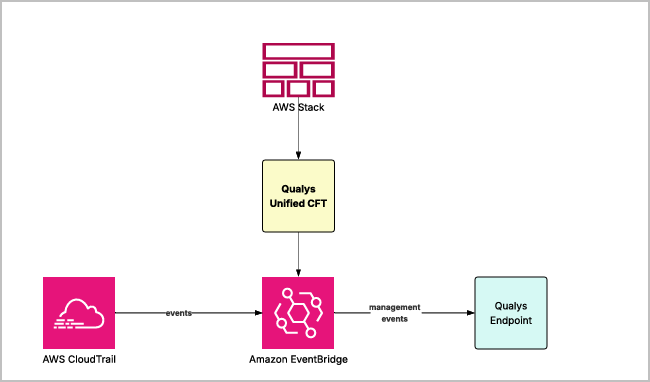
Prerequisites
CloudTrail must be enabled as a multi-region trail, or individual CloudTrails should be created in the specific regions from which you want to collect events.
Authentication Details
The following parameters are required when deploying the CloudFormation Template. Obtain these values from your Qualys TotalCloud subscription before beginning deployment.
| Name | Parameter Key | Type | Description |
|---|---|---|---|
| API Gateway URL | apiGatewayUrl |
String | Qualys platform API Gateway URL. Identify your URL at Qualys Platform Identification. |
| Subscription Token | subscriptionToken |
Encrypted | Qualys Subscription Token used to authorize event ingestion. See Generate a Subscription Token. |
| Organization ID | organizationId |
String | AWS Organization ID. Grants member accounts permission to forward events to the master account's default event bus. |
| Regions | regions |
String (list) | Comma-separated list of AWS regions from which events are captured. |
| Master Account ID | masterAccountId |
String | AWS Account ID of the central (master) account. Required for child account StackSet deployments only. |
| Master Region | masterRegion |
String | AWS Region where the master account's EventBridge default bus resides (for example, us-east-1). Required for child account deployments only. |
Deploy the CloudFormation Template
Deploy the Qualys-provided CFT in your AWS environment before enabling Delta Sync in TotalCloud. Deployment differs depending on whether you are configuring a single (master) account or a multi-account organization.
Log in to AWS Console
- Navigate to the AWS Management Console.
- For multi-account deployments, log in to your AWS Organizations management account (or delegated administrator account).
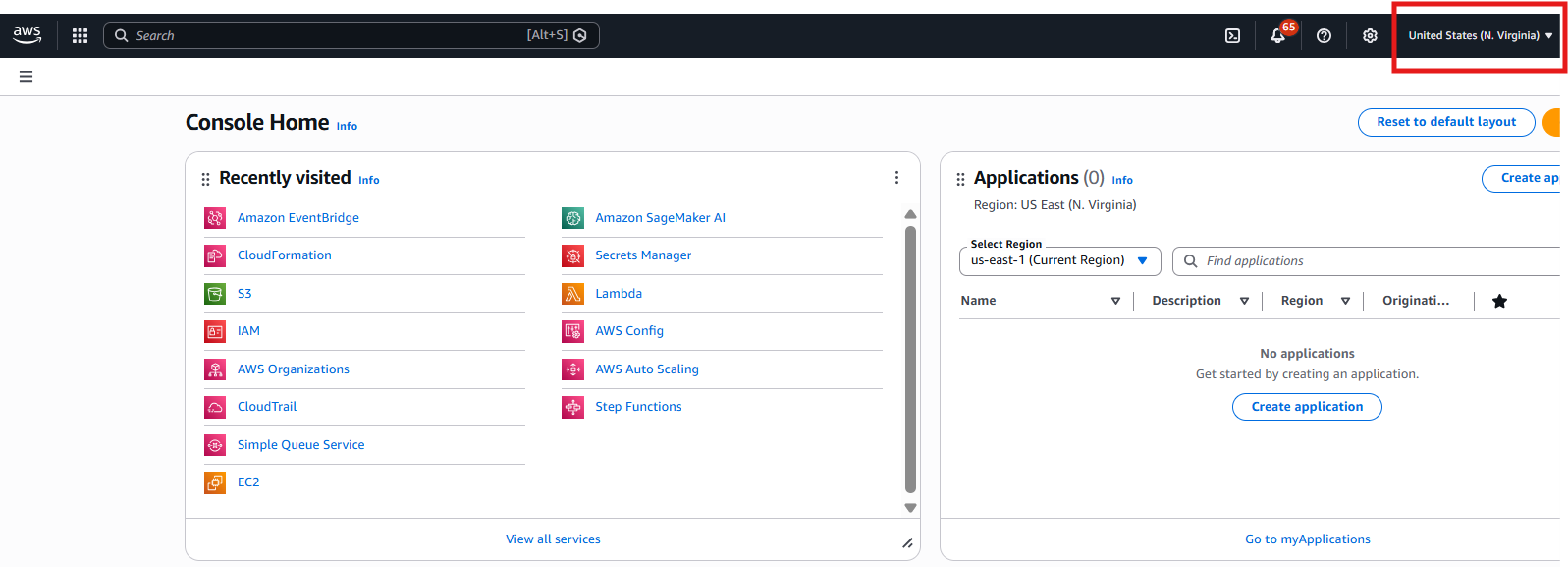
- Select the correct AWS Region (top-right corner) where you want the primary EventBridge rules and API destinations to reside (e.g.,
us-east-1). This becomes the "master region" — events from all other selected regions are forwarded here.
Deploy the CloudFormation Stack
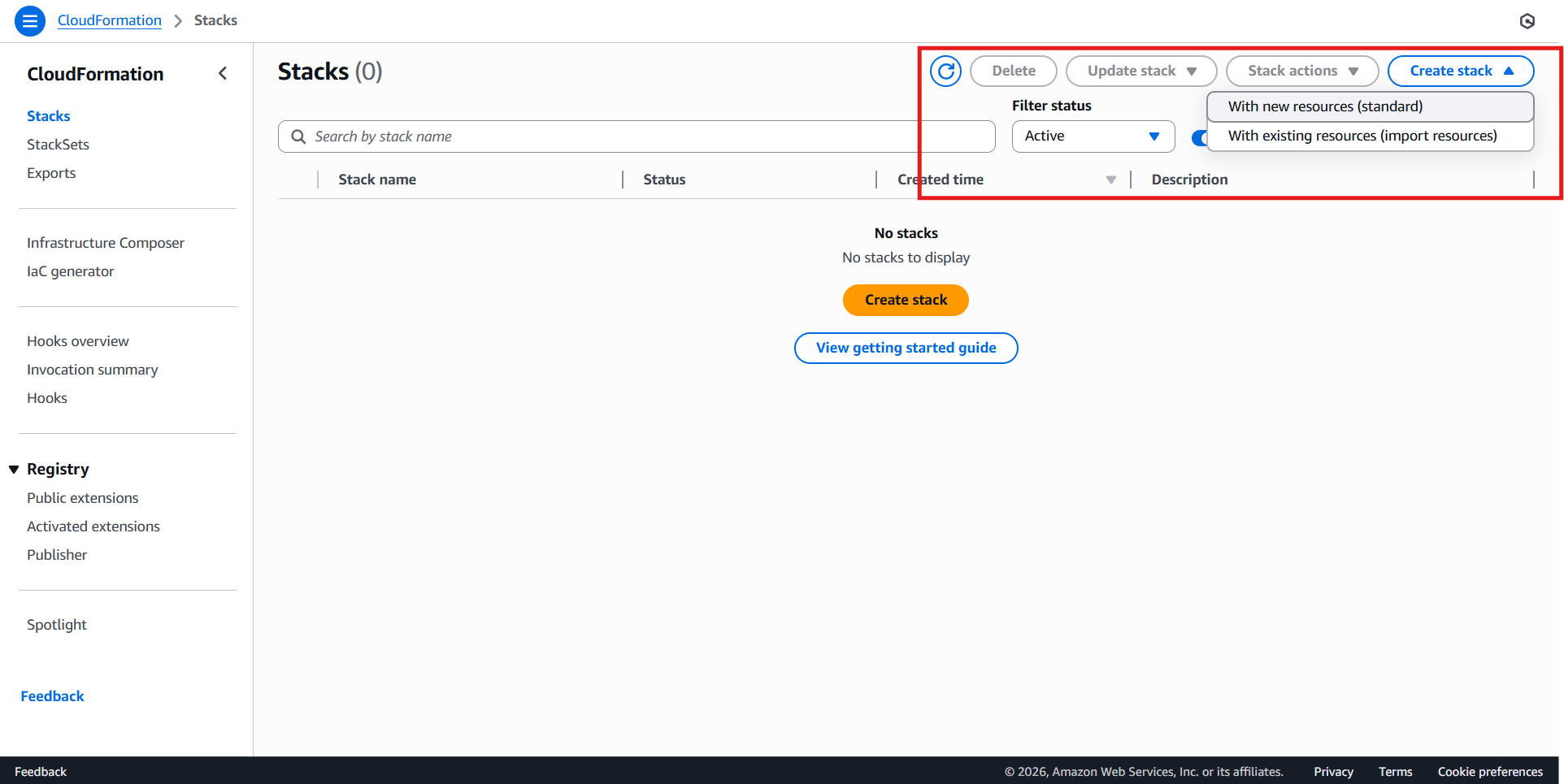
- In the AWS Console, search for CloudFormation and open the CloudFormation Dashboard.
- Click Create Stack > With New Resources (standard).
- Under Specify template, choose Upload a template file.
- Click Choose file and upload the Qualys Unified CFT file (qualys-unified-integration.yaml).
- Click Next to proceed.
Configure Stack Parameters
- Stack Name - Enter a meaningful name (e.g., qualys-unified-integration).
- Section 1 - Qualys Configuration (Required)
- Subscription Token: Enter the Qualys Subscription Token. Required when Near Real-Time CSPM (EventBridge) is enabled. Refer to the link in the parameter description to learn how to generate the token.
- API Gateway URL: Enter your Qualys API Gateway URL (e.g., https://gateway.qg1.apps.qualys.com). Identify your gateway URL using the link in the parameter description: Qualys Platform Identification.
If you are only enabling the CSPM IAM Role (without Near Real-Time CSPM), you can leave the Subscription Token and API Gateway URL empty.
- Section 2 - CSPM Configuration
- Enable CSPM IAM Role Creation: Set to true to create the cross-account IAM role for Qualys CSPM scanning.
- Enable Near Real-Time CSPM (EventBridge): Set to true to forward CloudTrail management write events to Qualys via EventBridge.
- Qualys CSPM Account ID: The 12-digit AWS Account ID of the Qualys CSPM service (pre-filled with default; change only if directed by Qualys).
- External ID: The External ID for cross-account role assumption (obtain from Qualys portal). Required when CSPM IAM Role is enabled.
- CSPM Role Name: Defaults to QualysCSPMReadOnlyRole. Change only if a custom name is required.
- Qualys Service Type: Select CSPM or AssetInventory depending on your use case.
- Enable CSPM Remediation Role: Set to true if you want Qualys to perform automated remediation actions (creates an additional IAM role with write permissions).
- Section 4 - Deployment Scope
- Deployment Scope: Select one of the following based on your requirement:
|
Scope |
When to Use |
|---|---|
|
MasterOnly (default) |
Deploying to the current account only. No StackSets created for member accounts. |
|
SpecificAccounts |
Deploying to the current account AND a known list of member accounts. |
|
OUOrRoot |
Deploying to the current account AND all accounts under a specific OU or the entire organization. New accounts added to the target OU are automatically covered. |
-
- Regions: Select the regions from which you want events to be captured. The template automatically creates regional forwarding rules that route events from these regions to the master region.
Opt-in Regions: Regions such as af-south-1, ap-east-1, etc. must be enabled in your AWS Account Settings before they can be selected.
- Section 5 - Multi-Account Settings (only when Deployment Scope is SpecificAccounts or OU Or Root)
- For MasterOnly scope, leave all fields at their defaults (empty) and skip to Step 4.
- Organization ID: Enter your AWS Organization ID (format: o-xxxxxxxxxx). Find it by running:
aws organizations describe-organization --query Organization.Id
- Target OU/Root ID:
- For the entire organization, enter the Root ID (r-xxxx). Find it by running:
aws organizations list-roots --query 'Roots[0].Id'
- For the entire organization, enter the Root ID (r-xxxx). Find it by running:
- For a specific OU, enter the OU ID (`ou-xxxx-xxxxxxxx`).
- Member Account IDs (SpecificAccounts scope only): Enter a comma-separated list of 12-digit account IDs with no spaces (e.g., 123456789012,987654321098). Leave empty for OUOrRoot scope.
- Scroll to the bottom, check the box to acknowledge that IAM roles will be created (I acknowledge that AWS CloudFormation might create IAM resources with custom names).
- Click Next, review, and then click Submit.
Validate Deployment
Once the stack reaches CREATE_COMPLETE:
- EventBridge Rules (if Near Real-Time CSPM was enabled):
- Go to the Amazon EventBridge console.
- Navigate to Rules and verify that
qualys-nrt-cspm-event-ruleappears in the list. - Open the rule and confirm the API Destination target (
qualys-nrt-cspm-api-destination) is correctly attached.
- CSPM IAM Role (if CSPM Role was enabled):
- Go to the IAM console > Roles.
- Search for the role name (default:
QualysCSPMReadOnlyRole) and verify it exists with the correct trust policy and permissions.
- Regional Forwarding (if multiple regions were selected):
- Go to CloudFormation > StackSets and verify
qualys-eventbridge-master-regionsshows stack instances in each selected region.
- Go to CloudFormation > StackSets and verify
- Member Account StackSets (if Deployment Scope is SpecificAccounts or OUOrRoot):
- Go to CloudFormation > StackSets and verify the relevant StackSet exists:
qualys-unified-specific-accountsfor SpecificAccounts scope.qualys-unified-ou-rootfor OU Or Root scope.
- Go to CloudFormation > StackSets and verify the relevant StackSet exists:
- Confirm stack instances show status CURRENT across the target accounts and regions.
- Spot-check a member account to verify the CSPM role and EventBridge forwarding rules are correctly created.
Enable Delta Sync in TotalCloud
For a New Member Connector
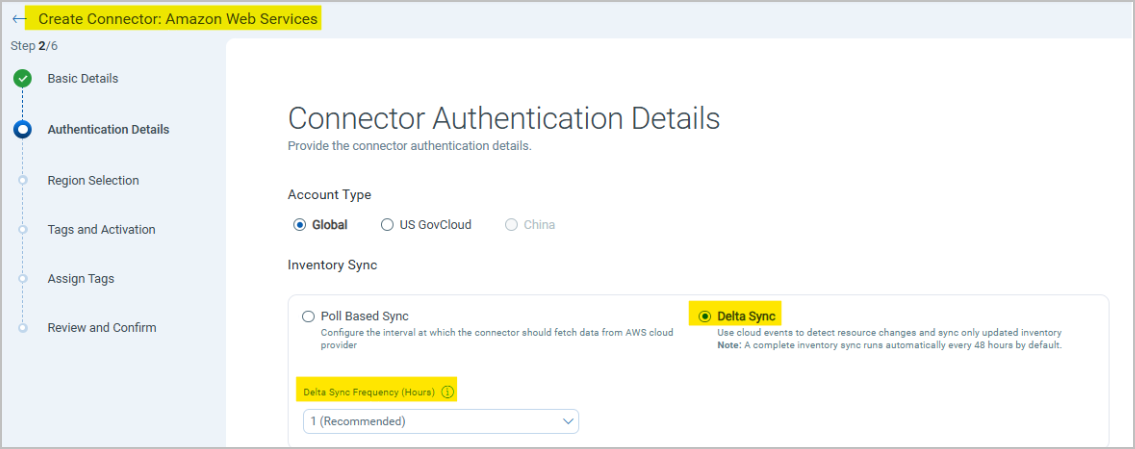
- Navigate to Connectors and click Create Connector.
- Provide the Basic Details and click Next.
- Select the Delta Sync checkbox on the connector creation screen.
- Provide the other details and Save the connector.
For an Existing Connector
- Navigate to Connectors and locate the target AWS connector.
- Click the ellipsis menu and select Edit.
- Enable the Delta Sync option.
- Save the changes.
For an Organization Connector
- Navigate to Connectors > Organization > Create Connector.
- Select the Delta Sync checkbox on the connector creation screen under Member Account Details.
- Provide the other details and Save the connector.
View Delta Sync Discoveries in TotalCloud
After a successful connector run with Delta Sync enabled, updated resources are reflected in TotalCloud inventory and findings.
- Go to Inventory > AWS > Pick any resource. Filter assets with
tags.name:"AWS".
Pricing
Please find EventBridge and CloudTrail pricing details at:
- AWS Eventbridge Pricing: https://aws.amazon.com/eventbridge/pricing/
- AWS Cloudtrail Pricing: https://aws.amazon.com/cloudtrail/pricing/