Configure the EventGrid Delta Sync
To configure Event Grid Delta Sync, you must deploy the Qualys-provided EventGrid package, then select EventGrid Delta Sync in the Connector configuration wizard.
Deploying the Qualys EventGrid package requires an Azure account or service principal with permissions to create the following resources:
- Event Grid System Topics and Event Subscriptions
- Resource Groups
- Storage Accounts and Role Assignments (for dead-letter queue support)
For multi-subscription deployments using management groups or the tenant scope, the deploying principal must also have Reader access to Azure Resource Graph to identify target subscriptions.
Prerequisites
Before deploying, ensure the following are installed in your Azure Cloud Shell or in your local environment:
| Tool | Version |
|---|---|
Azure CLI (az) |
Any recent version |
| Terraform | >= 1.3.0 |
jq |
Any recent version |
bash |
3.2+ |
Required Azure Permissions
- Standard deployment (Event Grid and Resource Group permissions)
{ "Actions": [ "Microsoft.Resources/subscriptions/read", "Microsoft.Resources/subscriptions/providers/read", "Microsoft.Resources/resourceGroups/write", "Microsoft.Resources/resourceGroups/read", "Microsoft.Resources/resourceGroups/delete", "Microsoft.EventGrid/register/action", "Microsoft.EventGrid/systemTopics/write", "Microsoft.EventGrid/systemTopics/read", "Microsoft.EventGrid/systemTopics/delete", "Microsoft.EventGrid/systemTopics/eventSubscriptions/write", "Microsoft.EventGrid/systemTopics/eventSubscriptions/read", "Microsoft.EventGrid/systemTopics/eventSubscriptions/delete", "Microsoft.ResourceGraph/resources/read" ] } - Deployment with dead-letter queue (DLQ) enabled
{ "Actions": [ "Microsoft.Resources/subscriptions/read", "Microsoft.Resources/subscriptions/providers/read", "Microsoft.Resources/resourceGroups/write", "Microsoft.Resources/resourceGroups/read", "Microsoft.Resources/resourceGroups/delete", "Microsoft.EventGrid/register/action", "Microsoft.EventGrid/systemTopics/write", "Microsoft.EventGrid/systemTopics/read", "Microsoft.EventGrid/systemTopics/delete", "Microsoft.EventGrid/systemTopics/eventSubscriptions/write", "Microsoft.EventGrid/systemTopics/eventSubscriptions/read", "Microsoft.EventGrid/systemTopics/eventSubscriptions/delete", "Microsoft.ResourceGraph/resources/read", "Microsoft.Storage/storageAccounts/read", "Microsoft.Storage/storageAccounts/write", "Microsoft.Storage/storageAccounts/listKeys/action", "Microsoft.Storage/storageAccounts/blobServices/containers/read", "Microsoft.Storage/storageAccounts/blobServices/containers/write", "Microsoft.Authorization/roleAssignments/read", "Microsoft.Authorization/roleAssignments/write" ] } - Contributor (or equivalent) on each target subscription.
- Owner or User Access Administrator on subscriptions where
qualysEnableDeadLetteristrue. - Reader access to Azure Resource Graph when using
management_groupsortenantdeployment scope.
Authentication Details
The following parameters are required when configuring the deployment. Obtain these values from your Qualys TotalCloud subscription before beginning deployment.
| Name | Parameter Key | Type | Description |
|---|---|---|---|
| API Gateway URL | APIGatewayURL |
String | Qualys platform API Gateway URL with /cloudview/azure-events postfix appended (for example, https://gateway.qg1.apps.qualys.com/cloudview/azure-events). Identify your base gateway URL at Qualys Platform Identification, then append /cloudview/azure-events to it. |
| Subscription Token | SubscriptionToken |
Encrypted | Qualys Subscription Token used to authorize event ingestion. Required when Delta Sync (Event Grid) is enabled. See Generate a Subscription Token. |
| Tenant ID | tenantId |
String | Your Azure AD tenant GUID. |
| Deployment Scope | deploymentScope |
String | subscriptions (default), management_groups, or tenant. Determines which subscriptions are targeted. |
| Subscription IDs | subscriptionIds |
String (list) | Explicit subscription IDs to target. Required for subscriptions scope. |
| Management Group IDs | managementGroupIds |
String (list) | Management group IDs to target. Required for the management_groups scope. |
| Excluded Subscription IDs | excludedSubscriptionIds |
String (list) | Subscriptions to skip, regardless of scope. |
| Region | region |
String | Azure region where Qualys-managed resources (resource group, storage account) are deployed. |
| Enable Dead Letter | qualysEnableDeadLetter |
Boolean | Set to true to capture undeliverable events in a storage account. |
| Centralized Dead Letter | centralDlqEnabled |
Boolean | Set to true to use a single shared dead-letter storage account across all subscriptions instead of one per subscription. |
| Existing System Topic Resource Group | qualysExistingSystemTopicRg |
String | Resource group containing an existing Event Grid System Topic, if reusing one instead of creating a new one. |
| Existing System Topic Name | qualysExistingSystemTopicName |
String | Name of the existing Event Grid System Topic to reuse. |
Deploy the Qualys Event Grid Package
Before enabling Delta Sync in TotalCloud, deploy the Qualys-provided package in your Azure environment. Deployment varies depending on whether you are targeting specific subscriptions, a set of management groups, or the entire tenant.
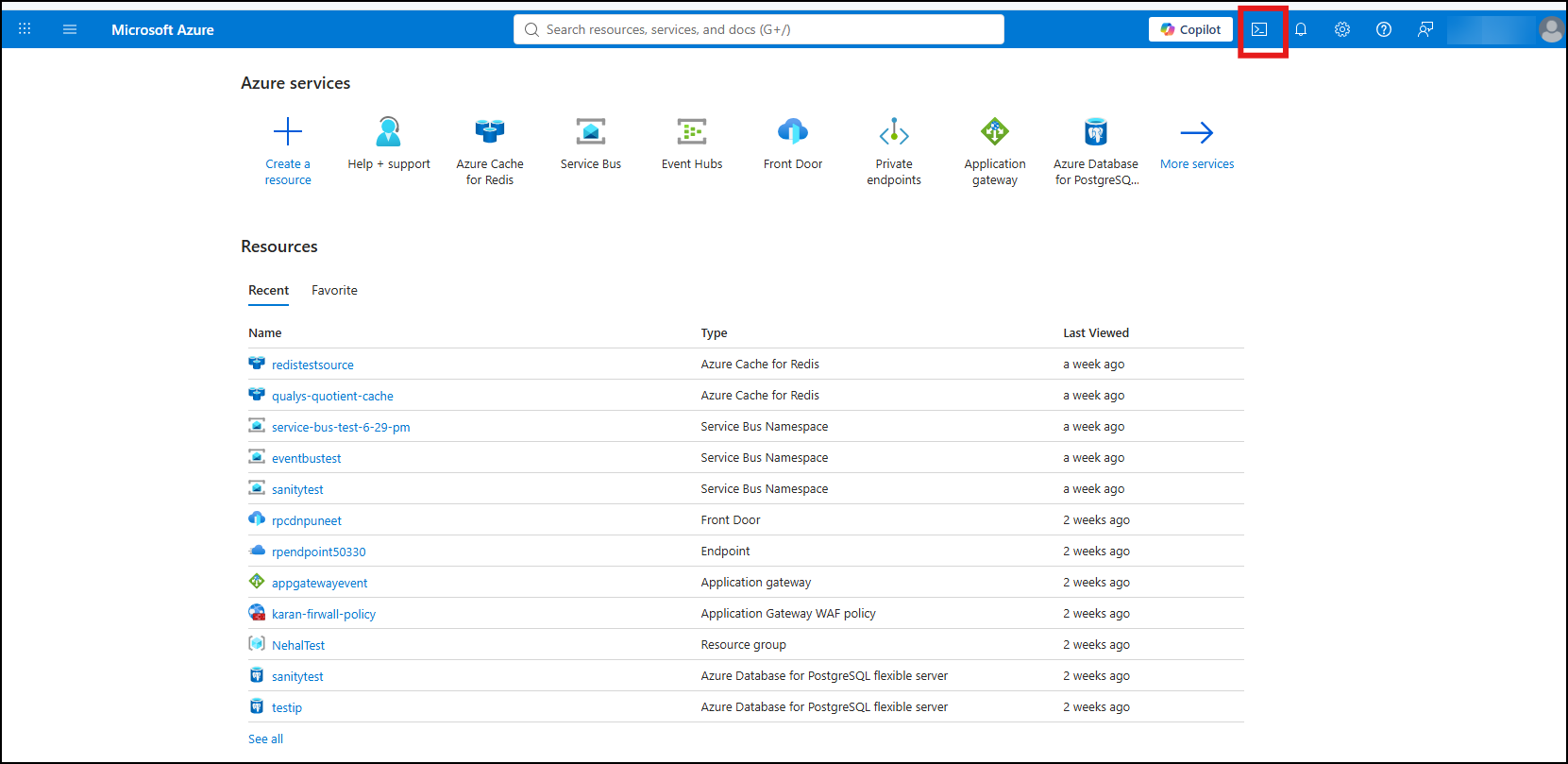
Open Azure Cloud Shell
- Log in to the Azure Portal.
- Open Azure Cloud Shell (Bash).
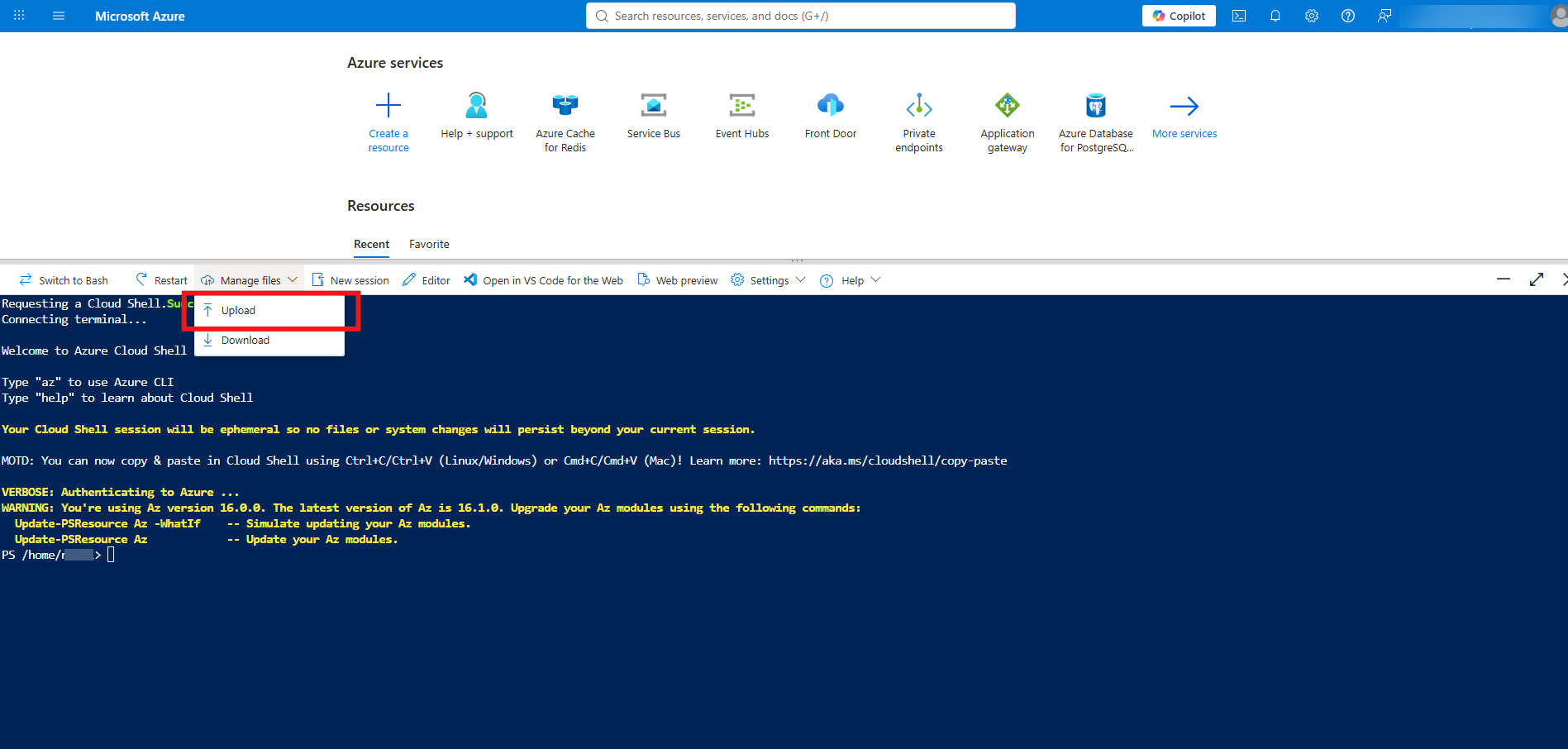
- Upload the
AzureEventGridArmTemplate.zipfile provided by Qualys.
Extract and Navigate to the Package
unzip AzureEventGridArmTemplate.zip -d AzureEventGridArmTemplate/
cd AzureEventGridArmTemplate
cd eventgrid
Configure Parameters
- Open the
parameters.example.jsonfile. ThetenantIdandsubscriptionIdsfields are automatically populated based on the details you provided in your TotalCloud connector configuration, so you can edit this file directly.
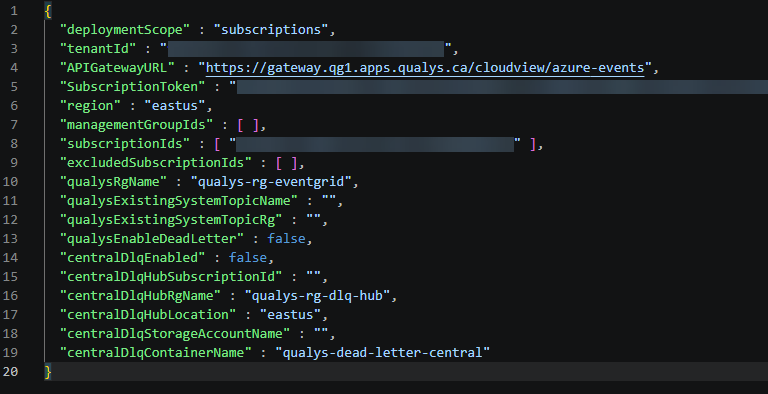
- Review the deployment scope. The
deploymentScopefield defaults tosubscriptions. Edit it to one of the following if your requirement differs:Scope When to Use subscriptions(default)Deploying to an explicit list of subscriptions. management_groupsDeploying to all subscriptions under one or more specified management groups. New subscriptions added later to the target management group are automatically covered. tenantDeploying to all enabled subscriptions in the Azure AD tenant. - Enter the Qualys configuration values (Subscription Token and API Gateway URL - see Authentication Details).
- Verify or update the subscription and management group IDs:
- For the default
subscriptionsscope,subscriptionIdsis already populated for you; add or remove subscription IDs as needed. - If you change the scope to
management_groups, add the target management group IDs tomanagementGroupIds.
- For the default
- Optionally configure the Event Grid System Topic to reuse an existing topic rather than create a new one by setting
qualysExistingSystemTopicRgandqualysExistingSystemTopicName. - Optionally enable dead-letter capture (
qualysEnableDeadLetter) and, if desired, a centralized dead-letter storage account (centralDlqEnabled).
Run the Deployment
./deploy.sh parameters.example.json
The script validates inputs, discovers target subscriptions, shows a summary, asks for confirmation, then deploys resources in parallel. Per subscription, the deployment creates:
- Resource Group (
qualys-rg-eventgridby default) - Event Grid System Topic (
qualys-activitylogs-topic) - skipped if reusing an existing topic - Event Grid Event Subscription (
qualys-webhook-subscription) - Storage Account and Blob Container for dead-letter events (when enabled and not centralized)
- Role Assignment for Event Grid to write to the dead-letter container (when permissions allow)
When centralDlqEnabled is true, a central hub resource group and storage account are created once in the designated subscription before the per-subscription loop.
Validate Deployment
Once the deployment completes:
- Event Grid System Topic - In the Azure Portal, navigate to Event Grid System Topics and verify that
qualys-activitylogs-topic(or your existing topic) appears in each targeted subscription. - Event Subscription - Open the system topic and confirm that the
qualys-webhook-subscriptionevent subscription is attached and points to the Qualys API Gateway webhook endpoint. - Dead-Letter Storage (if enabled) - Go to Storage Accounts and verify that the dead-letter storage account and blob container exist, and that the Event Grid role assignment is present.
- Resource Group - Verify that the
qualys-rg-eventgridresource group (or the centralized hub resource group) was created in each targeted subscription. - Multi-Subscription Deployments - For
management_groupsor thetenantscope, spot-check a few member subscriptions to confirm that the system topic and event subscription were created consistently.
To remove deployed resources:
./teardown.sh parameters.example.json
When centralized DLQ is enabled, teardown.sh does not destroy the hub storage account. Destroy the foundation separately using the terraform-dlq-foundation module.
Enable Delta Sync in TotalCloud
For a New Connector
- Log in to Qualys TotalCloud.
- Navigate to Connectors and click Add Connector.
- Select Azure and complete the connector configuration.
- Select the Delta Sync checkbox on the connector creation screen.
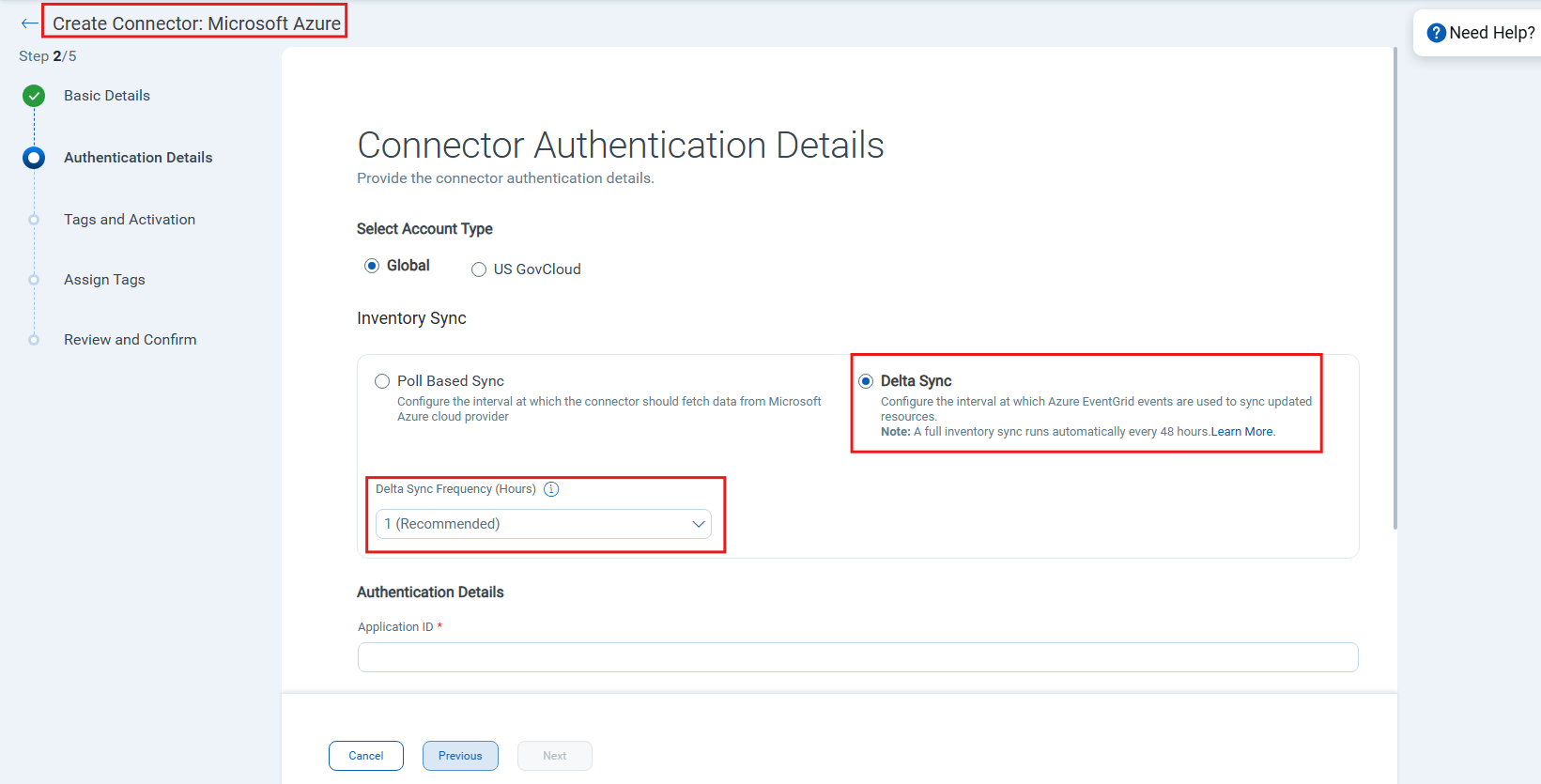
- Save the connector.
For an Existing Connector
- Navigate to Connectors and locate the target Azure connector.
- Click the ellipsis menu and select Edit.
- Enable the Delta Sync option.
- Save the changes.
View Delta Sync Discoveries in TotalCloud
After a successful connector run with Delta Sync enabled, updated resources are reflected in TotalCloud inventory and findings.
Go to Inventory > Azure > Pick any resource. Filter assets with tags.name:"Azure".
Pricing
Please find Azure Event Grid pricing details at:
- Azure Event Grid Pricing: https://azure.microsoft.com/en-us/pricing/details/event-grid/
- Azure Storage Pricing (for dead-letter storage): https://azure.microsoft.com/en-us/pricing/details/storage/blobs/