AWS Security Hub Connector
The AWS Security Hub connector addresses the challenge of fragmented vulnerability visibility by consolidating findings from multiple AWS services and partner tools into a unified view. It ingests host-level vulnerabilities from EC2 instances, container environments, and other AWS resources, then processes them through deduplication, normalization, and enrichment using Qualys' TruRisk scoring system.
For security teams managing AWS environments across multiple accounts and regions, this integration eliminates the need to manually correlate alerts from disparate sources, enabling faster prioritization and remediation of the most critical risks.
The connector's automated synchronization ensures teams maintain current awareness of their security posture without the overhead of manual data aggregation.
Connector Details
The following table summarizes what the AWS Security Hub Connector supports.
| Vendor | Amazon |
| Product Name | AWS Security Hub |
| Category | Vulnerability Management |
| Findings Support | Yes |
| Supported Assets | Host Assets (Compute) |
Configure the Connector
Configuration is completed in three steps within Qualys ETM. A valid connection test must pass before you can proceed.
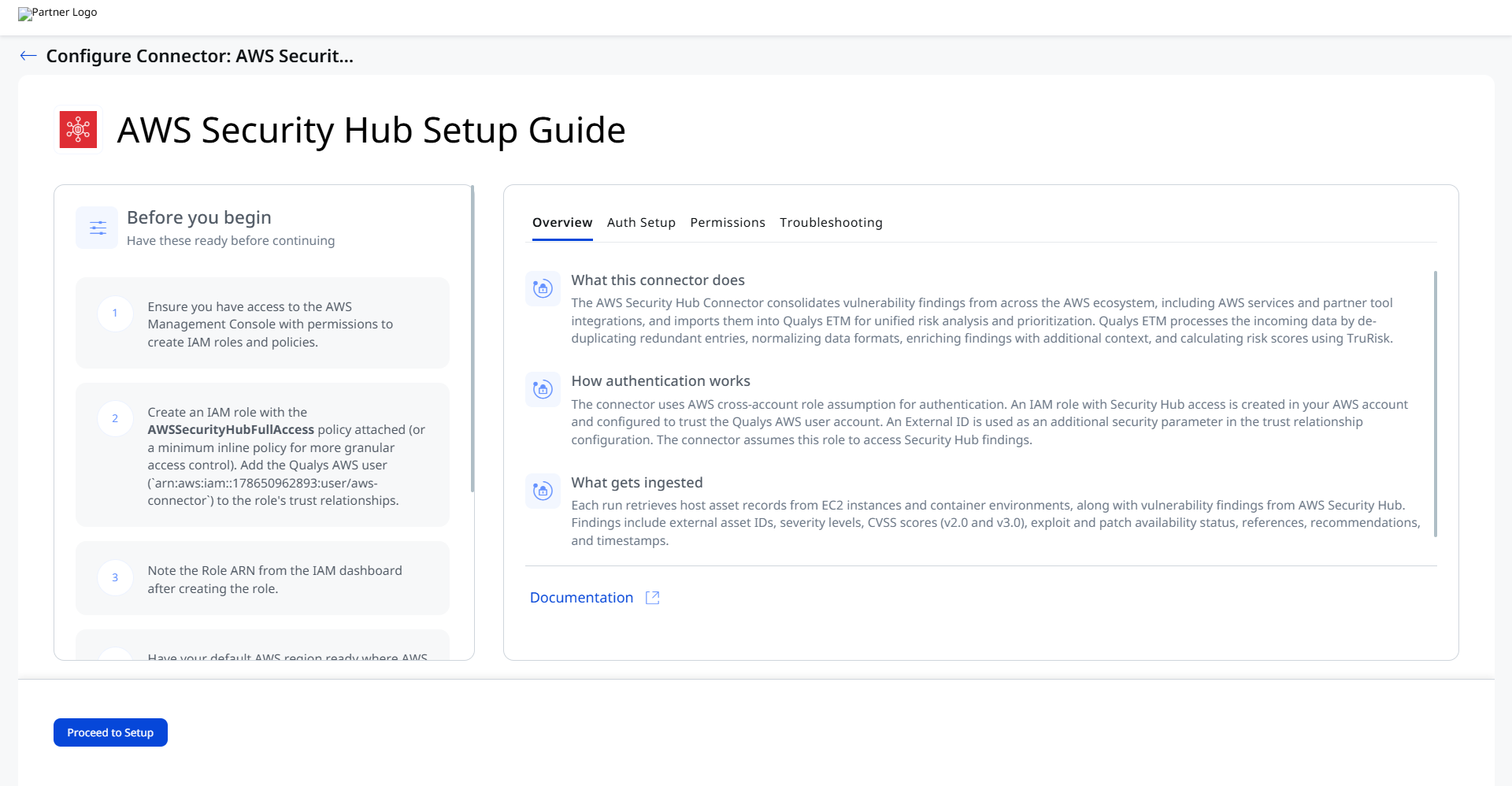
Before You Begin - AuthenticationBefore You Begin - Authentication
Complete all steps in this section before configuring the connector in Qualys ETM. You will need access to the AWS Management Console with permissions to create IAM roles and policies.
Have the following items ready before proceeding:
- Access to the AWS Management Console with permissions to create IAM roles and policies.
- The Role ARN of the IAM role you will create (noted from the IAM dashboard after role creation).
- Your default AWS region where AWS Security Hub is actively configured.
Creating an IAM Role for the Connector
Follow these steps to create the IAM role and configure the trust relationship that allows the Qualys connector to access AWS Security Hub.
Create the IAM Role and Attach Permissions
- Log in to the AWS Management Console and navigate to IAM > Roles > Create role.
- Select AWS account as the trusted entity type and click Next.
- Search for and attach the
AWSSecurityHubFullAccessmanaged permission policy. A minimum inline policy granting read access to Security Hub findings and resources may be used instead for more granular access control. - Assign a name and description to the role, then click Create role.
- Navigate back to the Roles list, click the newly created role, and copy the value in the ARN field. You will enter this ARN in Qualys ETM during connector setup.
Configure the Trust Relationship
- In the IAM role summary, select the Trust relationships tab and click Edit trust policy.
- Add the Qualys AWS user as a trusted principal:
arn:aws:iam::178650962893:user/aws-connector - Include the External ID condition in the trust policy. The External ID is provided automatically by Qualys ETM during connector setup (displayed in the External ID field on the Profile & Connectivity form).
- Save the updated trust policy.
Note: If you do not have permissions to create IAM roles, contact your AWS administrator. For additional guidance, see the AWS IAM documentation.
Permissions Required
The IAM role used by the connector must have the AWSSecurityHubFullAccess managed policy attached, or a minimum inline policy that grants read access to Security Hub findings and resources. If you do not have permissions to create IAM roles, contact your AWS administrator.
Scope and Data Access
The connector retrieves vulnerability findings from AWS Security Hub, which aggregates findings from multiple AWS services and partner integrations. Resource types can be configured during profile setup to determine which resources' findings are ingested. Non-CVE vulnerability scores are mapped to Qualys Detection Scores (0–100 scale) across 5 severity levels with a configurable default severity fallback.
Key Rotation
AWS IAM role-based authentication does not use static credentials that require rotation. If the trust relationship or External ID needs to be updated, modify the IAM role's trust policy in the AWS Console and update the connector configuration in Qualys ETM accordingly.
Create a Profile & ConnectionCreate a Profile & Connection
This step establishes the connector's identity and authenticates it with AWS Security Hub. Navigate to the Connectors section of Qualys ETM and select Create AWS Security Hub Connection.
Connector Details
| Name | A unique display name for this connector instance. Example: AWS Security Hub260506102111511 |
| Description | Optional free-text description of this connection. Maximum 164 characters. |
Authentication Details
| Field | Type | Description |
| Base Account ID | String (read-only) | The Qualys AWS account ID used as the trusted principal in your IAM role's trust relationship. Pre-populated by Qualys ETM. Example: 178650962893 |
| External ID | String (read-only) | A system-generated identifier added as a security condition in the IAM role's trust policy. Pre-populated by Qualys ETM. Copy this value into your IAM trust relationship before testing. Example: pod01339712824644 |
| Role ARN | String | The Amazon Resource Name of the IAM role you created with Security Hub access. Format: arn:aws:iam::<account-id>:role/<role-name>. Example: arn:aws:iam::860454016470:role/qint-assume-role3 |
| Region | String (dropdown) | The AWS region where AWS Security Hub is actively configured. The connector pulls findings from this region. Example: US East (Ohio) |
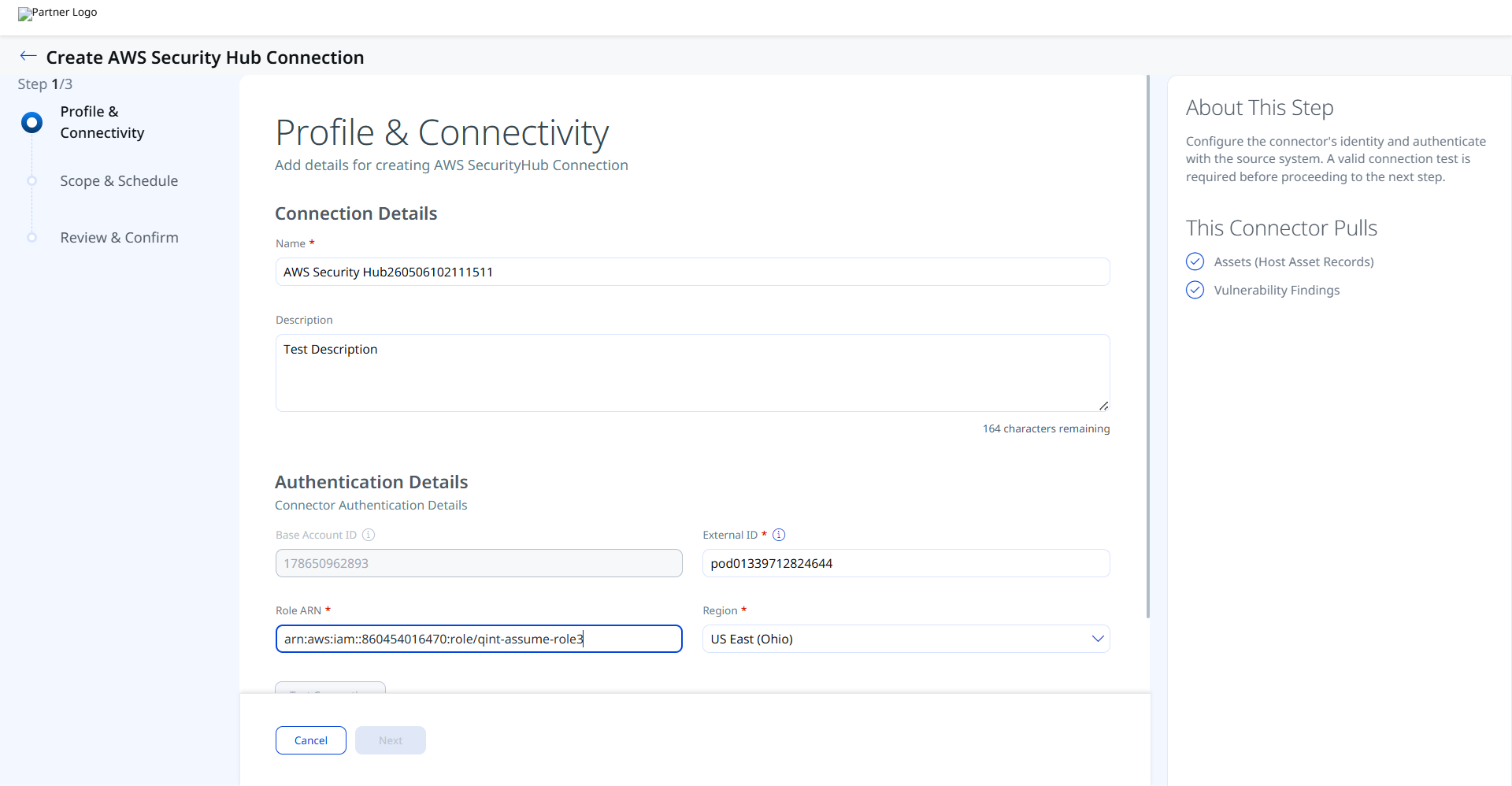
After entering all authentication details, click Test Connection. The following checks are performed:
- Network Reachability
- TLS Handshake
- Authentication Credential Check
- Authorization Scope Check
- Data Fetch
Important: If the Authorization Scope Check fails with error code Access Denied, verify that the Assume Role ARN entered in Qualys ETM is correct, confirm the IAM role's trust policy includes the Qualys AWS user (arn:aws:iam::178650962893:user/aws-connector) as a trusted principal with the correct External ID condition, and confirm that the AWSSecurityHubFullAccess policy is attached to the role. If the Data Fetch check also fails, verify the selected Default Region matches the AWS region where Security Hub is actively configured.
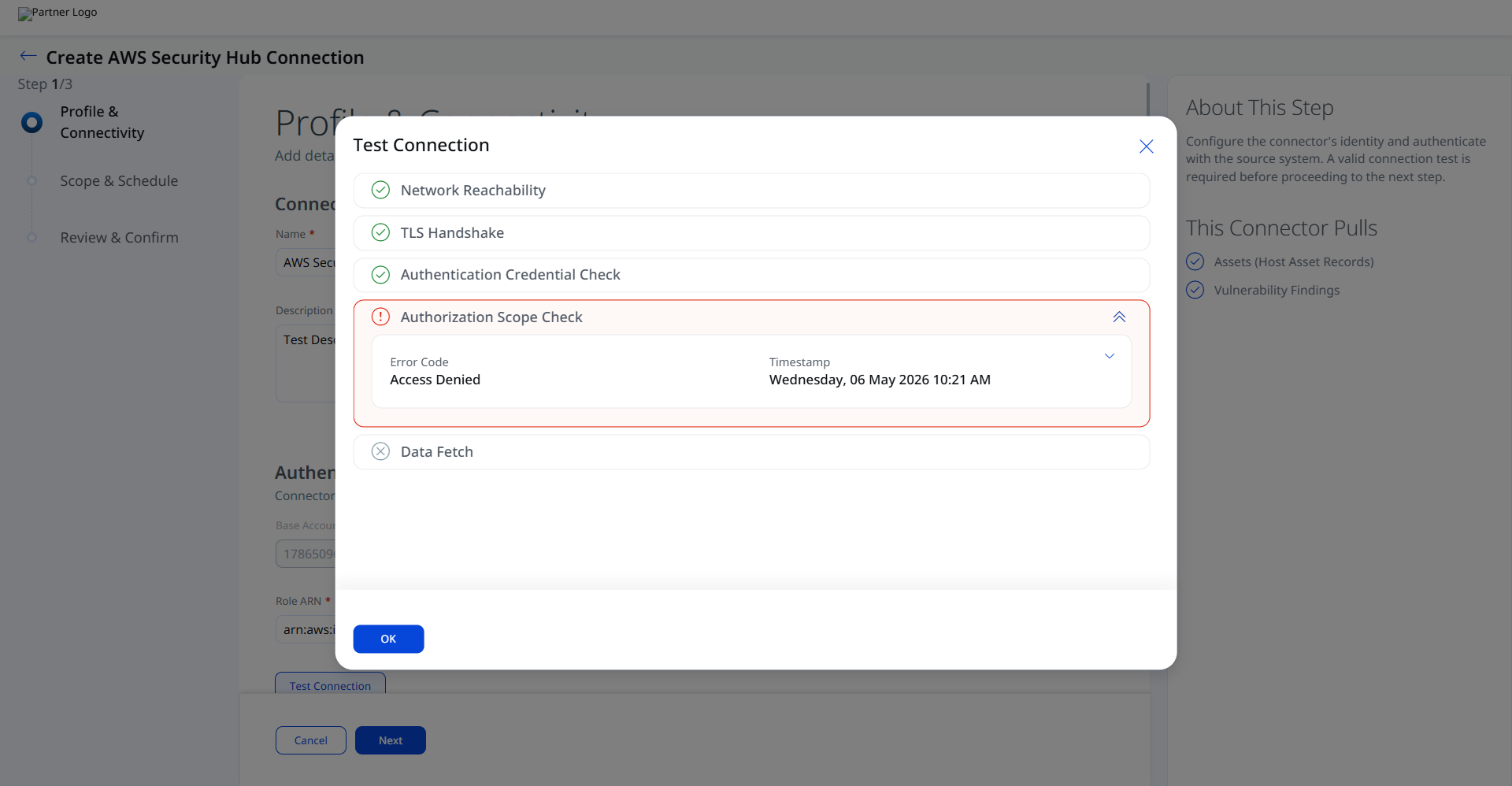
Once all checks pass, click Next to proceed to Step 2.
Set the Scope & ScheduleSet the Scope & Schedule
Define which data to synchronize and how frequently the connector runs.
- Data to Sync: Select the asset types and finding types to import. The connector supports Assets (Host Asset Records) and Vulnerability Findings.
- Resource Types: Configure which AWS resource types' findings should be ingested. Resource type selection determines the scope of Security Hub findings imported into Qualys ETM.
- Schedule: Set a recurring schedule or single-occurrence execution time for the connector. Provide start and end date/time for recurring schedules.
Note: Schedule times are interpreted in UTC. For recurring schedules, specify a start date, end date, and recurrence interval.
Advanced Settings
Advanced settings are available after the connector is created. Access them by opening the connector and selecting the relevant tab. Click Save after making changes on any Advanced Settings tab.
Note: Changes to Advanced Settings take effect on the next connector execution. Remember to save before navigating away.
Filters Tab
The Filters tab allows you to limit which findings are imported based on resource types. Resource types can be selected during profile setup and refined here after creation. Filter by specifying the AWS resource types whose Security Hub findings should be ingested. Refer to the AWS Security Hub documentation for supported resource type identifiers.
Transform Map Tab
The Transform Map tab displays the active field mapping configuration between AWS Security Hub source fields and Qualys ETM target fields. The connector provides an out-of-box transform map that can be used without modification. You may clone the map to create a custom configuration.
The active transform map for this connector is the AWS Security Hub – Vulnerability map.
AWS Security Hub – Vulnerability Findings MapAWS Security Hub – Vulnerability Findings Map
| Source Attribute (AWS Security Hub) | Target Attribute (Qualys ETM) | |
resources.details.awsEc2Instance.imageId |
externalAssetId (Required) |
|
title |
findingName (Required) |
|
productFields.aws/securityhub/FindingId |
externalFindingId (Required) |
|
severity.labelLOW | MEDIUM | HIGH | CRITICAL
|
findingSeverity1 | 2 | 3 | 4 | 5
|
|
description |
findingDescription |
|
firstObservedAt |
findingFirstFoundOn |
|
lastObservedAt |
findingLastFoundOn |
|
productName |
productName |
|
remediation.recommendation.text |
recommendation |
|
vulnerability.cvss.cvss2.0 |
cvssV2Base |
|
vulnerability.cvss.cvss3.0 |
cvss3Base |
|
vulnerability.exploitAvailable |
isExploitAvailable |
|
vulnerability.fixAvailable |
isPatchAvailable |
|
vulnerability.referenceUrls[] |
references |
|
productFields.RelatedAWSResources:0/name |
assetName |
|
resources.id |
cloudInstanceId |
|
resources.type |
System Type |
How the Connection Works
The AWS Security Hub Connector consolidates vulnerability findings from across the AWS ecosystem, including AWS services and partner tool integrations, and imports them into Qualys ETM for unified risk analysis and prioritization. Qualys ETM processes the incoming data by de-duplicating redundant entries, normalizing data formats, enriching findings with additional context, and calculating risk scores using TruRisk.
Each connector run retrieves host asset records from EC2 instances and container environments, along with vulnerability findings from AWS Security Hub. Findings include external asset IDs, severity levels, CVSS scores (v2.0 and v3.0), exploit and patch availability status, references, recommendations, and timestamps
Connector States
A successfully configured connector progresses through the following states:
- Registered – The connector has been successfully created and registered to fetch data from AWS Security Hub.
- Scheduled – The connector is scheduled and waiting to execute its first or next connection run.
- Processing – A connection is actively executing and the connector is fetching asset and findings data from AWS Security Hub.
- Processed – The connector has successfully fetched assets. Findings import may still be in progress; allow additional time for all findings to appear in ETM.
Note: The initial data import may take up to 2 hours to complete. The Processed state confirms the connector is correctly configured, but findings (particularly for large environments) may continue to process after the state changes. Wait for findings to fully appear before concluding that import is incomplete.
Viewing Assets and Findings in ETM
Once the connector reaches the Processed state, navigate to Enterprise TruRisk Management (ETM) to view the imported data.
To view imported assets: Go to Assets > Host in the ETM Inventory tab and use the following filter:
inventory:(source:"AWS Security Hub")
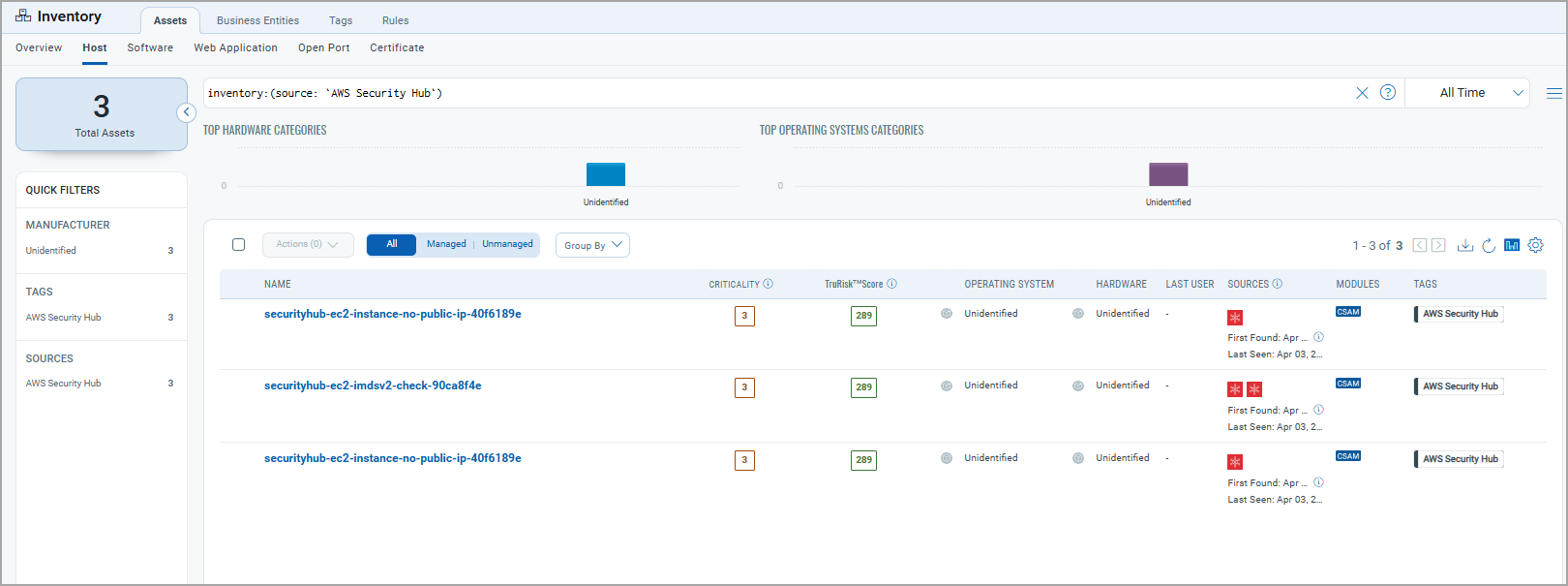
To view vulnerability findings: Go to Findings > Vulnerability in the ETM Risk Management tab and use the following filter:
findings.vendorProductname:"Security Hub"
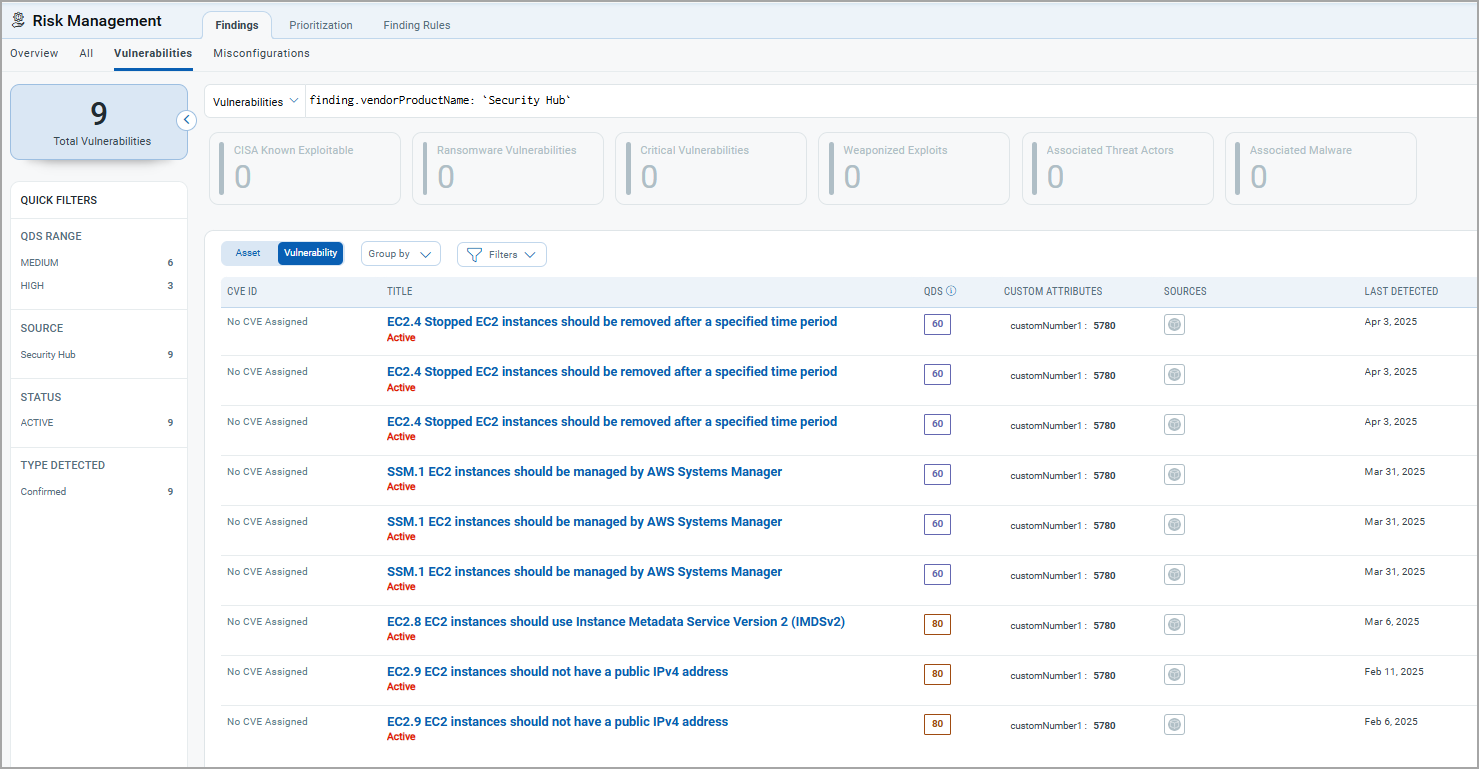
Click any asset or finding to view detailed information, including risk scores, severity, CVSS scores, exploit availability, patch availability, and remediation recommendations.
Troubleshooting
Use the following table to diagnose and resolve common issues with the AWS Security Hub connector.
| Issue | Resolution |
| Authentication failure on connector run | Verify the Assume Role ARN entered in Qualys ETM is correct. Confirm the IAM role's trust policy includes the Qualys AWS user (arn:aws:iam::178650962893:user/aws-connector) as a trusted principal with the correct External ID condition. Check that the AWSSecurityHubFullAccess policy is attached to the role. |
| Connection test fails | Verify the Default Region matches the AWS region where Security Hub is actively configured. Confirm the IAM role exists and has not been deleted or modified. Check that AWS STS is enabled in the target region. |
| No findings imported after first run | The connector transitions through Registered, Scheduled, Processing, and Processed states. The entire process may take up to 2 hours for completion. Verify that AWS Security Hub has active findings in the specified region. Check the connector state in Qualys ETM to confirm it has reached the Processed state. |
| Insufficient permissions error | Confirm the IAM role has the AWSSecurityHubFullAccess managed policy attached, or that the minimum inline policy grants the required read access to Security Hub findings and resources. If you cannot modify IAM policies, contact your AWS administrator. |
Additional Information
API Reference
The connector uses the AWS Security Hub API to retrieve findings. Authentication is performed via AWS STS AssumeRole using the configured IAM role ARN and External ID. The connector queries the following primary endpoint:
securityhub.<region>.amazonaws.com– Security Hub findings retrievalsts.amazonaws.com– IAM role assumption (STS)
For full API documentation, see the AWS Security Hub API Reference.