BitSight V2 Connector
The BitSight V2 Connector integrates the BitSight continuous security monitoring platform with the Qualys Enterprise TruRisk Platform. The connector imports asset inventory (Generic Application, Compute, IP, and Domain) and findings (Vulnerability and Misconfiguration) from BitSight into Qualys. This integration enables you to view your external security posture, evaluate risk impact, and prioritize remediation efforts by using TruRisk Insights.
The connector also supports grade-based filtering, allowing you to selectively import assets and findings by BitSight risk grade. This helps you focus on the assets and findings that present the highest risk to your organization.
Connector Details
The following table provides a comprehensive overview of the BitSight V2 connector's capabilities.
| Vendor | BitSight |
| Product Name | BitSight |
| Category | EASM |
| Works With | Qualys Enterprise TruRisk™ Platform (ETM) |
| Connector Type | ROC Connector |
| Supported Assets | Generic Application, Compute |
| Findings Support | Yes |
| Version | 2.0 |
| Integration Type | API Integration (REST) |
| Direction | Unidirectional |
| Delta Support | Supported |
| Import of Installed Software | Not Supported |
| Import of Source Tags | Not Supported |
| Filters / Filter Query | Not Currently Supported |
Supportability MatrixSupportability Matrix
| Asset Class | Finding Type | Risk Vector Categories | |
|---|---|---|---|
| Host Asset/Compute | Inventory | ✓ (Asset Data) | |
| Vulnerabilities | patching_cadence | ✓ | |
| ssl_configurations | ✓ | ||
| ssl_certificates | ✓ | ||
| desktop_software | ✓ | ||
| server_software | ✓ | ||
| insecure_systems | ✓ | ||
| open_ports | ✓ | ||
| potentially_exploited | ✓ | ||
| malware_servers | ✓ | ||
| botnet_infections | ✓ | ||
| unsolicited_comm | ✓ | ||
| spam_propagation | ✓ | ||
| dkim | ✓ | ||
| spf | ✓ | ||
| dmarc | ✓ | ||
| Misconfigurations | dnssec | ✓ | |
| Application/Generic Application |
Inventory | ✓ (Application Data) | |
| Vulnerabilities | web_appsec | ✓ | |
| application_security | ✓ | ||
| Misconfigurations | - | ||
Configure the Connector
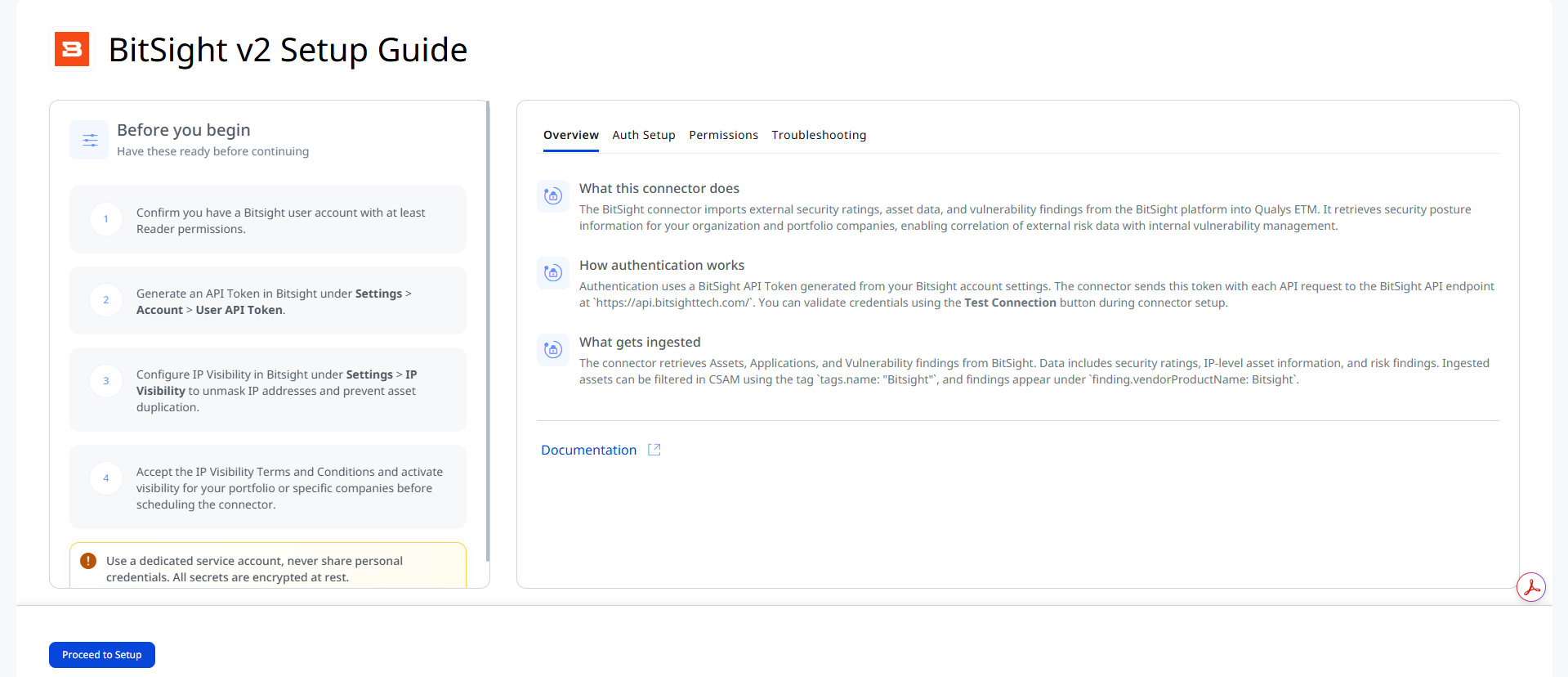
Before You Begin - AuthenticationBefore You Begin - Authentication
Complete the following prerequisites before configuring the BitSight Connector.
Generate an API Token in BitSight
- Log in to BitSight as an administrator.
- Navigate to Settings > Account > User API Token.
- Click Generate New Token.
- Copy and securely store the generated API token.
The API token is the sole authentication credential used by the connector. Protect the token and rotate it periodically according to your organization's security policy.
Enable IP Visibility
Before scheduling the connector, configure IP Visibility in BitSight to unmask IP addresses and prevent duplicate asset creation in ETM.
- Log in to your BitSight instance.
- Navigate to Settings > IP Visibility.
- Accept the Terms and Conditions.
- Enable IP visibility for your entire portfolio or for selected companies.
If IP visibility is not enabled before the initial connector execution, imported assets may contain masked IP addresses such as xxx.xxx.xxx.xxx, which can increase the likelihood of duplicate asset creation.
Permissions Required
The BitSight user account used for connector authentication must have at minimum Reader permissions.
| Entity Type | Permissions |
| Portfolio | Read access to BitSight Portfolio API |
| Companies | Read access to BitSight Companies API |
| Assets | Read access to BitSight Assets API |
| Findings | Read access to BitSight Findings API |
Scope and Data Access
The connector accesses all companies and assets visible to the authenticated BitSight account. Imported data includes asset information, applications, vulnerabilities, SSL findings, application security findings, and misconfigurations.
The connector supports the following data synchronization types:
- Assets & Findings
- Assets
Key Rotation
To rotate the API token:
- Navigate to Settings > Account > User API Token in BitSight.
- Generate a new API token.
- Update the connector configuration in Qualys using the new token.
Create a Profile & ConnectionCreate a Profile & Connection
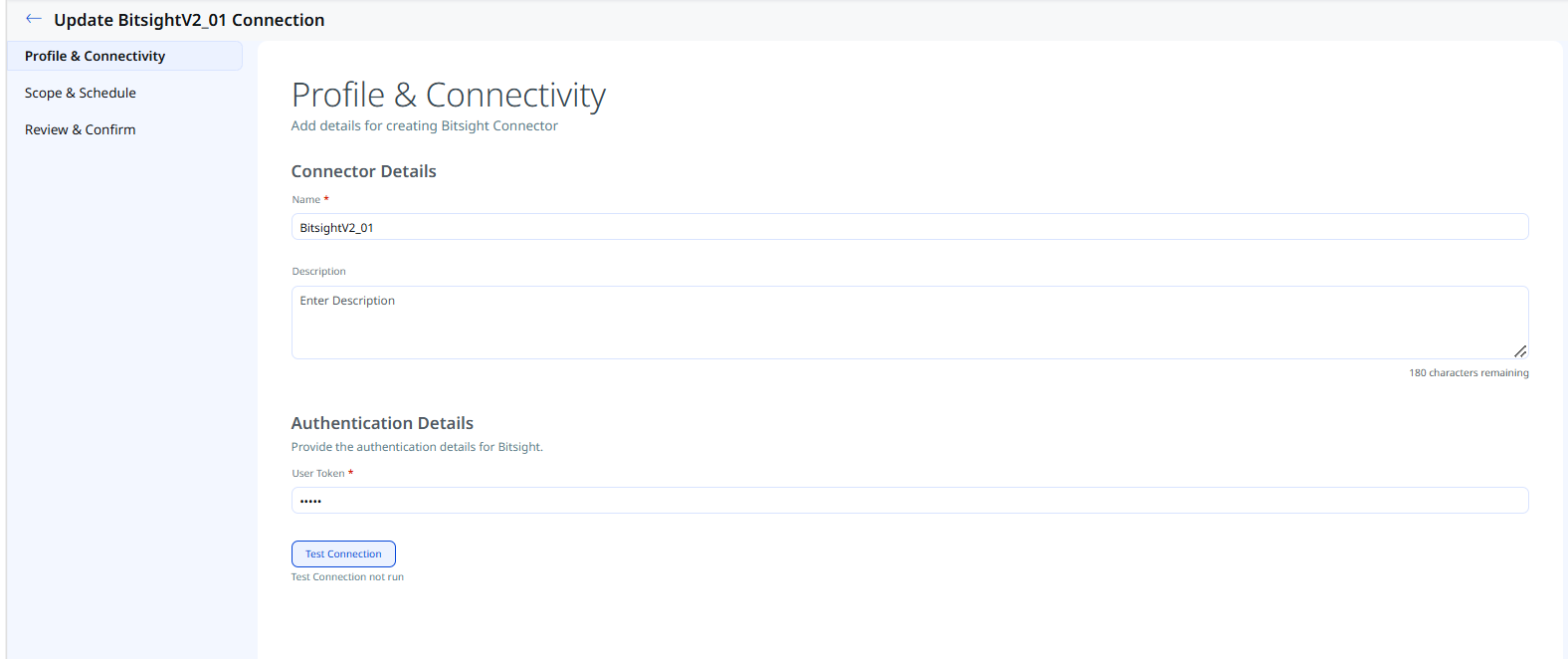
This step establishes the connector's identity and authenticates it with BitSight. Provide connector profile information and authentication details.
Connector Details
| Field | Type | Description |
|---|---|---|
| Name | String | A unique display name for this connector instance. A name is pre-populated automatically (for example, BitSight26071424) and can be edited. |
| Description | String | Optional free-text description of the connector's purpose or scope. |
Authentication Details
| Field | Type | Description |
|---|---|---|
| User Token (required) | Encrypted String | The BitSight API token generated from your BitSight account under Settings > Account > User API Token. |
After entering the User Token, click Test Connection to validate connectivity. The following checks are performed:
- Network Reachability – Verifies that the connector endpoint is reachable over HTTPS (port 443).
- TLS Handshake – Confirms that a secure TLS connection can be established with the remote endpoint.
- Authentication Credential Check – Validates the User Token against BitSight's authentication endpoint.
- Authorization Scope Check – Confirms that the token has the required read permissions to access the configured data scope.
- Data Fetch – Verifies that data can be successfully retrieved from BitSight using the configured connection.
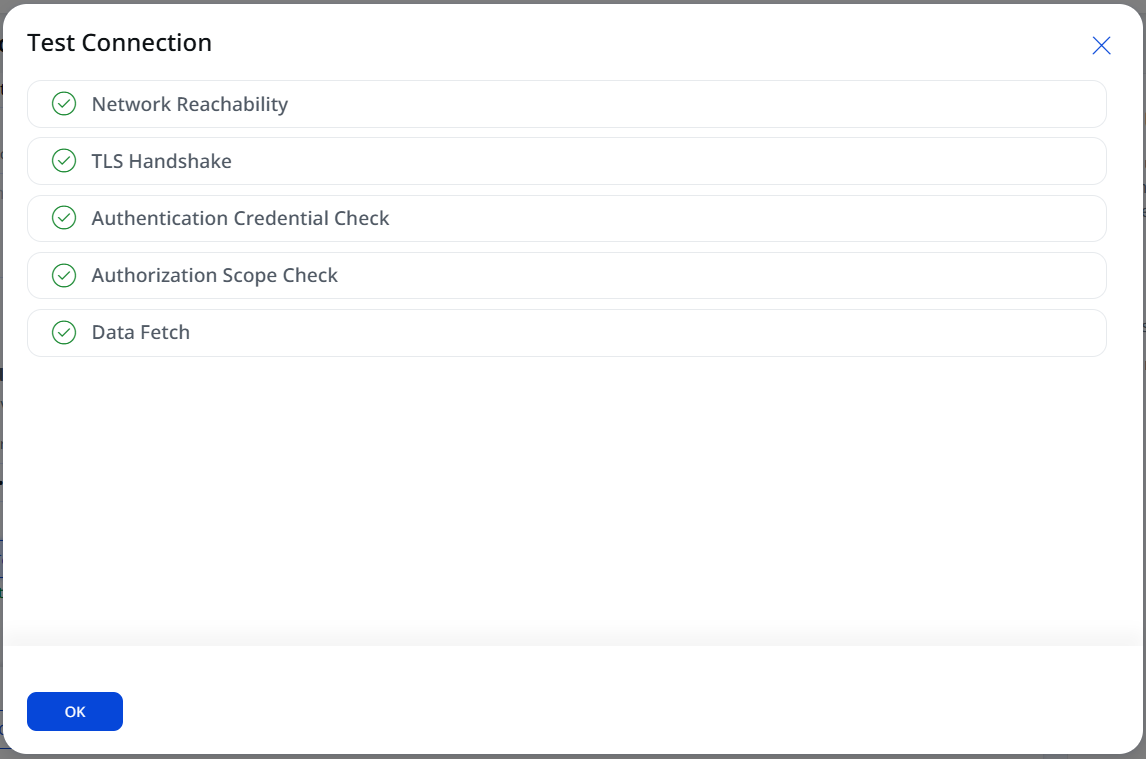
Click Next to proceed once all checks pass.
Set the Scope & Schedule Set the Scope & Schedule
This step defines what data is ingested and when the connector runs. Select the data types to synchronize and configure the execution schedule.
The connector supports the following synchronization options:
- Assets & Findings
- Assets
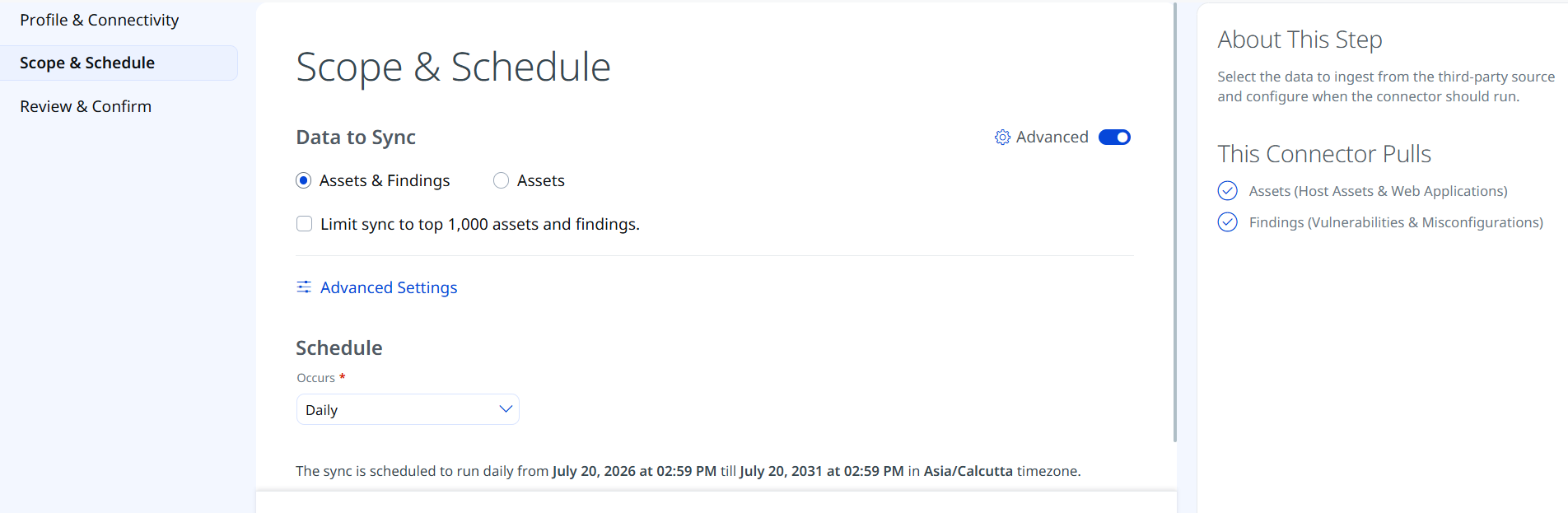
- Configure a Schedule: choose Single Occurrence or Recurring and provide the corresponding start and end dates/times.
- Optionally, open Advanced Settings to select which Asset Types to sync (Generic Application, Compute are selected by default) and to configure the Grade Filter for findings (Good, Warn, Bad, Neutral, Fair, NA). See Advanced Settings below.
- Click Save to preserve any Advanced Settings changes, then click Next to proceed to the final step.
The schedule timezone is determined by your Qualys account settings (for example, Asia/Calcutta). The connector will run from the configured start date for a default period of up to 5 years.
Advanced Settings
Filters
The Filters tab lets you scope which assets and findings are imported using two independent selectors.
| Filter | Options | Description |
|---|---|---|
| Asset Types | Generic Application, Compute | Select the asset types to ingest. Generic Application and Compute are selected by default. |
| Findings | Vulnerability, Misconfiguration | Select the required finding. |
| Asset Type | IP, Domain | Select the required asset type for the BitSight V2 connector. |
| Grade Filter | Good, Warn, Bad, Neutral, Fair, NA | Select the BitSight risk grade values to scope which findings are imported, allowing you to focus on high-risk entities and findings. |
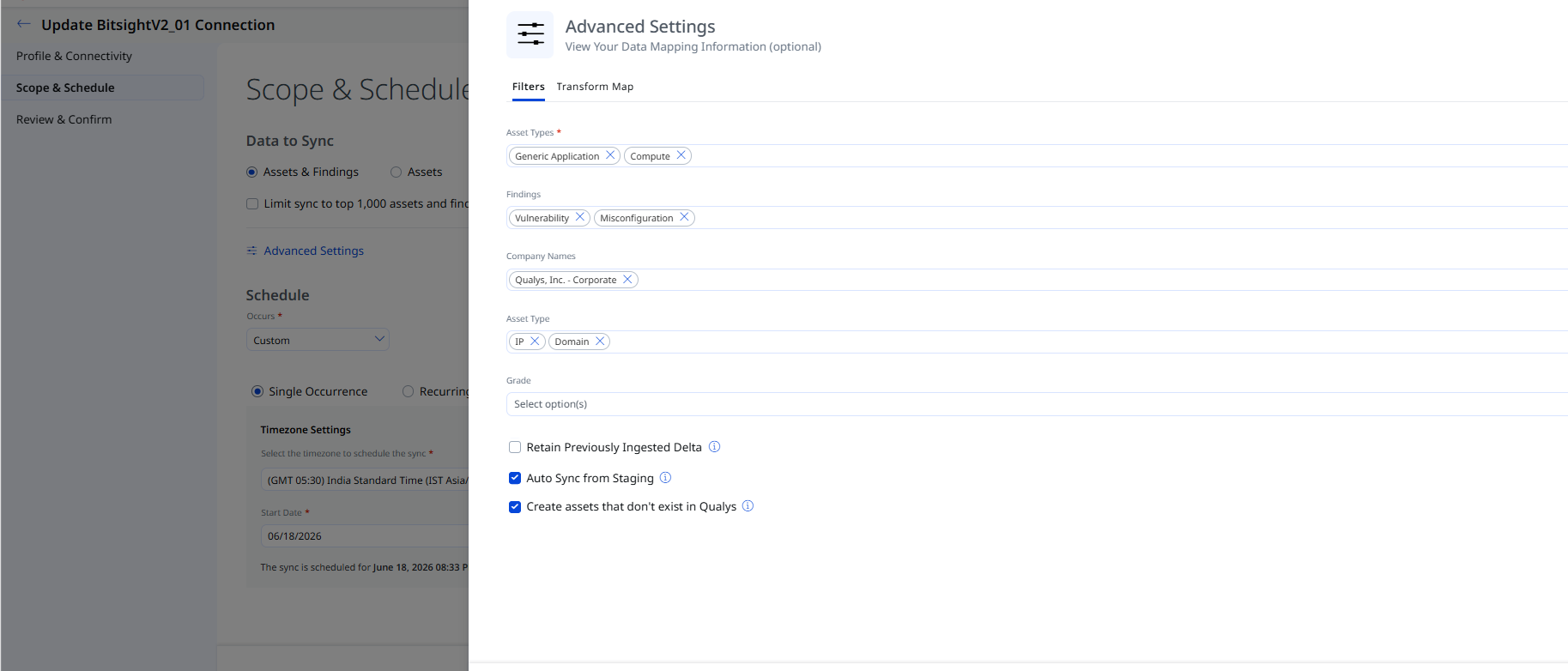
Click Save to save the filter configurations.
Transform Map
The Transform Map tab displays the active out-of-box transform maps for this connector. The default transformation maps configured for the BitSight V2 connector are fetched from the database and utilized during the execution of the connector profile to perform data transformation. The BitSight V2 connector provides four pre-configured maps:
- Compute asset Map – This maps BitSight Compute asset records to Qualys ETM host asset attributes.
- Compute Misconfigurations Map – This maps BitSight misconfiguration findings on Compute assets to Qualys ETM finding attributes.
- Compute Vulnerability Map – This maps BitSight vulnerability findings on Compute assets to Qualys ETM finding attributes.
- Generic Application Map – This maps BitSight Generic Application asset records and findings to Qualys ETM asset and finding attributes.
For more mapping details, refer to Transformation Maps.
Review and ConfirmReview and Confirm
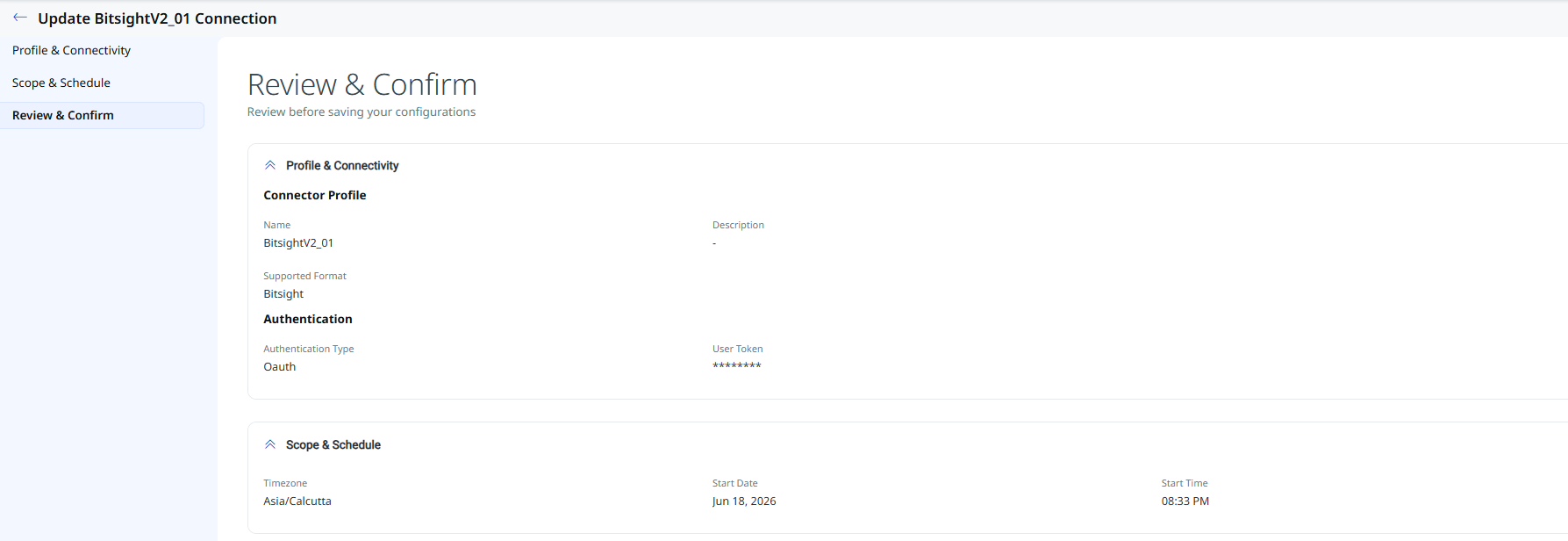
Review the connection details and click Create to create the connector. The new connection appears in the Connections list with a Registered state.
Transformation Maps
The BitSight V2 connector provides four pre-configured maps:
Compute Assets MapCompute Assets Map
| Source Field | Target Field |
|---|---|
asset |
asset.assetHeader.externalAssetId |
asset |
asset.assetHeader.vendorAssetId |
asset |
asset.assetDetail.name |
ip_addresses[] |
asset.assetDetail.network[].addresses[] |
host-machine |
asset.assetHeader.assetTypeName |
origin_subsidiary.name |
asset.assetDetail.typedAttributes.* |
Compute Misconfigurations MapCompute Misconfigurations Map
| Source Field | Target Field |
|---|---|
assets.asset |
asset.assetHeader.externalAssetId |
host-machine |
asset.assetHeader.assetTypeName |
details.searchable_details |
findingGroup.findings[].name |
details.infection.family |
findingGroup.findings[].name |
details.searchable_details |
findingGroup.findings[].findingType.misconfiguration.policy.title |
rolledup_observation_id |
findingGroup.findings[].externalFindingId |
severity_category |
findingGroup.findings[].severity |
assets.asset |
asset.assetHeader.vendorAssetId |
assets.asset |
asset.assetDetail.name |
first_seen |
findingGroup.findings[].firstFoundOn |
last_seen |
findingGroup.findings[].lastFoundOn |
risk_category |
findingGroup.findings[].category |
assets.ip_addresses[] |
asset.assetDetail.network[].addresses[] |
details.remediation_tip |
findingGroup.findings[].remediation.remediationStrategy |
details.vulnerabilities[].description |
findingGroup.findings[].description |
details.infection.description |
findingGroup.findings[].description |
security_outcome |
findingGroup.findings[].findingStatus |
details.detection_method |
findingGroup.findings[].detectionMethod |
details.dest_port |
findingGroup.findings[].port |
risk_vector_label |
findingGroup.findings[].subCategory |
assets.origin_subsidiary.name |
asset.assetDetail.typedAttributes.* |
Compute Vulnerability MapCompute Vulnerability Map
| Source Field | Target Field |
|---|---|
assets.asset |
asset.assetHeader.externalAssetId |
host-machine |
asset.assetHeader.assetTypeName |
details.infection.family |
findingGroup.findings[].name |
details.vulnerabilities[].name |
findingGroup.findings[].name |
rolledup_observation_id |
findingGroup.findings[].externalFindingId |
severity_category |
findingGroup.findings[].severity |
assets.asset |
asset.assetHeader.vendorAssetId |
assets.asset |
asset.assetDetail.name |
details.vulnerabilities[].cvss.base |
findingGroup.findings[].findingType.vulnerability.cvss.cvss3Base |
first_seen |
findingGroup.findings[].firstFoundOn |
last_seen |
findingGroup.findings[].lastFoundOn |
risk_category |
findingGroup.findings[].category |
rolledup_observation_id |
findingGroup.findings[].findingType.vulnerability.vendorId |
last_remediation_status_label |
findingGroup.findings[].findingStatus |
assets.ip_addresses[] |
asset.assetDetail.network[].addresses[] |
details.vulnerabilities[].remediation_tip |
findingGroup.findings[].remediation.remediationStrategy |
details.remediation_tip |
findingGroup.findings[].remediation.remediationStrategy |
details.vulnerabilities[].name |
findingGroup.findings[].findingType.vulnerability.cveId |
details.vulnerabilities[].description |
findingGroup.findings[].description |
details.infection.description |
findingGroup.findings[].description |
details.detection_method |
findingGroup.findings[].detectionMethod |
details.dest_port |
findingGroup.findings[].port |
risk_vector_label |
findingGroup.findings[].subCategory |
open_ports_description |
findingGroup.findings[].detectionResult |
details.diligence_annotations.certchain-summary |
findingGroup.findings[].detectionResult |
assets.origin_subsidiary.name |
asset.assetDetail.typedAttributes.* |
Generic Application MapGeneric Application Map
| Source Field | Target Field |
|---|---|
details.final_location |
asset.assetHeader.externalAssetId |
CONSTANT: "generic-application" |
asset.assetHeader.assetTypeName |
assets.asset |
asset.assetDetail.genericApplicationAssetClass.name |
assets.asset |
asset.assetDetail.name |
details.final_location |
asset.assetHeader.vendorAssetId |
rolledup_observation_id |
findingGroup.findings[].externalFindingId |
details.assessment_name |
findingGroup.findings[].name |
severity_category |
findingGroup.findings[].severity |
first_seen |
findingGroup.findings[].firstFoundOn |
last_seen |
findingGroup.findings[].lastFoundOn |
details.help_text |
findingGroup.findings[].description |
result_finding_grade |
findingGroup.findings[].findingStatus |
risk_vector_label |
findingGroup.findings[].subCategory |
risk_category |
findingGroup.findings[].category |
rolledup_observation_id |
findingGroup.findings[].findingType.vulnerability.vendorId |
details.remediation_tip |
findingGroup.findings[].remediation.remediationStrategy |
assets.origin_subsidiary.name |
asset.assetDetail.typedAttributes.* |
How the Connection Works
On schedule (or on demand), the BitSight V2 connector fetches BitSight-supported assets and findings and imports them into Qualys ETM. On the Connectors screen, you can find your newly configured connector listed and marked in the Processed state once the initial run completes.
Connector States
A successfully configured connector progresses through the following states:
- Registered – The connector is successfully created and registered to fetch data from BitSight.
- Scheduled – The connector is scheduled to execute a connection with BitSight.
- Processing – A connection is executing and the connector is fetching asset and findings data.
- Processed – The connector has successfully fetched the assets; findings may still be in the process of being fetched. Wait for some additional time for the connector to fetch the findings completely.
The Processed state indicates that the connector is successfully configured but is still under the process of importing all your assets and findings. This entire process may take up to 2 hours to complete. Once it is done, you can find the imported data in Enterprise TruRisk Management (ETM).
Viewing Assets and Findings in ETM
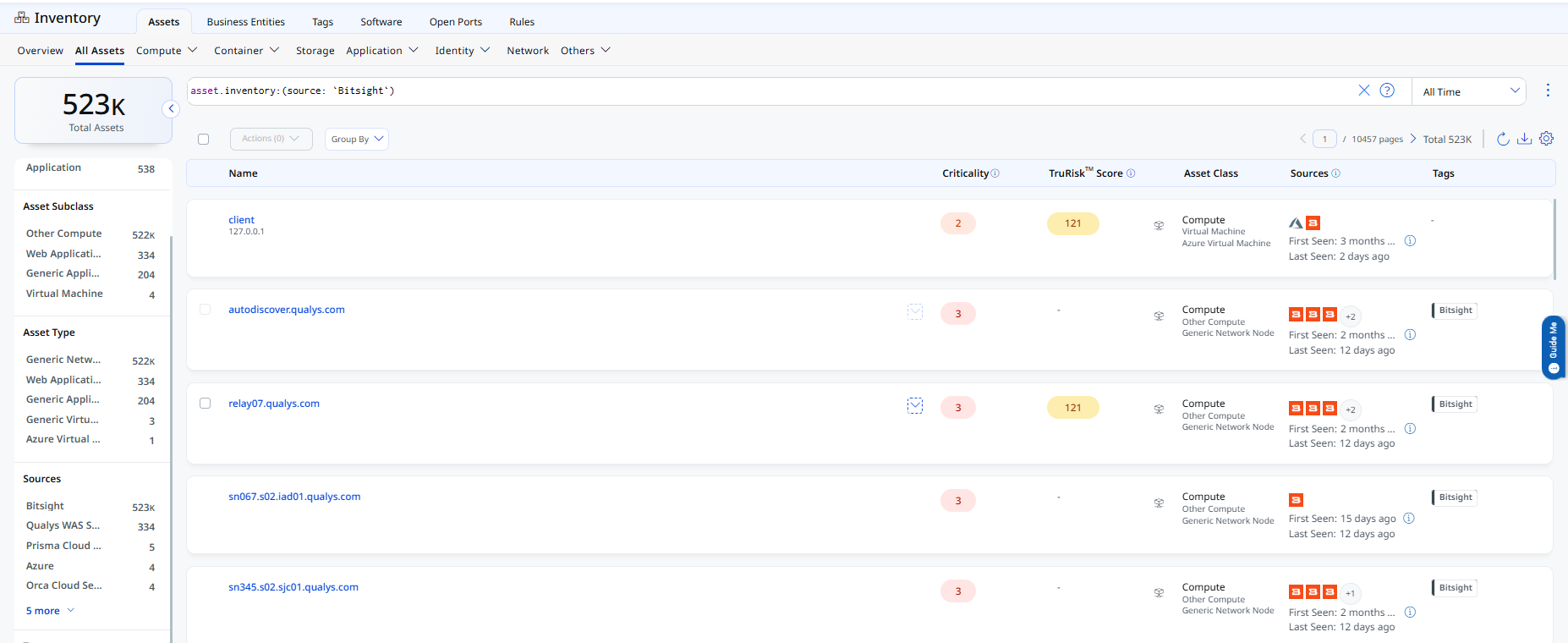
Navigate to Enterprise TruRisk Management > Inventory. Go to Assets > Asset type to view imported BitSight assets.
For example: Compute
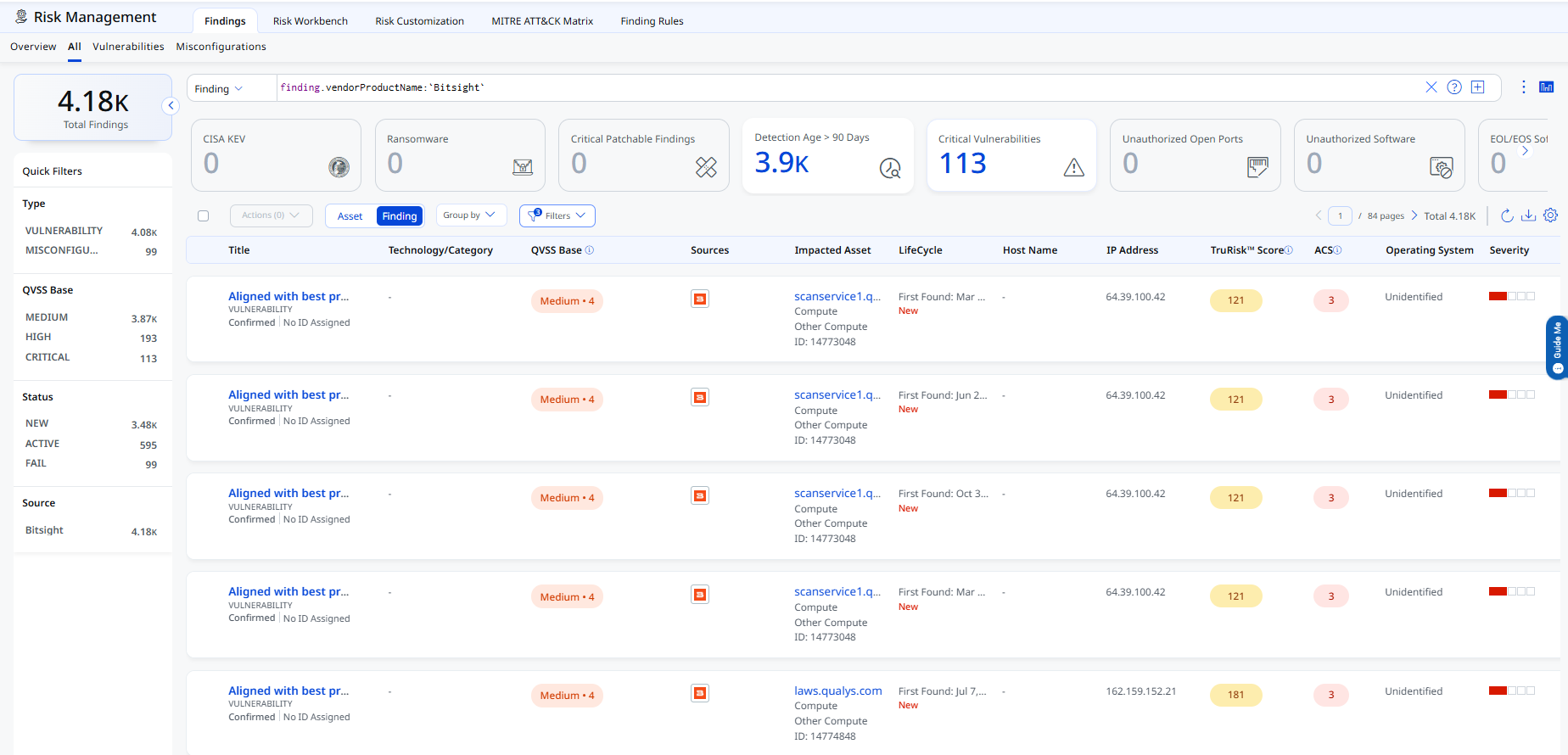
Go to Risk Management to view imported BitSight findings.
Troubleshooting
| Issue | Resolution |
|---|---|
| Connector stuck in Processing state | The connector may require up to two hours to complete synchronization depending on data volume. Review connector logs for API errors or rate limiting issues if processing exceeds this duration. |
| Assets or findings not appearing after processing | After the connector reaches the Processed state, findings synchronization may still be running in the background. Allow additional time for all data to appear in ETM. |
| Fewer assets or findings imported than expected | Check the Asset Types and Grade Filter selections in Advanced Settings. Only asset types and grade values that are selected are imported. |
| 401 Unauthorized / Authentication failure | The User Token is invalid, revoked, or has expired. Generate a new token in BitSight under Settings > Account > User API Token and update the connector configuration. |
Additional Information
API Reference
The following APIs are executed during each BitSight V2 connector run.
| Name | Filters / Parameters | Endpoint |
|---|---|---|
| Authentication API | N/A | https://api.bitsighttech.com/ |
| Fetch Portfolio | N/A | https://api.bitsighttech.com/ratings/v2/portfolio/ |
| Fetch Companies | N/A | https://api.bitsighttech.com/ratings/v1/companies/ |
| Fetch Assets | Asset Type: Generic Application, Compute |
https://api.bitsighttech.com/ratings/v1/companies/${companyGUID}/assets |
| Fetch Findings (Vulnerabilities & Misconfigurations) | Grade Filter: Good, Warn, Bad, Neutral, Fair, NA |
https://api.bitsighttech.com/ratings/v1/companies/${companyGUID}/findings |