Black Duck SCA Connector
The Black Duck SCA Connector bridges code repository security data into Qualys Enterprise TruRisk Management by automatically importing projects, components, and vulnerability findings from Black Duck.
This integration enables security teams to consolidate risk visibility across their software supply chain and development assets rather than managing separate vendor platforms. By ingesting code repository findings alongside other enterprise risk data, teams gain the unified prioritization and remediation tracking needed to address vulnerabilities in their codebase within their broader risk management workflow.
The connector performs full data pulls on a scheduled basis, allowing organizations to maintain current visibility into code-level security issues as part of their comprehensive risk management program.
Connector Details
The following table provides a high-level overview of the Black Duck SCA connector.
| Vendor | Synopsys |
| Product name | Blackduck SCA |
| Category | Assets (Code Repo) |
| Findings support | Yes |
| Assets supported | Code Repository |
| Version | 1.0.0 |
| Integration type | API Integration (REST) |
| Direction | Unidirectional (Black Duck > Qualys) |
| Delta support | Not supported (Full pull on each execution) |
Configure the Connector
The connector setup wizard guides you through three steps. Complete each step in order.
Before You Begin - AuthenticationBefore You Begin - Authentication
Complete the following prerequisites before configuring the connector in Qualys ETM.
- Ensure you have a user account on your Black Duck instance with permission to create API tokens.
- Generate an API token from the Black Duck UI (see the procedure below). Copy and store the token immediately; it is displayed only once.
- Confirm network connectivity: Qualys cloud must be able to reach your Black Duck instance over HTTPS (port 443).
- Have your Black Duck instance base URL ready (for example,
https://blackduck.example.com).
Generating an API Token in Black Duck
Follow these steps to generate the API token required for connector authentication.
- Log in to your Black Duck instance.
- From the user menu on the top navigation bar, select My Access Tokens. The My Access Tokens page displays all existing tokens for your account.
- Click Create New Token.
- In the dialog, enter a descriptive name in the Name field and optionally add a description.
- Select at least Read Access under the permissions options.
- Click Create. The token value is displayed once in a popup window.
- Copy the token and store it securely before closing the dialog.
Important: The API token value is displayed only once at generation time. It cannot be retrieved again after you close the dialog. Store it securely in a password manager or secrets vault before proceeding.
Note: Qualys recommends using a dedicated service account in Black Duck to generate the API token rather than a personal user account, so that token validity is not tied to an individual's account lifecycle.
- In the Qualys ETM connector configuration, enter your Black Duck instance URL in the Base URL field and paste the API token into the API Token field. The connector uses these values to authenticate against the Black Duck REST API.
Permissions Required
The API token must be created with at least Read Access enabled. This grants the connector permission to read project, component, and vulnerability data through the Black Duck REST API. The required permission string is read: vulnerabilities.
Scope and Data Access
The connector retrieves all projects and their associated versions and vulnerability data accessible to the token owner. In Qualys ETM, imported assets can be filtered using asset.inventory:(source:'BlackDuck SCA') and findings can be filtered using finding.vendorProductname:'Blackduck'.
Key Rotation
If you need to rotate the API token, navigate to My Access Tokens in Black Duck, locate the existing token, and select Regenerate from the dropdown menu. Copy the new token value and update the connector configuration in Qualys ETM by editing the connector and entering the new token in the API Token field. The old token becomes invalid immediately upon regeneration.
Create a Profile & ConnectionCreate a Profile & Connection
Provide a name and description for the connector, then supply the authentication credentials for your Black Duck instance.
Connector Details
| Field | Description |
| Name | A unique display name for this connector instance in Qualys ETM. |
| Description | Optional free-text description of the connector's purpose or scope. |
Authentication Details
| Field | Type | Description |
| Base URL | String | Root URL of your Black Duck instance with no trailing path segments. Example: https://blackduck.example.com |
| API Token | Encrypted String | The API token generated from My Access Tokens in Black Duck. Must have Read Access enabled. The token is submitted to /api/tokens/authenticate to obtain a bearer token for subsequent requests. |
Important: Ensure the Base URL is the root hostname of your Black Duck instance with no trailing path segments (for example, https://blackduck.example.com, not https://blackduck.example.com/api). An incorrect base URL will cause the connection test to fail.
After entering credentials, click Test Connection. The connector runs the following checks:
- Network Reachability
- TLS Handshake
- Authentication Credential Check
- Authorization Scope Check
- Data Fetch
All five checks must pass before you can proceed to the next step. If a check fails, refer to the Troubleshooting section.
Set the Scope & ScheduleSet the Scope & Schedule
Configure which data the connector imports and how frequently it runs.
- Data to Sync – Select the data types to import: Assets (code repository projects and component records) and/or Findings (CVE-based vulnerability findings associated with those projects).
- Schedule – Set a recurring schedule for the connector to execute. The connector performs a full pull on each scheduled run; delta synchronization is not supported.
Note: Schedule times are interpreted in UTC. The first full import may take up to 2 hours to complete, depending on the volume of projects and findings in your Black Duck instance.
Advanced Settings
Note: Advanced settings are accessible after the connector is created. Navigate to the connector record in ETM and select the relevant tab. Click Save after making any changes in Advanced Settings.
Filters Tab
The Filters tab is present in the connector configuration; however, filter queries are not currently supported for the Black Duck SCA connector. All projects and their associated findings accessible to the API token will be imported on each run.
Transform Map Tab
The Transform Map tab displays the active transformation map applied during data import. The default map for this connector is the Black Duck SCA transformation map. For field-level mapping details, see Transformation Maps under Additional Information.
How the Connection Works
The Black Duck SCA Connector retrieves projects, components, and vulnerability findings from Black Duck via its REST API and imports them into Qualys ETM as code repository assets with associated vulnerability data. The connector performs a full data pull on each scheduled execution; delta synchronization is not available.
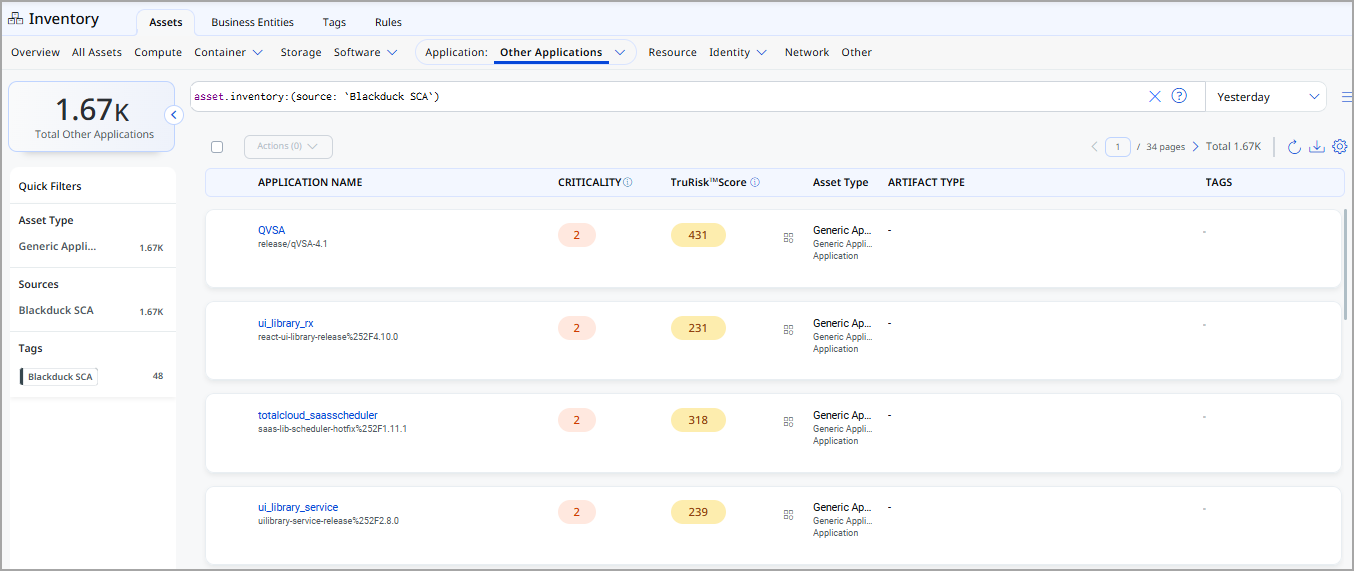
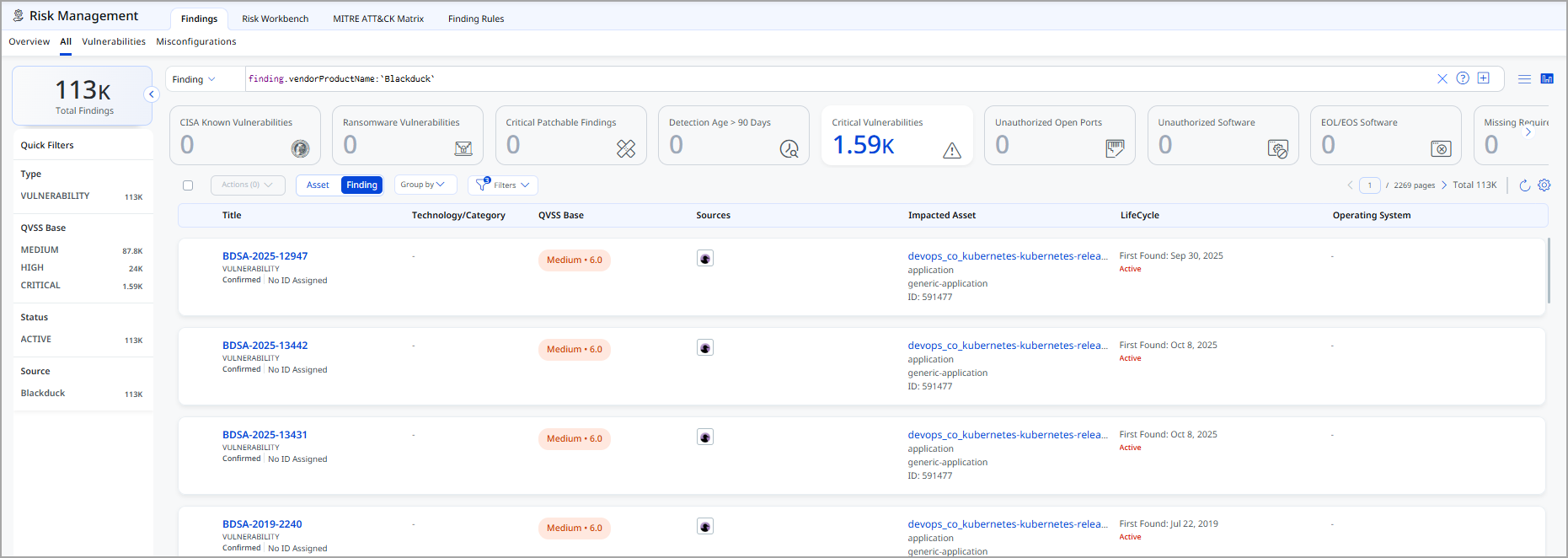
Each run retrieves code repository asset records from Black Duck, including project and component information. Associated vulnerability findings, including CVE data, are imported alongside the assets. In Qualys ETM, imported assets appear under Application > Other Applications and findings appear under Findings > Vulnerability. Imported findings are scored using TruRisk methodology for unified prioritization alongside other enterprise risk data.
On schedule (or on demand), the connector fetches Black Duck project, component, and vulnerability data and imports it into ETM. The connector performs a full pull on each execution; delta synchronization is not available. Imported data is mapped to ETM's data model using the active transformation map.
Connector States
After creation, the connector progresses through the following states in ETM.
| State | Description |
| Registered | The connector is created and registered to fetch vendor data. |
| Scheduled | The connector has a scheduled profile and is waiting for the next execution window. |
| Processing | A connection is executing and the connector is actively fetching assets and findings data. |
| Processed | The connector has successfully fetched assets. It may still be importing findings. Processed state indicates configuration succeeded and import is underway or complete. |
Note: The first full import (assets and findings) may take up to 2 hours to complete, depending on the volume of data in your Black Duck instance. The connector enters Processed state when asset retrieval is complete; findings may continue to be imported in the background.
Viewing Assets and Findings in ETM
After the connector reaches Processed state, imported data is available in the following locations.
- Assets – Navigate to Enterprise TruRisk Management > Inventory > Assets > Application > Other Applications. Use the asset filter
inventory:(source:'BlackDuck SCA')to narrow results.
- Findings – Navigate to Risk Management > Findings > Vulnerability. Use the vendor filter
findings.vendorProductname:'Blackduck'to narrow results.
Troubleshooting
| 401 Unauthorized | The API token is invalid, expired, or was not copied correctly. Verify the token in Black Duck under My Access Tokens and regenerate it if needed. Update the connector configuration in Qualys ETM with the new token value. |
| 403 Forbidden | The token was accepted but the associated account does not have sufficient permissions. Verify that the token was created with Read Access enabled. If needed, delete the token and create a new one with the correct permissions. |
| Connection test fails | Verify that the Base URL is the root hostname of your Black Duck instance with no trailing path segments. Confirm that Qualys cloud can reach your Black Duck instance over HTTPS (port 443). Check for any firewall rules or network restrictions that may block the connection. |
| No assets imported after first run | Confirm the API token has read access to project and vulnerability data in Black Duck. The connector transitions through Registered, Scheduled, Processing, and Processed states. The entire import of assets and findings may take up to 2 hours to complete on the first run. |
Additional Information
Black Duck SCA Transformation Mapping
Black Duck SCA – Asset MapBlack Duck SCA – Asset Map
| Source Field | Target Field |
versionName |
name (Required) |
versionName |
externalAssetId (Required) |
versionName |
vendorAssetId |
createdAt |
sourceCreatedAt |
projectGroup |
repoUrl |
settingUpdatedAt |
sourceUpdatedAt |
Black Duck SCA – Vulnerability Findings MapBlack Duck SCA – Vulnerability Findings Map
| Source Field | Target Field |
vulnerabilities[].vulnerabilityWithRemediation.vulnerabilityName |
findings[].name (Required) |
vulnerabilities[].vulnerabilityWithRemediation.description |
findings[].description |
vulnerabilities[].vulnerabilityWithRemediation.vulnerabilityPublishedDate |
findings[].firstFoundOn |
vulnerabilities[].vulnerabilityWithRemediation.vulnerabilityUpdatedDate |
findings[].lastFoundOn |
vulnerabilities[].vulnerabilityWithRemediation.cweId |
findings[].findingType.vulnerability.cweId |
vulnerabilities[].vulnerabilityWithRemediation.severity |
findings[].severity |
vulnerabilities[].vulnerabilityWithRemediation.vulnerabilityName |
findings[].findingType.vulnerability.cveId |
source |
findings[].subCategory |
API Reference
The following Black Duck REST API endpoints are called during each connector execution.
| Name | Endpoint | Notes |
| Authorization | /api/tokens/authenticate |
Exchanges the API token for a bearer token used in all subsequent requests. |
| Get Projects | /api/projects |
Retrieves the list of all projects accessible to the token owner. |
| Get Project Versions | /api/projects/<project-reference>/versions |
Replace <project-reference> with the project UUID (for example, xxxxxxxx-xxxx-xxxx-xxxx-xxxxxxxxxxxx). |
| Get Vulnerabilities | /api/projects/<project-reference>/versions/<projectVersion-reference> |
Replace <projectVersion-reference> with the version UUID to retrieve vulnerability findings for that project version. |