CheckmarxOne DAST V2 Connector
The Checkmarx One DAST connector bridges application security scanning and enterprise risk management by automatically importing dynamic application testing findings into Qualys Enterprise TruRisk Management. Security teams gain centralized visibility into web application vulnerabilities discovered through simulated real-world attack scenarios, eliminating manual data transfers between platforms.
By consolidating these findings alongside other risk data, organizations can prioritize remediation efforts and understand how application vulnerabilities impact their overall security posture. The connector enables teams to activate web applications for continuous scanning within Qualys Web Application Security while maintaining a unified view of their application risk landscape.
Connector Details
|
Vendor |
Checkmarx |
|---|---|
|
Product Name |
CheckmarxOne DAST |
|
Category |
Application Security |
|
Findings Support |
Yes |
|
Supported Assets |
Web Applications |
|
Version |
1.0.0 |
|
Integration Type |
API Integration (REST) |
|
Direction |
Unidirectional |
|
Delta Support |
Not Supported |
Configure the Connector
The configuration wizard consists of three steps. A valid connection test is required before you can proceed.
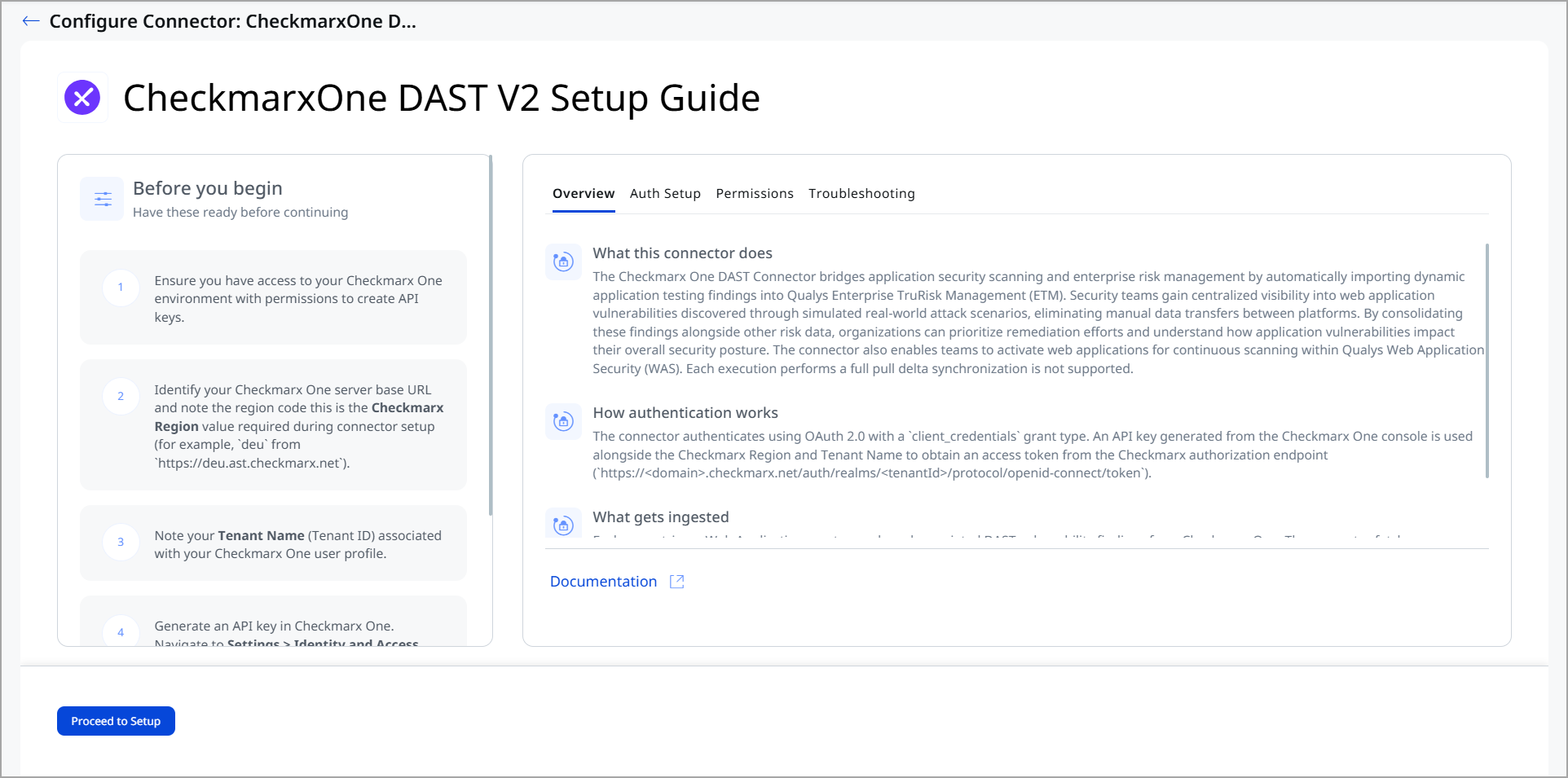
Before You Begin - AuthenticationBefore You Begin - Authentication
Have the following ready before starting the connector configuration in Qualys ETM:
- Ensure you have access to your Checkmarx One environment with permissions to create API keys.
- Identify your Checkmarx One server base URL and note the region code — this is the Checkmarx Region value required during connector setup (for example,
deufromhttps://deu.ast.checkmarx.net). - Note your Tenant Name (Tenant ID) associated with your Checkmarx One user profile.
- Generate an API key in Checkmarx One. Navigate to Settings > Identity and Access Management > API Keys and click Create Key. Store the generated key securely.
Generate an API Key in Checkmarx One
- Log in to your Checkmarx One environment using the appropriate regional URL (see the region table below).
- Navigate to Settings > Identity and Access Management > API Keys.
- Click Create Key.
- Optionally configure a note description, expiration period, and notification emails.
- Click Create and copy the generated API key immediately. Store it securely.
Reference: Creating OAuth Clients – Checkmarx Docs
Important: The API key is shown only once at creation. If you navigate away before copying it, you must delete and recreate the key. If an expiration period is configured, rotate the key before expiry to maintain uninterrupted data ingestion.
Identify Your Checkmarx Region and Tenant Name
Your Checkmarx Region is the region code derived from your Checkmarx One server base URL. For example, if your environment URL is https://deu.ast.checkmarx.net, your region code is deu. Enter this region code (not the full URL) in the Checkmarx Region field in Qualys ETM.
| Region | Server Base URL |
|---|---|
| US | https://ast.checkmarx.net |
| US2 | https://us.ast.checkmarx.net |
| EU | https://eu.ast.checkmarx.net |
| EU2 | https://eu-2.ast.checkmarx.net |
| DEU | https://deu.ast.checkmarx.net |
| Australia & New Zealand | https://anz.ast.checkmarx.net |
| India | https://ind.ast.checkmarx.net |
| UAE | https://mea.ast.checkmarx.net |
| Israel (Gov) | https://gov-il.ast.checkmarx.net |
Your Tenant Name is the Tenant ID associated with your Checkmarx One user profile.
Permissions Required
The Checkmarx One API key must have the read:vulnerabilities permission to access DAST vulnerability findings. This permission applies to the VulnerabilityFindings entity type.
Scope and Data Access
The connector calls three Checkmarx One API endpoints sequentially:
- Environments:
/api/dast/scans/environments/ - Scans per environment:
/api/dast/scans/scans?environmentId=<environmentId> - Scan details:
/api/dast/mfe-results/results/<scanId>
All data is fetched in full on each run. Import of installed software, source tags, and filter queries are not supported. The data flow is unidirectional, from Checkmarx One to Qualys ETM.
Key Rotation
When rotating the API key, generate a new key in Checkmarx One under Settings > Identity and Access Management > API Keys. Update the connector configuration in Qualys ETM with the new API key via the Edit Connector option.
Create a Profile & ConnectionCreate a Profile & Connection
This step establishes the connector's identity and authenticates it with your Checkmarx One environment.
- Log in to Qualys ETM.
- Navigate to Connectors > Integration.
- Locate the CheckmarxOne DAST V2 Connector on the Connector Marketplace and click Add. This is a one-time task.
Note: If the connector is already added, navigate to My Connectors, search for the CheckmarxOne DAST V2 connector, and click Manage Connections.
- From the connector tile, click Manage Connections.
- Click Create Connection. The Setup Guide opens with the Before You Begin checklist and four reference tabs: Overview, Auth Setup, Permissions, and Troubleshooting. Review these before continuing.
- Click Proceed to Setup.
- On the Profile & Connectivity page, complete the following fields:
Connector Details
Field Description Name (required) A unique display name for this connector connection. Description An optional description of the connection's purpose. Authentication Details
Provide the following values to authenticate the connector with your Checkmarx One environment.
Field Type Description Checkmarx Region (required) String The region code derived from your Checkmarx One base URL — not the full URL. Example: deu(fromhttps://deu.ast.checkmarx.net). See the regional table above.Tenant Name (required) String The Tenant ID associated with your Checkmarx One user profile. Example: qualys-nfrAPI Key (required) Encrypted String The API key generated from Checkmarx One under Settings > Identity and Access Management > API Keys.
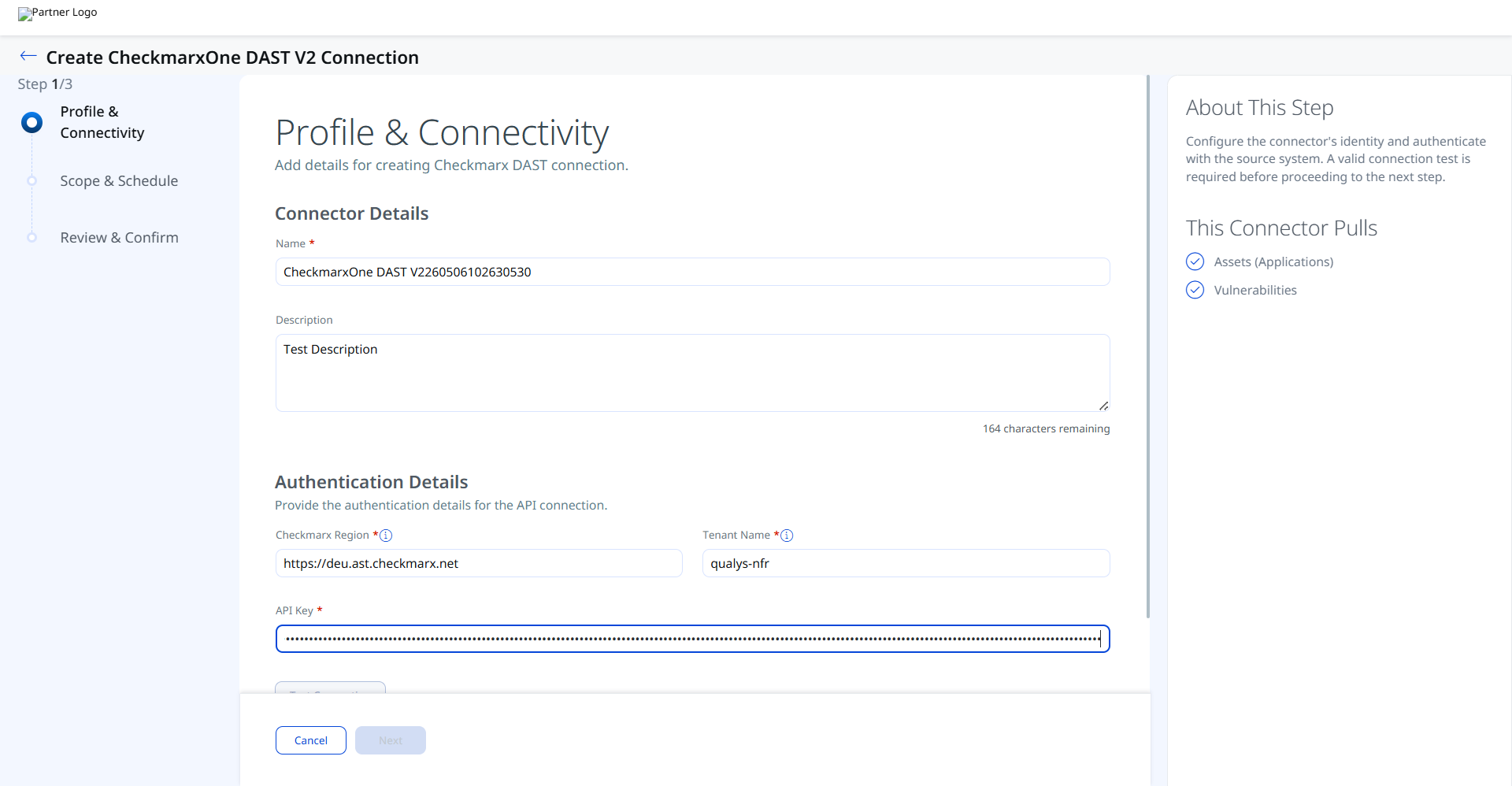
Important: Enter the region code only (for example,
deu), not the full URL. Entering the full URL in the Checkmarx Region field will cause a Network Reachability failure (Unknown Host error) during the connection test. - Click Test Connection. A modal appears showing the status of five sequential checks:
- Network Reachability — Verifies the Checkmarx One regional endpoint is reachable over HTTPS (port 443).
- TLS Handshake — Confirms a secure connection can be established.
- Authentication Credential Check — Validates the API key, region code, and Tenant Name against the Checkmarx OAuth endpoint.
- Authorization Scope Check — Confirms the API key has
read:vulnerabilitiespermission on the VulnerabilityFindings entity. - Data Fetch — Verifies that DAST environment and scan data can be retrieved from the Checkmarx One API.
Important: All five checks must pass before you can proceed. If Network Reachability fails with an Unknown Host error, verify that the Checkmarx Region value is the region code (for example,
deu) and not the full URL. Confirm Qualys cloud can reach the Checkmarx One API endpoint over HTTPS (port 443).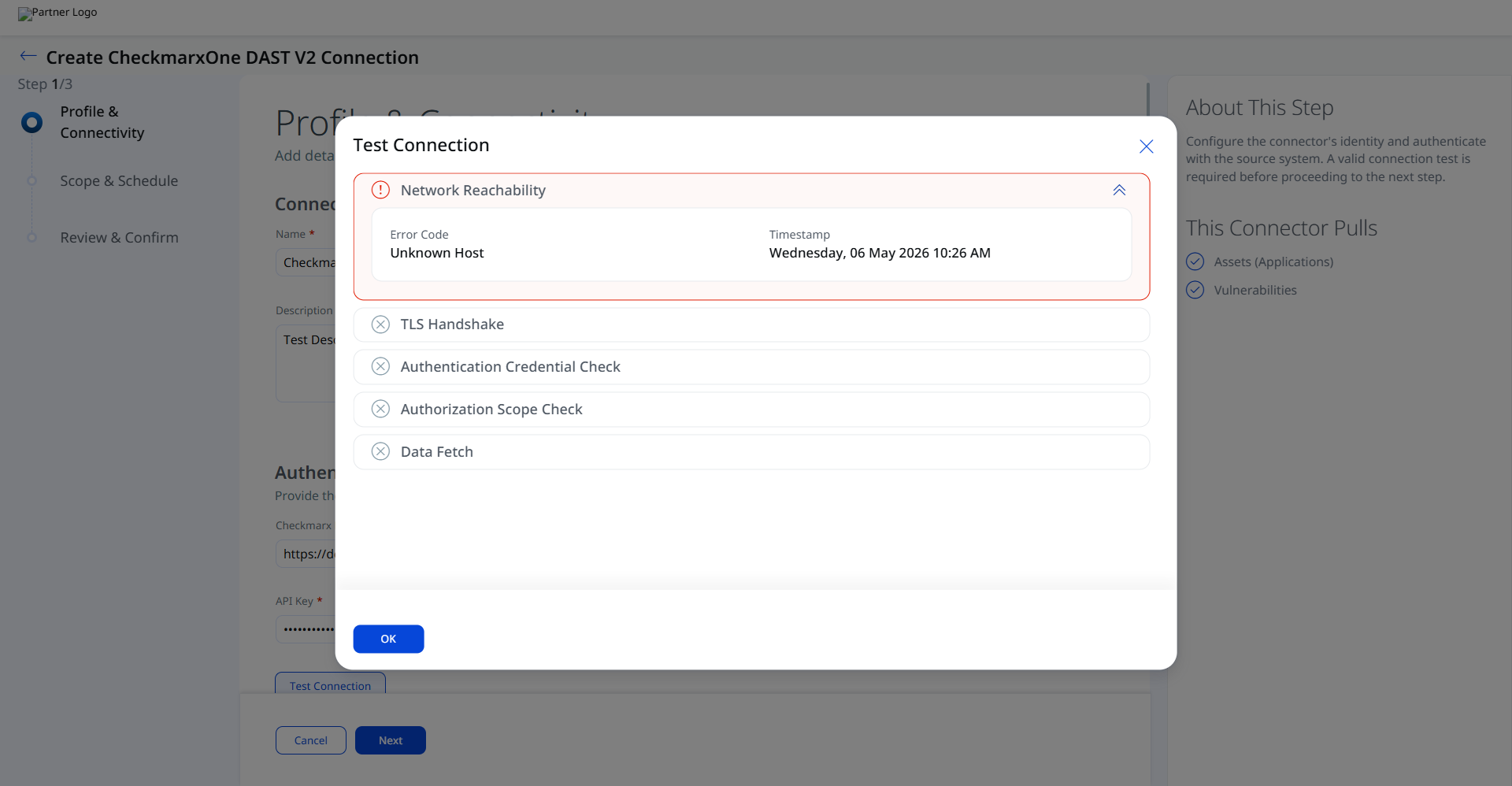
- Click OK to dismiss the modal, then click Next.
Set the Scope & ScheduleSet the Scope & Schedule
This step defines what data is ingested and when the connector runs.
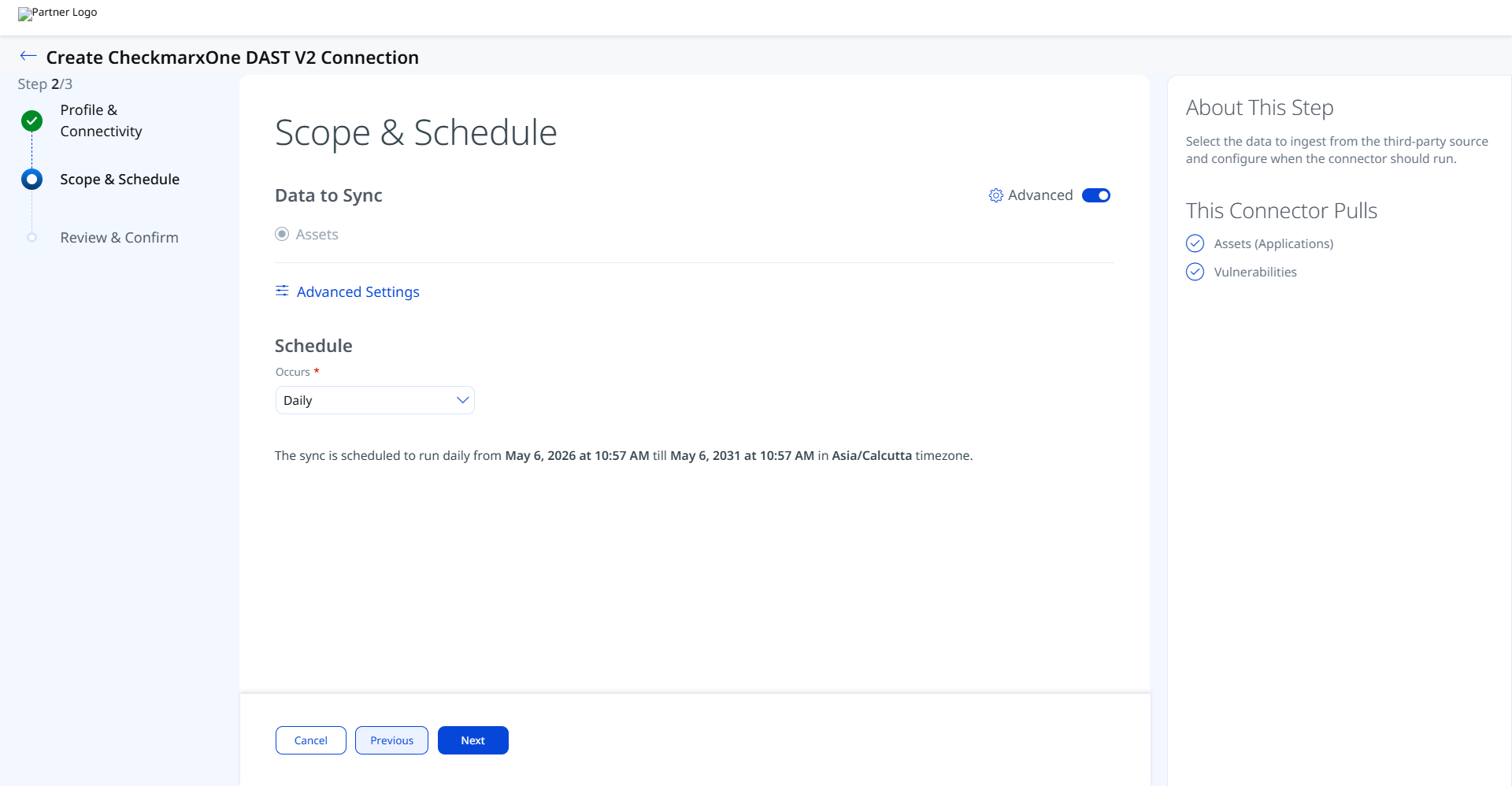
- Data to Sync — This connector supports Assets only. Vulnerability findings are always ingested as part of the asset sync. The default asset class is Application.
- Advanced Settings (optional) — Click Advanced Settings to restrict which asset types are ingested or to view the active transform map. See Advanced Settings below.
- Schedule — Select an execution frequency from the Occurs dropdown (for example, Daily). The system displays the calculated start date, end date, and timezone.
Note: The timezone is determined by your Qualys account settings. The connector runs from the configured start date for a default period of 5 years.
- Click Next.
- Review and confirm your changes and create the connector.
Advanced Settings
Enabling the Advanced toggle on the Scope & Schedule page or clicking the Advanced Settings link opens a panel with two tabs: Filters and Transform Map.
Filters Tab
The Filters tab provides chip-based selectors for asset types and findings:
- Asset Types: Application. Selected by default.
- Findings: Vulnerability. Selected by default when asset sync is active.
Note: Click Save after making changes in the Advanced Settings panel. Closing without saving discards any modifications.
Transform Map Tab
The Transform Map tab displays the active transformation map applied during connector execution. The default active map is the Checkmarx DAST Transformation Map, predefined by Qualys and applied automatically. See Transformation Maps for the full field-level mapping details.
How the Connection Works
On each scheduled or on-demand run, the CheckmarxOne DAST V2 connector retrieves the following from Checkmarx One and imports it into ETM:
- Assets (Applications) — Web application assets representing DAST scanning environments in Checkmarx One. The default asset class is Application. Assets appear in ETM, CSAM, and WAS after ingestion (not activated by default in WAS).
- Vulnerabilities — DAST vulnerability findings from Checkmarx One for each environment, including finding name, severity, status, description, solution recommendation, CWE ID, OWASP Top 10 classification, finding URL, and detection method.
Note: The connector retrieves the latest completed DAST scan results for each configured environment. Delta synchronization is not supported; each run performs a full pull of all current findings.
Connector States
- Registered — Connection created; data fetch has not yet begun.
- Scheduled — Queued for the next scheduled execution.
- Processing — Assets and findings are actively being fetched from Checkmarx One.
- Processed — Assets have been imported; findings may continue processing in the background.
- Errored — The connection encountered an error during execution. Check the Logs tab on the connector tile for details.
Note: The Processed state indicates the connector has successfully fetched assets but may still be importing all findings. This entire process may take up to 2 hours. Once complete, imported data is available in ETM.
Viewing Assets and Findings in ETM
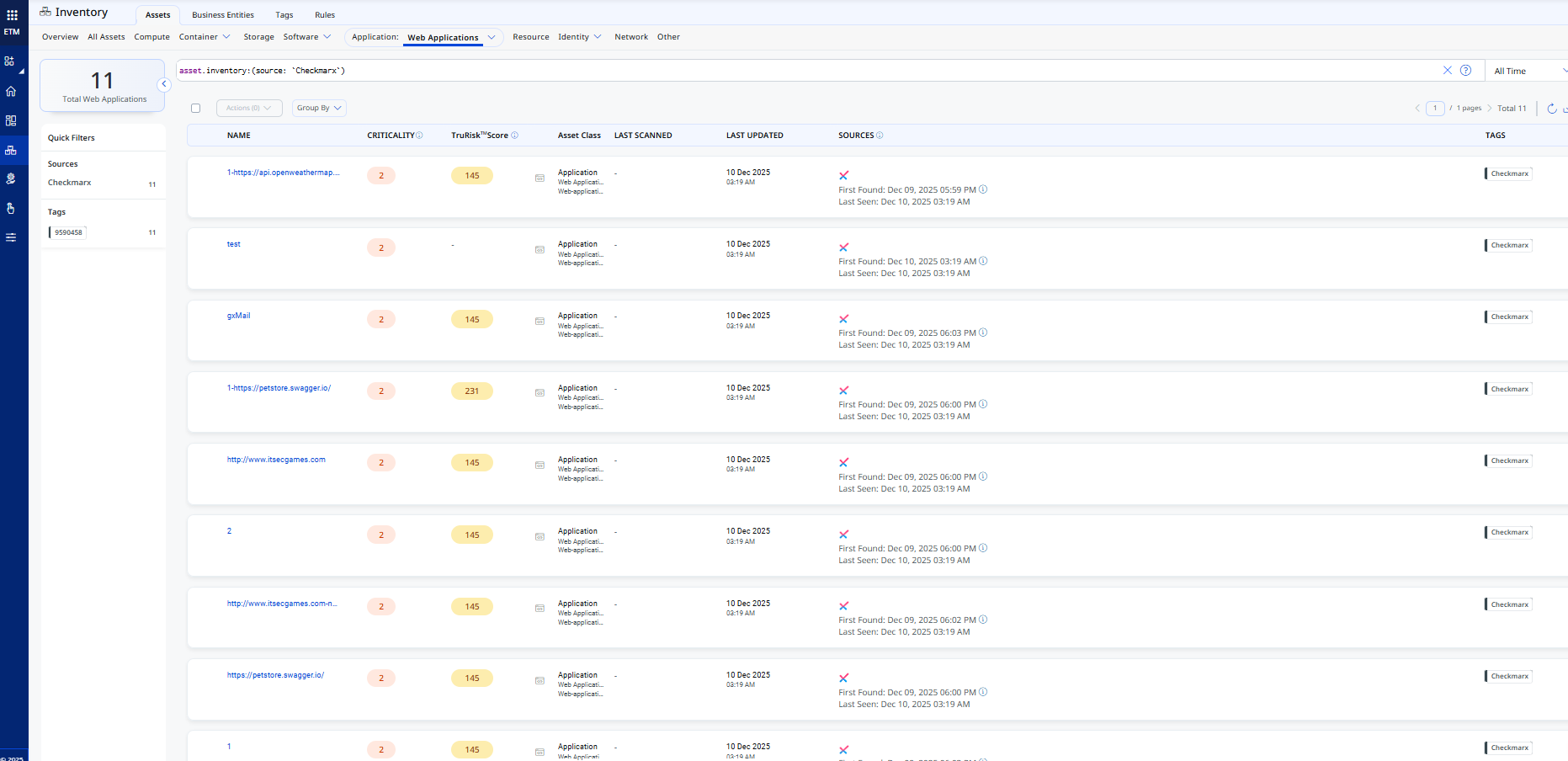
- Assets: Navigate to Enterprise TruRisk Management > Inventory > Assets > Applications > Web Applications to view imported Checkmarx DAST applications.
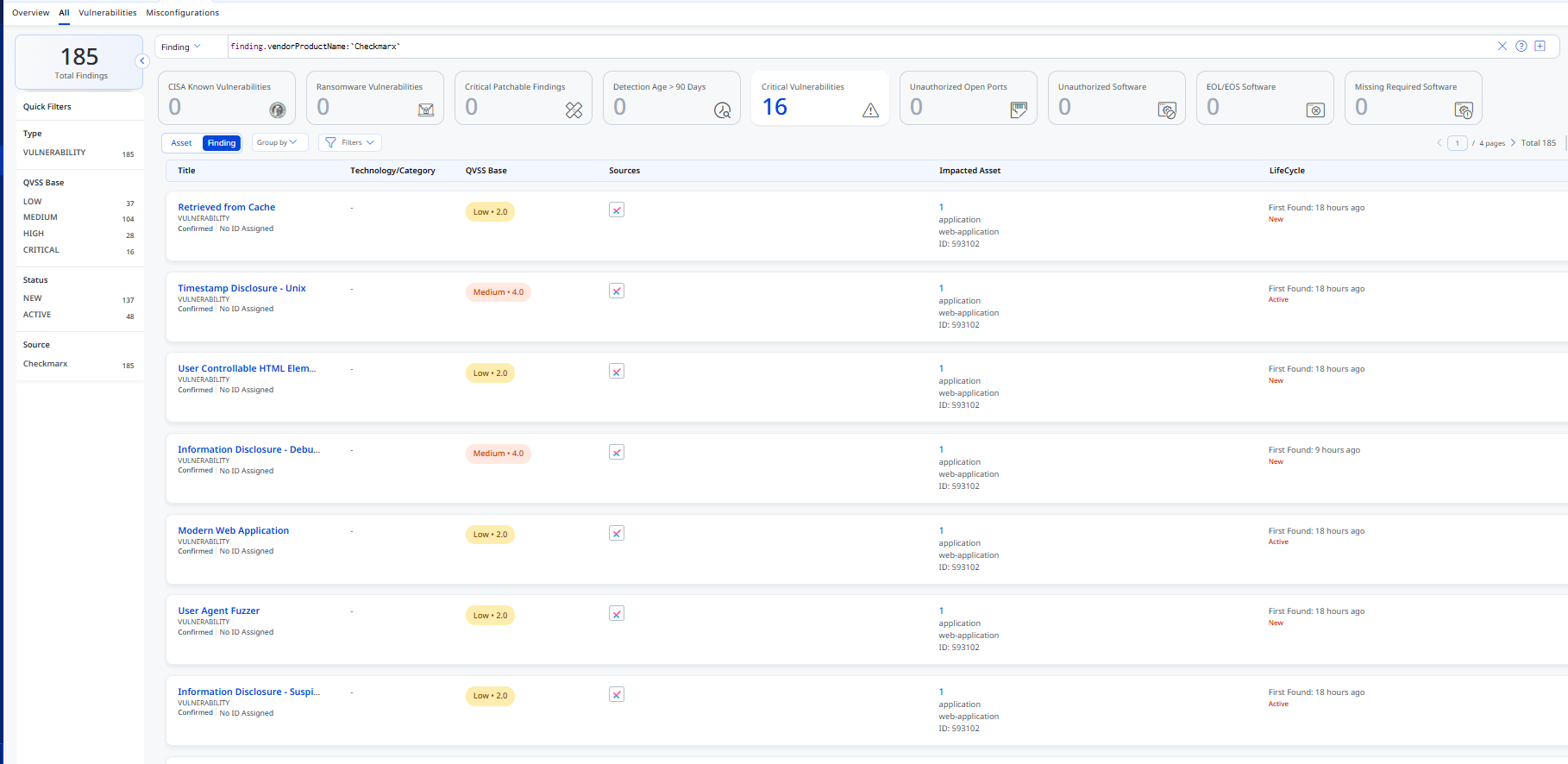
- Findings (Vulnerabilities): Navigate to Enterprise TruRisk Management > Risk Management > Findings > Vulnerability.
Use the filter:finding.vendorProductName:"Checkmarx"
Activating Web Applications in WAS
Web applications synced from the CheckmarxOne DAST V2 Connector appear in ETM, CSAM, and WAS, but are not activated for scanning in WAS by default.
To activate a web application in WAS:
- Navigate to CSAM > Web Applications.
- Select the desired web application.
- Choose Quick Actions > Activate WAS.
Note: Activating web applications consumes WAS licenses. Activate only the applications that require scanning. This connector fetches the latest scans for activated web applications.
Troubleshooting
| Issue | Resolution |
|---|---|
| Authentication failure on connector run | Verify the Checkmarx Region, Tenant Name, and API Key entered in Qualys ETM are correct. Confirm the API key has not expired. Ensure the Checkmarx Region value is the region code from your Checkmarx One environment URL (for example, deu not the full URL). |
| Connection test fails (Network Reachability — Unknown Host) | Verify the Checkmarx Region is the correct region code and not the full URL. Confirm Qualys cloud can reach the Checkmarx One API endpoint over HTTPS (port 443). Check that the Tenant Name is the correct Tenant ID for your user profile. |
| No findings imported after first run | The connector transitions through Registered, Scheduled, Processing, and Processed states. The entire process may take up to 2 hours. Verify that Checkmarx One has completed DAST scans with results available for the configured environments. Delta synchronization is not supported; each run performs a full pull. |
| Web applications not appearing in WAS | Web applications ingested from Checkmarx One appear in ETM, CSAM, and WAS but are not activated for scanning in WAS by default. Navigate to CSAM > Web Applications, select the application, and choose Quick Actions > Activate WAS to enable it for scanning. |
| Connection in Errored state | Navigate to the Logs tab on the connector tile for detailed error information. Common causes include expired API keys, incorrect region codes, or Checkmarx One API availability issues. Resolve the underlying issue and re-run the connector. |
Additional Information
API Reference
The CheckmarxOne DAST V2 connector calls the following Checkmarx One REST API endpoints sequentially during each execution:
| Name | Endpoint | Notes |
|---|---|---|
| Authorization | https://<domain>.checkmarx.net/auth/realms/<tenantId>/protocol/openid-connect/token |
Grant Type: client_credentials |
| Fetch Environments | https://<domain>.checkmarx.net/api/dast/scans/environments/ |
Example domain: deu.ast |
| Fetch Scans | https://<domain>.checkmarx.net/api/dast/scans/scans?environmentId=<environmentId> |
Retrieves scans per environment ID |
| Fetch Scan Details | https://<domain>.checkmarx.net/api/dast/mfe-results/results/<scanId> |
Retrieves all findings for a given scan ID |
Transform Map
Checkmarx DAST — Transformation MapCheckmarx DAST — Transformation Map
| Source Field | Target Field |
|---|---|
created |
sourceCreatedAt |
environmentId |
externalAssetId |
environmentId |
vendorAssetId |
domain |
asset.name |
url |
baseUrl |
environmentId |
applicationEnvironment |
hasAuth |
authenticationEnabled |
scanResults[].id |
externalFindingId |
scanResults[].name |
findings[].name |
scanResults[].severity |
findings[].severity |
scanResults[].status |
findingStatus |
scanResults[].description |
findings[].description |
scanResults[].solution |
solutionRecommendation |
scanResults[].cwe_id |
cweId |
scanResults[].owasp[] |
vulnerability.owaspTop10Ids[].name |
scanResults[].url |
findingURL |
environmentScans[].scanType |
detectionMethod |