Cylera Connector (Beta)
The Cylera connector imports connected device inventory data and vulnerability findings from the Cylera platform into Qualys Enterprise TruRisk Management (ETM). It uses the Cylera Partner API to retrieve device records and associated vulnerability findings, helping you view, prioritize, and track remediation for medical, IoT, and OT risks alongside other enterprise security data.
This connector is in the Beta phase. Qualys continues to expand the connector's coverage and incorporate feedback received during the Beta phase. Qualys may update or refine some features and behaviors before the connector becomes generally available. For more information, contact your Technical Account Manager.
Connector Details
The following table provides a comprehensive overview of what the Cylera connector supports.
| Vendor | Cylera |
| Product Name | Cylera |
| Category | OT/IoT Security |
| Assets Supported | OT/IoT Devices |
| Findings Supported | Vulnerabilities |
| Supported Version & Type | SaaS (Latest) |
| Integration Type | API Integration (REST) |
| Direction | Unidirectional (Cylera to Qualys) |
| Delta Support | Not Supported |
| Import of Installed Software | Not Supported |
| Import of Source Tags | Not Supported |
| Filters/Filter Query | Not Supported |
| Version | 1.0.0 |
Configure the Connector
The connector setup wizard guides you through three steps: Profile & Connectivity, Scope & Schedule, and Review & Confirm. A successful connection test is required to proceed to the next step.
Prerequisites
UAI activation, a dedicated Cylera user, and the required permissions.
Create a Profile and Connection
Name the connection and authenticate with Cylera.
Set the Scope & Schedule
Choose the data to ingest and how often the connector runs, then review and create the connection.
Before You Begin - Authentication
Have the following ready before you configure the connector:
- Ensure that you can sign in to the Cylera web interface with an account that has permission to create users.
- Create a dedicated Cylera user for the connector with the User permission level. See Create a User in Cylera.
- Note the API Host of your Cylera tenant, and the email address and password of the connector user. You need these values for the Authentication Details.
The connector signs in to Cylera with an email address and password. Use a Cylera user that is exempt from multi-factor authentication (MFA). Accounts that sign in only through single sign-on (SSO) cannot be used.
Create a User in Cylera
To create a user in the Cylera web interface:
- On the main dashboard, click Settings.
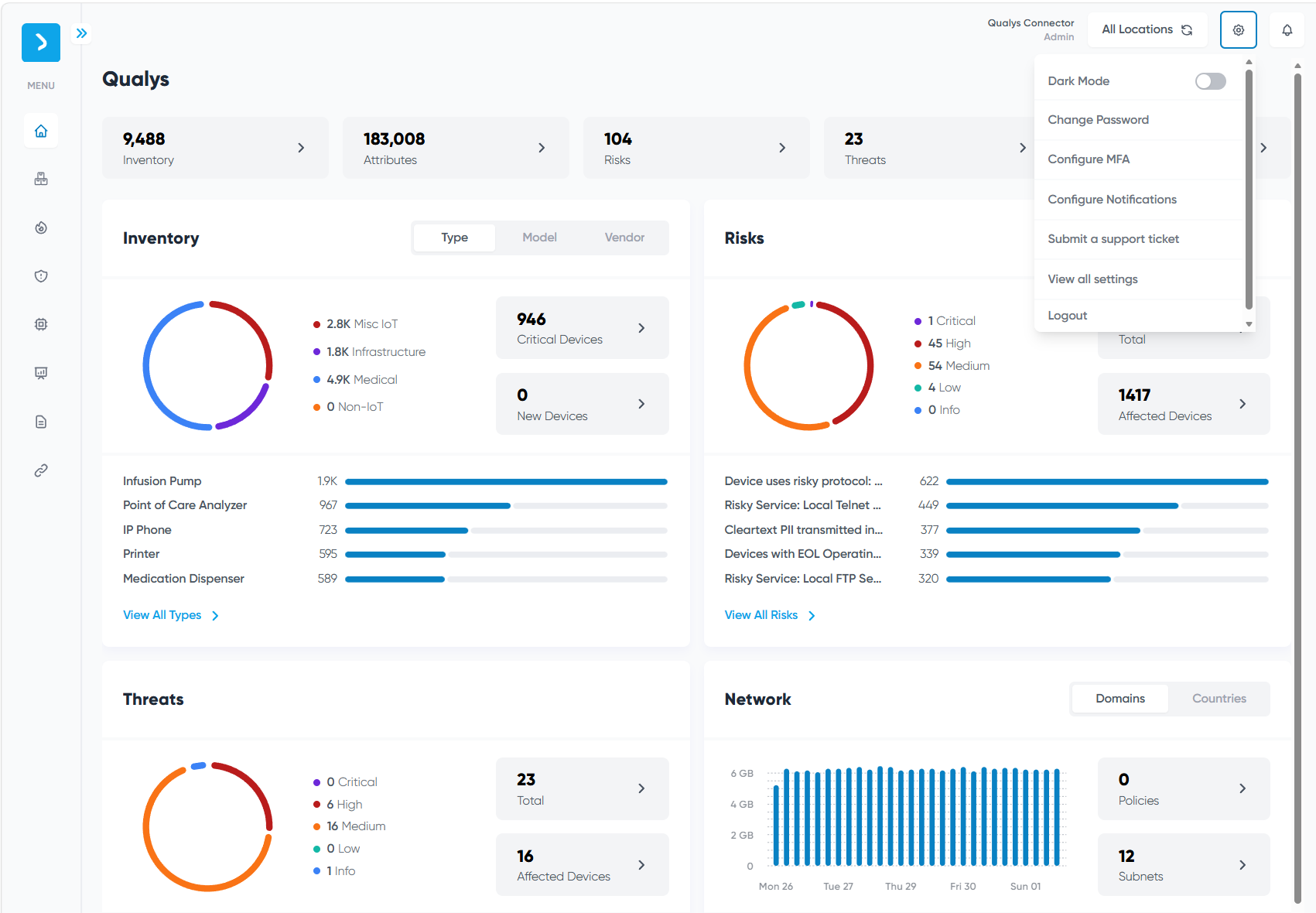
- Click All Settings. The Settings page opens.
- Under the Users section, click Users. The Users management page opens.
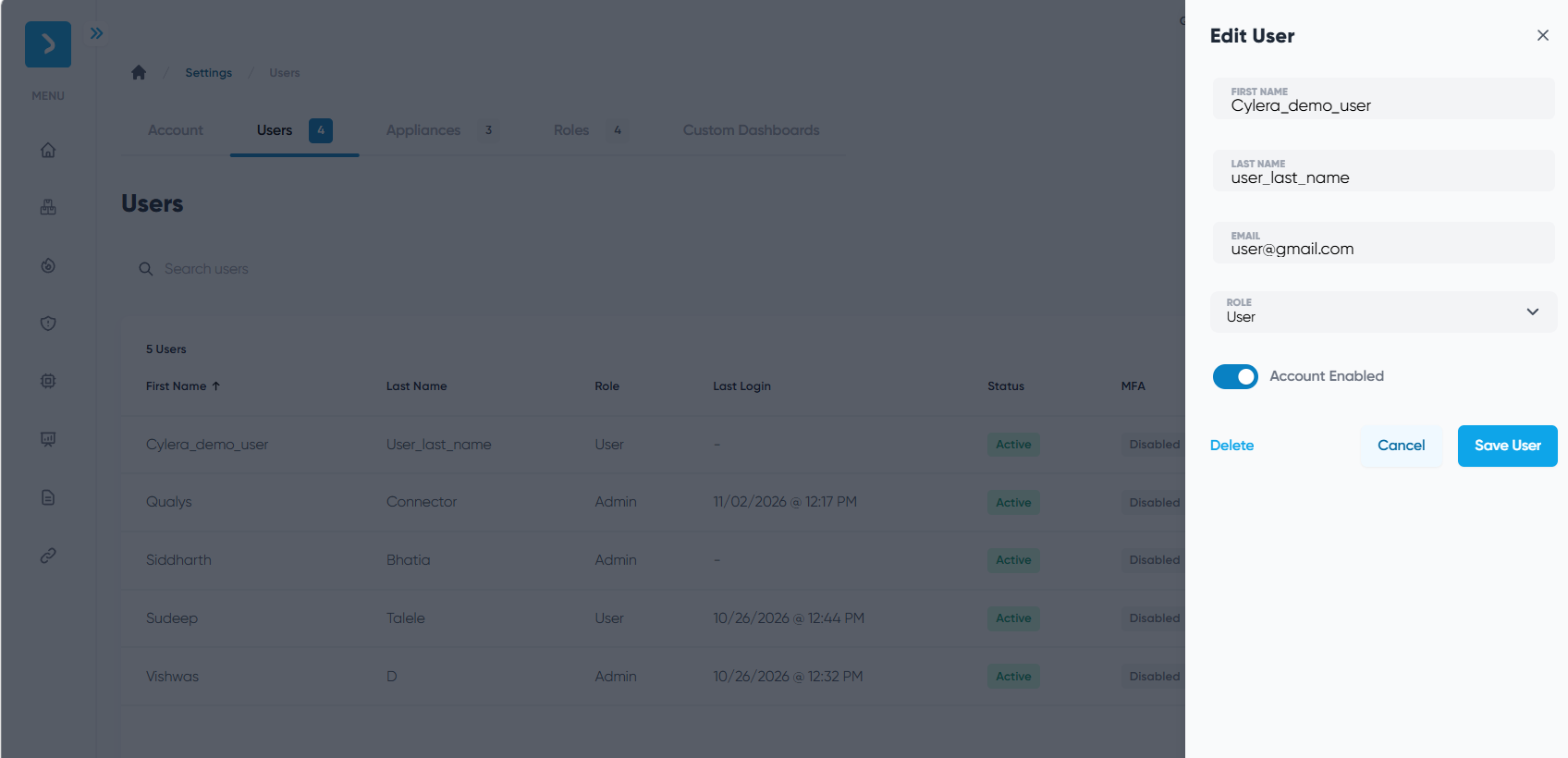
- Click Add User. The Create User form opens.
- Enter the required user details:
- First Name
- Last Name
- For the permission level, select User. This assigns the minimum user permission level.
- Click Create User (or Save). A confirmation message appears, and the new user is listed on the Users page.
The new user receives an email with the account credentials or a password reset link. Use this email address and password when you provide the Authentication Details for the connector.
Permissions Required
The connector user needs only the User permission level, which is the minimum permission level in Cylera. The user must have read access to the following Cylera data:
- Device inventory (
/inventory/devices) — Required to retrieve assets. - Vulnerability data (
/risk/vulnerabilities) — Required to retrieve vulnerability findings. - Organization details (
/organization/) — Required for the Test Connection check.
Create a Profile and Connection
This step establishes the connector's identity and authenticates it with Cylera.
- Sign in to Qualys ETM and go to Connectors > Integration.
- Locate the Cylera connector on the Connector Marketplace and click Add. This is a one-time task.
If the connector is already added, navigate to My Connectors, search for the Cylera connector, and click Manage Connections.
- Click Create Connection.
- On the Profile & Connectivity page, complete the following fields:
Connector Details
Field Description Name A unique display name for this connector connection. Description An optional description of the connection's purpose. Authentication Details
Provide the following values to authenticate the connector with your Cylera tenant.
Field Type Description API Host String The hostname of your Cylera tenant, without the
https://prefix.Examples:
- US:
partner.us1.cylera.com - UK:
partner.uk1.cylera.com
Email String The email address of the Cylera user that you created for the connector. Password Password The password of the Cylera user. 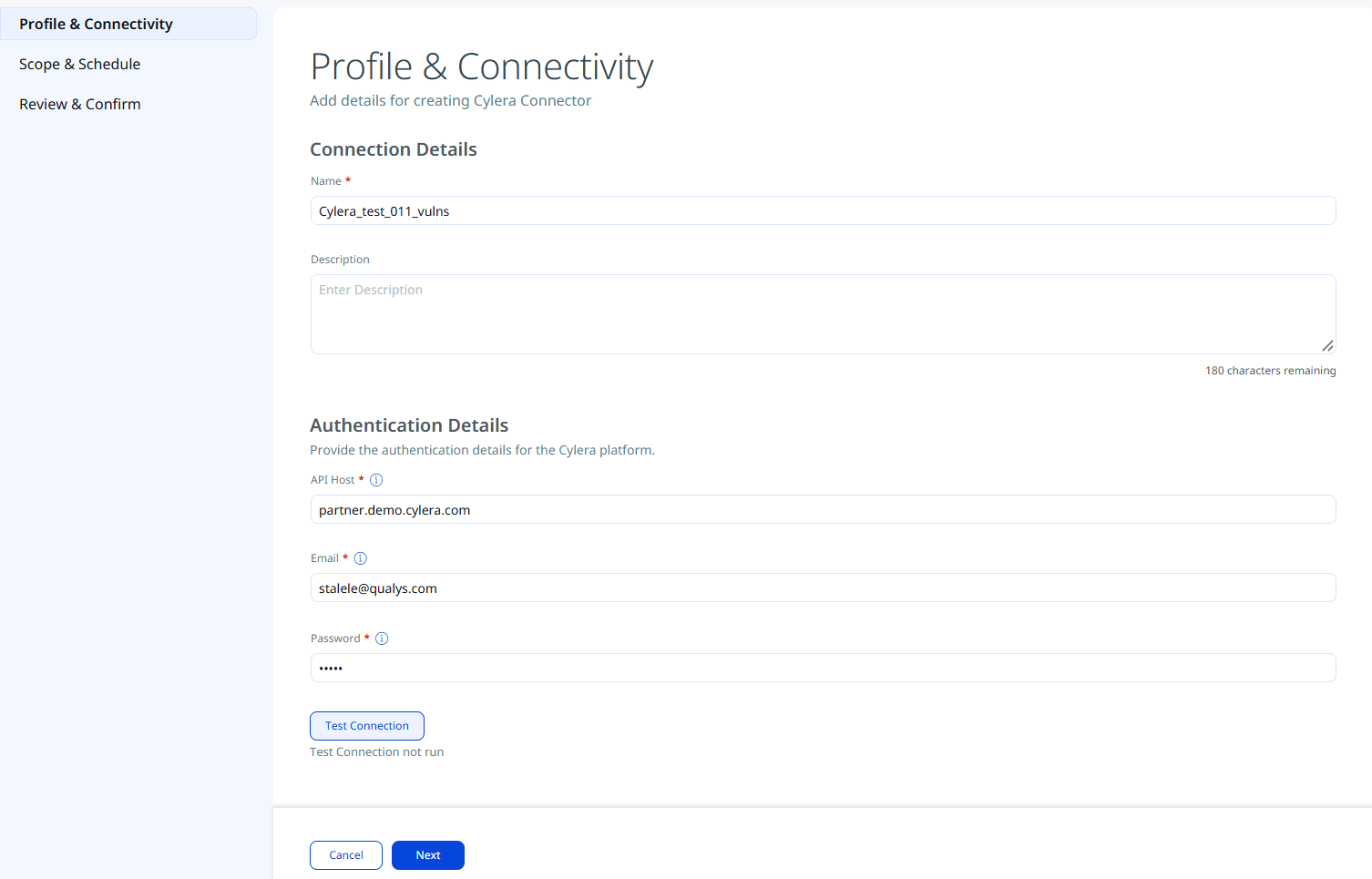
- US:
- Click Test Connection to validate the API host and the user credentials. All checks must pass before you can proceed.
- Network Reachability — Verifies that the Cylera API host is reachable over HTTPS (port 443).
- TLS Handshake — Confirms that a secure TLS connection can be established with the Cylera API host.
- Authentication Credential Check — Validates the email address and password against the Cylera authentication endpoint.
- Authorization Scope Check — Confirms that the Cylera user has the permissions required to read the device and vulnerability data. See Permissions Required.
- Data Fetch — Verifies that device and vulnerability data can be retrieved from the Cylera API.
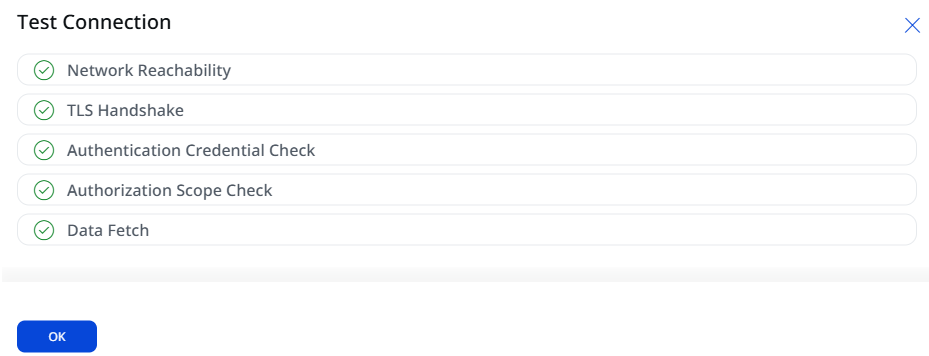
If the test fails, verify that the API Host contains only the tenant hostname (no
https://prefix) and that the email address and password are correct. For more help, see Troubleshooting. - Click Next.
Set the Scope & Schedule
This step defines what data is ingested and when the connector runs.
- Data to Sync - Select one of the following:
- Assets & Findings - Ingests both asset records and associated vulnerability findings.
- Assets - Ingests asset records only, without vulnerability findings.
The Info icon identifies the default selections for Asset Types and Findings used in data mapping. To change these selections, go to Advanced Settings > Filters, and then configure Findings as needed. The Asset Types are selected by default.
- Advanced Settings (optional) - Click Advanced Settings to restrict which asset types are ingested or to view the active transform map. See Advanced Settings below.
- Schedule - Select an execution frequency from the Occurs dropdown (for example, Daily). The system displays the calculated start date, end date, and timezone.
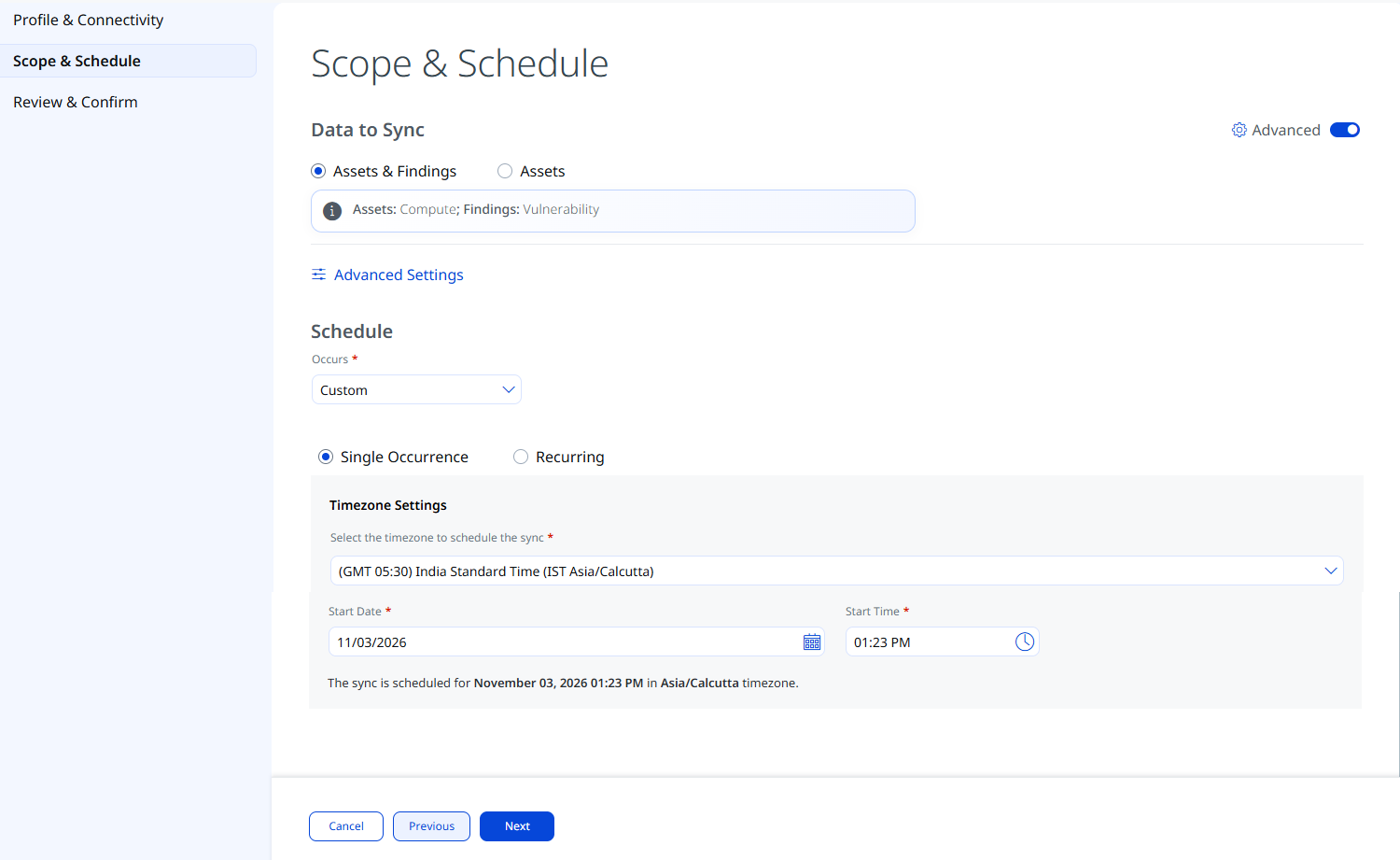
The timezone is determined by your Qualys account settings. The connector runs from the configured start date for a default period of 5 years.
- Click Next.
Each run performs a full data pull, because incremental (delta) synchronization is not supported for this connector.
Advanced Settings
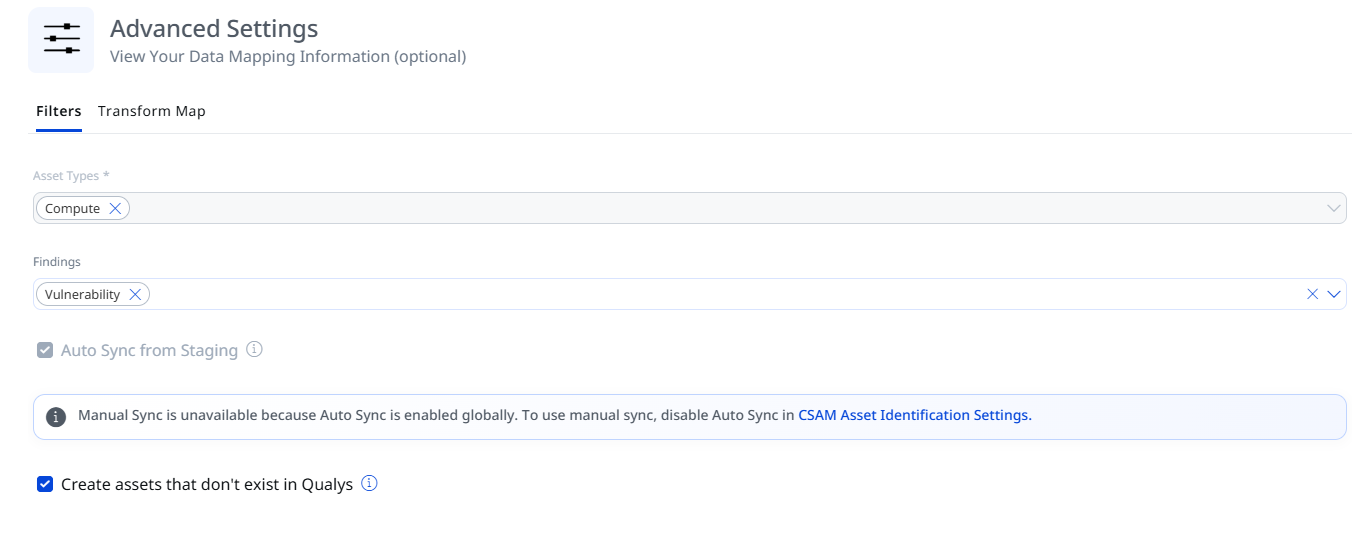
Enabling the Advanced toggle on the Scope & Schedule page or clicking the Advanced Settings link opens a panel with two tabs: Filters and Transform Map.
Filters
The Filters tab provides chip-based selection of asset types. The following asset types are selectable:
| Filter | Options | Description |
|---|---|---|
| Asset Types | Compute | This is the default selection for asset type. |
| Findings | Vulnerability | This is selected by default. Remove a chip to exclude that asset type or finding type from the synchronization. |
| Create assets that don't exist in Qualys | - | If enabled, the connector ingests all those assets that are not created /exist in Qualys. |
Transform Map
The Transform Map tab displays the active transformation maps applied during connector execution. Default transform maps are provided for each asset type and applied automatically. See Transformation Map for full field-level mapping details.
Review and Confirm
Review the connection details, and then click Create.
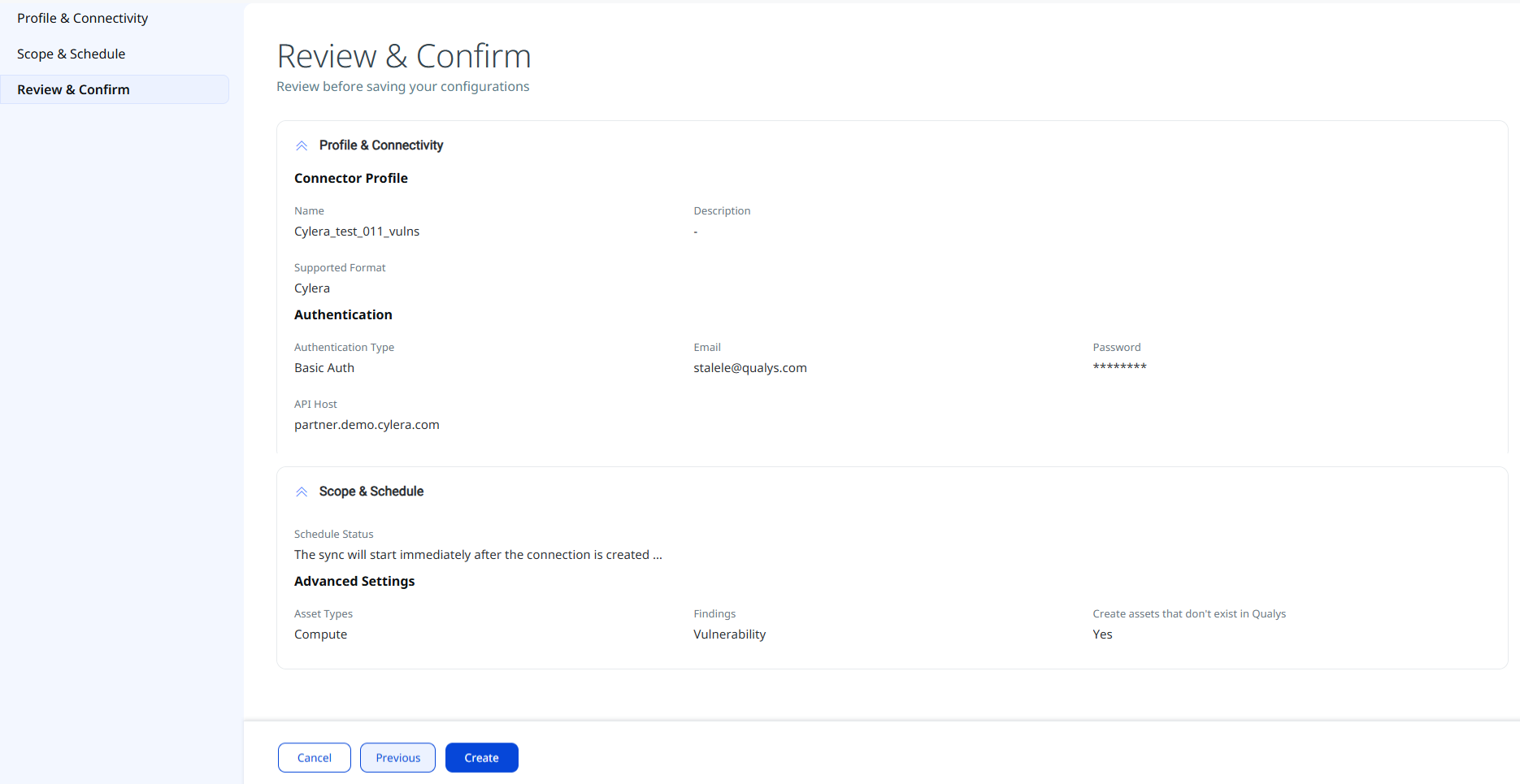
The new connection is listed on the Connectors screen.
How the Connection Works
On each scheduled run, the Cylera connector signs in to the Cylera API, fetches the following data, and imports it into ETM:
- Assets (Devices) — The medical, IoT, OT, and IT device inventory from Cylera.
- Vulnerability Findings — The vulnerabilities associated with each device.
Each run performs a full data pull, because incremental (delta) synchronization is not supported. On the Connectors screen, a successfully configured connector is listed in the Processed state.
Connector States
A successfully configured connector goes through the following four states:
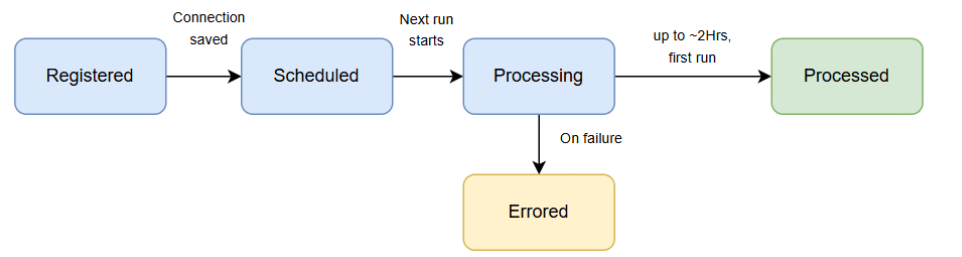
- Registered — The connector is successfully created and registered to fetch data from the vendor.
- Scheduled — The connector is scheduled to execute a connection with the vendor.
- Processing — A connection is executed, and the connector is fetching the asset and findings data.
- Processed — The connector has successfully fetched the assets. It may still be fetching the findings; wait for some time for the connector to fetch the findings completely.
The Processed state indicates that the connector is configured successfully but may still be importing your assets and findings. Importing findings can take some time, and the entire process may take a few hours. When it completes, the imported data is available in Enterprise TruRisk Management (ETM).
Viewing Assets and Findings in ETM
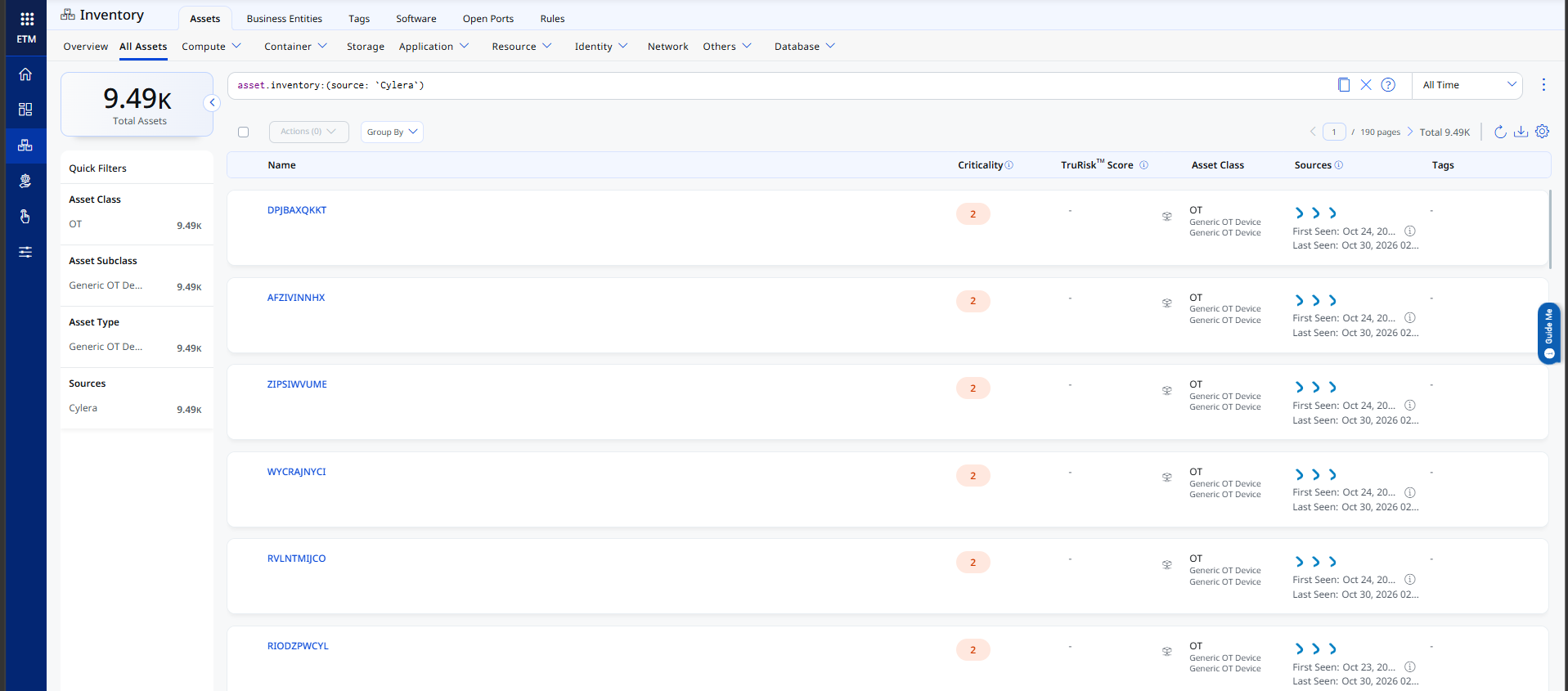
After ingestion, Cylera assets appear in the ETM Unified Asset Inventory, and their findings appear in Risk Management.
To view the Assets:
- Go to Enterprise TruRisk Management > Inventory > Assets > All Assets.
- Apply the asset filter
asset.inventory:(source:`Cylera`).
Troubleshooting
The following table covers the most common issues encountered when configuring or running the Cylera connector.
| Issue | Resolution |
|---|---|
| The Cylera connector is not available or cannot be activated | The connector can be activated only after UAI is activated on your account. Contact your Technical Account Manager (TAM) or Qualys Support to activate UAI and the connector for your subscription. |
| Test Connection or authentication fails | Verify the following:
|
| The connector is in the Processed state, but findings are missing | The Processed state means that the assets are fetched; the findings may still be importing. Wait for the import to complete. The entire process may take a few hours. |
| Assets or findings are missing for some devices | Verify that the Cylera user has read access to the device inventory and the vulnerability data. See Permissions Required. |
| Each connector run takes a long time | Incremental (delta) synchronization is not supported, so every run fetches all devices and findings. The run time grows with the size of your Cylera inventory. |
Additional Information
API Reference
The connector calls the following Cylera REST API endpoints on your API Host (https://<API Host>).
| API | Method | Endpoint | Purpose |
|---|---|---|---|
| Login | POST | /auth/login_user |
Exchanges the user's email address and password for an access token. |
| List Devices | GET | /inventory/devices |
Fetches the device inventory (assets). |
| List Vulnerabilities | GET | /risk/vulnerabilities |
Fetches the vulnerability findings. |
Transformation Map
At runtime, the connector fetches the default transformation maps for the Compute asset class from the database. Each map lists the Cylera source field and the Qualys ETM target field that it populates. Expand a map below to view its full field mapping.
| Source Field | Target Field |
|---|---|
uuid |
asset.assetHeader.externalAssetId |
uuid |
asset.assetHeader.vendorAssetId |
display_name |
asset.assetDetail.name |
hostname |
asset.assetDetail.network[].hostname |
mac_address |
asset.assetDetail.network[0].macAddress |
ip_address |
asset.assetDetail.network[0].ipv4Addresses[0] |
os |
asset.assetDetail.operatingSystem.name |
vendor |
asset.assetDetail.hardware.manufacturer |
model |
asset.assetDetail.hardware.model |
serial_number |
asset.assetDetail.operationalTechnologyAssetClass.serialNumber |
first_seen |
asset.assetDetail.sourceCreatedAt |
last_seen |
asset.assetDetail.sourceUpdatedAt |
type |
asset.assetDetail.operationalTechnologyAssetClass.deviceType |
class |
asset.assetDetail.typedAttributes.cyleraDeviceClass |
fda_class |
asset.assetDetail.typedAttributes.cyleraFdaClass |
risk |
asset.assetDetail.typedAttributes.cyleraRiskScore |
location |
asset.assetDetail.typedAttributes.cyleraLocation |
vlan |
asset.assetDetail.network[0].vlans[0].vlanId |
version |
asset.assetDetail.firmware.version |
aetitle |
asset.assetDetail.typedAttributes.cyleraAeTitle |
Vulnerabilities MapVulnerabilities Map
| Source Field | Target Field |
|---|---|
vulnerability_name |
name |
uuid |
externalFindingId |
uuid |
findingType.vulnerability.vendorId |
severity |
severity |
severity |
sourceSeverity |
status |
findingStatus |
vulnerability_name |
findingType.vulnerability.cveId |
vulnerability_category |
subCategory |
first_seen |
firstFoundOn |
last_seen |
lastFoundOn |
device_uuid |
externalAssetId |
Frequently Asked Questions
Why is the Cylera connector not available for my subscription?
The Cylera connector can be activated only after UAI is activated on your account. Contact your Technical Account Manager (TAM) or Qualys Support to activate UAI and the connector for your subscription.
Which Cylera permission level does the connector user need?
The User permission level, which is the minimum permission level in Cylera. The user must have read access to the device inventory, the vulnerability data, and the organization details. See Permissions Required.
Can I use a Cylera account that signs in with SSO or MFA?
No. The connector signs in with an email address and password, so use a Cylera user that is exempt from MFA. Accounts that sign in only through SSO cannot be used.
What do I enter in the API Host field?
Enter the hostname of your Cylera tenant without the https:// prefix, for example partner.us1.cylera.com (US) or partner.uk1.cylera.com (UK).
Which features does the Cylera connector not support?
The Cylera connector does not support the following:
- Incremental (delta) synchronization — every run performs a full data pull.
- Filters or filter queries.
- Import of installed software.
- Import of source tags.
How long does the first connector run take?
The entire process may take a few hours. The connection moves through Registered, Scheduled, Processing, and Processed. Processed means that the assets have been fetched, while the findings may continue importing for some time. See Connector States.
Does this connector write back to Cylera?
No. The data flow is unidirectional, from Cylera to Qualys. No data is written back to Cylera.
Where do I see Cylera data in ETM?
Assets — Go to Enterprise TruRisk Management > Inventory > Assets > All Assets and apply the filter asset.inventory:(source:`Cylera`).
Findings — Go to Enterprise TruRisk Management > Risk Management > Findings > Vulnerability and apply the filter finding.vendorProductName:`Cylera`.