Lookout Mobile Security Connector
The Lookout Mobile Security Connector retrieves mobile device asset records and associated vulnerability findings from the Lookout Mobile Risk API and imports them into Qualys ETM for unified risk analysis and prioritization. Qualys ETM processes the incoming data by de-duplicating redundant entries, normalizing data formats, enriching findings with additional context, and calculating risk scores using TruRisk.
By automatically syncing mobile device assets and their associated vulnerabilities into a centralized platform, security teams gain unified visibility into their mobile security posture without manual data aggregation. This integration eliminates data silos between mobile threat defense and vulnerability management, allowing practitioners to correlate findings and prioritize remediation efforts more effectively.
Connector Details
The following table provides a comprehensive overview of what the Lookout Mobile Security Connector supports.
| Vendor | Lookout |
| Product Name | Lookout |
| Connector Category | Mobile Security |
| Works With | Qualys ETM |
| Connector Type | ROC Connector |
| Asset Types Supported | Mobile Device Asset Records |
| Findings Support | Supported |
| Version | 1.0.0 |
| Supported Version & Type | SaaS (Latest) |
| Integration Method | API Integration (REST) |
| Direction | Unidirectional (Lookout to Qualys) |
| Incremental Sync (Delta) | Not Supported |
| Import of Installed Software | Not Supported |
| Import of Source Tags | Not Supported |
| Filters/Filter Query | Not Supported |
Configure the Connector
The connector setup wizard guides you through three steps: Profile & Connectivity, Scope & Schedule, and Review & Confirm. A successful connection test is required to proceed to the next step.
Before You Begin - AuthenticationBefore You Begin - Authentication
Have the following ready before starting the connector configuration:
- Ensure you have admin-level access to your Lookout Mobile Endpoint Security (MES) console to generate an Application Key.
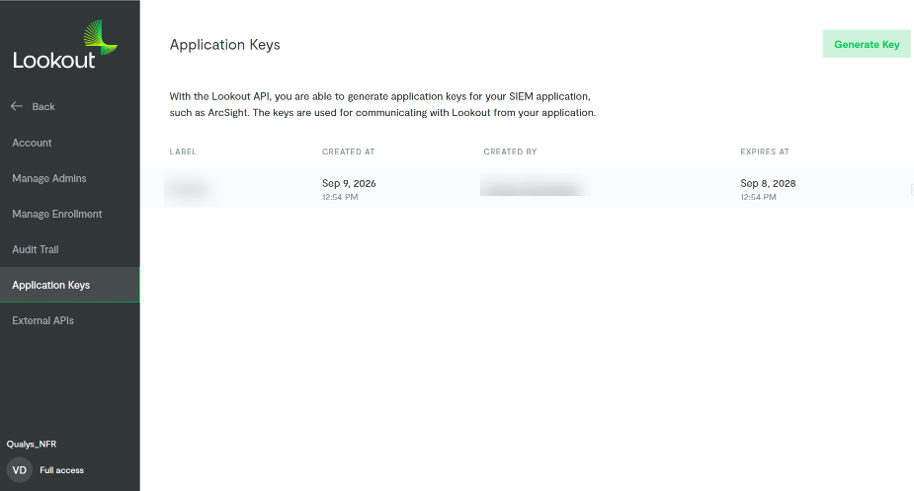
- Generate an Application Key from the Lookout MES console. Navigate to Application Keys in the left sidebar under System settings. Click Generate Key, enter a descriptive label, and select the Standard scope (recommended for Mobile Risk API access). Copy and save the Application Key immediately — the key value is not displayed again.
- Confirm network connectivity: Qualys cloud must be able to reach the Lookout API endpoint (
https://api.lookout.com) over HTTPS (port 443).
Generating an Application Key in Lookout
Follow these steps to create the Application Key that the connector uses to authenticate:
- Log in to the Lookout MES console with Full Access administrator credentials.
- Navigate to Application Keys in the left sidebar under System settings.
- Click Generate Key.
- Enter the key information:
- Label - Enter a descriptive name for the key (for example,
Qualys ETM Connector). - Scope - Select Standard (recommended for Mobile Risk API access).
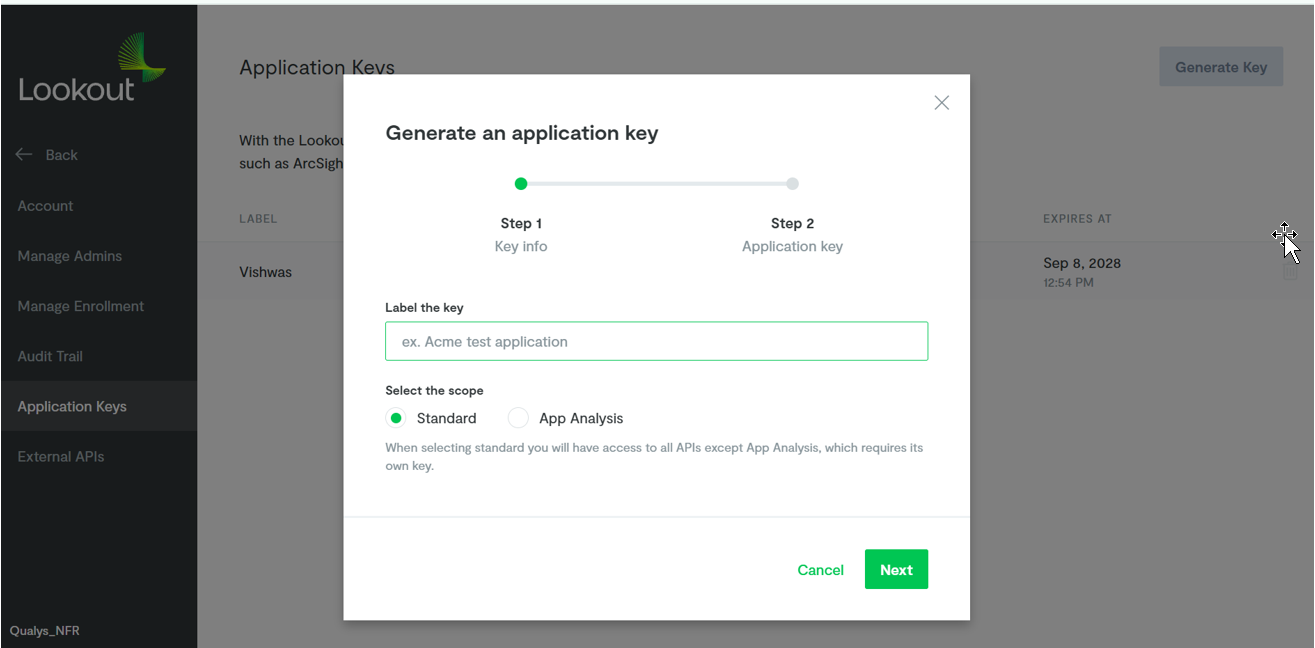
- Label - Enter a descriptive name for the key (for example,
- Click Next.
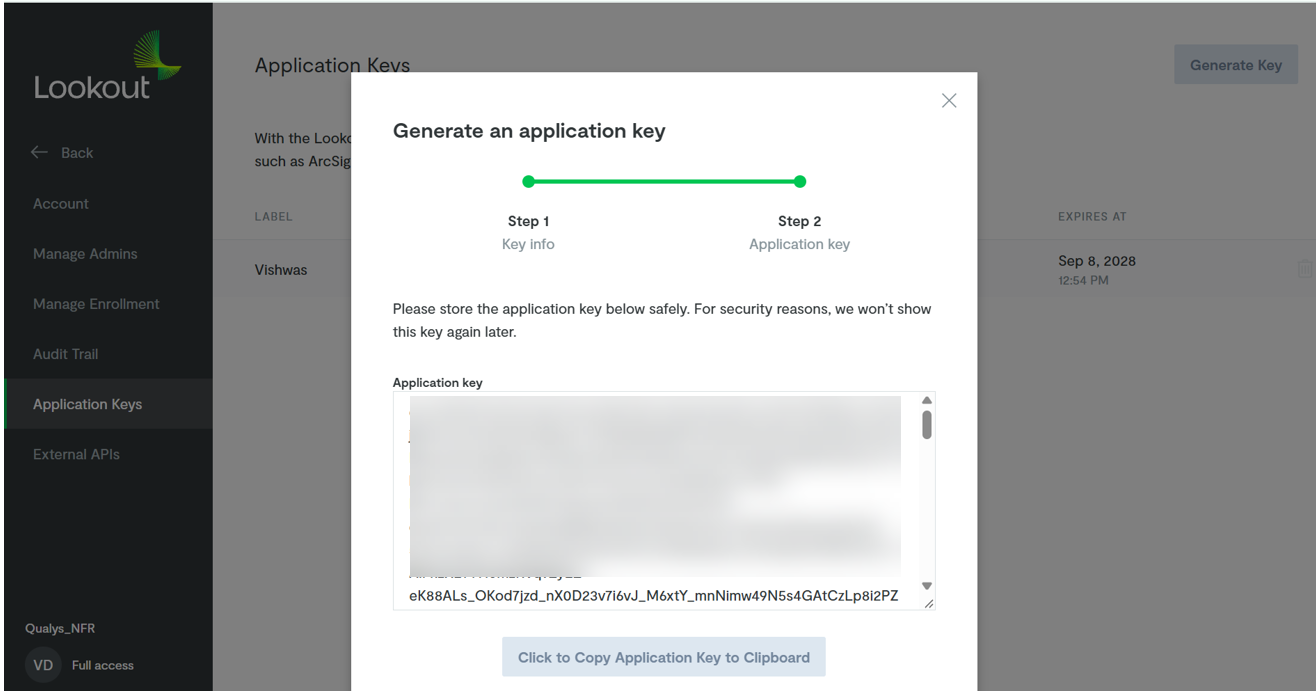
- Copy the Application Key displayed on the screen and store it securely. For security reasons, the key value is not displayed again.
- Click OK to complete.
The Application Key is shown only once after creation. If you close the screen without copying it, you must delete the key and create a new one.
Entering Credentials in Qualys ETM
During connector setup in Qualys ETM, enter the URL (https://api.lookout.com) and the Application Key in the authentication fields on the Profile & Connectivity page. The connector uses the Application Key to request a short-lived OAuth 2.0 access token from the Lookout OAuth service (POST https://api.lookout.com/oauth2/token). The returned Bearer token is valid for 1 hour (3600 seconds) and is used for all subsequent Mobile Risk API calls. The connector automatically refreshes the token before each run.
Scope and Data Access
The connector queries the Lookout Mobile Risk API to retrieve device asset records and, when enabled, associated CVE vulnerability data. Optional filter parameters are not supported at this time.
Key Rotation
Application Keys are created with a 2-year validity period. If a key is lost or compromised, delete it in the Lookout MES console under Application Keys (System settings) and generate a new key. Then update the credential in Qualys ETM using the Edit Connector option.
Best practices:
- Store the Application Key in a secure secrets manager.
- Rotate keys periodically.
- Create separate keys for development, staging, and production environments.
Token expiry and rate limits: OAuth 2.0 access tokens expire after 1 hour (3600 seconds) and are automatically refreshed by the connector. The Lookout Mobile Risk API enforces a limit of 100 requests per minute per enterprise. Requests that exceed this limit receive an HTTP 429 response and must be retried using exponential backoff.
Create a Profile and ConnectionCreate a Profile and Connection
This step configures the connector's identity and authenticates it with Lookout.
- Log in to Qualys ETM and navigate to Connectors > Integration.
- Locate the Lookout Mobile Security Connector on the Connector Marketplace and click Add. This is a one-time task.
If the connector is already added, navigate to My Connectors, search for the Lookout Mobile Security Connector, and click Manage Connections.
- Click Manage Connections from the connector tile.
- Click Create Connection. The Setup Guide opens, displaying the Before You Begin checklist alongside four reference tabs: Overview, Auth Setup, Permissions, and Troubleshooting. Review these before proceeding.
- Click Proceed to Setup.
- On the Profile & Connectivity page, complete the following fields:
Connector Details
Field Type Description Name (required) String A unique display name for this connector. Example: Lookout MES ConnectorDescription String An optional free-text description of this connection (up to 164 characters). Preserve Findings Missing in Latest Sync - When enabled, findings not returned in the latest sync will remain open and unchanged Authentication Details
Enter the credentials generated from the Lookout MES console.
Field Type Description URL (required) String The Lookout Mobile Risk API endpoint. Fixed value: https://api.lookout.comApplication Key (required) Encrypted String The Application Key generated in the Lookout MES console under Application Keys (System settings). This value is masked after entry and stored securely by Qualys ETM. The Application Key is shown only once in the Lookout MES console. Copy and save it before closing the key creation screen. If the key is lost, delete it, create a new one, and then update this field in Qualys ETM.
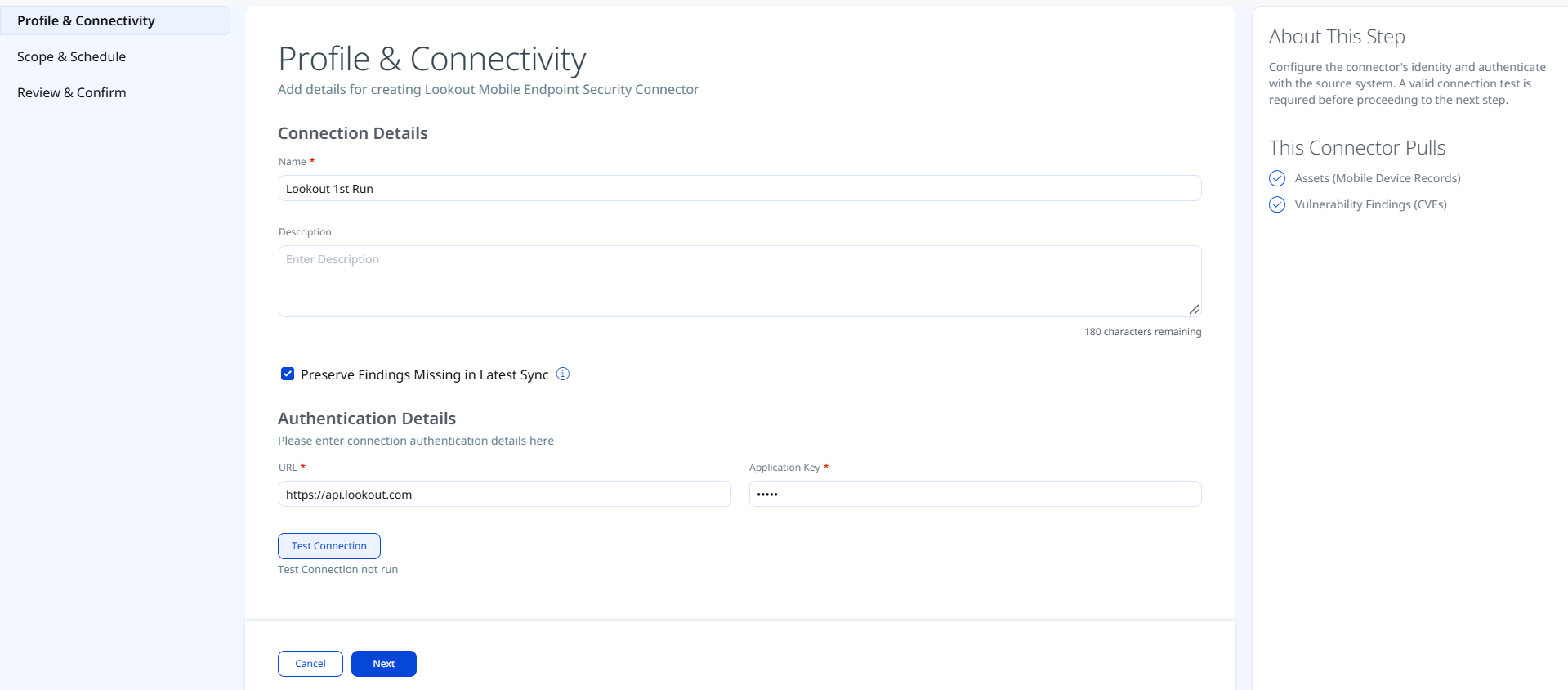
- Click Test Connection. A modal appears showing the status of five sequential checks:
- Network Reachability — Verifies that the connector endpoint is reachable over HTTPS (port 443).
- TLS Handshake — Confirms that a secure TLS connection can be established with the remote endpoint.
- Authentication Credential Check — Validates the Application Key against the Lookout API authentication endpoint.
- Authorization Scope Check — Confirms that the provided key has the required permissions to access device and vulnerability data.
- Data Fetch — Verifies that data can be successfully retrieved from the Lookout Mobile Risk API.
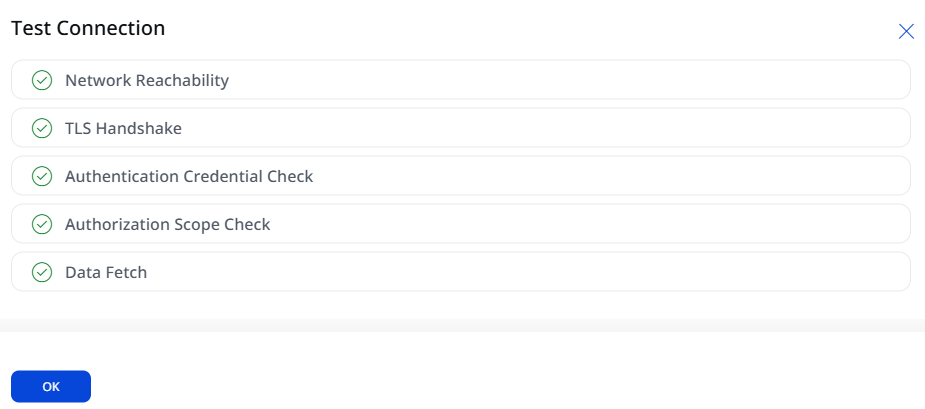
All five checks must pass before you can proceed. If any check fails, refer to the Troubleshooting section for resolution steps.
- Click OK and then click Next.
Set the Scope & ScheduleSet the Scope & Schedule
This step determines what Lookout data is ingested and when the connector runs.
- Data to Sync - Select one of the following options:
- Assets & Findings (default) - Syncs both mobile device asset records and vulnerability findings (CVEs) from the Lookout Mobile Risk API.
- Assets - Syncs mobile device asset records only, without vulnerability findings.
- Schedule - Under the Schedule section, select an execution frequency from the Occurs dropdown. The default is Daily. The system displays the calculated start date, end date, and timezone for the scheduled run.
The schedule runs in your configured timezone. The sync remains active for 5 years from the start date and time you confirm in this step.
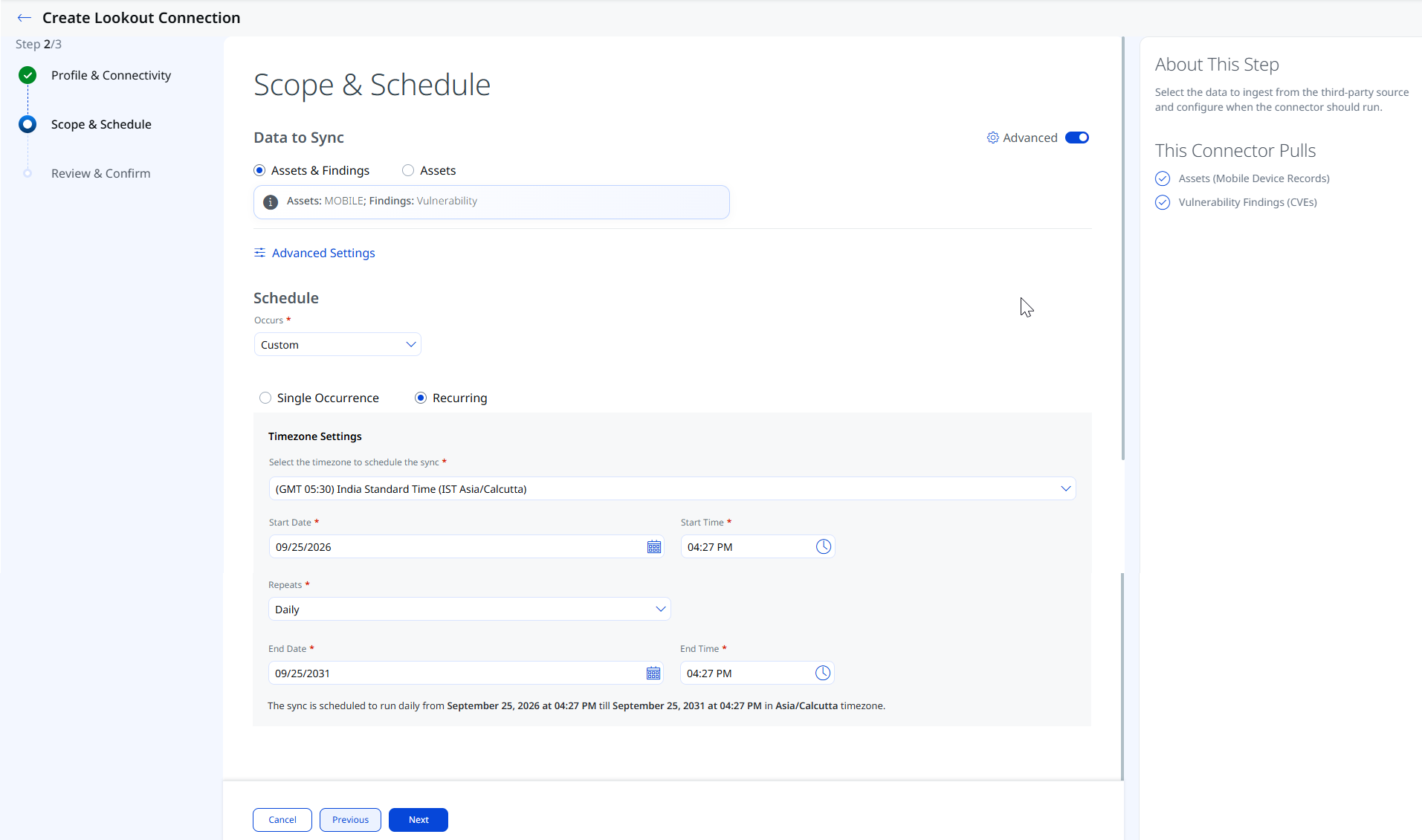
- Advanced Settings (optional) - Turn on the Advanced Settings toggle to configure Filters, Transform Map, and Risk Severity Mapping. For details, see Advanced Settings.
- Click Next.
Advanced Settings
Enabling the Advanced Settings toggle on the Scope & Schedule page opens a panel with three tabs: Filters, Transform Map, and Risk Severity Mapping.
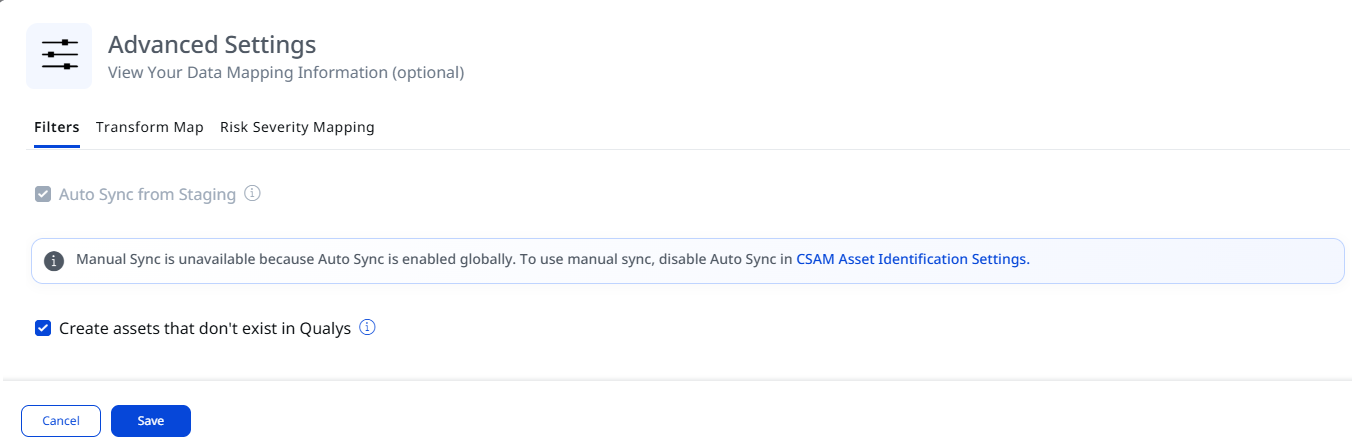
Filters
| Parameter | Options | Description |
|---|---|---|
| Create assets that do not exist in Qualys | - | If enabled, the connector ingests all assets that are not already created or do not exist in Qualys. |
Click Save once the changes are saved in the Advanced Settings panel.
Transform Map
The Transform Map tab lists the active transformation maps applied to data ingested by this connector.
Transformation maps define how source fields from Lookout are translated into Qualys ETM target fields. For field-level mapping details, see Transformation Maps under Additional Information.
Risk Severity Mapping
The Risk Severity Mapping tab defines how Lookout severity values are translated into Qualys severity levels and QDS scores for findings that are not scored automatically by the Qualys Cloud Threat Database.
Qualys automatically updates scores for CVE-based vulnerabilities available in the Qualys Cloud Threat Database. The severity mapping below applies only to findings that are not CVE-based or are not present in the Qualys Cloud Threat Database.
| Expected Source Value | Severity | QDS Score (Range 1–100) |
|---|---|---|
| 1 | 1 | 20 |
| 2 | 2 | 40 |
| 3 | 3 | 60 |
| 4 | 4 | 80 |
| 5 | 5 | 100 |
The default Severity is 2. This value is applied when the severity value from Lookout is unavailable for a given finding.
Review and ConfirmReview and Confirm
Review all configured settings before creating the connection and then click Create.
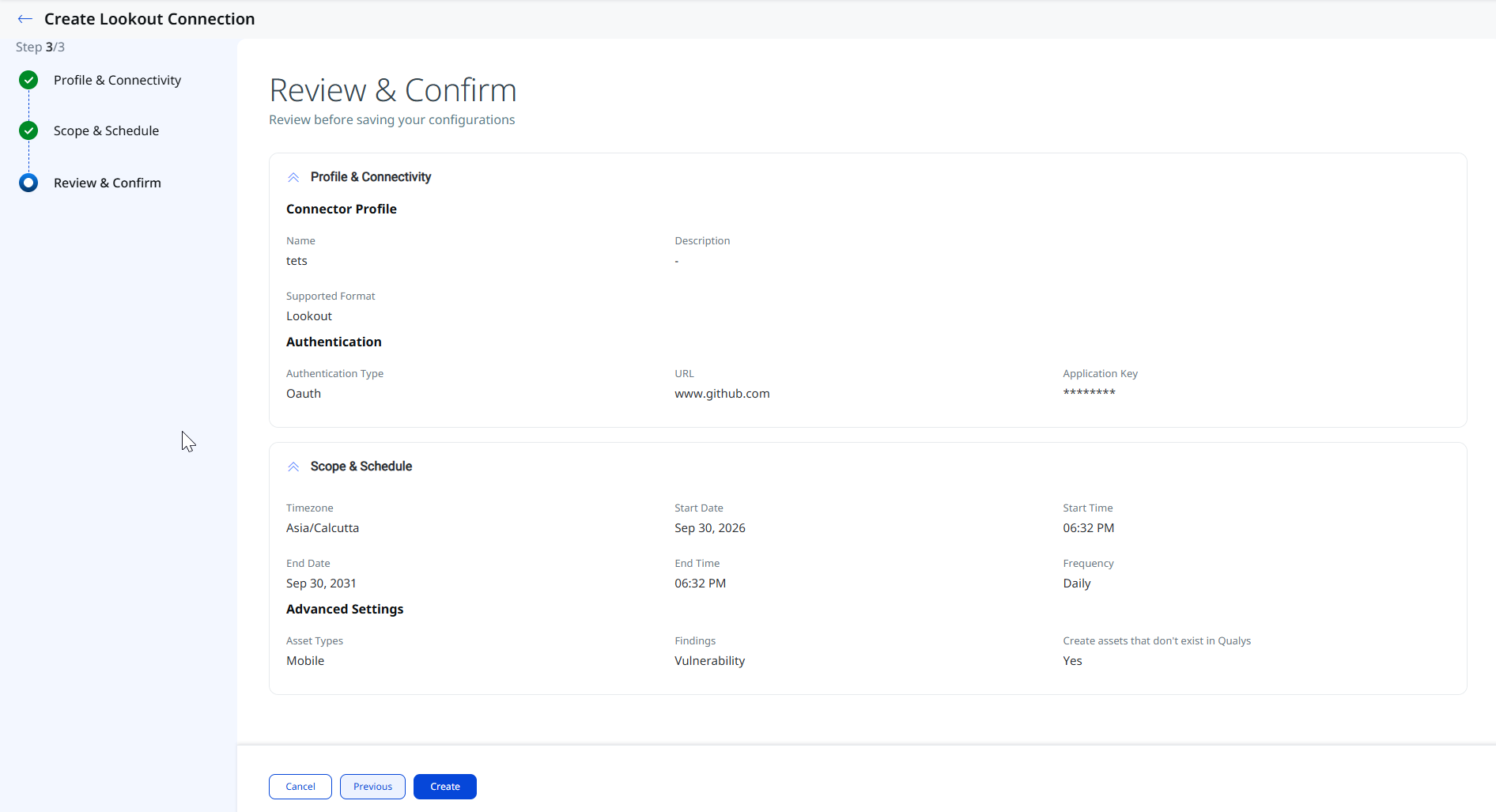
The connection is created and immediately transitions to the Registered state.
How the Connection Works
The Lookout Mobile Security Connector performs a full synchronization on each run, pulling two categories of data from the Lookout Mobile Risk API into Qualys ETM. Each run retrieves the complete dataset of activated devices and their associated findings using oid-based cursor pagination (up to 1,000 records per page), repeating until the full device fleet is retrieved. Incremental sync through the Lookout event feed is not enabled in this connector version.
- Assets (Mobile Device Asset Records) — Each run retrieves mobile device asset records for activated devices, including device GUID, platform, OS version, security patch level, security status, protection status, location, lockdown mode, activation status, hardware manufacturer, and model.
- Vulnerability Findings (CVEs) — When vulnerability ingestion is enabled, the connector retrieves the OS vulnerabilities embedded per device (CVE name, severity, description, and references) through the per-device endpoint with
show_vulns=true.
Connector States
After creation, a connector moves through the following states:
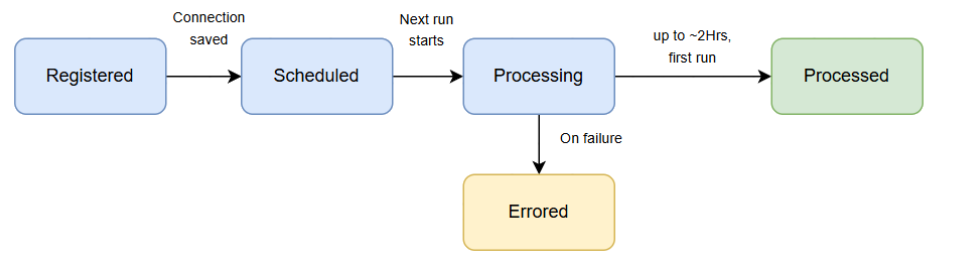
- Registered — The connection has been created and is waiting to be picked up for its first scheduled run.
- Scheduled — The connector is scheduled to execute a connection with Lookout.
- Processing — The connection is executing and the connector is actively fetching asset and findings data from the Lookout Mobile Risk API.
- Processed — The connector has successfully fetched assets. Findings may still be processing. Wait for the findings import to complete before expecting all data to appear in ETM.
- Errored — The connector encountered an error during the last run. Check the connection logs and refer to the Troubleshooting section.
The entire first-run process, including asset and findings import, may take up to 2 hours to complete. The Processed state indicates that assets have been imported successfully, but the findings import (especially for large datasets) may still be in progress. Allow additional time before assuming that findings are missing.
Troubleshooting
The following table covers the most common issues encountered when configuring or running the Lookout connector.
| Issue | Resolution |
|---|---|
| Authentication failure on connector run | Verify that the Application Key entered in Qualys ETM is correct. If the key was regenerated in Lookout, ensure that the new value has been updated in the Qualys ETM connector configuration using the Edit Connector option. |
| Connection test fails | Verify that the URL is complete and includes the protocol (https://api.lookout.com). Confirm that Qualys cloud can reach the Lookout API endpoint over HTTPS (port 443). Check that the Application Key has not been deleted or expired in the Lookout MES console. |
| No assets imported after the first run | The first run may take up to 2 hours. Check the connector state in Qualys ETM — it should progress through Registered → Scheduled → Processing → Processed. Verify that the Application Key has Read permissions for Devices. |
| Vulnerability data not appearing | Confirm that the Application Key has Read permissions for Device Vulnerabilities in Lookout. Verify that Assets & Findings is selected as the Data to Sync option. Check the connector state to ensure that processing is complete; assets may appear before the findings import finishes. |
Additional Information
API Reference
The following APIs are executed during each Lookout Mobile Security connector run.
|
Name |
Filters |
Endpoint |
|---|---|---|
|
Auth API |
Method: POST grant_type=client_credentials Authorization: Bearer <APPLICATION_KEY> Content-Type: application/x-www-form-urlencoded |
https://api.lookout.com/oauth2/token |
|
Fetch Devices API (Full Sync - Activated) |
Method: GET state=ACTIVATED limit=1000
|
https://api.lookout.com/mra/api/v2/devices |
|
Fetch Device OS Vulnerabilities API (per device) |
Method: GET guid=<DEVICE_GUID> show_vulns=true Returns the device record with an embedded CVE list. |
https://api.lookout.com/mra/api/v2/device?guid=<DEVICE_GUID>&show_vulns=true |
Transformation Maps
The following transformation map defines how Lookout Mobile Risk API source fields are mapped to Qualys ETM target fields.
Mobile Device Asset Field MappingMobile Device Asset Field Mapping
| Source Field (Lookout) | Target Field (Qualys ETM) |
|---|---|
assetTypeName |
asset.assetHeader.assetTypeName (Required) |
GUID |
externalAssetId (Required) |
GUID |
vendorAssetId (Required) |
Activated At |
assetCreatedAtDate |
Updated Time |
assetLastUpdatedDate |
Hardware Model |
assetName |
OS Version |
operatingSystemName |
OS Version |
operatingSystemVersion |
Hardware Manufacturer |
manufacturer |
Hardware Model |
hardwareModel |
Security Patch Level |
securityPatchLevel |
SDK Version |
sdkVersion |
Activation Status |
managementStatus |
Activation Status |
mode |
Encryption |
encryptionEnabled |
Developer Mode |
developerModeEnabled |
USB Debugging |
usbDebuggingEnabled |
Install Non Market Apps |
unknownSourceAppInstallationAllowed |
Security Status |
securityStatus |
Protection Status |
protectionStatus |
Lock Screen |
activationLockEnabled |
Vulnerability Finding Field MappingVulnerability Finding Field Mapping
| Source Field (Lookout) | Target Field (Qualys ETM) |
|---|---|
CVE Name |
findingName (Required) |
CVE Name |
externalFindingId (Required) |
Severity |
findingSeverity (Required) |
CVE Name |
cveId |
Description |
findingDescription |
Classification |
findingSubType |
URI |
sourceFindingURL |
URI |
applicationURL |
Severity |
sourceSeverity |