Microsoft Active Directory (Users)
The Microsoft Active Directory Connector automatically pulls user and group identity data from on-premises Active Directory systems into Qualys Enterprise TruRisk Management, eliminating manual identity asset tracking and enabling centralized visibility into directory-based identities. For security teams managing hybrid environments, this integration surfaces identity assets alongside other risk data in a unified platform, allowing better visibility into who has access and when credentials were last changed.
By maintaining synchronized identity records through delta support, organizations can continuously monitor their identity infrastructure and correlate access patterns with other security findings. This capability matters because identity remains a critical attack surface, and teams need accurate, up-to-date visibility of users and groups to enforce least privilege and detect unauthorized access.
Connector Details
High-level details for the Microsoft Active Directory connector.
| Vendor | Microsoft |
| Product Name | Active Directory |
| Category | Assets (Identity) |
| Findings Support | NA |
| Supported Assets | Users, Groups |
| Version | 1.0.0 |
| Integration Type | On-Prem |
| Direction | Unidirectional (AD to Qualys) |
| Delta Support | Supported |
Connection Settings
User Roles and Permissions
The following permissions are required for the Active Directory service account:
| Entity Type | Permission |
|---|---|
| Users | Read Property (ADS_RIGHT_DS_READ_PROP) |
| Groups | Read Property (ADS_RIGHT_DS_READ_PROP) |
Authentication Details
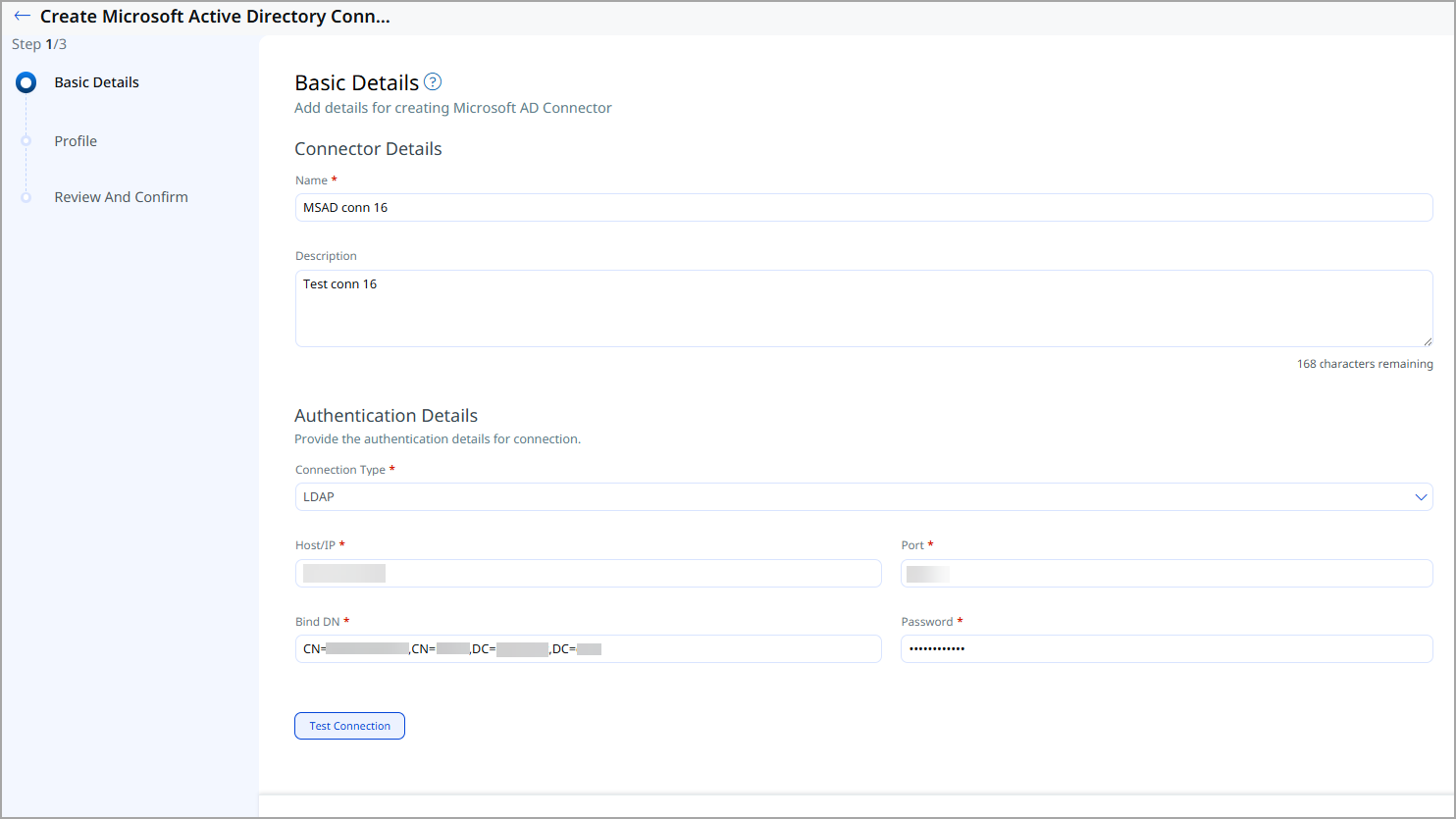
The connector supports both LDAP and LDAPS authentication.
LDAP
| Name | Key | Type | Description |
|---|---|---|---|
| Host | host | String | IP or hostname for LDAP connection
10.113.217.83 |
| Port | port | Integer | Default: 389 |
| Base DN | bindDn | String | Bind DN used for authentication |
| Password | password | Encrypted | Password for the bind DN |
LDAPS
| Name | Key | Type | Description |
|---|---|---|---|
| Host | host | String | IP or hostname for LDAPS connection
10.113.217.83 |
| Port | port | Integer | Default: 636 |
| Base DN | bindDn | String | Bind DN used for authentication |
| Password | password | Encrypted | Password for the bind DN |
| Certificate | certificate | .cer | Required for LDAPS authentication |
Connector Configuration
Basic Details
- Log in to Qualys ETM.
- Navigate to Connectors > Integration.
- Locate Microsoft Active Directory Connector and click Manage.
- Provide connector name and description.
- Enter authentication details (LDAP or LDAPS)
Profile
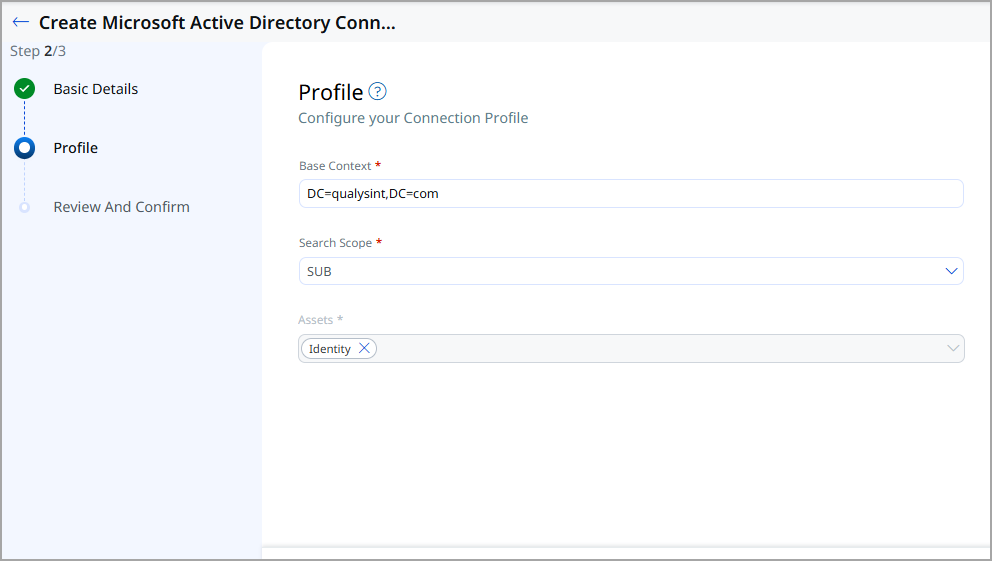
Profiles define the directory search behavior. Provide the following:
- Base Context – Root DN for the directory search
- Search Scope – Scope of LDAP search
- Assets – Identity (default)
Review and Confirm
Review the configuration and click Create to register the connector.
How Does a Connection Work?
The connector’s execution schedule is configured using the cron expression defined in the Docker environment file. Authentication details required for ldap or ldaps connection are provided on the Basic Details page, while directory search parameters, such as the Base Context and Search Scope for Active Directory are configured on the Profile page.
Once the scheduled cron job triggers the execution, the connector retrieves the source data, applies the required transformation logic, and sends the processed data to the downstream system.
Connector States
A successfully configured connector goes through 4 states.
- Registered - The connector is successfully created and registered to fetch data from the vendor.
- Scheduled - The connector is scheduled to execute a connection with the vendor.
- Processing - A connection is executed and the connector is fetching the asset and findings data.
- Processed - The connector has successfully fetched the assets; it may still be under process of fetching the findings. Wait for some more time for the connector to fetch the findings completely.
The Processed state indicates that the Connector is successfully configured but it is under the process of importing all your assets. This process may take some time.
Viewing Assets in ETM
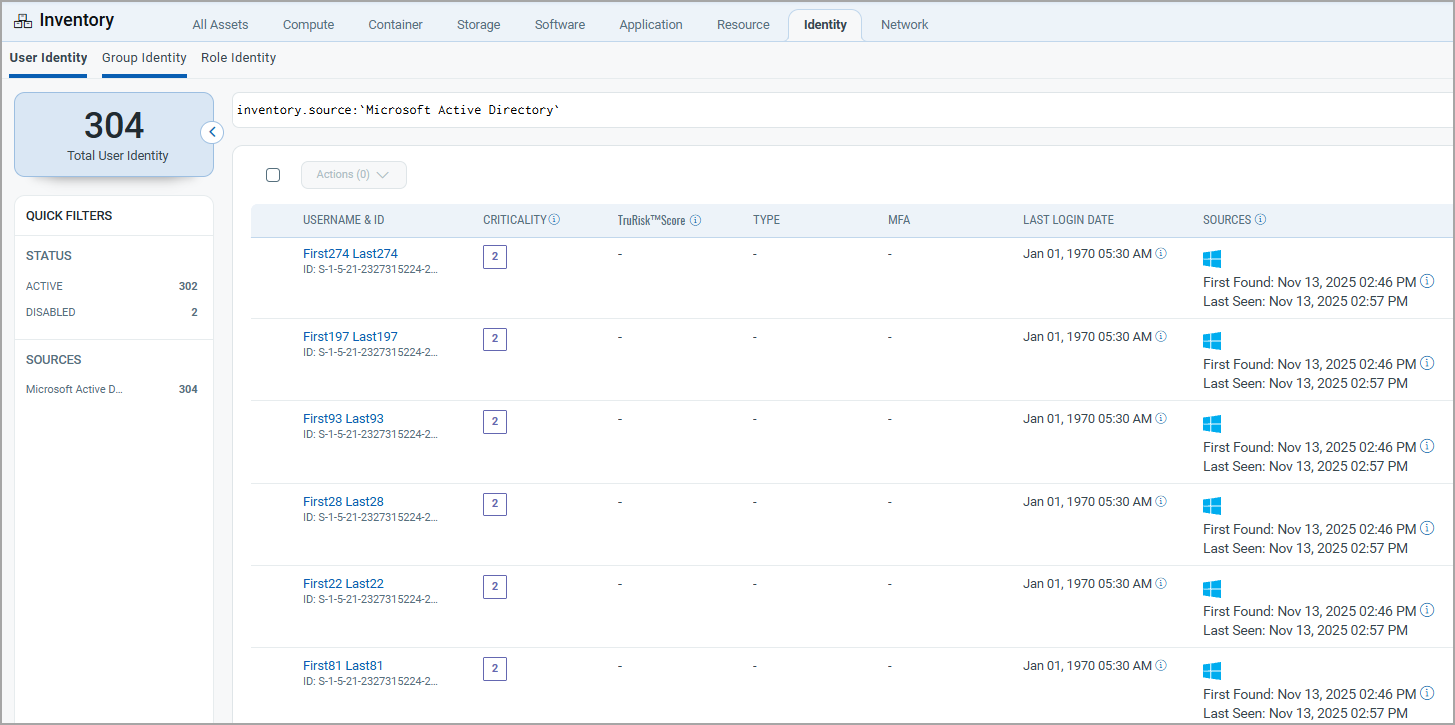
Navigate to Enterprise TruRisk Management > Inventory.
- Users: Inventory > Identity > User
- Groups: Inventory > Identity > Group
- Role: Inventory > Identity > Role
Use the filter: inventory.source: ('Microsoft Active Directory')
Mapping Details
Users – Transformation Map
| Source Field | Target Field |
|---|---|
| objectSid | asset.assetHeader.externalAssetId |
| objectGUID | asset.assetHeader.vendorAssetId |
| name | asset.assetDetail.userAssetClass.name |
| asset.assetDetail.userAssetClass.email | |
| displayName | asset.assetDetail.userAssetClass.displayName |
| whenCreated | asset.assetDetail.userAssetClass.activationDate |
| pwdLastSet | asset.assetDetail.userAssetClass.passwordLastChangedAt |
Groups – Transformation Map
| Source Field | Target Field |
|---|---|
| objectSid | asset.assetHeader.externalAssetId |
| objectGUID | asset.assetHeader.vendorAssetId |
| name | asset.assetDetail.groupAssetClass.name |
| description | asset.assetDetail.groupAssetClass.description |
| groupType | asset.assetDetail.groupAssetClass.type |