Microsoft Defender for Cloud (CNAPP)
The Microsoft Defender for Cloud API Connector bridges your cloud security platform with Qualys ETM to automatically synchronize asset inventory and security findings through scheduled API calls.
By centralizing misconfiguration data from Microsoft's cloud security service, the connector deduplicates redundant entries, normalizes data formats, enriches findings with additional context, and calculates risk scores using TruRisk, eliminating manual data aggregation and enabling faster remediation decisions.
Security teams gain unified visibility into cloud infrastructure vulnerabilities alongside other organizational findings, transforming disconnected security alerts into actionable intelligence for risk-driven prioritization across hybrid environments.
Connector Details
Here is a comprehensive overview of what the Microsoft Defender for Cloud Connector supports.
|
Vendor |
Microsoft |
|
Product Name |
Defender for Cloud |
|
Category |
Cloud Security |
|
Findings Support |
Yes |
|
Supported Assets |
Cloud Resources |
|
Version |
1.0.0 |
| Supported Version & Type | SaaS (Latest) |
|
Integration Type |
API Integration (REST) |
|
Direction |
Unidirectional |
|
Delta Support |
Not Supported |
|
Import of Installed Software |
Not Supported |
|
Import of Source Tags |
Not Supported |
| Filters/Filter Query | Not Supported |
Supportability Matrix
The Resource Type row shows the specific cloud service targeted for each asset class.
✓ = Supported.
— = Not Supported.
NA = Vendor does not support this.
“–” entries indicate the asset class/finding type combination is not yet available for this connector. NA indicates that the CNAPP vendor does not currently support this combination of asset class/finding type.
| Asset Class | Finding Type | AWS | Azure | GCP | OCI |
|---|---|---|---|---|---|
| Compute | Resource Type | EC2 Instance | Azure Virtual Machine | Compute Engine VM | OCI Compute Instance |
| Inventory | – | ✓ | – | – | |
| Vulnerabilities | – | ✓ | – | – | |
| Misconfigurations | – | ✓ | – | – | |
| Serverless | Resource Type | AWS Lambda Function | Azure Function App | GCP Cloud Functions | OCI Functions |
| Inventory | – | ✓ | – | – | |
| Vulnerabilities | – | NA | – | – | |
| Misconfigurations | – | ✓ | – | – | |
| Container Image | Resource Type | Amazon ECR (Container Image) | Azure Container Registry (ACR Image) | Google Artifact Registry (Container Image) | OCI Container Registry (OCIR Image) |
| Inventory | – | ✓ | – | – | |
| Vulnerabilities | – | ✓ | – | – | |
| Misconfigurations | – | NA | – | – | |
| Container Instance | Resource Type | Amazon ECS Task / AWS Fargate Container | Azure Container Instance (ACI) | GKE Pod / Cloud Run Container | OCI Container Instances |
| Inventory | – | ✓ | – | – | |
| Vulnerabilities | – | NA | – | – | |
| Misconfigurations | – | ✓ | – | – |
Configure the Connector
Follow these steps to create a new Microsoft Defender for Cloud connection in Qualys ETM. A valid connection test is required before proceeding to the next step.
Prerequisites
Prerequisites, application registration, and required permissions.
Create a Profile and Connection
Name the connection and authenticate with the source system.
Set the Scope and Schedule
Choose the data to ingest and how often the connector runs.
Before You Begin - Authentication
Complete the following steps in your Microsoft Azure environment before configuring the connector in Qualys ETM. Have the following four values ready before you proceed:
- Subscription UUID
- Tenant ID
- Client ID
- Client Secret
Register an Application and Obtain Credentials
Authentication URL
The Authentication URL is a fixed value. Use: https://login.microsoftonline.com/
Obtain Client ID and Tenant ID
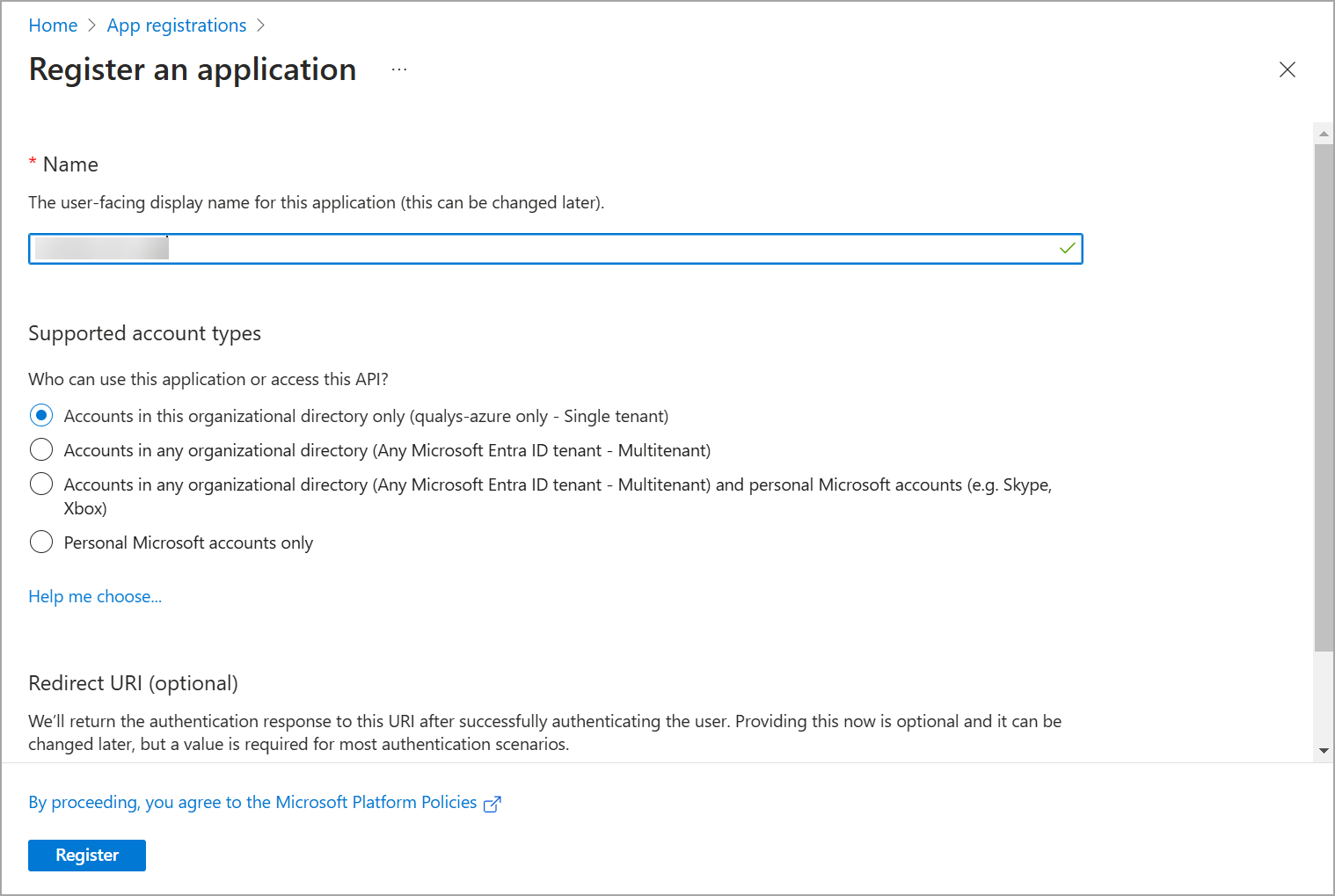
- Log on to your Microsoft Azure console and click Azure Active Directory in the left navigation pane.
- Navigate to App registrations > New Registration.
- Provide a name for the application and select the required supported account types.
- Optionally provide a Redirect URI, or leave it blank and proceed.
- Click Register. The newly created application is displayed with its properties.
- Go to Overview > Essentials to view your Client (Application) ID and Tenant (Directory) ID. Store these values securely for later use.
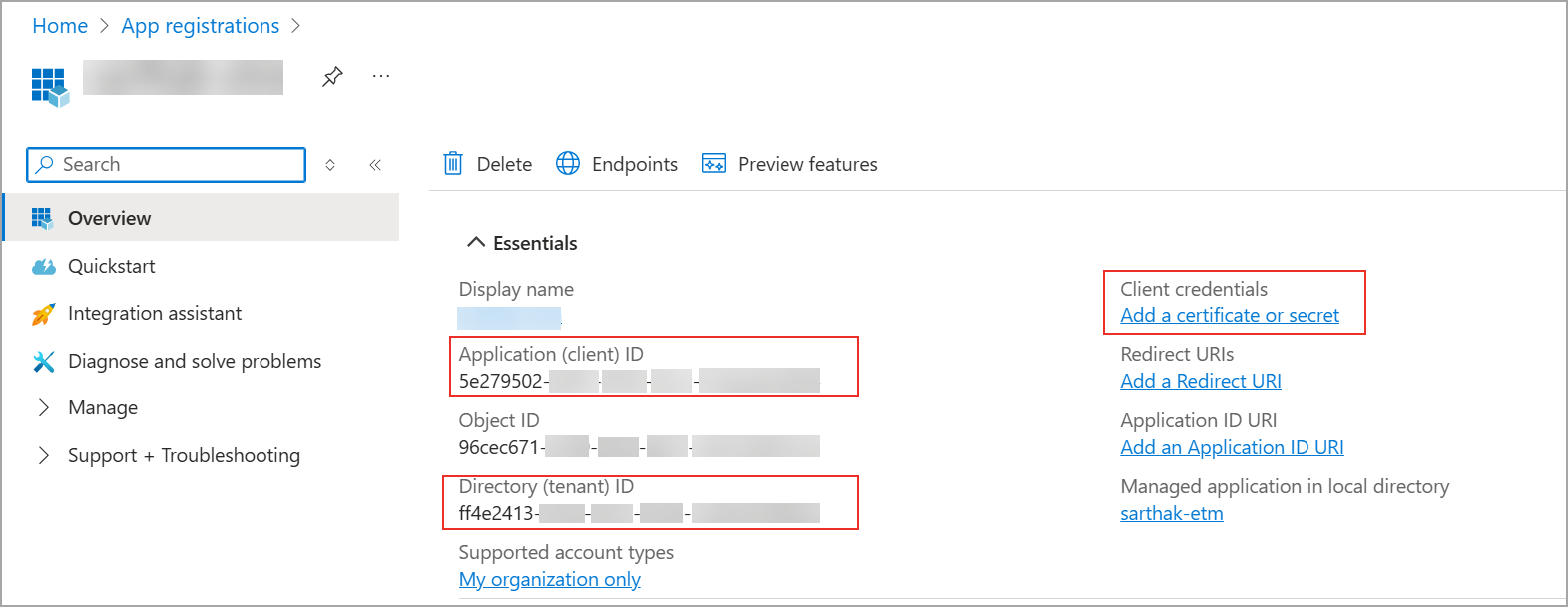
- Click Add a certificate or secret to proceed to Client Secret creation.
Create a Client Secret
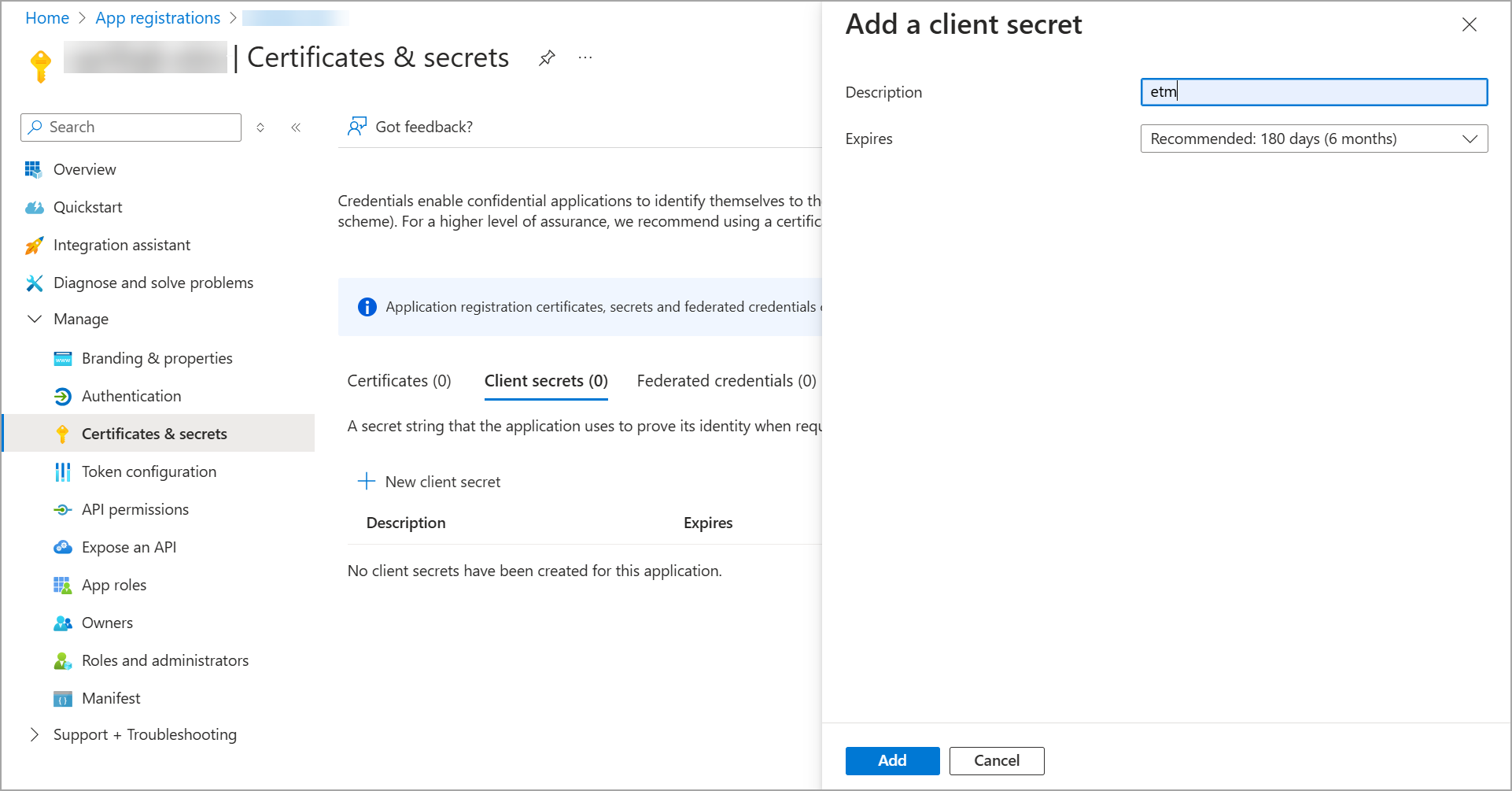
- Click New client secret.
- Enter a description of your choice and set the expiration period. Click Add.
- Copy the Value of your Client Secret and store it securely before navigating away.
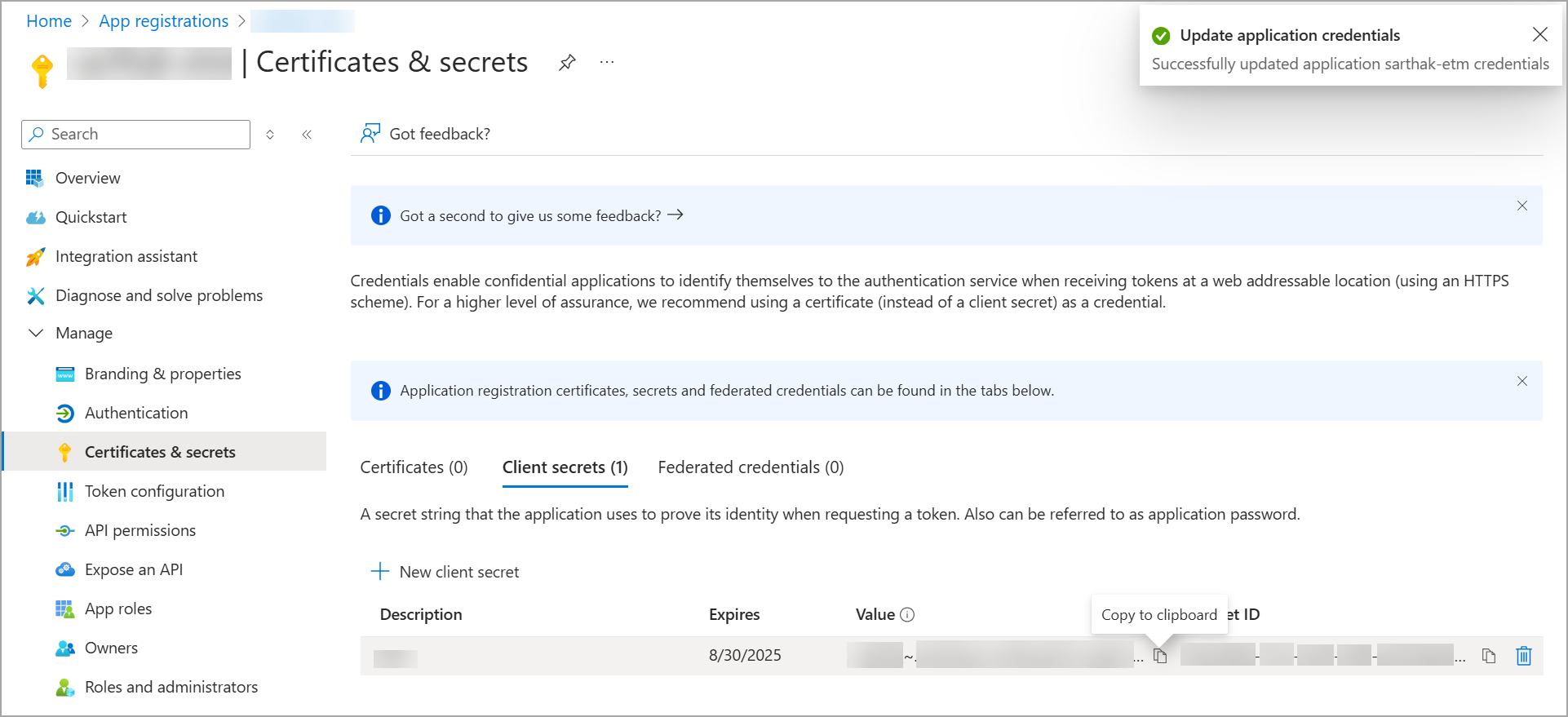
The Client Secret Value cannot be retrieved again after you leave the page. Hence, copy it securely.
Permissions Required
The registered application requires the following permissions to allow the connector to read Defender for Cloud data.
Assign Reader and Security Reader Roles
Navigate to Subscriptions:
- Log in to the Azure portal at
portal.azure.com. - Type Subscriptions in the Azure Portal search bar and click it.
- Select your target subscription from the list.
Open Access Control (IAM):
- In the left sidebar, click Access control (IAM).
- Click + Add and select Add role assignment from the dropdown.
Assign the Reader role:
- Under the Role tab, search for Reader and select it from the results.
- Click Next.
- Under Assign access to, select User, group, or service principal.
- Click + Select members and search for the name of the App Registration you created.
- Select it and click Select.
- Click Next, review the assignment, and click Review + assign to confirm.
- Repeat these steps to also assign the Security Reader role to the same App Registration.
The minimum required permission is the Reader role (or higher) on each Azure subscription whose Defender for Cloud data you want to ingest.
Asset Data Scope
Complete list of cloud resources fetched with the Defender for Cloud connector.
|
Cloud Provider and Findings |
Resources |
|---|---|
| Azure Vulnerabilities |
Compute and its vulnerability findings
|
| Azure Misconfigurations |
Misconfiguration findings from Microsoft Defender for the following asset types:
|
Scope and Data Access
The data flow is unidirectional, from Microsoft Defender to Qualys ETM. No data is written back to Microsoft Defender.
Key Rotation
Client Secrets have a fixed expiration period set at creation time. When a Client Secret expires, the connector will fail authentication. To rotate the key:
- In the Azure portal, navigate to your App Registration > Certificates & secrets.
- Create a new Client Secret and copy the value immediately.
- In Qualys ETM, edit the connector and replace the Client Secret field with the new value.
- Run Test Connection to verify authentication succeeds.
- Delete the expired secret from Azure after confirming the connector works.
Create a Profile & Connection
Configure the connector's identity and authenticate with the source system.
Connector Details
| Field | Description |
|---|---|
|
Name (Required) |
A unique display name for this connector instance. Example: |
|
Description |
Optional free-text description (maximum 180 characters). |
Authentication Details
|
Field |
Type |
Description |
|---|---|---|
|
Subscription UUID (Required) |
String |
The Azure Subscription UUID (GUID) for which you want to ingest Defender for Cloud data. |
|
Tenant ID (Required) |
String |
The Directory (Tenant) ID of your Azure Active Directory tenant. Obtain from Azure AD > Overview > Essentials. |
|
Client ID (Required) |
String |
The Application (Client) ID of the registered Azure AD app. Obtain from App registrations > Overview. |
|
Client Secret (Required) |
Encrypted String |
The secret value generated under App registrations > Certificates & secrets. Stored encrypted after save. |
The Client Secret value is only visible immediately after creation in the Azure portal. Copy and store it securely before saving. It cannot be retrieved afterwards.
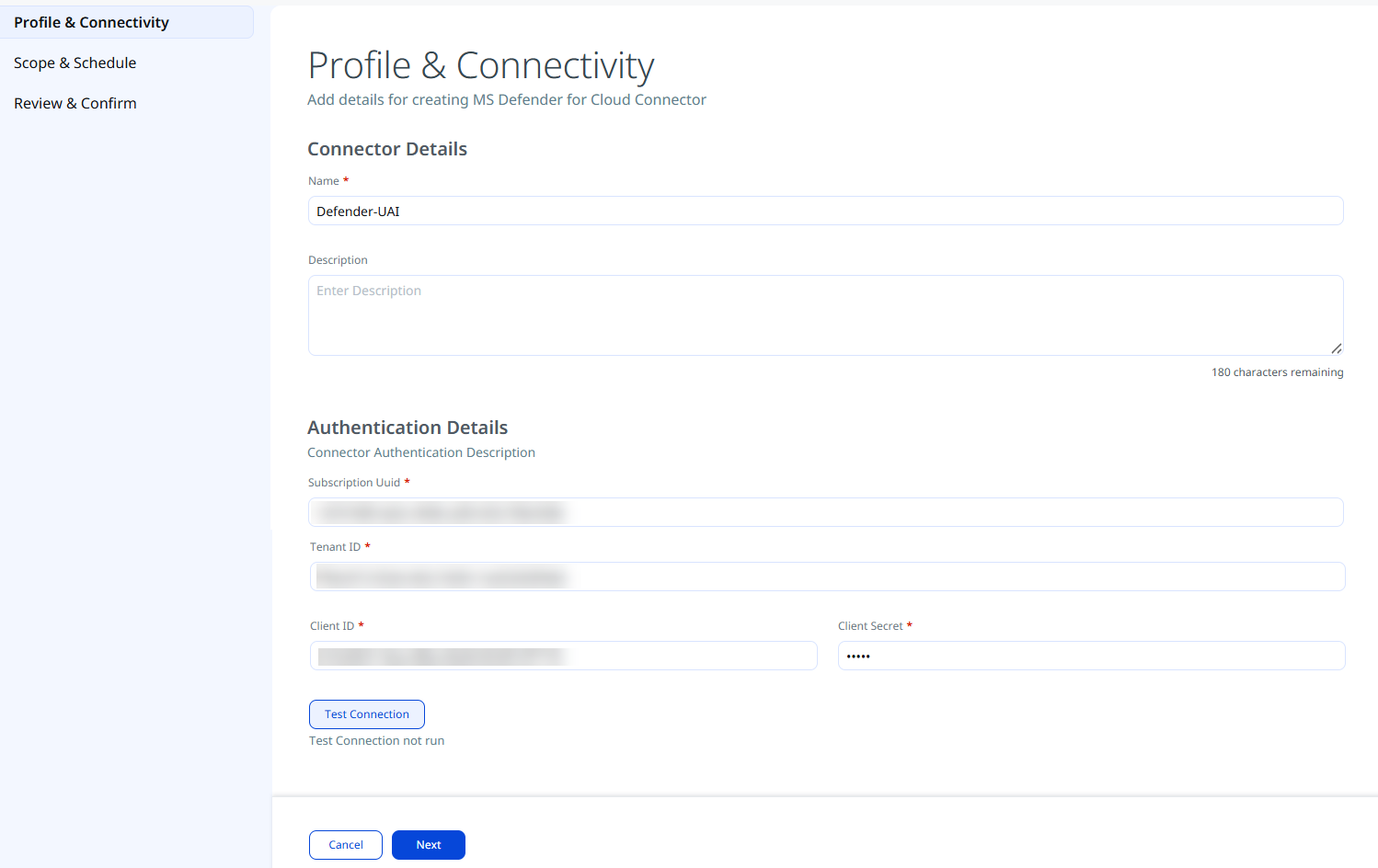
After entering all authentication details, click Test Connection. A valid connection test is required before you can proceed to the next step. The following checks are performed:
- Network Reachability — Verifies that the connector endpoint is reachable over HTTPS (port 443).
- TLS Handshake — Confirms that a secure TLS connection can be established with the remote endpoint.
- Authentication Credential Check — Validates the configured credentials against the source system's authentication endpoint.
- Authorization Scope Check — Confirms that the provided credentials have the required permissions to access the configured data scope.
- Data Fetch — Verifies that data can be successfully retrieved from the source system using the configured connection.
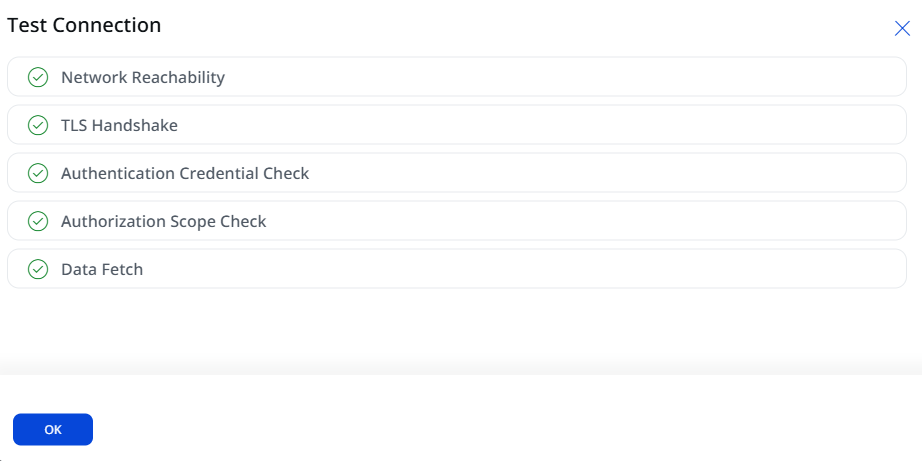
Click Next to proceed to Scope & Schedule once all checks pass.
Set the Scope & Schedule
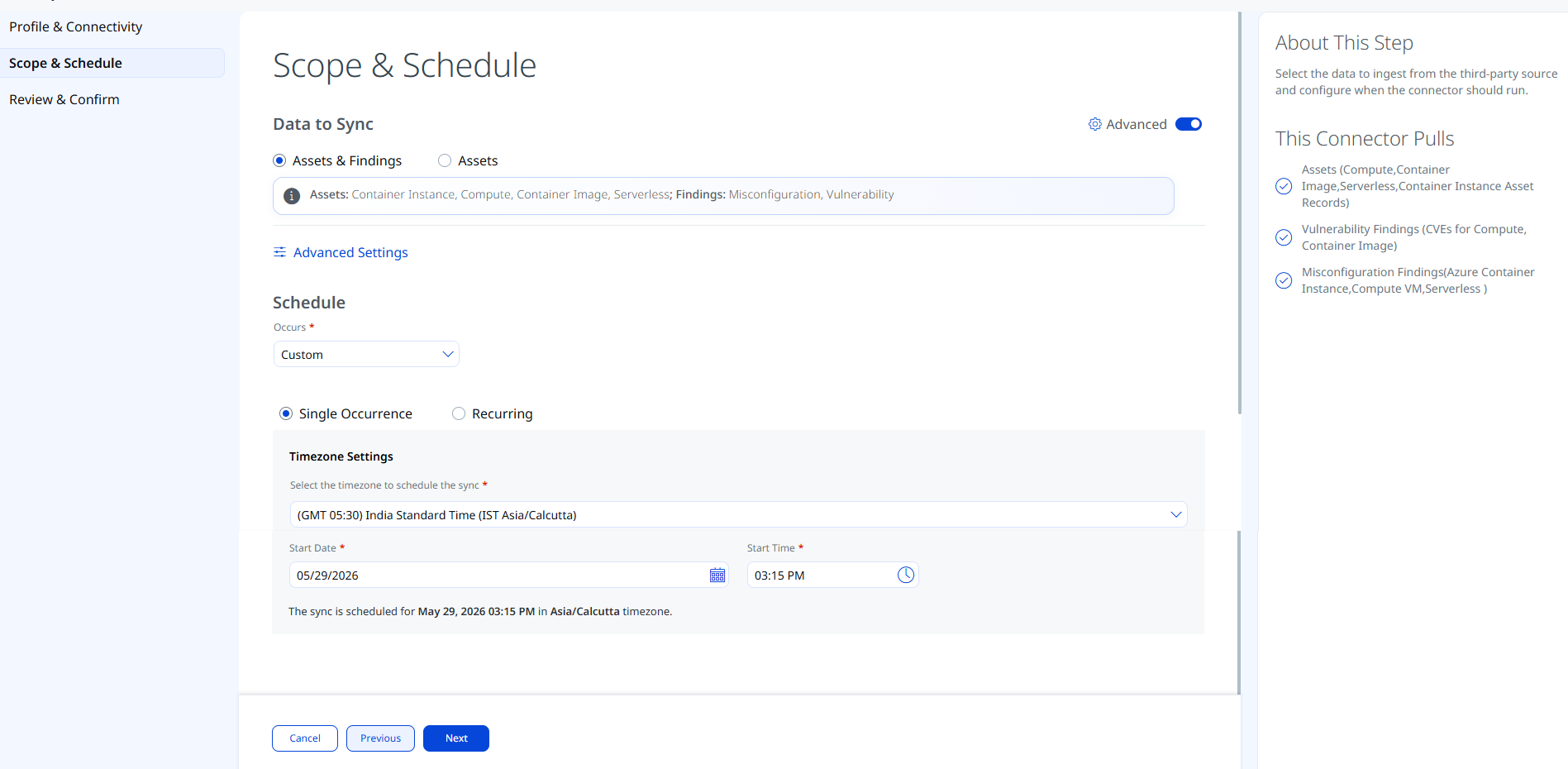
Select the data to ingest from Microsoft Defender for Cloud and configure when the connector should run.
Choose one of the two options:
- Assets & Findings — Synchronizes asset inventory together with vulnerability and misconfiguration findings.
- Assets — Synchronizes asset inventory only, without findings.
The Info icon identifies the default selections for Asset Types and Findings used in data mapping. To change these selections, go to Advanced Settings > Filters, and then configure Asset Types and Filters as needed.
Click the Advanced toggle to open Advanced Settings and configure asset type and findings filters before proceeding.
Set Occurs to Custom and select the occurrence type:
- Single Occurrence — Runs the connector once at a specified date and time. Select the timezone, Start Date, and Start Time.
- Recurring — Runs the connector on a repeating schedule. Provide start and end date/time along with recurrence interval.
Schedule times are interpreted in the selected timezone. Verify your timezone selection before saving; scheduling in an incorrect timezone may delay the first sync.
Advanced Settings
Advanced Settings are accessible from the Scope & Schedule step by enabling the Advanced toggle. Use these settings to refine which assets and findings are ingested and to review data mapping configuration. Changes here are optional.
Filters
The Filters tab uses a chip-selector model. Select or deselect asset types and finding types to control the scope of data ingested.
| Filter | Options | Description |
|---|---|---|
| Asset Types | Container Image, Compute, Container Instance, Serverless | Select the specific asset types to ingest. By default, all supported types are selected. Remove any types you do not want to sync. |
| Findings | Vulnerability, Misconfiguration | All chips are selected by default. Remove a chip to exclude that asset type or finding type from the synchronization. |
| Create assets that don't exist in Qualys | - | If enabled, the connector ingests all those assets that are not created /exist in Qualys |
Free-text OData filter queries are not supported by this connector. Scope filtering is limited to the asset type and findings chip selectors above.
Transform Map
The Transform Map tab displays the active data mapping configuration used to convert Microsoft Defender for Cloud fields into Qualys ETM schema fields. The connector provides out-of-box transform maps that require no additional configuration to begin ingestion. You may view the map to understand the field-level transformations, or clone it to create a custom variant.
The active maps cover:
- Asset transformation maps for
AZURE.VIRTUAL_MACHINE,AZURE.CONTAINER_IMAGE,AZURE.CONTAINER_INSTANCE, andAZURE.SERVERLESS - Vulnerability transformation maps for
AZURE.CONTAINER_IMAGEandCOMPUTE - Misconfiguration transformation map for all supported finding types
To learn more, refer to the Transformation Maps section.
Click Next to proceed to Review & Confirm.
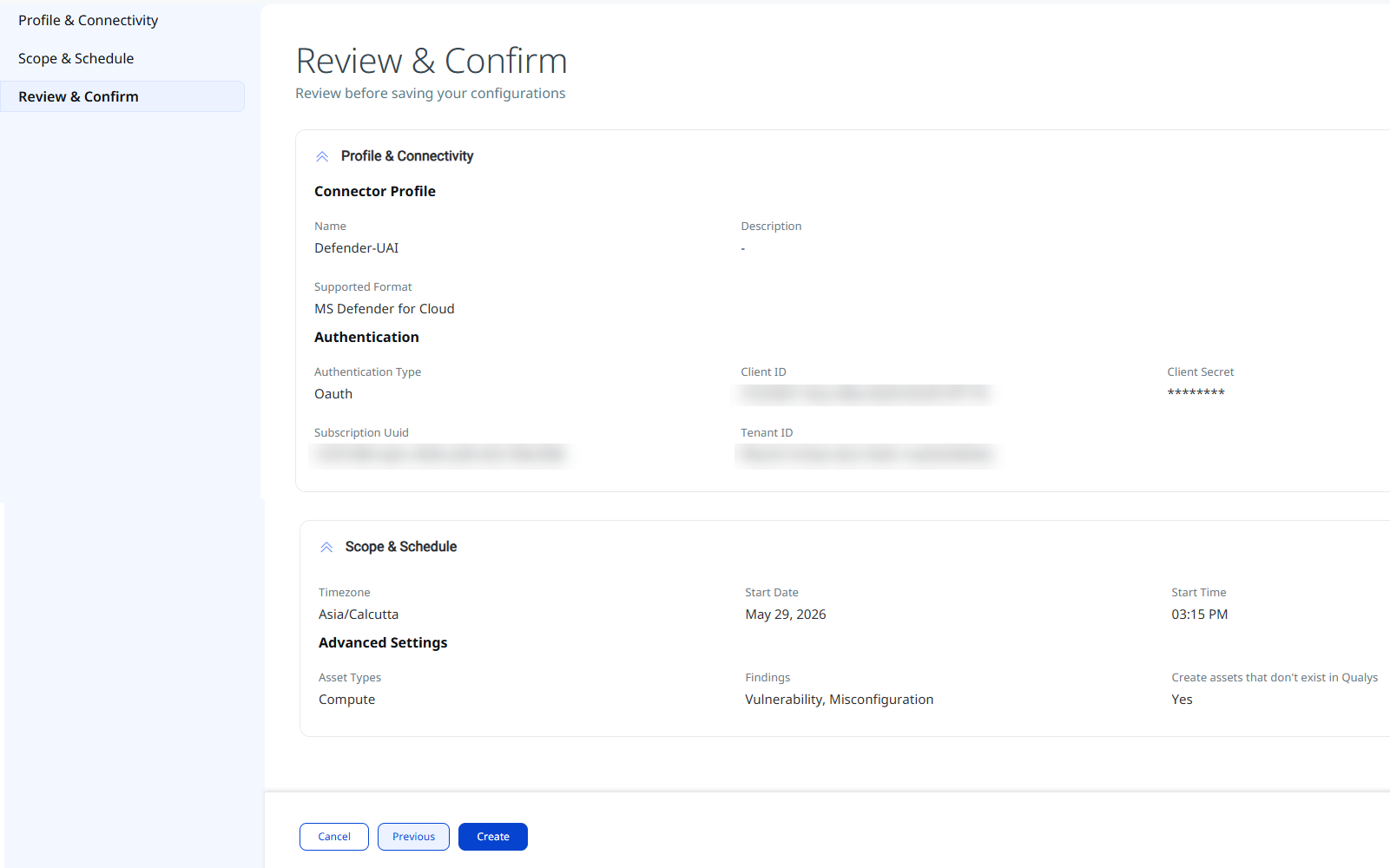
Review and Confirm
Configure the connector's identity and authenticate with the source system.
Click Next to proceed to Scope & Schedule once all checks pass.
How the Connection Works
The Defender for Cloud connector operates through configured profiles that determine which data is synchronized and when. On each scheduled execution (or on-demand run), the connector performs a full sync — pulling asset inventory and findings from Microsoft Defender for Cloud into Qualys ETM. Delta synchronization is not supported.
Connector States
A successfully configured connector progresses through the following states:
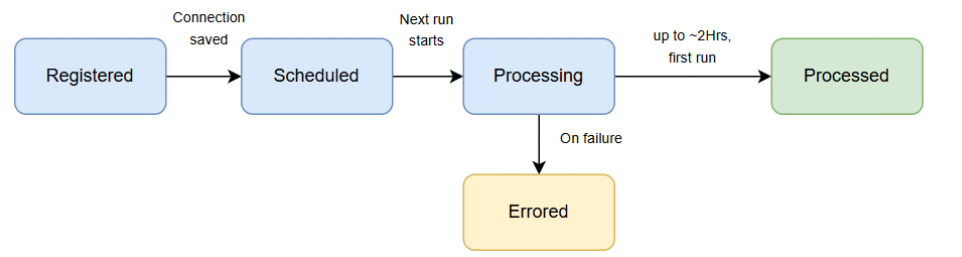
- Registered — The connector has been successfully created and registered to fetch data from Microsoft Defender for Cloud.
- Scheduled — The connector is scheduled to execute a connection with the vendor at the configured time.
- Processing — A connection has been executed, and the connector is actively fetching asset and findings data.
- Processed — The connector has successfully fetched assets. Findings may still be processing; allow additional time for findings to appear completely in ETM.
The Processed state indicates the connector ran successfully, but the full import of assets and findings - particularly findings - may take up to 2 hours to complete. After this initial processing period, the imported data will be available in Enterprise TruRisk Management (ETM).
Viewing Assets and Findings in ETM
Navigate to Enterprise TruRisk Management to analyze your connector's imported data.
To view the Assets:
Log in to ETM, navigate to Inventory > Assets, and use the following filter token to view all assets imported from this connector:
inventory:(source:"Defender for Cloud")
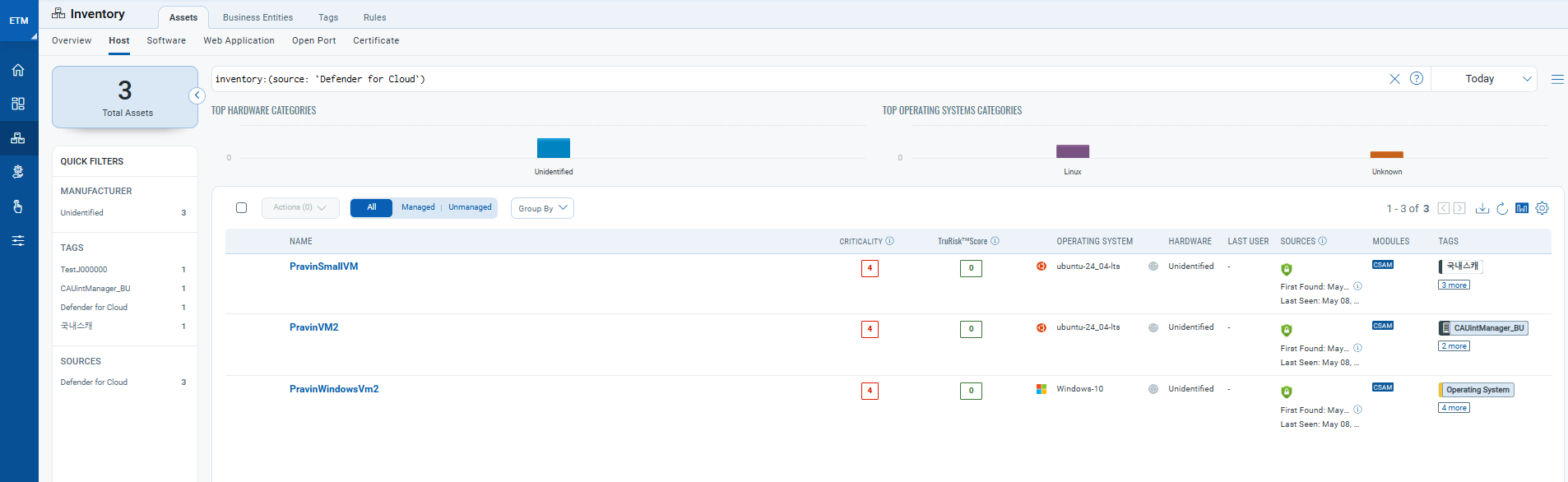
Click any asset to view its details, risk score, and associated findings.
To view the Findings:
Log in to ETM, navigate to Findings > Misconfigurations in ETM's Risk Management tab to view all discovered vulnerability and misconfiguration findings. Use the following filter token to scope to Defender for Cloud findings:
findings.vendorProductname:"Defender for Cloud"
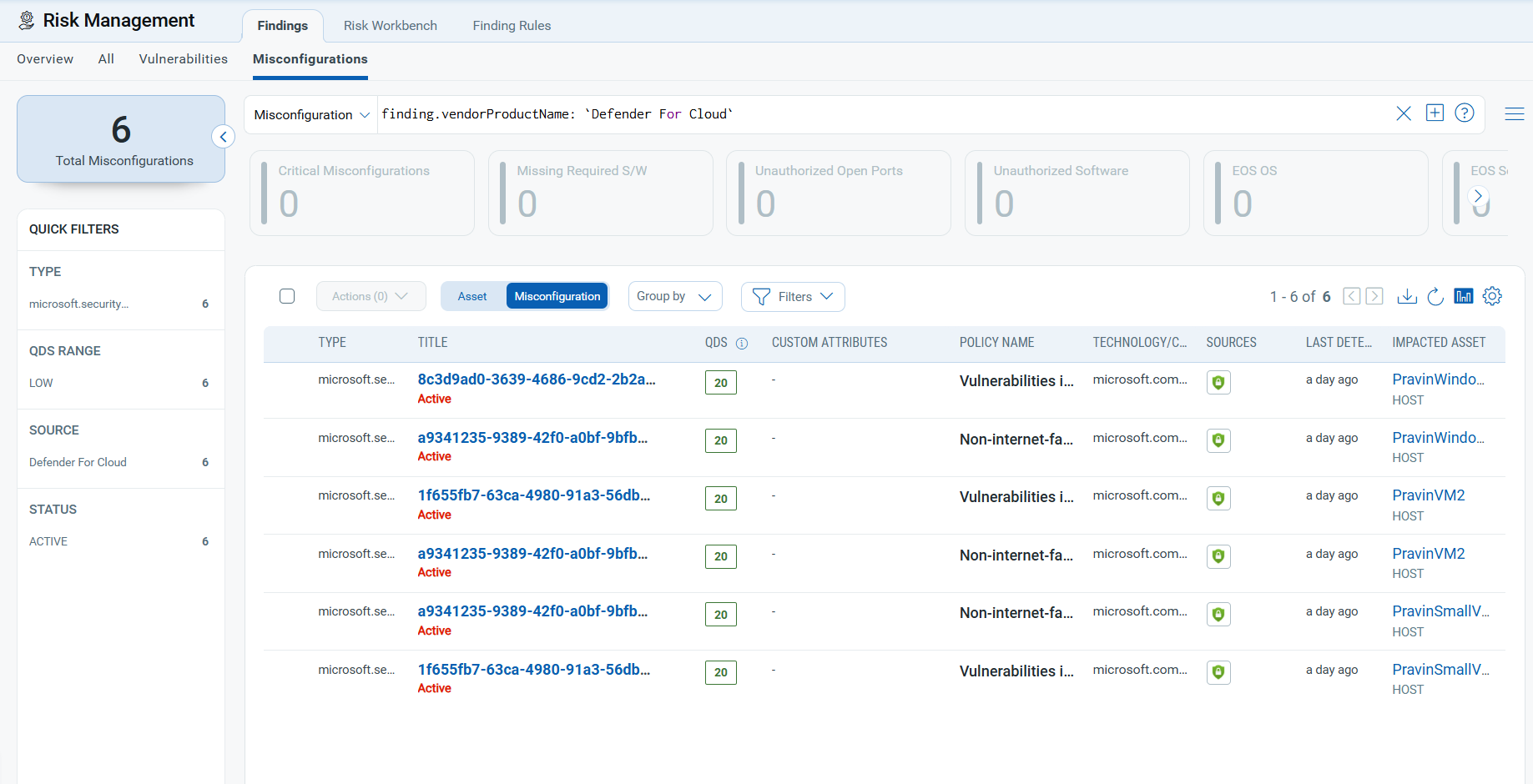
To learn more, refer to the Qualys ETM Documentation.
Troubleshooting
Use the following guidance to resolve common issues when configuring or running the Microsoft Defender for Cloud connector.
| Issue | Resolution |
|---|---|
| Authentication Credential Check fails during Test Connection | Verify the Subscription UUID, Tenant ID, Client ID, and Client Secret are entered correctly. Ensure the Client Secret has not expired. Regenerate a new secret in Azure if needed and update the connector. |
| Authorization Scope Check fails during Test Connection | Confirm that the Reader and Security Reader roles have been assigned to the registered application on the target Azure subscription. Confirm that admin consent has been granted for the Microsoft Graph API permissions. |
| Network Reachability or TLS Handshake fails | Verify that the Qualys ETM platform can reach login.microsoftonline.com and management.azure.com on HTTPS (port 443). Check your network egress rules or proxy configuration. |
| Connector stays in Processing state longer than expected | Initial ingestion can take up to 2 hours depending on the volume of assets and findings. Wait for the full processing window before concluding there is a problem. If the connector remains in Processing beyond 3 hours, check the connector logs for errors. |
| Assets appear in ETM but no findings are visible | Findings import may still be in progress. Allow up to 2 hours from the Processed state. If findings still do not appear, verify that the Findings chips (Misconfiguration and Vulnerability) are selected in the Filters tab of Advanced Settings, and confirm that the Defender for Cloud subscription has active findings. |
| Client Secret expired — connector fails at authentication | Create a new Client Secret in Azure, copy the value immediately, and update the Client Secret field in the Qualys ETM connector configuration. Run Test Connection to confirm authentication succeeds. |
| Serverless or Container Instance assets show no vulnerability findings | This is expected behavior. Serverless Function and Container Instance asset types do not have associated vulnerability findings in the Microsoft Defender for Cloud connector. Only Compute and Container Image assets carry vulnerability findings. |
Additional Information
API Reference
The following APIs are called during each connector execution.
|
Name |
Endpoint |
Description |
|---|---|---|
|
Auth API |
https://login.microsoftonline.com/ |
Obtains an OAuth 2.0 access token. Required values: Subscription UUID, Tenant ID, Client ID, Client Secret.
|
|
Fetch Asset |
https://management.azure.com/providers/ |
Retrieves asset inventory. Sample queries: Compute: Container Instance: |
|
Fetch Container Images |
https://${registryUri}/oauth2/tokenhttps://${registryUri}/v2/${repository}/manifests/${digest}https://${registryUri}/v2/${repository}/blobs/${configDigest}
|
Retrieves container image metadata from the registry. Registry Pull Auth parameters: |
|
Fetch Vulnerabilities |
https://management.azure.com/providers/ |
Compute findings query:
Container Image findings query:
|
Transformation Maps
This section documents the field-level attribute mappings from Microsoft Defender for Cloud source data to the Qualys ETM schema. The connector provides these maps out of the box.
Asset Transformation Maps
AZURE.VIRTUAL_MACHINEAZURE.VIRTUAL_MACHINE
| Source Field | Target Field (Qualys ETM) |
id |
asset.assetHeader.externalAssetId |
id |
asset.assetHeader.vendorAssetId |
name |
asset.assetDetail.name |
name |
asset.assetDetail.hostIdentity.hostname |
name |
asset.assetDetail.hostname |
tenantId |
asset.assetDetail.cloudInfo.tenantId |
location |
asset.assetDetail.cloudInfo.region |
resourceGroup |
asset.assetDetail.computeAssetClass.cloudInstance.resourceGroupName |
subscriptionId |
asset.assetDetail.cloudInfo.accountId |
properties.timeCreated |
asset.assetDetail.sourceCreatedAt |
osDiskId |
asset.assetDetail.computeAssetClass.cloudInstance.imageId |
properties.vmId |
asset.assetDetail.computeAssetClass.cloudInstance.id |
properties.osProfile.computerName |
asset.assetDetail.computeAssetClass.cloudInstance.hostname |
primaryNetworkInterface.publicIpProperties.ipAddress |
asset.assetDetail.computeAssetClass.cloudInstance.publicIpv4Address |
primaryNetworkInterface.nicProperties.macAddress |
asset.assetDetail.computeAssetClass.cloudInstance.macAddress |
primaryNetworkInterface.nicId |
asset.assetDetail.computeAssetClass.cloudInstance.networkInterfaceId |
externalTags |
asset.assetDetail.externalTags |
properties.storageProfile.osDisk.osType |
asset.assetDetail.operatingSystem.name |
properties.storageProfile.imageReference.publisher |
asset.assetDetail.operatingSystem.publisher |
properties.storageProfile.imageReference.sku |
asset.assetDetail.operatingSystem.version |
CONSTANT: "azure-virtual-machine" |
asset.assetHeader.assetTypeName |
AZURE.CONTAINER_IMAGEAZURE.CONTAINER_IMAGE
| Source Field | Target Field (Qualys ETM) |
zones |
asset.assetDetail.cloudInfo.availabilityZone |
tenantId |
asset.assetDetail.cloudInfo.tenantId |
subscriptionId |
asset.assetDetail.cloudInfo.accountId |
properties.resourceDetails.source |
asset.assetDetail.cloudInfo.provider |
properties.additionalData.artifactDetails.repositoryName |
asset.assetDetail.name |
properties.additionalData.artifactDetails.repositoryName |
asset.assetDetail.containerImageAssetClass.name |
properties.additionalData.artifactDetails.repositoryName |
asset.assetDetail.containerImageAssetClass.repository |
properties.additionalData.artifactDetails.registryHost |
asset.assetDetail.containerImageAssetClass.registry |
properties.additionalData.artifactDetails.digest |
asset.assetDetail.containerImageAssetClass.digest |
properties.additionalData.artifactDetails.digest |
asset.assetHeader.externalAssetId |
properties.additionalData.artifactDetails.digest |
asset.assetHeader.vendorAssetId |
location |
asset.assetDetail.cloudInfo.region |
imageTagReferences |
asset.assetDetail.containerImageAssetClass.imageTagReferences |
imageConfigV2.os |
asset.assetDetail.operatingSystem.name |
imageConfigV2.history[].size |
asset.assetDetail.containerImageAssetClass.layers[].sizeInBytes |
imageConfigV2.history[].digest |
asset.assetDetail.containerImageAssetClass.layers[].digest |
imageConfigV2.history[].created_by |
asset.assetDetail.containerImageAssetClass.layers[].createdBy |
imageConfigV2.created |
asset.assetDetail.containerImageAssetClass.creationDate |
imageConfigV2.architecture |
asset.assetDetail.containerImageAssetClass.architecture |
externalTags |
asset.assetDetail.externalTags |
CONSTANT: "container-image" |
asset.assetHeader.assetTypeName |
asset_root (imageTag) |
asset.assetDetail.containerImageAssetClass.tag |
AZURE.CONTAINER_INSTANCEAZURE.CONTAINER_INSTANCE
| Source Field | Target Field (Qualys ETM) |
location |
asset.assetDetail.cloudInfo.region |
subscriptionId |
asset.assetDetail.cloudInfo.accountId |
zones |
asset.assetDetail.cloudInfo.availabilityZone |
managedBy |
asset.assetDetail.businessInfo.managedBy |
properties.container.name |
asset.assetDetail.name |
id |
asset.assetHeader.externalAssetId |
id |
asset.assetHeader.vendorAssetId |
properties.container.properties.instanceView.currentState.state |
asset.assetDetail.containerInstanceAssetClass.status |
properties.container.properties.ports[].port |
asset.assetDetail.containerInstanceAssetClass.ports[].containerPort |
properties.container.properties.ports[].protocol |
asset.assetDetail.containerInstanceAssetClass.ports[].protocol |
asset_root (imageName) |
asset.assetDetail.containerInstanceAssetClass.image.name |
asset_root (imageTagOrDigest) |
asset.assetDetail.containerInstanceAssetClass.image.tag |
asset_root (imageRegistry) |
asset.assetDetail.containerInstanceAssetClass.image.registry |
properties.container.properties.environmentVariables |
asset.assetDetail.containerInstanceAssetClass.environmentVariables |
externalTags |
asset.assetDetail.externalTags |
CONSTANT: "container-instance" |
asset.assetHeader.assetTypeName |
AZURE.SERVERLESSAZURE.SERVERLESS
| Source Field | Target Field (Qualys ETM) |
CONSTANT: "azure-function" |
asset.assetHeader.assetTypeName |
externalTags |
asset.assetDetail.externalTags |
id |
asset.assetHeader.externalAssetId |
id |
asset.assetHeader.vendorAssetId |
location |
asset.assetDetail.cloudInfo.region |
name |
asset.assetDetail.name |
properties.name |
asset.assetDetail.serverlessAssetClass.functionName |
subscriptionId |
asset.assetDetail.cloudInfo.accountId |
tenantId |
asset.assetDetail.cloudInfo.tenantId |
zones |
asset.assetDetail.cloudInfo.availabilityZone |
Vulnerability Transformation Maps
AZURE.CONTAINER_IMAGEAZURE.CONTAINER_IMAGE
| Source Field | Target Field (Qualys ETM) |
assessmentKey |
findingGroup.findings[].externalFindingId |
id |
findingGroup.findings[].id |
properties.additionalData.artifactDetails.digest |
findingGroup.findings[].asset.externalAssetId |
properties.additionalData.vulnerabilityDetails.cpe.part |
findingGroup.findings[].product.cpePart |
properties.additionalData.vulnerabilityDetails.cpe.product |
findingGroup.findings[].product.name |
properties.additionalData.vulnerabilityDetails.cpe.vendor |
findingGroup.findings[].product.vendor |
properties.additionalData.vulnerabilityDetails.cpe.version |
findingGroup.findings[].product.version |
properties.additionalData.vulnerabilityDetails.cveId |
findingGroup.findings[].findingType.vulnerability.cveId |
properties.additionalData.vulnerabilityDetails.lastModifiedDate |
findingGroup.findings[].lastFoundOn |
properties.additionalData.vulnerabilityDetails.references[].link |
findingGroup.findings[0].references[] |
properties.additionalData.vulnerabilityDetails.weaknesses.cwe[].id |
findingGroup.findings[0].findingType.vulnerability.cweIds[] |
properties.description |
findingGroup.findings[].description |
properties.displayName |
findingGroup.findings[].name |
properties.impact |
findingGroup.findings[].impact |
properties.remediation |
findingGroup.findings[].remediations[].description |
properties.resourceDetails.ResourceName |
findingGroup.findings[].asset.assetName |
properties.status.severity |
findingGroup.findings[].severity |
properties.timeGenerated |
findingGroup.findings[].ingestedOn |
| Source Field | Target Field (Qualys ETM) |
asset_root (assetType) |
asset.assetHeader.assetTypeName |
id |
findingGroup.findings[].externalFindingId |
properties.displayName |
findingGroup.findings[].name |
properties.metadata.assessmentType |
findingGroup.findings[].findingType.misconfiguration.policy.type |
properties.metadata.description |
findingGroup.findings[].description |
properties.metadata.remediationDescription |
findingGroup.findings[].remediation.remediationStrategy |
properties.metadata.severity |
findingGroup.findings[].severity |
properties.resourceDetails.NativeResourceId |
findingGroup.findings[].asset.externalAssetId |
properties.resourceDetails.NativeResourceId |
asset.assetHeader.externalAssetId |
properties.resourceDetails.NativeResourceId |
asset.assetHeader.vendorAssetId |
properties.resourceDetails.ResourceName |
findingGroup.findings[].asset.assetName |
properties.resourceDetails.ResourceName |
asset.assetDetail.name |
properties.status.code |
findingGroup.findings[].findingStatus |
properties.status.firstEvaluationDate |
findingGroup.findings[].firstFoundOn |
properties.status.statusChangeDate |
findingGroup.findings[].lastFoundOn |
properties.statusPerInitiative[].policyInitiativeId |
findingGroup.findings[].findingType.misconfiguration.policy.policyId |
properties.statusPerInitiative[].policyInitiativeName |
findingGroup.findings[].findingType.misconfiguration.policy.title |
Misconfiguration Transformation Map
ALL MISCONFIGURATION FINDINGSALL MISCONFIGURATION FINDINGS
| Source Field | Target Field (Qualys ETM) |
asset_root (assetType) |
asset.assetHeader.assetTypeName |
id |
findingGroup.findings[].externalFindingId |
properties.displayName |
findingGroup.findings[].name |
properties.metadata.assessmentType |
findingGroup.findings[].findingType.misconfiguration.policy.type |
properties.metadata.description |
findingGroup.findings[].description |
properties.metadata.remediationDescription |
findingGroup.findings[].remediation.remediationStrategy |
properties.metadata.severity |
findingGroup.findings[].severity |
properties.resourceDetails.NativeResourceId |
findingGroup.findings[].asset.externalAssetId |
properties.resourceDetails.NativeResourceId |
asset.assetHeader.externalAssetId |
properties.resourceDetails.NativeResourceId |
asset.assetHeader.vendorAssetId |
properties.resourceDetails.ResourceName |
findingGroup.findings[].asset.assetName |
properties.resourceDetails.ResourceName |
asset.assetDetail.name |
properties.status.code |
findingGroup.findings[].findingStatus |
properties.status.firstEvaluationDate |
findingGroup.findings[].firstFoundOn |
properties.status.statusChangeDate |
findingGroup.findings[].lastFoundOn |
properties.statusPerInitiative[].policyInitiativeId |
findingGroup.findings[].findingType.misconfiguration.policy.policyId |
properties.statusPerInitiative[].policyInitiativeName |
findingGroup.findings[].findingType.misconfiguration.policy.title |
Frequently Asked Questions
Does this connector support delta (incremental) synchronization?
No. Delta synchronization is not supported. On each scheduled execution (or on-demand run), the connector performs a full sync, pulling asset inventory and findings from Microsoft Defender for Cloud into Qualys ETM.
Which cloud providers does the connector support?
Azure. As shown in the Supportability Matrix, inventory, vulnerability, and misconfiguration coverage is currently available for Azure resource types only. AWS, GCP, and OCI combinations are either not yet available for this connector or not supported by the vendor.
Can I import assets without findings?
Yes. In the Set the Scope & Schedule step, set Data to Sync to Assets instead of Assets & Findings. The connector then synchronizes asset inventory only, without findings.
Why do my Serverless or Container Instance assets show no vulnerability findings?
This is expected behavior. Serverless Function and Container Instance asset types do not have associated vulnerability findings in the Microsoft Defender for Cloud connector. Only Compute and Container Image assets carry vulnerability findings.
Can I use a free-text filter query to scope ingestion?
No. Free-text OData filter queries are not supported by this connector. Scope filtering is limited to the Asset Types and Findings chip selectors on the Advanced Settings Filters tab.
What permissions does the registered Azure application need?
Assign both the Reader and Security Reader roles to the registered application on each Azure subscription whose Defender for Cloud data you want to ingest. The minimum required permission is the Reader role (or higher). See Permissions Required.
What happens when my Client Secret expires, and how do I rotate it?
Client Secrets have a fixed expiration period set at creation time, and the connector fails authentication once the secret expires. Create a new Client Secret under App registrations > Certificates & secrets, copy the value immediately, update the Client Secret field in Qualys ETM, and run Test Connection. See Key Rotation.
Why is my connector still in the Processing state?
The Processed state indicates the connector ran successfully, but the full import of assets and findings - particularly findings - may take up to 2 hours to complete. If the connector remains in Processing beyond 3 hours, check the connector logs for errors and see the Troubleshooting section.
Does this connector write back to Microsoft Defender?
No. The data flow is unidirectional, from Microsoft Defender to Qualys ETM. No data is written back to Microsoft Defender.
Where do I see Defender for Cloud data in ETM?
Assets — log in to ETM, navigate to Inventory > Assets, and apply the filter inventory:(source:"Defender for Cloud")
Findings — navigate to Findings > Misconfigurations in ETM's Risk Management tab and apply the filter findings.vendorProductname:"Defender for Cloud"