Orca Cloud Security Connector
The Orca Cloud Security Connector bridges Orca's CNAPP platform with Qualys' Enterprise TruRisk Platform by automatically ingesting cloud asset inventory and vulnerability findings through scheduled API calls.
The connector covers Compute, Container Instances, Container Images, and Serverless workload types. Security teams gain unified visibility across multi-cloud environments by consolidating Orca's agentless detection data with Qualys' risk-scoring capabilities into a single asset inventory — eliminating manual data translation and enabling SecOps teams to focus on remediating the most critical vulnerabilities.
This connector can be activated for your subscription only after it is enabled on your account. Once activated, proceed with the configuration steps below.
Connector Details
The following table provides a comprehensive overview of what the Orca Cloud Security connector supports.
| Vendor | Orca |
| Product Name | Orca Cloud Security |
| Category | Cloud Security (CNAPP) |
| Asset Types Supported |
Compute, Container Instances, Container Images, Serverless, Storage, Identity (User/Role/Group), Network |
| Findings Support | Vulnerabilities and Misconfigurations |
| Version | 1.0.0 |
| Supported Version & Type | SaaS (Latest) |
| Integration Type | API Integration (REST / GraphQL) |
| Direction | Unidirectional (Orca to Qualys) |
| Incremental Sync (Delta) | Not Supported |
| Import of Installed Software | Not Supported |
| Import of Source Tags | Not Supported |
| Filters / Filter Query | Not Supported |
Supportability MatrixSupportability Matrix
| Asset Class | Finding Type | AWS | Azure | GCP | OCI |
| Compute | Resource Type | EC2 Instance | Azure Virtual Machine | Compute Engine VM | OCI Compute Instance |
| Inventory | ✓ | ✓ | ✓ | ✓ | |
| Vulnerabilities | ✓ | ✓ | ✓ | ✓ | |
| Misconfigurations | ✓ | ✓ | ✓ | ✓ | |
| Serverless | Resource Type | AWS Lambda Function | Azure Function App | GCP Cloud Functions | OCI Functions |
| Inventory | ✓ | ✓ | ✓ | NA | |
| Vulnerabilities | ✓ | ✓ | ✓ | NA | |
| Misconfigurations | ✓ | ✓ | ✓ | NA | |
| Container Image | Resource Type | Amazon ECR (Container Image) |
Azure Container Registry (ACR Image) |
Google Artifact Registry (Container Image) |
OCI Container Registry (OCIR Image) |
| Inventory | ✓ | ✓ | ✓ | NA | |
| Vulnerabilities | ✓ | ✓ | ✓ | NA | |
| Misconfigurations | ✓ | ✓ | ✓ | NA | |
| Container Instance | Resource Type | Amazon ECS Task / AWS Fargate Container |
Azure Container Instance (ACI) |
GKE Pod / Cloud Run Container |
OCI Container Instances |
| Inventory | ✓ | ✓ | ✓ | NA | |
| Vulnerabilities | ✓ | ✓ | ✓ | NA | |
| Misconfigurations | ✓ | ✓ | ✓ | NA |
Configure the Connector
Complete the following three steps to set up and activate the Orca Cloud Security connector.
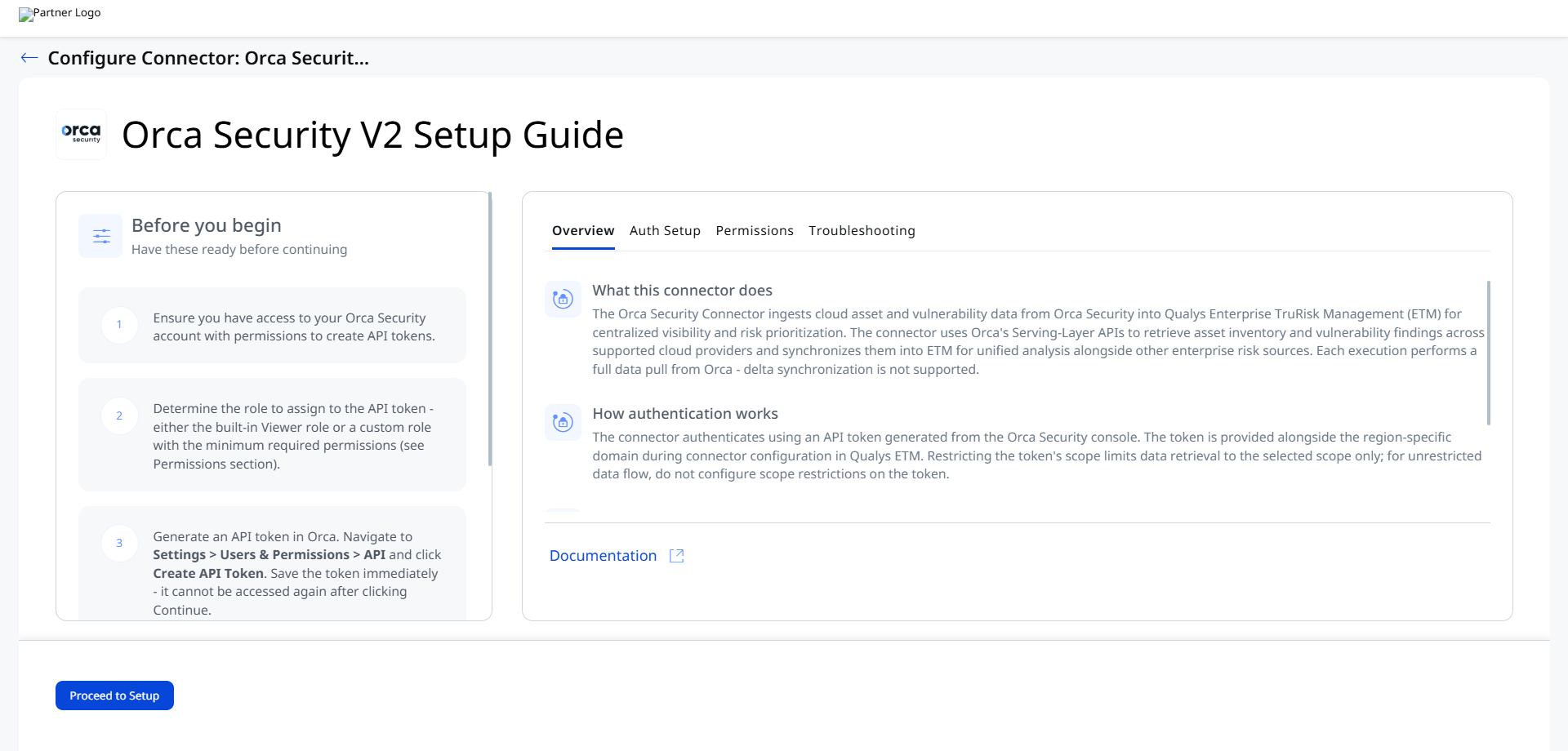
Before You Begin - AuthenticationBefore You Begin - Authentication
The connector authenticates to Orca using an API token. Before you begin, ensure you have the required token and your regional domain URL.
Permissions Required
To retrieve assets and vulnerability findings, the connector uses Orca's Serving-layer APIs. Your API token must be assigned one of the following:
- The built-in Viewer role (recommended — available out of the box in Orca).
- A custom role with at minimum: HostAssets, VulnerabilitiesV2, and Risks > Alerts (Read) permissions (required for fetching misconfigurations).
Reference: Default Roles and Permissions (Orca)
Generate an API Token in Orca
- Log in to your Orca account using the domain URL for your region.
- Navigate to Settings > Users & Permissions > API.
- Click Create API Token.
- Configure the token settings:
- Name — Enter a unique name for the token.
- Description — Describe the token's purpose.
- Never Expire — Select this checkbox to create a permanently valid token. If deselected, set an Expiration date. Expired tokens remain visible but become invalid; integrations using them will stop working.
- Service Token — Select this checkbox if the token should not be tied to a specific user. Service tokens remain usable even if the creating user is removed, but they are scoped to that user's permissions at creation time.
- Role — Select the role that grants the required permissions. See Default Roles and Permissions.
- Scope (optional) — To restrict data fetching to specific resources, enable Scope access to specific resources and select from Accounts, Business Units, or Shift Left Projects.
Note: Restricting scope limits data fetched to the selected resources only. For unrestricted data flow, leave the scope checkbox deselected.
- Click Add. The Integration API Token window appears.
- Click Continue.
Important: Copy and save your token immediately. You cannot retrieve it again after clicking Continue.
Authentication Details
You will need the following values when configuring the connector in ETM.
| Name | Key | Type | Description |
|---|---|---|---|
| API Token | api_token |
Encrypted String | API token generated from Orca Cloud Security |
| Domain | domain |
String | Your regional Orca API domain (for example: api.orcasecurity.io or app.eu.orcasecurity.io) |
Use the domain that corresponds to your deployment region:
| US (Default) | https://api.orcasecurity.io/api/ |
| Europe | https://app.eu.orcasecurity.io/api/ |
| Australia | https://app.au.orcasecurity.io/api/ |
| India | https://app.in.orcasecurity.io/api/ |
| Israel | https://api.il.orcasecurity.io/api/ |
| Brazil (SA) | https://api.sa.orcasecurity.io/api/ |
Create the Profile & ConnectionCreate the Profile & Connection
- Log in to Qualys ETM.
- Navigate to Connectors > Integration.
- Locate the Orca Cloud Security Connector on the Connector Marketplace and click Add. This is a one-time task.
If the connector is already added to your account, navigate to My Connectors and search for the Orca Cloud Security connector.
- Click Manage Connections on the connector tile.
- Click Create Connection and follow the setup wizard:
- Click Proceed to Setup.
- On the Profile & Connectivity page, enter a connector Name.
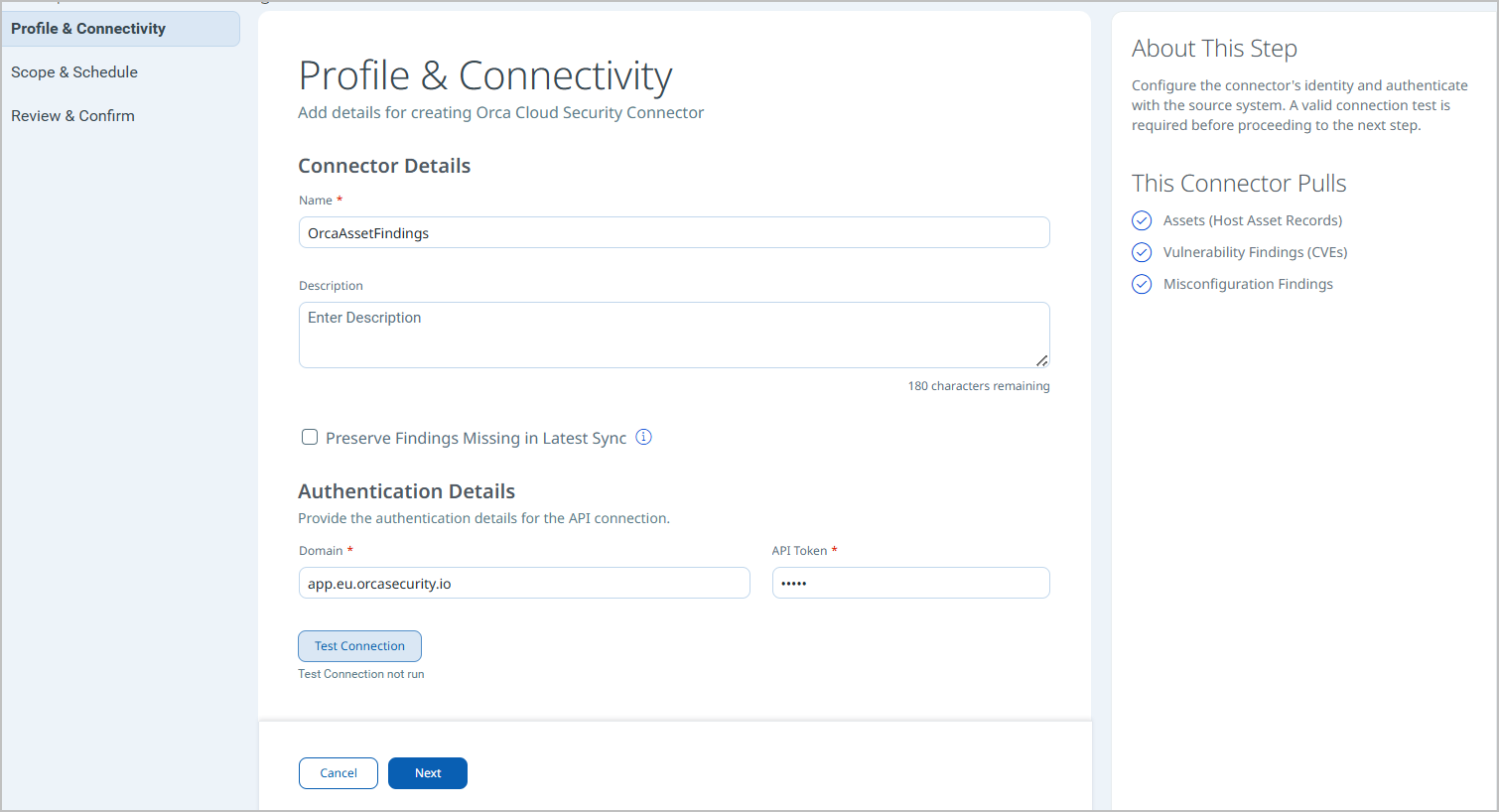
- Enter your Authentication Details (API Token and Domain from the Authentication step).
- Click Test Connection. A modal will appear showing the status of each connectivity check. Resolve any errors before proceeding.
- Network Reachability — Verifies the API endpoint is reachable.
- TLS Handshake — Confirms a secure connection can be established.
- Authentication Credential Check — Validates the Client ID, Client Secret, and Token URL.
- Authorization Scope Check — Confirms the service account has the required permissions.
- Data Fetch — Verifies that data can be retrieved from the Orca Security API.
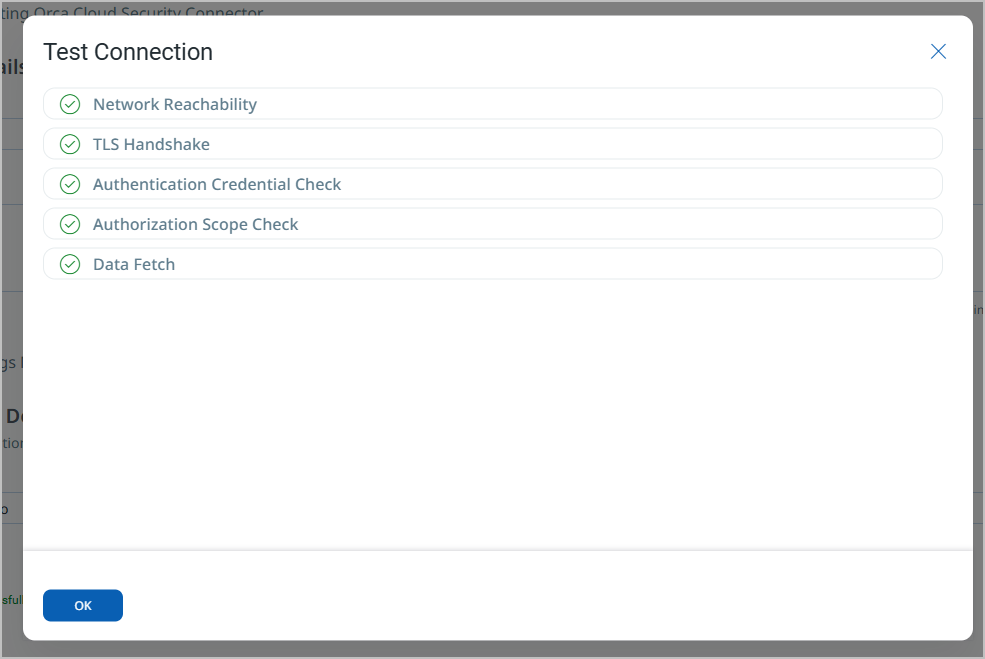
- Click Next once the test is successful.
- Click Create Connection and follow the setup wizard:
Set the Scope & ScheduleSet the Scope & Schedule
- Asset Classes and Findings — By default, the connector ingests all supported asset classes and all finding types (Vulnerabilities and Misconfigurations). To limit ingestion to specific asset classes or finding types, enable the Advanced Settings toggle. See Advanced Settings below.
- Schedule — Select an execution frequency from the Schedule dropdown.
A custom schedule option becomes available only after enabling the Advanced Settings toggle. To define one, select Custom from the dropdown and enter your desired schedule expression.
- Review the configuration summary and click Create to finalize the connection.
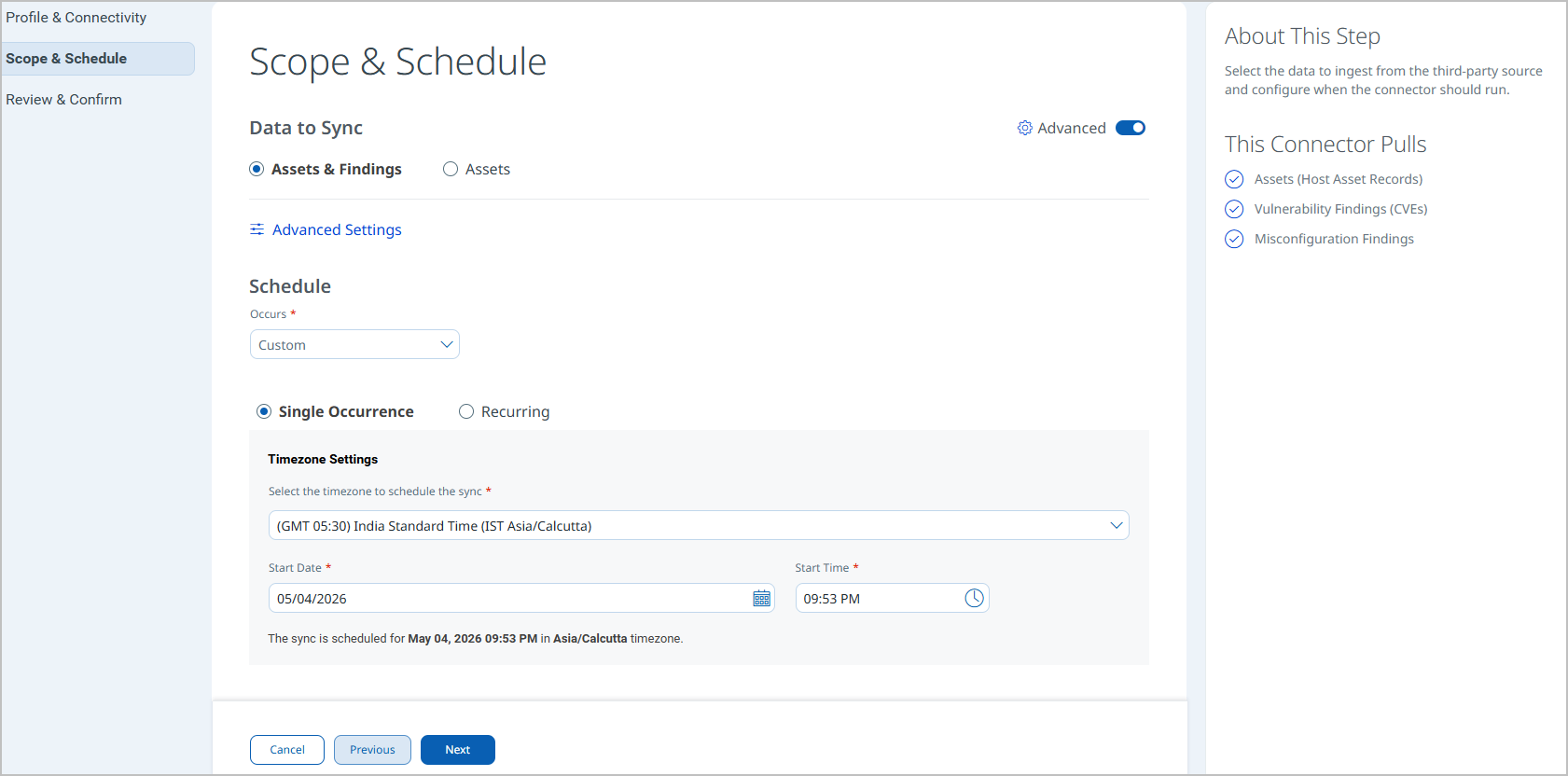
Advanced Settings
Enabling the Advanced Settings toggle exposes additional configuration options for data filtering, staging behavior, and field mapping.
Filters
Filters are connector-specific. The Orca Cloud Security connector does not currently support filter queries. To check for updates or configure filters when supported:
- Turn on the Advanced Settings toggle.
- Click the Advanced Settings link.
- Navigate to the Filters tab and configure as needed.
Data Staging Configuration
From the Filters tab, you can also control how source data is staged before ingestion:
- Enable automatic staging — Uncheck the Requires manual Sync checkbox.
- Disable automatic staging — Check the Requires manual Sync checkbox (staging must be triggered manually).
How the Connection Works
On schedule (or on demand), the connector retrieves selected asset classes and vulnerability findings from Orca and imports them into the ETM Unified Asset Inventory. Each execution performs a full data pull.
Connector States
A successfully configured connector moves through four states:
- Registered — The connector is created and registered to fetch data from Orca.
- Scheduled — The connector is queued for its next execution.
- Processing — Assets and findings are actively being fetched.
- Processed — Assets are imported; findings may continue processing in the background.
Note: The Processed state does not necessarily mean all findings have been imported. Finding ingestion — especially at large scale — may continue for several hours after assets are available.
Viewing Assets and Findings in ETM
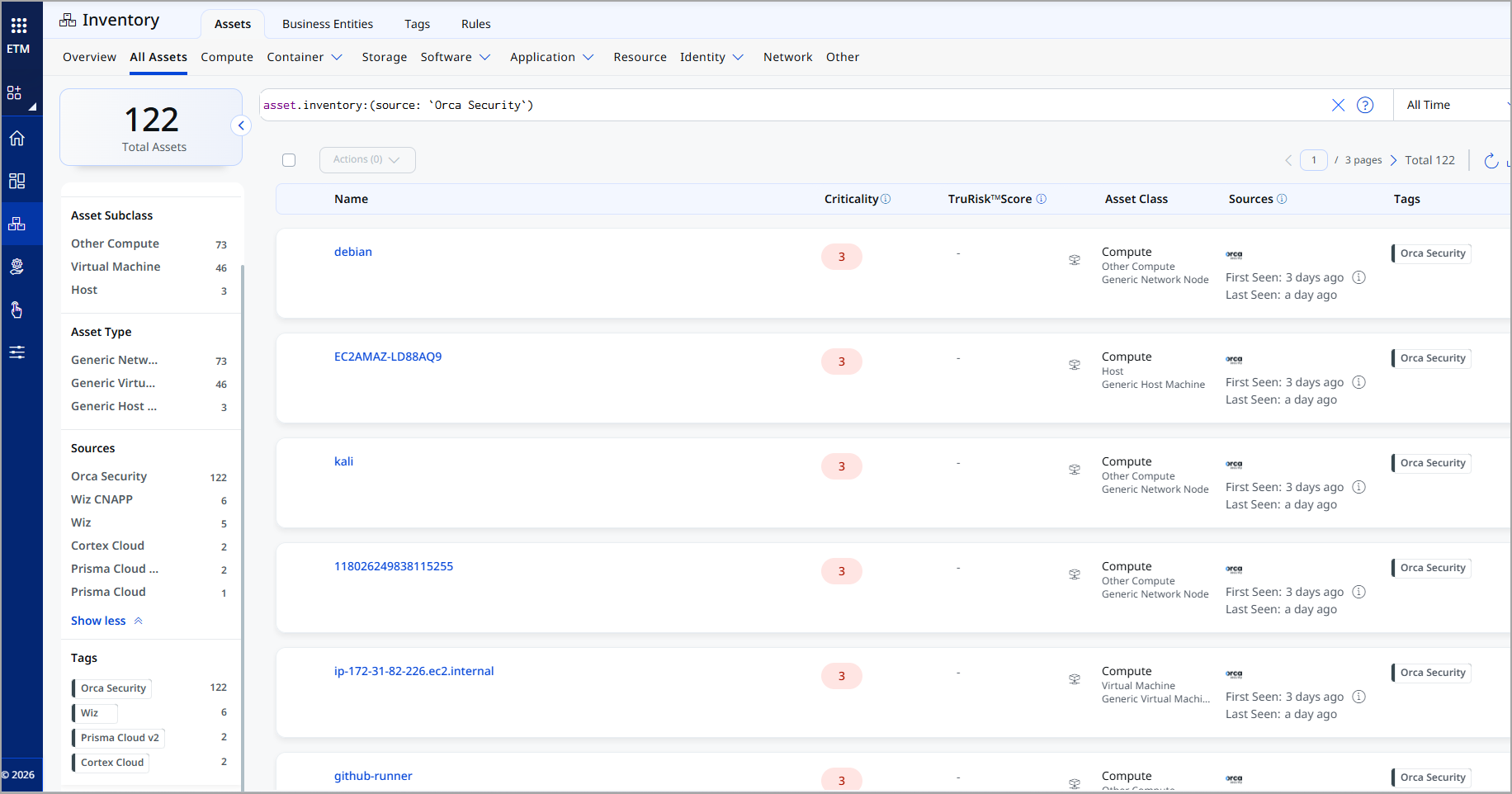
After ingestion, Orca Cloud assets appear in the ETM Unified Asset Inventory.
- Assets: Navigate to Enterprise TruRisk Management > Inventory > Assets > All Assets.
Use the tag or asset filter:tags.name:"Orca Security"orasset.inventory:"Orca Cloud Security".
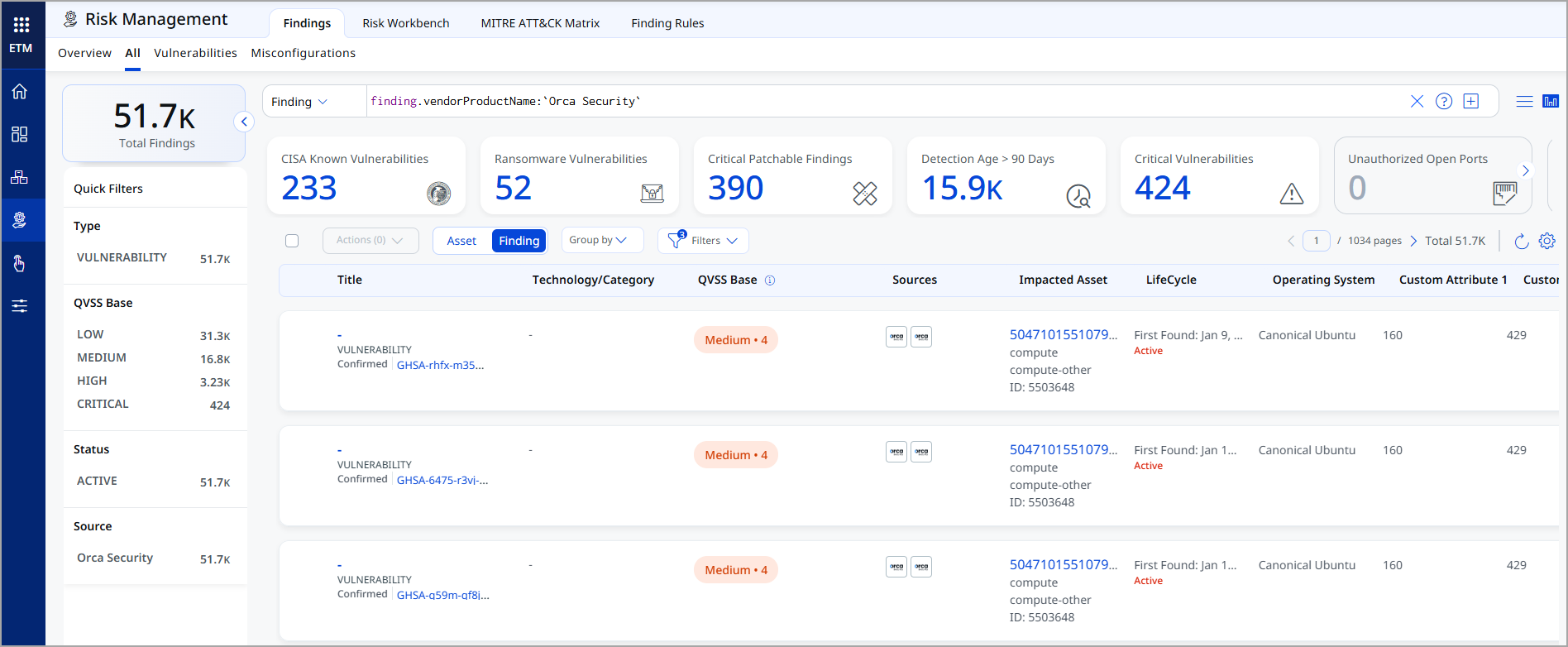
- Findings (Vulnerabilities): Navigate to Enterprise TruRisk Management > Risk Management > Findings > Vulnerability.
Use the vendor filter:findings.vendorProductname:"Orca Cloud Security".
- Findings (Misconfigurations)
Click any finding to open its detailed view.
Additional Resources
Transformation Map
The Transformation Map defines how Orca source fields are mapped to ETM target fields for each asset class. These mappings are predefined by Qualys and applied automatically during connector execution. You can view them for reference.
Compute
AWS EC2 InstanceAWS EC2 Instance
| SourceField | TargetField |
|---|---|
| name | asset.assetDetail.name |
| id | asset.assetHeader.vendorAssetId |
| data.Tags.value.Name | asset.assetDetail.externalTags[].value |
| data.Region.value | asset.assetDetail.cloudInfo.region |
| data.Memory.value | asset.assetDetail.computeAssetClass.memory.sizeInBytes |
| data.InstanceType.value | asset.assetDetail.computeAssetClass.cloudInstance.type |
| data.InstanceId.value | asset.assetDetail.computeAssetClass.cloudInstance.id |
| data.Hostname.value | asset.assetDetail.computeAssetClass.cloudInstance.hostname |
| data.PublicIpAddress.value | asset.assetDetail.computeAssetClass.cloudInstance.publicIpv4Address |
| data.PrivateIpAddress.value | asset.assetDetail.computeAssetClass.cloudInstance.privateIpv4Address |
| data.State.value | asset.assetDetail.computeAssetClass.cloudInstance.state |
| asset_unique_id | asset.assetDetail.typedAttributes.asset_unique_id |
| data.AssetUniqueId.value | asset.assetHeader.externalAssetId |
| data.Hostname.value | asset.assetDetail.hostIdentity.fqdn |
| data.Hostname.value | asset.assetDetail.hostIdentity.hostname |
| data.PrivateIps.value[] | asset.assetDetail.network[].ipv4Addresses[] |
| data.Hostname.value | asset.assetDetail.network[].hostname |
| data.RiskLevel.value | asset.assetDetail.typedAttributes.RiskLevel |
| data.ConsoleUrlLink.value | asset.assetDetail.cloudInfo.providerUrl |
| data.CloudAccount.id | asset.assetDetail.cloudInfo.accountId |
| data.CloudAccount.name | asset.assetDetail.cloudInfo.accountName |
| data.CloudAccount.data.CloudProvider.value (FUNCTION_PICKER LOOKUP) | asset.assetDetail.cloudInfo.provider |
| data.FirstSeen.value (DATE_FORMAT) | asset.assetDetail.sourceCreatedAt |
| data.LastSeen.value (DATE_FORMAT) | asset.assetDetail.sourceUpdatedAt |
| vulnerabilities[].data.Inventory.name | findingGroup.findings[].asset.assetName |
| vulnerabilities[].data.Inventory.asset_unique_id | findingGroup.findings[].asset.externalAssetId |
| vulnerabilities[].data.CVE.data.PublicName.value | findingGroup.findings[].name |
| vulnerabilities[].data.CVE.data.Id.value | findingGroup.findings[].externalFindingId |
| vulnerabilities[].data.SourceLink.value | findingGroup.findings[].findingURL |
| vulnerabilities[].data.FirstSeen.value (DATE_FORMAT) | findingGroup.findings[].firstFoundOn |
| vulnerabilities[].data.CVE.data.LastModifiedDate.value (DATE_FORMAT) | findingGroup.findings[].lastFoundOn |
| vulnerabilities[].data.data.FirstSeen.value (DATE_FORMAT) | findingGroup.findings[].ingestedOn |
| vulnerabilities[].data.CveId.value | findingGroup.findings[].findingType.vulnerability.cveId |
| vulnerabilities[].data.HasExploit.value | findingGroup.findings[].findingType.vulnerability.isExploitAvailable |
| vulnerabilities[].data.Description.value | findingGroup.findings[].description |
| vulnerabilities[].data.PatchAvailable.value (FUNCTION_PICKER LOOKUP) | findingGroup.findings[].findingType.vulnerability.isPatchAvailable |
| vulnerabilities[].data.CvssVector.value | findingGroup.findings[].cvss.vector |
| vulnerabilities[].data.CvssSeverity.value (FUNCTION_PICKER LOOKUP) | findingGroup.findings[].severity |
| vulnerabilities[].data.CvssScore.value | findingGroup.findings[].riskScore |
| vulnerabilities[].data.data.SourceLink.value | findingGroup.findings[].findingDetectionURL |
GCP VM InstanceGCP VM Instance
| SourceField | TargetField |
|---|---|
| name | asset.assetDetail.name |
| id | asset.assetHeader.vendorAssetId |
| type | asset.assetHeader.assetTypeName |
| data.CanIpForward.value | asset.assetDetail.typedAttributes.CanIpForward |
| data.DeletionProtection.value | asset.assetDetail.typedAttributes.DeletionProtection |
| data.IsInternetFacing.value | asset.assetDetail.typedAttributes.IsInternetFacing |
| data.FirstSeen.value (DATE_FORMAT) | asset.assetDetail.sourceCreatedAt |
| data.LastSeen.value (DATE_FORMAT) | asset.assetDetail.sourceUpdatedAt |
| data.Region.value | asset.assetDetail.cloudInfo.region |
| data.Memory.value | asset.assetDetail.computeAssetClass.memory.sizeInBytes |
| data.ImageId.value | asset.assetDetail.computeAssetClass.cloudInstance.imageId |
| data.InstanceType.value | asset.assetDetail.computeAssetClass.cloudInstance.type |
| data.Hostname.value | asset.assetDetail.computeAssetClass.cloudInstance.hostname |
| data.Hostname.value | asset.assetDetail.hostIdentity.hostname |
| data.State.value | asset.assetDetail.computeAssetClass.cloudInstance.state |
| data.PublicIpAddress.value | asset.assetDetail.computeAssetClass.cloudInstance.publicIpv4Address |
| data.PrivateIpAddress.value | asset.assetDetail.computeAssetClass.cloudInstance.privateIpv4Address |
| data.PrivateIps.value[] | asset.assetDetail.network[].ipv4Addresses[] |
| data.Hostname.value | asset.assetDetail.network[].hostname |
| asset_unique_id | asset.assetDetail.typedAttributes.asset_unique_id |
| data.Tags.value.Name | asset.assetDetail.externalTags[].value |
| data.AssetUniqueId.value | asset.assetHeader.externalAssetId |
| data.OrcaScore.value | asset.assetDetail.typedAttributes.OrcaScore |
| data.RiskLevel.value | asset.assetDetail.typedAttributes.RiskLevel |
| data.ConsoleUrlLink.value | asset.assetDetail.cloudInfo.providerUrl |
| data.CloudAccount.id | asset.assetDetail.cloudInfo.accountId |
| data.cloudAccount.name | asset.assetDetail.cloudInfo.accountName |
| data.CloudAccount.data.CloudProvider.value (FUNCTION_PICKER LOOKUP) | asset.assetDetail.cloudInfo.provider |
OCI VM InstanceOCI VM Instance
| SourceField | TargetField |
|---|---|
| name | asset.assetDetail.name |
| id | asset.assetHeader.vendorAssetId |
| data.IsInternetFacing.value | asset.assetDetail.typedAttributes.IsInternetFacing |
| data.HasSensitiveKeys.value | asset.assetDetail.typedAttributes.HasSensitiveKeys |
| data.FirstSeen.value (DATE_FORMAT) | asset.assetDetail.sourceCreatedAt |
| data.LastSeen.value (DATE_FORMAT) | asset.assetDetail.sourceUpdatedAt |
| data.Region.value | asset.assetDetail.cloudInfo.region |
| data.AvailabilityZones.value | asset.assetDetail.cloudInfo.availabilityZone |
| data.ImageId.value | asset.assetDetail.computeAssetClass.cloudInstance.imageId |
| data.InstanceId.value | asset.assetDetail.computeAssetClass.cloudInstance.id |
| data.InstanceType.value | asset.assetDetail.computeAssetClass.cloudInstance.type |
| data.Hostname.value | asset.assetDetail.computeAssetClass.cloudInstance.hostname |
| data.Hostname.value | asset.assetDetail.hostIdentity.fqdn |
| data.Hostname.value | asset.assetDetail.hostIdentity.hostname |
| data.Hostname.value | asset.assetDetail.network[].hostname |
| data.State.value | asset.assetDetail.computeAssetClass.cloudInstance.state |
| data.PublicIps.value | asset.assetDetail.network[].publicIpv4Addresses |
| data.PrivateIps.value | asset.assetDetail.network[].ipv4Addresses |
| data.VCpuCount.value | asset.assetDetail.processor.numberOfCpu |
| data.Memory.value | asset.assetDetail.computeAssetClass.memory.sizeInBytes |
| data.DistributionVersion.value | asset.assetDetail.operatingSystem.version |
| data.DistributionName.value | asset.assetDetail.operatingSystem.publisher |
| data.TotalDisksBytes.value | asset.assetDetail.computeAssetClass.storage[].totalSizeInBytes |
| asset_unique_id | asset.assetDetail.typedAttributes.asset_unique_id |
Container Image
Container Image (all providers)Container Image (all providers)
| SourceField | TargetField |
|---|---|
| name | asset.assetDetail.name |
| id | asset.assetHeader.vendorAssetId |
| asset_unique_id | asset.assetDetail.typedAttributes.asset_unique_id |
| data.ImageName.value | asset.assetDetail.containerImageAssetClass.name |
| data.CloudAccount.id | asset.assetDetail.cloudInfo.accountId |
| data.CloudAccount.name | asset.assetDetail.cloudInfo.accountName |
| data.ImageName.value | asset.assetDetail.containerImageAssetClass.imageTagReferences[].name |
| data.RepositoryName.value | asset.assetDetail.containerImageAssetClass.repository |
| data.RepositoryName.value | asset.assetDetail.containerImageAssetClass.imageTagReferences[].repository |
| data.ImageDigest.value | asset.assetDetail.containerImageAssetClass.digest |
| data.ImageSize.value | asset.assetDetail.containerImageAssetClass.sizeInBytes |
| data.ImageSize.value | asset.assetDetail.containerImageAssetClass.layers[].sizeInBytes |
| data.RepositoryUri.value | asset.assetDetail.containerImageAssetClass.registry |
| data.ImageTags.value | asset.assetDetail.containerImageAssetClass.tag |
| data.RepositoryUri.value | asset.assetDetail.containerImageAssetClass.imageTagReferences[].registry |
| data.ImageTags.value | asset.assetDetail.containerImageAssetClass.imageTagReferences[].tag |
| data.ImageDigest.value | asset.assetDetail.containerImageAssetClass.layers[].digest |
| data.AssetUniqueId.value | asset.assetHeader.externalAssetId |
| data.ConsoleUrlLink.value | asset.assetDetail.cloudInfo.providerUrl |
| data.FirstSeen.value (DATE_FORMAT) | asset.assetDetail.sourceCreatedAt |
| data.LastSeen.value (DATE_FORMAT) | asset.assetDetail.sourceUpdatedAt |
Container Instance
AWS Container InstanceAWS Container Instance
| SourceField | TargetField |
|---|---|
| name | asset.assetDetail.name |
| id | asset.assetHeader.vendorAssetId |
| asset_unique_id | asset.assetDetail.typedAttributes.asset_unique_id |
| data.RiskLevel.value | asset.assetDetail.typedAttributes.RiskLevel |
| data.OrcaScore.value | asset.assetDetail.typedAttributes.OrcaScore |
| data.AssetUniqueId.value | asset.assetHeader.externalAssetId |
| data.ConsoleUrlLink.value | asset.assetDetail.cloudInfo.providerUrl |
| data.cloudAccount.id | asset.assetDetail.cloudInfo.accountId |
| data.CloudAccount.name | asset.assetDetail.cloudInfo.accountName |
| data.Arn.value | asset.assetDetail.containerInstanceAssetClass.id |
| data.Status.value | asset.assetDetail.containerInstanceAssetClass.status |
| data.ImageName.value | asset.assetDetail.containerInstanceAssetClass.Image.name |
| data.FirstSeen.value (DATE_FORMAT) | asset.assetDetail.sourceCreatedAt |
| data.LastSeen.value (DATE_FORMAT) | asset.assetDetail.sourceUpdatedAt |
GCP CloudRun Container InstanceGCP CloudRun Container Instance
| SourceField | TargetField |
|---|---|
| name | asset.assetDetail.name |
| id | asset.assetHeader.vendorAssetId |
| asset_unique_id | asset.assetDetail.typedAttributes.asset_unique_id |
| data.RiskLevel.value | asset.assetDetail.typedAttributes.RiskLevel |
| data.OrcaScore.value | asset.assetDetail.typedAttributes.OrcaScore |
| data.AssetUniqueId.value | asset.assetDetail.containerInstanceAssetClass.id |
| data.CloudAccount.id | asset.assetDetail.cloudInfo.accountId |
| data.CloudAccount.name | asset.assetDetail.cloudInfo.accountName |
| data.Status.value | asset.assetDetail.containerInstanceAssetClass.status |
| data.Name.value | asset.assetDetail.containerInstanceAssetClass.host.name |
| data.PrivateClusterConfig.value.privateEndpoint | asset.assetDetail.containerInstanceAssetClass.host.ipAddress |
| data.ImageName.value | asset.assetDetail.containerInstanceAssetClass.Image.name |
| data.AssetUniqueId.value | asset.assetHeader.externalAssetId |
| data.ConsoleUrlLink.value | asset.assetDetail.cloudInfo.providerUrl |
| data.FirstSeen.value (DATE_FORMAT) | asset.assetDetail.sourceCreatedAt |
| data.LastSeen.value (DATE_FORMAT) | asset.assetDetail.sourceUpdatedAt |
Serverless
AWS Lambda FunctionAWS Lambda Function
| SourceField | TargetField |
|---|---|
| name | asset.assetDetail.name |
| id | asset.assetHeader.vendorAssetId |
| type | asset.assetDetail.serverlessAssetClass.serviceName |
| data.AssetUniqueId.value | asset.assetHeader.externalAssetId |
| data.ConsoleUrlLink.value | asset.assetDetail.cloudInfo.providerUrl |
| data.CloudAccount.id | asset.assetDetail.cloudInfo.accountId |
| data.CloudAccount.name | asset.assetDetail.cloudInfo.accountName |
| data.FunctionName.value | asset.assetDetail.serverlessAssetClass.functionName |
| data.CloudAccount.data.CloudProvider.value (FUNCTION_PICKER LOOKUP) | asset.assetDetail.cloudInfo.provider |
GCP Cloud FunctionGCP Cloud Function
| SourceField | TargetField |
|---|---|
| name | asset.assetDetail.name |
| id | asset.assetHeader.vendorAssetId |
| type | asset.assetDetail.serverlessAssetClass.serviceName |
| data.AssetUniqueId.value | asset.assetHeader.externalAssetId |
| data.CloudAccount.id | asset.assetDetail.cloudInfo.accountId |
| data.CloudAccount.name | asset.assetDetail.cloudInfo.accountName |
| data.FunctionName.value | asset.assetDetail.serverlessAssetClass.functionName |
| data.CloudAccount.data.
CloudProvider.value (FUNCTION_PICKER LOOKUP) |
asset.assetDetail.cloudInfo.provider |
Azure Function AppAzure Function App
| SourceField | TargetField |
|---|---|
| name | asset.assetDetail.name |
| id | asset.assetHeader.vendorAssetId |
| type | asset.assetDetail.serverlessAssetClass.serviceName |
| data.Arn.value | asset.assetHeader.externalAssetId |
| data.Name.value | asset.assetDetail.serverlessAssetClass.functionName |
| data.EnvVars.value | asset.assetDetail.serverlessAssetClass.environmentVariables |
| data.IsInternetFacing.value | asset.assetDetail.typedAttributes.IsInternetFacing |
| data.FirstSeen.value (DATE_FORMAT) | asset.assetDetail.sourceCreatedAt |
| data.LastSeen.value (DATE_FORMAT) | asset.assetDetail.sourceUpdatedAt |
| data.OrcaScore.value | asset.assetDetail.typedAttributes.OrcaScore |
| data.RiskLevel.value | asset.assetDetail.typedAttributes.RiskLevel |
| data.ConsoleUrlLink.value | asset.assetDetail.cloudInfo.providerUrl |
| data.Tags.value.Name | asset.assetDetail.externalTags[].value |