Palo Alto Networks Prisma Cloud (CSPM)
The Prisma Cloud Connector centralizes cloud asset inventory from AWS, Azure, and GCP into Qualys Enterprise TruRisk Management, enabling security teams to correlate and analyze cloud resources within a unified platform.
By normalizing metadata and retaining cloud tags from Prisma Cloud, it provides consistent visibility across multiple cloud environments without manual data collection.
The connector supports incremental synchronization, allowing teams to maintain current asset information with minimal overhead. This integration solves the fragmentation problem by consolidating cloud assets across separate systems for comprehensive risk analysis and asset correlation.
Connector Details
The following table summarizes the features supported by the Prisma Cloud (CSPM) Connector.
| Vendor | Palo Alto Networks |
| Product | Prisma Cloud |
| Connector Category | Cloud Security |
| Asset Types Supported | Cloud Resources |
| Findings Support | Supported |
| Supported Version & Type | SaaS (Prisma Cloud API / latest) |
| Integration Method | API Integration (REST) |
| Direction | Unidirectional (Prisma > Qualys) |
| Incremental Sync (Delta) | Supported (connector supports incremental inventory pulls) |
| Import of Source Tags | Supported (cloud tags retained) |
Supportability MatrixSupportability Matrix
| Asset Class | Finding Type | AWS | Azure | GCP | OCI |
|---|---|---|---|---|---|
| Compute | Resource Type | EC2 Instance | Azure Virtual Machine | Compute Engine VM | OCI Compute Instance |
| Inventory | ✓ | ✓ | ✓ | ✓ | |
| Vulnerabilities | ✓ | ✓ | ✓ | — | |
| Misconfigurations | — | ✓ | ✓ | ✓ | |
| Serverless | Resource Type | AWS Lambda Function | Azure Function App | GCP Cloud Functions | OCI Functions |
| Inventory | ✓ | ✓ | ✓ | ✓ | |
| Vulnerabilities | — | — | — | — | |
| Misconfigurations | ✓ | ✓ | ✓ | — | |
| Container Image | Resource Type | Amazon ECR (Container Image) |
Azure Container Registry (ACR Image) |
Google Artifact Registry (Container Image) |
OCI Container Registry (OCIR Image) |
| Inventory | ✓ | ✓ | — | — | |
| Vulnerabilities | — | ✓ | — | — | |
| Misconfigurations | NA | NA | — | — | |
| Container Instance | Resource Type | Amazon ECS Task / AWS Fargate Container |
Azure Container Instance (ACI) |
GKE Pod / Cloud Run Container |
OCI Container Instances |
| Inventory | — | ✓ | — | — | |
| Vulnerabilities | NA | NA | NA | NA | |
| Misconfigurations | — | — | — | — |
"—" entries indicate the asset class/finding type combination is not yet available for this connector. NA indicates that CNAPP vendor is currently not supporting this asset class/finding type combination.
Configure the Connector
The connector setup wizard guides you through three steps: Profile & Connectivity, Scope & Schedule, and Review & Confirm. A valid connection test is required before you proceed.
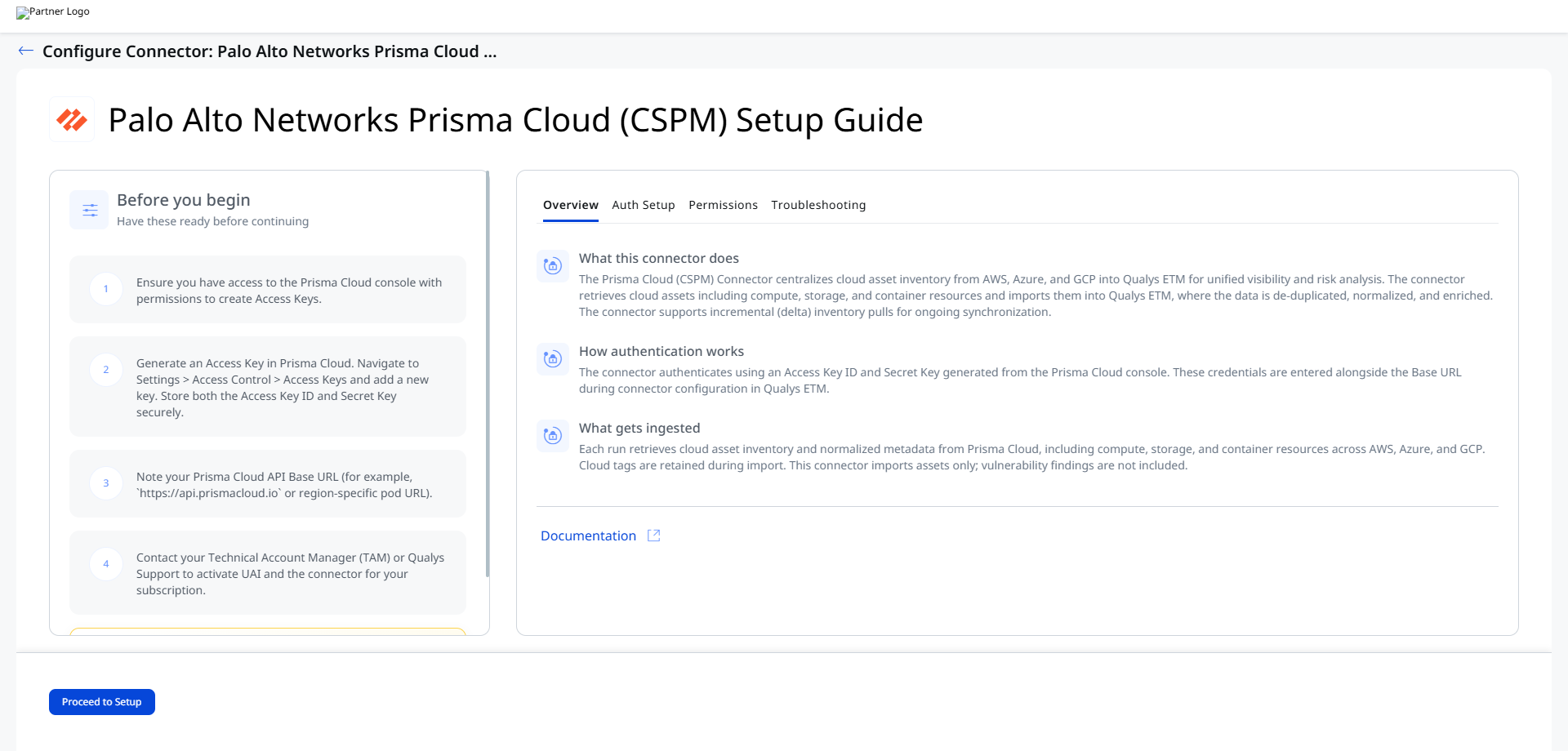
Before You Begin - AuthenticationBefore You Begin - Authentication
Complete the following steps before configuring the connector in Qualys ETM.
Create a Role in Prisma Cloud
- Sign in to the Prisma Cloud console at
https://app.prismacloud.ioor the applicable regional pod URL. - Navigate to Settings > Access Control > Roles
- Click Add Role and provide a name (e.g., Qualys-ETM-Connector)
- Set the Permission Group to Account Group Read Only
- Under Account Groups, select All to allow the connector to fetch assets across your entire tenant, or choose specific groups if you want to limit the scope
- Save the role
Generating Access Keys in Prisma Cloud
The connector uses an Access Key ID and Secret Key to authenticate with the Prisma Cloud API. Follow these steps to generate credentials.
- Navigate to Settings > Access Control > Service Accounts tab.
- Assign the role created in the previous step
- Click Generate Access Keys
- Copy and save the Access Key ID and Secret Key — the Secret Key is shown only once and cannot be retrieved later.
Note: Qualys recommends using a dedicated service account user with the minimum required permissions to generate and manage API credentials, rather than a personal administrator account.
One-Time Display: The Secret Key is visible only at the time of creation. If you navigate away without saving it, you must regenerate a new key. Store credentials in a secure secrets manager before proceeding.
During connector setup in Qualys ETM, navigate to Connectors > Integration, locate the Prisma Connector, and click Manage. Enter the Base URL, Access Key (Username), and Secret Key (Password) in the authentication fields.
These credentials can be used for the Twistlock Client ID and URL field in the Authentication details.
Permissions Required
The Access Key must be generated with permissions to read asset inventory and resource listings from Prisma Cloud.
Scope and Data Access
The connector retrieves cloud asset data from Prisma Cloud covering resources across AWS, Azure, and GCP. An optional accounts/projects field allows restricting ingestion to specific cloud accounts. Cloud tags are preserved during import.
Key Rotation
If the Access Key expires, it must be regenerated in Prisma Cloud and updated in Qualys ETM via the Edit Connector option. Access Key expiry will cause authentication failures on the next connector run.
Create a Profile & ConnectionCreate a Profile & Connection
Configure the connector's identity and authenticate with Prisma Cloud. Enter all required fields and run the connection test before clicking Next.
Connector Details
| Field | Description |
| Name | A unique display name for this connector instance. Example: Palo Alto Networks Prisma Cloud (CSPM)260505055441541 |
| Description | Optional free-text description of this connector (up to 164 characters). |
Authentication Details
Provide the authentication details for the API connection.
| Name | Key | Type | Description / Example |
|---|---|---|---|
| Base URL (Prisma Pod) | domainName |
String | Prisma Cloud API base URL (e.g. https://api.prismacloud.io or region-specific pod). |
| Access Key | access_key |
String | Prisma Cloud Access Key ID generated from Access Keys. |
| Secret Key | secret_key |
Encrypted | Prisma Cloud Secret corresponding to the Access Key (store encrypted). |
|
Twistlock url |
|
String |
Base URL for the Twistlock instance |
| Twistlock Client Secret |
Client Secret |
String | The same Cloud Secret generated for Secret Keys. |
|
Twistlock Client ID |
|
String |
The same Cloud Access Key ID generated for Access Keys. |
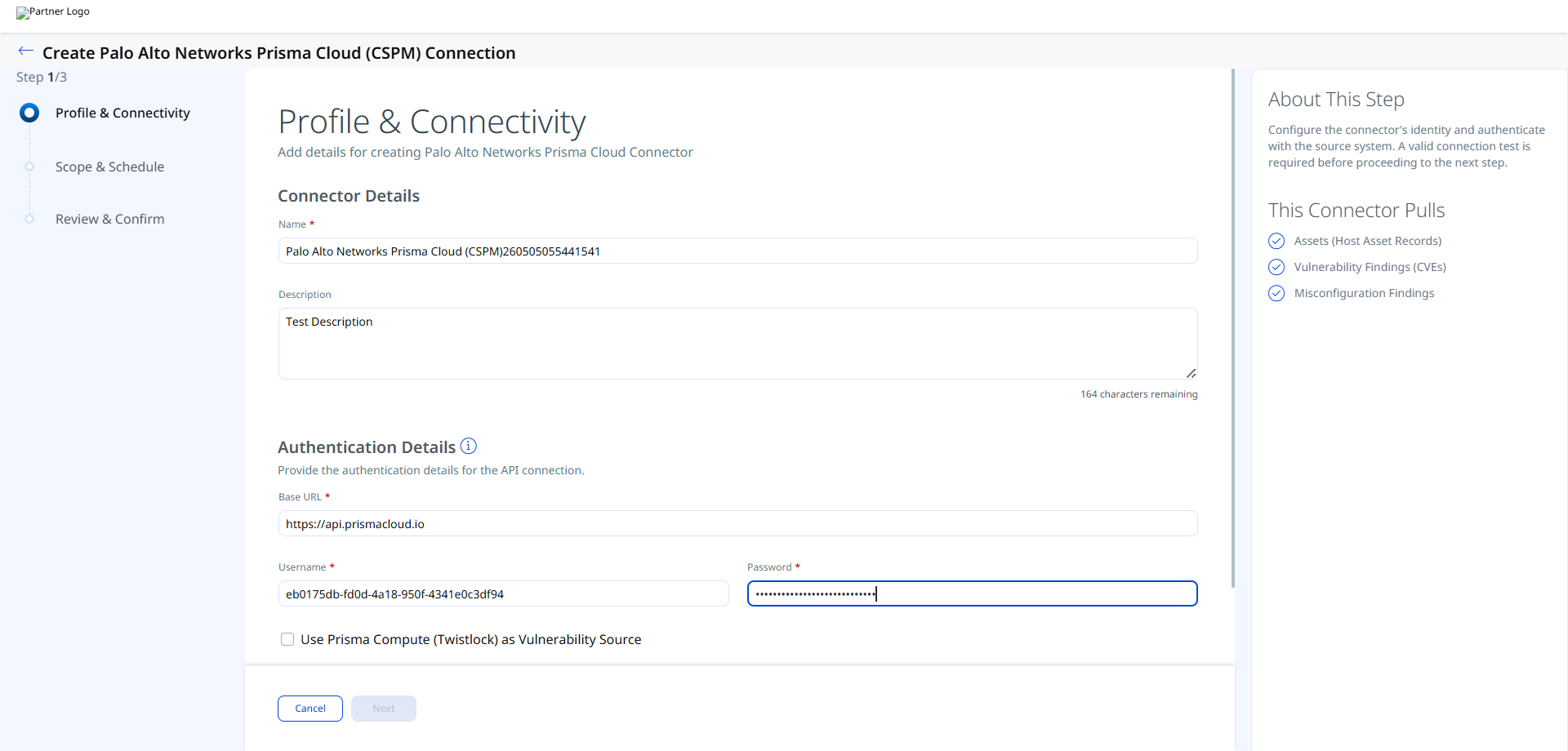
An optional checkbox, Use Prisma Compute (Twistlock) as Vulnerability Source, is available on this form. When selected, vulnerability findings are sourced from Prisma Compute (Twistlock) rather than from CSPM policy scan results.
After entering credentials, click Test Connection. The connector runs the following checks:
- Network Reachability — Verifies that the connector endpoint is reachable over HTTPS (port 443).
- TLS Handshake — Confirms that a secure TLS connection can be established with the remote endpoint.
- Authentication Credential Check — Validates the configured credentials against the source system's authentication endpoint.
- Authorization Scope Check — Confirms that the provided credentials have the required permissions to access the configured data scope.
- Data Fetch — Verifies that data can be successfully retrieved from the source system using the configured connection.
All checks must pass before you can proceed to Step 2. If a check fails, refer to the Troubleshooting section below.
Set the Scope & ScheduleSet the Scope & Schedule
Configure what data the connector pulls and when it runs.
- Data to Sync: Select the asset types and finding categories to import. This connector pulls Assets (Host Asset Records), Vulnerability Findings (CVEs), and Misconfiguration Findings.
- Accounts / Projects (optional): Specify one or more cloud account IDs or project names to restrict ingestion scope. Leave blank to ingest all accounts accessible to the Access Key.
- Schedule: Configure a recurring schedule or a single-occurrence run. Start and end times are recorded in the timezone of your Qualys subscription.
If you specify accounts or projects in the scope, confirm that the values exactly match your Prisma Cloud environment. Mismatches will result in no assets being imported without an explicit error.
Review all configuration settings before creating the connector. Verify the connector name, Base URL, authentication type (Access Key), and scope selections. Click Create to finalize. The connector is registered immediately after creation.
Advanced Settings
After modifying any Advanced Settings tab, click Save before navigating away. Changes are not applied until saved.
Filters Tab
The Filters tab is present in the connector configuration but filter queries are not currently supported for the Prisma Cloud (CSPM) Connector. The filter field is visible but does not accept or apply filter expressions.
Transform Map Tab
The Transform Map tab displays the active transform maps applied during data ingestion. Default transform maps are provided for each asset and finding type. You can create or clone maps to customize field transformations.
- Click Create New to add a new transform map.
- Provide a Transform Map Name, select the Source Data Model, and select the Target Data Model.
- Save the map.
- Alternatively, use Clone from the quick menu to copy and adjust a default transform map.
How the Connection Works
The Prisma Cloud (CSPM) Connector pulls cloud asset inventory and security findings from Prisma Cloud into Qualys ETM via the Prisma Cloud REST API. It supports three asset categories: Compute (AWS EC2, Azure VM, GCP VM), Storage (AWS S3, Azure Storage Account and related sub-types), and Container (instances and images), along with their associated vulnerability and misconfiguration findings.
The Prisma Cloud (CSPM) Connector executes on a configured schedule or on demand, based on the active profile. Each run retrieves cloud asset inventory and normalized metadata from Prisma Cloud, including compute, storage, and container resources across AWS, Azure, and GCP. Cloud tags are retained during import. The connector runs on a configured schedule or on demand. Data is transformed using configurable transform maps and correlated with existing ETM assets through CSAM Identification Rules.
Connector States
A successfully configured connector transitions through the following states:
- Registered – The connector is created and registered to fetch data from Prisma Cloud.
- Scheduled – The connector is scheduled to execute based on the configured run schedule.
- Processing – A connection is executing; the connector is actively fetching asset and findings data from the Prisma Cloud API.
- Processed – The connector has completed the current run. Assets are visible in ETM. Findings import may continue in the background.
The first run after connector creation may take up to 2 hours to complete, depending on the size of your Prisma Cloud environment. Verify the connector has reached the Processed state before concluding that no data was imported.
The Processed state indicates that asset import completed successfully. Findings import, particularly for large environments with many CVEs or misconfiguration policies, may continue for up to 2 hours after the connector reaches the Processed state.
Viewing Assets and Findings in ETM
After a successful run, Prisma Cloud assets and findings appear in Qualys ETM as follows.
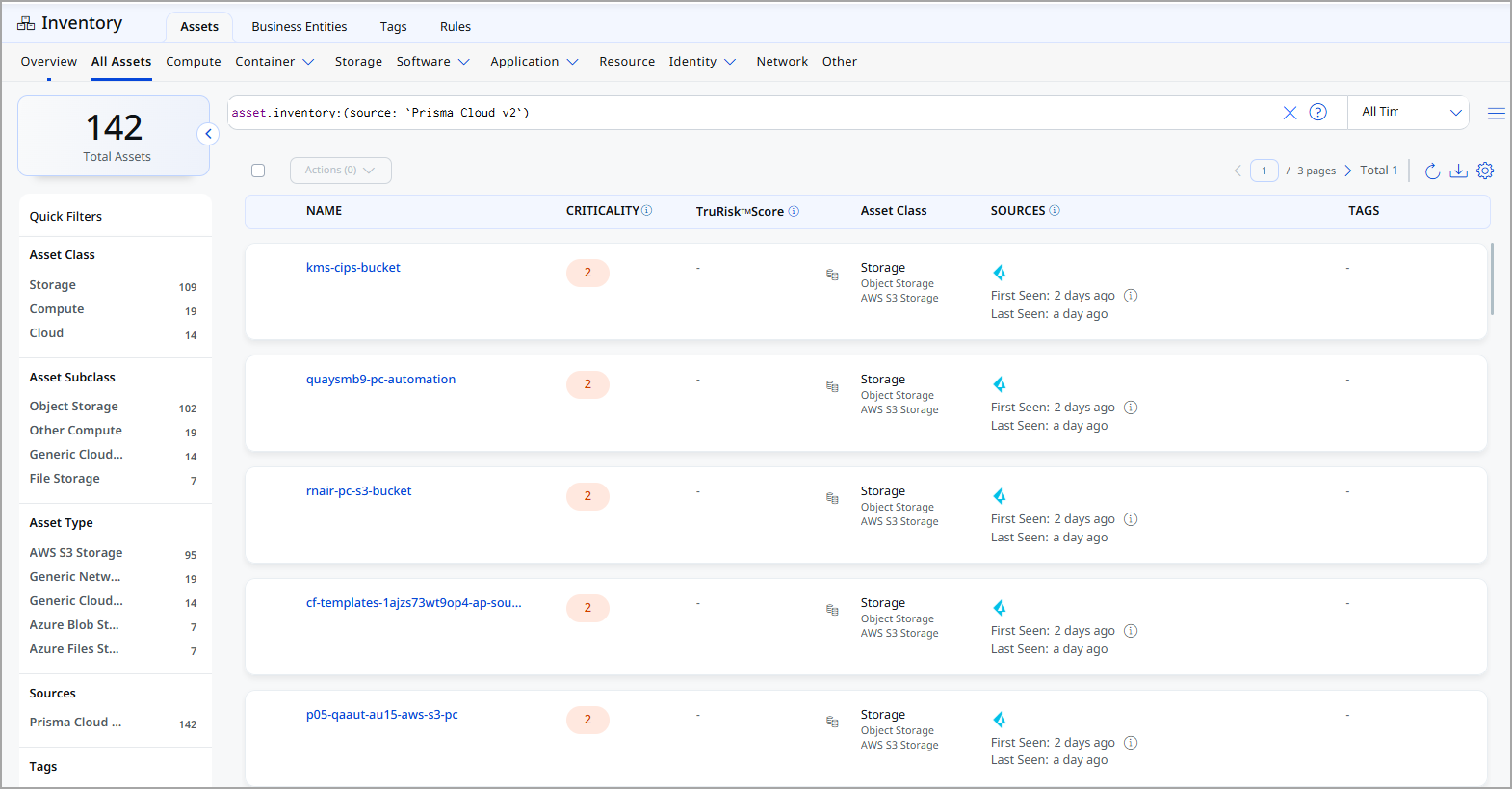
Assets: Use the inventory filter inventory:(source:"Palo Alto Networks") to scope results to Prisma Cloud-sourced assets. Navigate to Inventory > Assets and select the applicable asset type (Compute, Storage, or Container).
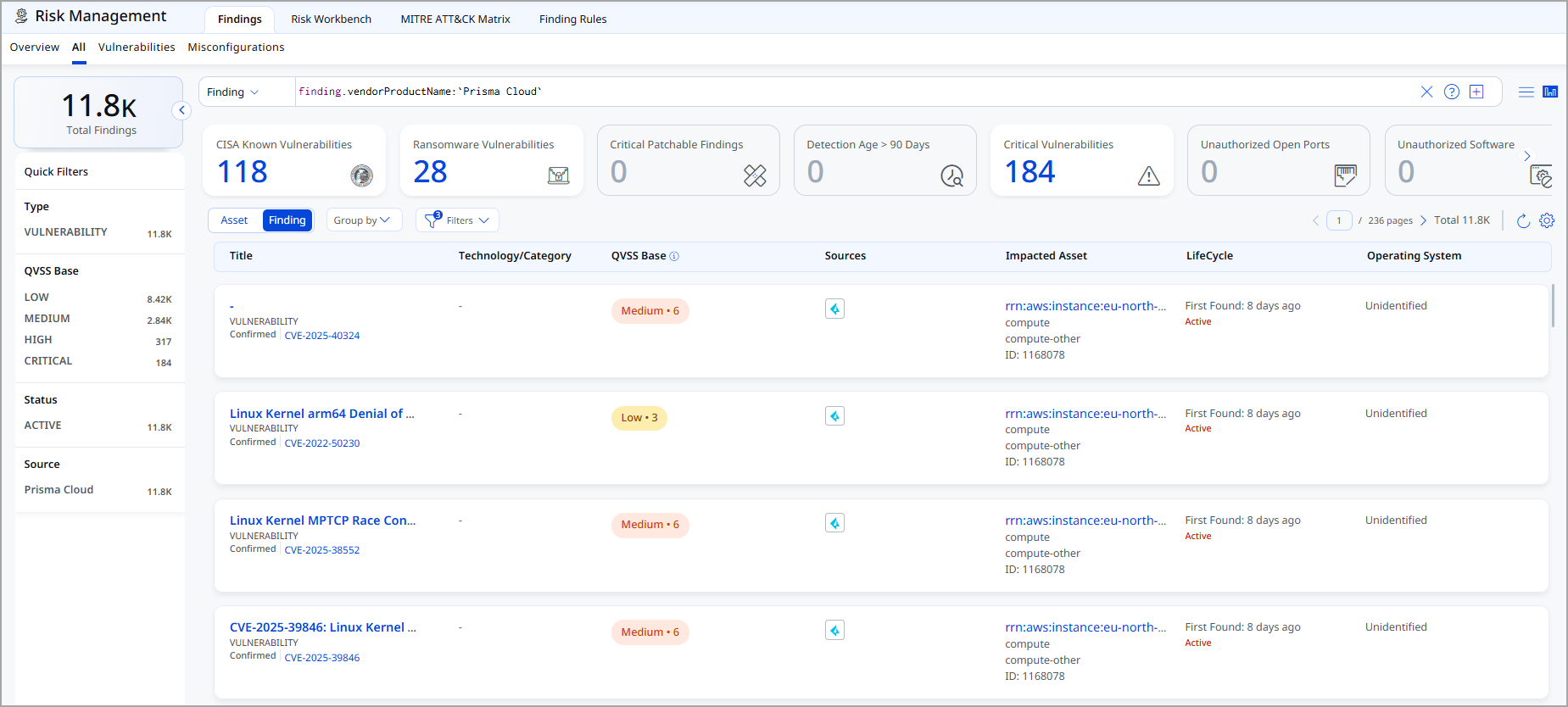
Findings: Use the findings filter findings.vendorProductname:"Prisma Cloud" to list Prisma Cloud findings. Navigate to Risk Management > Findings > Vulnerability or Misconfiguration.
Troubleshooting
| Authentication failure on connector run | Verify the Base URL, Access Key (Username), and Secret Key (Password) entered in Qualys ETM are correct. Confirm the Access Key has not expired in Prisma Cloud. Regenerate the key if necessary and update the connector via Edit Connector. |
| No assets imported after first run | The entire process may take up to 2 hours for completion. Verify the connector has reached the Processed state. If accounts or projects are specified in the scope, confirm the values exactly match your Prisma Cloud environment. |
| Connector not available in the integrations list | The connector requires activation. Contact your TAM or Qualys Support to activate it for your subscription. |
Additional Information
API Reference
The connector uses the following Prisma Cloud REST API endpoints. All endpoints enforce a rate limit of 5 requests per second and support a default batch size of 100 records per request.
| Name | Endpoint | Notes |
| Authentication | https://api.prismacloud.io/login |
Returns a bearer token valid for 30 minutes. Token is refreshed automatically every 30 minutes during execution. |
| Fetch Asset List | https://api.prismacloud.io/v2/resource/scan_info |
Returns a paginated list of scanned assets. Default batch size: 100. Rate limit: 5 req/sec. |
| Fetch Asset Details and Vulnerabilities | https://api.prismacloud.io/uai/v1/asset |
Returns asset details and associated vulnerability findings. Default batch size: 100. Rate limit: 5 req/sec. |
| Fetch Asset Details and Misconfigurations | https://api.prismacloud.io/policy/ |
Returns policy scan results for misconfiguration findings. Rate limit: 5 req/sec. |
Transformation Maps
The following drop-down sections describe the default field mappings applied during data ingestion. Required target fields are marked (Required).
Compute Transformation Map
Transformation map for AWS EC2
| rrn | externalAssetId |
| asset name | hostname |
| environmentId | vendorAssetId |
| cloudType | cloudInfo.provider |
| tags[].key | baseUrl |
| tags[].value | externalTags[].key |
| hasAuth | externalTags[].value |
| dataStateName | cloudInstance.state |
| dataVpcid | cloudInstance.vpcId |
| dataImageid | cloudInstance.imageId" |
| dataPlatform | operatingSystem.name |
| dataSubnetid | cloudInstance.subnetId |
| dataInstanceid | cloudInstance.id |
| dataInstancetype | cloudInstance.type |
| dataPublicipaddress | publicIpv4Address |
| dataPrivateipaddress | privateIpv4Address |
| networkInterfaceId | networkInterfaceId |
| regionName | cloudInfo.region |
| serviceName | services[].name |
| macAddress | macAddress |
Transformation map for Azure VM
| externalAssetId | externalAssetId |
| asset name | hostname |
| environmentId | vendorAssetId |
| cloudType | cloudInfo.provider |
| tags[].key | externalTags[].key |
| tags[].value | externalTags[].value |
| dataStateName | cloudInstance.state |
| dataVpcid | cloudInstance.vpcId |
| dataImageid | cloudInstance.imageId" |
| dataPlatform | operatingSystem.name |
| dataSubnetid | cloudInstance.subnetId |
| dataInstanceid | cloudInstance.id |
| dataInstancetype | cloudInstance.type |
| publicIpAddress | publicIpv4Address |
| dataPrivateipaddress | privateIpv4Address |
| networkInterfaceId | networkInterfaceId |
| serviceName | services[].name |
| macAddress | macAddress |
| externalAssetId | externalAssetId |
| asset name | hostname |
| environmentId | vendorAssetId |
| cloudType | cloudInfo.provider |
| tags[].key | externalTags[].key |
| tags[].value | externalTags[].value |
| regionName | cloudInfo.region |
| vpcId | cloudInstance.vpcId |
| VM Instance Id | cloudInstance.id |
| networkInterfaces name | networkInterfaceId |
| natIP | publicIpv4Address |
| serviceName | services.name |
Storage Transformation map
| externalAssetId | externalAssetId |
| sku.name | hostname |
| environmentId | vendorAssetId |
| cloudType | cloudInfo.provider |
| regionId | region |
| url | providerUrl |
| accountName | accountName |
| accountId | accountId |
| trueInternetExposure | untypedAttributes.& |
| assetType | StorageType |
| serviceName | serviceName |
| regionName | region |
| externalAssetId | externalAssetId |
| bucketName | hostname |
| environmentId | vendorAssetId |
| cloudType | cloudInfo.provider |
| regionId | region |
| url | providerUrl |
| accountName | accountName |
| accountId | accountId |
| trueInternetExposure | untypedAttributes.& |
| assetType | StorageType |
| serviceName | serviceName |
| regionName | region |
Azure storage account blob container
| externalAssetId | externalAssetId |
| bucketName | hostname |
| id | vendorAssetId |
| cloudType | cloudInfo.provider |
| regionId | region |
| url | providerUrl |
| accountName | accountName |
| accountId | accountId |
| trueInternetExposure | untypedAttributes.& |
| assetType | StorageType |
| serviceName | serviceName |
| regionId | region |
Azure storage account file service property
| externalAssetId | externalAssetId |
| sku.name | hostname |
| id | vendorAssetId |
| cloudType | cloudInfo.provider |
| regionId | region |
| url | providerUrl |
| accountName | accountName |
| accountId | accountId |
| trueInternetExposure | untypedAttributes.& |
| assetType | StorageType |
| serviceName | serviceName |
| regionId | region |
Container Instance
| externalAssetId | externalAssetId |
| name | hostname |
| id | vendorAssetId |
| cloudType | cloudInfo.provider |
| regionName | region |
| port | hostPort |
| image | image |
| tag | tag |
| registry | registry |
| containerPort | port |
| protocol | protocol |
| createdTs | startTime |
| tags[].key | externalTags[].key |
| tags[].value | externalTags[].value |
| accountId | accountId |
| environmentVariables | environmentVariables |
Container Image
| externalAssetId | externalAssetId |
| name | hostname |
| id | vendorAssetId |
| regionId | region |
| repository | name |
| repository | repository |
| asset.name (repo:tag) | containerImageAssetClass.tag |
| trueInternetExposure | untypedAttributes.& |
| digest | digest |
| createdTs | creationDate |
| osDistro | os |
| externalTags | tags |
Finding Vulnerability
| externalAssetId | externalAssetId |
| name | hostname |
| description | description |
| Id | externalFindingId |
| name | hostname |
| link | findingURL |
| externalAssetId/rrn | externalAssetId |
| severity | severity |
| source | vendorName |
| cve | cveId |
| discovered | firstFoundOn |
| status | findingStatus |
| severity | riskScore |
| fixDate | lastFixedOn |
| vecStr | vector |
| lastFoundOn | updatedOn |
| privateIpAddress | ipv4Addresses |
| cloudType | cloudInfo.provider |
| macAddress | macAddress |
Misconfiguration Transformation map
Storage Asset Class: AZURE.STORAGE.ACCOUNT
| asset.externalAssetId | asset.assetHeader.externalAssetId |
| asset.id | asset.assetHeader.vendorAssetId |
| FUNCTION_PICKER (asset.cloudType) | asset.assetDetail.cloudInfo.provider |
| asset.createdTs | asset.assetDetail.sourceCreatedAt |
| asset.insertTs | asset.assetDetail.sourceUpdatedAt |
| asset.data.sku.name | asset.assetDetail.name |
| asset.data.properties.encryption.services.blob.enabled | asset.assetDetail.storageAssetClass.Encryption.enabled |
| asset.regionId | asset.assetDetail.cloudInfo.region |
| asset.url | asset.assetDetail.cloudInfo.providerUrl |
| asset.assetType | asset.assetHeader.assetTypeName |
| asset.accountName | asset.assetDetail.cloudInfo.accountName |
| asset.accountId | asset.assetDetail.cloudInfo.accountId |
| asset.trueInternetExposure | asset.assetDetail.untypedAttributes.& |
| asset.assetType | asset.assetDetail.storageAssetClass.StorageType |
| FUNCTION_PICKER (asset.cloudType) | asset.assetDetail.storageAssetClass.provider |
| asset.serviceName | asset.assetDetail.storageAssetClass.serviceName |
| asset.regionName | asset.assetDetail.storageAssetClass.region |
| asset.assetType | type |
| asset.externalAssetId | findingGroup.findings[].asset.externalAssetId |
| scannedPolicies[].name | findingGroup.findings[].name |
| scannedPolicies[].scannedPoliciesInfo.name | findingGroup.findings[].findingType.misconfiguration.policy.title |
| scannedPolicies[].scannedPoliciesInfo.policyType | findingGroup.findings[].findingType.misconfiguration.policy.type |
| scannedPolicies[].scannedPoliciesInfo.description | findingGroup.findings[].findingType.misconfiguration.policy.description |
| FUNCTION_PICKER (scannedPolicies[].severity) | findingGroup.findings[].severity |
| scannedPolicies[].scannedPoliciesInfo.rule.name | findingGroup.findings[].findingType.misconfiguration.rule.ruleName |
| scannedPolicies[].scannedPoliciesInfo.recommendation | findingGroup.findings[].remediation.remediationStrategy |
| scannedPolicies[].scannedPoliciesInfo.createdOn | findingGroup.findings[].firstFoundOn |
| scannedPolicies[].scannedPoliciesInfo.lastModifiedOn | findingGroup.findings[].lastFoundOn |
| FUNCTION_PICKER (scannedPolicies[].passed) | findingGroup.findings[].findingStatus |
Storage Asset Class: AWS.S3.BUCKET
| asset.externalAssetId | asset.assetHeader.externalAssetId |
| asset.id | asset.assetHeader.vendorAssetId |
| FUNCTION_PICKER (asset.cloudType) | asset.assetDetail.cloudInfo.provider |
| asset.createdTs | asset.assetDetail.sourceCreatedAt |
| asset.insertTs | asset.assetDetail.sourceUpdatedAt |
| asset.data.accountId | asset.assetDetail.cloudInfo.accountId |
| asset.data.bucketName | asset.assetDetail.name |
| asset.regionId | asset.assetDetail.cloudInfo.region |
| asset.url | asset.assetDetail.cloudInfo.providerUrl |
| asset.assetType | asset.assetHeader.assetTypeName |
| asset.accountName | asset.assetDetail.cloudInfo.accountName |
| asset.trueInternetExposure | asset.assetDetail.untypedAttributes.& |
| asset.assetType | asset.assetDetail.storageAssetClass.StorageType |
| FUNCTION_PICKER (asset.cloudType) | asset.assetDetail.storageAssetClass.provider |
| asset.serviceName | asset.assetDetail.storageAssetClass.serviceName |
| asset.regionName | asset.assetDetail.storageAssetClass.region |
| asset.assetType | type |
| asset.externalAssetId | findingGroup.findings[].asset.externalAssetId |
| scannedPolicies[].name | findingGroup.findings[].name |
| scannedPolicies[].scannedPoliciesInfo.name | findingGroup.findings[].findingType.misconfiguration.policy.title |
| scannedPolicies[].scannedPoliciesInfo.policyType | findingGroup.findings[].findingType.misconfiguration.policy.type |
| scannedPolicies[].scannedPoliciesInfo.description | findingGroup.findings[].findingType.misconfiguration.policy.description |
| FUNCTION_PICKER (scannedPolicies[].severity) | findingGroup.findings[].severity |
| scannedPolicies[].scannedPoliciesInfo.rule.name | findingGroup.findings[].findingType.misconfiguration.rule.ruleName |
| scannedPolicies[].scannedPoliciesInfo.recommendation | findingGroup.findings[].remediation.remediationStrategy |
| scannedPolicies[].scannedPoliciesInfo.createdOn | findingGroup.findings[].firstFoundOn |
| scannedPolicies[].scannedPoliciesInfo.lastModifiedOn | findingGroup.findings[].lastFoundOn |
| FUNCTION_PICKER (scannedPolicies[].passed) | findingGroup.findings[].findingStatus |
Storage Asset Class: AZURE.STORAGE.ACCOUNT.BLOB.CONTAINER
| asset.externalAssetId | asset.assetHeader.externalAssetId |
| asset.id | asset.assetHeader.vendorAssetId |
| FUNCTION_PICKER (asset.cloudType) | asset.assetDetail.cloudInfo.provider |
| asset.createdTs | asset.assetDetail.sourceCreatedAt |
| asset.insertTs | asset.assetDetail.sourceUpdatedAt |
| asset.data.name | asset.assetDetail.name |
| asset.regionId | asset.assetDetail.cloudInfo.region |
| asset.url | asset.assetDetail.cloudInfo.providerUrl |
| asset.assetType | asset.assetHeader.assetTypeName |
| asset.accountName | asset.assetDetail.cloudInfo.accountName |
| asset.accountId | asset.assetDetail.cloudInfo.accountId |
| asset.trueInternetExposure | asset.assetDetail.untypedAttributes.& |
| asset.assetType | asset.assetDetail.storageAssetClass.StorageType |
| FUNCTION_PICKER (asset.cloudType) | asset.assetDetail.storageAssetClass.provider |
| asset.serviceName | asset.assetDetail.storageAssetClass.serviceName |
| asset.regionName | asset.assetDetail.storageAssetClass.region |
| asset.assetType | type |
| asset.externalAssetId | findingGroup.findings[].asset.externalAssetId |
| scannedPolicies[].name | findingGroup.findings[].name |
| scannedPolicies[].scannedPoliciesInfo.name | findingGroup.findings[].findingType.misconfiguration.policy.title |
| scannedPolicies[].scannedPoliciesInfo.policyType | findingGroup.findings[].findingType.misconfiguration.policy.type |
| scannedPolicies[].scannedPoliciesInfo.description | findingGroup.findings[].findingType.misconfiguration.policy.description |
| FUNCTION_PICKER (scannedPolicies[].severity) | findingGroup.findings[].severity |
| scannedPolicies[].scannedPoliciesInfo.rule.name | findingGroup.findings[].findingType.misconfiguration.rule.ruleName |
| scannedPolicies[].scannedPoliciesInfo.recommendation | findingGroup.findings[].remediation.remediationStrategy |
| scannedPolicies[].scannedPoliciesInfo.createdOn | findingGroup.findings[].firstFoundOn |
| scannedPolicies[].scannedPoliciesInfo.lastModifiedOn | findingGroup.findings[].lastFoundOn |
| FUNCTION_PICKER (scannedPolicies[].passed) | findingGroup.findings[].findingStatus |
Storage Asset Class: AZURE.STORAGE.ACCOUNT.FILE.SERVICE.PROPERTY
| asset.externalAssetId | asset.assetHeader.externalAssetId |
| asset.id | asset.assetHeader.vendorAssetId |
| FUNCTION_PICKER (asset.cloudType) | asset.assetDetail.cloudInfo.provider |
| asset.createdTs | asset.assetDetail.sourceCreatedAt |
| asset.insertTs | asset.assetDetail.sourceUpdatedAt |
| asset.data.sku.name | asset.assetDetail.name |
| asset.regionId | asset.assetDetail.cloudInfo.region |
| asset.url | asset.assetDetail.cloudInfo.providerUrl |
| asset.assetType | asset.assetHeader.assetTypeName |
| asset.accountName | asset.assetDetail.cloudInfo.accountName |
| asset.trueInternetExposure | asset.assetDetail.untypedAttributes.& |
| asset.assetType | asset.assetDetail.storageAssetClass.StorageType |
| FUNCTION_PICKER (asset.cloudType) | asset.assetDetail.storageAssetClass.provider |
| asset.serviceName | asset.assetDetail.storageAssetClass.serviceName |
| asset.regionName | asset.assetDetail.storageAssetClass.region |
| asset.accountId | asset.assetDetail.cloudInfo.accountId |
| asset.assetType | type |
| asset.externalAssetId | findingGroup.findings[].asset.externalAssetId |
| scannedPolicies[].name | findingGroup.findings[].name |
| scannedPolicies[].scannedPoliciesInfo.name | findingGroup.findings[].findingType.misconfiguration.policy.title |
| scannedPolicies[].scannedPoliciesInfo.policyType | findingGroup.findings[].findingType.misconfiguration.policy.type |
| scannedPolicies[].scannedPoliciesInfo.description | findingGroup.findings[].findingType.misconfiguration.policy.description |
| FUNCTION_PICKER (scannedPolicies[].severity) | findingGroup.findings[].severity |
| scannedPolicies[].scannedPoliciesInfo.rule.name | findingGroup.findings[].findingType.misconfiguration.rule.ruleName |
| scannedPolicies[].scannedPoliciesInfo.recommendation | findingGroup.findings[].remediation.remediationStrategy |
| scannedPolicies[].scannedPoliciesInfo.createdOn | findingGroup.findings[].firstFoundOn |
| scannedPolicies[].scannedPoliciesInfo.lastModifiedOn | findingGroup.findings[].lastFoundOn |
| FUNCTION_PICKER (scannedPolicies[].passed) | findingGroup.findings[].findingStatus |