Tanium Endpoint Management
The Tanium Connector bridges endpoint visibility and vulnerability management by integrating asset and vulnerability data from Tanium into Qualys Enterprise TruRisk Management.
Security teams gain centralized visibility into their endpoint inventory while enabling automated risk prioritization through TruRisk-based analysis. This unidirectional integration simplifies the workflow of teams managing multiple endpoint data sources, allowing them to consolidate findings and make informed remediation decisions from a single platform.
By automating data ingestion from endpoint detection tools, organizations reduce manual effort and accelerate the identification and remediation of critical vulnerabilities across their infrastructure.
Connector Details
Here is a comprehensive overview of what the Tanium Connector supports.
| Vendor | Tanium |
| Product Name | Tanium Endpoint Management |
| Category | Endpoint Security |
| Findings Support | Supported |
| Supported Assets | Host Assets (Compute) |
| Version | 1.0.0 |
| Integration Type | API Integration (REST) |
| Direction | Unidirectional |
| Delta Support | Not supported |
| Supported Version & Type | SaaS (Latest) |
| Import of Installed Software | Not Supported |
| Import of Source Tags | Not Supported |
| Filters/Filter Query | Not Supported |
Connection Settings
Ensure you have the following before creating the connector.
User Roles and Permissions
The user account used to generate an API token must have the following roles in Tanium:
- Gateway User Role or higher (to access GraphQL APIs)
- Plugin Execute – to run GraphQL APIs
- Sensor Read – to view sensor data
- API Token Management – to create/rotate API tokens
Authentication Details
| Name | Key | Type | Description / Example |
|---|---|---|---|
| API Base URL | api_base_url |
String | e.g., https://<your‑tenant>-api.cloud.tanium.com/ |
| Tanium API Token | api_token |
Encrypted String | Generated API Token from Tanium |
Steps to create a token: see Tanium API Tokens Documentation.
Connector Configuration
Basic Details
- Login to Qualys ETM.
- Navigate to Connectors App >Integration tab.
- Locate Tanium Connector and click Manage.
- Provide Name and Description.
- Select findings type: Assets only or Assets + Vulnerabilities.
- Enter API Base URL and API Token.
Mapping Details
The connector provides out-of-the-box data models for Asset Only and Asset+Vulnerability modes.
Transform Maps
Tanium Connector offers default transform maps. You can create or clone maps as needed.
- Create New – define a unique name, source data model, and target data model.
- Clone – copy the default map and customize as required.
Data Model Mapping - Tanium Vulnerability Transformation
Mapping of Tanium asset and vulnerability fields to Qualys ETM schema.
|
Source Field |
Target Field |
|---|---|
|
Last LoggedIn User |
lastLoggedOnUser |
|
Endpoint ID |
externalAssetId |
|
Name |
assetName |
|
IP Addresses |
ipAddress |
|
Adapter MAC Address |
macAddress |
|
Adapter Name |
interfaceName |
|
Chassis Type |
System Type |
|
Domain Name |
domain |
|
OS Name |
operatingSystemName |
|
OS Windows Major Version |
operatingSystemVersion |
|
Computer ID |
cloudInstanceId |
|
Serial Number |
serialNumber |
|
CVE Finding summary |
findingDescription |
|
CVE ID |
cveId |
|
CVSS Score V2 |
cvssV2Base |
|
CVSS Score V3 |
cvss3Base |
|
CVE Finding CISA Vendor |
productVendor |
|
CVE ID |
findingName |
|
Manufacturer AWS | Azure | GCP | OCI | Alibaba | VMWare, Inc |
cloudProvider EC2 | Azure | GCP | OCI | ALIBABA | SOURCE_TYPE_UNKNOWN |
|
System UUID |
biosInfoHardwareUuid |
|
Model |
biosInfoModel |
|
CVSS V2 Severity None | Low | Medium | High | Critical | Unscored |
findingSeverity 1 | 1 | 2 | 3 | 4 | 1 |
Data Model Mapping - Tanium Asset Transformation
|
Source Field |
Target Field |
|
Last LoggedIn User |
lastLoggedOnUser |
|
Endpoint ID |
externalAssetId (Required) |
|
Name |
assetName |
|
IP Addresses |
ipAddress |
|
Adapter MAC Address |
macAddress |
|
Adapter Name |
interfaceName |
|
Chassis Type |
System Type |
|
Domain Name |
domain |
|
OS Name |
operatingSystemName |
|
OS Windows Major Version |
operatingSystemVersion |
|
Computer ID |
cloudInstanceId |
|
Logical Processors |
numberOfCpu |
|
Processor Description |
processorDescription |
|
Serial Number |
serialNumber |
|
Manufacturer AWS | Azure | GCP | OCI | Alibaba | VMWare, Inc |
cloudProvider EC2 | Azure | GCP | OCI | ALIBABA | SOURCE_TYPE_UNKNOWN |
Profiles
Profiles control execution of the connector.
- Click + to add a new profile.
- Provide a Name and Description.
- Select the required Transform Map.
- Set Status (Active or Inactive).
- Configure a Schedule: Single Occurrence or Recurring with start and end dates/times.
View Assets and Findings in ETM
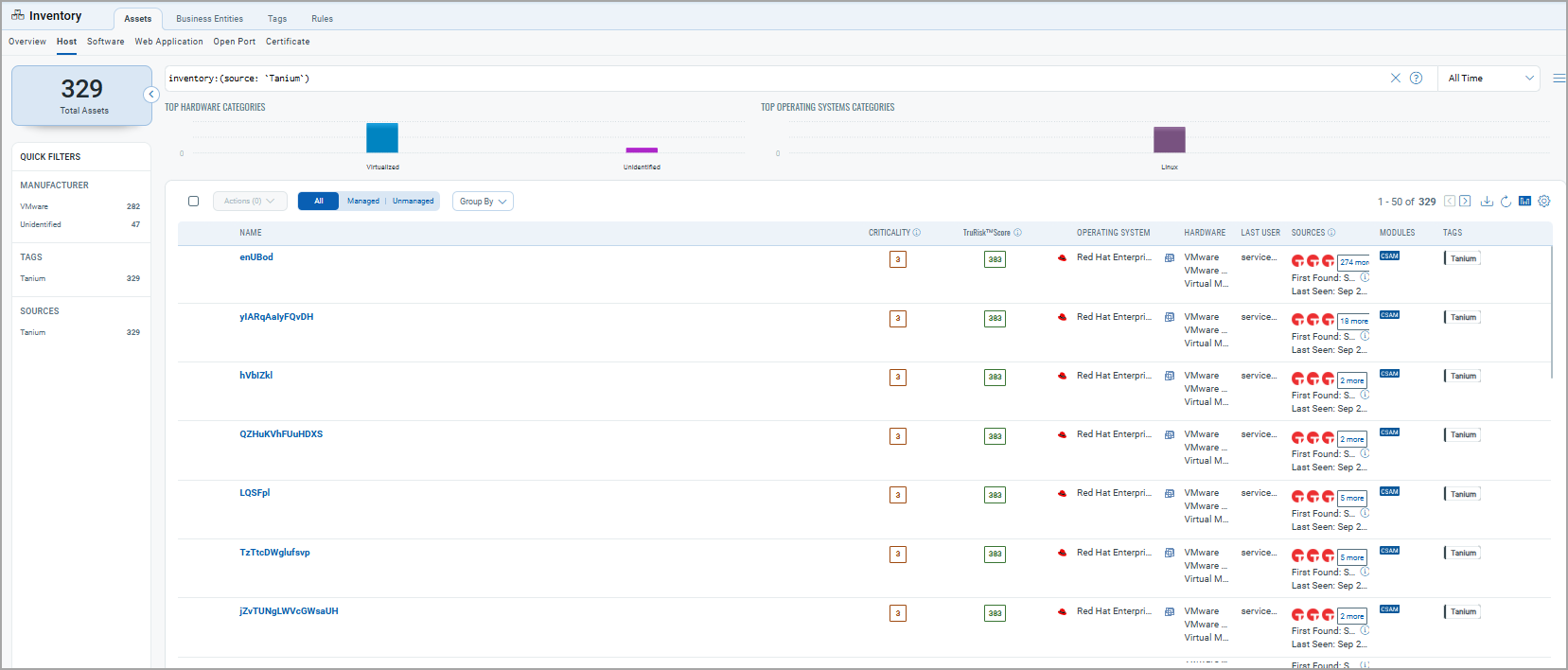
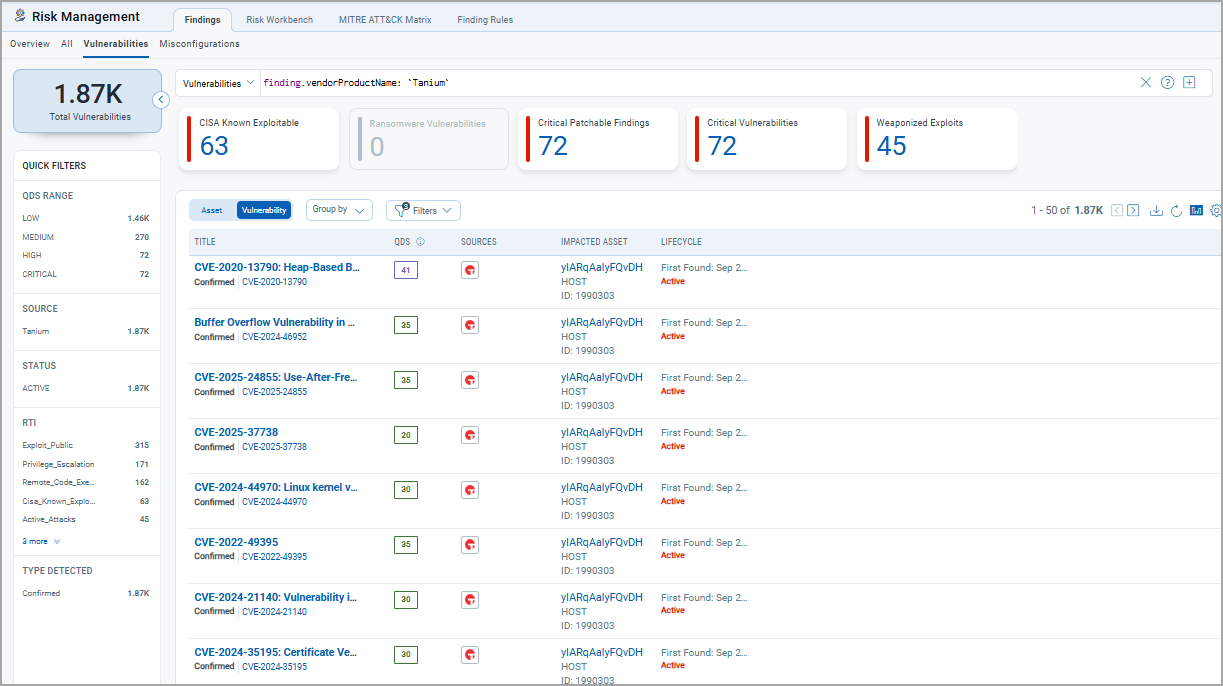
After a successful run, Tanium assets appear in ETM's Inventory:
- Assets: Inventory > Assets > Hosts.
Filter:tags.name:"Tanium"
- Findings: Risk Management > Findings > Vulnerabilities.
API Reference
| Function | Endpoint | Notes |
|---|---|---|
| Fetch Assets & Software | https://<customer>-api.titankube.com/plugin/products/gateway/graphql |
Max batch size: 100 |
| Fetch Assets & Vulnerabilities | https://<customer>-api.titankube.com/plugin/products/gateway/graphql |
Max batch size: 100 |
Additional Resources
Scoring
Map Tanium non-CVE severities to Qualys Detection Score (QDS 0–100). Define default severity for unmapped values.
Identification Rules
Use Qualys CSAM-provided rules for consistent identification. At least one rule must be enabled
Connector Status
Once configured, the connector follows these states:
- Registered – Connector created and registered.
- Scheduled – Connector scheduled for execution.
- Processing – Connector fetching data from Tanium.
- Processed – Data successfully imported into ETM.
Processing time depends on data volume (typically up to 2 hours).