Veracode SCA Connector
The Veracode SCA Connector ingests open source vulnerability findings from Veracode Software Composition Analysis scans into Qualys Enterprise TruRisk Management (ETM) for unified risk analysis and prioritization. On each scheduled execution the connector performs a full pull of SCA findings, and Qualys ETM processes the data by de-duplicating redundant entries, normalizing data formats, enriching findings with additional context, and calculating risk scores using TruRisk. Only vulnerable assets from the past six months are retrieved due to Veracode API limitations.
This integration is particularly valuable for teams managing open source dependencies and third-party code risks, as it surfaces vulnerability data within the broader risk management context of ETM, eliminating manual data transfer and enabling efficient threat prioritization and remediation planning across development and security operations.
Connector Details
|
Vendor |
Veracode |
|
Product Name |
Veracode SCA |
|
Category |
Application Security |
|
Findings Support |
Yes |
|
Supported Assets |
Code Repository |
|
Version |
1.0.0 |
|
Integration Type |
API Integration (REST) |
|
Direction |
Unidirectional (Veracode to Qualys) |
|
Delta Support |
Not Supported |
Configure the Connector
The connector setup wizard consists of three steps. A successful Test Connection is required before you can proceed.
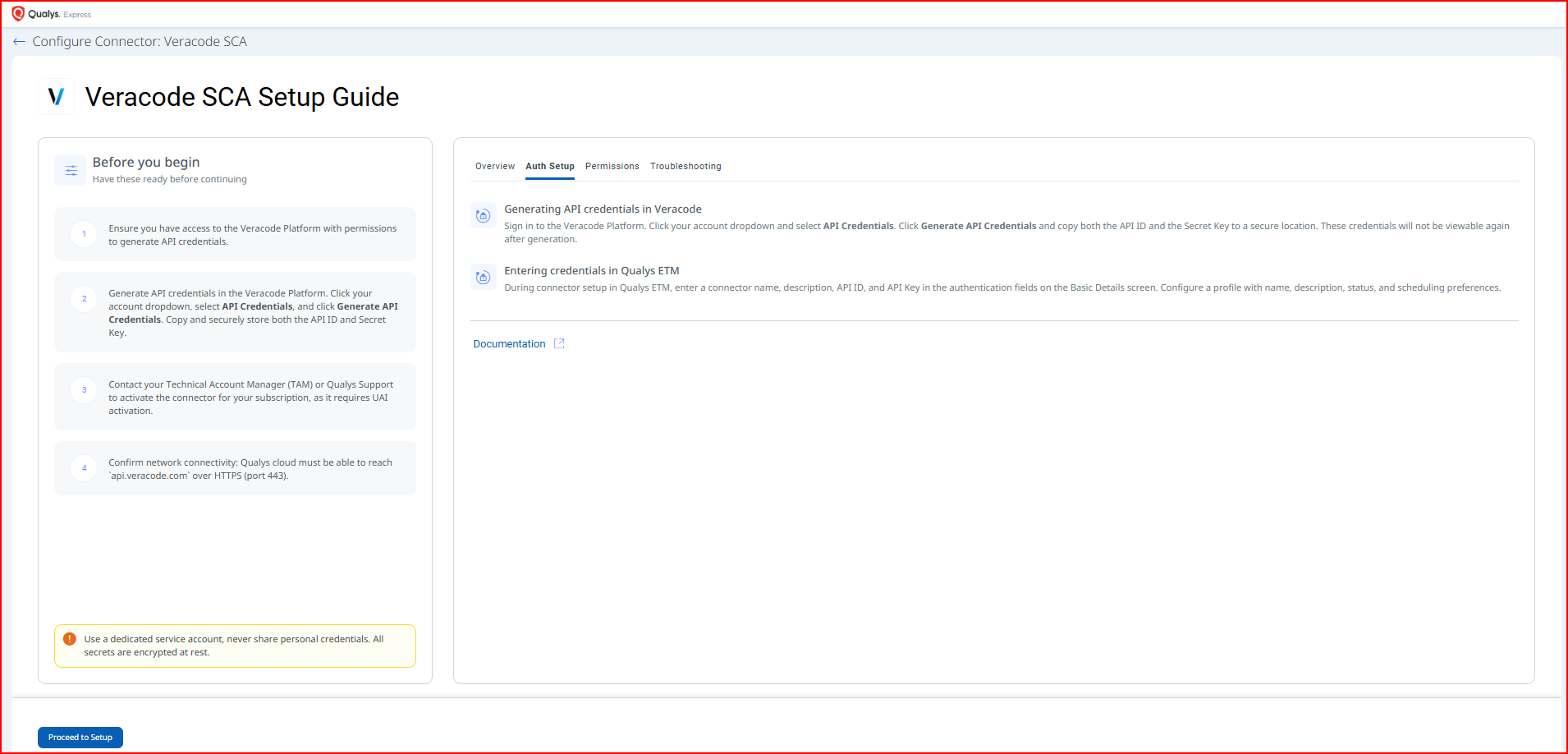
Before You Begin - AuthenticationBefore You Begin - Authentication
Complete the following prerequisites before configuring the connector in Qualys ETM:
- Ensure you have access to the Veracode Platform with permissions to generate API credentials.
- Generate API credentials in the Veracode Platform (see procedure below) and copy both the API ID and Secret Key to a secure location.
- Contact your Technical Account Manager (TAM) or Qualys Support to activate the connector for your subscription.
- Confirm network connectivity: the Qualys cloud must be able to reach
api.veracode.comover HTTPS (port 443).
Generating API Credentials in Veracode
You must generate API credentials in the Veracode Platform before configuring the connector. These credentials will not be viewable again after generation; copy them immediately to a secure location.
- Sign in to the Veracode Platform.
- Click your account dropdown in the upper-right corner and select API Credentials.
- Click Generate API Credentials.
- Copy both the API ID and the Secret Key to a secure location.
Important: The API ID and Secret Key are displayed only once at generation time. They cannot be retrieved after you leave this screen. Store them securely before proceeding.
For additional details, refer to the Veracode API Credentials documentation.
Permissions Required
The Veracode account used to generate API credentials must have the following minimum permission:
|
Entity Type |
Required Permission |
|---|---|
|
VulnerabilityFindings |
|
The API credentials inherit the permissions of the user account that generated them. Using a dedicated service account is strongly recommended.
Scope and Data Access
The connector queries the following Veracode API endpoints:
|
Name |
Endpoint |
Purpose |
|---|---|---|
|
Get Applications |
|
Retrieves code repository assets |
|
Get Application Findings |
|
Retrieves SCA vulnerability findings per application. Example GUID: |
Only vulnerable assets from the past six months are available due to Veracode API limitations. Custom filtering is not supported during connector configuration.
Key Rotation
When rotating API credentials, generate new credentials in the Veracode Platform via your account dropdown > API Credentials. Update the API ID and API Key in Qualys ETM via the Edit Connector option. Regenerating credentials automatically revokes the previous set.
Create a Profile & ConnectionCreate a Profile & Connection
Configure the connector's identity and authenticate with the Veracode source system.
Connector Details
|
Field |
Type |
Description |
|---|---|---|
|
Name |
String |
A unique display name for this connector instance. Example: |
|
Description |
String |
Optional free-text description of the connector (maximum 180 characters). |
Authentication Details
Under Auth Details, enter the Veracode user token credentials obtained in the Before You Begin section.
|
Field |
Type |
Description |
|---|---|---|
|
API ID |
String |
The API ID generated from the Veracode Platform. Example: |
|
API KEY |
Encrypted String |
The Secret Key generated alongside the API ID. Stored encrypted at rest. This value is masked after entry. |
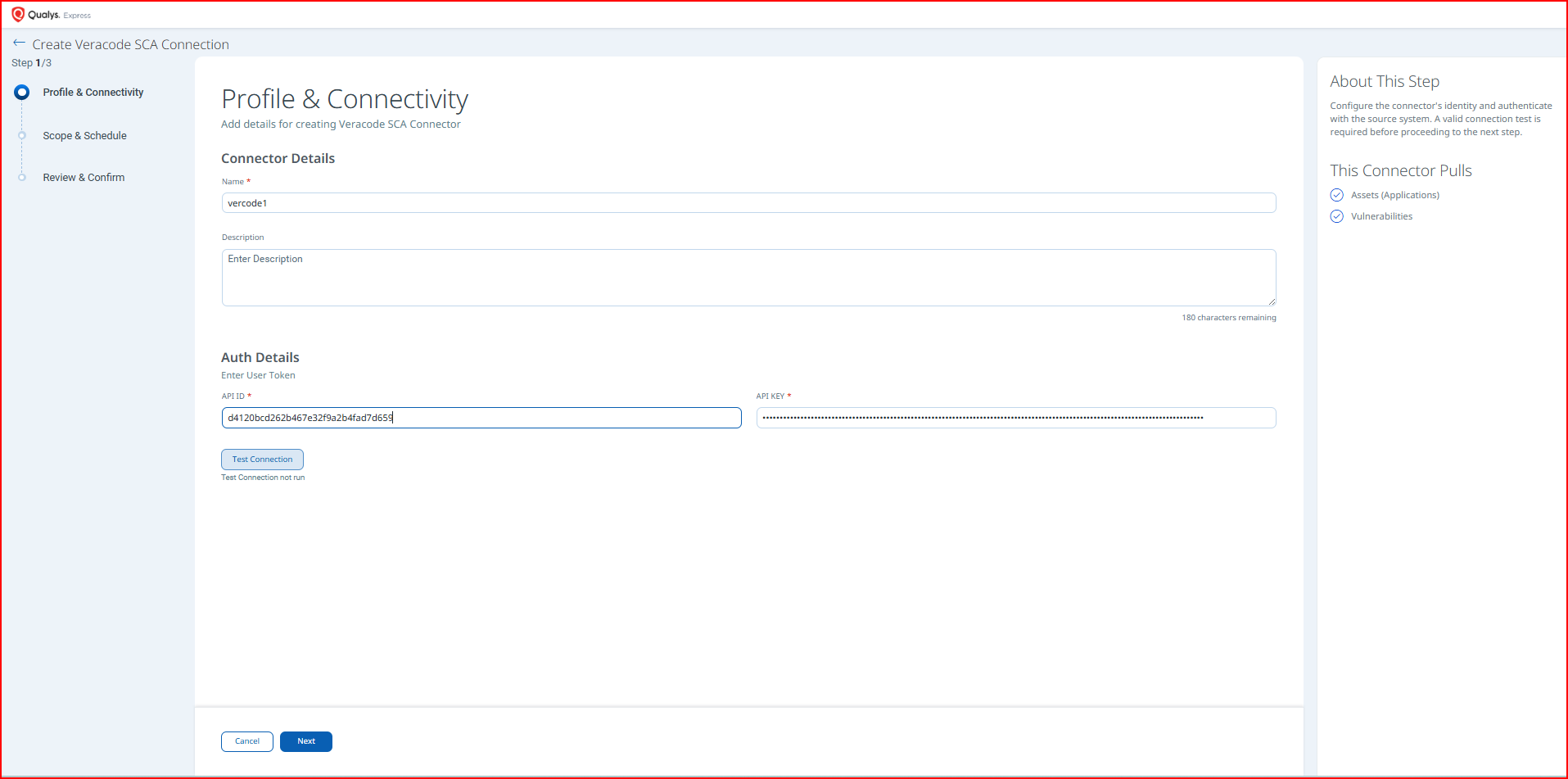
After entering credentials, click Test Connection. The wizard runs the following checks:
- Network Reachability
- TLS Handshake
- Authentication Credential Check
- Authorization Scope Check
- Data Fetch
All checks must pass before you can proceed to Step 2. If any check fails, refer to the Troubleshooting section.
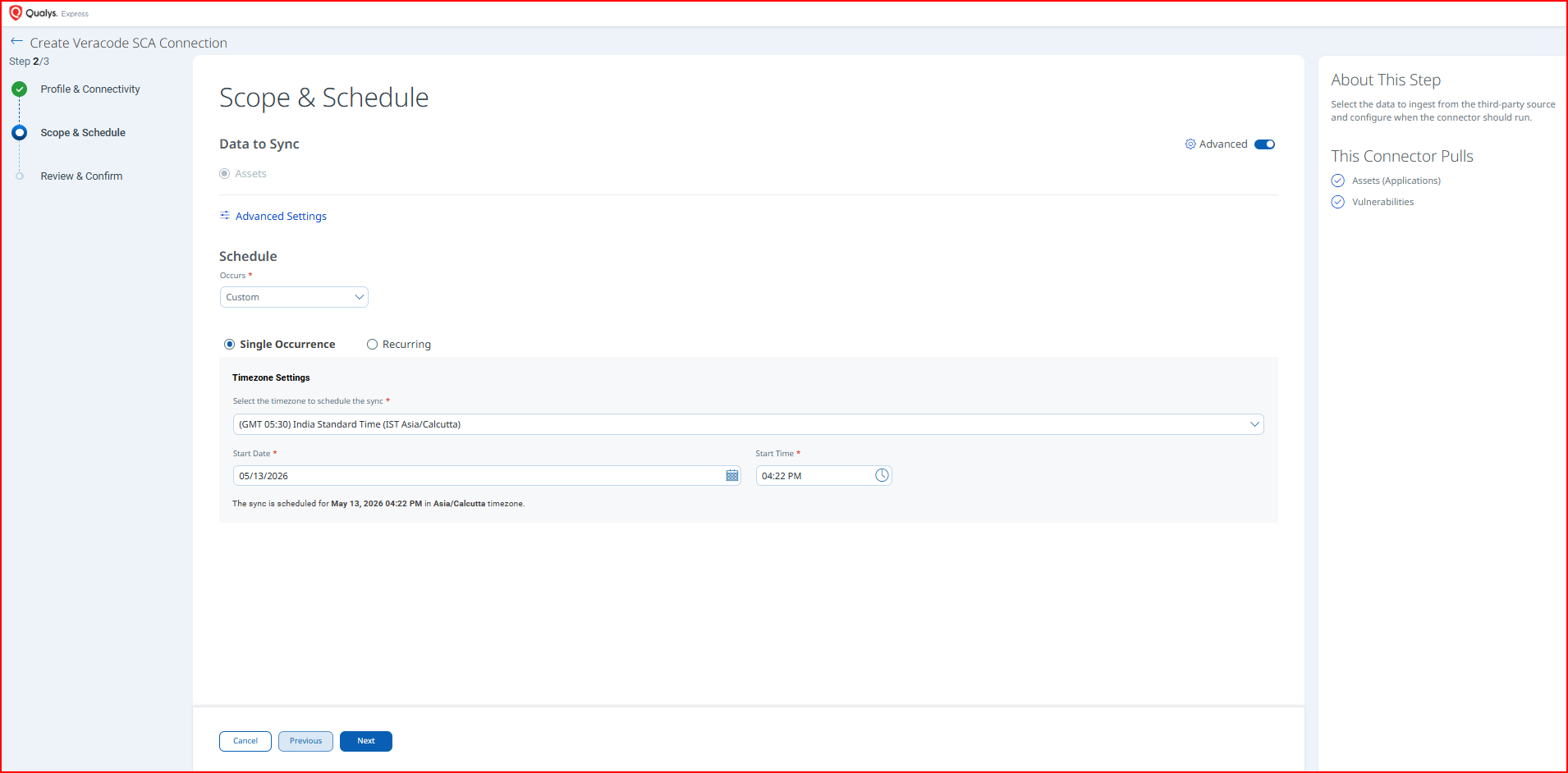
Set the Scope & ScheduleSet the Scope & Schedule
Select the data to ingest and configure when the connector should run.
Data to Sync: Assets is the only available option and is selected by default. The connector pulls both Assets (Applications) and Vulnerabilities on each run.
Click Advanced Settings to configure filters and view transform map information (optional). See Advanced Settings.
Schedule: Configure when the connector executes using the Occurs dropdown.
- Single Occurrence – Runs once at the specified start date and time.
- Recurring – Runs repeatedly on a defined interval.
Select a Timezone from the dropdown (for example, GMT+05:30 India Standard Time (IST Asia/Calcutta)), then set a Start Date and Start Time. The UI confirms the scheduled execution time in the selected timezone.
Note: The scheduled date and time are stored in the timezone you select. Verify the timezone setting to ensure the connector runs at the intended local time.
Review all configuration settings before creating the connector.
If any setting is incorrect, click Previous to return to the relevant step. When satisfied, click Create to provision the connector.
Advanced Settings
Advanced Settings is accessible from the Scope & Schedule step by clicking Advanced Settings. It contains two tabs: Filters and Transform Map.
Note: Click Save inside the Advanced Settings panel before closing it to preserve any changes made on these tabs.
Filters Tab
The Filters tab uses a chip selector to control which data types are ingested.
Asset Types
The following asset type chip is available and selected by default:
- Generic Application
Findings
The following findings type is available:
- Vulnerability
A Require Manual Sync checkbox is also available. When selected, the connector will not run on its configured schedule and must be triggered manually.
Note: All asset type and findings chips are selected by default. Deselecting a chip will exclude that data type from the sync.
Transform Map Tab
The Transform Map tab displays the active data mapping configuration used when importing Veracode SCA data into Qualys ETM. The active map for this connector is the Veracode SCA – Transformation Map. Refer to Transformation Maps in the Additional Information section for the full field-level mapping.
How the Connection Works
The Veracode SCA Connector retrieves code repository assets and associated SCA vulnerability findings from Veracode. Findings are filtered to SCA scan types and include vulnerability details for open source components and their dependencies. Each run performs a full pull; the connector does not support incremental (delta) sync.
Data ingested per run:
- Assets – Veracode applications exposed as code repository assets in ETM.
- Findings – SCA vulnerability findings, including CVE identifiers, CVSS scores, CWE identifiers, severity, and finding status.
Note: The Veracode API limits data retrieval to the past six months. Findings older than six months will not be imported by this connector.
On each scheduled (or on-demand) execution, the connector fetches all Veracode SCA findings for the past six months and imports them into ETM. The Veracode SCA connector performs a full pull on every run; incremental (delta) sync is not supported.
Connector States
A successfully configured connector progresses through the following states:
- Registered – The connector is successfully created and registered to fetch data from Veracode.
- Scheduled – The connector is scheduled to execute a connection with Veracode at the configured time.
- Processing – A connection is active and the connector is fetching asset and findings data from Veracode.
- Processed – The connector has successfully fetched assets. Findings import may still be in progress; wait additional time for findings to be fully available in ETM.
Note: The Processed state indicates that the connector is successfully configured and that assets have been fetched. The full import process, particularly for findings, may take up to 2 hours to complete. Once finished, all imported data is available in Enterprise TruRisk Management (ETM).
Viewing Assets and Findings in ETM
After the connector reaches the Processed state and import is complete, you can locate your data in ETM as follows.
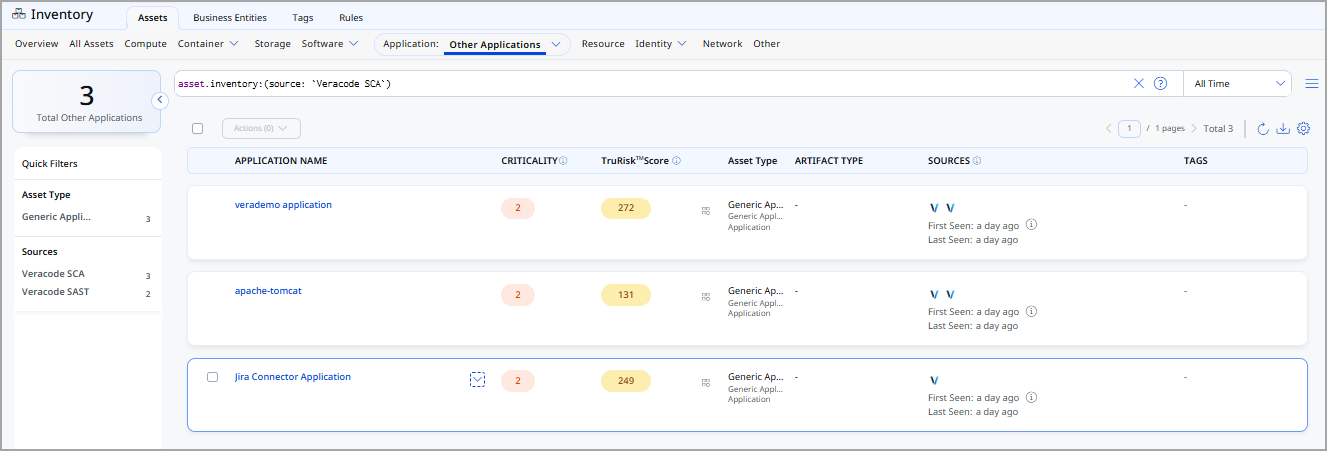
Viewing Assets
- Navigate to Enterprise TruRisk Management > Inventory.
- Go to Assets > Application > Other Applications.
- Use the inventory filter:
inventory:(source:"Veracode")to list Veracode-sourced assets.
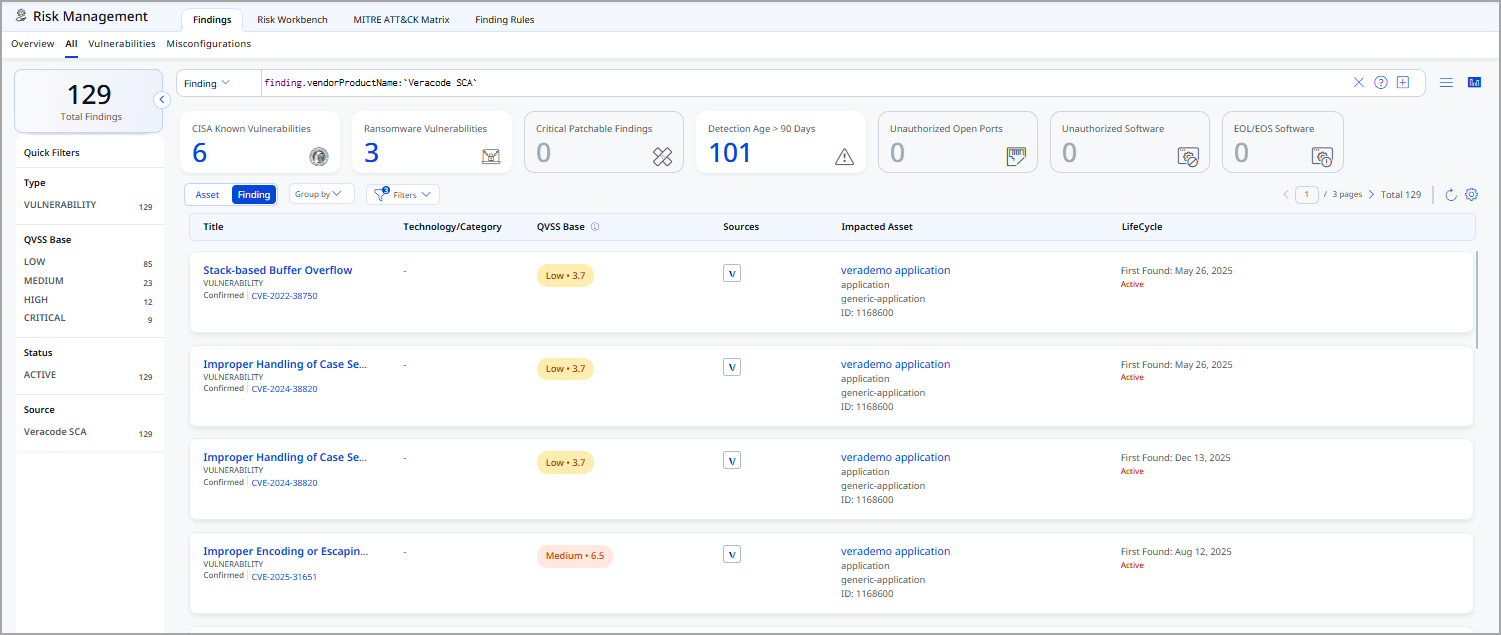
Viewing Findings
- Navigate to Risk Management > Findings > Vulnerability.
- Use the filter:
findings.vendorProductname:"Veracode SCA"to list Veracode SCA findings.
Troubleshooting
|
Issue |
Resolution |
|---|---|
|
Authentication failure on connector run |
Verify the API ID and API Key entered in Qualys ETM match the current credentials in Veracode. If credentials were regenerated, the previous set is automatically revoked. Confirm the Veracode account has the |
|
No findings imported after first run |
The connector transitions through Registered, Scheduled, Processing, and Processed states. The entire process may take up to 2 hours for completion. The Processed state indicates assets have been fetched, but findings import may still be in progress. Wait and check ETM again after the full processing period. |
|
Only recent findings appear |
The Veracode API limits data retrieval to the past six months. Findings older than six months will not be imported by this connector. This is an API limitation and cannot be overridden. |
|
Connector not available in the integrations list |
The connector requires activation on your Qualys account. Contact your Technical Account Manager (TAM) or Qualys Support to activate it. |
Additional Information
API Reference
The Veracode SCA Connector uses the following Veracode REST API endpoints:
| Function | Endpoint |
Notes |
|---|---|---|
| Get Applications | https://api.veracode.com/appsec/v1/applications |
Returns all applications accessible to the authenticated user. |
| Get Application Findings | https://api.veracode.com/appsec/v1/analytics/report |
Returns SCA findings for the specified application. Example GUID: |
Transformation Maps
The default transformation map configured for the Veracode SCA connector is applied during each execution to translate Veracode source fields to Qualys ETM target fields.
Veracode SCA – Asset Transformation MapVeracode SCA – Asset Transformation Map
|
Source Field (Veracode) |
Target Field (Qualys ETM) |
|---|---|
|
|
|
|
|
|
|
|
|
|
|
|
|
Source Field (Veracode) |
Target Field (Qualys ETM) |
|---|---|
|
|
|
|
|
|
|
|
|
|
|
|
|
|
|
|
|
|
|
|
|
|
|
|
|
|
|
|
|
|
|
|
|