Customize Your Dashboard
You can create multiple dashboards and switch between them. Each dashboard has a collection of widgets showing event data of interest.
Switch dashboards
It's easy to do. Just click the down arrow next to the dashboard name and pick the one you want.
Add widgets
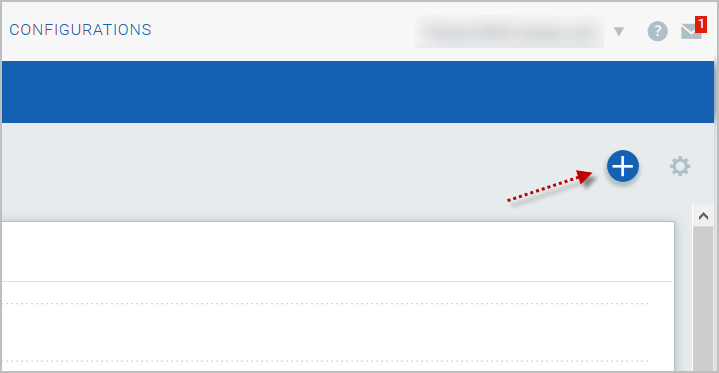
- Start by clicking the Add Widget icon on your dashboard.
-
Pick one of our widget templates - there are many to choose from - or create your own.
-
Each widget is unique. For some you'll select event data, a query and layout - count, table, bar graph, pie chart.
Wondering how we created the widgets on the default dashboard? Choose Edit from the widget menu to see the settings.
Resize and layout
Resize any widget horizontally, and drag & drop widgets to change the layout.
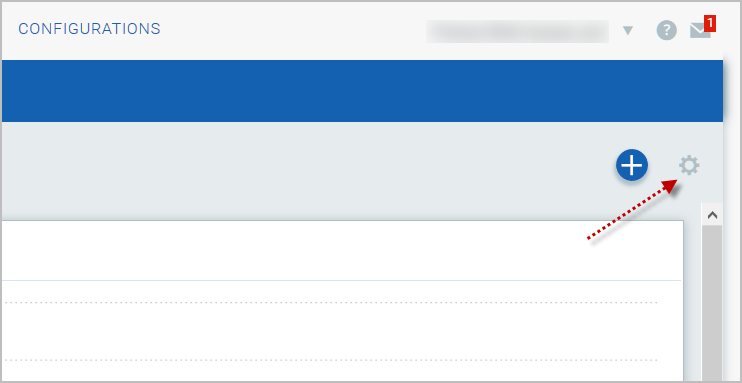
- Click the Tools icon on your dashboard.
-
Select Edit Dashboard Layout.
-
Adjust the width for any widget or drag the widget to a new location.
-
Click OK to save your changes.
Refresh your view
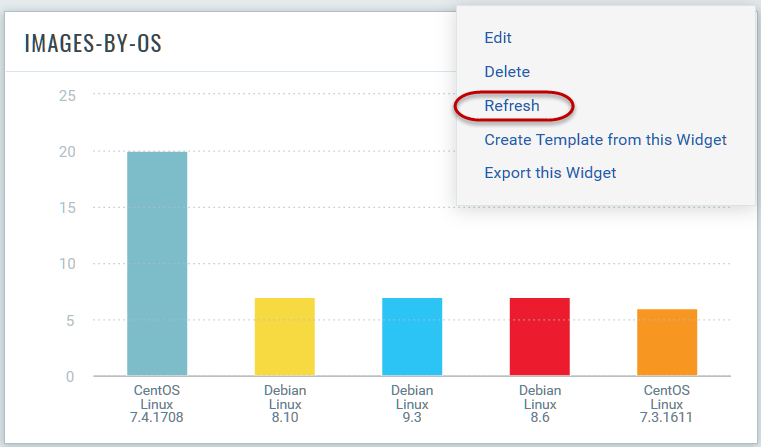
You might want to see the latest data for a particular widget. Select the widget menu and choose Refresh.
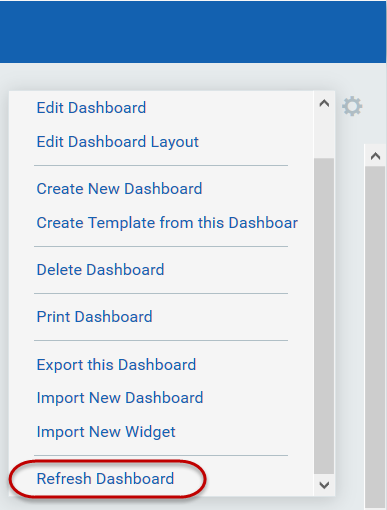
To refresh all widgets in one go, choose the Refresh Dashboard option from the Tools menu and all the widgets on the dashboard will be refreshed.
Schedule a Dashboard Report
You can schedule periodic email reports of your dashboard using the Report Scheduling button in the Unified Dashboard. You can create three types of scheduled reports:
- Run Now: Generate and send the report immediately.
- Single Occurrence: Schedule the report for a specific future date and time.
- Recurrence: Schedule the report to run at regular intervals (daily, weekly, or monthly).
To schedule a dashboard report:
-
On your dashboard, click Add Widget.
-
Select the Reporting Schedule > Create Schedule.
-
Select Report Format: PDF (Portrait), PDF (Landscape), or JSON
-
Select the schedule type: Run Now, Single Occurrence, or Recurrence.
For Single Occurrence or Recurrence, specify the date, time, and frequency. -
Choose an option: URL, or Attachment
-
Specify the email recipients, subject and click Create.
Specify the date and time based on the UTC timezone.
To know more about widgets, refer to - Knowing Widgets.