QScanner JetBrains Extension
The QScanner JetBrains Extension brings enterprise-grade vulnerability scanning directly into JetBrains IDEs such as IntelliJ IDEA, PyCharm, GoLand, and WebStorm. Developers can scan source code repositories for vulnerabilities and compliance issues without leaving their development environment.
The extension uses the Qualys QScanner binary to perform a local Software Composition Analysis (SCA) scan on your workspace. Only package metadata is transmitted to the Qualys Enterprise TruRisk™ Platform - source code is never sent. Vulnerability findings are displayed inside the IDE with QDS (Qualys Detection Score) severity scoring.
Supported Capabilities
| Capability | Description |
|---|---|
| SCA (Software Composition Analysis) | Detects vulnerabilities in open-source packages and dependencies across supported package managers and programming languages including JavaScript, Python, Go, Java, Ruby, PHP, .NET, Rust, and Dart. |
| Compliance Scanning | Evaluates code against AI and cloud compliance frameworks: AI_NIST_RMF, AI_EU_ACT, and AI_PCI_DSS. Findings are reported as FAIL, SKIPPED, or PASS. |
| Severity Scoring | Findings are prioritized using QDS (Qualys Detection Score), which combines CVSS score, threat intelligence, exploitability, and asset context. |
Supported IDEs
The QScanner JetBrains Extension supports the following JetBrains IDEs:
- IntelliJ IDEA
- PyCharm
- GoLand
- WebStorm
- PhpStorm
- Rider
- RubyMine
Prerequisites
Before you begin, ensure you have:
- A valid Qualys subscription with Container Security permissions enabled.
- A Qualys API access token, or a Client ID and Client Secret, with Container Security scope.
- Your Qualys POD endpoint (for example, US1, EU1, IN1).
- A supported JetBrains IDE.
Install the Extension
To install the QScanner plugin from the JetBrains Marketplace:
- In your JetBrains IDE, go to Settings (or Preferences on macOS) > Plugins.
- Click the Marketplace tab.
- Search for QScanner.
- Click Install, then restart the IDE when prompted.
To install from a local plugin file (ZIP):
- Go to Settings > Plugins.
- Click the gear icon and select Install Plugin from Disk.
- Browse to and select the QScanner plugin ZIP file.
- Restart the IDE.
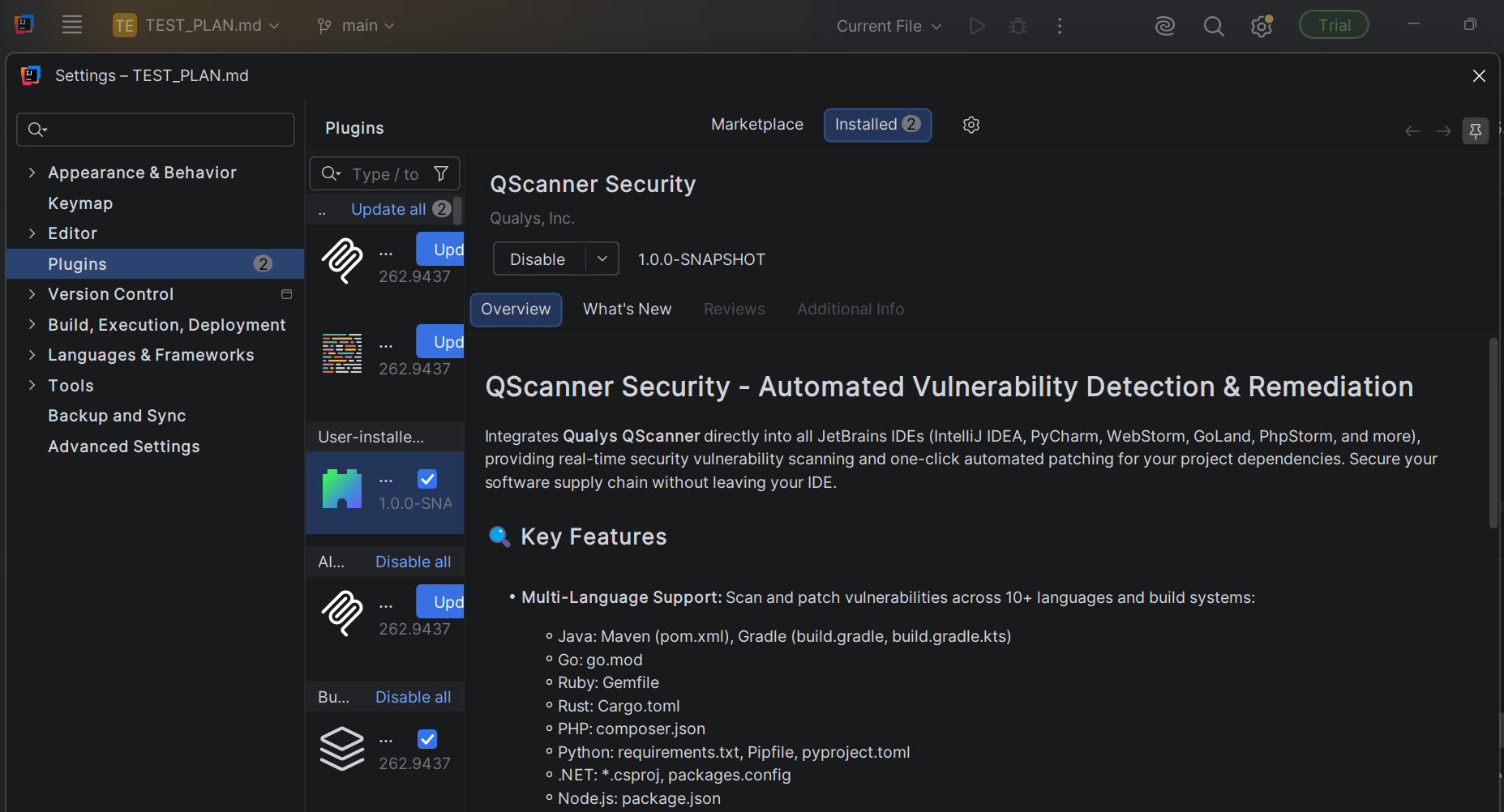
Install the QScanner
After the plugin is installed, locate the QScanner tool window. If prompted, click Install QScanner to download the QScanner binary for your platform.
On Windows, download the qscanner.zip package separately, extract it, and specify the binary path in the plugin settings.
Configure Credentials
After installation, configure your Qualys credentials. Credentials are stored securely in your OS-level keychain and are never stored in plain text.
- Go to Settings > Tools > QScanner.
- Provide one of the following:
- Access Token
- Client ID and Client Secret
- Specify your POD or gateway URL (for example, https://gateway.qg1.apps.qualys.com).
- Click Apply.
Run a Scan
To scan a project:
- Open the QScanner tool window and click Scan Now.
- Or right-click any folder in the Project panel and select QScanner: Scan This Folder.
Scan duration depends on the project size and number of dependencies. The default timeout is configurable in plugin settings.
View Findings
After a scan completes, findings appear in the QScanner Security tool window, organized by severity: CRITICAL, HIGH, MEDIUM, and LOW. Each severity group shows the total count of vulnerabilities found. Click any finding to view details, including the affected package, installed version, fixed version, CVE IDs, and QDS score.
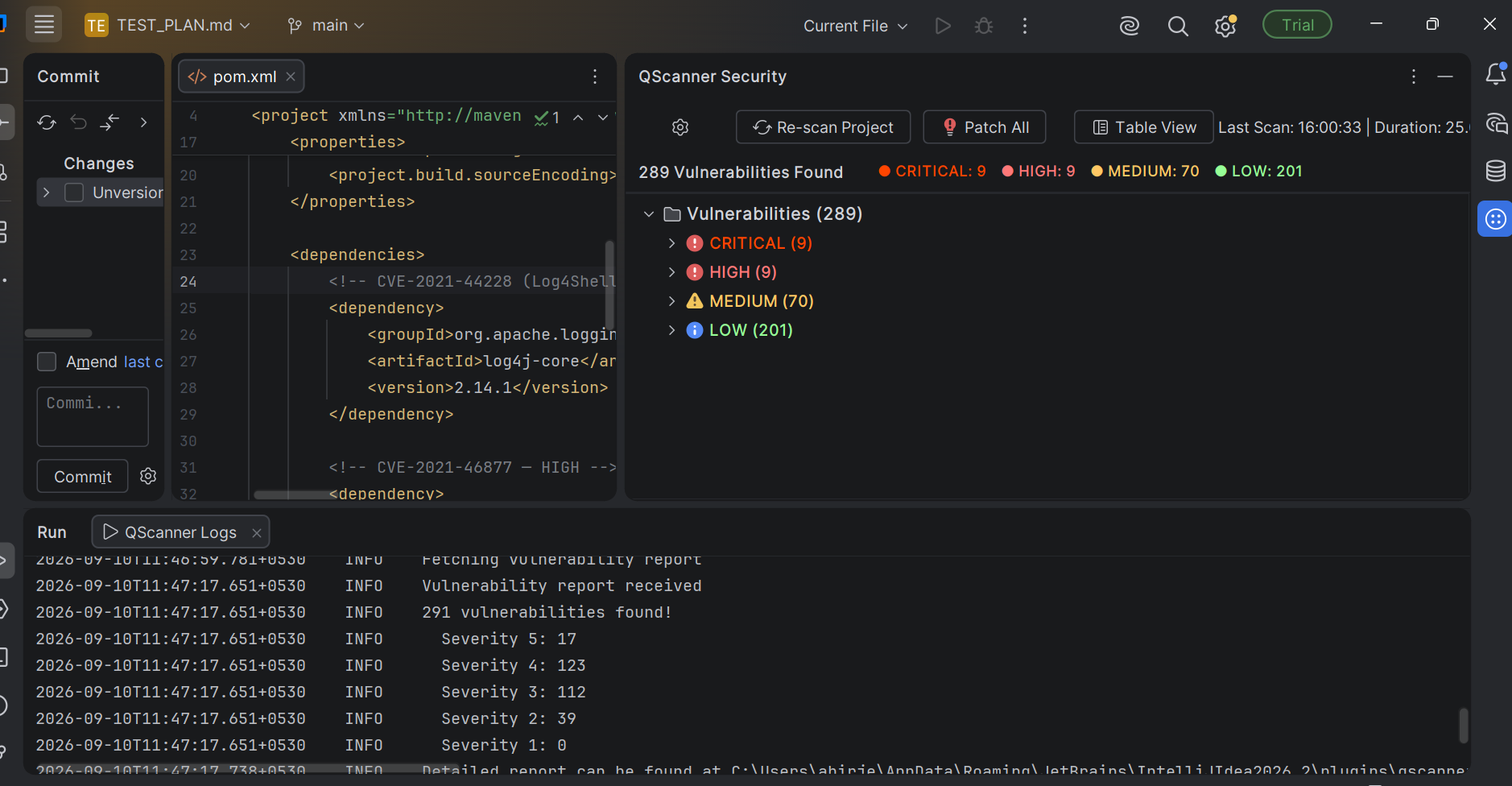
The QScanner Logs tab in the Run panel shows detailed scan output, including the number of vulnerabilities found at each severity level.
Remediate Findings
To patch all patchable findings at once, click the Patch All button in the QScanner Security toolbar. A confirmation dialog appears, listing patchable vulnerabilities grouped by severity.
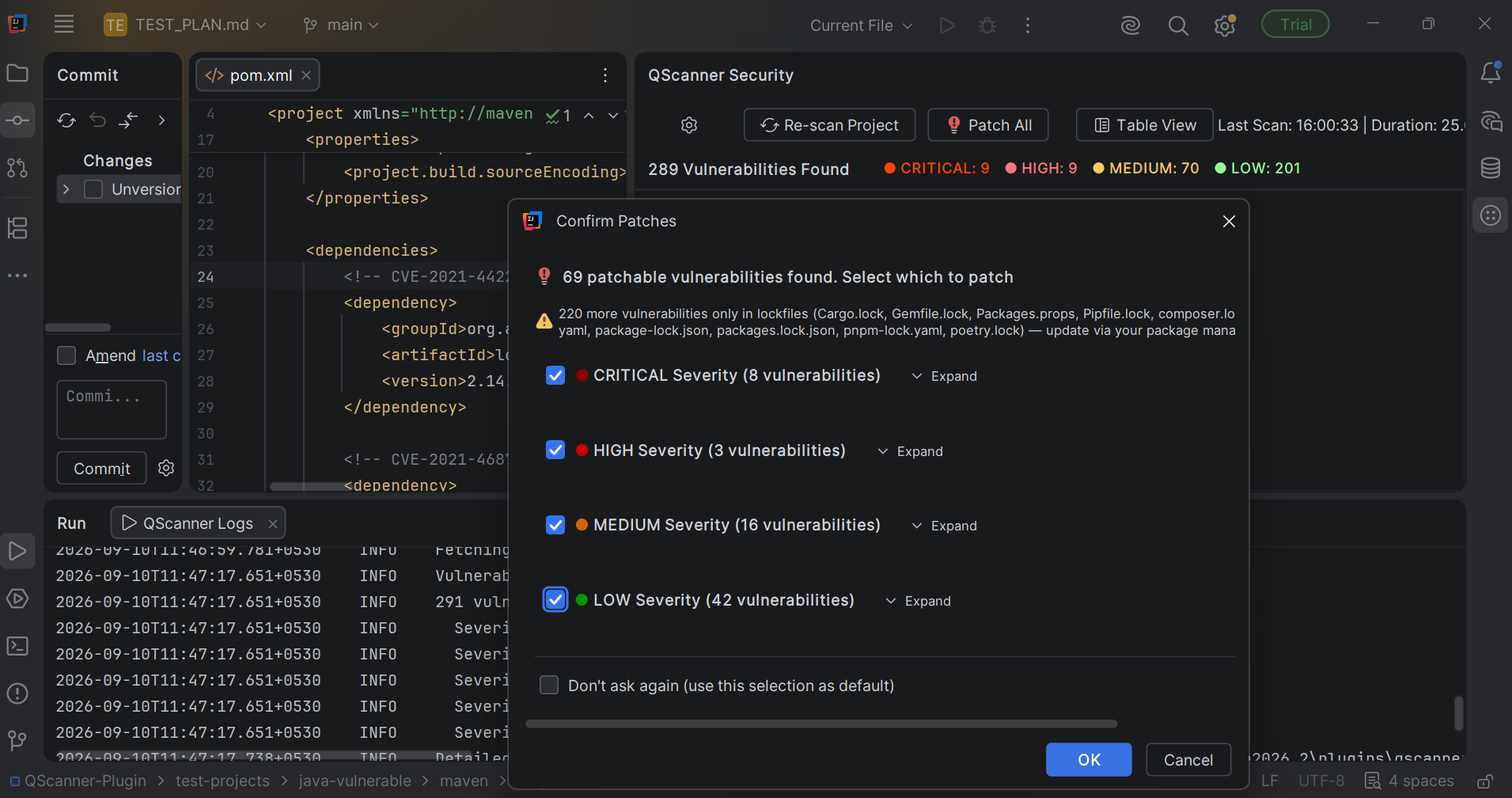
Select the severity groups you want to patch, then click OK to apply. The extension updates the affected dependencies using the appropriate package manager.
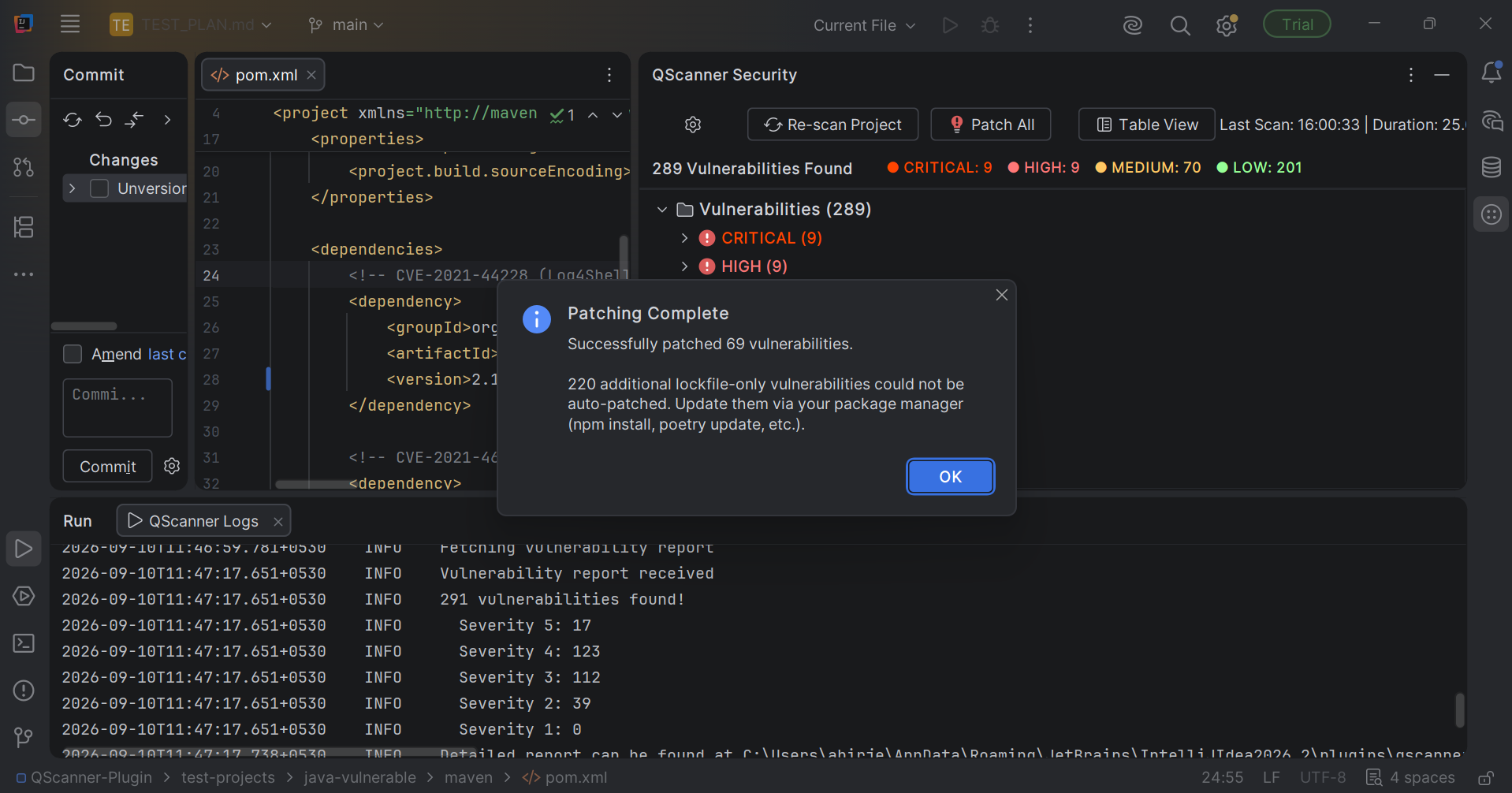
Vulnerabilities in lockfiles only (such as Cargo.lock, package-lock.json, or poetry.lock) cannot be auto-patched. Update these through your package manager (for example, npm install or poetry update).
After patching completes, a summary dialog shows the number of vulnerabilities successfully patched and any that could not be auto-patched.
Only package metadata is transmitted to the Qualys Enterprise TruRisk™ Platform during a scan. Source code is not sent.