QScanner VS Code Extension
The QScanner VS Code Extension brings enterprise-grade vulnerability scanning directly into Visual Studio Code and compatible editors (Windsurf, Cursor, and other VS Code-based editors). Developers can find and fix vulnerabilities in their code and ensure AI compliance with security standards — without leaving their development environment.
The extension uses the Qualys QScanner binary to perform a local Software Composition Analysis (SCA) scan on your workspace. Only package metadata is transmitted to the Qualys Enterprise TruRisk™ Platform - source code is never sent. Vulnerability findings are displayed inside VS Code with QDS (Qualys Detection Score) severity scoring, and vulnerable dependencies can be patched with a single click.
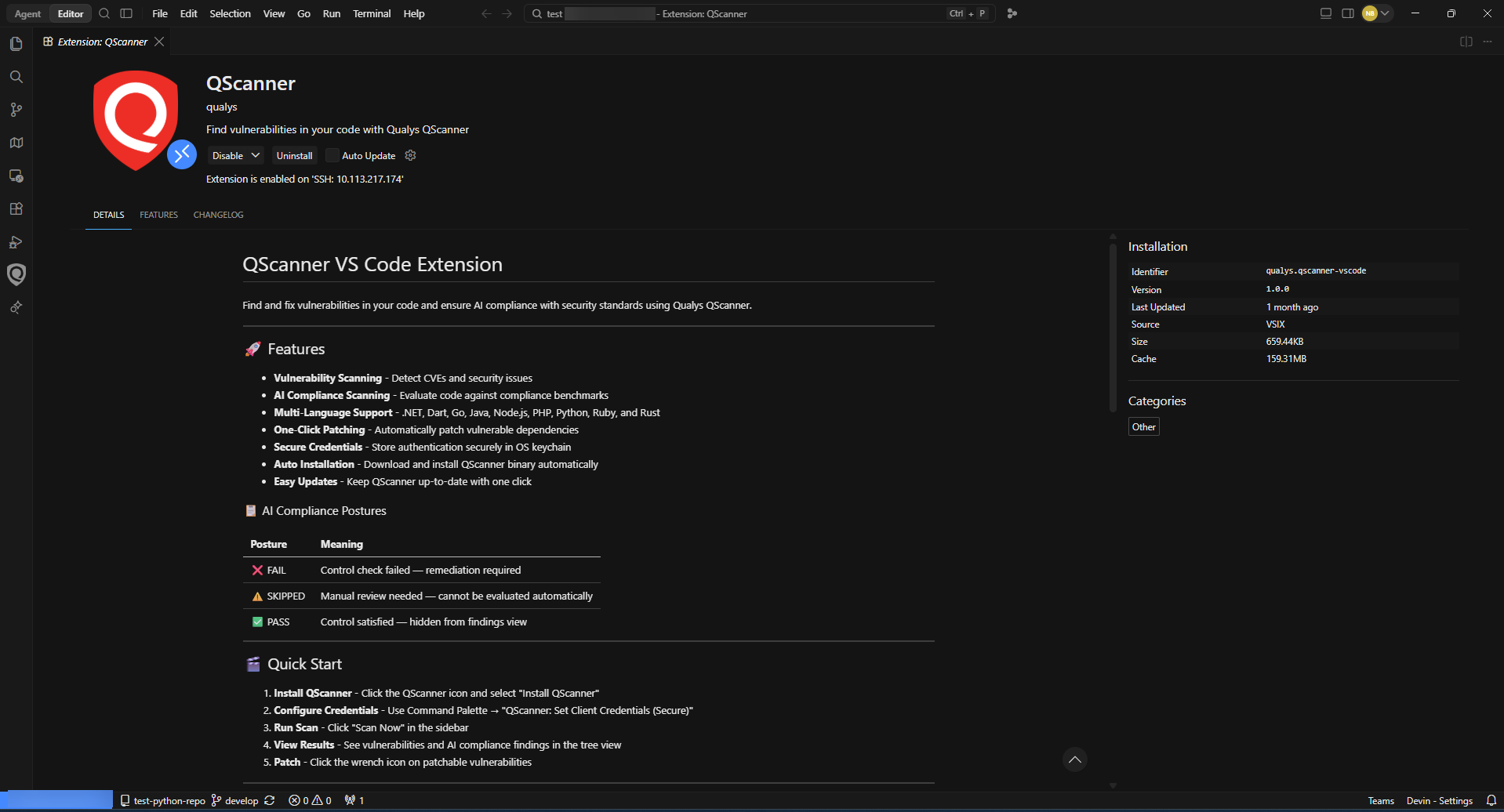
Features
- Vulnerability Scanning — Detect CVEs and security issues across your dependencies.
- AI Compliance Scanning — Evaluate code against AI and cloud compliance benchmarks.
- Multi-Language Support — .NET, Dart, Go, Java, Node.js, PHP, Python, Ruby, and Rust.
- One-Click Patching — Automatically patch vulnerable dependencies using the appropriate package manager.
- Secure Credentials — Store authentication details securely in your OS keychain.
- Auto Installation — Download and install the QScanner binary automatically.
- Easy Updates — Keep QScanner up-to-date with one click.
Prerequisites
Before you begin, ensure you have:
- A valid Qualys subscription with Container Security permissions enabled.
- A Qualys API access token, or a Client ID and Client Secret, with Container Security scope.
- Your Qualys POD endpoint (for example, US1, EU1, IN1).
- Visual Studio Code, or a compatible VS Code-based editor.
Install the Extension
The extension is distributed as a VSIX file. To install it:
- Open the Command Palette:
- Windows or Linux: Ctrl + Shift + P
- macOS: Cmd + Shift + P
- Search for and select Extensions: Install from VSIX.
- Browse to and select the qscanner-vscode-<version>.vsix file.
Alternatively, run the following command in a terminal:
code --install-extension qscanner-vscode-<version>.vsix
For Windsurf, Cursor, and other VS Code forks, use the editor's equivalent CLI command or install through its Extensions panel using Install from VSIX.
Install the QScanner Runtime
After the extension is installed, click the QScanner icon in the Activity Bar and select Install QScanner. The QScanner binary is downloaded and installed automatically.
Specify QScanner Location (Windows)
On Windows, download the qscanner.zip package separately and extract it to a preferred location. Then:
- Open the QScanner extension settings.
- Click Specify QScanner Location.
- Select the folder path where the QScanner binary was extracted.
Configure Credentials
After installation, configure your Qualys credentials. Credentials are stored securely in your OS-level keychain (macOS Keychain, Windows Credential Vault, or Linux Secret Service) and are never stored in plain text.
- Open the Command Palette (Ctrl + Shift + P or Cmd + Shift + P).
- Run one of the following commands:
- QScanner: Set Access Token (Secure) — to authenticate using an access token.
- QScanner: Set Client Credentials (Secure) — to authenticate using a Client ID and Client Secret.
- Enter your credentials when prompted.
- Specify your POD or gateway URL.
You can also configure credentials from the QScanner extension settings panel.
Run a Scan
To scan a project:
- Click the QScanner icon in the Activity Bar, then click Scan Now.
- Or right-click any folder in the Explorer panel and select QScanner: Scan This Folder.
Scan duration depends on the project size and number of dependencies. The default timeout is 5 minutes and is configurable in extension settings.
To reduce scan noise, configure exclusion patterns in the extension settings to skip directories such as node_modules, .git, and vendor.
View Findings
After a scan completes, findings appear in the QScanner: Findings panel, organized into a tree view by severity: CRITICAL, HIGH, MEDIUM, and LOW. Each severity level shows the total count and the number of patchable findings.
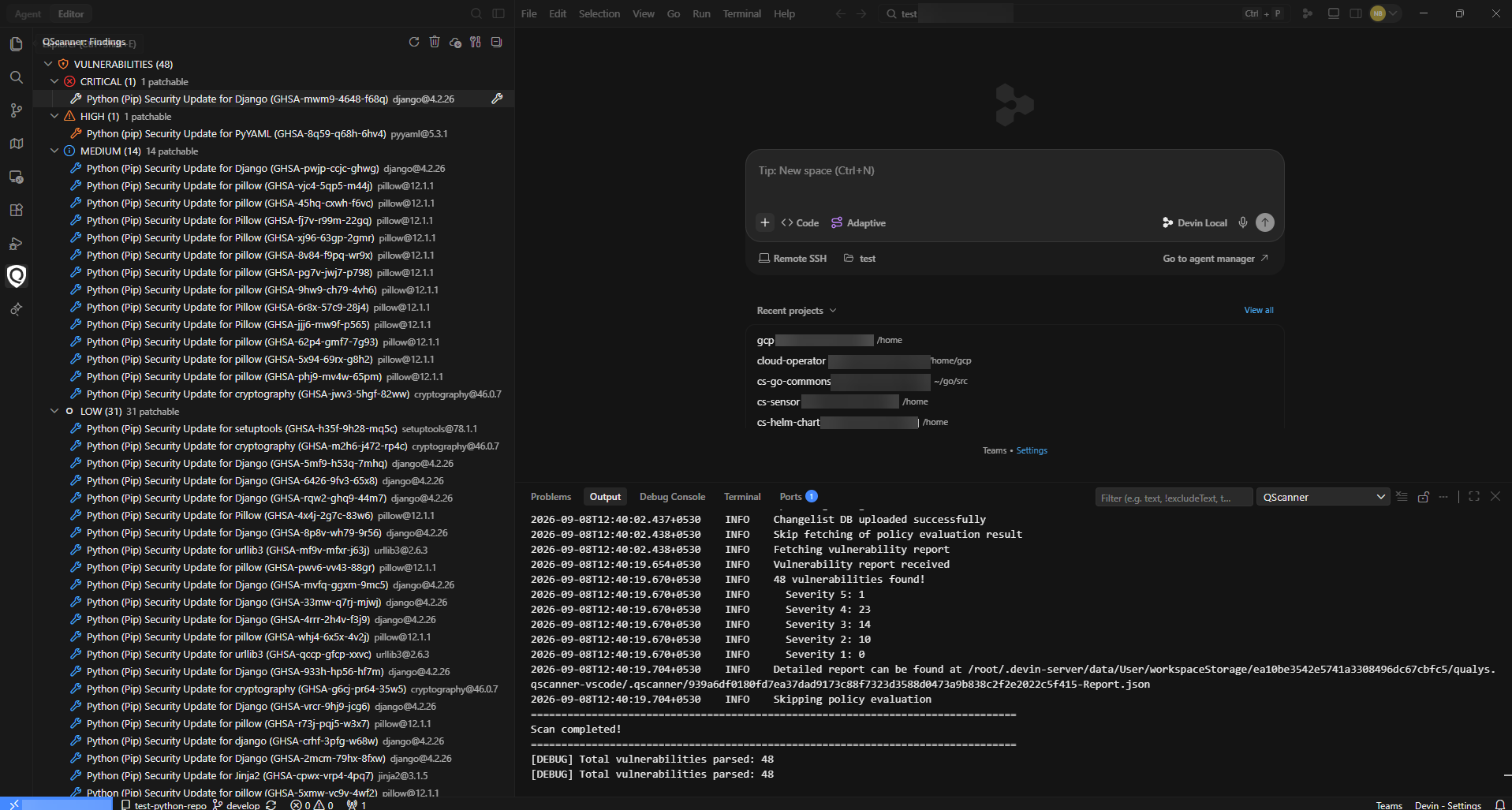
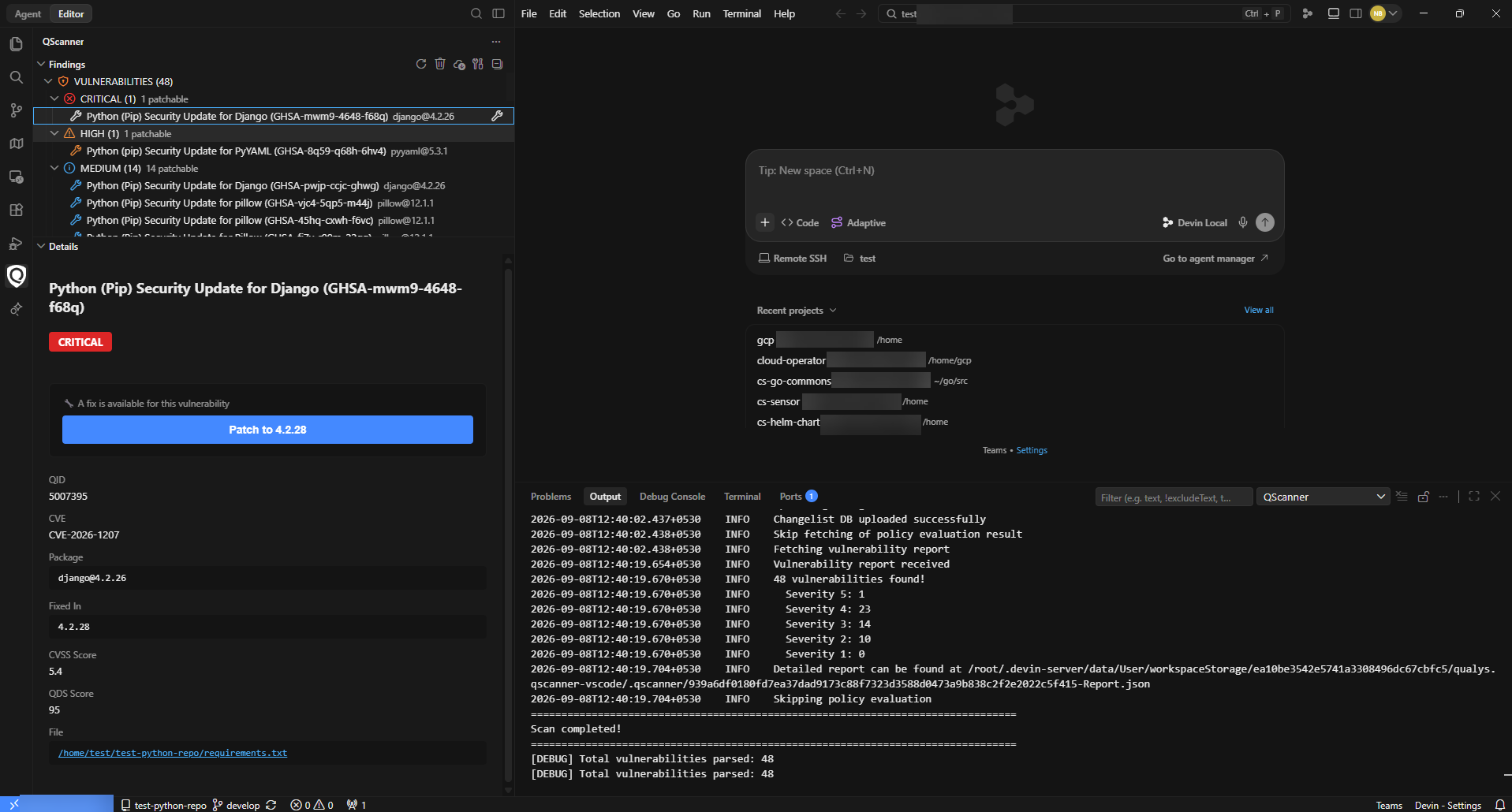
Click any finding to open the Details panel. The following information is shown for each vulnerability:
| Field | Description |
|---|---|
| QID | Qualys vulnerability identifier. |
| CVE | Associated CVE identifier. |
| Package | Name and currently installed version of the affected package. |
| Fixed In | The version in which the vulnerability is resolved. |
| CVSS Score | Common Vulnerability Scoring System score. |
| QDS Score | Qualys Detection Score, combining CVSS, threat intelligence, exploitability, and asset context. |
| File | Path to the manifest file containing the affected dependency. |
Remediate Findings
Patch a Single Vulnerability
When a fix is available, the Details panel displays a Patch to <version> button. Click it to apply the fix. The extension updates the dependency in the manifest file and runs the appropriate post-patch command (for example, pip install or go mod tidy).
Patch Multiple Vulnerabilities
To patch all patchable findings at once, click the patch icon in the Findings panel toolbar. A confirmation dialog lists all direct dependencies that will be updated, showing the current and target versions. Duplicate findings are deduplicated automatically, using the highest available fix version.
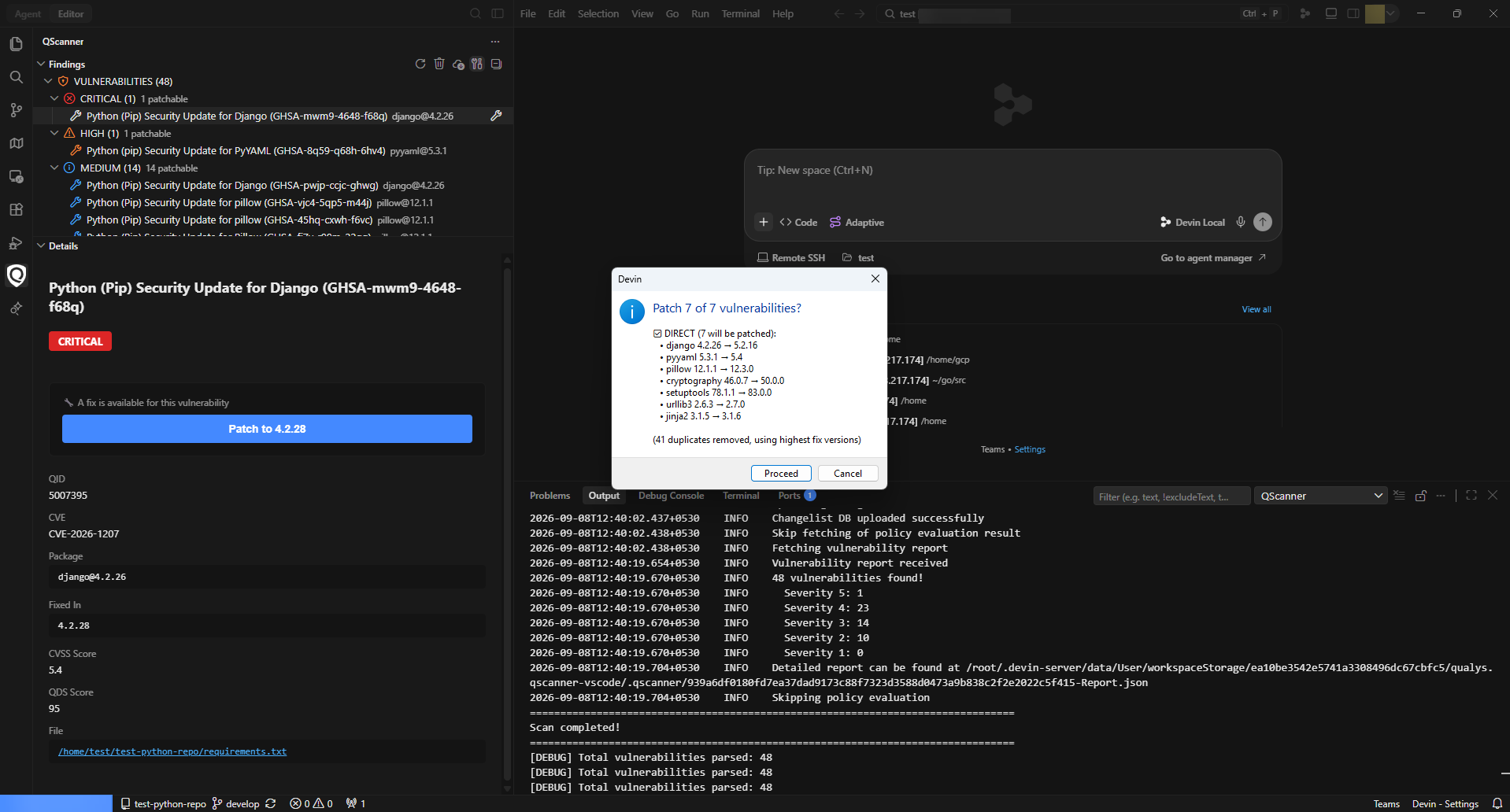
Click Proceed to apply all patches, or Cancel to exit without changes.
AI Compliance Scanning
The extension evaluates code against AI and cloud compliance benchmarks including AI_NIST_RMF, AI_EU_ACT, and AI_PCI_DSS. Compliance findings are reported with one of the following postures:
| Posture | Meaning |
|---|---|
| FAIL | Control check failed — remediation required. |
| SKIPPED | Manual review needed — cannot be evaluated automatically. |
| PASS | Control satisfied — hidden from the findings view. |
Only package metadata is transmitted to the Qualys Enterprise TruRisk™ Platform during a scan. Source code is not sent.