Provide Configuration Details
Provide the following configuration details:
- The Qualys API Server URL. You can find the appropriate server URL from the API URLs section of Identify your Qualys platform.
-
Click Add and then click Jenkins.

The Add Credentials Window is displayed.
- Select the authentication method from the Kind drop-down options.
The Qualys application supports the following authentication methods for connecting to your Qualys account:
- Basic Authentication.
- OIDC (OpenID Connect)
- IDP (Identity Provider)
You can choose any of these methods based on your organization’s security policies and access setup.
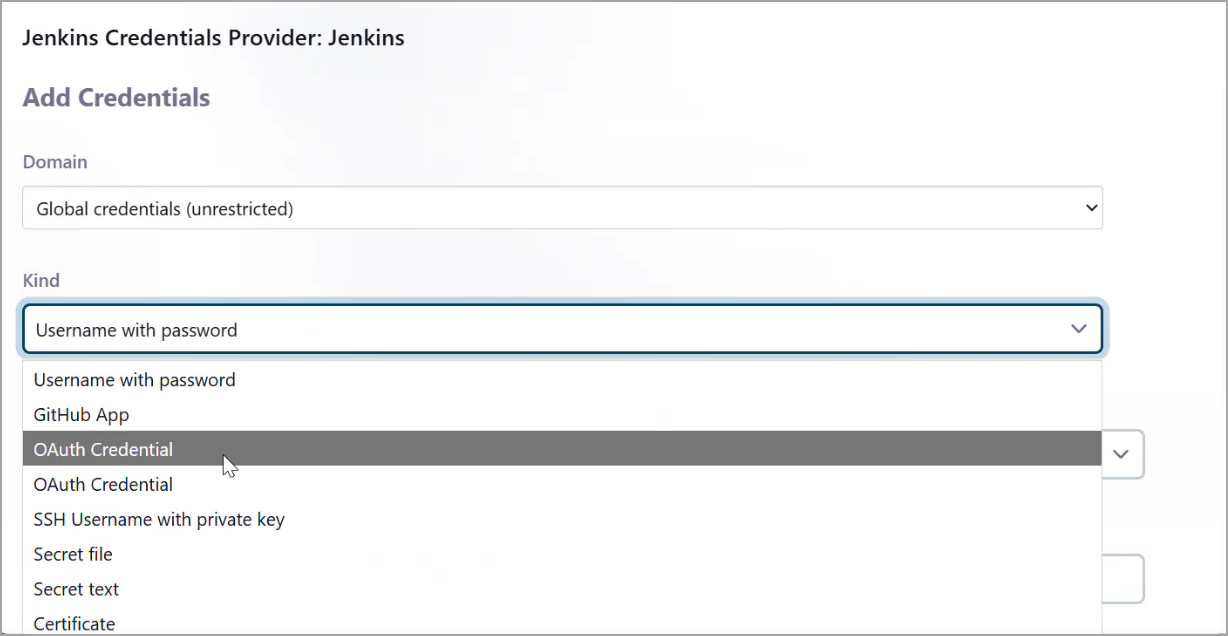
Configure Basic Authentication
Use this method if your Qualys setup uses a standard username and password. Select Username with password from the Kind drop-down options.
- Provide the details in the following required fields:
Username
Enter the Qualys username used for API access.
-
Password
Enter the Password for the above username.
Configure OIDC Authentication
Use this method if your Qualys setup uses OIDC client credentials. Select Qualys OAuth Credentials from the Kind drop-down options.

- Provide the details in the following required fields:
Client ID
Enter the Client ID received from your Qualys OIDC configuration.
-
Client Secret
Click Change Password, remove the previous password, and enter the Client Secret key.
Configure IDP Authentication
Use this method if your organization uses an external Identity Provider (IDP) to issue access tokens. The plugin obtains an access token from your IDP using the OAuth client credentials grant and uses it to authenticate to the Qualys Container Security APIs. Select the IDP credential type from the Kind drop-down options.
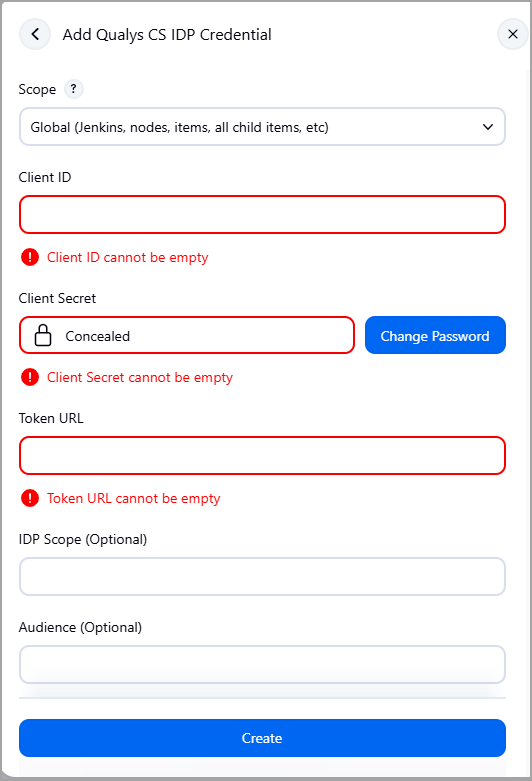
The Client ID, Client Secret, Token URL, IDP Scope, and Audience values are generated and configured in your external IDP.
- Provide the details in the following fields:
Client ID (Required)
Enter the client identifier configured in your external IDP.
-
Client Secret (Required)
Enter the client secret configured in your external IDP.
-
Token URL (Required)
Enter the token endpoint of your external IDP. For example,
https://idp.example.com/oauth/token. -
IDP Scope (Optional)
Enter the scope configured in your external IDP.
-
Audience (Optional)
Enter the target API audience identifier.
After you save the credential, it is available in the Credentials drop-down list. Select it to use IDP authentication for the job-specific or global configuration.
Ensure that the IDP setup is configured on the same Qualys platform (POD) as the Qualys API Server URL you provide, and that the Qualys Container Sensor is on the same platform. Otherwise, the access token is generated, but the connection to the Qualys Container Security API fails at Test Connection.
-
- Click Test Connection to verify that the plugin can call the Qualys Container Security API.
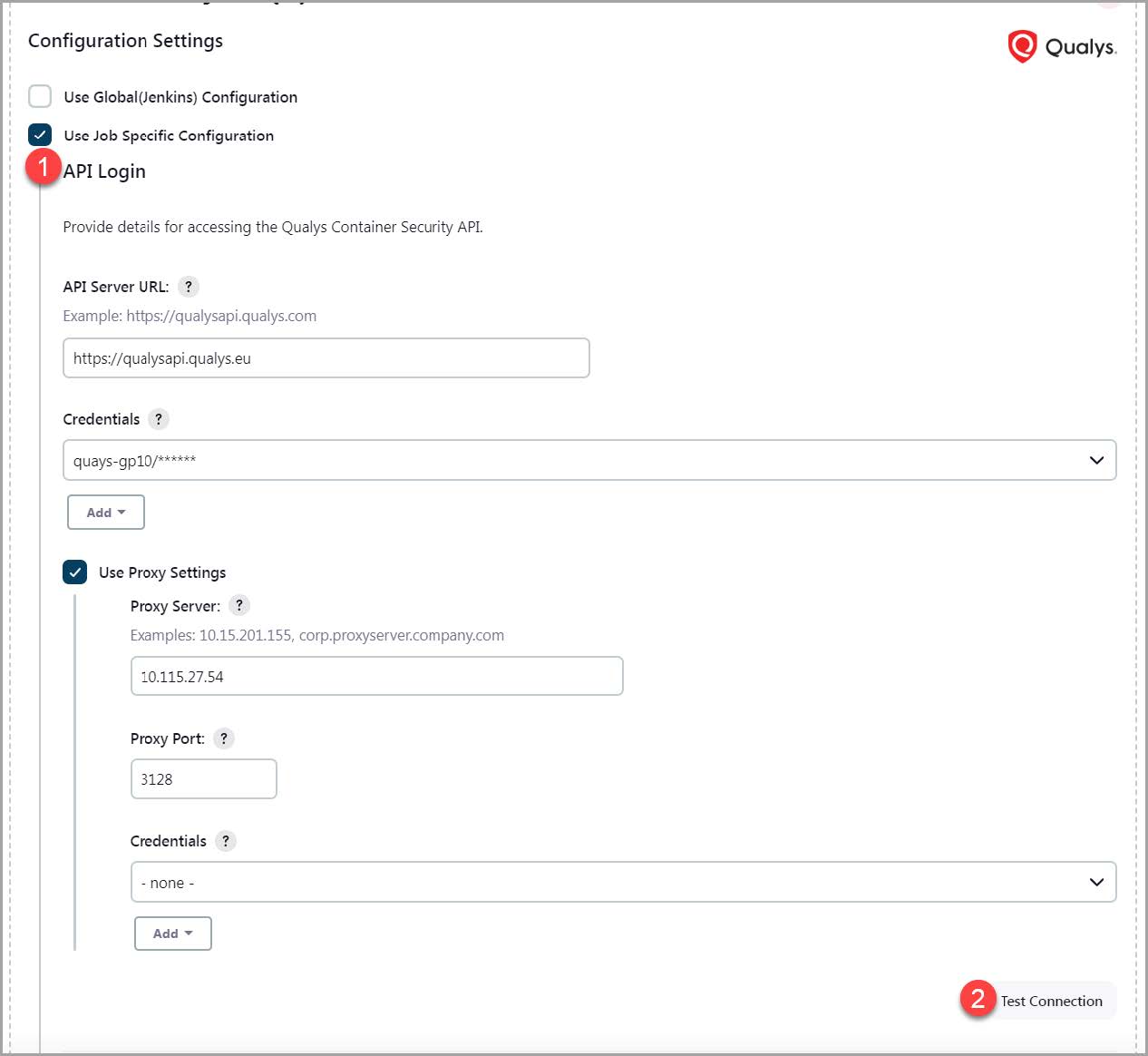
- Data collection frequency - Provide Frequency count for how often you want to check for data and Timeout in seconds for how long you want to wait for data.
- Build failure conditions - Set the conditions to fail the Job. Even a single condition is not met the container image build job gets failed.
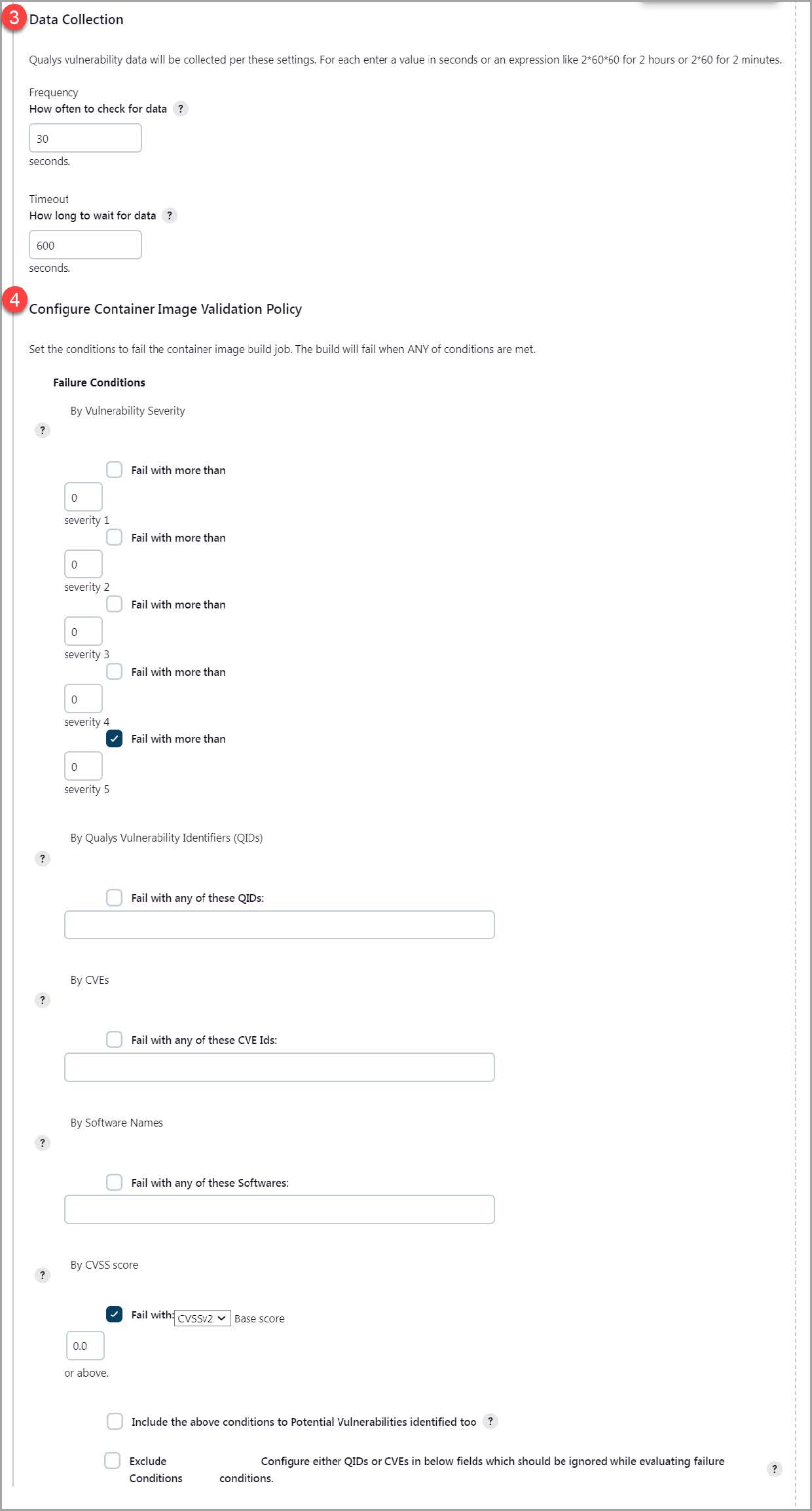
-
We use container image IDs/image names to check for vulnerabilities. We internally use the corresponding image sha-256 of the image IDs/image names.
If you are using containerd, the input is expected only in the image name format.
-
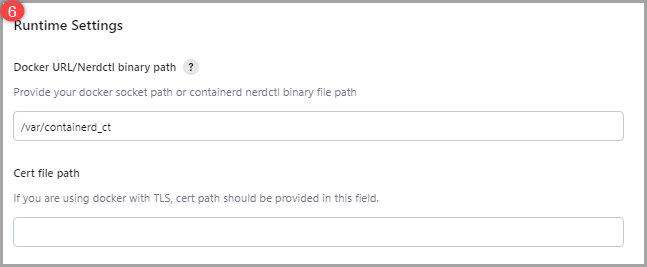
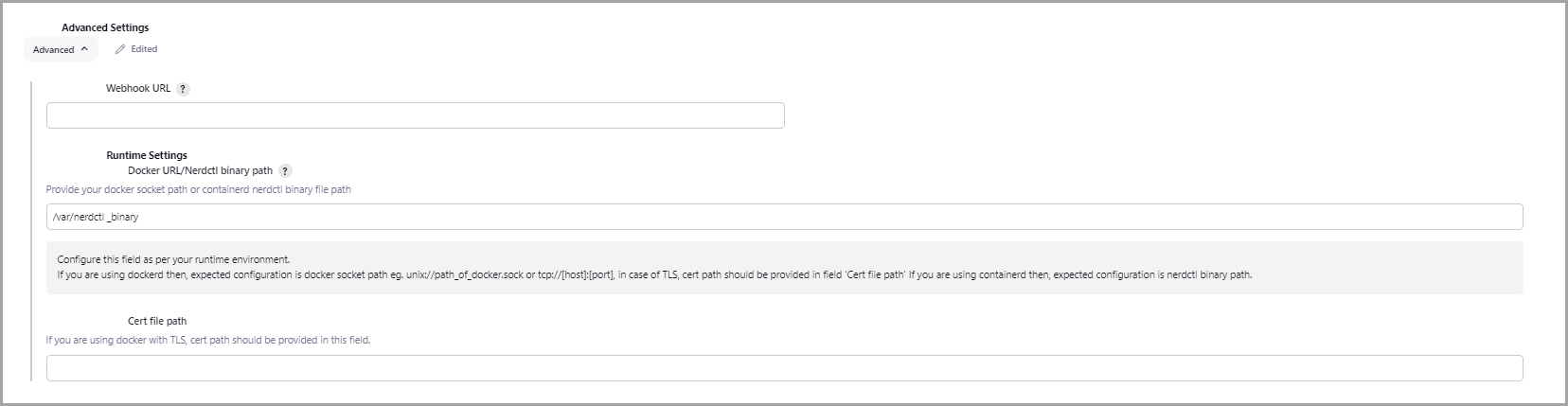
Provide the Docker URL/Nerdctl binary path.
-
Forward Jenkins job results to a WebHook URL.
-
When ready, click Generate Pipeline Script to get the script command.
If setting a global configuration, you can select a user from the Credential Store to authenticate to the API Server. In case of Job-specific configuration, you can provide the credentials in the pipeline/freestyle script.
Use global configuration for scanning images in CI/CD pipeline. See Scan CI/CD images.
Irrespective of the image, the plugin always fetches the latest scan result for a given image ID. The API checks the time stamp of the image data in your account, and if the timestamp falls in the time range calculated using the 'last scanned' filter, then the API returns the image data to the plugin in the response.