Configure Qualys CVR Credentials
Perform the following steps to configure the credentials:
- Go to Qualys CVR Integration to begin configuring the application.
- Select Credentials.
- On the Qualys CVR Instance Configuration page, enter the following details:
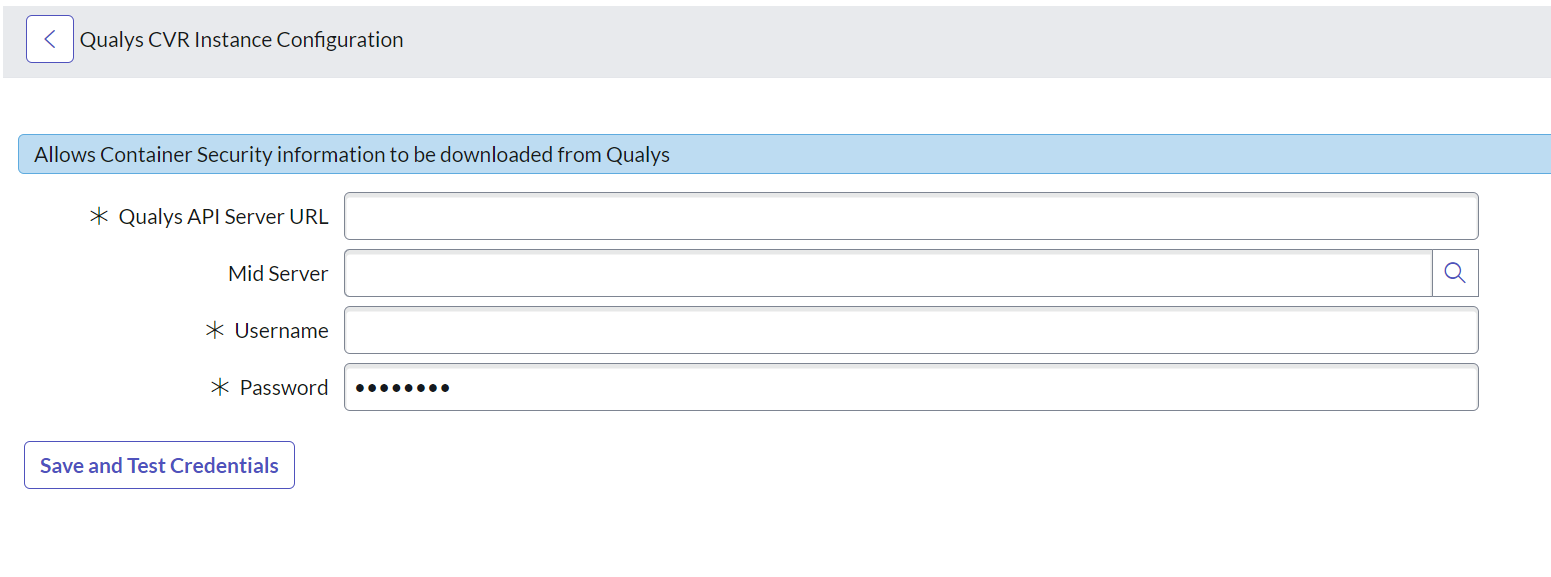
- Qualys API Server URL: Enter the API Server URL as per your subscription.
The Qualys API URL you should use for API requests depends on the Qualys platform where your account is located.
To learn more about the Qualys API URL, refer to Identify your Qualys platform. -
MID Server—The MID server can work as a proxy server or middleman between ServiceNow and Qualys pod, limiting the ServiceNow instance's reachability to outside sources.
-
The Qualys application supports two authentication methods for connecting to your Qualys account:
- OIDC (OpenID Connect)
- Basic Authentication.
You can choose either method based on your organization’s security policies and access setup.
Configure OIDC Authentication
Use this method if your Qualys environment is configured for OpenID Connect with Client ID and Client Secret.
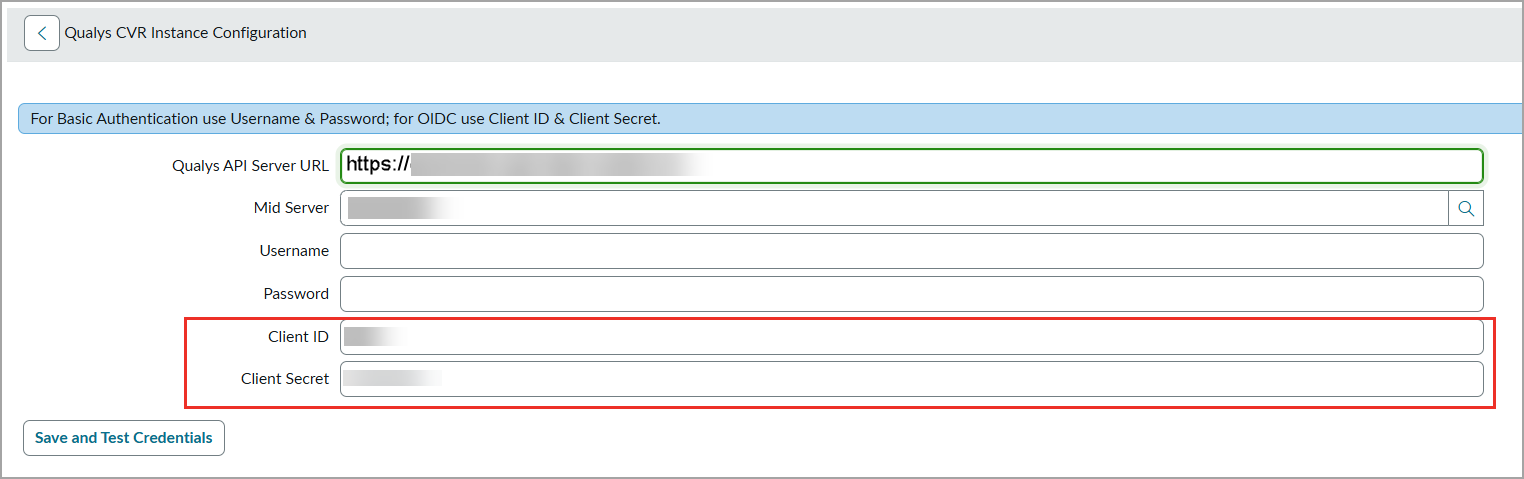
Provide the details in the following required fields:
-
Client ID
Enter the Client ID received from your Qualys OIDC configuration.
-
Client Secret
Enter the corresponding Client Secret.
Basic Authentication
Use this method if your Qualys setup uses a standard Username and Password.
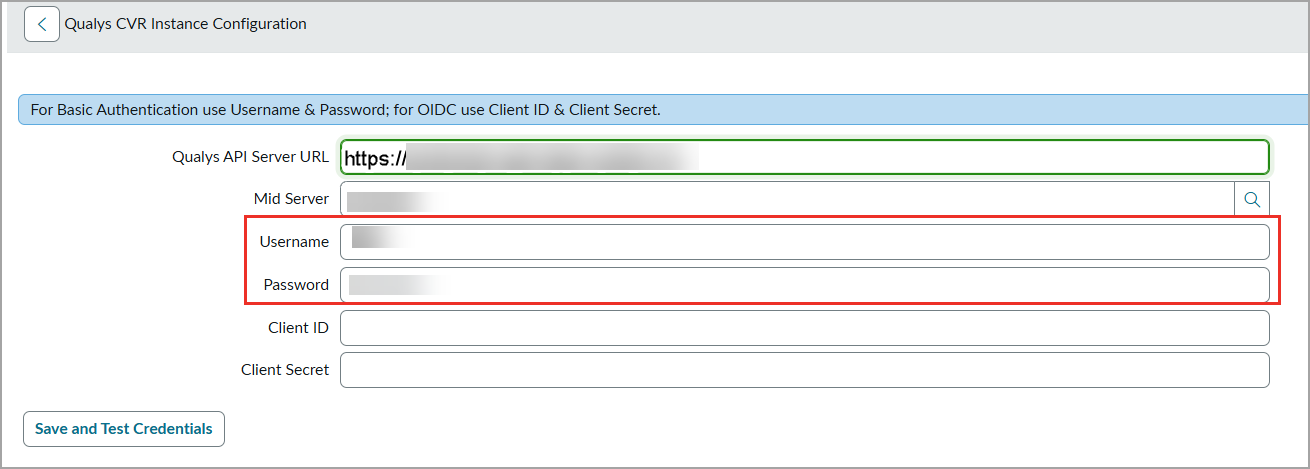
Provide details in the following required fields:
-
Username
Enter Qualys username used for API access.
-
Password
Enter password for the above username.
- Image Filter – Image Integration
If you want to pull all the images, you can configure this filter. For more details, see Pull All Available Images.
Enter any filter expression to limit image data ingestion.
To further refine the image data, provide a query in the filter. By default, the Image filter in the Image Vulnerability Integration does not have any filters applied. The lastVmScanDate is utilized in the Bulk Image API call to fetch the data.
Provide the filters in the form of QQL that are used on the Qualys Platform UI.
Refer to the example given in the following image.
Click
 the symbol to see how to provide the query for data searching.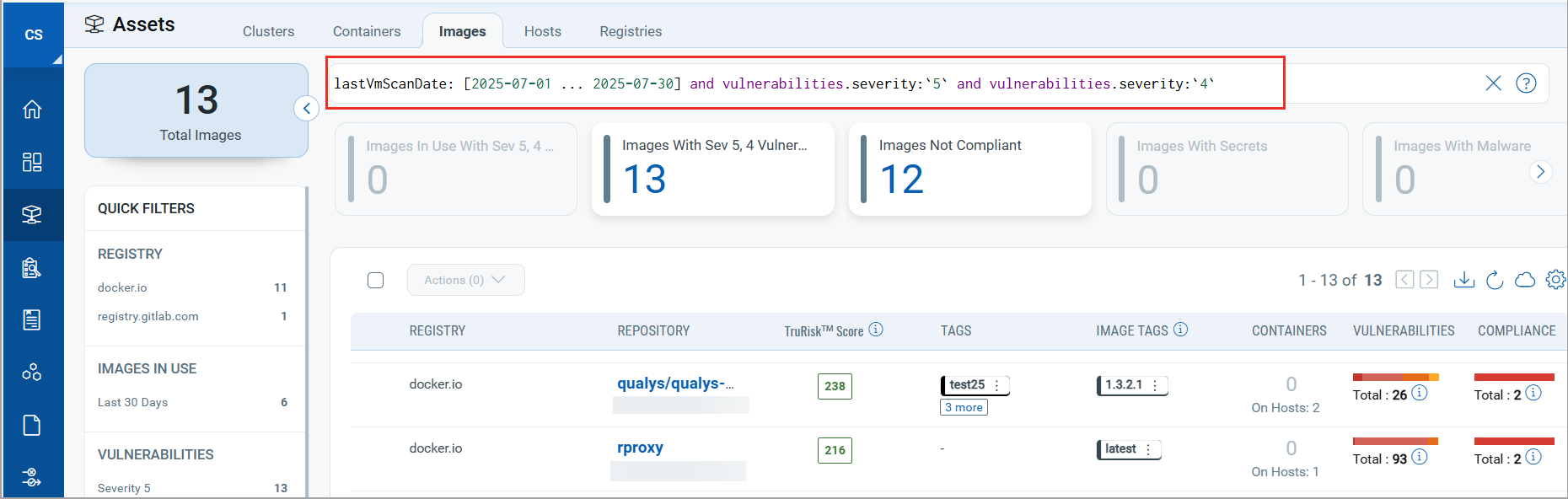
- Image Filter – Container Integration
If you want to pull only in use images, you can configure this filter. For more details, see Pull Only In-use Images.
By default, no filter is applied in the Image Filter section of the Container Vulnerability Integration. However, the 'ImageInUse' parameter is used in the Bulk Image API call to retrieve the data. You can optionally provide a query in the filter to refine the image data further.
Refer to the example given in the following image.
Click
the symbol to see how to provide the query for data searching.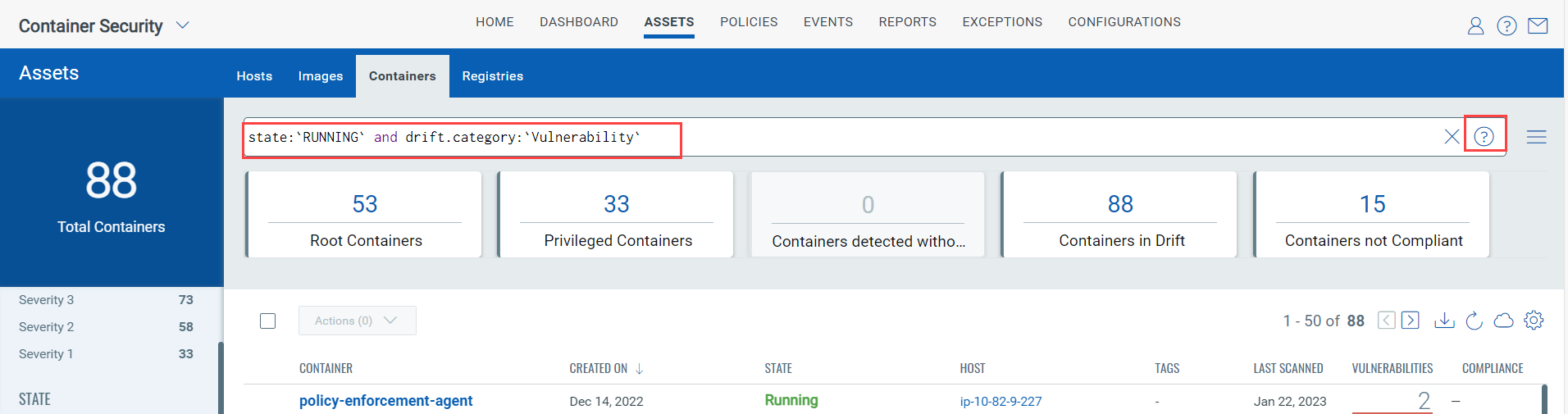
-
Image API Page Size: Enter the number of image records to retrieve per API call. By default, it is set to 50.
-
Container API Page Size: Enter the number of container records to retrieve per API call. By default, it is set to 50.
-
KB API Page Size: Enter the number of Knowledge Base records to retrieve per API call. By default, it is set to 100.
The API page size value is set to '50' by default.
This is the optional configuration; you can alter the API Page Size as per requirement.
For example, if the total result set has 1000 images and the API page size is 100, the result is divided into ten pages, with 100 images on each page.
- Qualys API Server URL: Enter the API Server URL as per your subscription.
-
Click Save and Test Credentials to test the connection between ServiceNow and Qualys Container Security module.
A success message is displayed when the connection is tested successfully.
Next Step
Qualys Container Vulnerability Response Integrations