Asset Identification Settings
The Settings tab under Rules > Asset Identification contains the subscription-level controls that govern how Qualys CyberSecurity Asset Management (CSAM) identifies incoming asset data and decides what to do with it.
These settings apply across your subscription. They are distinct from asset identification rules, which you configure on the Rules tab and which determine how individual attributes are weighted when CSAM matches assets.
To open these settings, go to Rules > Asset Identification > Settings.
Available settings pages
| Page | What you configure |
|---|---|
| Asset Automation | Whether CSAM automatically creates an asset record when incoming data does not match an existing asset. |
| Identification Exclusions | Attribute values that CSAM ignores when it identifies and merges assets. |
Asset Automation
Use the Asset Automation settings to control whether CSAM creates asset records automatically for asset data that does not match any existing asset in your inventory.
To open this page, go to Rules > Asset Identification > Settings > Asset Automation.
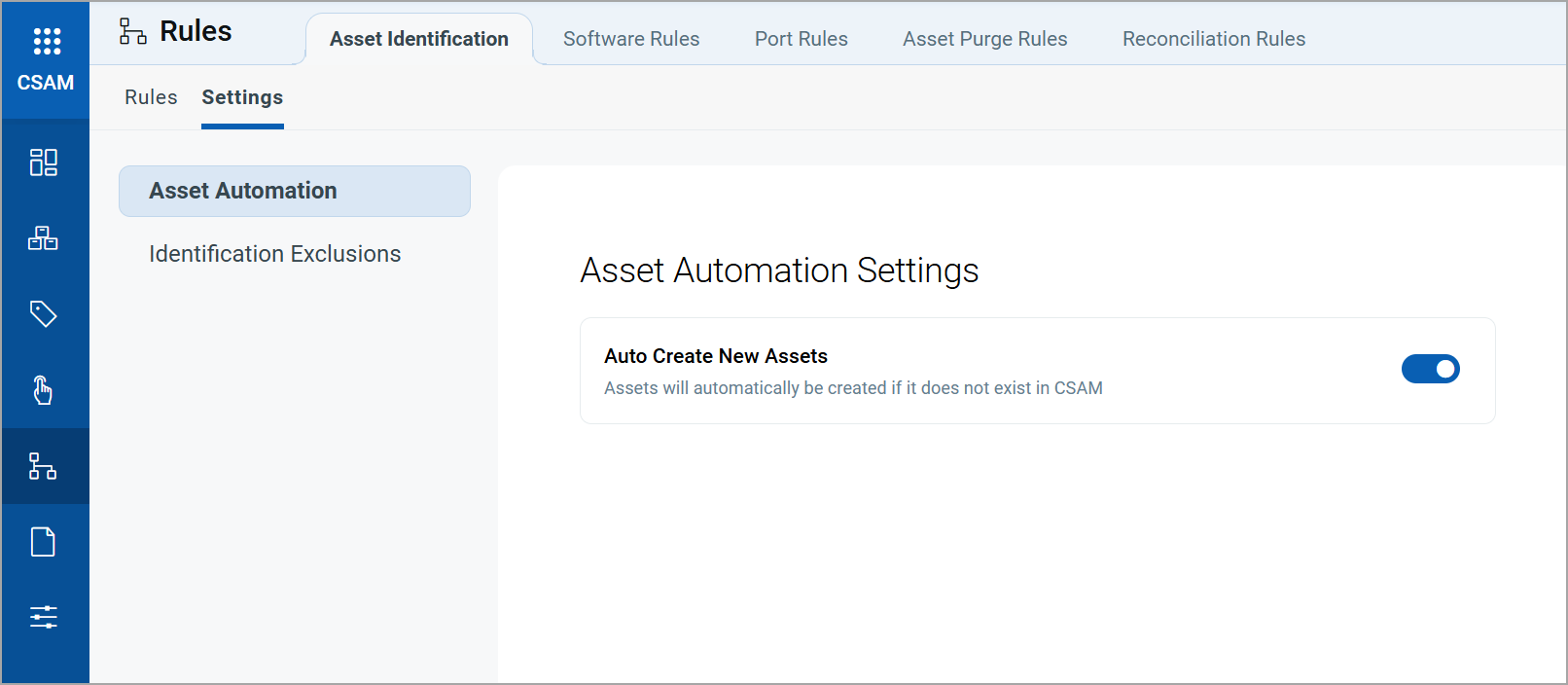
Auto Create New Assets
The Auto Create New Assets toggle determines how CSAM handles incoming asset data that cannot be matched to an existing asset.
| State | Behavior |
|---|---|
| On | The system creates a new asset record when the incoming data does not match an existing asset. Your inventory reflects every asset reported by your connectors. |
| Off | The system does not create a new asset, even if the incoming asset attributes do not match any existing assets in the inventory. |
Identification Exclusions
Identification exclusions let you prevent a specific asset from being merged when CSAM identifies assets. You can define your own rules to exclude assets with specific attributes from being merged. This gives you control over asset merging in environments with shared infrastructure or test systems, and it reduces incorrect merges without changing your asset identification rules.
To manage exclusions, go to Rules > Asset Identification > Settings > Identification Exclusions.
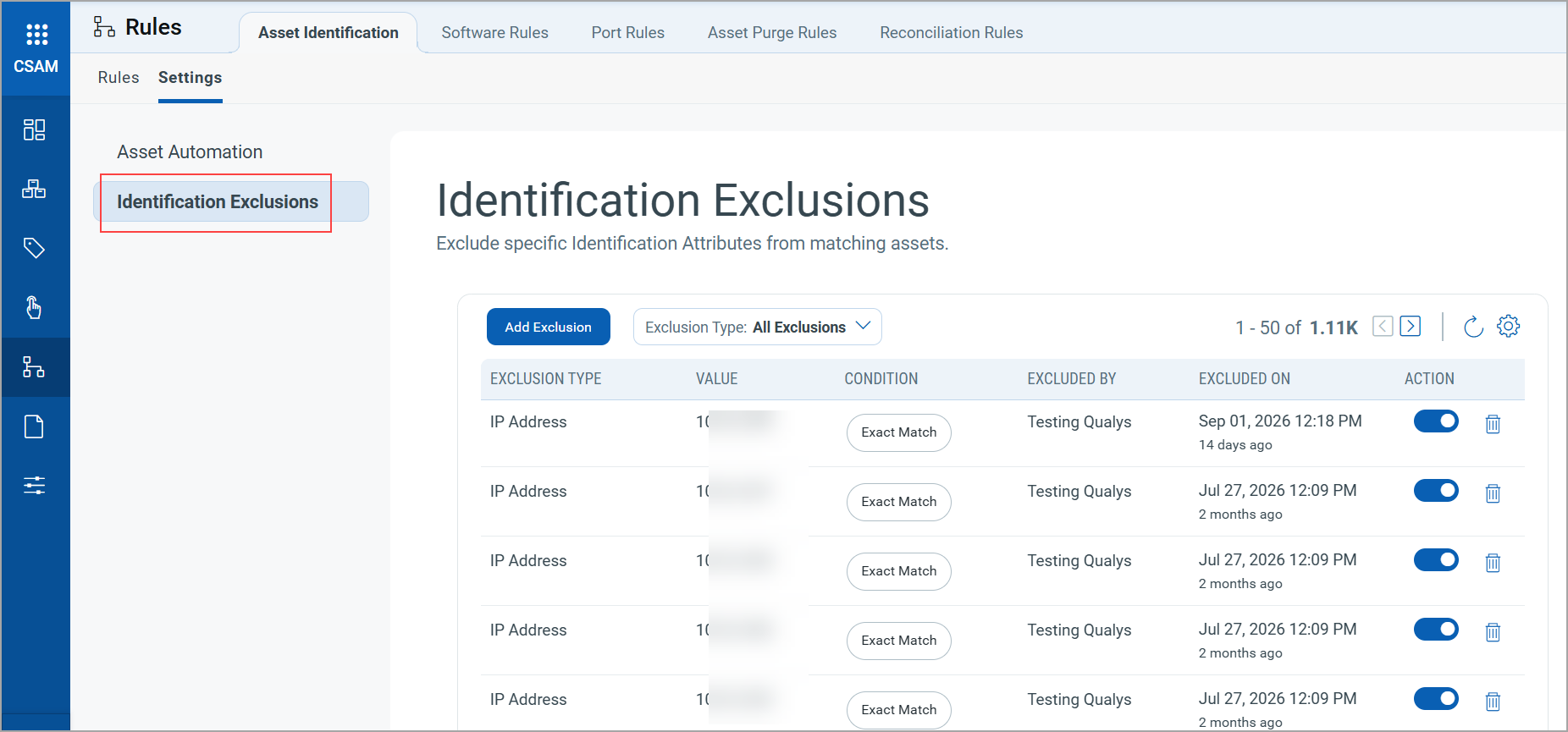
How Identification Exclusions Work
CSAM evaluates exclusions before it evaluates asset identification rules. The order of processing is as follows:
- Ingestion: CSAM receives asset data from a connector or scan.
- Attribute identification: Attribute values are identified to match it against existing assets. This helps the asset identification rules to evaluate whether the incoming asset is a duplicate or new.
- Exclusion rule evaluation: CSAM applies your custom exclusion rules to the remaining attributes. If the attribute falls within your exclusion rule, the assets are not merged.
Supported Matching Attributes and Conditions
The following table lists the asset attributes and the match conditions you can use to define exclusions:
The example values and matches in this table are for illustration only. Use values that match the assets and criteria in your environment. Do not use the example values as-is.
| Attribute | Attribute Description | Supported Match Conditions | Match Condition Description | Example Value | Example Match |
|---|---|---|---|---|---|
| IP address | IP address of the asset. | Exact Match | Matches the IP address exactly. | 10.0.0.1 |
10.0.0.1 |
| Starts With | Matches IP addresses that start with the specified value. | 10.0. |
10.0.0.1 |
||
| MAC address | MAC address of a network interface. | Exact Match | Matches the MAC address exactly. | AA:BB:CC:DD:EE:FF |
AA:BB:CC:DD:EE:FF |
| Starts With | Matches MAC addresses that start with the specified value. | AA:BB: |
AA:BB:11:22:33:44 |
||
| NetBIOS name | NetBIOS name of the asset. | Exact Match | Matches the NetBIOS name exactly. | HOST-001 |
HOST-001 |
| FQDN | Fully qualified domain name of the asset. | Exact Match | Matches the FQDN exactly, including the domain suffix. | host001. |
host001. |
| Hostname | Hostname of the asset without the domain suffix. | Exact Match | Matches the hostname exactly. | host001 |
host001 |
| BIOS UUID (hardware UUID) | UUID reported by the system firmware. | Exact Match | Matches the BIOS UUID exactly. | 00000000-1111-2222-3333-444444444444 |
00000000-1111-2222-3333-444444444444 |
| BIOS serial number | Serial number reported by the system firmware. | Exact Match | Matches the BIOS serial number exactly. | SN0000000001 |
SN0000000001 |
| Instance ID (Instance UUID) | Unique ID assigned to a cloud instance. | Exact Match | Matches the instance ID exactly. | i-00000000000000001 |
i-00000000000000001 |
Create an Identification Exclusion
- Navigate to Rules > Asset Identification > Settings.
- Select Identification Exclusions.
- Click Add Exclusion.
- On the Add Exclusion window, select the identification attribute from the Exclusion Type list, such as IP Address or Hostname.
- Select the matching Condition from the list, such as Starts With or Exact match.
- After selecting the exclusion type and condition, enter the value(s) in the field below.
You can add up to 50 values separated by a comma.
- Click Confirm.
The exclusion is enabled by default. Existing asset records are not re-evaluated.
You cannot edit an exclusion after you create it. You can only enable, disable, or delete an existing exclusion.
Enable or Disable an Identification Exclusion
Disable an exclusion to stop CSAM from using it without deleting it. A disabled exclusion remains in the list with its existing configuration. CSAM ignores the exclusion during asset identification until you enable it again.
- Navigate to Rules > Asset Identification > Settings > Identification Exclusions.
- For the exclusion you want to disable or enable, click the toggle in the Actions column.
Delete an Identification Exclusion
- Navigate to Rules > Asset Identification > Settings > Identification Exclusions.
- For the exclusion you want to delete, click the Delete icon adjacent to the Actions column.
- Select Yes on the confirmation window.
Deleting an exclusion is permanent. After deletion, CSAM uses the previously excluded values for identification again, which can result in new merges.
Considerations and Limitations
- Exclusions apply to asset data ingested after the exclusion is saved. They do not re-evaluate existing asset records.
- Exclusions do not delete or unmerge existing assets.
- The Starts With match condition is available only for IP addresses and MAC addresses.
Related topics
Create Asset Identification Rules