Add to Blocklist from a Hunting Event
While investigating events on the Hunting page, you can add the object of a file hash, an application, a URL, or an IP address from an event directly to the blocklist of one or more EDR profiles. You do not have to open each profile and type in the value to block.
The Type and the Object to block are taken from the event, so there is nothing for you to enter or copy.
Add to BlockList is supported for events from the Windows and macOS platforms only. The Linux platform is not supported.
A blocklist entry is a persistent part of the profile: it applies to every asset the profile is assigned to, and it stays in place until you remove it from the profile. This is different from Block Connection, which blocks a single active connection to an IP address as a remediation action, and is located under Responses > Remediation > Reversible Actions. Use Add to BlockList to stop an object from running or being accessed across the assets of a profile, and Block Connection to cut off one connection you are looking at now. For more information, see Block Connection Remediation.
What You Can Block
| Type | What it blocks | Platform |
|---|---|---|
| SHA256 | The file with this hash. | Windows |
| Appname | The application with this name. | Windows, macOS |
| URL | Access to this URL. | Windows, macOS |
| IP | Connections to and from this IP address. | Windows |
Before You Begin
- Your subscription must include Endpoint Protection (EPP) to block a SHA256, an Appname, or a URL, and the Firewall feature to block an IP address.
- The profiles you want to apply the block to must have the corresponding blocking configuration enabled. Profiles without it are not listed when you add the entry.
Add an Object to the Blocklist
- Go to EDR > Hunting > Events.
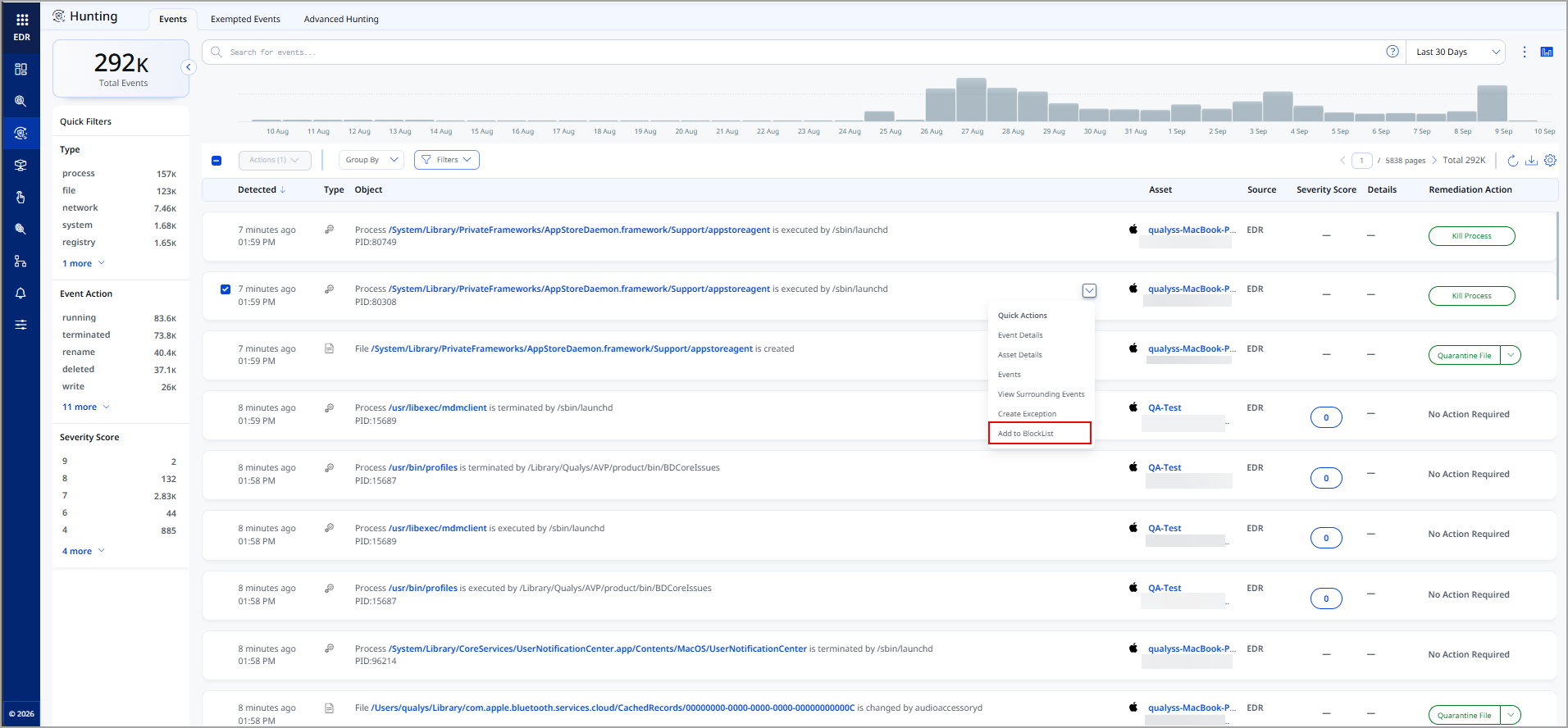
- Click the Quick Actions menu of the event whose object you want to block, and then select Add to BlockList.
The Add To Blocklist dialog opens with the Type and Object of the event, and the profile associated with the asset that the event came from. - Select the profiles to apply the block to. You can select one or more profiles, or all your profiles. Only profiles with the corresponding blocking configuration enabled are listed.
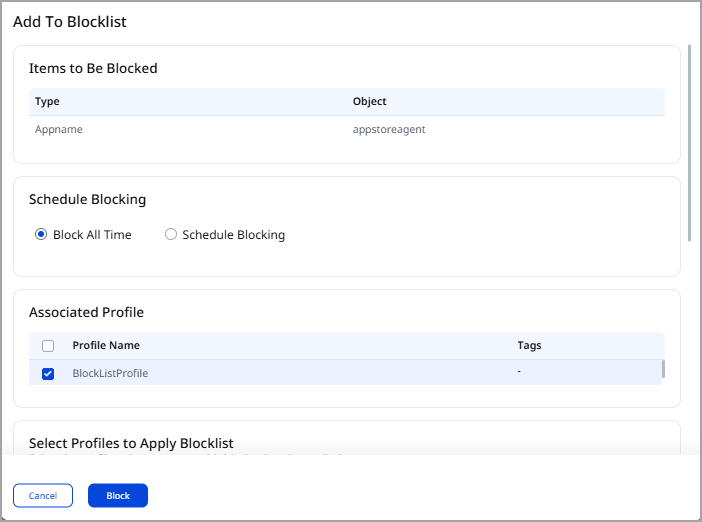
- For an Appname, choose when the application is blocked:
- Block All Time: the application is blocked at all times.
- Schedule Blocking: the application is blocked only on the days and during the hours you select.
- Select Save.
The entry is added to the blocking configuration of each profile you selected, and is enforced the next time the profile is delivered to the assets it applies to.
View or Remove a Blocklist Entry
The entries you add from the Hunting page appear in the blocking configuration of the profiles you selected, alongside the entries added in the profile itself. To review or remove them, go to Configuration > EDR Profiles, open the profile, and then go to its blocking configuration.