Block Connection Remediation
The Block Connection feature instantly restricts communication with a specific active IP address detected in network events. It blocks an active IPv4 or IPv6 connection and allows the action to be reversed later through Unblock Connection. This capability is built using the existing remediation framework, combining Indicator of Compromise (IOC) remediation and Shared Remediation services. This prevents further communication with the IP address and helps restrict activity related to potential threats or undesired network behavior.
This feature provides the flexibility to block unwanted or suspicious communication and restore connectivity whenever needed. Also, it improves control efficiency while maintaining clear traceability for all block and unblock operations.
Minimum Cloud Agent Version Requirements
To enable block connection, ensure that the installed agent meets the minimum version requirements:
| Agent | Supported Version |
|---|---|
| Windows | You can block a connection if the Windows Agent Version is 6.5.1 and above. |
Understand IP connections blocked
IP connections are blocked to:
- Prevent Damage: Blocks IP connections to stop communication with malicious infrastructure, thereby preventing further harm.
- Protect Data: Blocks the compromised IP address to prevent unauthorized data transfer and help safeguard sensitive data.
- Allow Analysis: Allows time for you and your team to analyze the connection and determine whether it is malicious or a false positive.
Block Connection
To block a network connection, perform the following steps:
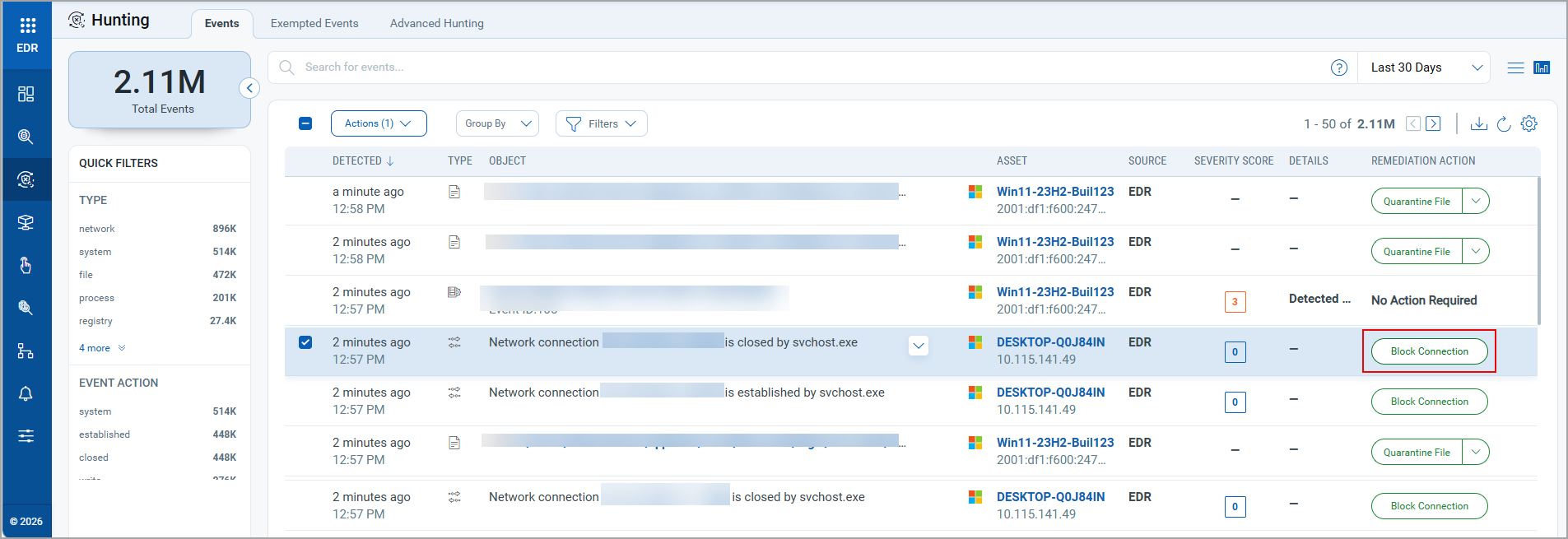
- Navigate to Hunting > Events > identify the suspicious event associated with the IP address that you want to block, and click Block Connection in the Remediation Actions column.
The Block Connection window is displayed, showing the score, connection type, and its IP address.
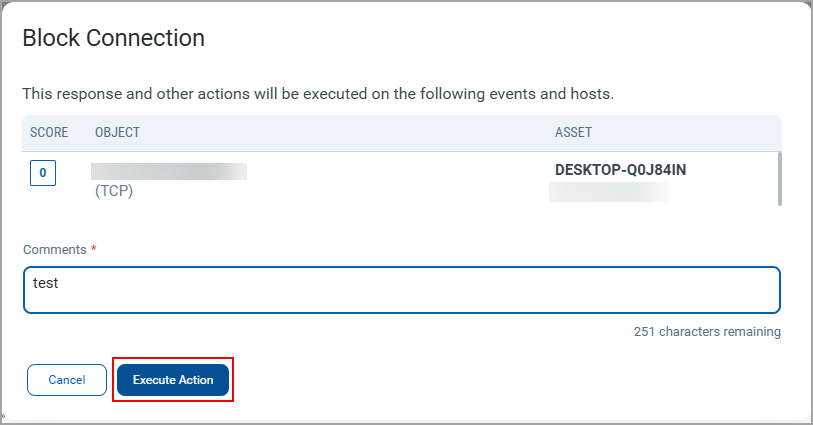
- Add comments in the Comments section, and click Execute Actions.
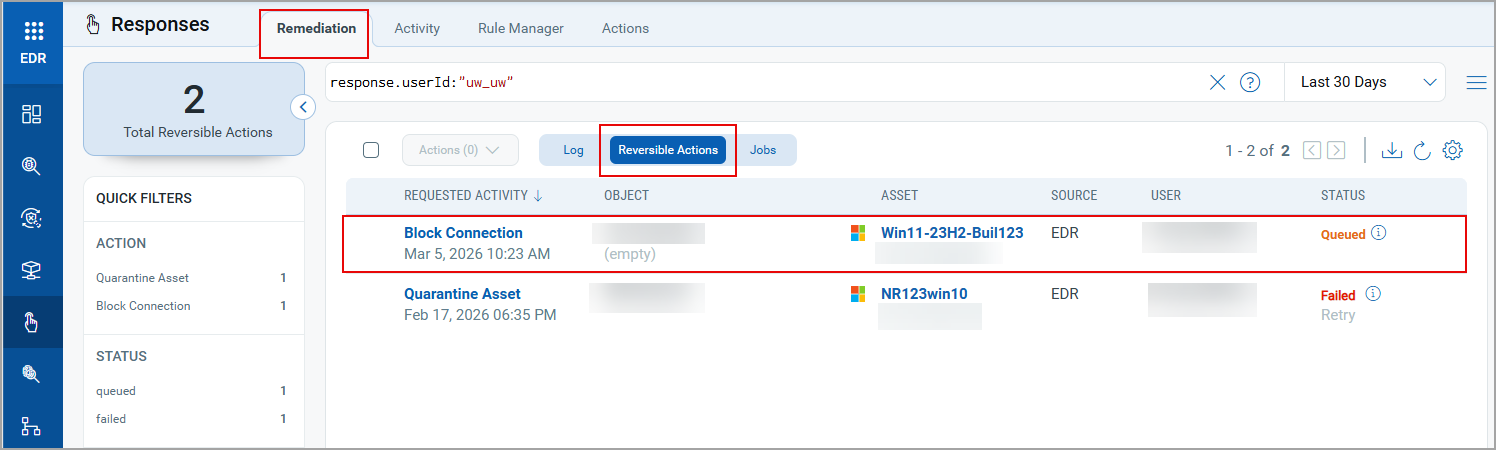
The remediation action request shows a Queued status, and the same entry is listed on the Responses tab.
The request status shows three statuses: Queued, Success, and Failed, depending on the Cloud Agent analysis. When the request status is Queued, the entry is visible under the Responses > Remediation > Log tab. Once the request status changes to Success, the Agent blocks network connections to the IP address, and the entry moves to the Reversible Actions tab.
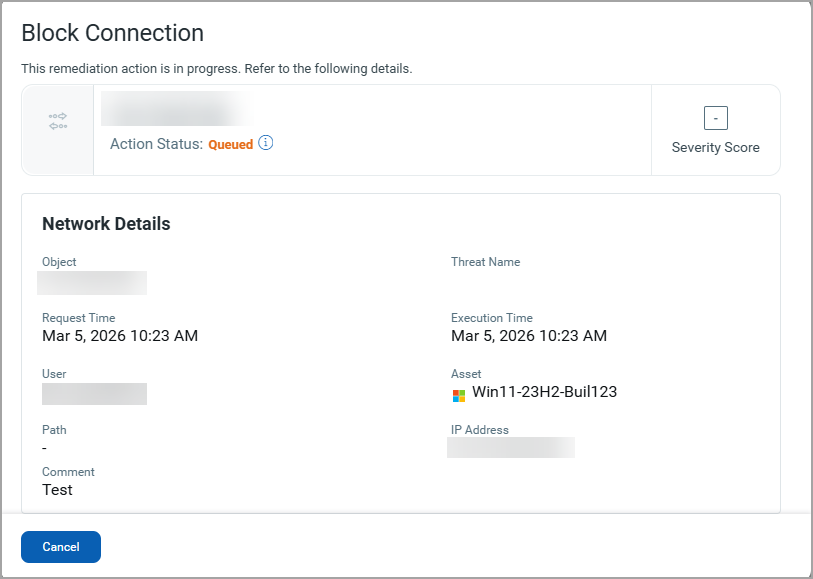
- Click the event record to view the pop-up that displays the remediation action details.
Bulk Block Connections
You can block multiple network connections at once using the Block Connection feature.
To block multiple network connections, perform the following steps:
- Navigate to Hunting > Events > select multiple events that you want to block > Actions > Block Connection.
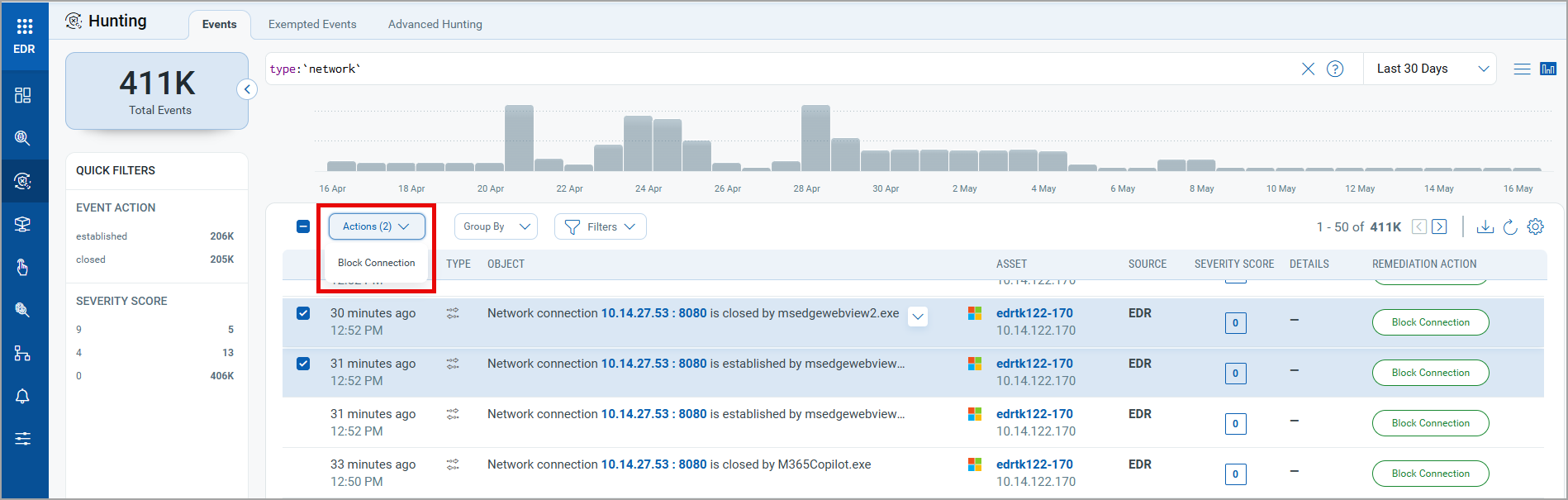
The Block connection window displays the listed connections to be blocked.
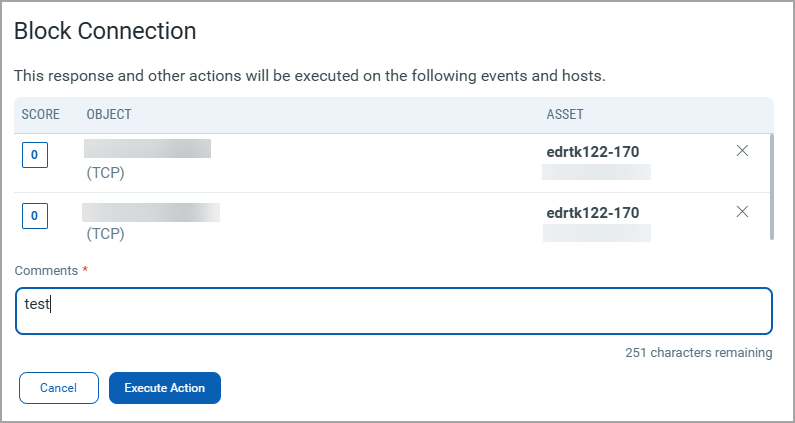
- Enter comments in the comment section, and click Execute Action.
All the block connection request entries are listed individually under the Responses > Remediation > Log tab.
Unblock Connection
The blocked event will also be visible in the Response tab under Logs. To unblock the blocked network connection, perform the following steps:
- Navigate to Responses > Remediation > Reversible Actions.
- Select the Unblock Connection option in the Status column of that particular event.
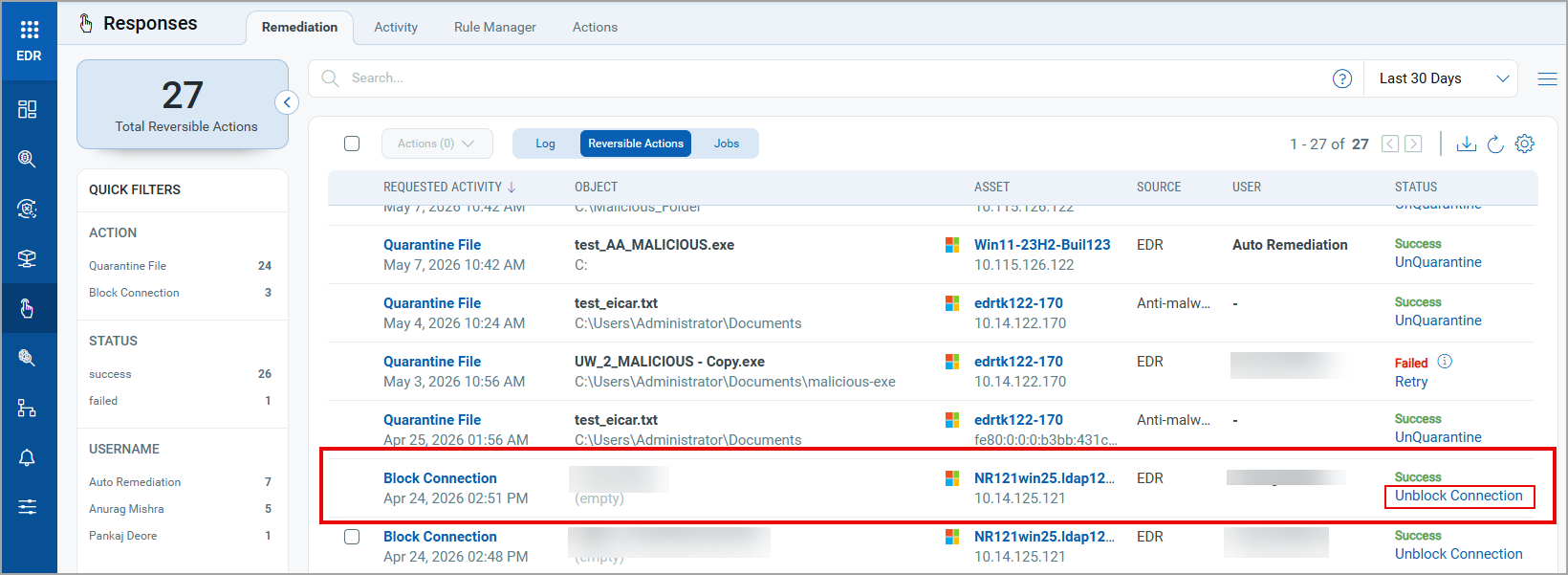
- In the Unblock Connection window, add a comment, and click Execute Action.
To unblock bulk connections, select the checkboxes of the required events, click the Actions tab, and select Unblock Connection.