EDR Release 3.8.1
January 18, 2026
Anti-malware Granular Notifications
We have introduced a new enhancement to Notification Settings, where you can manage the notifications that appear as background pop-up alerts. Previously, enabling notifications, you used to get the pop-up alerts from all the feature groups, and disabling the notifications stopped all the pop-up alerts. Now, you can select the feature groups at the granular level to receive pop-up alerts that you want to see.
To view the Notification Settings, go to Configurations > New Profile > click the  Notification Settings.
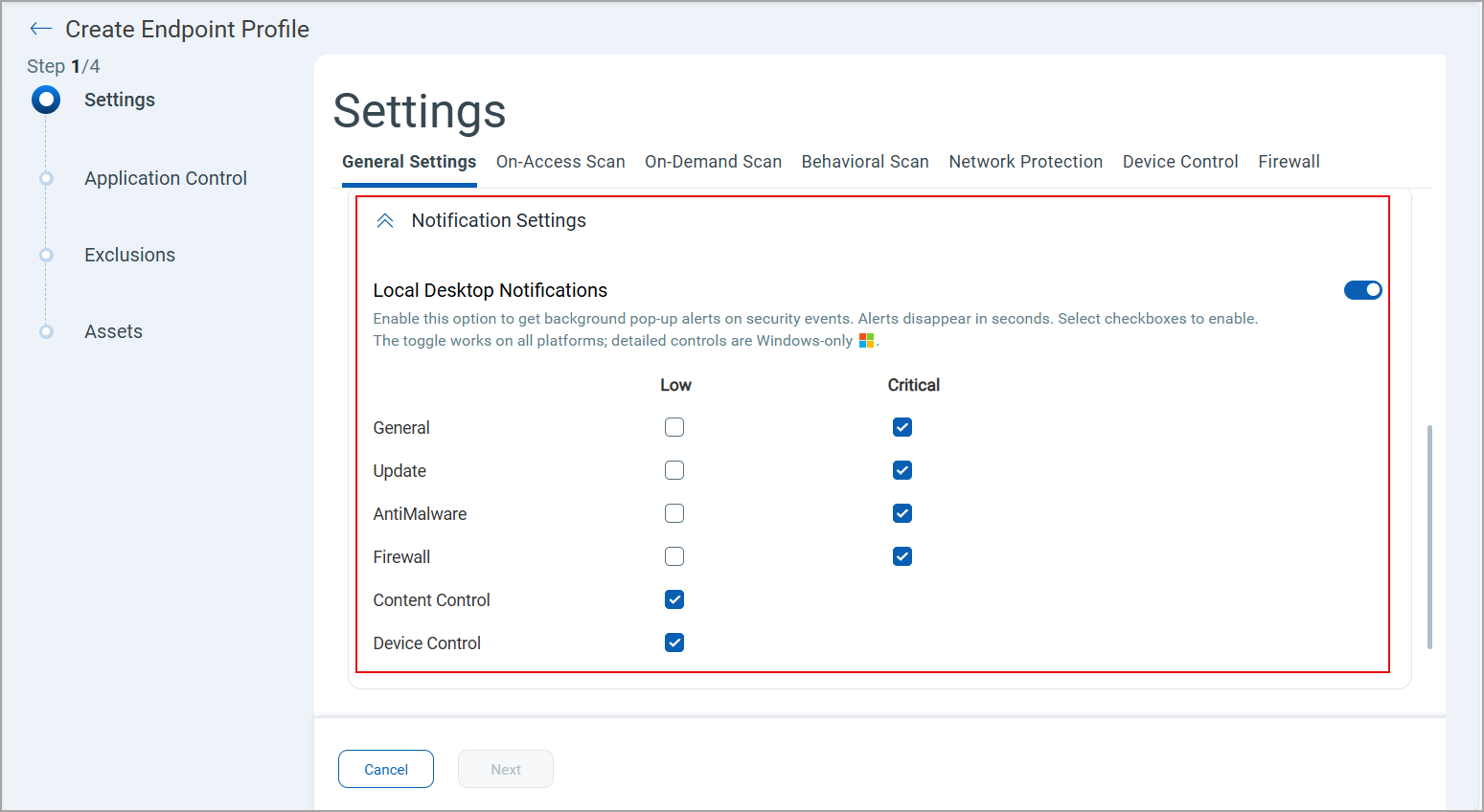
Using the check boxes, you can set the severity of notification alerts to either Low, Critical, or both, for each feature group according to your preference.
Selecting Critical severity displays all critical pop-up alerts that have a severe impact on the system, while selecting Low severity displays low-level pop-up alerts that have a minimal impact on the system.
Key Benefits
- Improved user control: Choose only the alerts that are relevant to you.
- Enhanced user experience: Ensures critical alerts are never missed while still providing flexibility for informational updates.
- Better operational efficiency: Saves time by reducing distractions from non-essential alerts.
This enhancement is only available on Windows operating systems.
Enhancements in Email Alerts
This release marks the following new enhancements and permission in Email Alerts:
Active Threat Alert Email Notifications
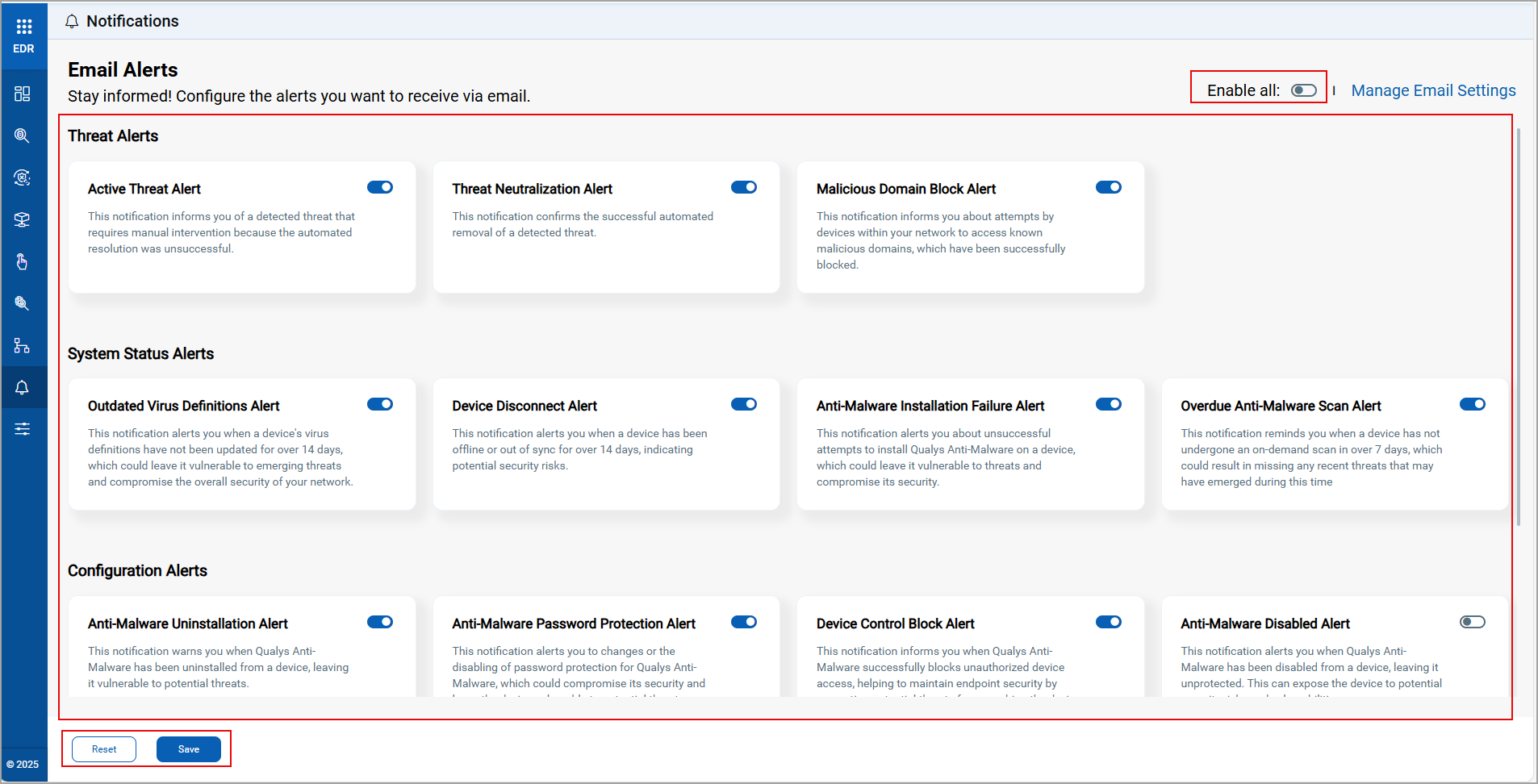
In this release, we have enhanced Active Threat Alert Email Notifications, enabling you to receive email notifications for threats with a high-risk score. This enhancement improves visibility into malicious activities and enables quicker response.
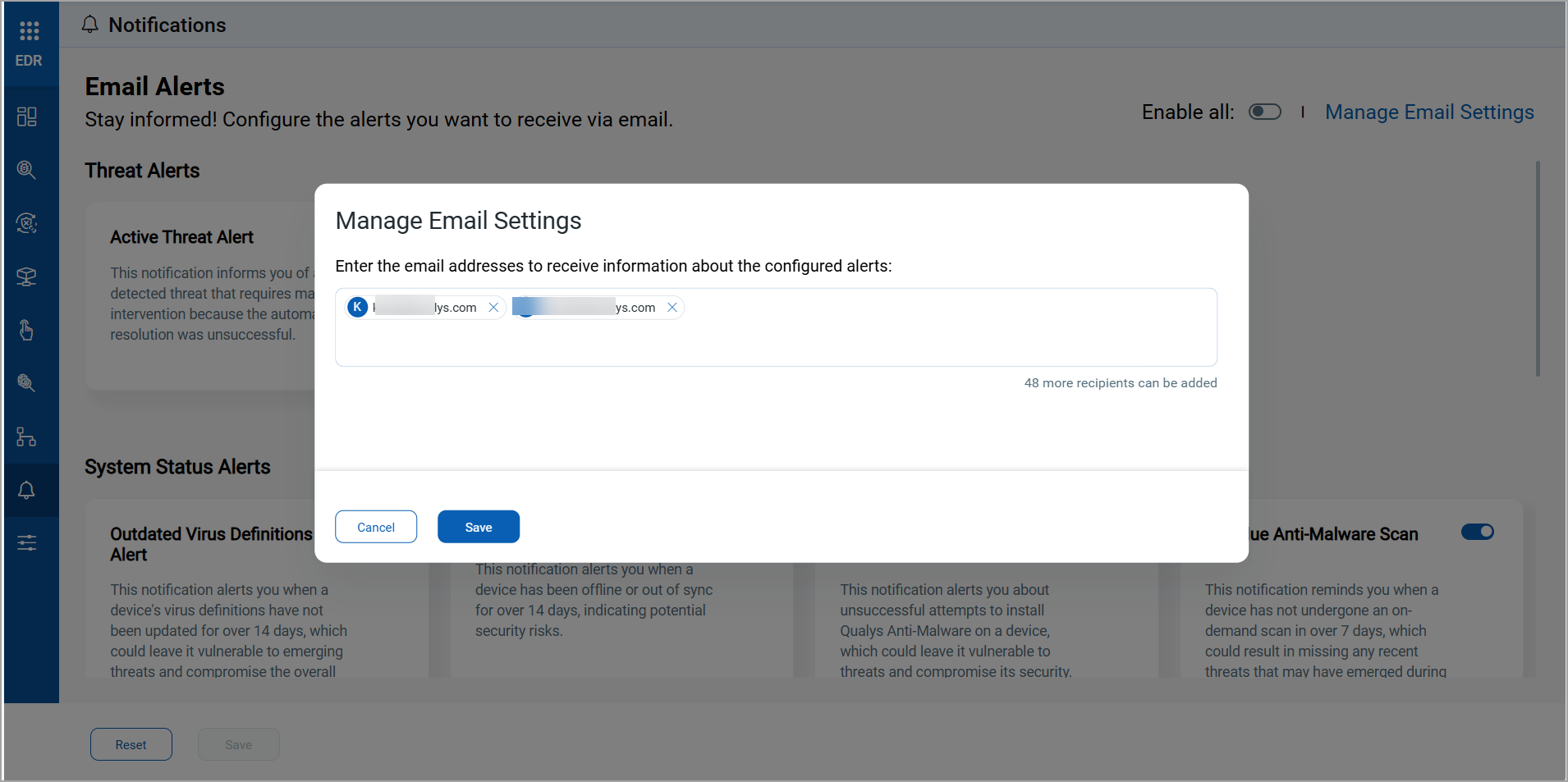
To receive the active threat email alerts, enable the Active Threat Alert from the Notifications tab, and add your email ID in the Manage Email Settings.
Highlights
- Trigger conditions: You receive email threat notifications when the high-risk threat events reach to a score equal to or greater than 4.
- Notification frequency: You receive a maximum of five email alerts with a four-hour cooling period that starts before new alerts are sent.
- Email details: The email includes a list of threat events, detection time, severity score, and the event link, View Event for each event.
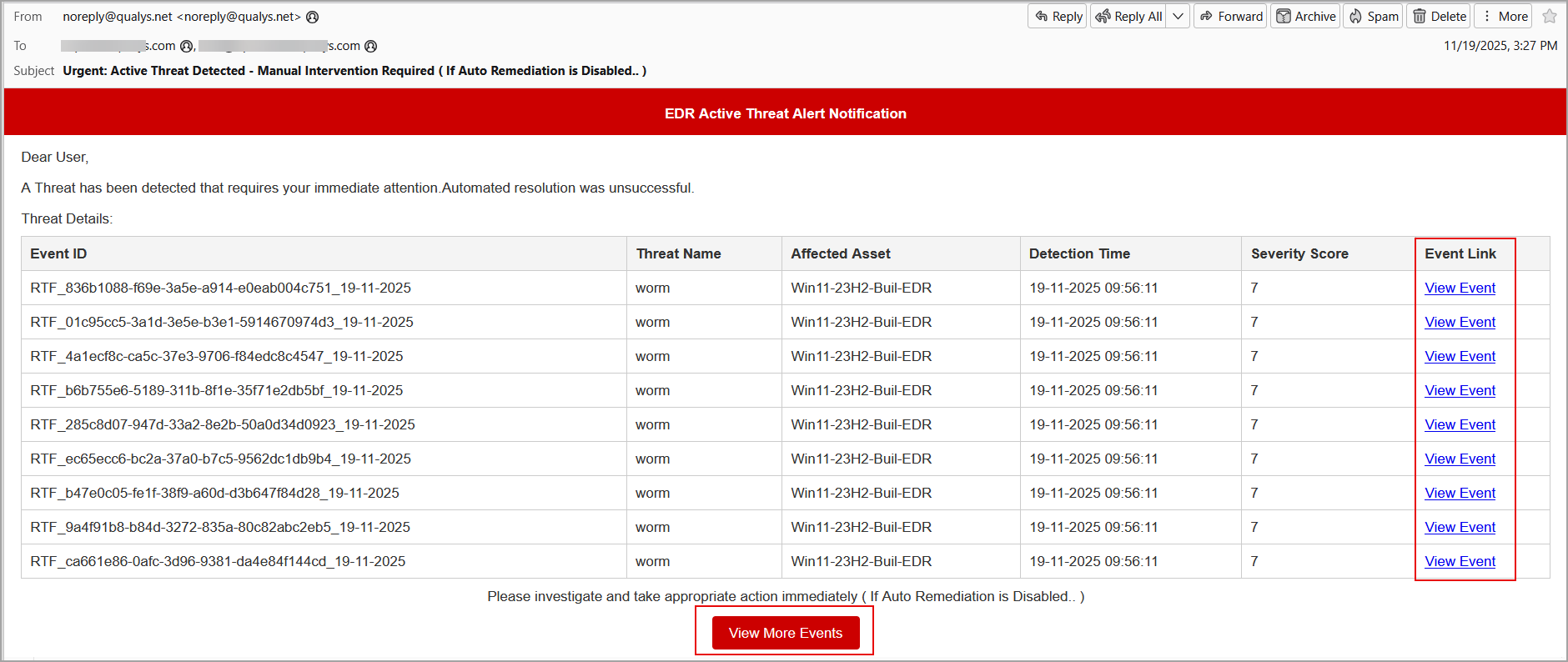
After selecting the View Event option, you are directed to the event details page, where you can quarantine or delete the event, or you can kill the process itself.
To view more events, click View More Events, and you are redirected to the Hunting tab, where you can take action against the threat event.
Daily Asset Notification Optimization
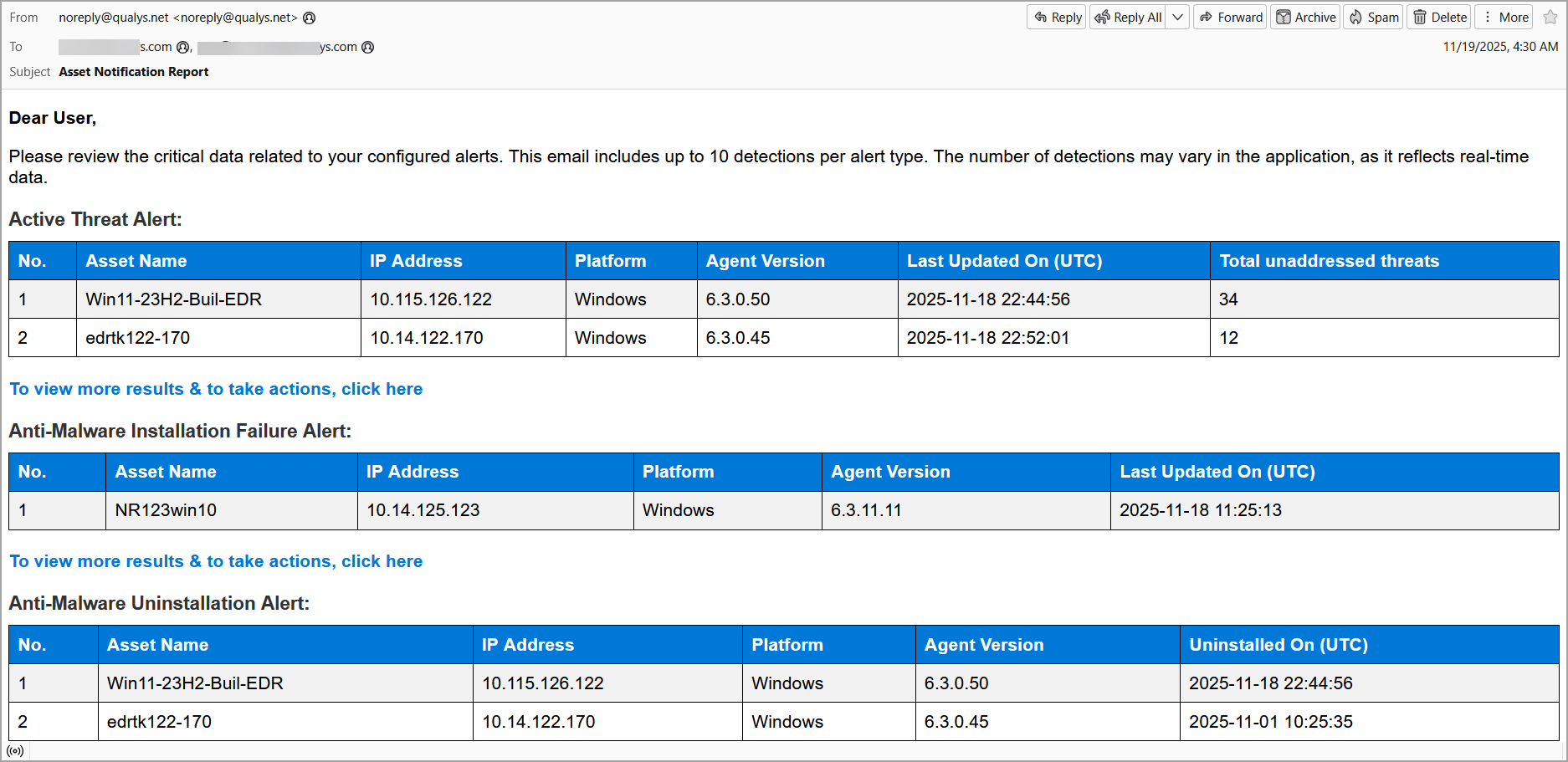
We have introduced an enhancement by optimizing the Daily Asset Notification. Previously, a daily asset notification was sent that showed all the events detected on the assets repeatedly, leading to alert fatigue and making it harder to prioritize critical issues. Now, due to optimization, you receive only the new asset notifications daily, rather than receiving repetitive and duplicate event data. This reduces unnecessary notifications, avoids user fatigue, and provides better visibility into asset-level threats.
New Permission: Notifications Edit
We have added a new permission, Notifications Edit for Email Alerts, that allows the sub-user to enable the toggles and action buttons on the UI. The admins can provide this permission to sub-users.
To access the permission, navigate to Admin > Role Management > select your EDR role > click Actions > Edit > Permissions.
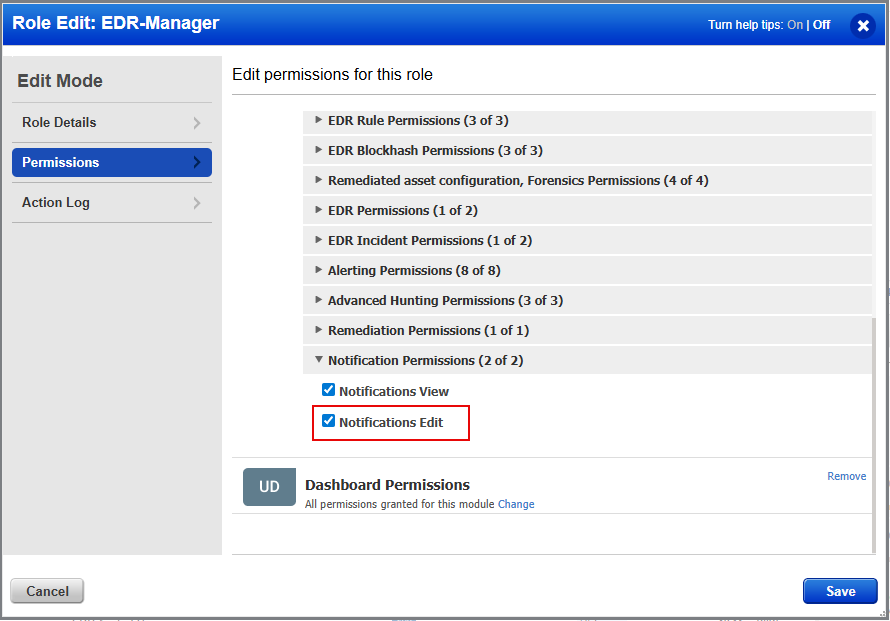
With this permission, the sub-user can enable all the toggles and action buttons on the Email Alerts UI.
Added New Permission: Actions View
We have added a new permission, Actions View, that provides visibility access to the Actions tab under the Responses page to sub-users. The admins can provide this permission to their sub-users.
To access the permission, navigate to Admin > Role Management > select your EDR role > click Actions > Edit > Permissions.
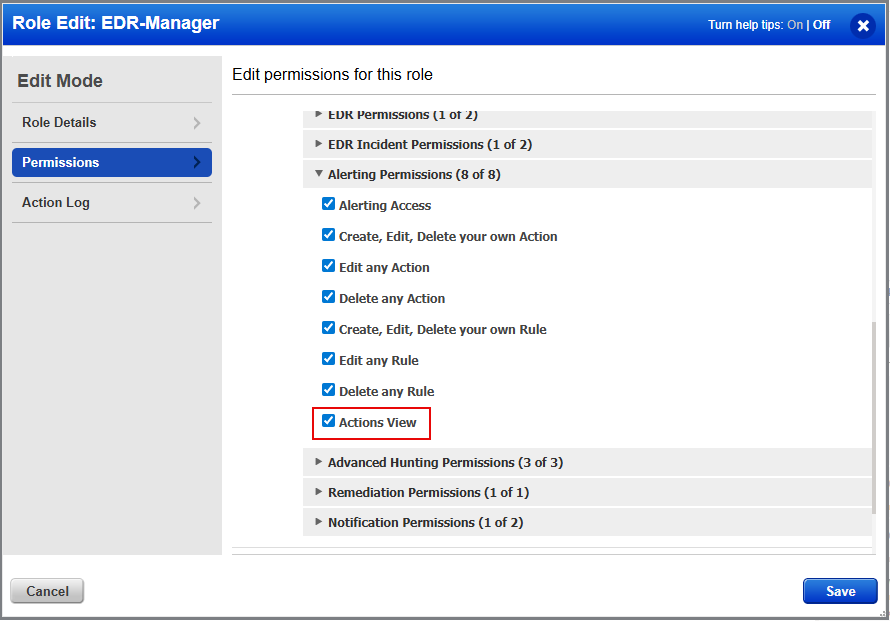
With this permission, the sub-users can view the Actions tab under the Responses page.
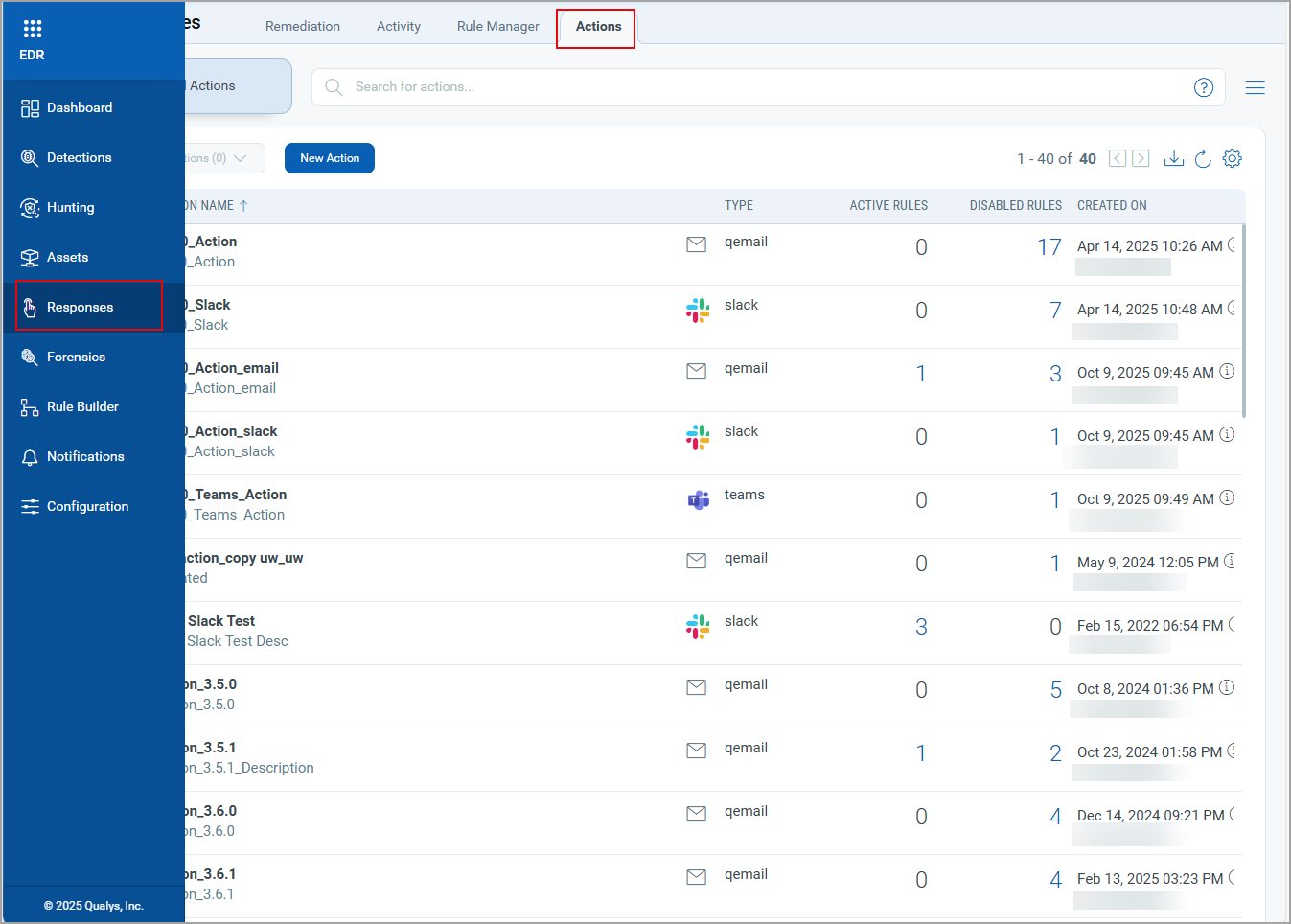
The Actions View permission is only applicable to the EDR module. In other modules, you can view the Actions tab by default.
Apply Profile on Assets
With this release, the Apply Profiles on Assets functionality is now available. This feature allows you to apply new or existing profiles to your assets quickly and efficiently.
You can apply the new or an existing profile to your assets from the Quick Actions menu. Perform the following steps to apply profiles on assets:
- Navigate to the Configuration tab.
- Hover the mouse over the profile you want to apply on assets.
- Click the drop-down arrow and click Apply Profiles on Assets from the Quick Actions menu.
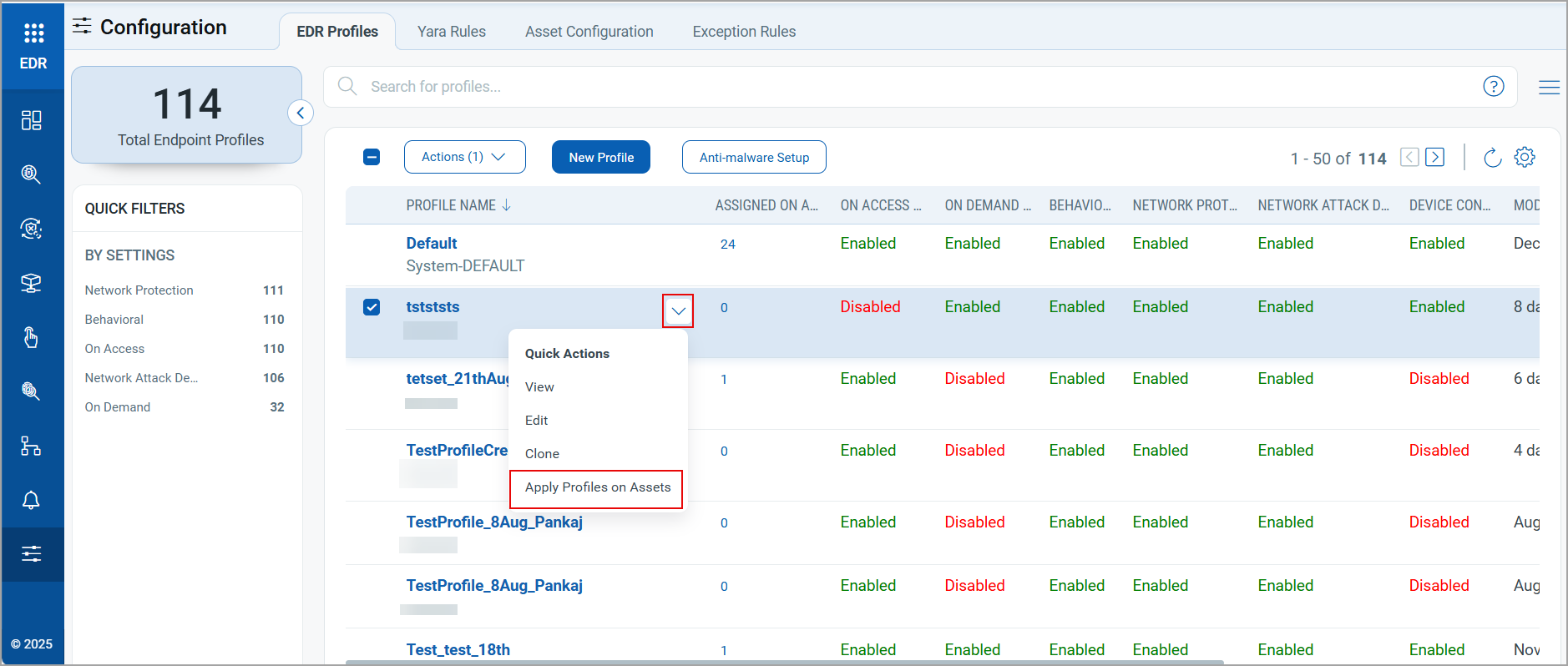
You are directed to the Assets tab.If a tag is not added to the profile, the Apply Profiles on Assets option is disabled.
- Select the checkboxes of the Assets on which you want to apply the profiles.
- From the Actions menu, select Apply Anti-malware Profile.
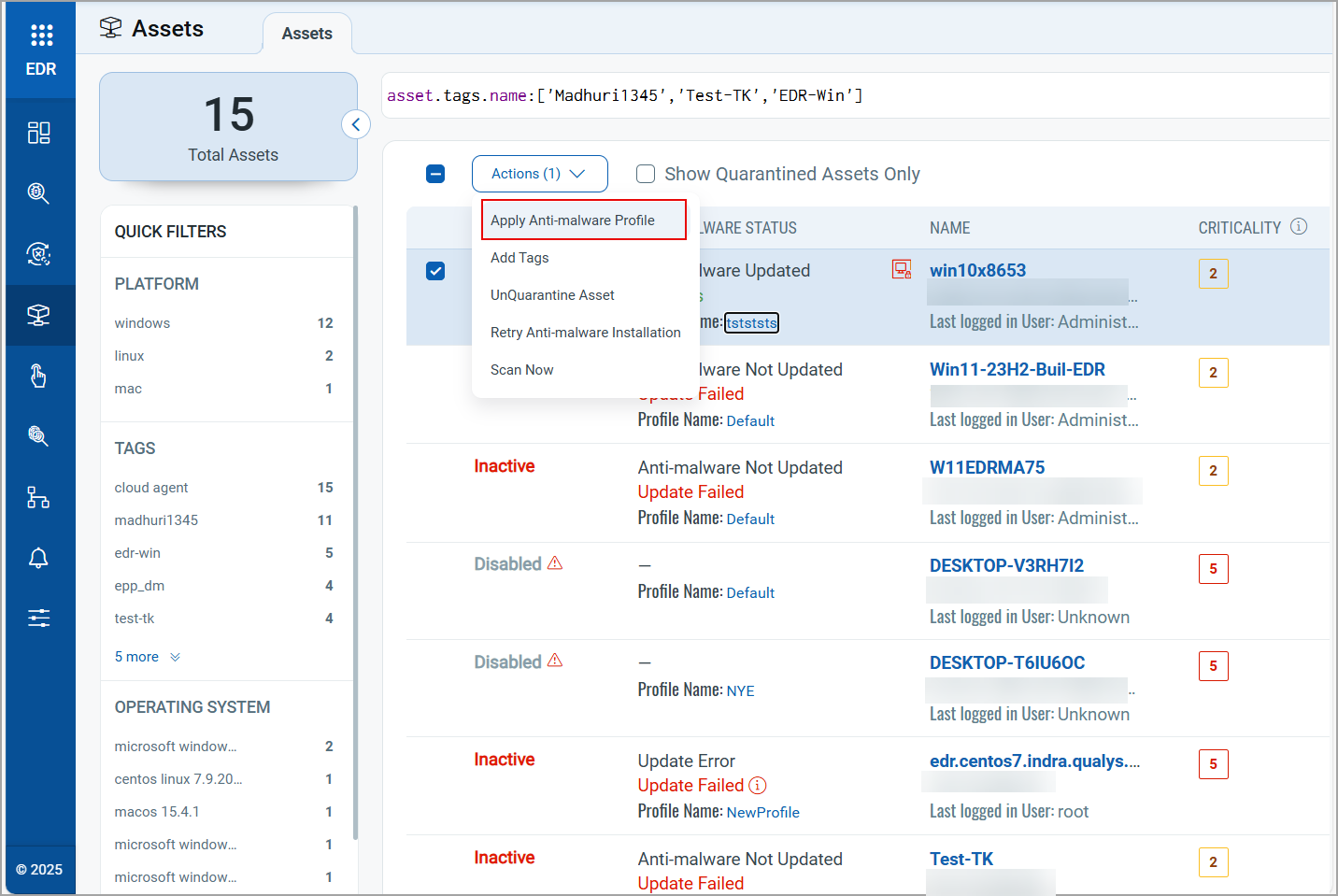
- Once the profile is applied to the asset(s), you are redirected to the Configuration tab.
A notification is generated once the profile is applied to the Assets.