EDR Release 3.8.2
March 25, 2026
Introduced Forensics Collection Support for Linux
With this release, we have extended forensic data collection capabilities to Linux assets. Until now, forensic collection was available only for Windows. This enhancement enables you to conduct a deeper investigation of Linux systems by gathering detailed system-level and process‑level forensic data.
Supported Agent version and Forensics type
| Platform | Supported Version | Supported Forensics |
|---|---|---|
|
Linux |
Qualys Cloud Agent 7.4.0 and later |
System Forensics and Process Dump |
To access this feature, navigate to Forensics > Forensics Collection > Request Forensic Data.
The following screenshot displays the two forensic collection types supported for Linux assets: System Forensics and Process Dump.
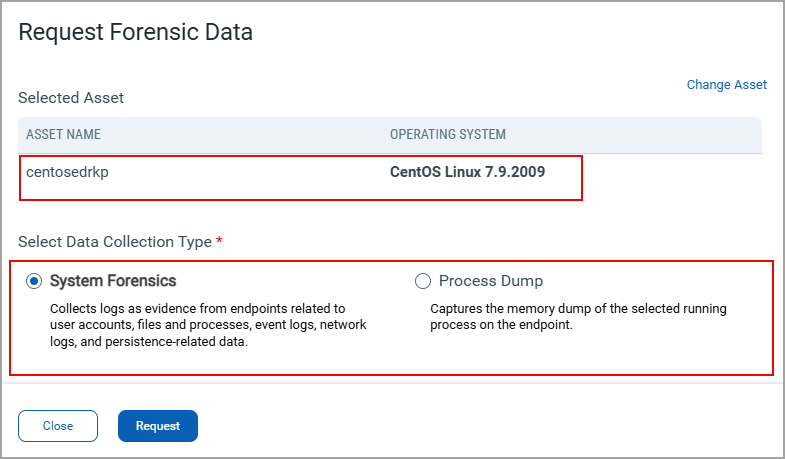
For more information about how forensic data is collected for Linux assets, refer to Request Forensic Data for Linux assets.
Enhanced Incident Assignee Display
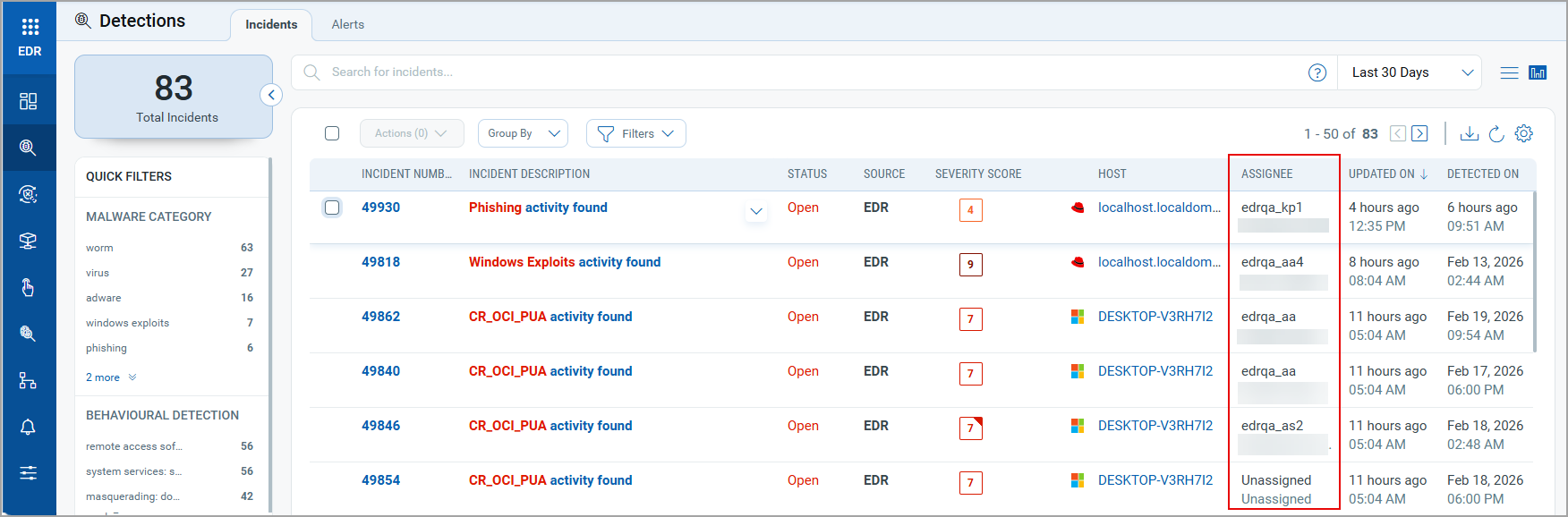
The Assignee column now displays the assignee's full name along with their username on the Incidents tab. Previously, the Assignee column displayed only usernames, which made it harder to identify the assigned user. This enhancement improves clarity and makes it easier to recognize assignees when managing multiple incidents.
To view the Assignee column, navigate to Detections > Incidents.
Introduced Password Prompt Support for Encrypted or Protected Files
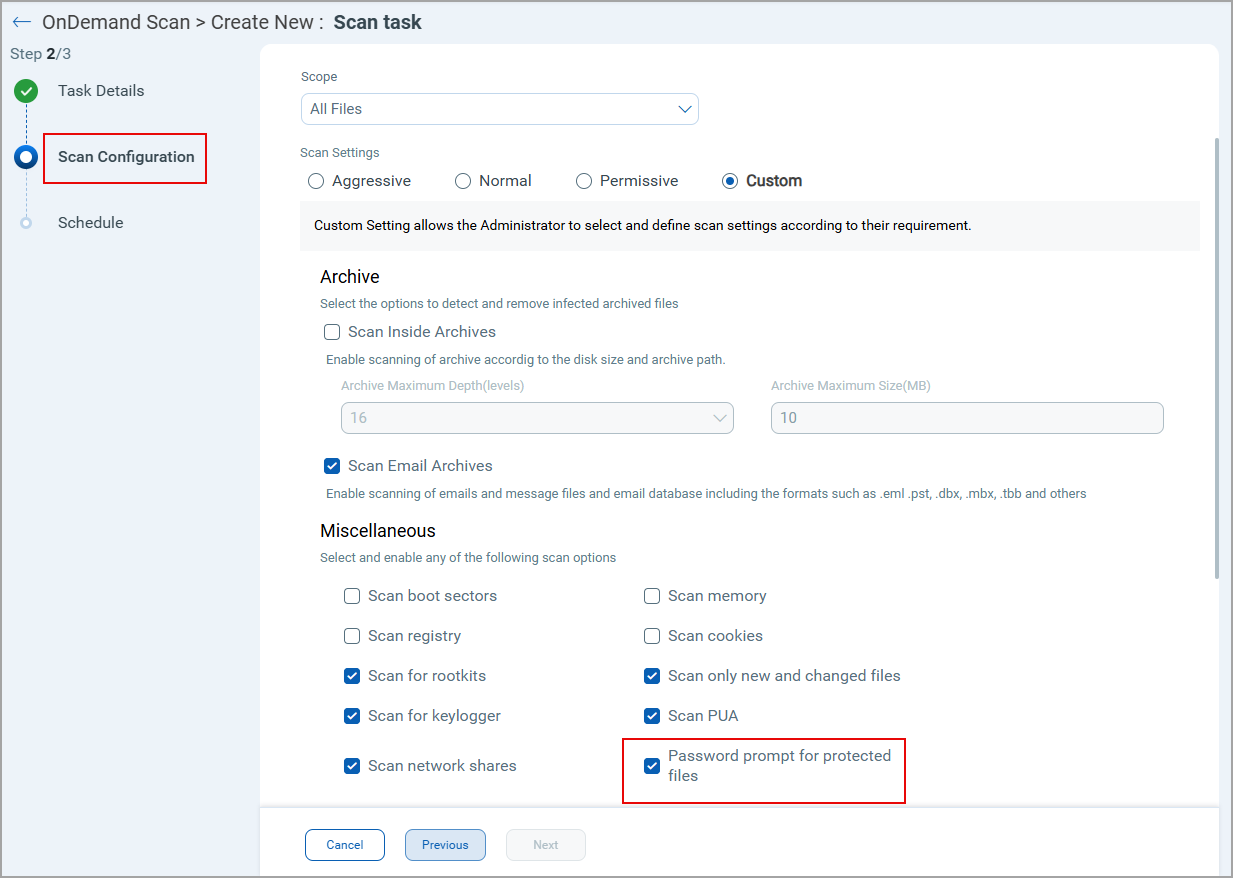
This release includes a new capability in the On‑Demand Scan settings that lets you to configure the password prompt for password-protected files. Previously, there was no configurable option in the On-Demand Scan settings for handling encrypted or password‑protected files. With this release, you can enable or disable the password prompts as needed, giving you greater flexibility and control over your scan experience.
This feature is accessible under the EDR profiles > On-Demand Scan > Scan Configuration.
Key Highlights
- By default, this feature is disabled. Scans run without prompts, and protected files are skipped silently.
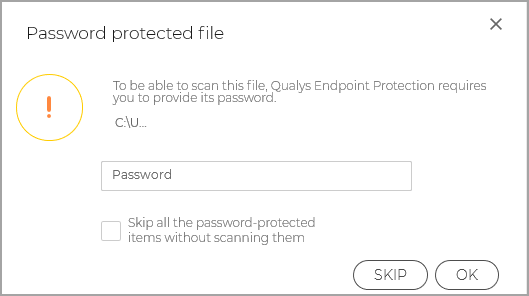
- Once you select the Password prompt for protected files option, you receive an alert message prompting you to enter the password whenever it encounters a protected file or a ZIP archive.
- You may perform one of the following options:
- Enter the password so the scanner can analyze the file
- Select the Skip option in the prompt to skip that specific file
- Select the Skip all password‑protected items without scanning them option for the rest of the scan.
The following screenshot is an example of the alert message that you get on your system during scans, prompting you to enter a password for password-protected files: