AD Attack Path Rules
Active Directory attack paths are chains of excessive or misconfigured permissions that allow a low-privilege user to escalate to high-value targets such as Domain Admins. ETM Identity's Attack Path Analysis (APA) engine traces these chains by computing the graph of ACL-based relationships across users, groups, computers, GPOs, OUs, and the domain itself.
The eleven rules documented here each represent a specific edge type in that graph; a class of permission assignment that, when granted inappropriately, provides a direct step toward privilege escalation. When multiple such edges chain together, they form a complete attack path from a compromised entry point to a sensitive target.
Common Remediation Steps for APA Rules
All Rules mentioned here follow the same remediation pattern:
- Identify the source and target in Qualys APA,
- Locate the object in Active Directory
- Remove the offending permission,
- Re-run Attack Path Analysis to confirm the edge no longer appears in the graph.
Currently, we support the following 11 permissions.
Permissions
The following is the list of supported permissions:
| Sr. No. | Permission | Description |
| 1 | AllValidateWrite Permission | Allows modifying all validated attributes that require AD integrity checks before being written. |
| 2 | WriteOwner Permission | Allows changing the owner of an Active Directory object. |
| 3 | CanForceChangePassword | Allows resetting another user's password without knowing the current password. |
| 4 | AdOwner Permission | Indicates ownership of an AD object, allowing the owner to modify its permissions. |
| 5 | AllExtendedRight Permission | Grants all extended rights on an object, including special operations such as password resets. |
| 6 | AddMembers Permission | Allows adding users, groups, or computers to a group. |
| 7 | GenericAll Permission | Grants full control over an object, including modifying attributes, permissions, and ownership. |
| 8 | GenericWrite Permission | Allows modifying most writable attributes of an object. |
| 9 | WriteDACL Permission | Allows changing the object's access control list (ACL) and assigning permissions to others. |
| 10 | DCSync Permission | Allows replicating directory data, including password hashes, as if acting as a Domain Controller. |
| 11 | WriteSPN Permission | Allows modifying Service Principal Names (SPNs) associated with an account. |
Rules and Use Cases
Based on the above permissions, following are the rules and use cases:
Detected Excessive AllValidatedWrites Permission on AD Object
This finding identifies when a security principal has AllValidatedWrites permission on an Active Directory object. Validated writes allow modification of specific attributes while bypassing certain security checks. This permission can be abused to manipulate attributes that impact authentication or delegation. Misuse weakens directory integrity and trust boundaries.
Remediation
To remediate this security risk, review the assignments of the AllValidatedWrites permission. Ensure these rights are granted only to trusted services or administrative roles. Remove unnecessary permissions that allow sensitive attribute manipulation. Audit attribute changes to ensure expected behavior.
Step 1: Identify the User and Target Object in Qualys
For demonstration purposes, we are using users as Sam and George.
Follow these steps to identify the user and the target object:
- Identify the user account on which the AllValidateWrites rule is triggered (Example: Sam).
- Run Attack Path Analysis with Starting Object as George and Target Object as Domain Admins.
- Identify the attack path edge labeled AllValidateWrites connecting Sam > George > Domain Admins.
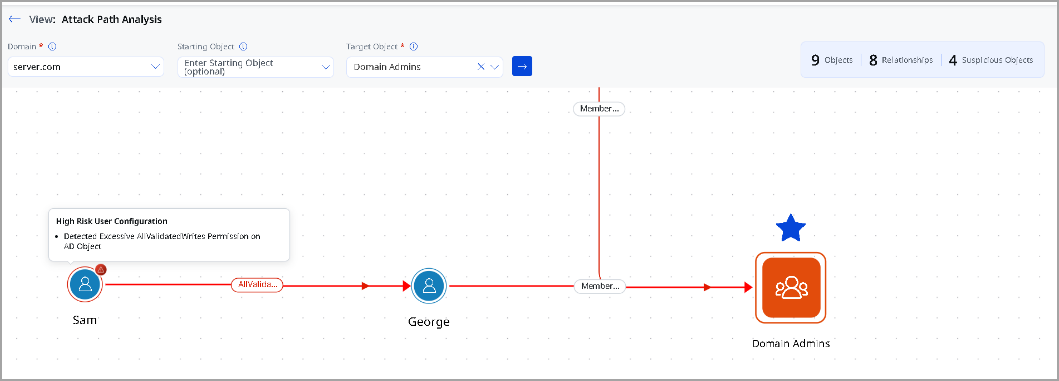
- Identify the user account on which the AllValidateWrites rule is triggered (Example: Sam).
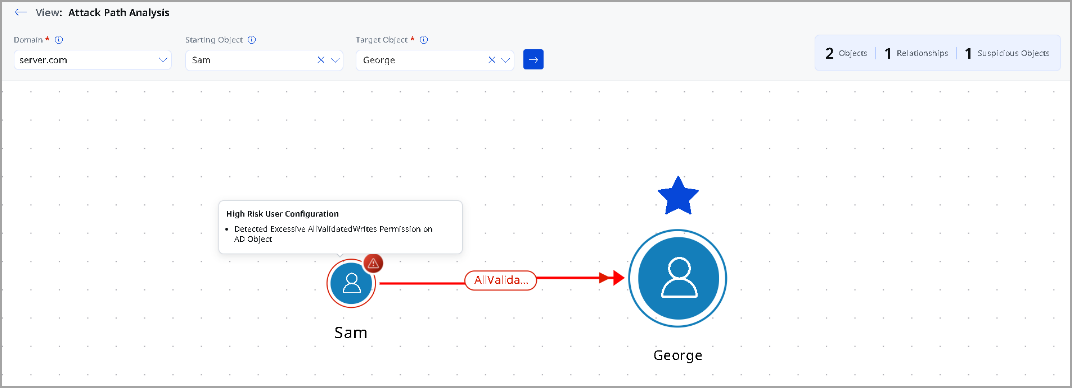
Step 2: Locate the Target Object in Active Directory
Follow these steps to locate the target object:
- Access the machine where your Active Directory Domain Controller is installed.
- From the Start option, open Active Directory Users and Computers.
- In the Active Directory Users and Computers window, locate the menu bar at the top.
- From the top menu bar, click the View menu.
- From the View list, click Detail.
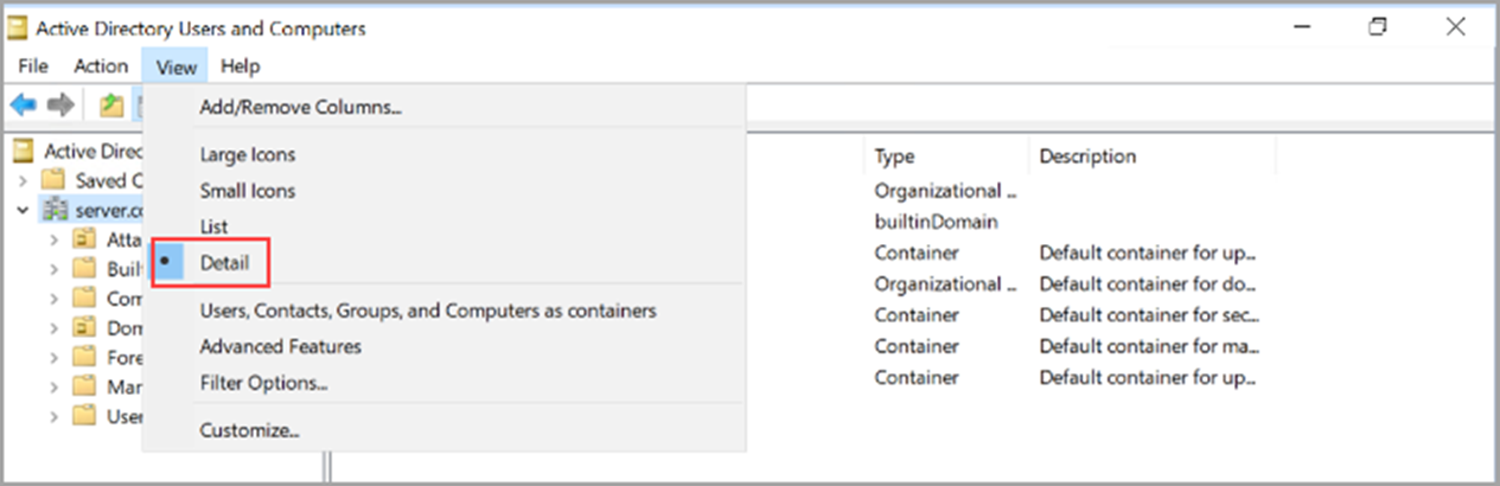
-
Details are displayed in the right pane.
-
From the Actions menu, click Find.
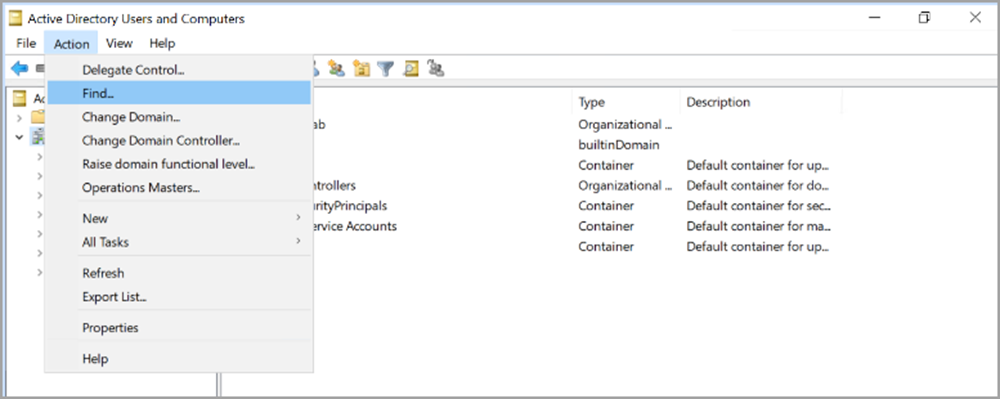
-
Locate the target user object identified in the attack path (Example: George).
In the Find Users, Contacts, and Groups window, type the Name and click Find Now.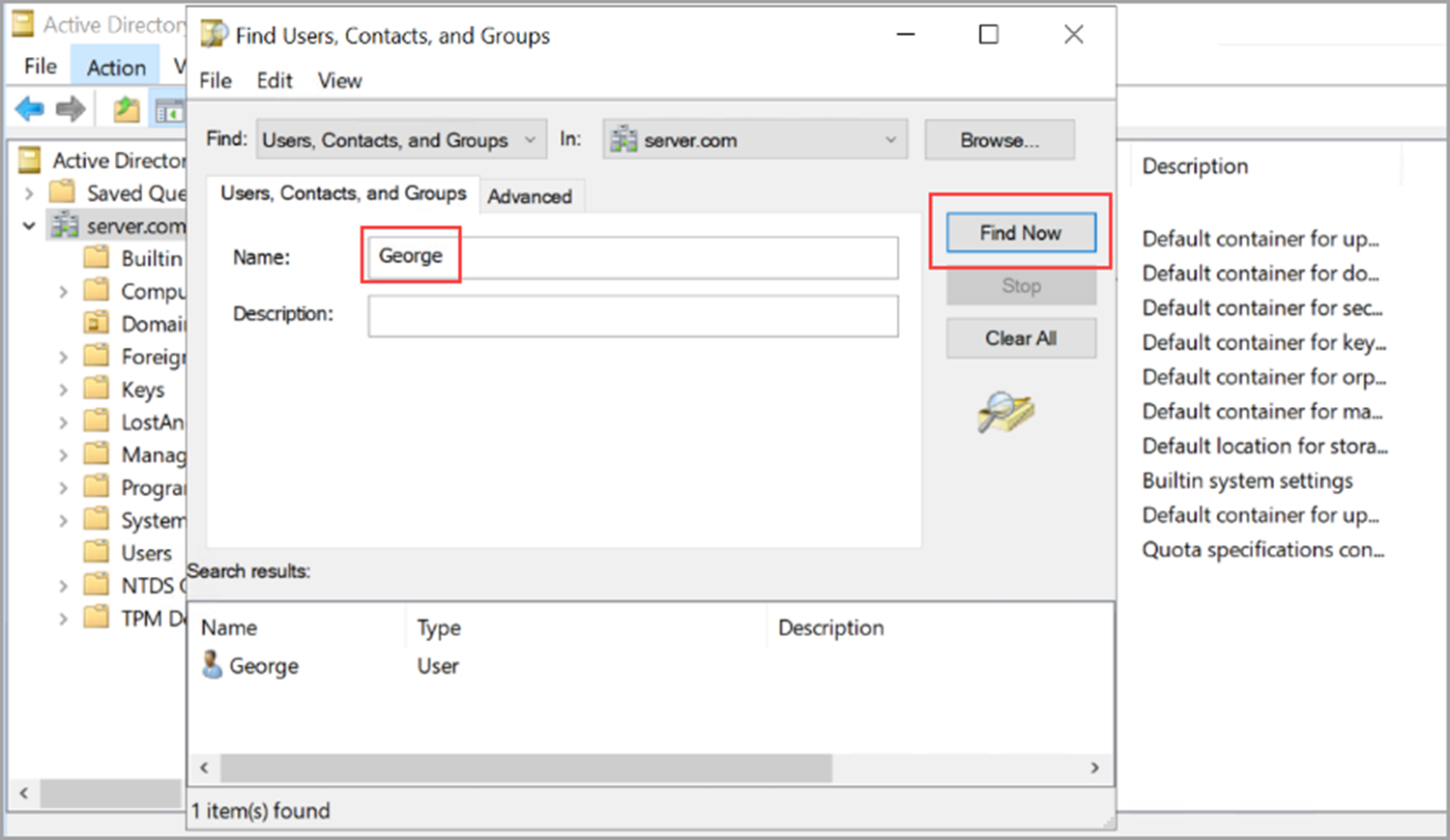
-
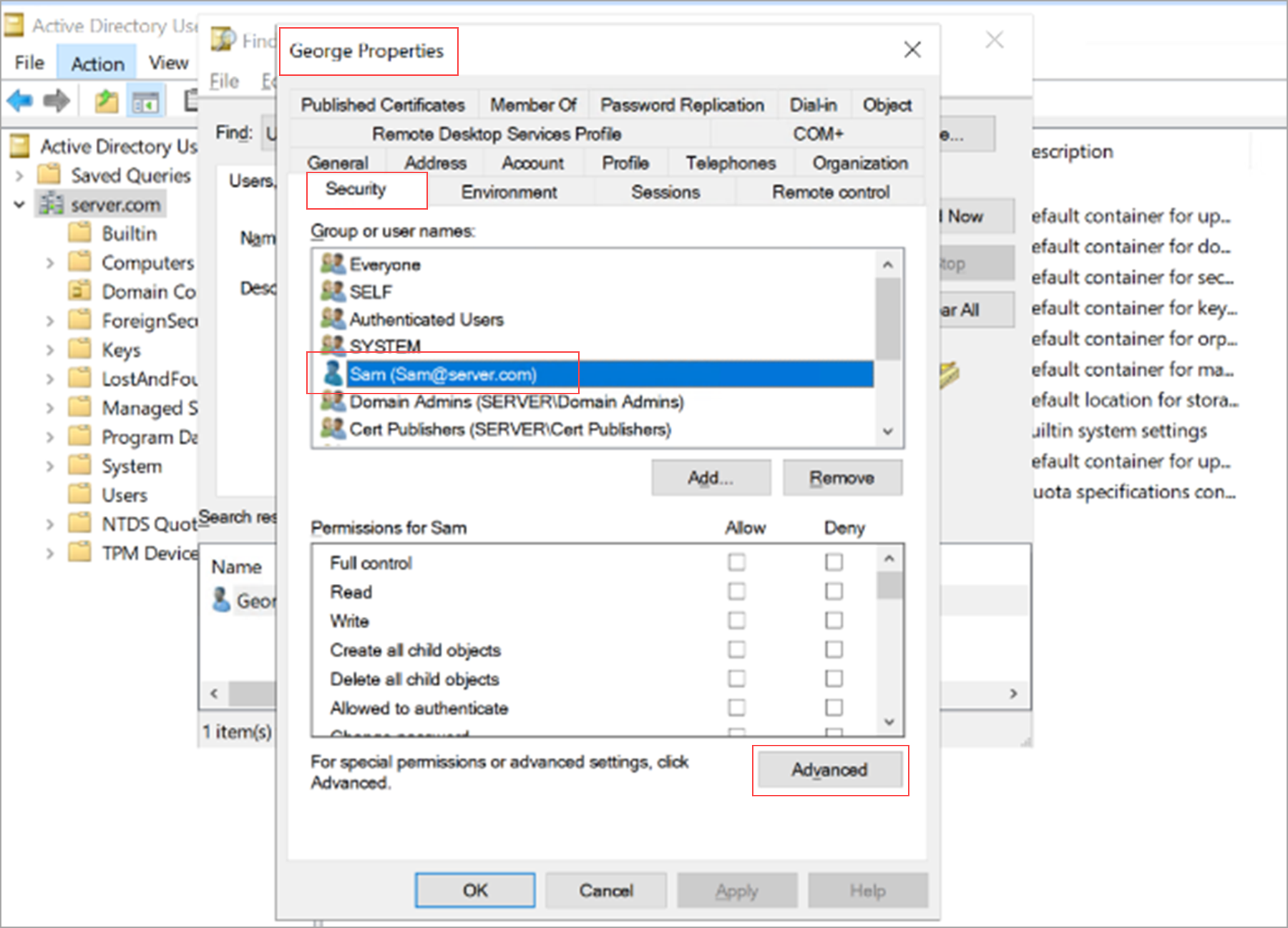
Right-click the user and select Properties.
-
From the user's properties, click Security, select user object as Sam from the Group or User names section, and then click Advanced for the user object Sam.
Step 3: Remove Validated Write Permissions
Follow these steps to remove validated write permissions:
- In Advanced Security Settings, locate the permission entry where Principal is Sam.
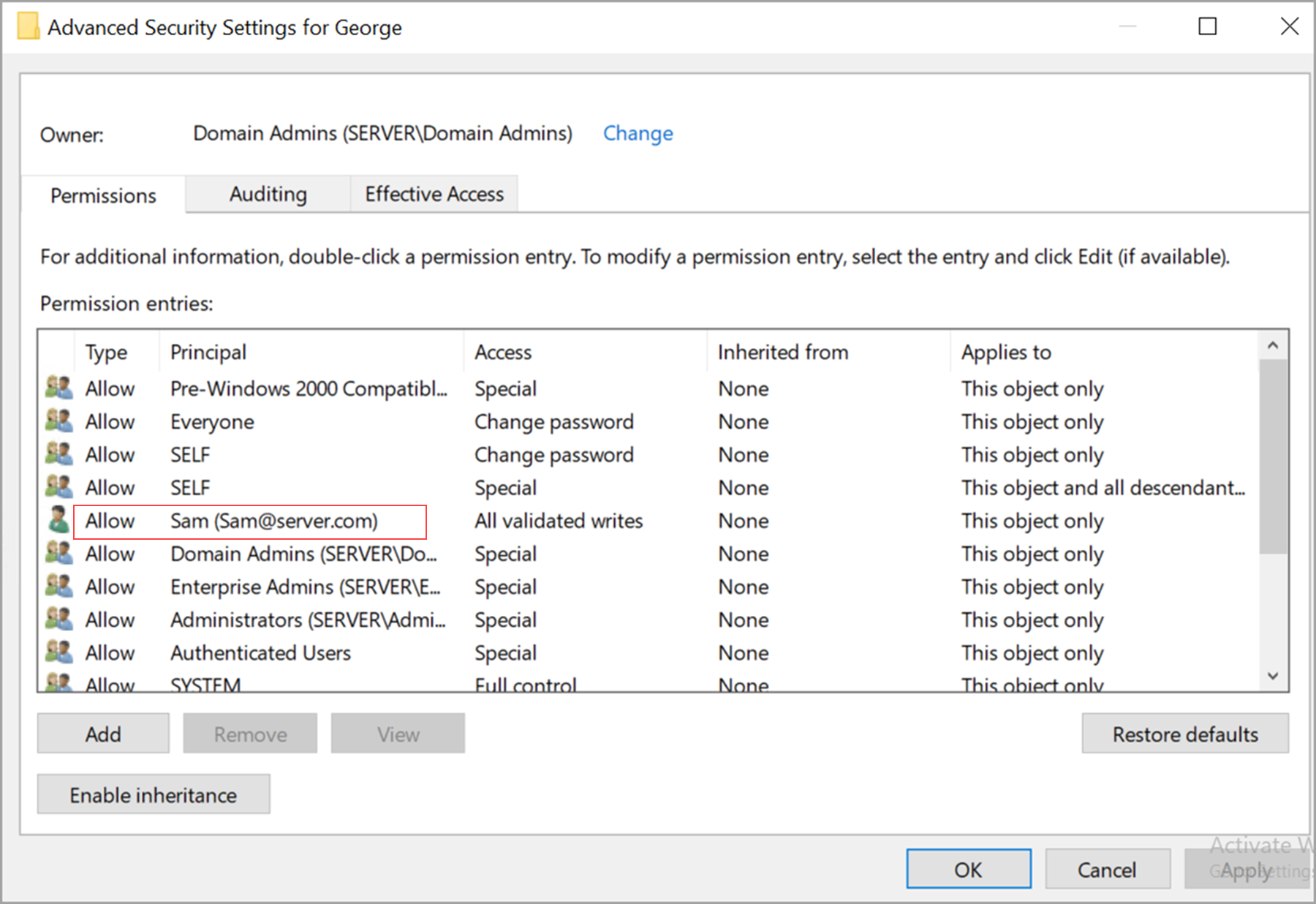
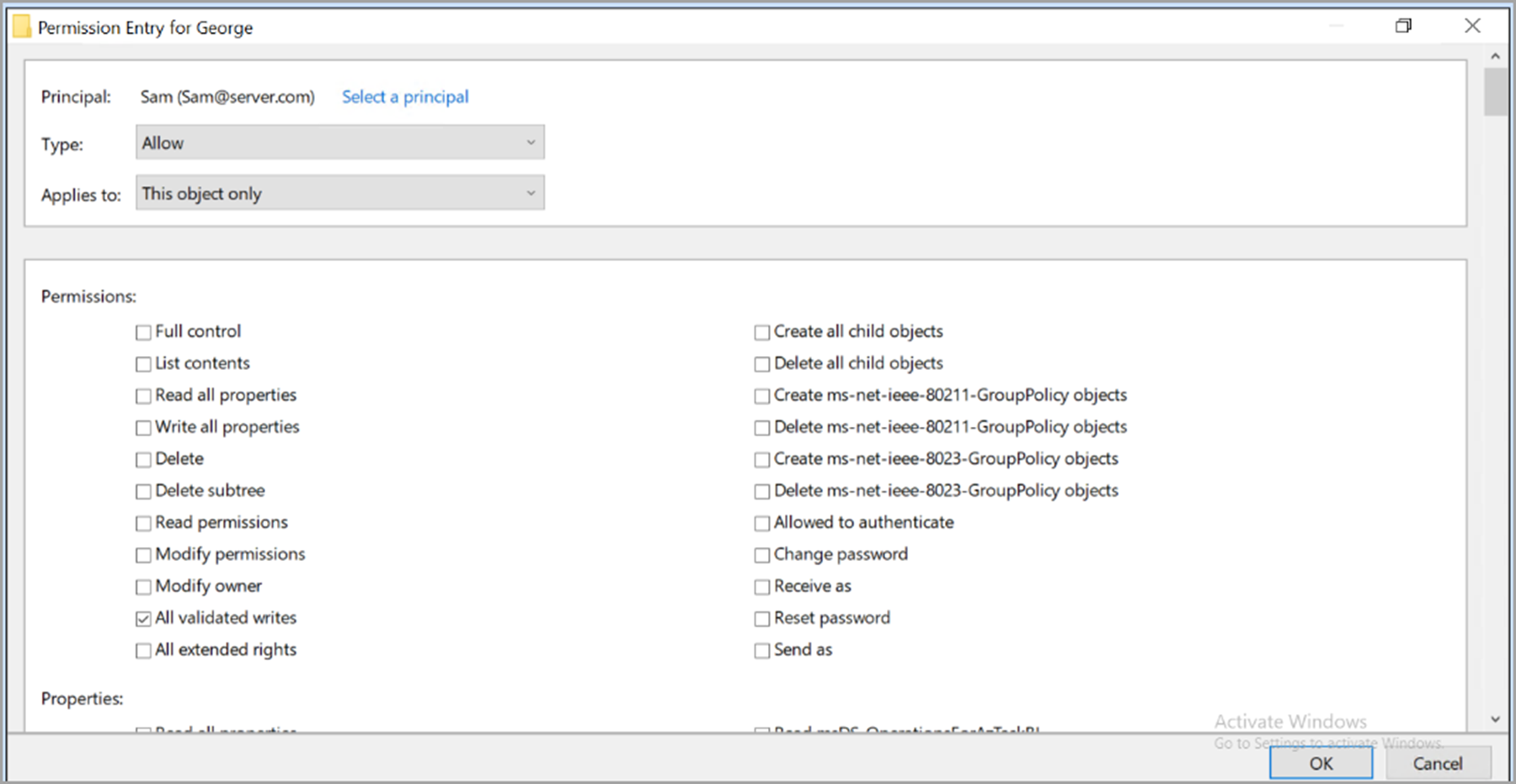
- Edit the permission entry and remove all validated rights permissions, and click OK.
Ensure validated write permissions remain assigned only to trusted administrative or service accounts.
Step 4: Validate the Fix
Follow these steps to validate the fix.
- Wait for the next Qualys full scan to complete.
- Re-run Attack Path Analysis with Starting Object as Sam and Target Object as Domain Admins.
- Confirm that the AllValidateWrites edge is no longer displayed and the attack path is broken.
Detected Excessive WriteOwner Permission on AD Object
This finding identifies when a security principal has permission to change the owner of an Active Directory object. Object ownership implicitly grants the new owner the ability to modify the object's permissions. This capability can be abused to gain full control over the object without direct administrative privileges. Such access increases the risk of unauthorized privilege escalation and persistence.
Remediation
To remediate this security risk, review accounts granted WriteOwner permissions on sensitive Active Directory objects. Restrict ownership changes to trusted administrative roles only. Remove unnecessary or legacy assignments that lack a clear business justification. Regularly audit ownership and permission changes to detect misuse.
Step 1: Identify the User and Target Object where WriteOwner is Applied in Qualys UI
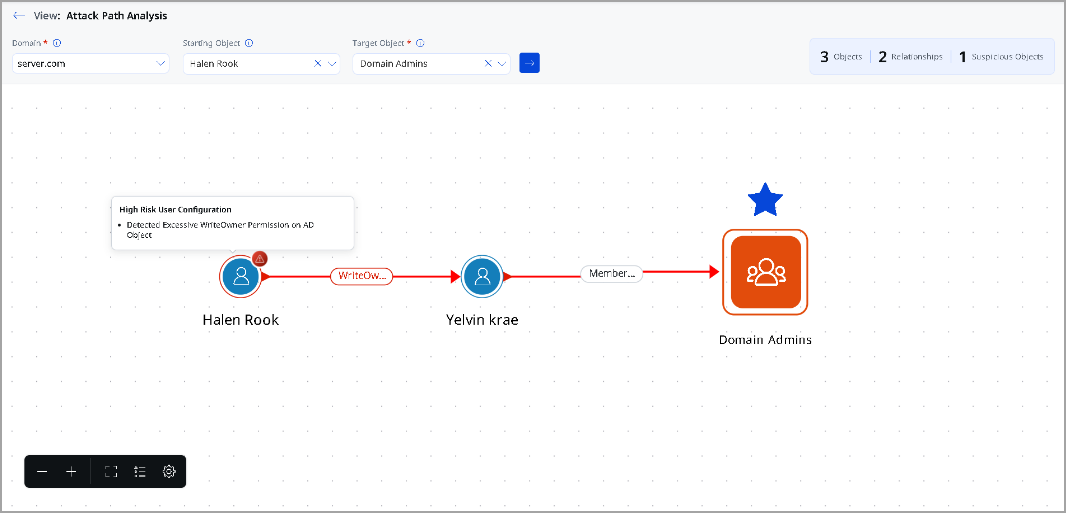
For demonstration purposes, we are using the users Halem Rook and Yelvin Krae.
Follow these steps to identify the user and the target object:
- Identify the user account on which the WriteOwner rule is triggered (Example: Halem Rook).
- To generate the attack path graph, run Attack Path Analysis with Starting Object as Halem Rook and Target Object as The Privileged Group (Example - Domain Admins).
- Identify the attack path objecttype and name labeled Yelvin Krae.
Step 2: Locate the Identified Group in Active Directory (ADUC)
Follow these steps to locate the target object:
- Access the machine where your Active Directory Domain Controller is installed.
- From the Start option, open Active Directory Users and Computers.
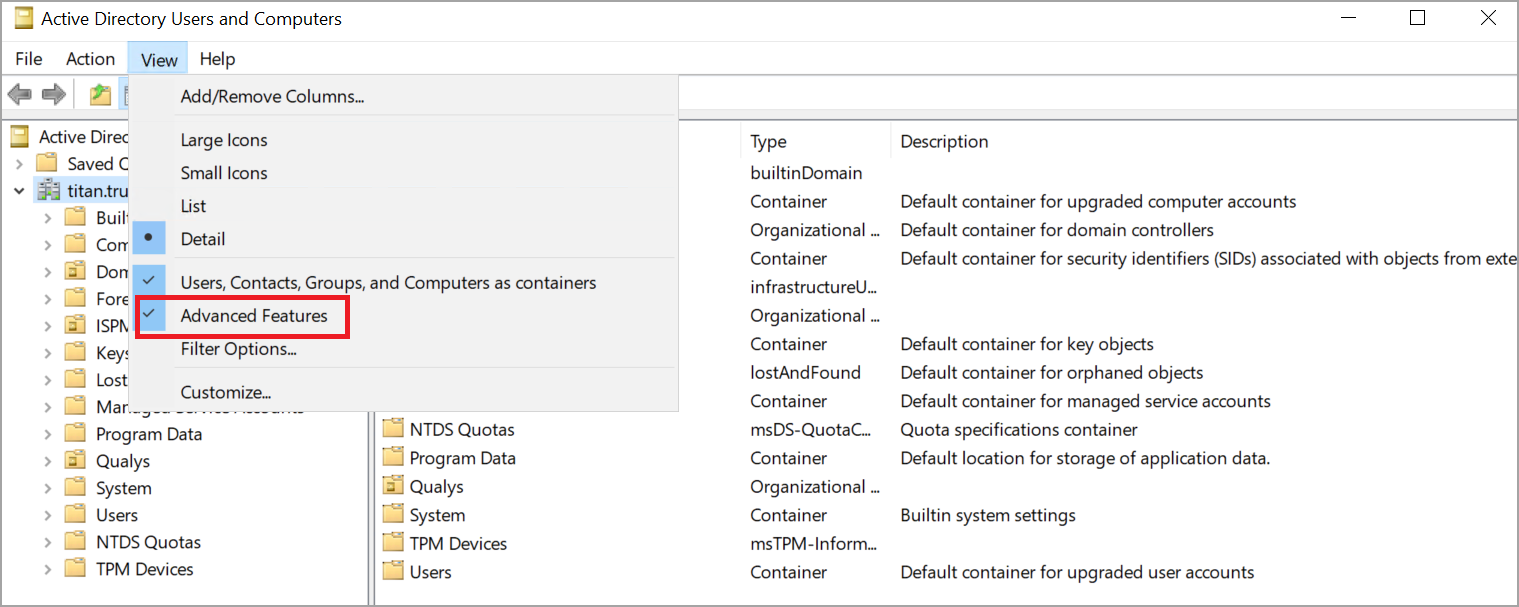
- In the Active Directory Users and Computers window, locate the menu bar at the top.
- From the View menu list, click the Advanced Features menu.
Details are displayed in the right pane.
-
Right-click thedomain root.
Details are displayed in the right pane.
-
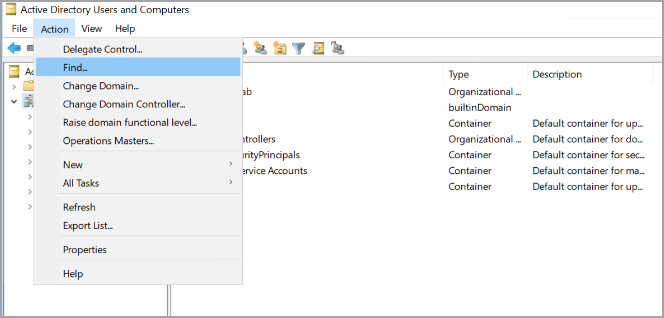
From the Actions menu, click Find.
-
Locate the target user object identified in the attack path (Example: Yelvin).
In the Find Users, Contacts, and Groups window, type the Name and click Find Now.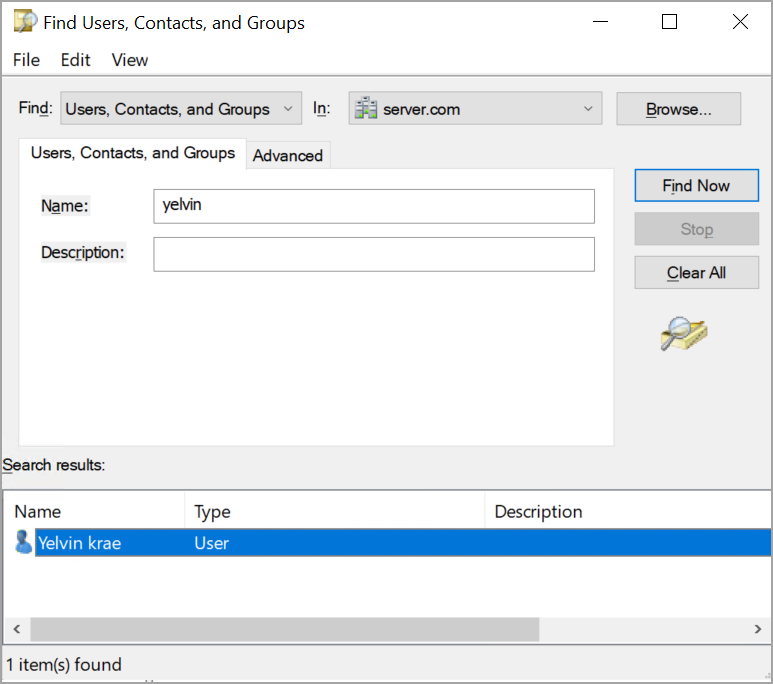
-
Right-click the user and select Properties.
-
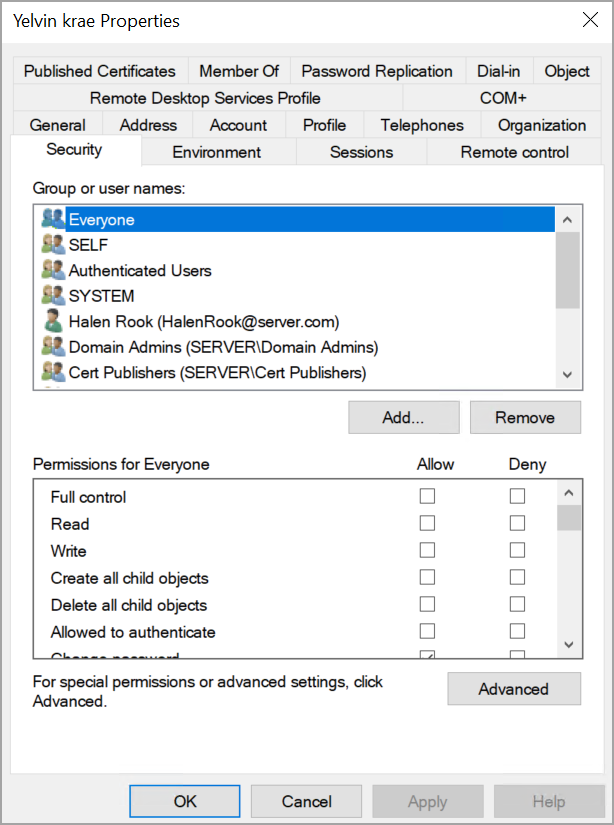
From the user's properties, click Security, select user object as Everyone from the Group or user names section, and then click Advanced.
Step 3: Locate and Remove the WriteOwner Permission
Follow these steps to remove Write Owner permissions:
- In Advanced Security Settings, locate the Permission where Access is Modify owner.
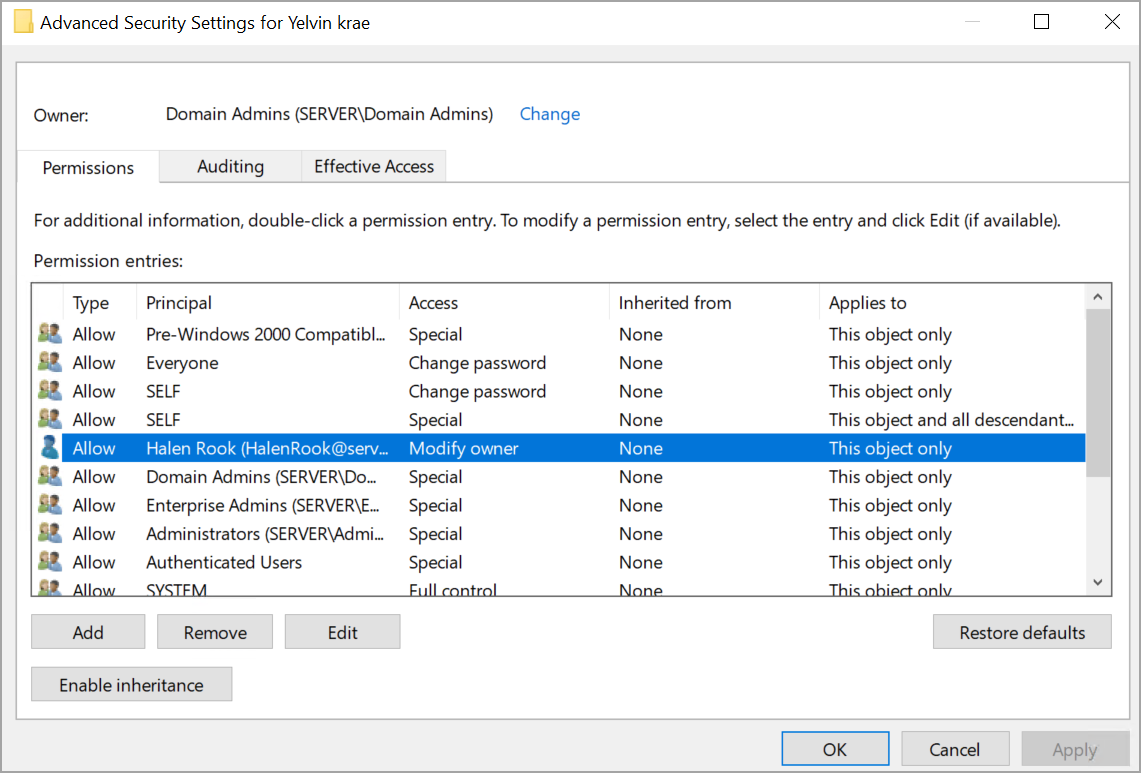
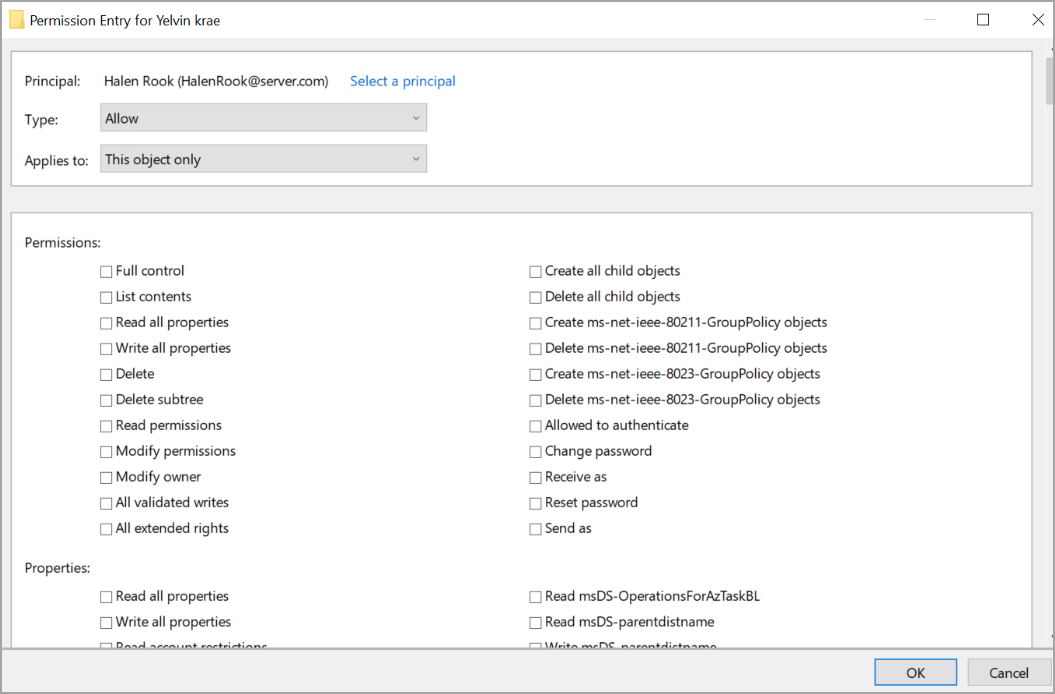
- Edit the permission entry and remove Modify owner permissions and click OK.
Ensure validated write permissions remain assigned only to trusted administrative or service accounts.
Step 4: Validate the Fix
Follow these steps to validate the fix.
- Wait for the next Qualys full scan to complete.
- Re-run Attack Path Analysis with Starting Object as Affected User (for example: Orien Vale) and Target Object as Group (for example here - Domain Admins).
- Confirm the WriteOwneredge no longer displayed and the attack path is broken.
Detected Excessive Force-Change-Password Permission on AD Object
This finding identifies accounts that have the ability to force password changes on other accounts. This permission allows direct impact on user authentication and access continuity. If misused, it can disrupt business operations or facilitate account takeover. Improper delegation of this right poses operational and security risks. While this permission does not grant direct administrative control, it can still be abused to disrupt services or assist in account takeover scenarios.
Remediation
To remediate this security risk, restrict password reset permissions to authorized helpdesk or administrative roles. Ensure role-based controls and approval processes are in place. Remove this permission from accounts without a clear operational requirement. Monitor usage to detect misuse or anomalous activity. Because this permission is often delegated for support purposes, controls should focus on scope limitation, monitoring, and accountability rather than broad assignment.
Step 1:Identify the User and Target Account in Qualys
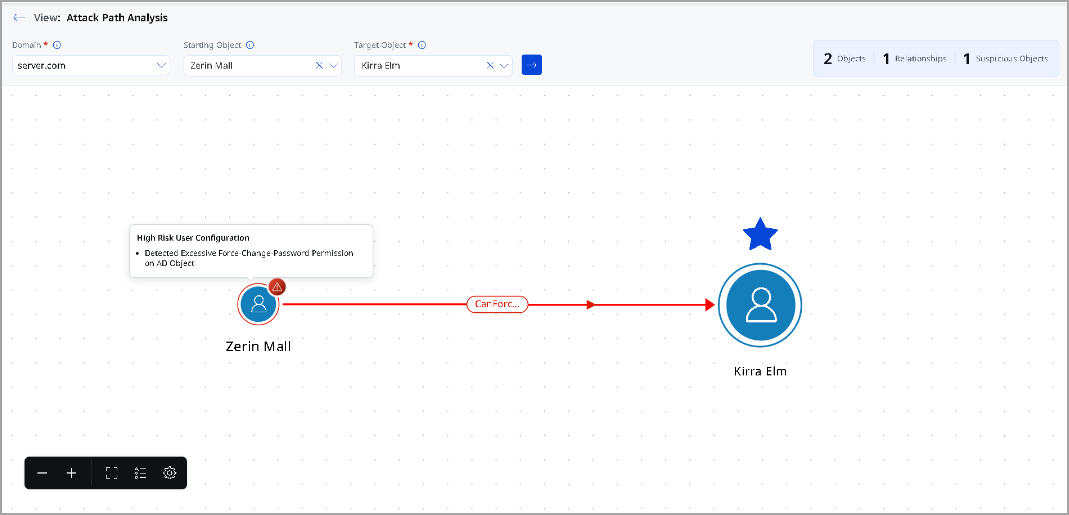
- Identify the user account on which theCanForceChangePassword rule is triggered (Example:Zerin Mall).
- RunAttack Path AnalysiswithStarting Object as Zerin MallandTarget Object as User (Example:Kirra Elm).
- Identify the attack path edge labeledCanForceChangePasswordconnecting to the target user (Example:Kirra Elm).
Step 2: Locate the Target User in Active Directory
Follow the similar steps as mentioned in Step 2 in above rules
Step 3: Remove the Force Change Password Permission
Follow the same steps as menioned in Step 3 in above rules and remove theReset Passwordextended right.
Step 4: Validate the Fix
Wait for the next Qualys full scan to complete, re-run Attack Path Analysis and confirm theCanForceChangePasswordedge no longer appears in the attack graph.
Detected Excessive Ownership Permission on AD Object
This finding identifies when a security principal is the owner of a critical Active Directory object. Object ownership grants implicit rights to modify the objects access control list, even without explicit permissions. This allows the owner to assign additional privileges or take full control of the object. If misused, this permission can enable privilege escalation, long-term persistence, and broader domain compromise.
Remediation
To remediate this security risk, review object assigned AdOwner on sensitive objects and validate whether such access is justified. Remove or restrict unnecessary permissions and apply the principle of least privilege. Continuously audit and monitor changes to permissions to detect privilege escalation attempts
Step 1: Identify the User and Target Object in Qualys
- Identify the user account on which the AdOwner rule is triggered (Example: Celin Arvas).
- Run Attack Path Analysis with Starting Object as Affected User (Example: Celin Arvas) and Target Object as Affected AD Object (Example: Group – LedgerTeam).
- Note the attack path edge labeled AdOwner and record the target object name and type.
Step 2: Locate the Target Object in Active Directory
Follow the similar steps as mentioned in Step 2 in above rules.
Step 3: Change the Object Owner to an Authorized Admin
Follow the same steps as menioned in Step 3 in above rules and verify the affected user no longer retains ownership.
Step 4: Validate the Fix
Wait for the next Qualys full scan to complete, re-run Attack Path Analysis and confirm theAdOwneredge no longer displayed in path and the attack path is broken.
Detected Excessive AllExtendedRights Permission on AD Object
This finding identifies when a security principal has all extended rights on an Active Directory object. Extended rights include sensitive operations beyond standard read or write actions. If abused, these rights can enable high-impact actions without full administrative roles. This can undermine security controls and trust boundaries. Extended rights may include sensitive operations such as password resets or delegation changes, which can weaken security controls if abused.
Remediation
To remediate this security risk, ensure extended rights are assigned only to trusted administrative functions. Review all extended rights to confirm they align with operational requirements. Remove excessive or unused permissions from non-administrative accounts. Perform routine reviews to maintain controlled delegation. Given the broad impact of extended rights, organizations should periodically validate that each assigned right is required and appropriately governed.
Step 1:Identify the User and Target Object in Qualys
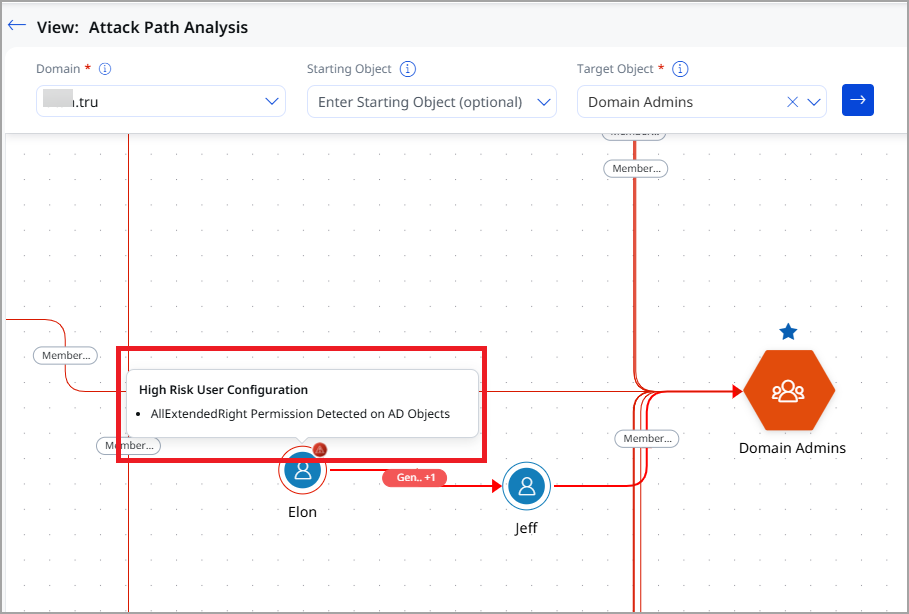
- Identify the user account on which theAllExtendedRightsrule is triggered (Example: Elon).
- RunAttack Path AnalysiswithStarting Object as ElonandTarget Object as Domain Admins.
- Identify the attack path edge labeledAllExtendedRightsconnectingElon - Jeff - Domain Admins.
Step 2: Locate the Target Object in Active Directory
To locate the target object, follow the similar steps as mentioned in Step 2 in above rules.
Step 3: Remove the AllExtendedRights Permission
Follow the same steps as mentioned in Step 3 in above rules and ensure this permission remains assigned only toDomain AdminsandEnterprise Admins.
Step 4: Validate the Fix
Wait for the next Qualys full scan to complete, re-run Attack Path Analysis and Confirm theAllExtendedRightsedge no longer displayed in path and the attack path is broken.
Detected Excessive AddMembers Permission on AD Object
This finding identifies when a security principal can add members to an Active Directory group. If applied to privileged groups, this permission enables direct privilege escalation. Attackers can abuse this right to gain administrative or high-impact access. Improper delegation weakens group-based access controls.
Remediation
To remediate this security risk, restrict group membership modification rights to approved administrators. Focus on privileged and sensitive groups. Remove excessive delegation and enforce role-based access control. Monitor group membership changes for unauthorized activity.
Step 1:Identify the User and Target Object in Qualys
- Identify the user account on which the AddMembersrule is tagged (Example:Orien Vale)
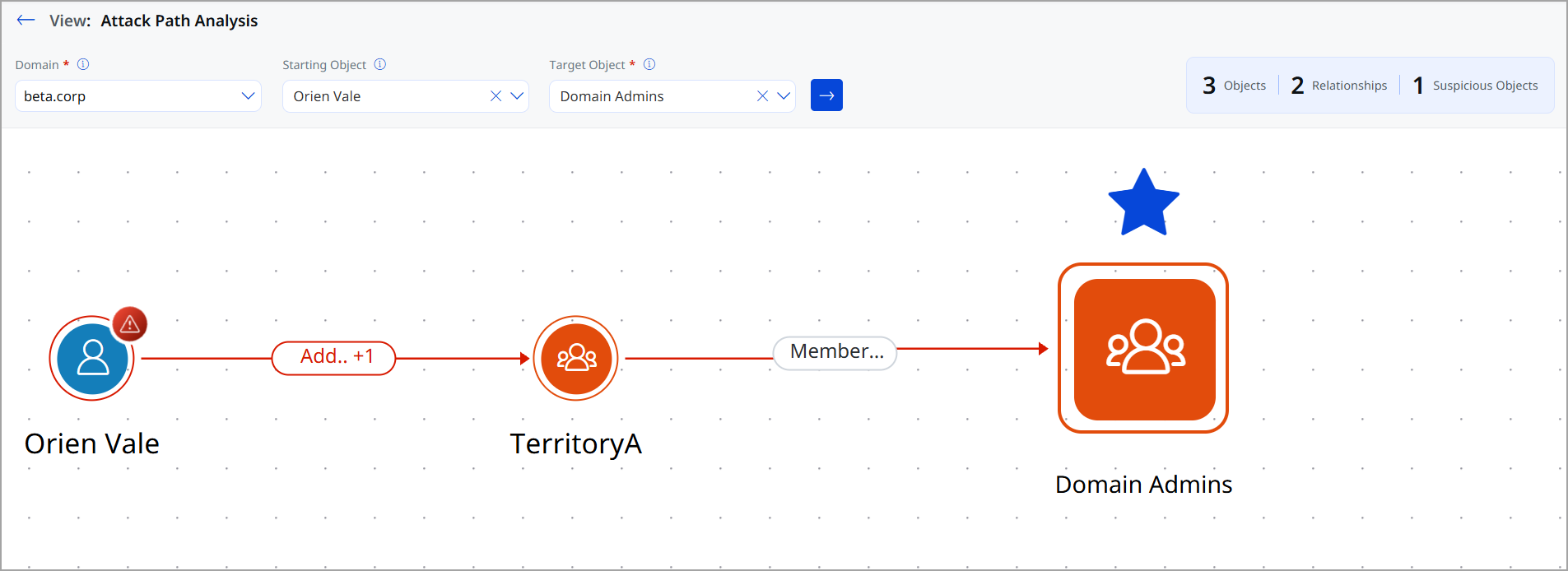
- RunAttack Path Analysiswith the affected user (Example:Orien Vale), andTarget Object: Group (Example:Domain Admins).
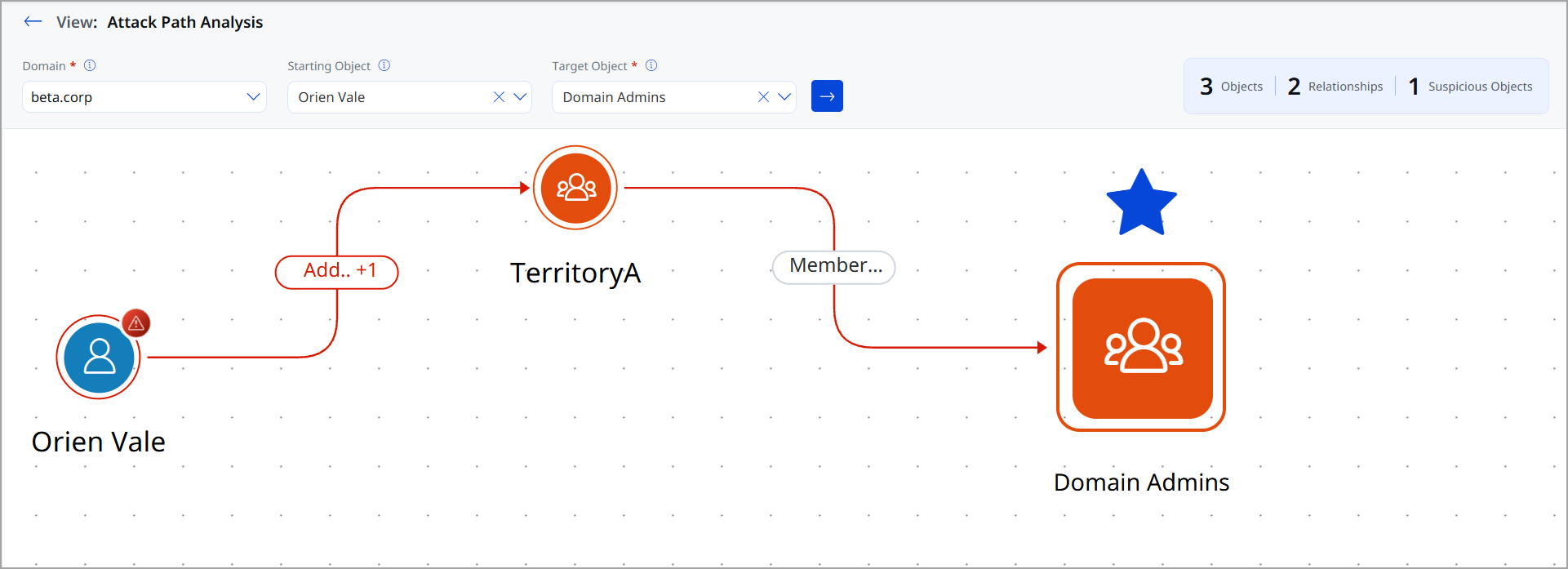
- Focus specifically on the edge labeled:AddMembers . note thegroup nameconnected by this edge (Example:TerritoryA).
Step 2: Locate the Identified Group in Active Directory (ADUC)
To locate the identified group in Active Directory (ADUC), follow the similar steps as mentioned in Step 2 in above rules.
Step 3: Locate and Remove the AddMembers Permission
Follow the same steps as mentioned in Step 3 in above rules and ensure this permission is removed.
Step 4: Validate the Fix
Wait for the next Qualys full scan to complete, re-run Attack Path Analysis and confirm theAddMembersedge no longer displayed in path and the attack path is broken.
Detected Excessive GenericAll Permission on AD Object
This finding identifies when a security principal has full control over an Active Directory object. Such access allows unrestricted modification of attributes, permissions, and object ownership. If misused, this permission can enable complete takeover of the object and long-term persistence. This significantly increases the risk of privilege escalation and domain compromise. This permission is considered critical because it enables immediate and complete control over the object without exploiting any vulnerability, making it a common technique in real-world privilege escalation attacks.
Remediation
To remediate this security risk, review all GenericAll assignments on sensitive Active Directory objects. Restrict this permission strictly to highly trusted administrative roles. Remove any unnecessary or legacy access that does not align with current responsibilities. Continuously monitor and audit permissions to enforce least-privilege principles. Because of its direct escalation potential, GenericAll assignments should be treated as high risk and reviewed with the same rigor as full administrative privileges.
Step 1:Identify the User and Target Object in Qualys
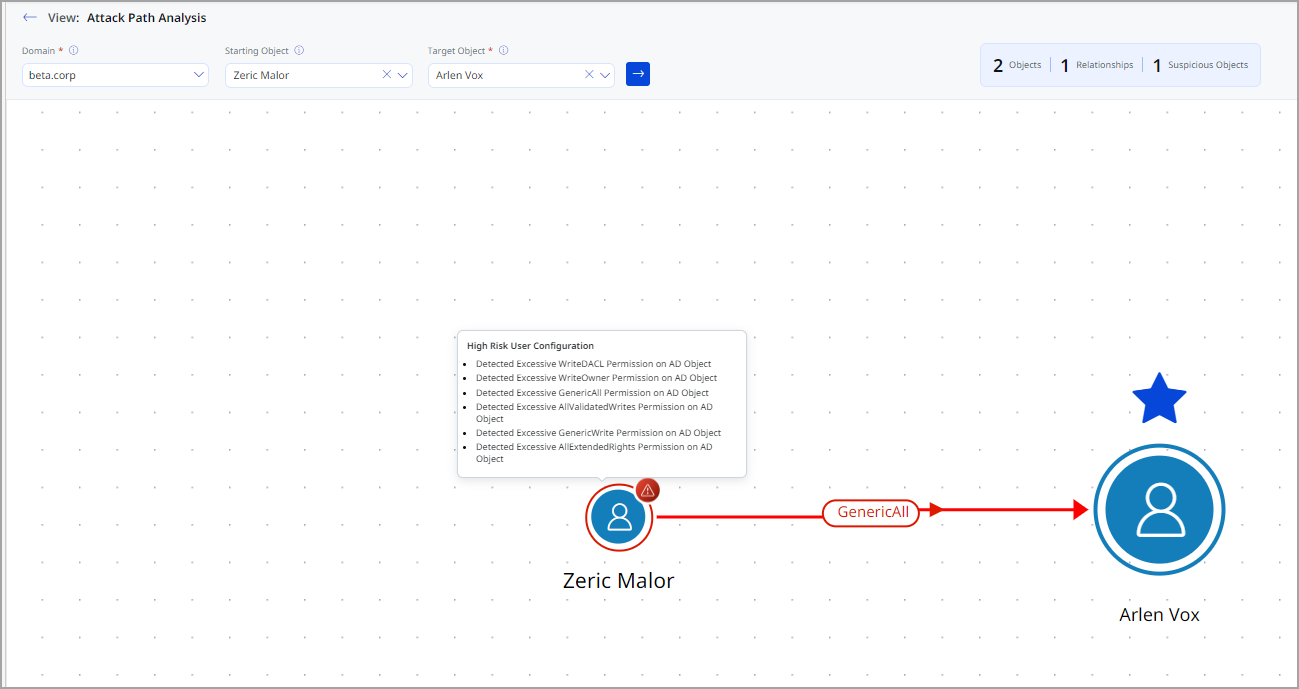
- Identify the user account on which theGenericAllrule is triggered (Example: Zeric Malor).
- RunAttack Path AnalysiswithStarting Object as Zeric MalorandTarget Object as User (Example: Arlen Vox).
- Identify the attack path edge labeledGenericAllconnecting to the target user (Example: Arlen Vox).
Step 2: Locate the Target Object in Active Directory (ADUC)
To locate the target object, follow the similar steps as mentioned in Step 2 in above rules.
Step 3: Remove the GenericAll Permission
Follow the same steps as mentioned in Step 3 in above rules and ensure GenericAllremains assignedonlyto highly trusted administrative groups (Example:Domain Admins).
Step 4: Validate the Fix
Wait for the next Qualys full scan to complete, re-run Attack Path Analysis and confirm theGenericAlledge no longer displayed in path and the attack path is broken.
Detected Excessive GenericWrite Permission on AD Object
This finding identifies when a security principal can modify attributes of an Active Directory object. GenericWrite access may allow changes to sensitive properties such as delegation or service attributes. These changes can be leveraged for lateral movement or privilege escalation. Uncontrolled write access increases the overall attack surface. The risk of this permission depends on the attributes that can be modified, but it is commonly abused for delegation abuse and lateral movement in Active Directory environments.
Remediation Overview
To remediate this security risk, evaluate the business necessity of GenericWrite permissions. Restrict write access to only those attributes required for operational needs. Remove broad write permissions from sensitive objects where possible. Regularly review and validate delegated write access. Since misuse depends on context, focus remediation on reducing broad write access and limiting changes to explicitly required attributes only.
Step 1:Identify the User and Target Object in Qualys
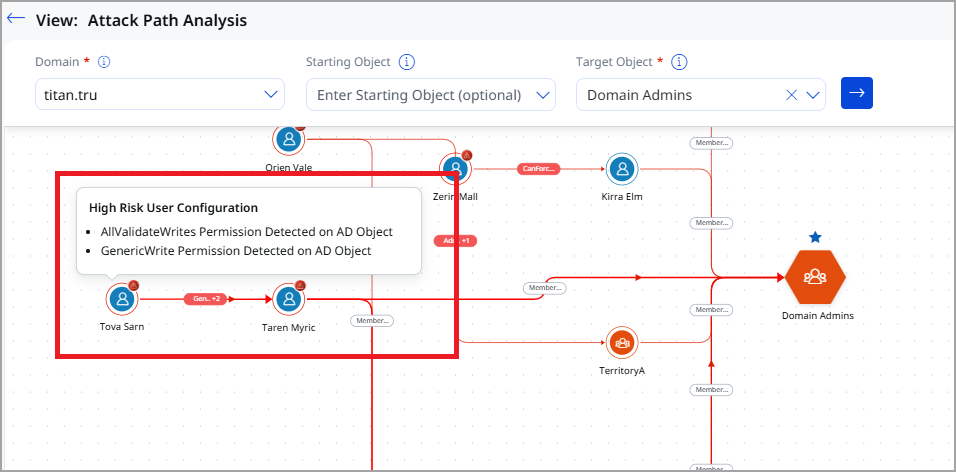
- Identify the user account on which theGenericWriterule is triggered (Example: Tova Sarn).
- RunAttack Path AnalysiswithStarting Object as Tova SarnandTarget Object as User.
- Identify the attack path edge labeledGenericWriteconnecting to the target user (Example: Taren Myric).
Step 2: Locate the Target Object in Active Directory (ADUC)
To locate the target object, follow the similar steps as mentioned in Step 2 in above rules.
Step 3: Remove or Restrict the GenericWrite Permission
Follow the same steps as mentioned in Step 3 in above rules and ensure GenericWrite permission is removed.
Step 4: Validate the Fix
Wait for the next Qualys full scan to complete, re-run Attack Path Analysis and confirm theGenericWriteedge no longer displayed in path and the attack path is broken.
Detected Excessive WriteDACL Permission on AD Object
Remediation Overview
To remediate this security risk, limit WriteDACL permissions to approved and well-governed administrative roles. Review delegated access regularly to identify excessive or unintended assignments. Remove unnecessary permissions that allow modification of security descriptors. Implement periodic audits to detect and prevent privilege abuse. Due to its ability to bypass access boundaries, WriteDACL should be monitored closely and removed wherever there is no strong administrative justification.
This finding identifies when a security principal can modify the access control list of an Active Directory object. This permission allows changes to who can access or control the object. Attackers can abuse this right to grant themselves elevated privileges indirectly. Such misconfigurations weaken access boundaries and increase escalation risk. This permission is high risk as it allows indirect privilege escalation by modifying access control entries, a technique frequently abused to silently gain higher privileges.
Step 1:Identify the User and Target Object in Qualys
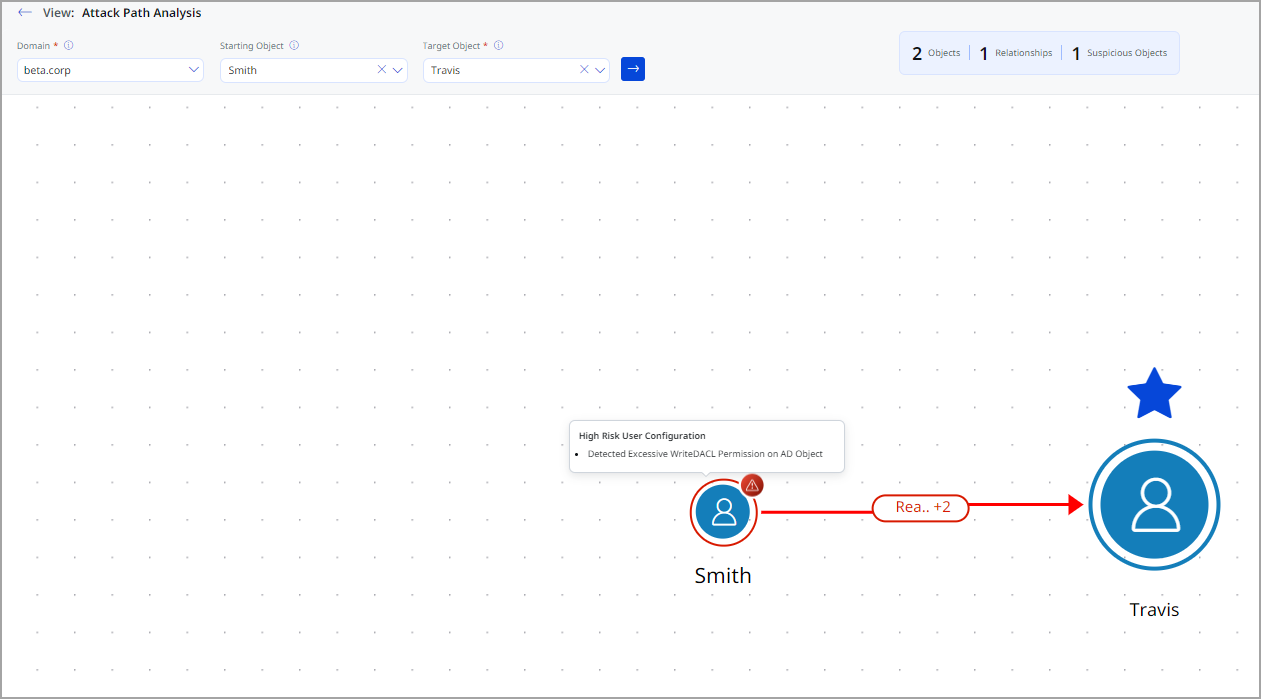
- Identify the user account on which theWriteDACLrule is triggered (Example: Smith).
- RunAttack Path AnalysiswithStarting Object as SmithandTarget Object as User.
- Note theWriteDACLedge connecting to the target user (Example: Travis).
Step 2: Locate the Target Object in Active Directory
To locate the target object, follow the similar steps as mentioned in Step 2 in above rules.
Step 3: Remove the WriteDACL Permission
Follow the same steps as mentioned in Step 3 in above rules and ensure WriteDACL permission remains assigned only to trusted administrative groups.
Step 4: Validate the Fix
Wait for the next Qualys full scan to complete, re-run Attack Path Analysis and confirm theWriteDACLedge no longer displayed in path and the attack path is broken.
Detected Excessive Replication (DCSync) Permission on AD Object
This finding identifies accounts with directory replication permissions in Active Directory. These permissions allow replication of password hashes and sensitive directory data. Attackers can abuse DCSync rights to obtain credentials without accessing domain controllers directly. This represents a critical risk to domain-wide security.
Remediation
To remediate this security risk, strictly limit directory replication permissions to domain controllers only. Review and remove unauthorized replication rights from user or service accounts. Ensure least-privilege principles are enforced for replication permissions. Monitor for unexpected directory replication activity.
Step 1:Identify the User and Target Domain in Qualys
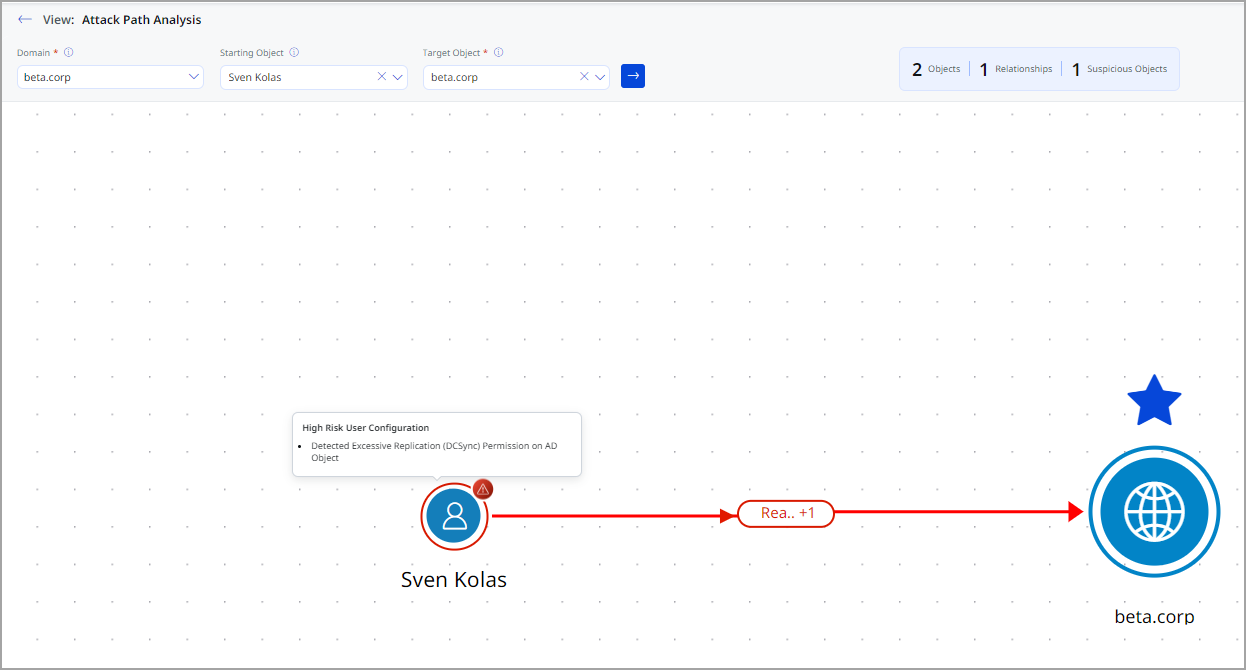
- Identify the user account on which theDCSyncrule is triggered (Example: Sven Kolas).
- RunAttack Path AnalysiswithStarting Object as Sven KolasandTarget Object as Domain (beta.corp).
- Confirm the attack path showsDCSync derived from GetChanges and GetChangesAllon the domain.
Step 2: Locate the Domain Object in Active Directory
To locate the domain object, follow the similar steps as mentioned in Step 2 in above rules.
Step 3: Remove DCSync-Related Permissions (GUI-Accurate)
Follow the same steps as mentioned in Step 3 in above rules and ensure to remove ReplicatingDirectory Changes, Replicating Directory Changes All.
Step 4: Validate the Fix
Wait for the next Qualys full scan to complete, re-run Attack Path Analysis and confirm theDCSync edge no longer displayed in path and the attack path is broken.
Detected Excessive WriteSPN Permission on AD Object
This finding identifies accounts with directory replication permissions in Active Directory. These permissions allow replication of password hashes and sensitive directory data. Attackers can abuse DCSync rights to obtain credentials without accessing domain controllers directly. This represents a critical risk to domain-wide security.
Remediation Overview
Review account with WriteSPN permissions. If not explicitly required for service accounts or delegation purposes, remove this permission to prevent Kerberoasting attacks.
Step 1:Identify the WriteSPN Path in Qualys
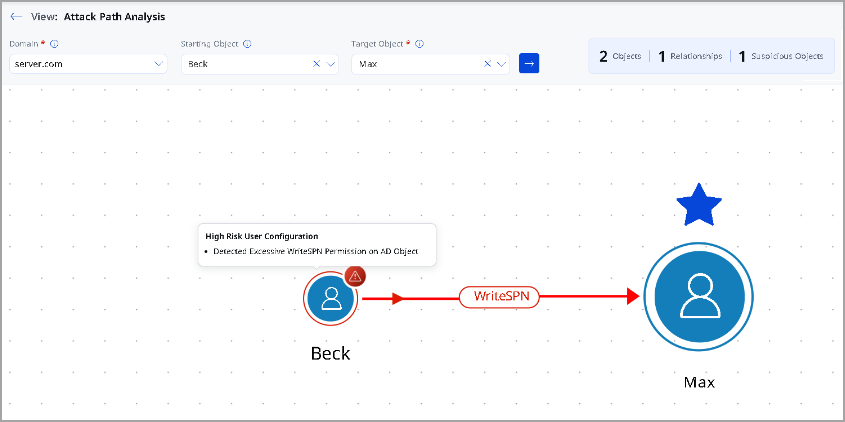
- Identify the user on which theWriteSPNrule is triggered (Example: Beck).
- RunAttack Path AnalysiswithStarting Object as BeckandTarget Object as Max.
- Confirm the edge labeledWriteSPNconnectingBeck - Max.
Step 2: Remove the Malicious / Unnecessary SPN Value (Cleanup)
Locate the target object by following the similar steps as mentioned in Step 2 in above rules and remove the Malicious / Unnecessary SPN Value (Cleanup).
Step 3: Remove the source object from the target object (Critical Fix)
LocateBeckin users by following the similar steps as mentioned in Step 2 in above rules and remove Beck.
Step 4: Validate the Fix
Wait for the next Qualys full scan to complete, re-run Attack Path Analysis and confirm theWriteSPN edge no longer displayed in path and the attack path is broken.