Manage Asset Inventory from Qualys Applications
Asset inventory is a critical aspect of any robust cybersecurity strategy. It provides a comprehensive, real-time view of all the assets within your environment, ranging from physical hosts to installed software and open network ports. This visibility is important for understanding your organization’s attack surface, where an unauthorized user could attempt to enter or extract data. The asset inventory provides comprehensive visibility into all assets discovered and managed through the CSAM (Cyber Security Asset Management) application. It consolidates asset data from active scanning, agent-based discovery, and network reconnaissance into one centralized inventory view.
What is an Asset Inventory
An asset inventory is a comprehensive record of all technology assets deployed within your organization. Each asset includes:
- Real-time discovery and cataloging of physical and virtual hosts
- Complete software and application installation tracking across systems
- Network exposure assessment through open port monitoring
- Continuous integration with your identity infrastructure
Asset inventory management is critical for reducing your attack surface and ensuring that unauthorized or forgotten systems do not create security gaps in your infrastructure.
For example, an unmonitored legacy server running an outdated operating system could serve as an entry point for attackers.
With a unified view of your assets, you can make informed decisions directly impacting your security posture and risk management strategy.
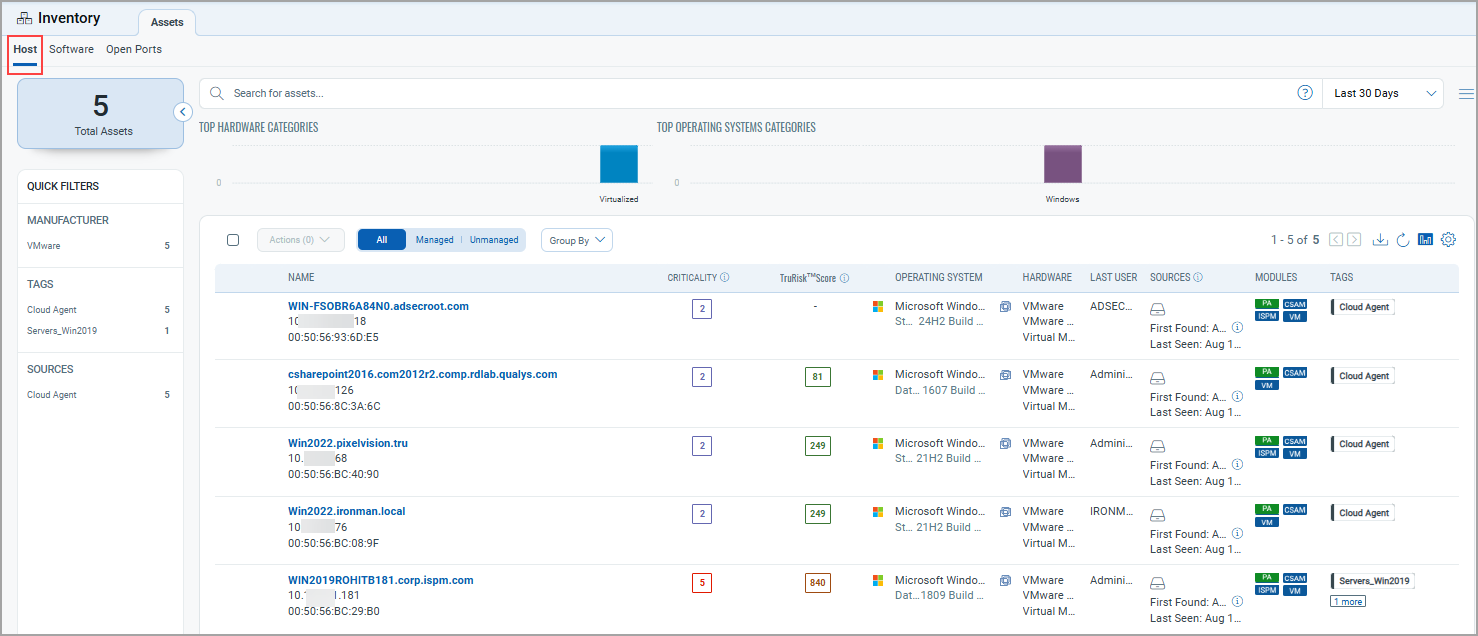
The Inventory tab has three sub tabs: Host, Software, and Open Ports.
- Host
The Host sub-tab offers a detailed view of all AD services enabled in your environment. You can access key metadata for each host to assess its role and risk level.
- Software
The Software sub-tab provides a centralized catalog of all applications and services installed across your hosts. It enables visibility into software assets, helping you monitor usage, assess risk, and ensure compliance.
- Open Ports
The Open Ports sub-tab provides critical visibility into the network exposure of your assets by listing all currently open ports across your hosts. Open ports can serve as entry points for external threats, making it essential to monitor and manage them as part of your security posture.
Common Functions Available Across All Tabs
Search for assets
You can search for assets using a Qualys Query Language (QQL) for a specific time frame.
The date search evaluates only UTC format for all date-related tokens. The actual search results might show the date according to your time zone.
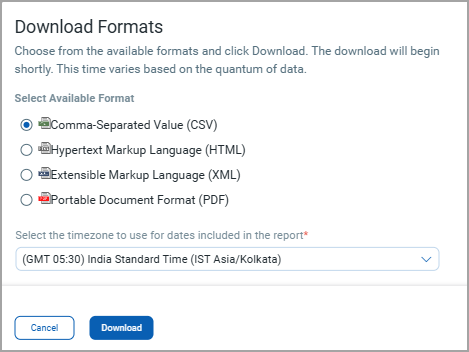
Download report
You can download the list using the download  icon.
icon.
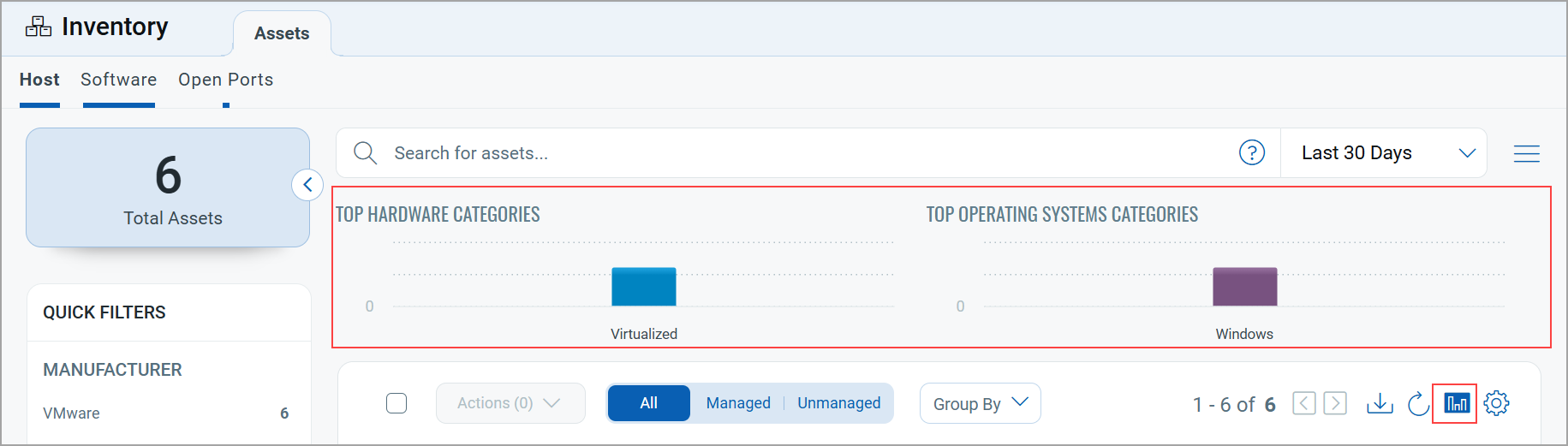
Bar chart representation
You can view bar charts illustrating the top hardware and operating system categories. Click on a specific bar in the chart to see a list of assets related to that category. You can toggle the display of the bar chart using  icon.
icon.
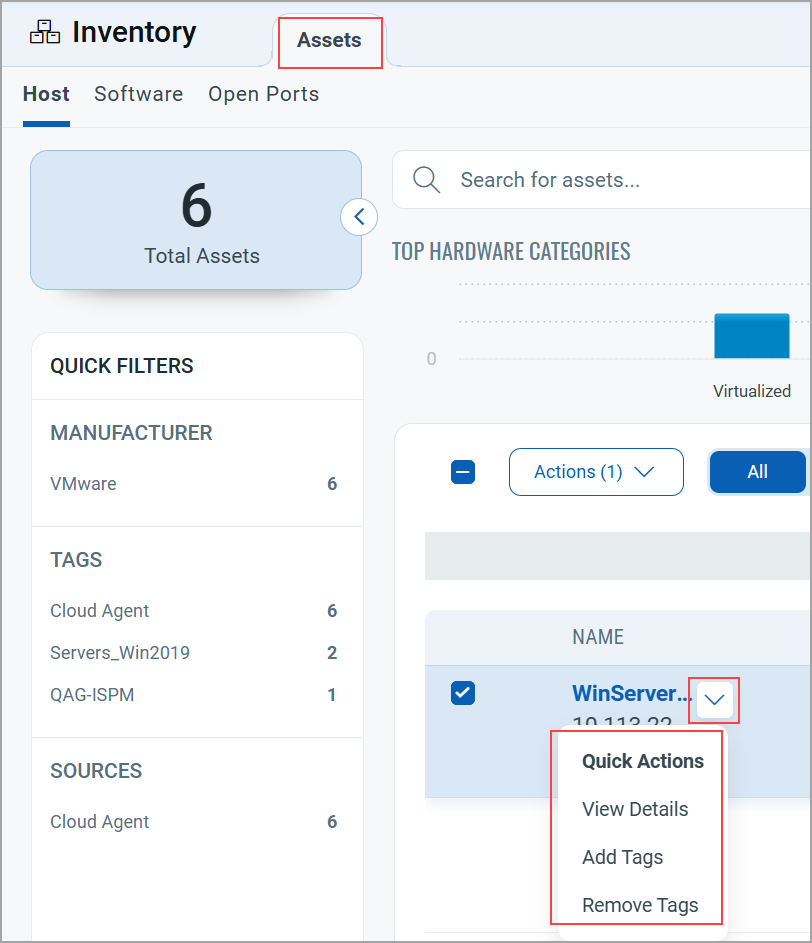
Quick Actions Menu
You can perform multiple actions, such as viewing asset details, adding tags to the asset, and removing tags of the asset from the Quick Actions menu.
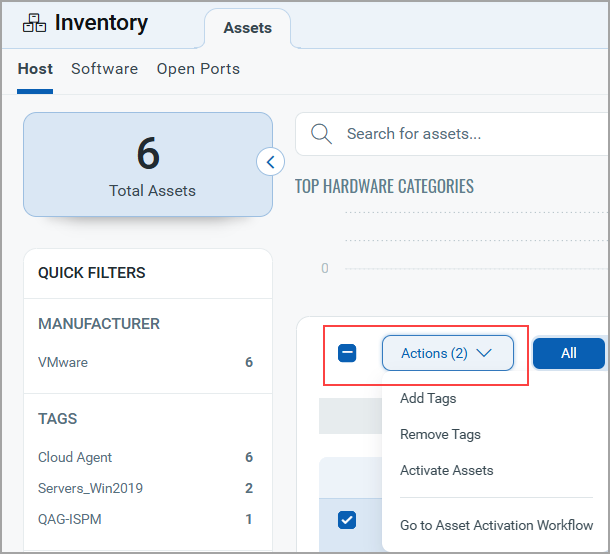
Actions Menu
You can select multiple entries from the list and perform the action, such as Add Tags, Remove Tags, Activate Assets, or Go to Asset Activation Workflow from the Actions menu.
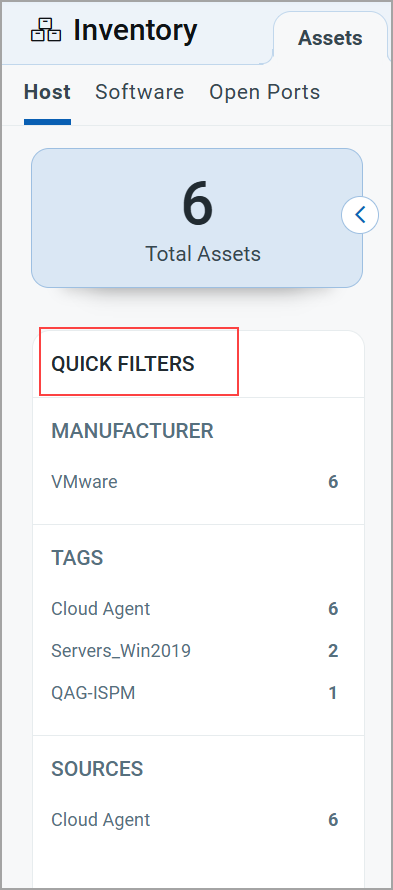
Quick Filters
The left pane shows the total assets matching your search criteria and the assets based on the Sources, Manufacturers, and Tags with their count of assets. Click the count of assets to view the list of assets.
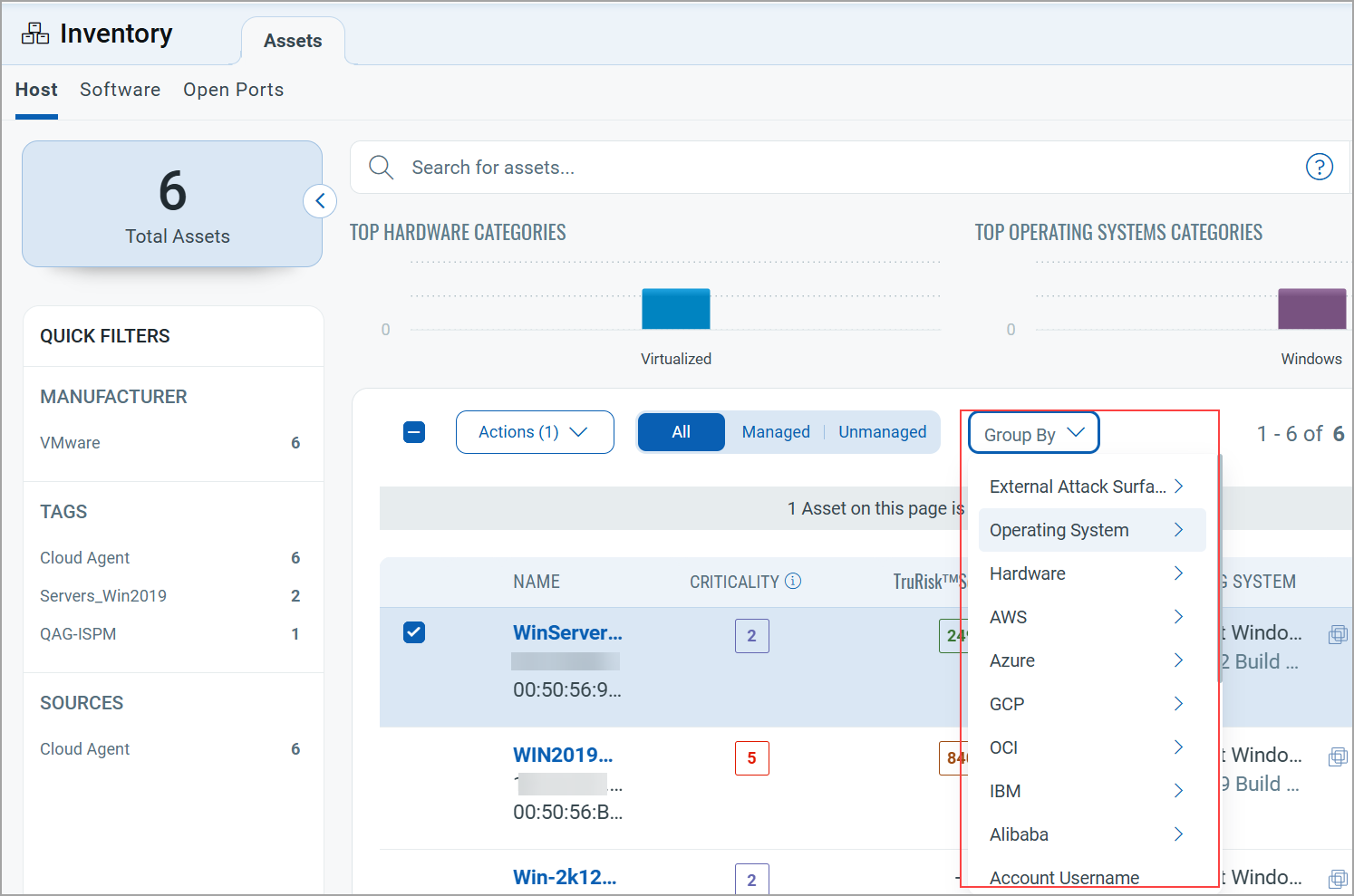
Group By Filters
Group assets are based on criteria or categories, such as external attack surface, operating system, hardware, AWS, and so on. As shown in the following example, some categories have further subcategories.