View ID Misconfigurations
This section is a comprehensive guide to Active Directory (AD) configuration issues, detection rules, remediation guidance, and threat intelligence mapping.
The ID Misconfiguration tab specifically targets Active Directory environments, which are critical components of identity infrastructure in most enterprise organizations. This tab provides enterprise-grade guidance on Active Directory-specific configuration weaknesses that pose security risks, including detection and remediation.
What is an ID Misconfiguration?
An Active Directory misconfiguration is any Active Directory setting that deviates from security best practices or your organization's identity security policy. These are configuration errors specific to Active Directory systems, distinct from general system misconfigurations.
The ID Misconfiguration tab is available only for non-UAI subscriptions. In non-UAI environments, Active Directory-specific misconfigurations are displayed in a dedicated ID Misconfiguration tab.
Example: ID Misconfigurations
- User password set to never expire when policy requires periodic expiration
- Admin accounts with delegation rights not restricted appropriately
- Legacy authentication protocols enabled on modern domain controllers
- Service accounts with passwords stored in accessible locations
- Groups with excessive nesting create complex permission inheritance
- If your account has UAI enabled, you can view all types of misconfigurations in the Misconfigurations tab, a separate ID Miconfiguration tab is not visible.
- The UAI feature is available upon request. To activate it for your account, please contact Qualys Support or your Technical Account Manager (TAM).
View ID Misconfiguration
To view the ID misconfiguration, navigate to Risk Management > Findings > ID Misconfiguration tab.
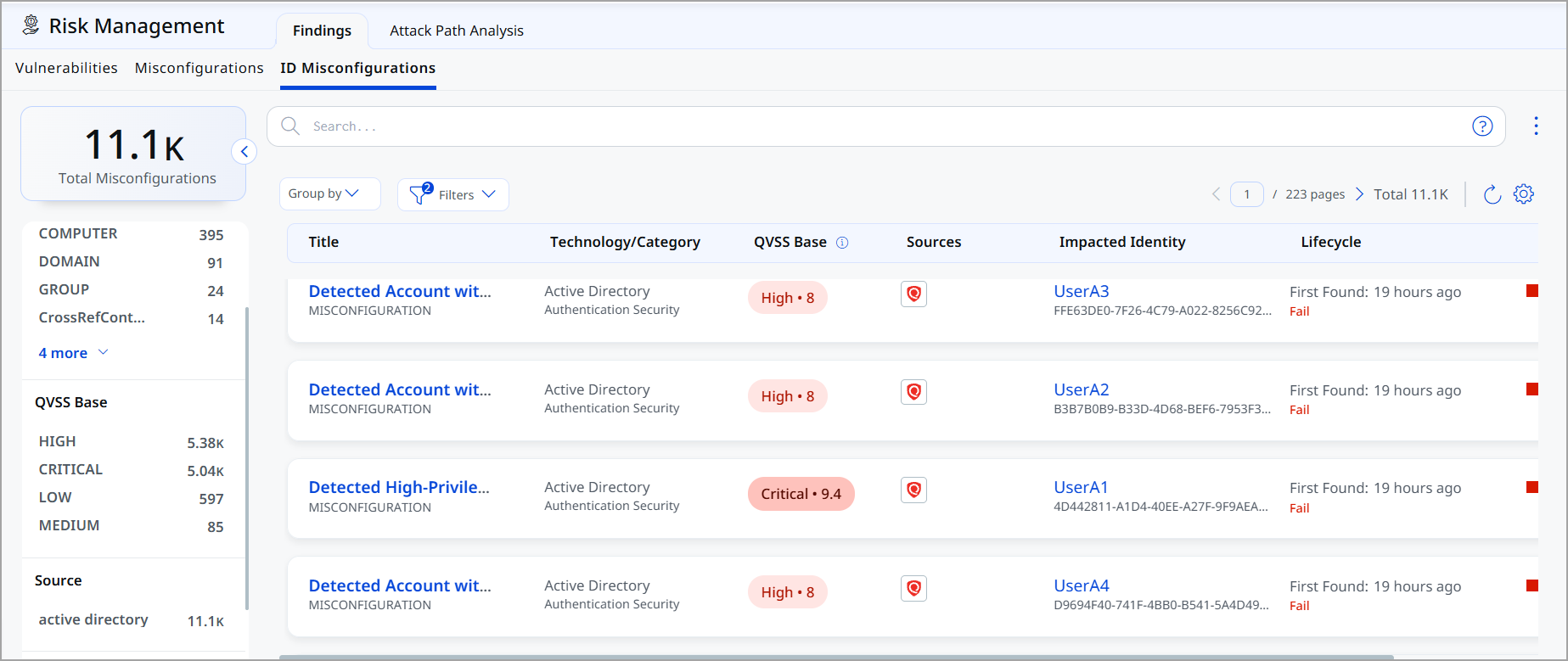
Following is the ID Misconfiguration data listed on the page:
- Title: Indicates the rule or misconfiguration name
- Technology/Category: Indicates Technology and Category of the misconfiguration
- QVSS Base: Indicates QVSS Base Score such as High, Critical, Low, and Medium
- Sources: Indicates the source of the misconfiguration.
- Impacted Identity: Indicates which identity is impacted
- Lifecycle Information: Indicates when the issue was first detected and whether it is currently active (Fail)
- Severity: Indicates the severity of the misconfiguration
View ID Misconfiguration Details
Click View Details from the Quick Actions menu to view the following details about a specific misconfiguration.
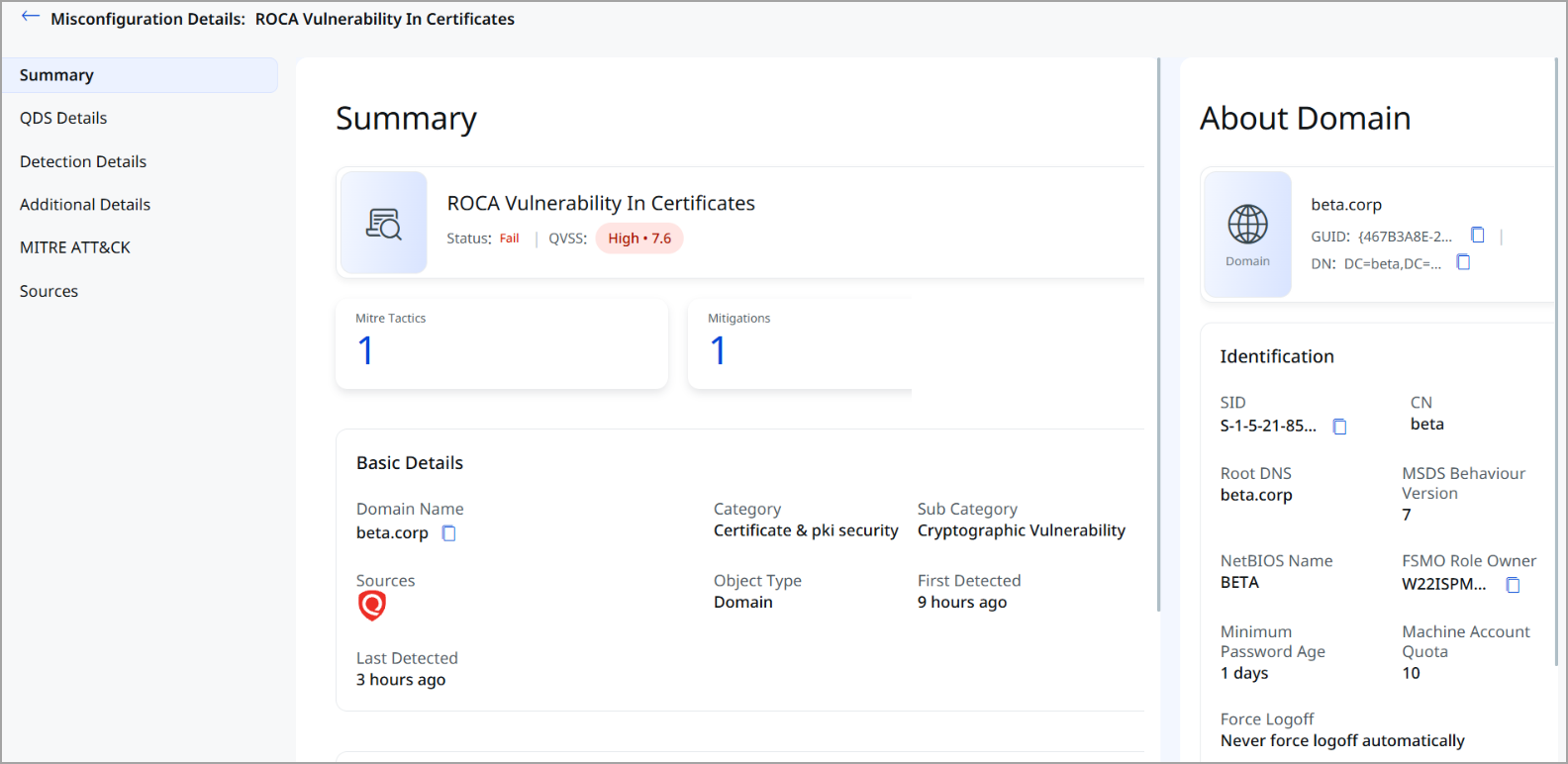
-
Summary: The Summary page displays status, QVSS, severity, and description of the misconfiguration. It also includes Basic Details, Technology Details, information about the Domain, like Identification and Activity
-
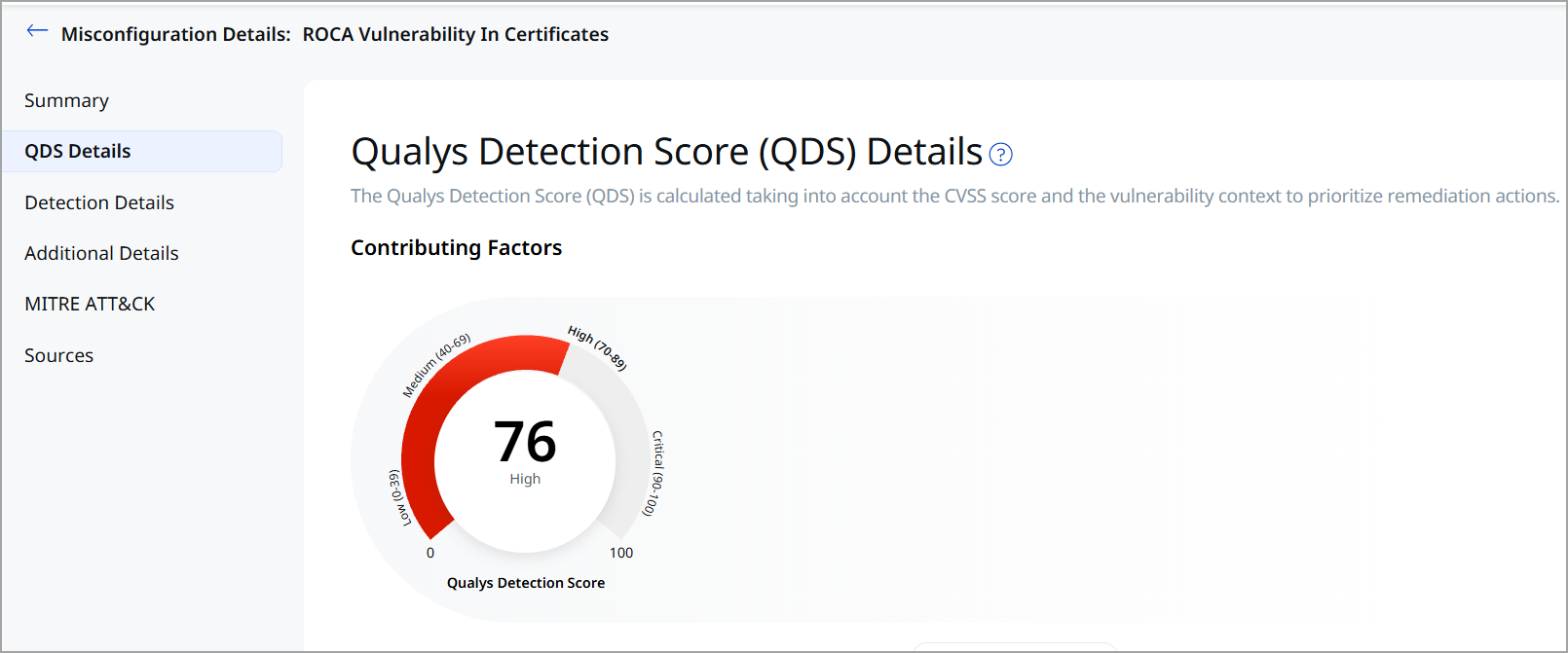
QDS Details: It displays the QDS Score.
- Detection Details
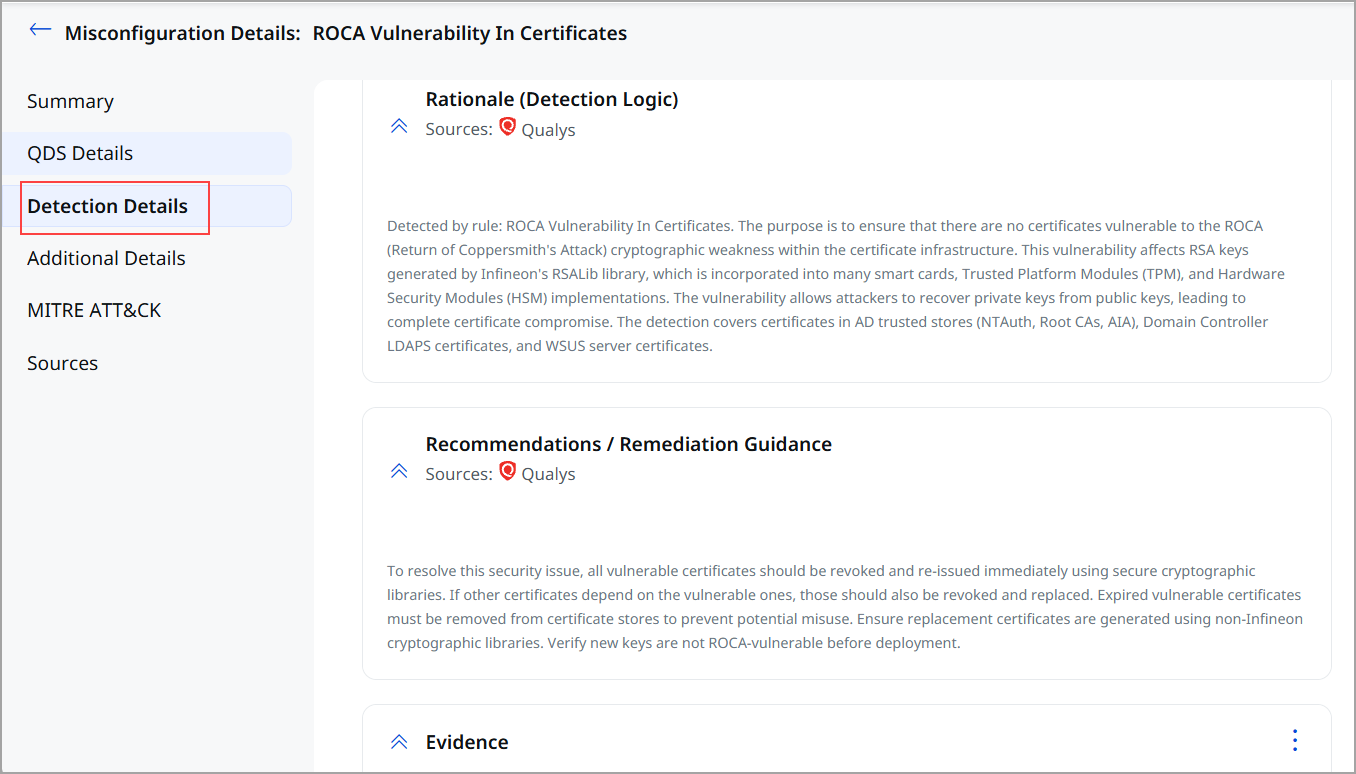
This section specifies:
- The detection rationale is a logic of how a security vulnerability is identified.
- Misconfiguration impact and remediation guidance to fix the misconfiguration.
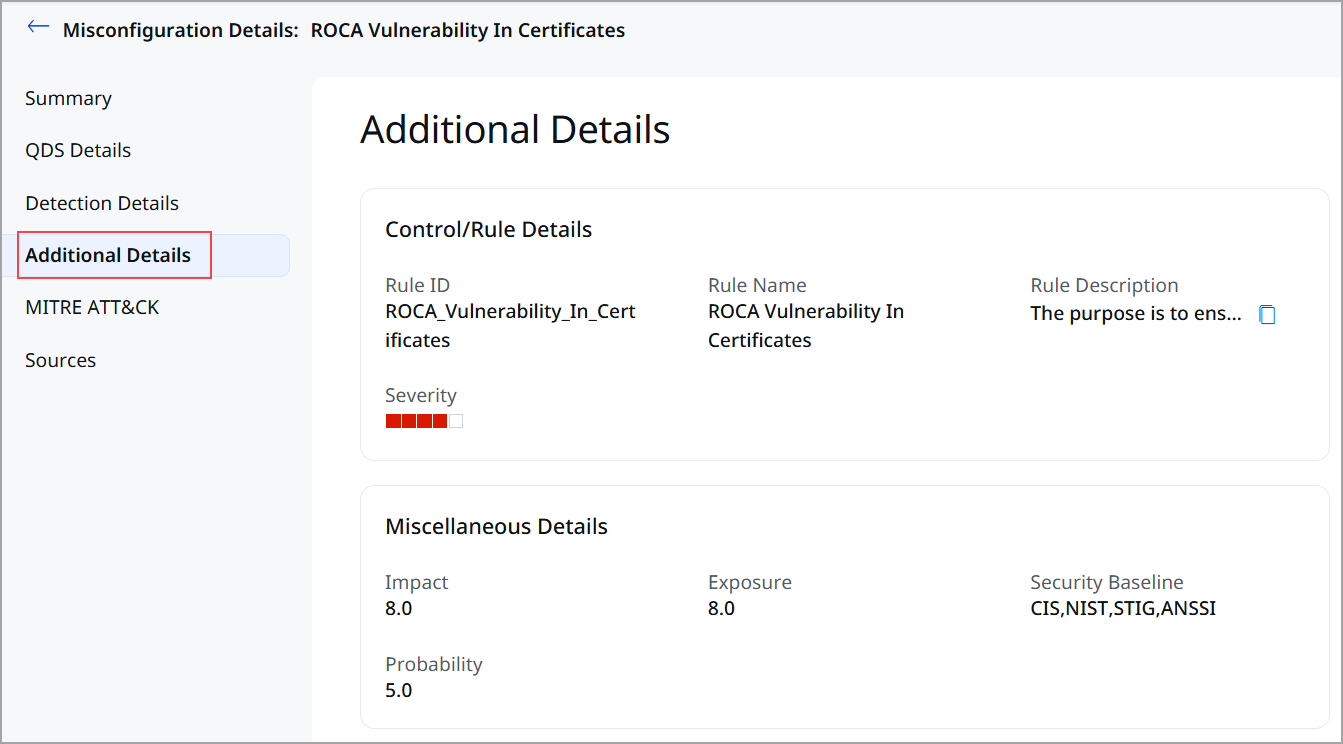
- Additional Details: Additional details about the Control/ Rule Details and the policy that is evaluated on an asset. It is supplementary information that provides further context about the policy and control.
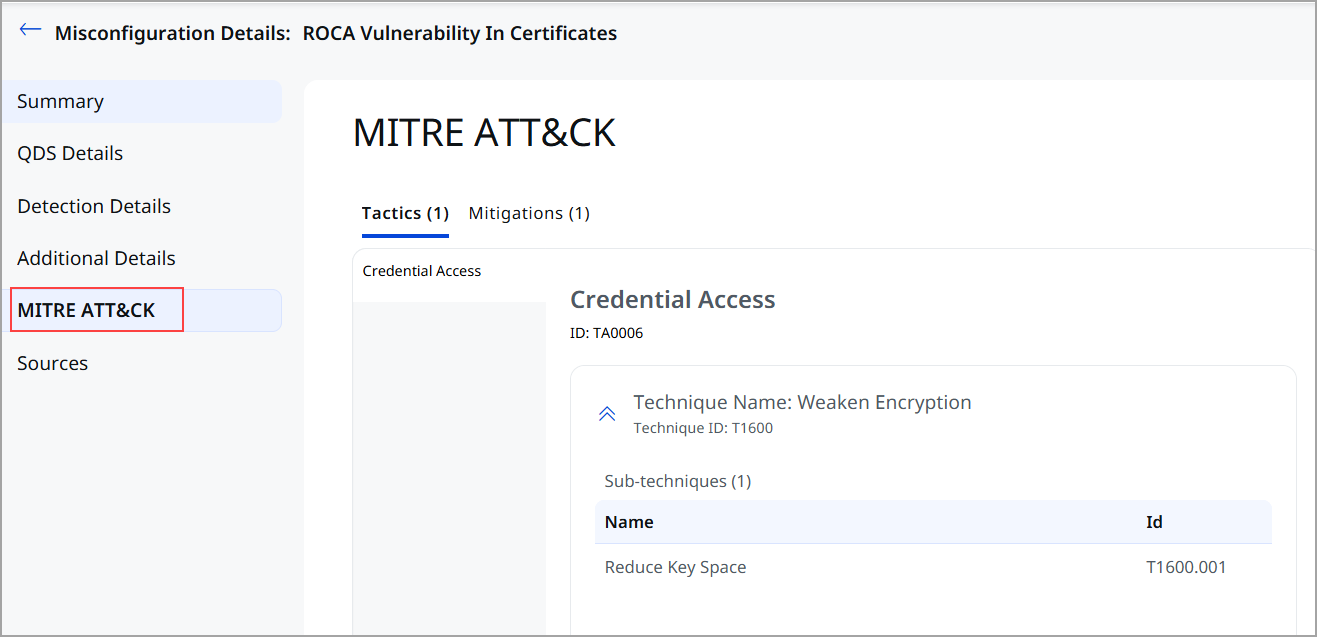
- MITRE ATT&CK: MITRE Tactics and Techniques associated with the control that evaluated on an asset.
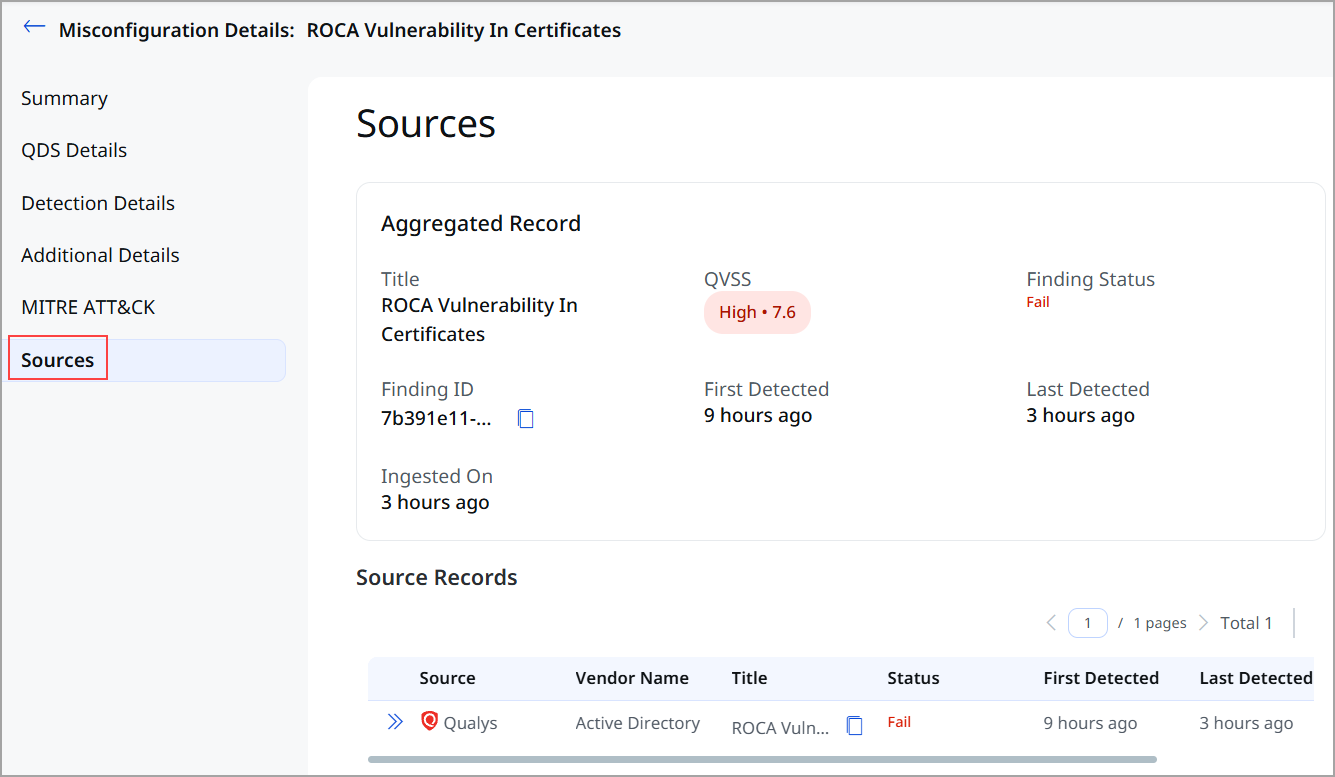
- Sources: If the same misconfiguration is detected from multiple sources on the same asset then this section displays the aggregated record created based on the merge rules and individual source records displaying the multiple sources from where the misconfiguration is detected.
Search ID Misconfigurations
Let us explore how you can search for misconfigurations.
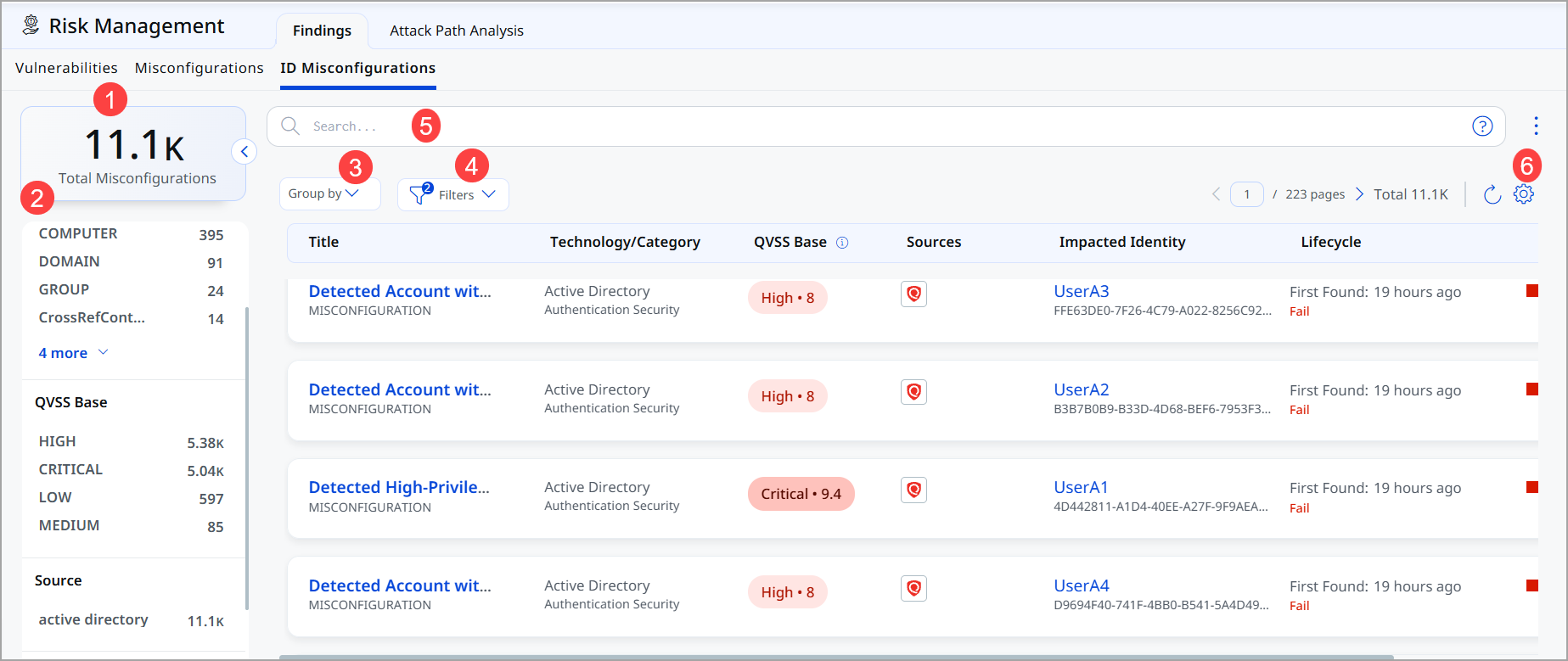
- Total Misconfiguration: This represents the total number of ID misconfigurations currently available.
- Use Quick Filters located in the left navigation to choose the type of misconfigurations to filter the misconfigurations further.
- The Group By option helps you organize your data. For example, you can select Group By Severity and then click any value listed in the Detection Count column to view the list of assets with the assigned severity.
- Use Filter option to choose the type of misconfiguration to exclude from the data list.
- Use search tokens to further filter the data list.
- Customize the display of rows and columns as per your needs. You can choose which columns to show or hide based on their preferences.
Additional Information
User-Specific Misconfigurations
Issues related to individual user accounts and their settings:
- Password policies not enforced on user accounts
- Excessive user privileges or permissions
- Account lockout settings not configured properly
- Multi-factor authentication not enabled for users
Example: User-Specific Misconfiguration
Finding: User account 'admin_legacy' has password set to never expire
Affected Identity: One specific user account
Remediation: Enable password expiration for this user account specifically
Asset-Based Misconfigurations
Issues related to computers, servers, and system-wide configurations:
- Unnecessary services running on servers
- Weak encryption standards enabled
- Insecure authentication protocols allowed
- Logging and auditing not properly configured
Example: Asset-Based Misconfiguration
Finding: Server EXCH-01 has null encryption cipher enabled
Affected Asset: One specific server
Remediation: Disable null encryption cipher on this server
Understanding Detection Dates
- First Detected: The date when this misconfiguration was first identified. This date never changes and helps you understand how long the issue has existed.
- Last Detected: The most recent scan date that confirmed the misconfiguration still exists.
Example Timeline
If a misconfiguration was First Detected: 5 days ago and Last Detected: 1 day ago, the issue has existed for 5 days. This tells you the misconfiguration is still active and hasn't been remediated yet.
What Happens After Remediation?
Once a misconfiguration is fixed:
- The next scan will show the corrected configuration
- The misconfiguration will automatically move to Pass or Resolved status
- It will no longer appear in active findings list (unless filtered to show resolved items)
- Historical record remains for audit and compliance purposes