Network Assets
Network assets refer to the infrastructure components that provide connectivity, traffic flow, and network-level security for your environment. These assets do not run business workloads themselves; instead, they enable systems, applications, and users to communicate securely and reliably.
The Network tab provides all network-related assets discovered across your environment. You can view network assets identified from supported cloud providers and platforms, such as AWS, Azure, and GCP. Each network asset is presented with key contextual details, including criticality, provider, asset type, location, IP and MAC addresses, discovery sources, and applied tags.
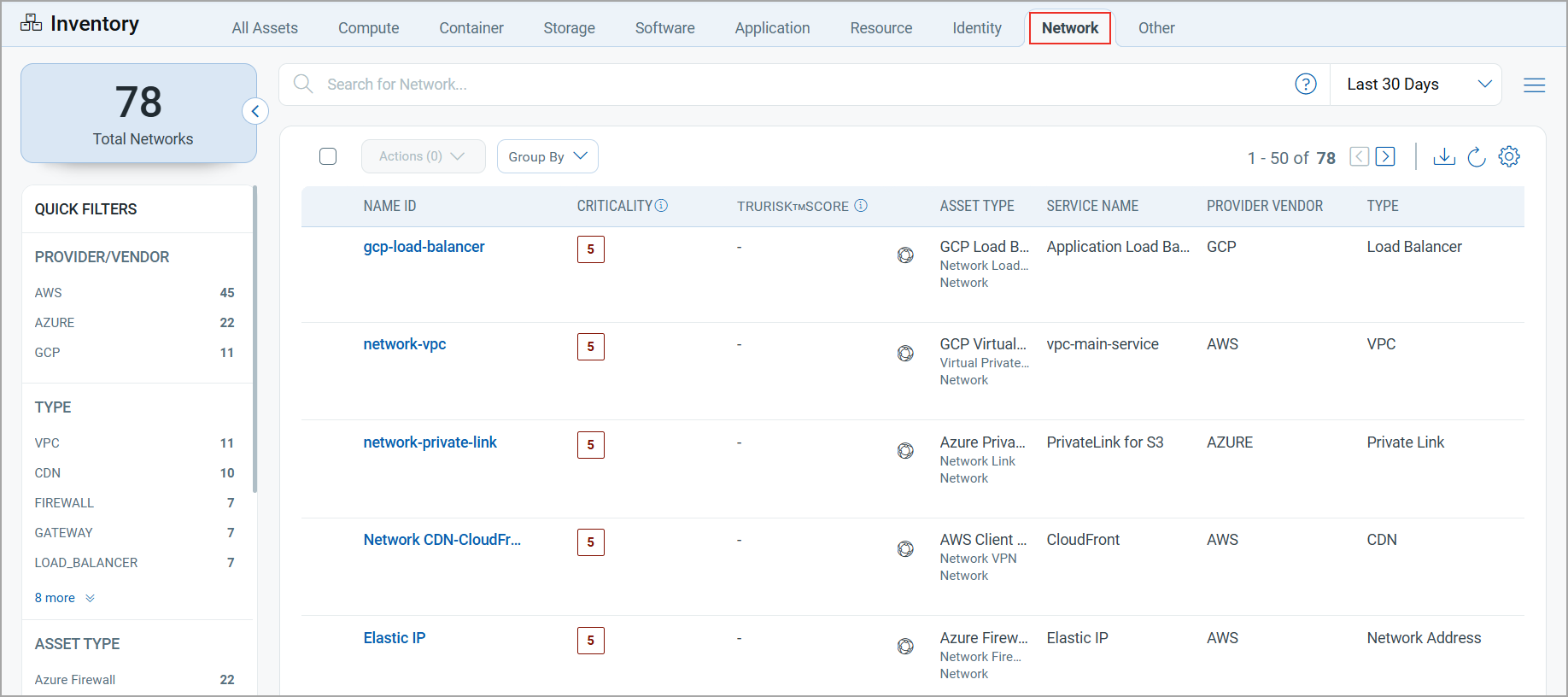
For each network asset, the following information is displayed:
| Column Name | Description |
|---|---|
| Name / ID | The name or unique identifier of the network asset. |
| Criticality | The Asset Criticality Score (ACS) assigned to the network asset. |
| TruRisk™ Score | The TruRisk™ score associated with the network asset. |
| Asset Type | The specific network asset type. |
| Service Name | The cloud service to which the network asset belongs (for example, VPC service, Load Balancer service). |
| Provider / Vendor | The cloud provider or vendor where the network asset is hosted, such as AWS, Azure, or GCP. |
| Type | Specifies the functional type of the network asset, such as CDN, Gateway, Firewall, or Private Link. |
| Location | Displays the geographic region or data center location where the network asset is deployed. |
| IP Address | Lists the IP address or addresses associated with the network asset. If multiple IPs exist, a summary is shown with an option to view more. |
| MAC Address | Displays the MAC address associated with the network asset, where applicable. |
| Sources | Identifies the data sources or connectors from which the network asset was discovered and ingested into UAI. |
| Tags | Shows the tags applied to the network asset for classification, organization, and policy enforcement. |
| First Seen | Indicates the date and time when the network asset was first discovered. |
| Last Seen | Indicates the most recent date and time when the network asset was observed or updated. |
Group Network Assets
The Group By dropdown enables you to organize and analyze assets by grouping them according to a selected attribute.
Grouping Attributes
You can organize the assets based on the following attributes:
| Group By Option | Description |
|---|---|
| Provider / Vendor | Groups network assets based on the cloud provider or vendor where they are hosted. |
| Type | Groups network assets based on their device type. |
View Network Asset Details
The Network asset details page provides details of network assets discovered in your environment.
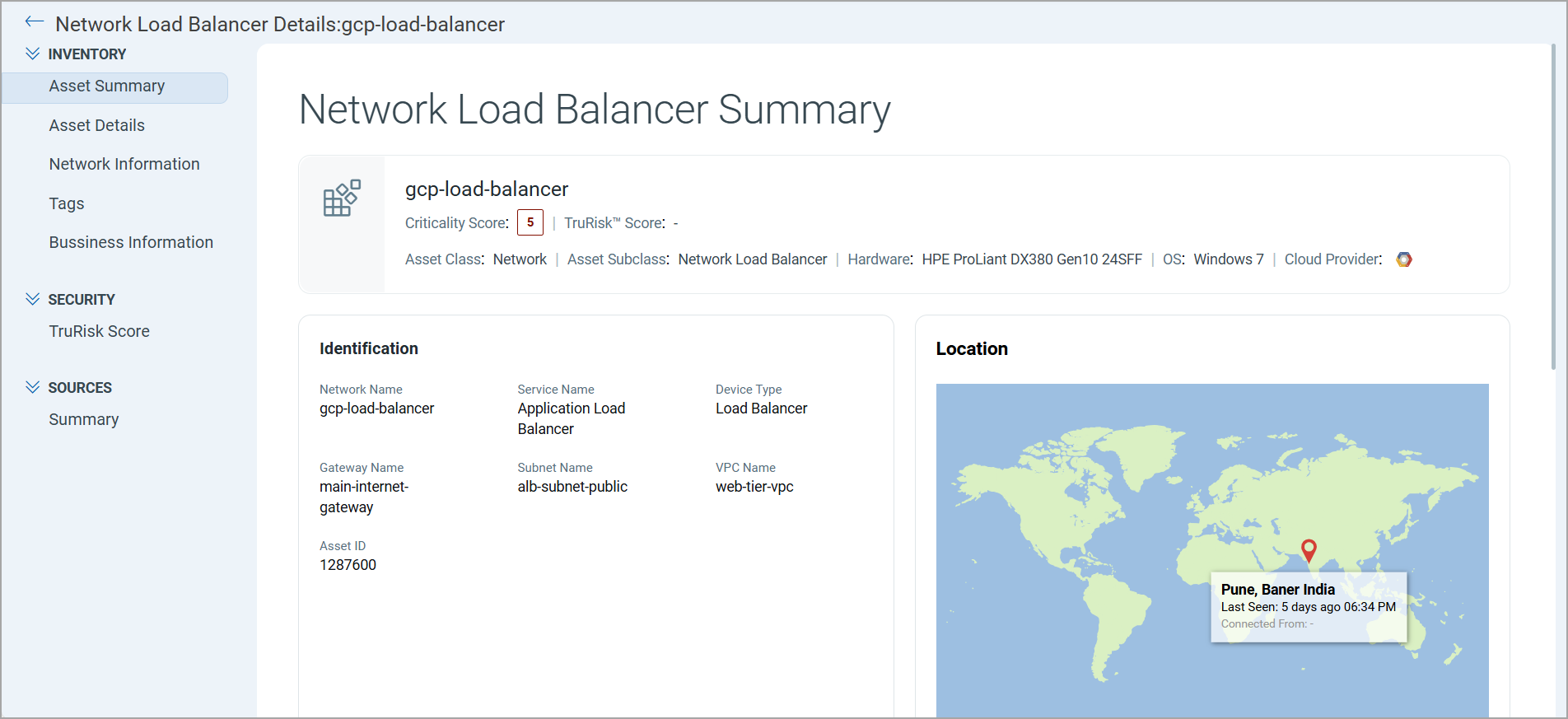
Expand the Inventory, Security, and Sources sections from the left pane and see various tabs under each section. To know more about the details you can see from these tabs, refer to the following topics:
Inventory Section
The Inventory section provides detailed information about the selected network asset.
The following tabs are available under the Inventory section:
The Asset Summary tab provides details of a selected network asset, enabling you to quickly understand its identity, context, and operational status.
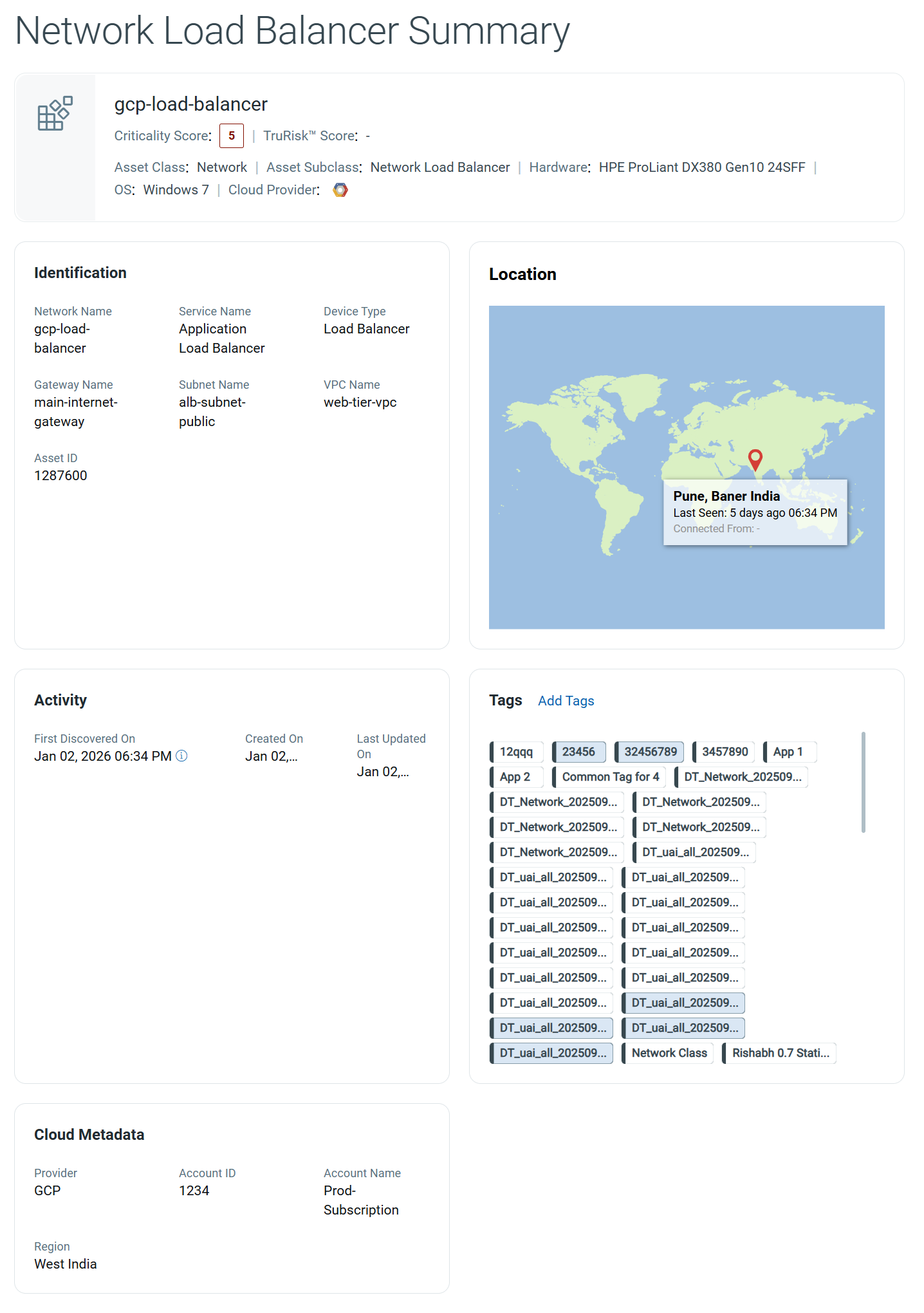
The summary displays high-level information about the network asset, including:
| Field | Description |
|---|---|
| Asset Name | Displays the name of the network asset. |
| Criticality Score | Displays the Asset Criticality Score (ACS) of the network asset. |
| TruRisk™ Score | Displays the TruRisk™ score associated with the asset. |
| Asset Class and Subclass | The asset classification includes the asset class and its corresponding subclass. |
| Hardware and Operating System | Displays the hardware and operating system on which the network asset was discovered. |
| Cloud Provider | Displays the cloud provider where the network asset is hosted, such as AWS, Azure, or GCP. |
Identification
The Identification section displays the core attributes used to uniquely define the network asset.
| Field | Description |
|---|---|
| Network Name | The name of the network asset. |
| Service Name | The network service associated with the asset, such as Application Load Balancer. |
| Device Type | The functional device category of the network asset, such as Load Balancer. |
| Gateway Name | The gateway through which the network asset connects to external or internal networks. |
| Subnet Name | The subnet associated with the network asset. |
| VPC Name | Displays the virtual network (VPC) name where the asset is deployed. |
| Asset ID | A unique identifier assigned to the network asset. |
Location
The Location section displays the geographical location associated with the network asset based on discovery data.
This section includes:
- A map view indicating the last known location
- City, region, and country information
- Last Seen timestamp
Activity
The Activity section provides the following information for the network asset:
| Field | Description |
|---|---|
| First Discovered On | The date and time when the network asset was first discovered. |
| Created On | The date and time when the network asset record was created in the inventory. |
| Last Updated On | The most recent date and time when network asset details were modified. |
Tags
The Tags section displays all tags associated with the role.
You can:
- View existing tags applied to the network asset.
- Add new tags using Add Tags.
Cloud Metadata
The Cloud Metadata section displays cloud-related information associated with the network asset.
| Field | Description |
|---|---|
| Provider | Cloud service provider associated with the network asset. |
| Account ID | Cloud account identifier. |
| Account Name | Name of the cloud account. |
| Region | Cloud region associated with the network asset. |
The Network Asset Details page provides all metadata associated with a selected network asset.
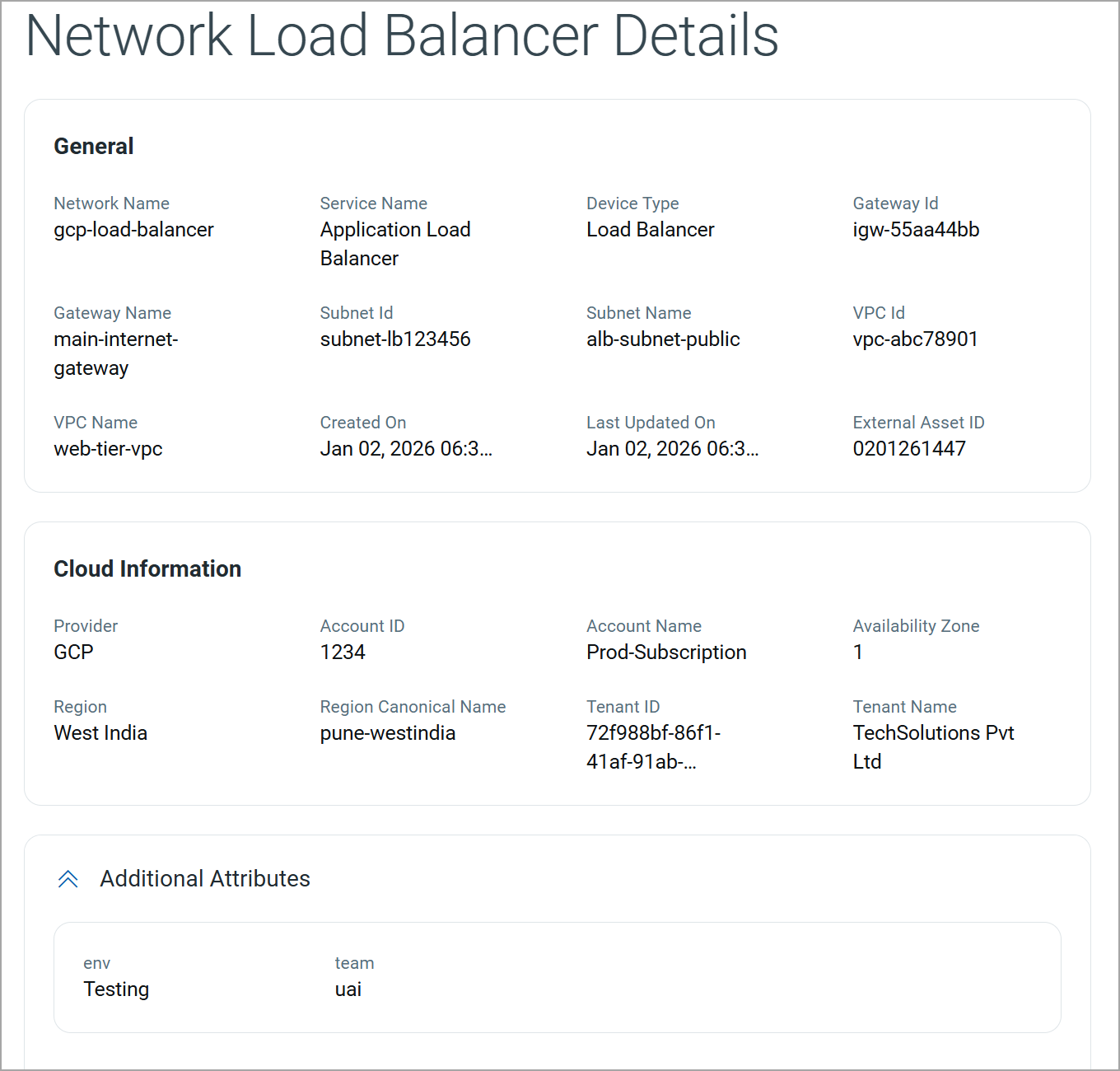
General Information
The General section displays the general details of the network asset.
| Field | Description |
|---|---|
| Network Name | The name of the network asset. |
| Service Name | The network service associated with the asset, such as Application Load Balancer. |
| Device Type | The functional category of the network asset, for example, Load Balancer. |
| Gateway ID | The unique identifier of the gateway associated with the network asset. |
| Gateway Name | The name of the gateway through which the network asset connects to the network. |
| Subnet ID | The unique identifier of the subnet associated with the asset. |
| Subnet Name | The name of the subnet where the network asset is deployed. |
| VPC ID | The unique identifier of the virtual network (VPC or equivalent). |
| VPC Name | The name of the virtual network where the asset resides. |
| External Asset ID | The asset identifier as reported by the cloud provider or external source. |
| Created On | The date and time when the asset was created at the source provider. |
| Last Updated On | The most recent date and time when the asset information was updated. |
Cloud Information
This section displays cloud-related context when the network asset is associated with a cloud provider or tenant.
| Field | Description |
|---|---|
| Provider | Displays the cloud service provider hosting the network asset. |
| Account ID | Shows the cloud account or subscription ID associated with the asset. |
| Account Name | Displays the friendly name of the cloud account or subscription. |
| Tenant ID | Displays the unique identifier of the tenant associated with the asset. |
| Tenant Name | Displays the name of the tenant or organization that owns the asset. |
| Region | Displays the cloud region where the network asset is deployed. |
| Region Canonical Name | Displays the standardized or canonical name of the region. |
| Availability Zone | Displays the availability zone within the selected region. |
Additional Attributes
This section lists custom key–value attributes assigned to the network.
| Attribute | Description |
|---|---|
| env | Indicates the environment context of the network asset (for example, Testing, Production). |
| team | Identifies the responsible team for the network asset. |
Network InformationNetwork Information
The Network Information tab provides networking details for the selected network asset. This information helps you understand how the asset is configured for network communication and how it connects to other systems within the environment.
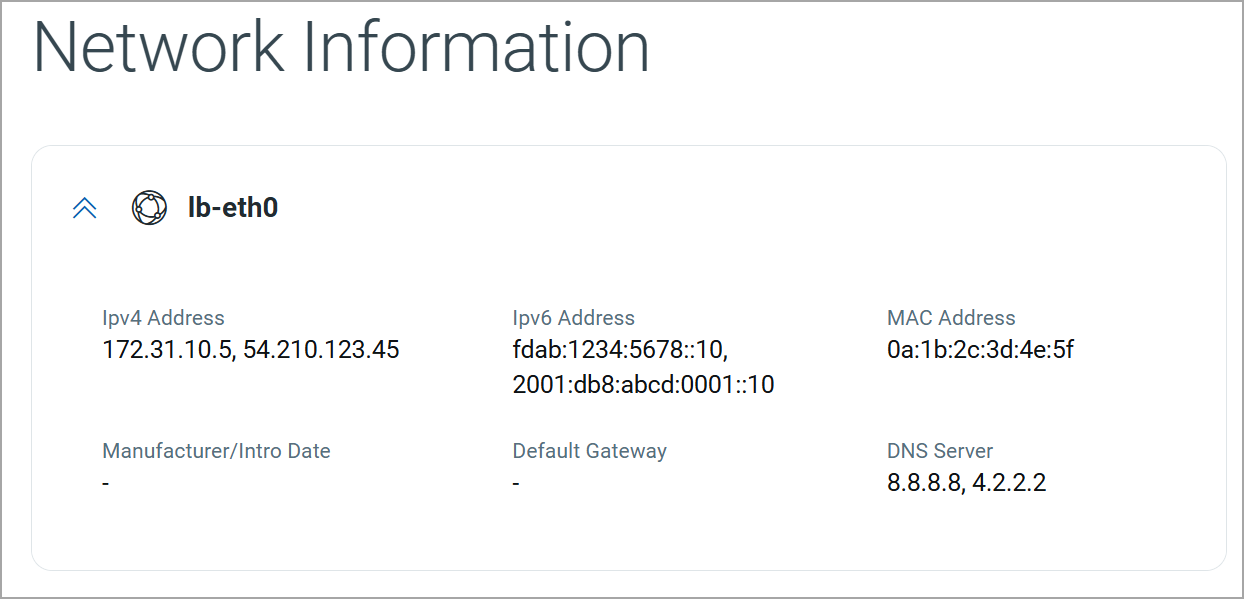
| Field | Description |
|---|---|
| Interface Name | Displays the name of the network interface associated with the asset (for example, lb-eth0). |
| IPv4 Address | Lists one or more IPv4 addresses assigned to the network interface. |
| IPv6 Address | Lists one or more IPv6 addresses assigned to the network interface, if available. |
| MAC Address | Displays the unique Media Access Control (MAC) address of the network interface. |
| Manufacturer / Intro Date | Shows manufacturer details or the date the interface was introduced, if reported by the source. |
| Default Gateway | Displays the default gateway configured for the interface, which is used to route outbound traffic. |
| DNS Server | Lists the DNS servers configured for the interface and used for name resolution. |
The Tags tab enables you to view and add tags associated with the network asset.
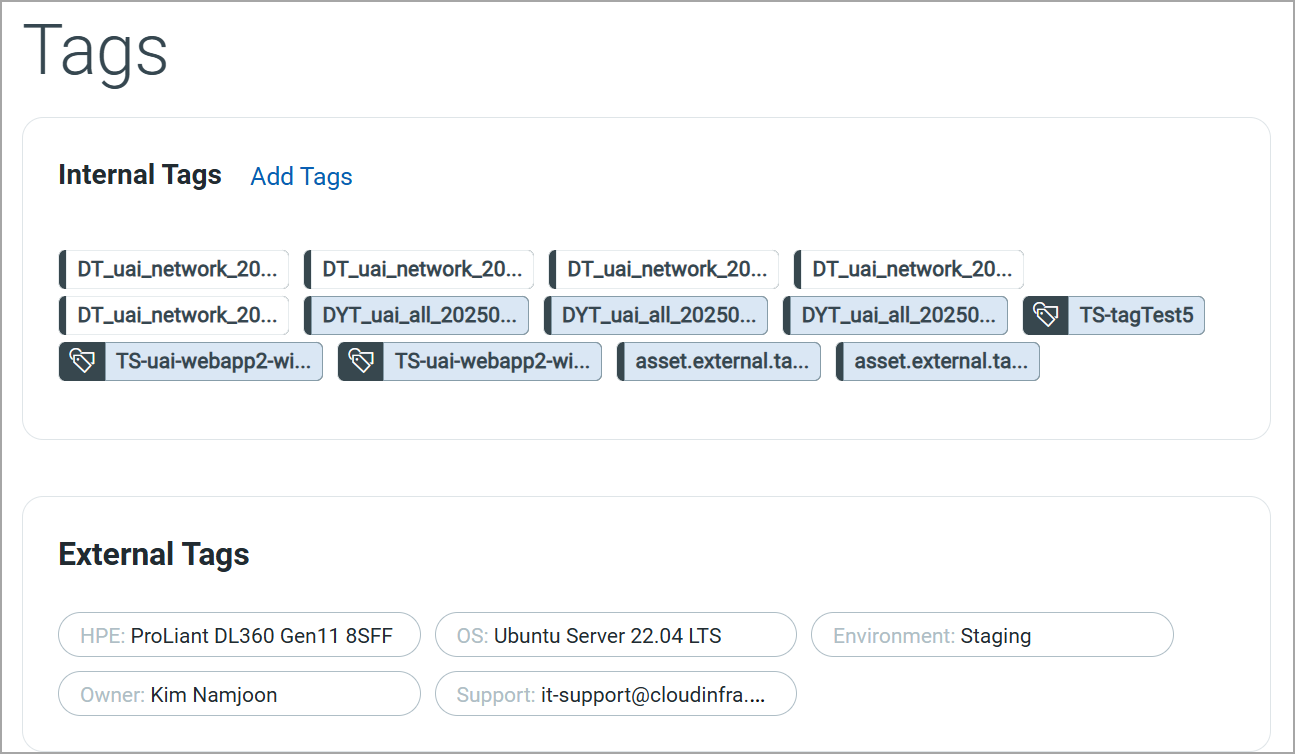
Internal Tags
Internal Tags are system-generated or user-defined tags. You can add a new tag by clicking Add Tags.
External Tags
External Tags are tags inherited from external sources such as cloud providers or integrated third-party systems.
Business InformationBusiness Information
The Basic Information tab provides essential business and operational context for the selected Role.
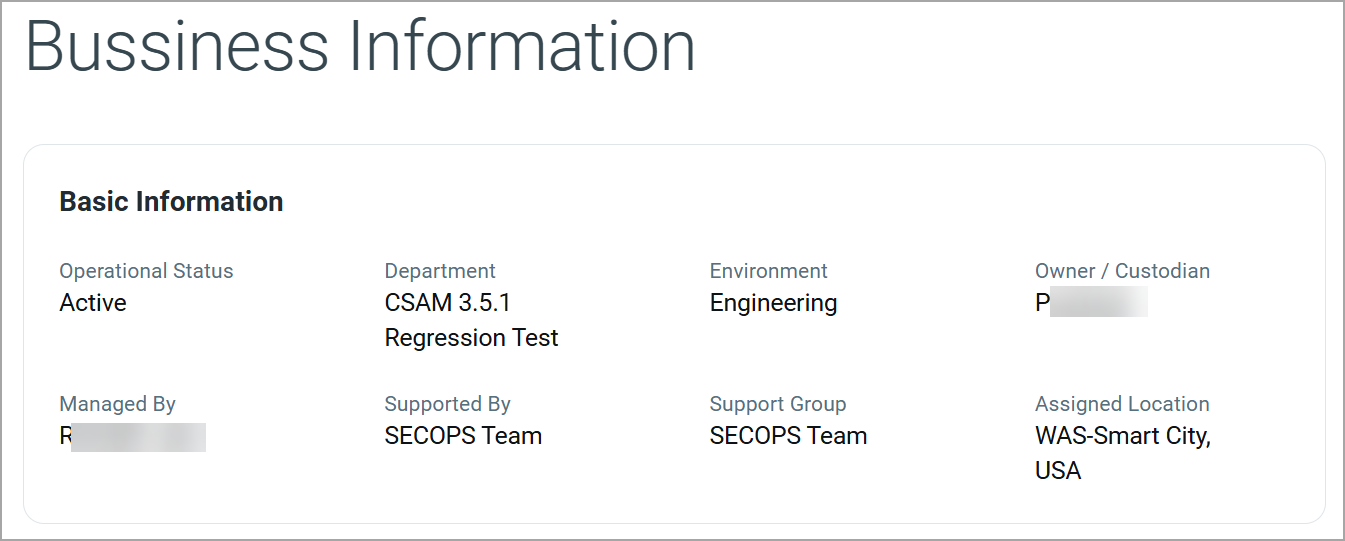
Basic Information
The Basic Information section displays key business attributes associated with the role.
| Field | Description |
|---|---|
| Operational Status | The current operational state of the network, such as Active or Inactive. |
| Department | The department associated with the network. |
| Environment | The environment in which the network is primarily used, such as Engineering, Testing, or Production. |
| Owner / Custodian | Designated individual responsible for business ownership and accountability of the network. |
| Managed By | The person or team responsible for managing and maintaining the network configuration. |
| Supported By | The team that provides operational or technical support for the network. |
| Support Group | The primary support group responsible for handling issues, incidents, or requests related to the network. |
| Assigned Location | The geographical location associated with the network. |
Security Section
The Security section provides risk and security-related insights for the network assets. This section helps you assess the security posture of the network asset and prioritize remediation efforts based on risk indicators.
The following tab is available under the Security section:
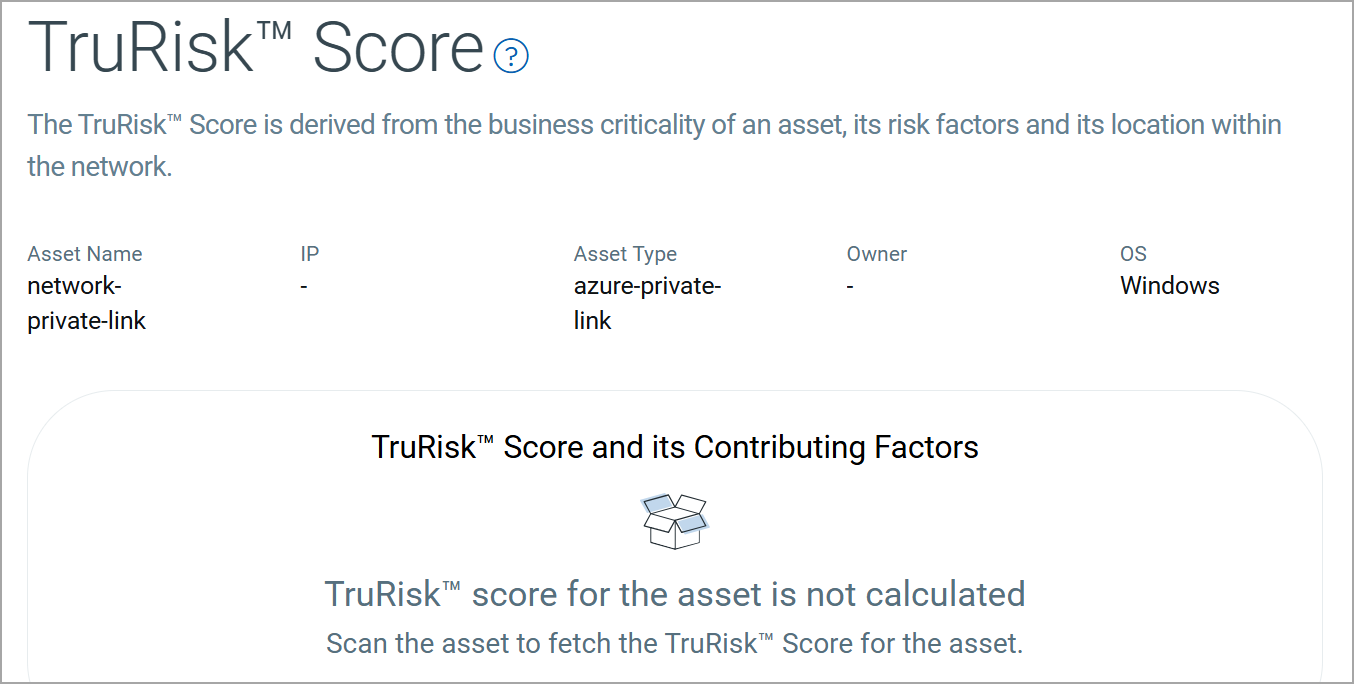
The TruRisk™ Score provides a risk-based assessment of the network asset by aggregating multiple contributing factors. This score helps you understand the potential security impact of the network within your environment.
Sources Section
The Sources section provides visibility into how and from where the network asset was discovered.
The following tab is available under the Sources section:
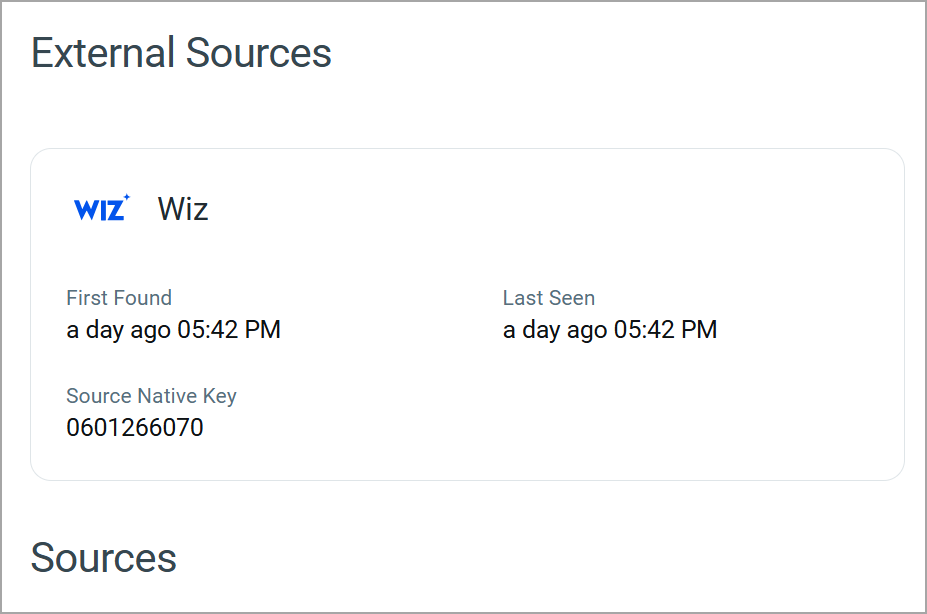
The Summary tab provides all external and internal sources of the network.
External Sources
The External Sources section displays details of third-party platforms or integrations that discovered the network asset.
For each external source, the following information is displayed:
| Field | Description |
|---|---|
| Source Name | Name of the external source. |
| First Found | Date and time when the network asset was first discovered by the external source. |
| Last Seen | Most recent date and time when the network asset was observed by the external source. |
| Source Native Key | Unique identifier assigned to the network asset by the external source. |
Sources
The Sources section lists all discovery sources associated with the network asset.
Add or Remove Tags
You can manage network asset tags from the Quick Actions or Actions menu. For more information on managing tags, refer to Manage Asset Tags.
Download Network List
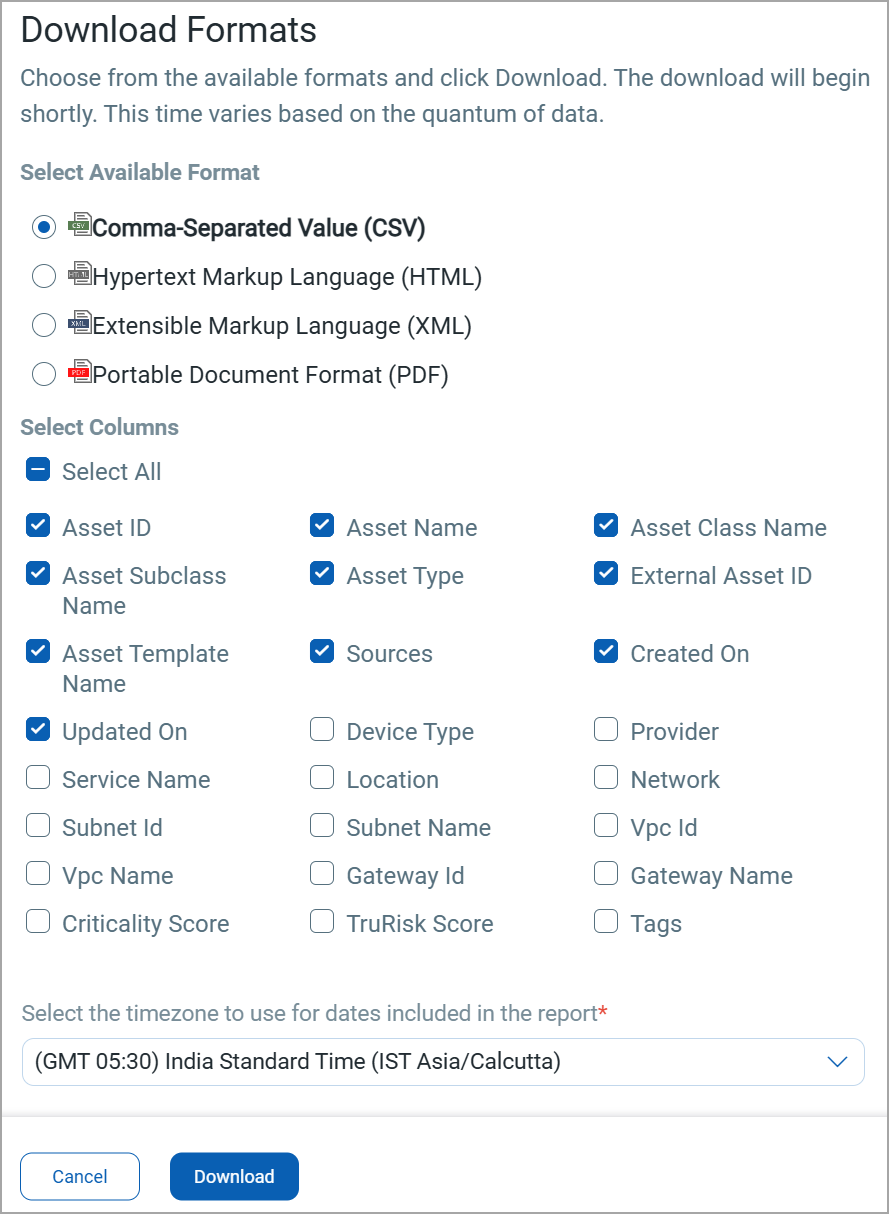
You can download the list of networks in a report from the Network tab in the following formats:
- Comma-Separated Value (CSV)
- Hypertext Markup Language (HTML)
- Extensible Markup Language (XML)
- Portable Document Format (PDF)
If you want to download the report in PDF format, you can select a maximum of 5 columns. If you select the Tags column, the report for up to 5,000 assets is downloaded.
To download, follow these steps:
- Click
 on the Network tab.
 - Select the download format and the columns you want in the report.
-
Select the timezone.
-
Click Download.