User
A user is an individual person who can authenticate, sign in, and interact with applications, systems, or cloud resources.
The User tab provides all user identities discovered in your environment. This helps you understand who has access, how they authenticate, and their associated risk posture.
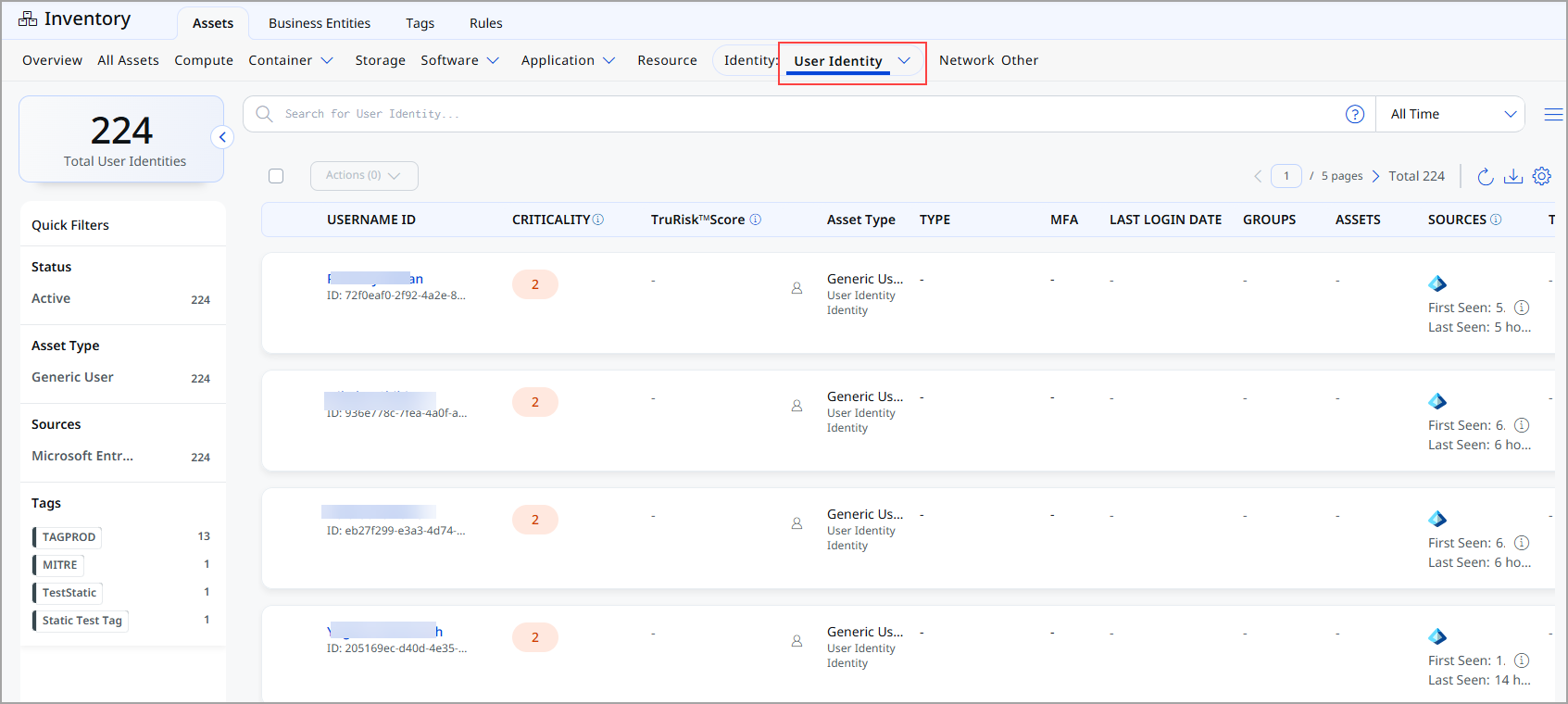
For each user, the following information is displayed:
| Column | Description |
|---|---|
| User Name / ID | The name of the user, along with the unique identifier. |
| Criticality | Business importance assigned to the user. |
| TruRisk™ Score | Risk score calculated based on identity exposure, behavior, and associated risk factors. |
| Asset Type | Indicates the asset category. |
| Type | The role classification of the user (for example, Member). |
| MFA | Shows whether multi-factor authentication is enabled for the user. |
| Last Login Date | The most recent successful login timestamp. |
| Groups | Lists any identity groups the user belongs to. |
| Assets | Number of assets associated with the user. |
| Sources | The discovery source from which the user was identified. |
| Tags | Tags applied to the user. |
View User Identity Details
The User Identity Details page provides details of an individual user identity discovered in your environment.
You can access this page by selecting a user from Inventory > Identity > User.
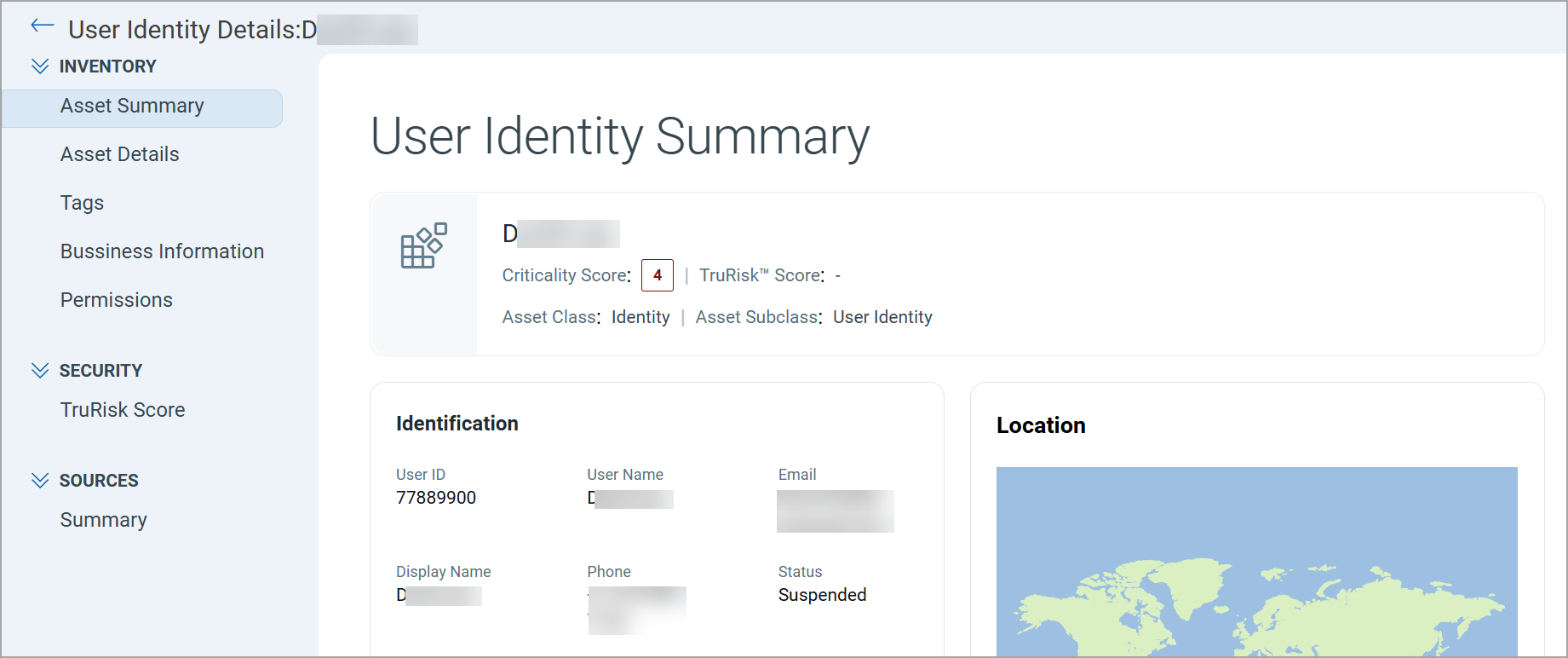
Expand the Inventory, Security, and Sources sections from the left pane and see various tabs under each section. To know more about the details you can see from these tabs, refer to the following topics:
Inventory Section
The Inventory section provides detailed information about the selected user.
The following tabs are available under the Inventory section:
The User Identity Summary tab provides a consolidated, high-level overview of the selected User.
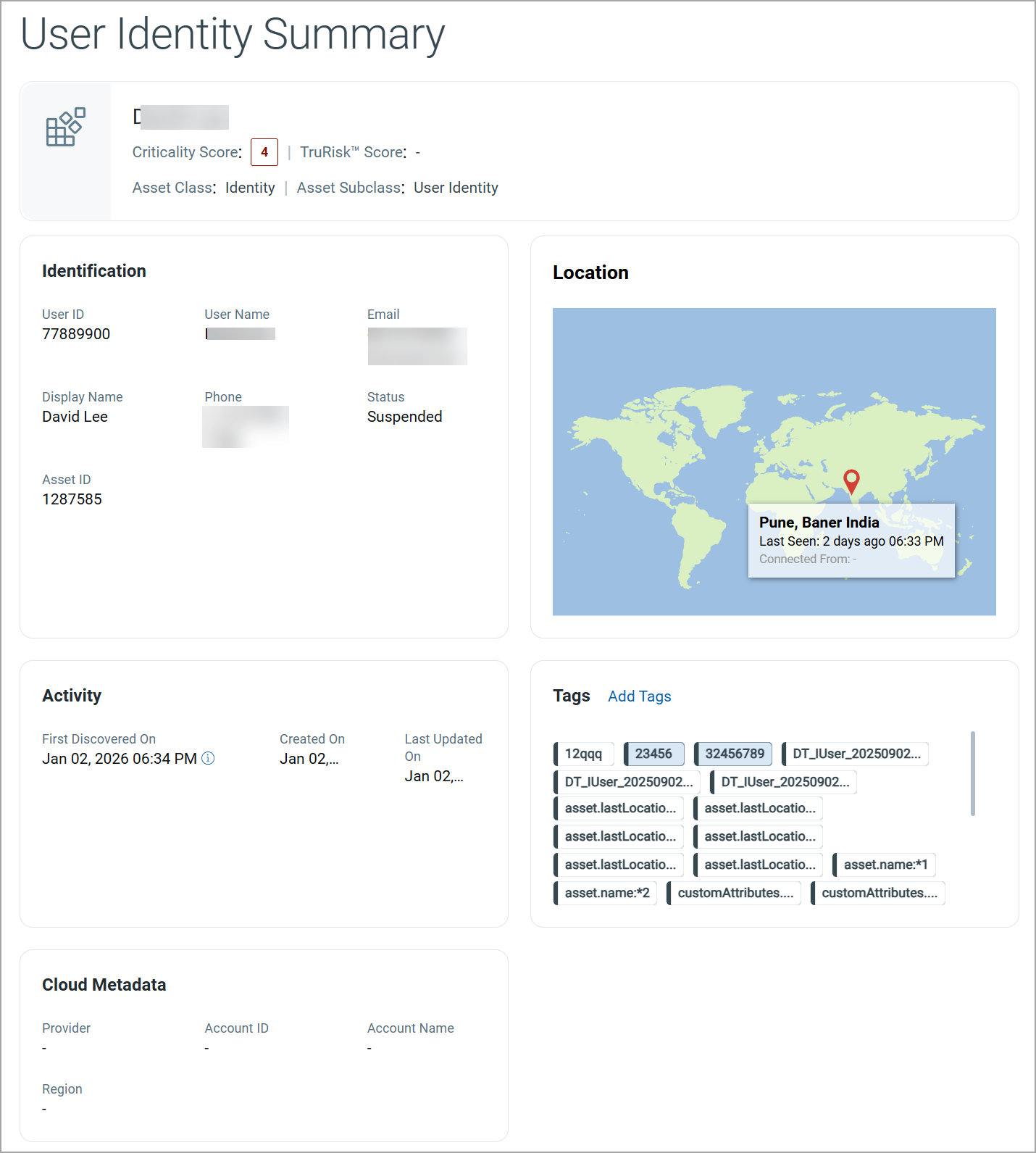
The summary header displays high-level information about the user, including:
| Field | Description |
|---|---|
| User Name | Name of the user. |
| Criticality Score | Asset Criticality Score (ACS) assigned to the user. |
| TruRisk™ Score | Displays the TruRisk™ score. |
| Asset Class and Subclass | The asset classification includes the asset class and its corresponding subclass. |
Identification
The Identification section displays key attributes used to uniquely identify the container image.
| Field | Description |
|---|---|
| User ID | The unique identifier of the user. |
| User Name | The name of the user. |
| Email address of the user. | |
| Display Name | The display name of the user. |
| Phone | Contact phone number of the user. |
| Status | Current state of the user account (for example, Active or Suspended). |
| Asset ID | The unique identifier assigned to the user. |
Location
The Location section displays the geographical location associated with the user based on discovery data.
This section includes:
- A map view indicating the last known location
- City, region, and country information
- Last Seen timestamp
Activity
The Activity section provides the following information for the group:
| Field | Description |
|---|---|
| First Discovered On | Date and time when the user was first detected. |
| Created On | Date and time when the user record was created. |
| Last Updated On | Most recent date and time when the user details were updated. |
Tags
The Tags section displays all tags associated with the user.
You can:
- View existing tags applied to the user.
- Add new tags using Add Tags.
Cloud Metadata
The Cloud Metadata section displays cloud-related information associated with the user.
| Field | Description |
|---|---|
| Provider | The cloud service provider associated with the user. |
| Account ID | The cloud account identifier where the user exists. |
| Account Name | The account name of the associated cloud provider. |
| Region | The cloud region associated with the user. |
The Asset Details tab provides details of an individual user identity discovered in the environment.
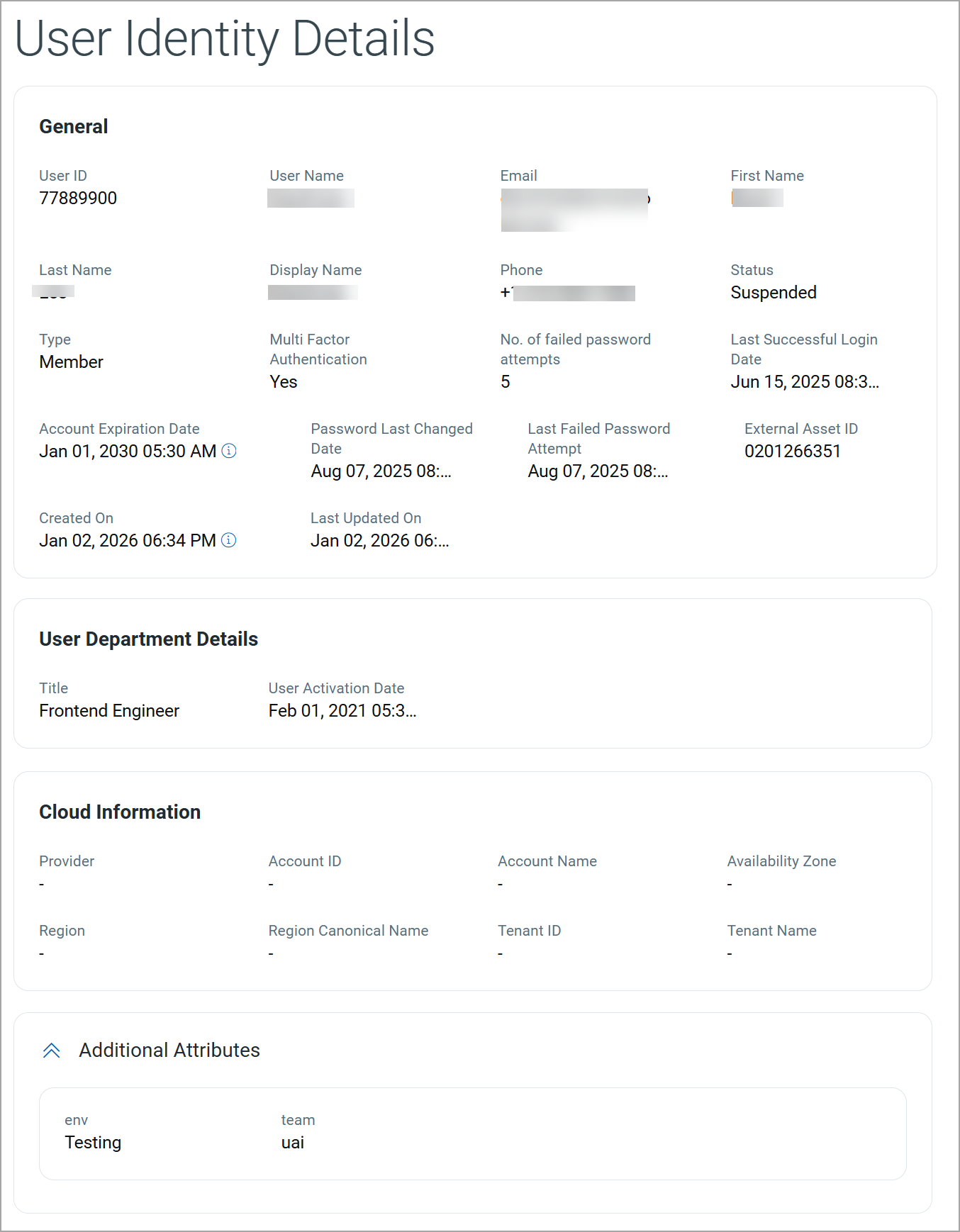
General Information
The General section displays the general details of the user.
| Field Name | Description |
|---|---|
| User ID | Unique internal identifier assigned to the user. |
| User Name | Login username of the user |
| First Name | User’s given name. |
| Last Name | User’s surname. |
| Display Name | Display name of the user across the platform. |
| Primary email address of the user. | |
| Phone | Contact phone number of the user. |
| Type | User classification, such as Member, Admin, or other role type. |
| Status | Current state of the user account (for example, Active or Suspended). |
| Multi Factor Authentication | Indicates whether MFA is enabled for the user. |
| No. of Failed Password Attempts | Count of recent unsuccessful authentication attempts by the user. |
| Last Successful Login Date | Timestamp of the user’s most recent successful login. |
| Last Failed Password Attempt | Timestamp of the most recent failed login attempt. |
| Password Last Changed Date | Date and time of the user's last password update. |
| Account Expiration Date | Date when the user account is set to expire. |
| Created On | Date and time when the user identity was first discovered or created. |
| Last Updated On | Date and time when the user identity details were last updated. |
| External Asset ID | Identifier used by the external identity or source. |
User Department Details
This section displays organizational and role-related information that helps associate the user with business functions.
| Field Name | Description |
|---|---|
| Title | Job title or role of the user within the organization. |
| User Activation Date | Date when the user account became active. |
Cloud Information
This section displays cloud tenancy and account context associated with the user identity.
| Field Name | Description |
|---|---|
| Provider | Cloud provider associated with the user identity. |
| Account ID | Cloud account identifier where the user identity exists. |
| Account Name | Account name of the associated cloud account. |
| Tenant ID | Unique tenant identifier for the user identity source. |
| Tenant Name | Name of the tenant owning the user identity. |
| Region | Cloud region associated with the user identity. |
| Region Canonical Name | Standardized internal name for the cloud region. |
| Availability Zone | Availability zone linked to the user identity. |
Additional Attributes
This section lists custom metadata and tags used to enrich the user identity for classification, filtering, and policy evaluation.
| Attribute | Description |
|---|---|
| env | Environment classification. |
| team | Team or owner associated with the environment. |
The Tags tab enables you to view and manage tags associated with the user identity.
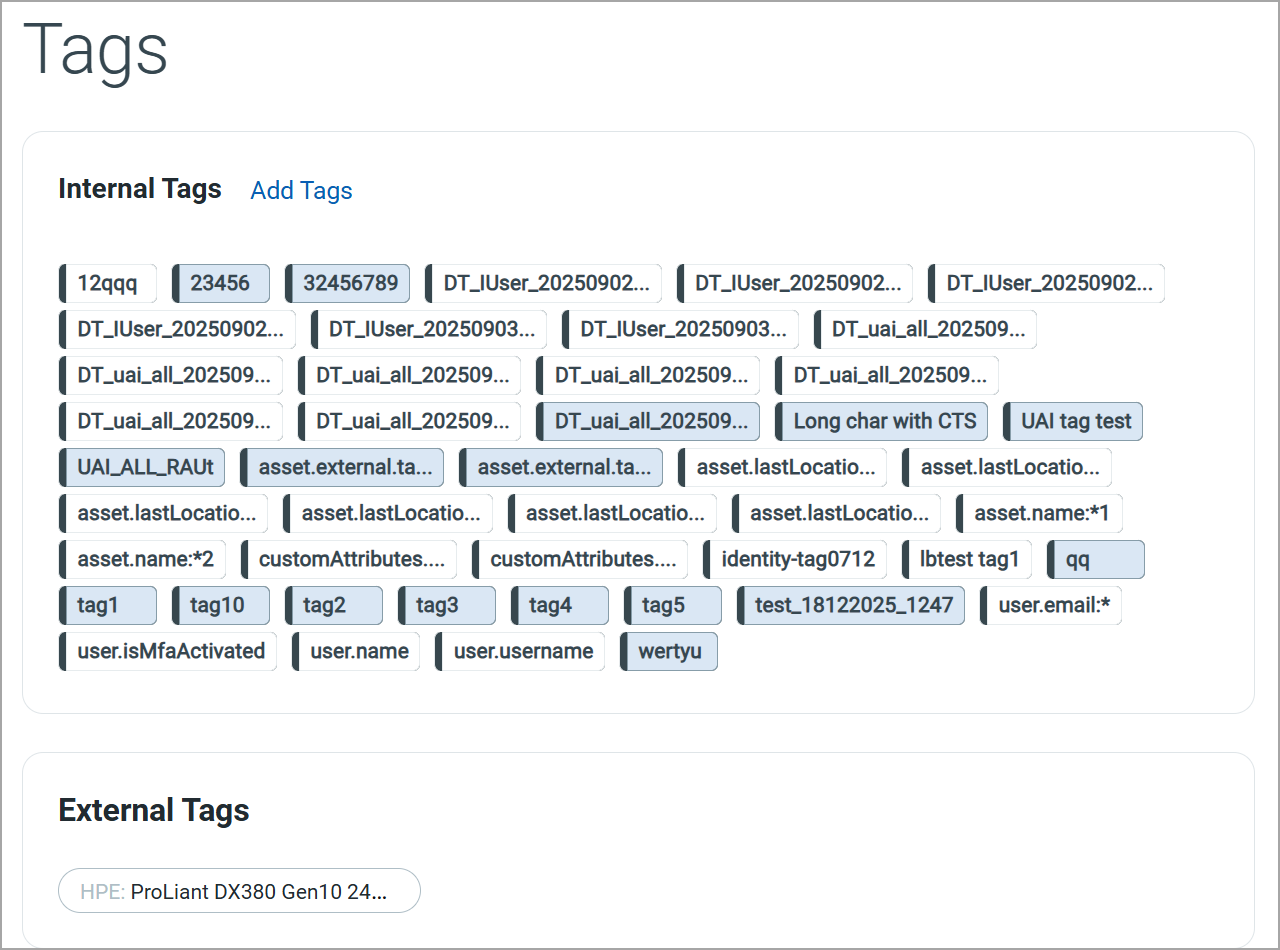
Internal Tags
Internal Tags are system-generated or user-defined tags. You can add a new tag by clicking Add Tags.
External Tags
External Tags are tags inherited from external sources such as cloud providers, container platforms, or integrated third-party systems.
Business InformationBusiness Information
The Business Information tab provides organizational context for the user identity.
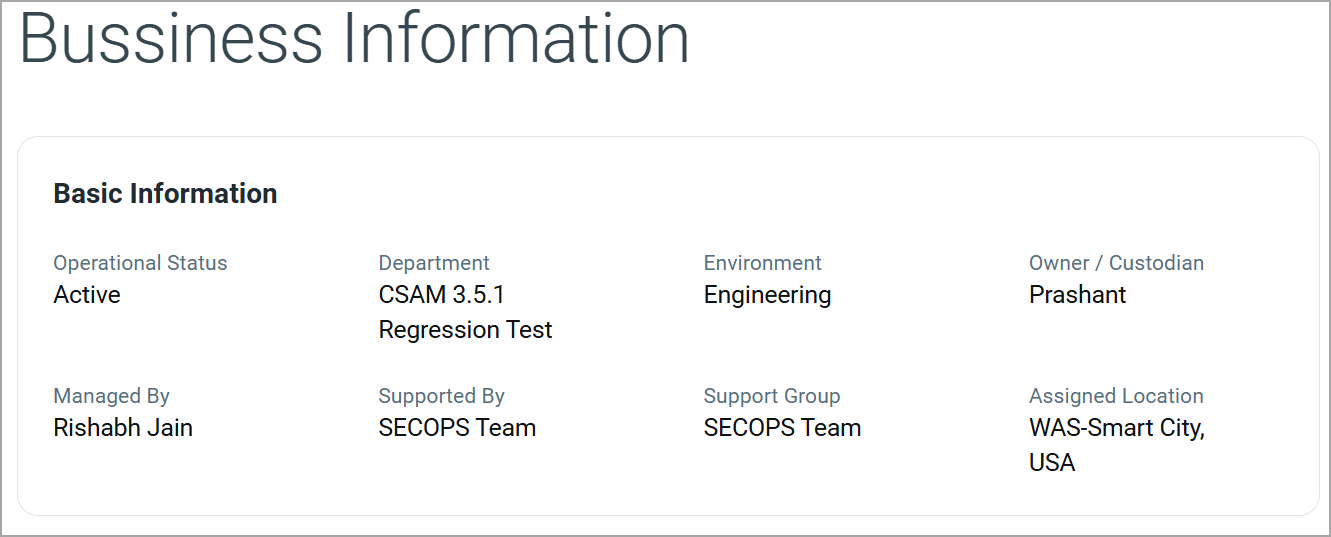
Basic Information
The Basic Information section displays key business attributes associated with the user identity.
| Field | Description |
|---|---|
| Operational Status | Indicates whether the user account is currently active or inactive within the organization. |
| Department | Specifies the department or functional unit to which the user belongs. |
| Environment | Displays the environment in which the user primarily operates, such as Engineering, Production, or Testing. |
| Owner / Custodian | Displays the individual responsible for the user identity from a business ownership perspective. |
| Managed By | Displays the person or team responsible for managing the user account. |
| Supported By | Displays the team providing operational or technical support for the user identity. |
| Support Group | Displays the support group assigned to handle access requests, issues, or escalations related to the user. |
| Assigned Location | Specifies the business or geographic location associated with the user identity. |
The Permissions tab displays the access rights assigned to the user identity across different resources.
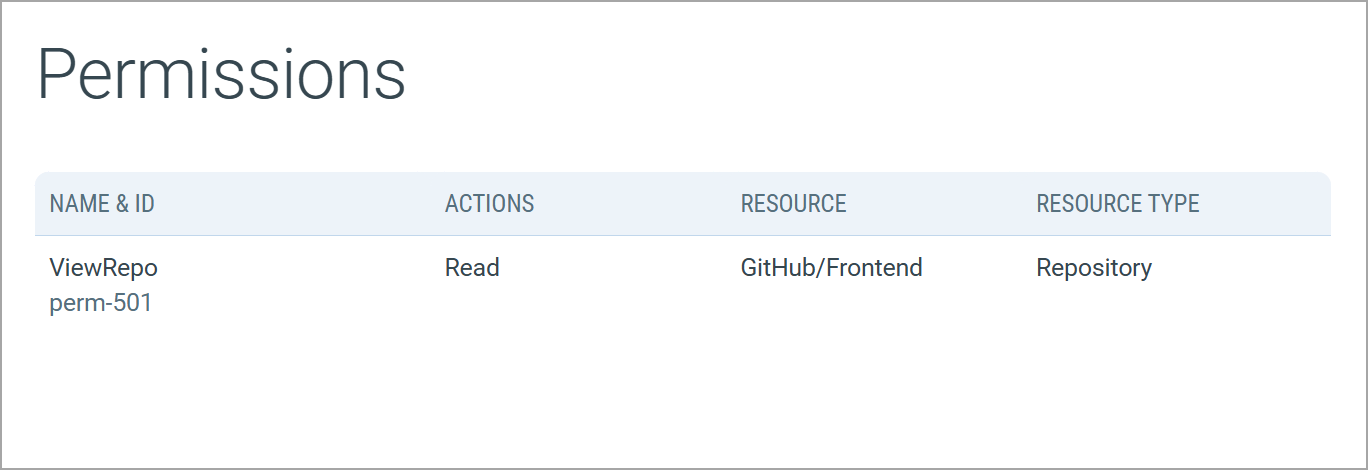
| Field | Description |
|---|---|
| Name & ID | The name of the permission along with its unique identifier. |
| Actions | The type of operation the user is allowed to perform, such as Read, Write, Update, or Delete. |
| Resource | The specific resource on which the permission is granted, for example, a repository, application, or service. |
| Resource Type | The category of the resource. |
Security Section
The Security section provides risk and security-related insights for the user identity. This section helps you assess the security posture of the user and prioritize remediation efforts based on risk indicators.
The following tab is available under the Security section:
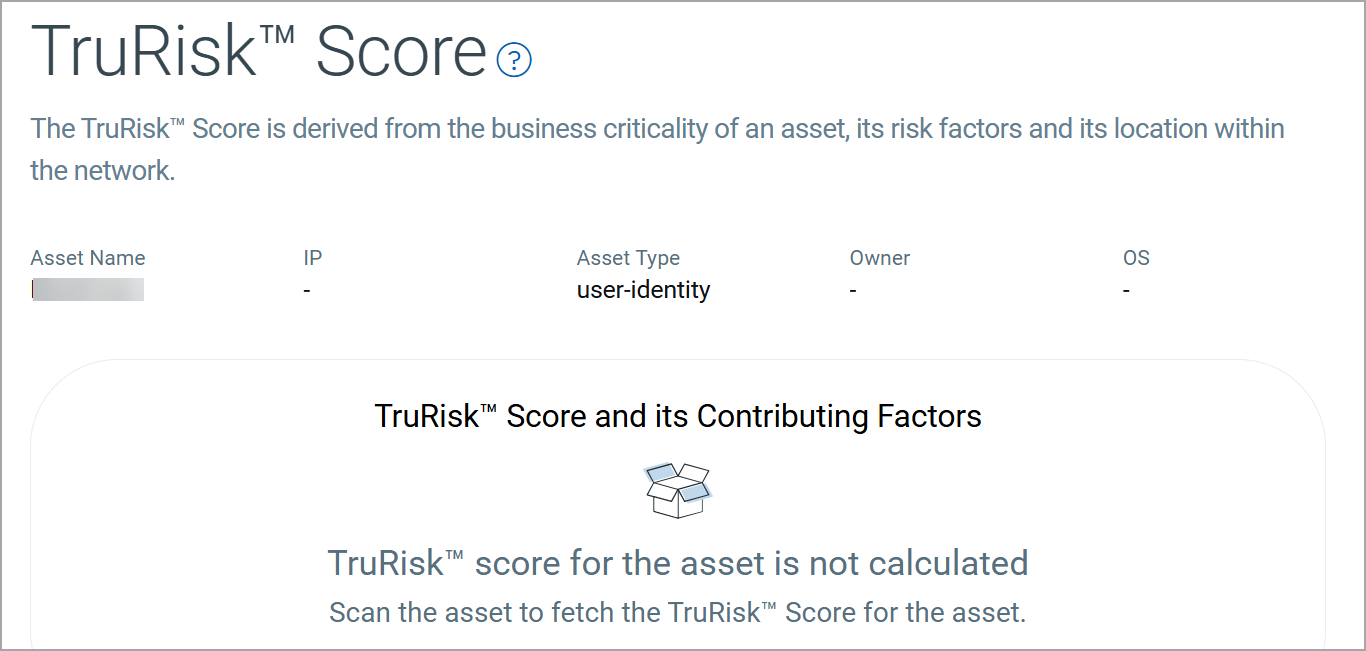
The TruRisk™ Score provides a risk-based assessment of the user identity by aggregating multiple contributing factors. This score helps you understand the potential security impact of the user within your environment.
Sources Section
The Sources section provides visibility into how and from where a user identity was discovered.
The following tab is available under the Sources section:
The Summary tab provides a consolidated view of all external and internal sources that discovered the container image.
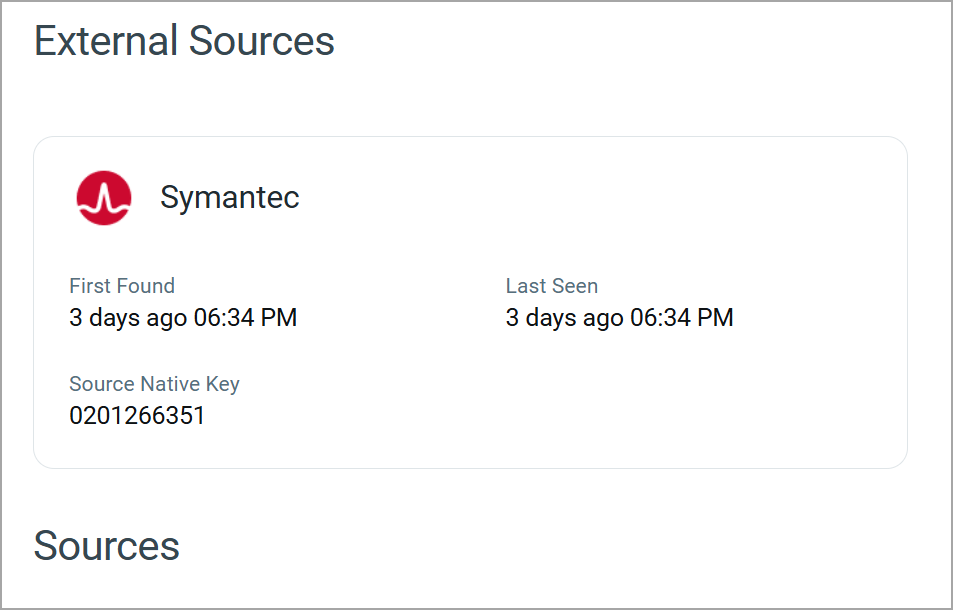
External Sources
The External Sources section displays details of third-party platforms or integrations that discovered the user identity.
For each external source, the following information is displayed:
| Field | Description |
|---|---|
| Source Name | Name of the external source that detected the user identity. |
| First Found | Date and time when the user identity was first discovered by the external source. |
| Last Seen | Most recent date and time when the user identity was observed by the external source. |
| Source Native Key | Unique identifier assigned to the user identity by the external source. |
Sources
The Sources section lists all discovery sources associated with the user identity. It provides a high-level overview of how the asset is being tracked and updated.
Add or Remove Tags
You can manage tags of the user identity from the Quick Actions or Actions menu. For more information on managing tags, refer to Manage Asset Tags.
Download User Identity List
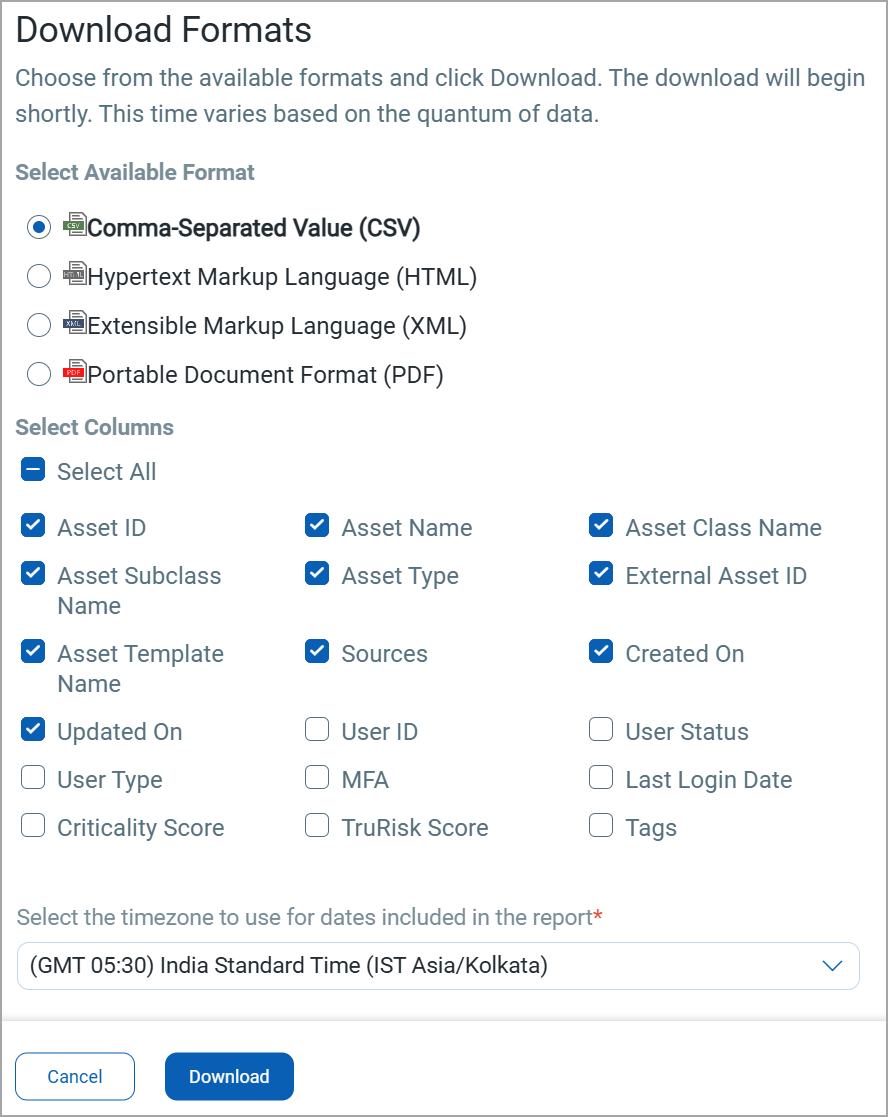
You can download the list of user identities in a report from the Identity > User tab in the following formats:
- Comma-Separated Value (CSV)
- Hypertext Markup Language (HTML)
- Extensible Markup Language (XML)
- Portable Document Format (PDF)
If you want to download the report in PDF format, you can select a maximum of 5 columns. If you select the Tags column, the report for up to 5,000 assets is downloaded.
To download, follow these steps:
- Click
 on the Identity > User tab.
 - Select the download format and the columns you want in the report.
-
Select the timezone.
-
Click Download.