Common User Interface for AI Agents
The Cyber Risk Agents Common User Interface provides a unified workspace to discovering, activating, and managing AI-powered cyber risk agents. From a single interface, users can configure agents, assign and monitor tasks, and review outcomes that help prioritize and reduce risk across the environment.
The Cyber Risk Agents tab includes three subtabs: My Agents, All Agents, and Marketplace. You can hire an agent from the Marketplace. The agents hired for your account can be viewed in the My Agents tab.
Marketplace for Qualys AI Agents
The Marketplace tab provides a centralized view to discover, manage, and operate Qualys AI Agents designed to automate and optimize security workflows.
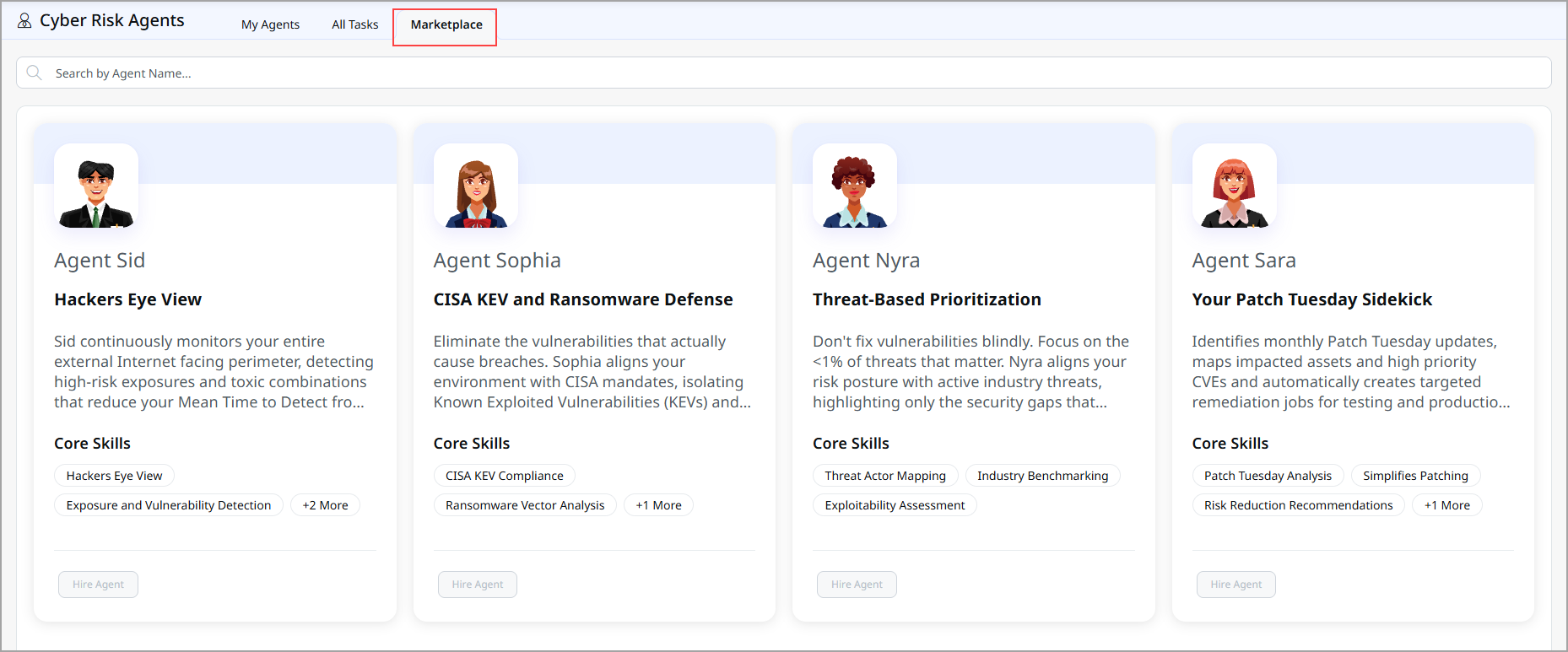
From this tab, you can:
Discover available Qualys AI Agents
- View all available agents in a card-based layout.
- Each AI Agent card highlights:
- The AI Agent name and primary use case
- A short description explaining how the AI Agent helps address specific security challenges
- Core skills that summarize the AI Agent's key capabilities
Search and explore agents
-
Use Search by Agent Name to quickly find a specific AI Agent.
-
Compare agents side by side to identify the best fit for your security workflows.
Understand AI Agent's capabilities
-
Review each AI Agent’s focus area, such as:
-
CISA KEV and ransomware monitoring
-
Threat-informed risk prioritization
-
Patch Tuesday analysis and remediation guidance
-
External attack surface exposure monitoring
-
-
Use the listed core skills
Hire Agents
-
Hire agents to make them available for task assignment and execution.
-
Hired Agents can then be used across the tasks and results workflows.
Control AI Agent availability
-
Manage which AI Agents are enabled in your environment to align with your organization’s needs and access policies.
-
Ensure only relevant AI Agents are active and operational.
View Your Hired AI Agents
The My Agents tab is your starting point for discovering and hiring Agentic AI capabilities. It lets you explore available agents, understand what each AI Agent does, and enable them for use in your environment.
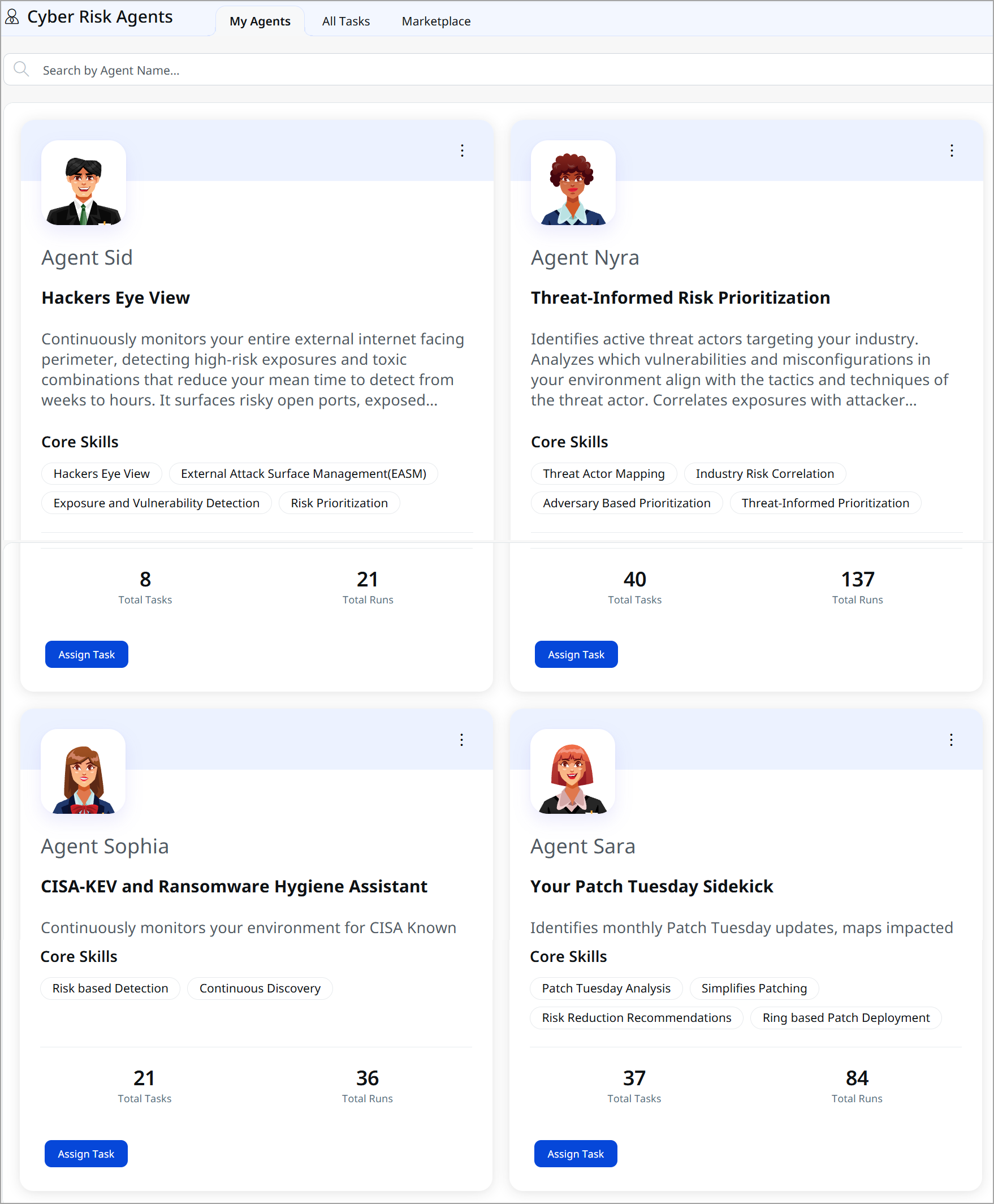
From this tab, you can:
Discover available AI Agents
- View all available AI Agents as cards, each representing a specialized security use case (for example, external exposure monitoring, threat-informed prioritization, ransomware hygiene, or patch management).
- Quickly understand each AI Agent’s purpose through a short description and highlighted core skills.
Search and navigate AI Agent:
- Use the Search by Agent Name field to quickly locate a specific AI Agent.
- Browse Agents in a card-based layout for easy comparison and selection.
Review AI Agent capabilities and activity:
- See key metrics for each AI Agent, including:
- Total Tasks assigned to the AI Agent
- Total Runs executed by the AI Agent
- Use these metrics to understand AI Agent usage, workload, and effectiveness.
Assign and manage tasks:
- Assign new tasks to an AI Agent directly using the Assign Task action.
- Configure tasks to automate detection, prioritization, analysis, or remediation workflows based on the AI Agent’s skills.
Access AI Agent actions:
Use the action menu (three-dot menu) on each AI Agent card to perform agent-specific operations, such as managing configurations or controlling availability (based on your role permissions).
Monitor operational coverage
- Identify which security areas are actively covered by AI Agents and where automation is already in place.
- Compare AI Agents based on scope, frequency of execution, and task volume.
View All Assigned Tasks to AI Agents
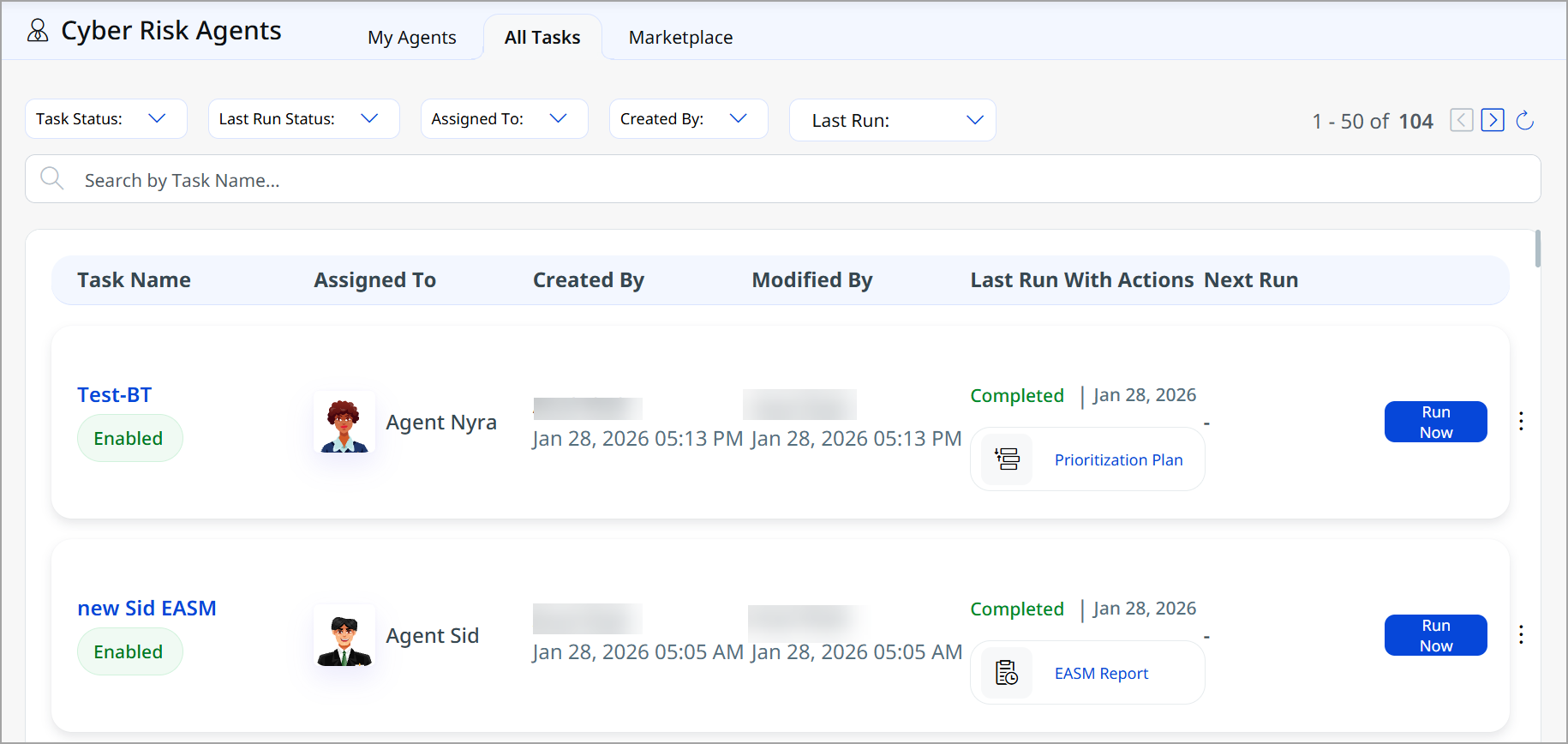
The All Tasks tab provides a centralized view to manage, monitor, and operate tasks assigned to AI Agents. It helps you track task ownership, execution status, and outcomes in one place.
View and Track Tasks
View all agent tasks in a structured list with key details, including:
- Task name and status (Enabled/Disabled)
- Assigned AI Agent
- Created by and Last modified by information
- Last run status and date
- Next scheduled run, if applicable
Quickly identify whether a task has been successfully completed, has not yet run, or requires attention.
Filter and Search Tasks
Filter tasks using built-in controls such as:
- Task Status
- Last Run Status
- Assigned To
- Created By
- Last Run time frame
- Use Search by Task Name to quickly locate specific tasks.
- Navigate large task lists easily using pagination.
Run Tasks On Demand
You can manually trigger tasks whenever needed, allowing for immediate action outside of the regular schedule. You can use the Run Now action to manually trigger a task outside of its scheduled execution.
Access Task Outputs
You can quickly view and review key outputs from the most recent task run.
- View outputs generated during the last task run, such as:
- Prioritization Plans
- EASM Reports
- Directly open results from the Last Run With Actions column for quick review.
Manage Task Lifecycle
It simplifies task management by enabling the disabling and tracking of tasks for improved accountability.
- Enable or disable tasks without deleting them.
- Use the action menu (⋮) to perform task-level operations such as editing or deleting tasks (based on role permissions).
- Maintain accountability by tracking who created and last modified each task.
Monitor Operational Readiness
It helps to identify active tasks, track execution trends:
- Identify tasks that are active but have not yet run.
- Track execution trends and ensure critical tasks are running as expected.