Understanding Metrics for Agent Insta
The following section explains what each metric reveals about your exposure.
Your Exposure Dashboard
Agent Insta displays key metrics showing what InstaScan has detected across the assets in your configured scope:
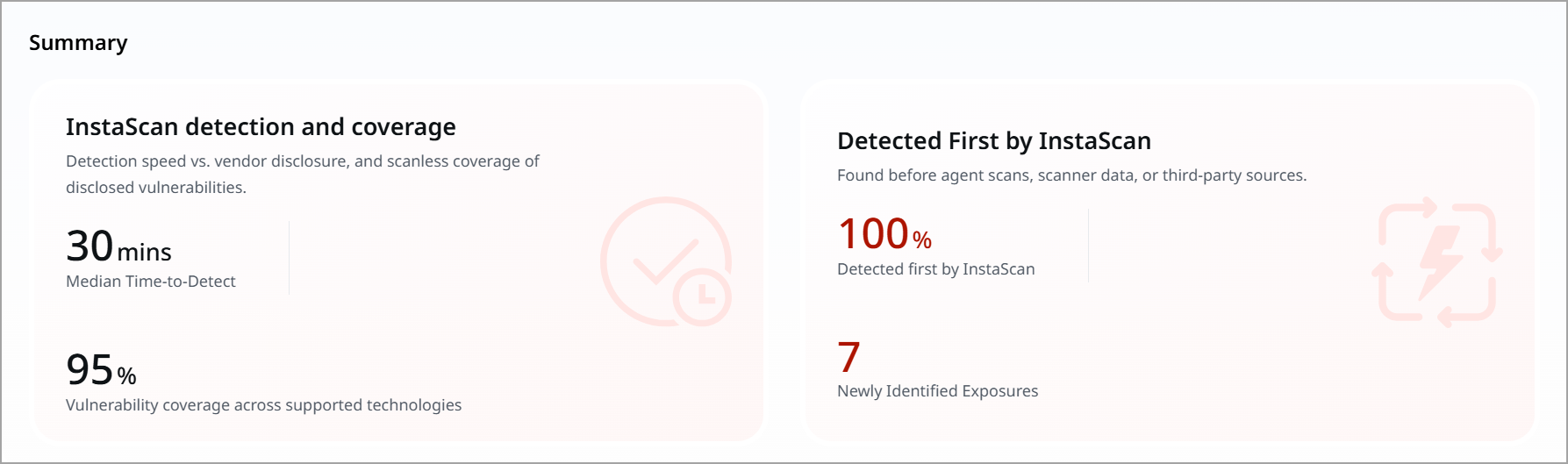
The following table displays the details.
|
Metric |
What It Measures |
Why It Matters |
|---|---|---|
|
Median Time-to-Detect |
The median time between advisory processing and the vulnerability being surfaced on your in-scope assets. Example: within 30 minutes |
Shows how quickly a newly published vulnerability appears in your exposure picture, measured from advisory processing rather than from the next scan window. |
|
Vulnerability Coverage |
The share of disclosed vulnerabilities InstaScan can identify across the supported technologies. Example: 95% |
Tells you how much of your environment is covered by scanless detection, so you know where scan-based coverage is still required. |
|
Detected First by InstaScan |
The share of findings InstaScan surfaced before agent scans, scanner data, or third-party sources reported them. Example: 100% |
Quantifies how much earlier you learn about an exposure compared with your existing detection sources. |
|
Newly Identified Exposures |
The count of exposures InstaScan surfaced in the selected period that were not previously known. Example: 7 |
Highlights what would otherwise have gone unnoticed until the next scan cycle or vendor disclosure. |
Reading Your Metrics
When you click the findings count, Risk Management opens with a pre-built QQL query: a date filter covering now through the last 30 days, and the finding.isInstaScan: TRUE token that returns only InstaScan findings.
Findings count higher than expected?
Your scope may be broad. Review the Include Tags selection, the Last Seen window, and the Asset Criticality Score threshold to narrow detection to the assets that matter most.
Findings count lower than expected?
Assets fall out of scope when they have not been seen within the Last Seen window or when their Asset Criticality Score is below your threshold. Both conditions must be met, because they are joined by AND.
Many findings marked InstaScan-only?
A title-level icon means no other source has confirmed the finding yet. These are the exposures your scan and agent coverage has not reached, and they are the strongest argument for reviewing sensor coverage on those assets.
Findings showing two sources?
When a scanner, Cloud Agent, or third-party source later reports the same finding, that source is added next to InstaScan and the InstaScan-only title icon is removed. This is expected behavior and confirms InstaScan detected the exposure first.
How Agent Insta Works
The four-step process from advisory publication to finding
Step 1: CVE Advisory Ingestion and Filtering
Agent Insta continuously monitors vendor advisories rather than waiting for a scan:
- Consumes CVE messages from the advisory pipeline as vendors publish them
- Checks advisory sources approximately every 15 minutes
- Covers 10 advisory sources in total - Microsoft OS-specific advisories plus 9 others, including Google, Mozilla, and Red Hat
- Determines the affected software versions for each incoming CVE
Because ingestion is CVE-driven, new vulnerabilities enter the pipeline as soon as the vendor publishes them, independent of your scan schedule.
Step 2: Software Normalization and Enrichment
Advisory data and asset software data are both normalized before they can be matched:
- Software data on your assets is normalized and catalogued by the software identification service
- Software and CPE fields are enriched so that advisory content and asset inventory use a common vocabulary
- A software sync job runs so that advisory content maps to identified software
- The enriched result is published through the pipeline and becomes available for matching
Accurate matching depends on normalized software and CPE metadata. Assets whose software inventory has not yet been normalized may not return findings even when they are within your configured scope.
Step 3: Scope Resolution and Correlation
Agent Insta determines which of your assets are affected using the saved InstaScan configuration:
- Selected Tags or Business Entities resolve to the associated device IDs
- Last Seen restricts scope to assets seen within the chosen window, by sensor type, by a scan, or by a connector refresh
- Asset Criticality Score restricts scope to assets at or above the chosen score
- Both criteria are combined with AND, so an asset must satisfy both to be in scope
- Enriched advisory data is matched against the software inventory already held for those assets - from Qualys sensors and from third-party connectors such as CrowdStrike Spotlight
- An intelligence layer evaluates each advisory against your tenant to determine the subset of assets actually impacted, rather than flagging every asset that runs the affected software
Correlation uses inventory you already have. This is why an asset whose only source is CrowdStrike can still carry a Qualys-flagged vulnerability.
Step 4: Finding Publication and Labelling
Based on the correlation, Agent Insta publishes:
Findings in Risk Management
- Confirmed findings, listed alongside findings from all other sources
- First found date showing when detection occurred
- Detail view showing the source as Qualys InstaScan
Source Icons
- An InstaScan icon on the Sources tab, with InstaScan shown as the source value on hover
- A second icon in front of the finding title while InstaScan is the only source
- The title icon is removed once another vendor reports the same finding
Query and Filter Support
- The finding.isInstaScan QQL token, used as finding.isInstaScan: TRUE
- An InstaScan card for filtering the findings list
- Combines with the standard date filters, for example the last 30 days
Secondary Source Handoff
- When a scanner or Cloud Agent later confirms the finding, Qualys VMDR is added as a secondary source
- Third-party sources are added the same way, for example CrowdStrike alongside InstaScan
Scoring and Aggregation
- Findings are processed through a low-latency fast path rather than the standard sequential pipeline
- Qualys Detection Score (QDS) and finding aggregation are applied
- InstaScan findings contribute to TruRisk Score alongside findings from every other source
Decision Handling: Always Human-Controlled
Agent Insta detects and reports; it does not remediate. No patch job, configuration change, or other action is taken on any asset. Findings are published to Risk Management for your team to review and act on through your existing remediation and change-control processes.