ETM CSAM Integration
Qualys CyberSecurity Asset Management (CSAM) discovers, inventories, and monitors every asset across your IT environment, so that you can see where your security gaps and compliance issues are. CSAM combines native scanning, agent scanning, and passive discovery, and adds API-based third-party connectors for the widest possible coverage of your asset attack surface.
Integrating CSAM with Enterprise TruRisk Management (ETM) brings that coverage into your risk workflow. Failed postures from CSAM appear in ETM as misconfigurations, each carrying its own risk score, so you can pinpoint the issues that need remediation and rank them against every other finding in ETM.
At a Glance
| What ETM ingests | Asset inventory and failed postures, ingested as misconfigurations |
|---|---|
| Where to view | Risk Management > Findings > Misconfigurations |
| QQL filter | finding.vendorProductName:'CSAM' |
| How data arrives | Automatic ingestion after you run a baseline |
| Detail tabs available | Summary, QDS Details, Additional Details, Sources |
Prerequisites
CSAM must be enabled for your subscription before you can implement the CSAM integration with ETM.
How the Integration Works
- Contact your Technical Account Manager (TAM) or Qualys Support to enable CSAM for your subscription.
- Run a baseline for CSAM to ingest your existing CSAM data into ETM.
ETM then ingests findings from CSAM as misconfigurations. Failed postures from your CSAM environment appear in ETM with their respective risk scores, so that you can identify precisely which security issues require remediation.
After the baseline, the integration keeps both systems synchronized, so the security posture information in ETM stays current for risk management.
View Assets and Findings in ETM
After completing the integration, you can view and manage CSAM findings within the ETM interface.
- Navigate to Risk Management > Findings > Misconfigurations to access the consolidated view of security posture findings.
- To filter for CSAM findings only, use the following QQL query:
finding.vendorProductName:'CSAM'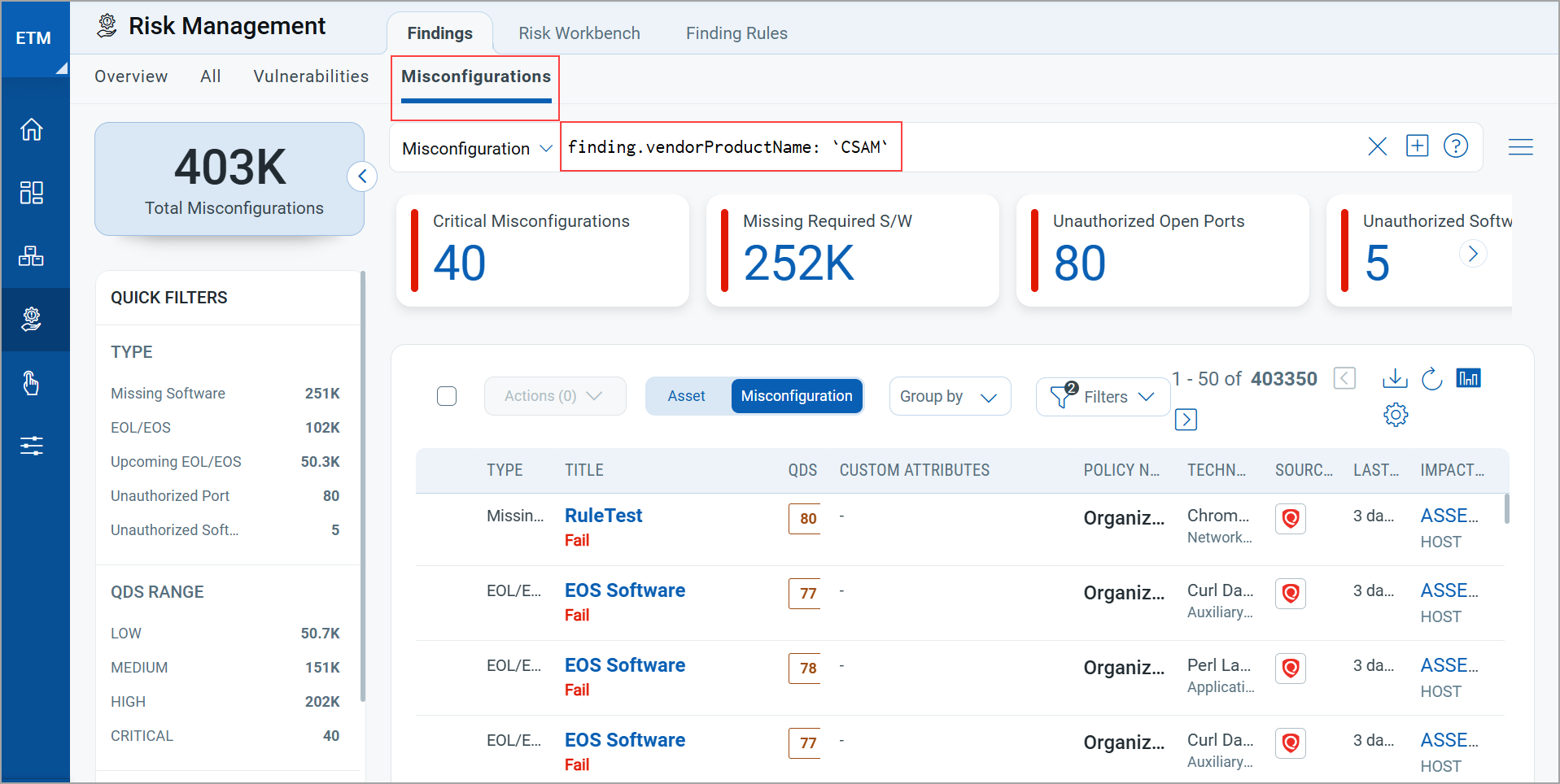
- To see the details of a misconfiguration, select it and click View Details from the Quick Actions menu. The details open in the tabs described below.
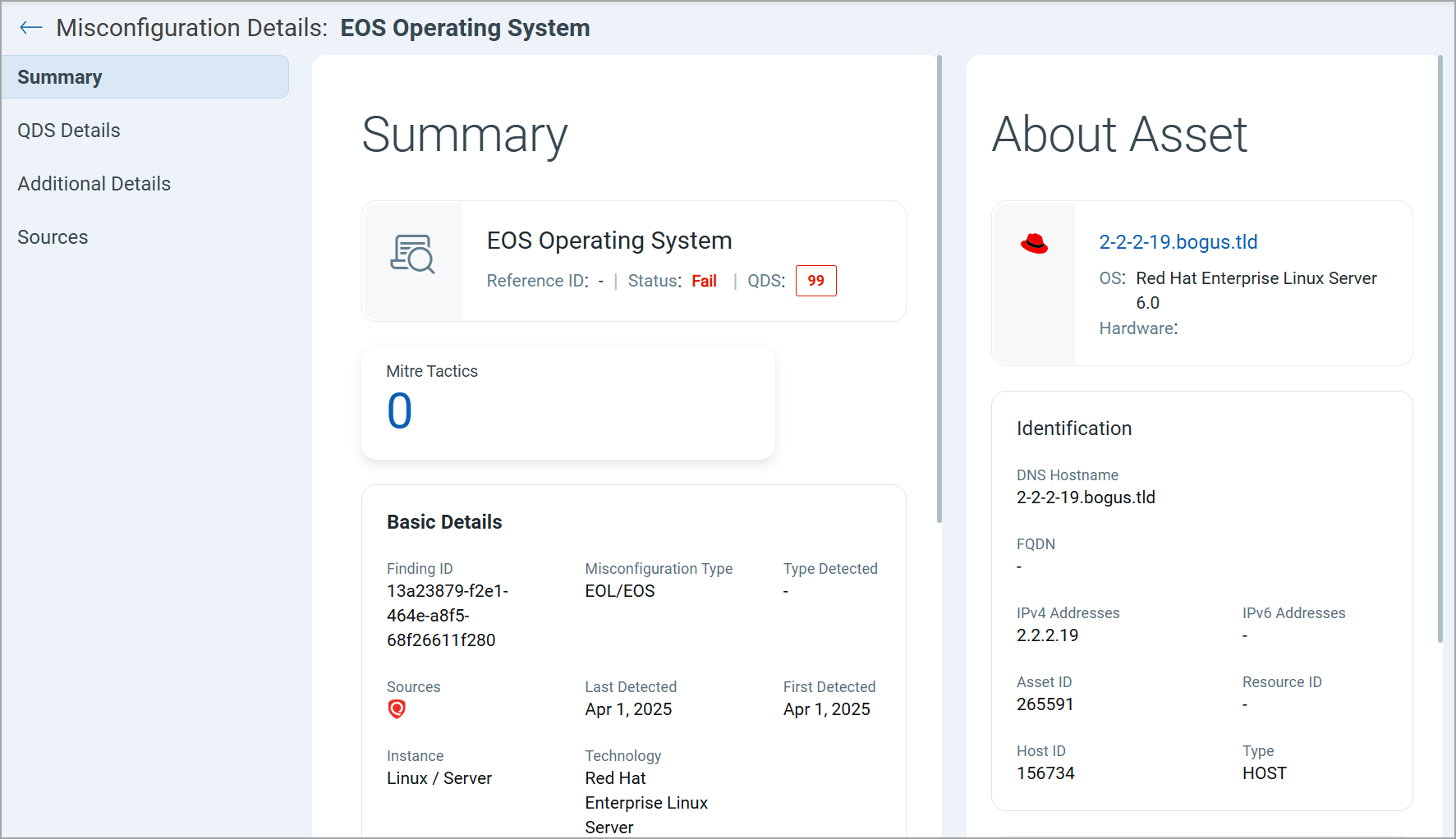
Summary
Your starting point for any finding. The Summary page collects Basic Details, Description, and asset Information such as Identification and Activity. Basic Details include the Finding ID and the Type Detected. You also see Sources, the first-detected and last-detected dates, instances, and the technology used.
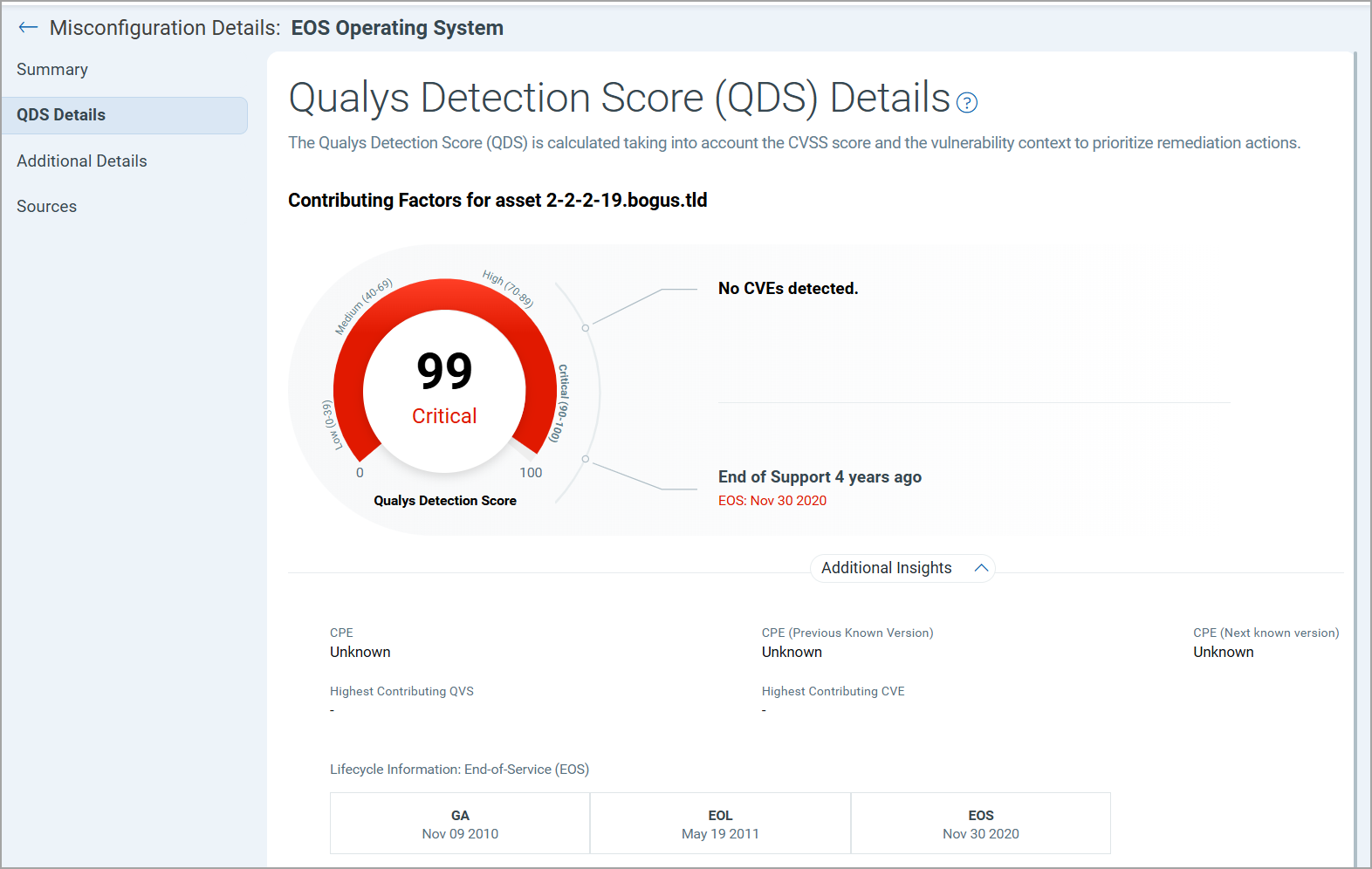
QDS Details
Explains why the finding scored the way it did. The Qualys Detection Score (QDS) Details tab shows the Contributing Factors behind the score, plus Additional Insights such as the Highest Contributing QVS, the Highest Contributing CVE, and Lifecycle Information.
Additional Details
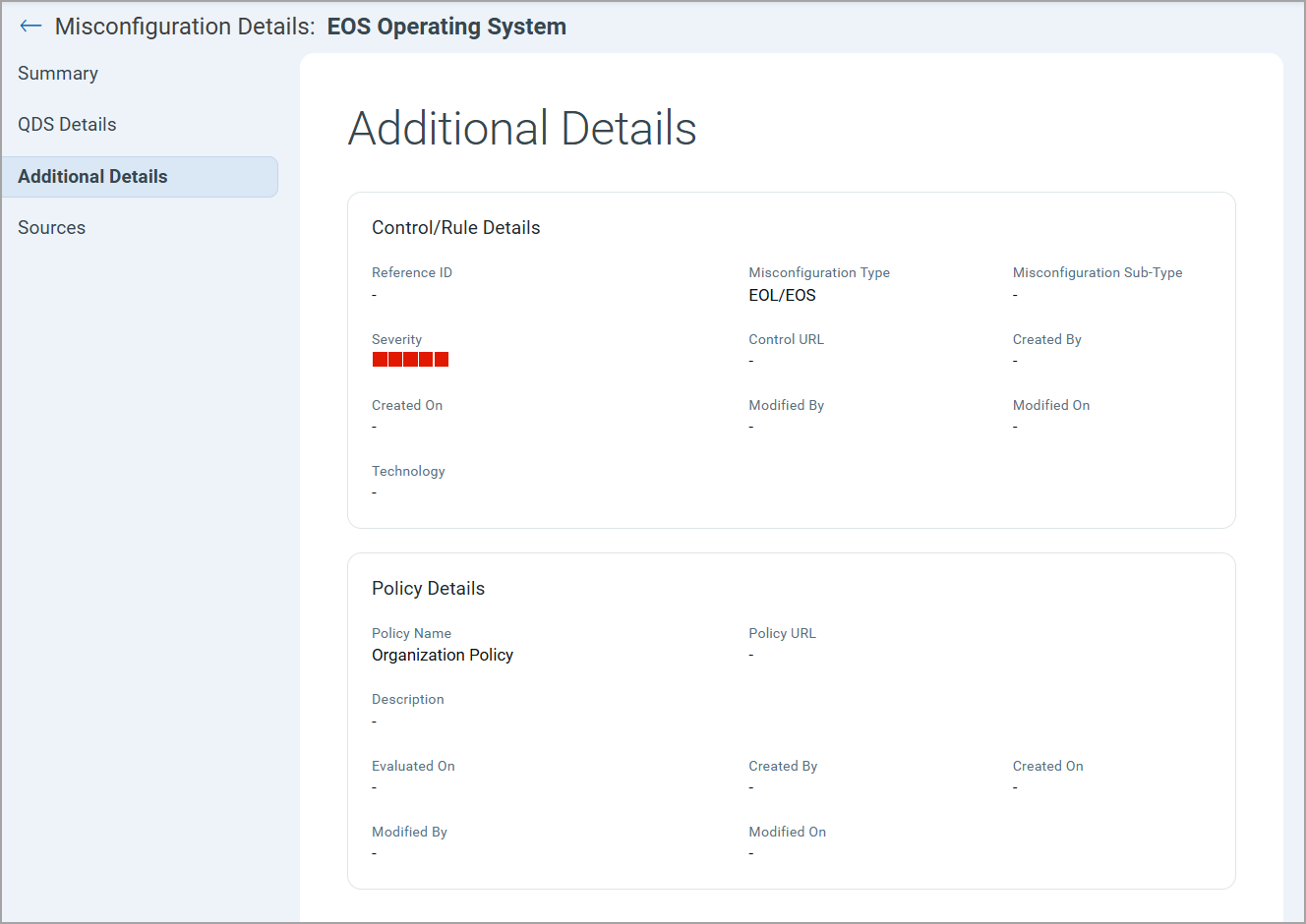
The detail you need when you act on the finding. Control/Rule Details list the Reference ID, Misconfiguration Type and sub type, Severity, and Control URL. The Policy Details section shows the Policy Name, Policy URL, Description, Evaluated On, and Created By.
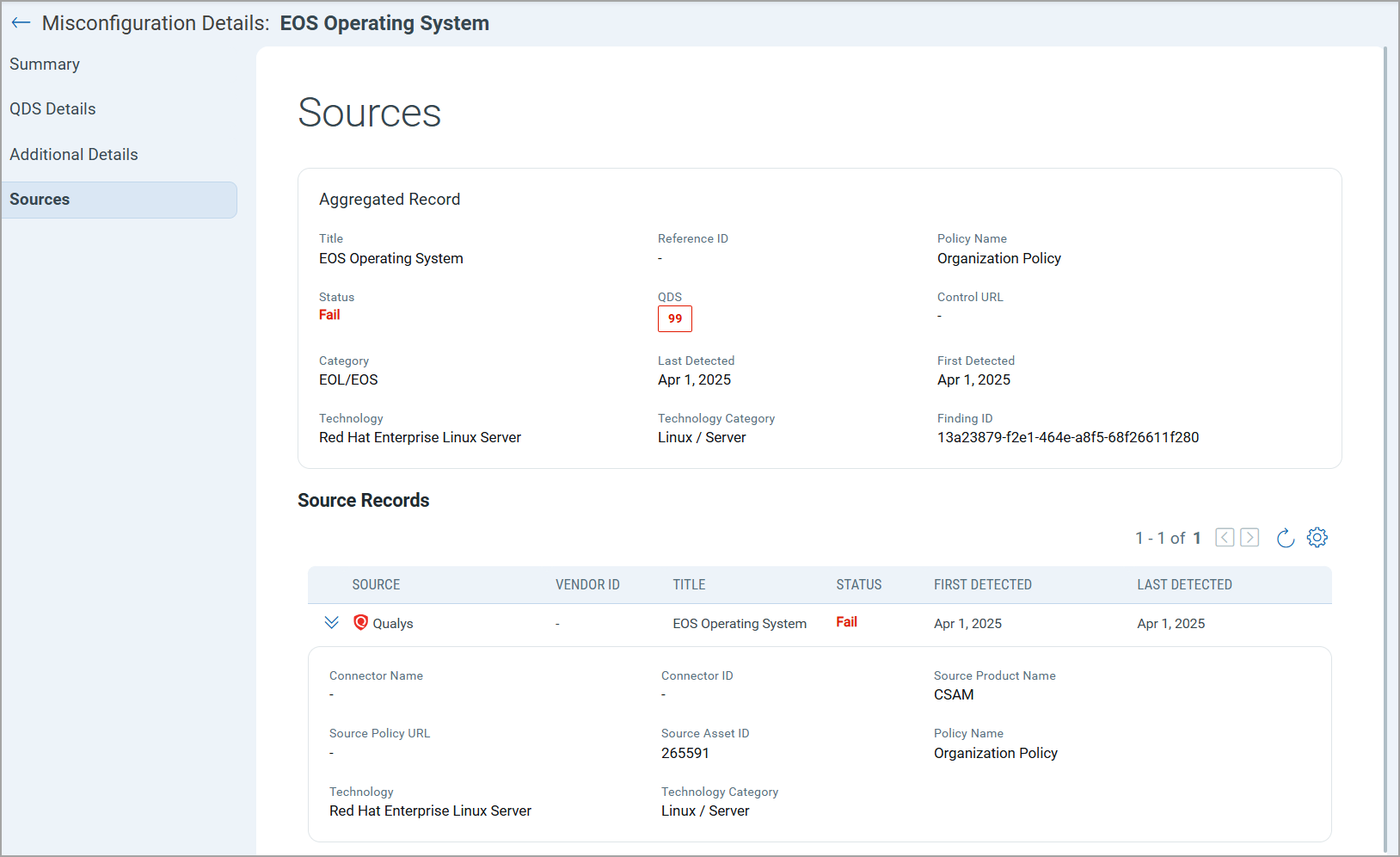
Sources
Traces the finding back to where it came from. The Sources tab shows Aggregated Records and Source Records, including Connector Name, Connector ID, Source Policy URL, Source Asset ID, Policy Name, Technology, and Technology Category.