MS Defender for Cloud (VM Assets) Connector
The Microsoft Defender for Cloud (VM Assets) connector retrieves host asset records for virtual machines from Microsoft Defender for Cloud via REST API and imports them into Qualys ETM for unified risk analysis. ETM deduplicates entries, normalizes data formats, enriches asset records with additional context, and calculates risk scores using TruRisk.
By centralizing VM asset data and associated misconfiguration findings from Microsoft's cloud security service, security teams gain unified visibility into cloud infrastructure alongside other organizational findings–transforming disconnected security alerts into actionable intelligence for risk-driven prioritization.
This connector is focused on VM host asset ingestion. Delta synchronization is not supported; each scheduled execution performs a full sync. Use a dedicated service account and never share personal credentials. All secrets are encrypted at rest.
Connector Details
The following table summarizes what the MS Defender for Cloud (VM Assets) connector supports.
|
Vendor |
Microsoft |
|
Product Name |
Defender for Cloud |
|
Category |
Cloud Security |
|
Findings Support |
Assets and Misconfigurations (Findings) |
|
Supported Assets |
Cloud Assets |
|
Version |
1.0.0 |
| Supported Version & Type | SaaS (Latest) |
|
Integration Type |
API Integration (REST) |
|
Direction |
Unidirectional |
|
Delta Support |
Not Supported |
|
Import of Installed Software |
Not Supported |
|
Import of Source Tags |
Not Supported |
| Filters/Filter Query | Not Supported |
Configure the Connector
Follow the three-step wizard to create an MS Defender for Cloud (VM Assets) connection. A valid connection test is required to proceed.
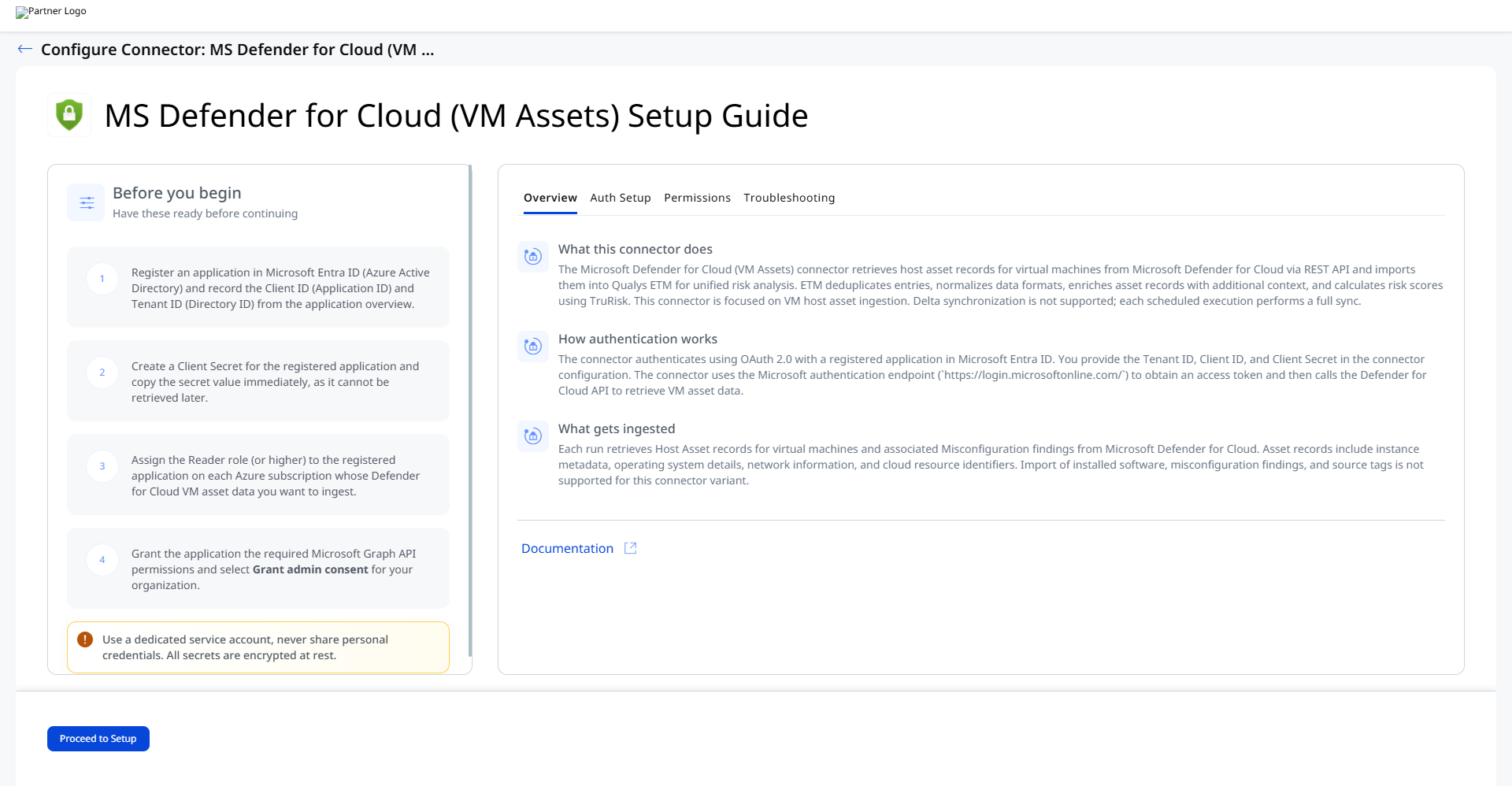
Before You Begin - AuthenticationBefore You Begin - Authentication
Before configuring the connector, complete the following steps in the Microsoft Azure portal to register an application and gather the credentials required by Qualys ETM.
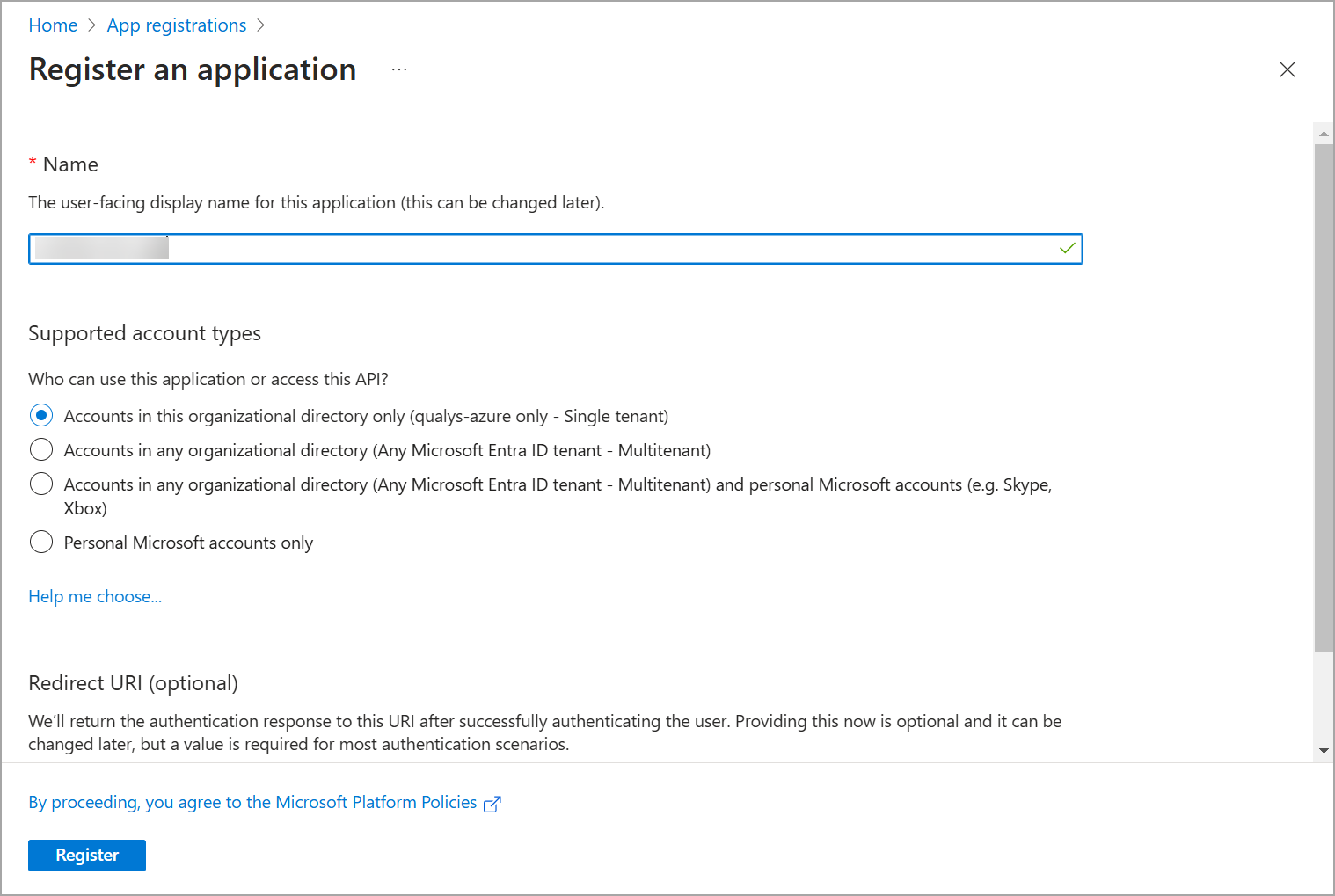
Register an Application in Microsoft Entra ID
- Register an application in Microsoft Entra ID.
- Sign in to the Azure portal and navigate to Azure Active Directory in the left navigation pane.
- Select App registrations and click New Registration.
- Provide an application name and select the appropriate supported account type. A redirect URI is optional.
- Click Register to complete the process.
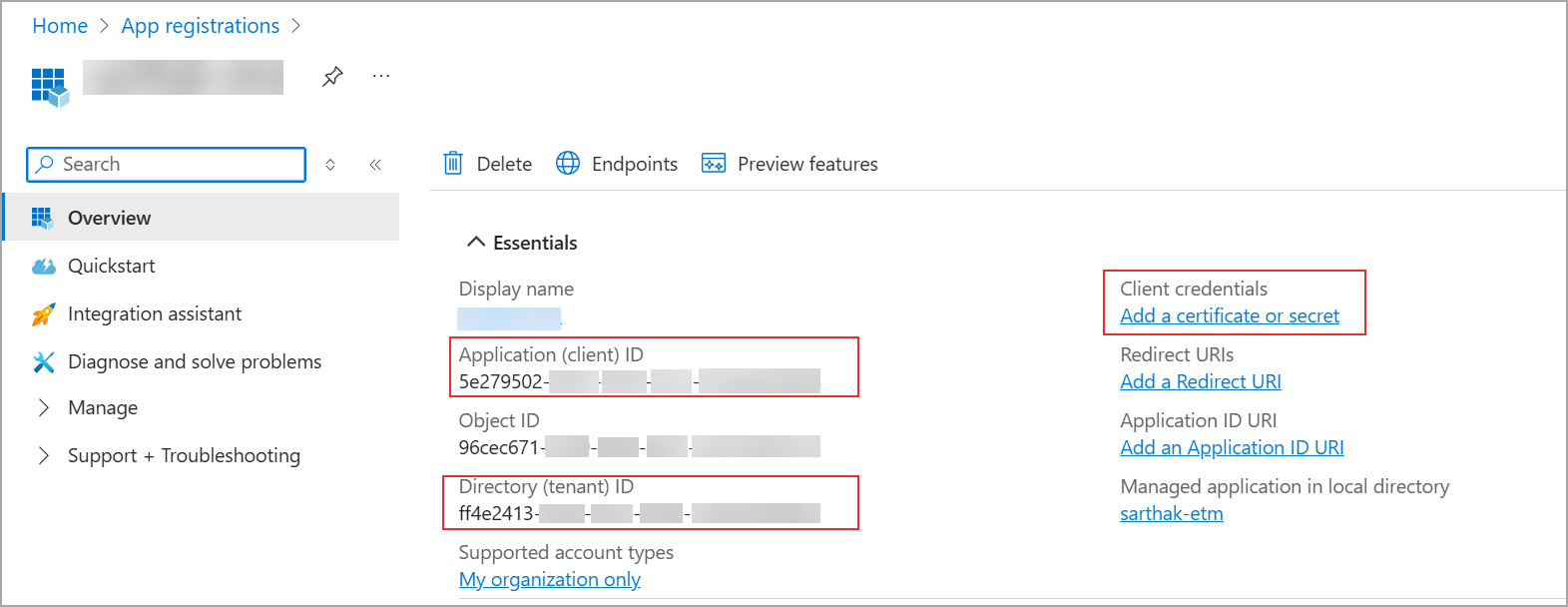
- Retrieve the Client ID and Tenant ID.
- After registration, go to the application Overview page and locate the Essentials section.
- Copy the Application (client) ID and the Directory (tenant) ID. These values are entered as the Client ID and Tenant ID fields in the Qualys ETM connector configuration.
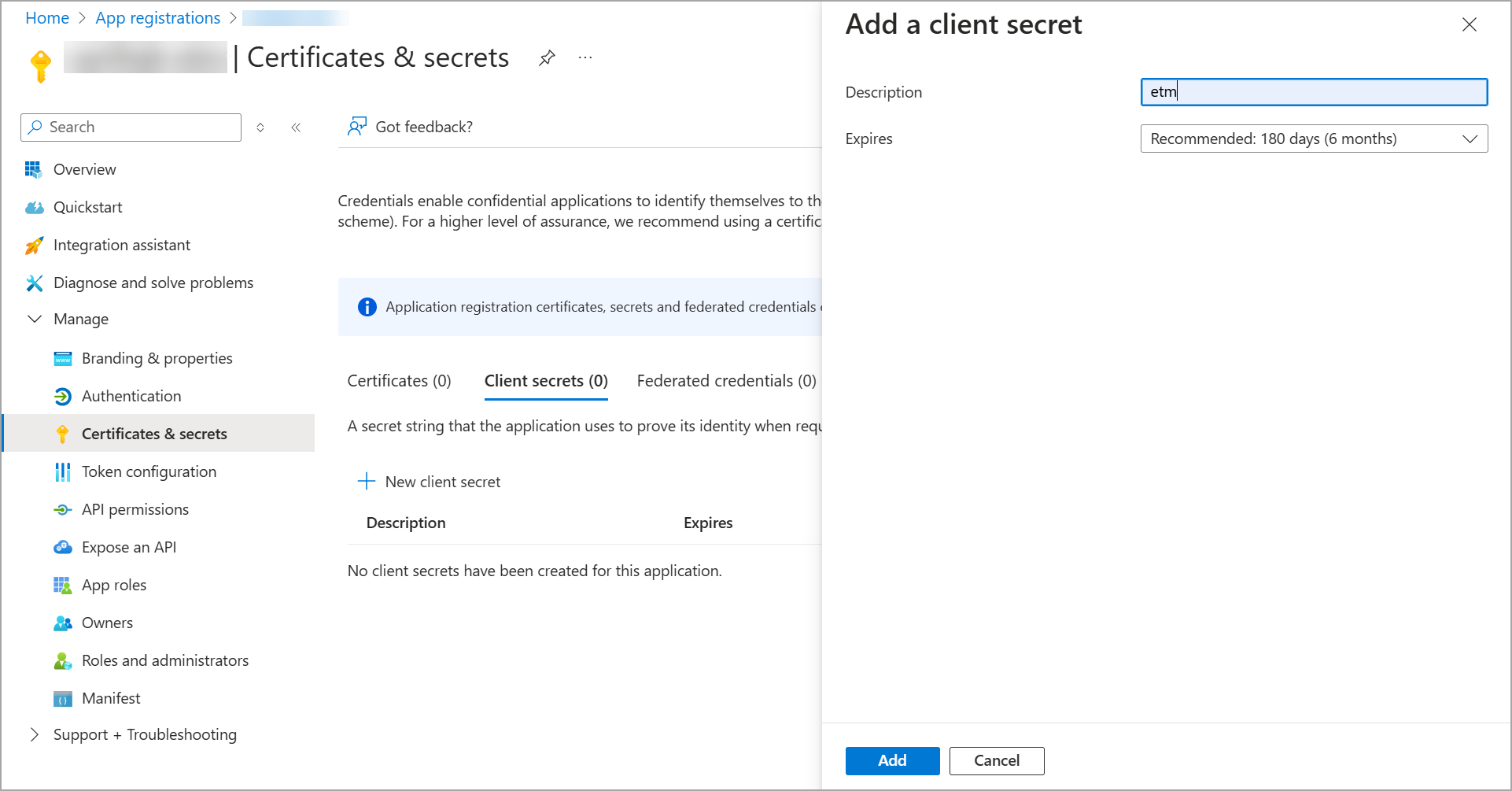
- Create a Client Secret.
- On the application page, select Certificates & secrets and click New client secret.
- Provide a description and set an expiration period, then click Add.
- Copy the Value of the generated secret immediately.
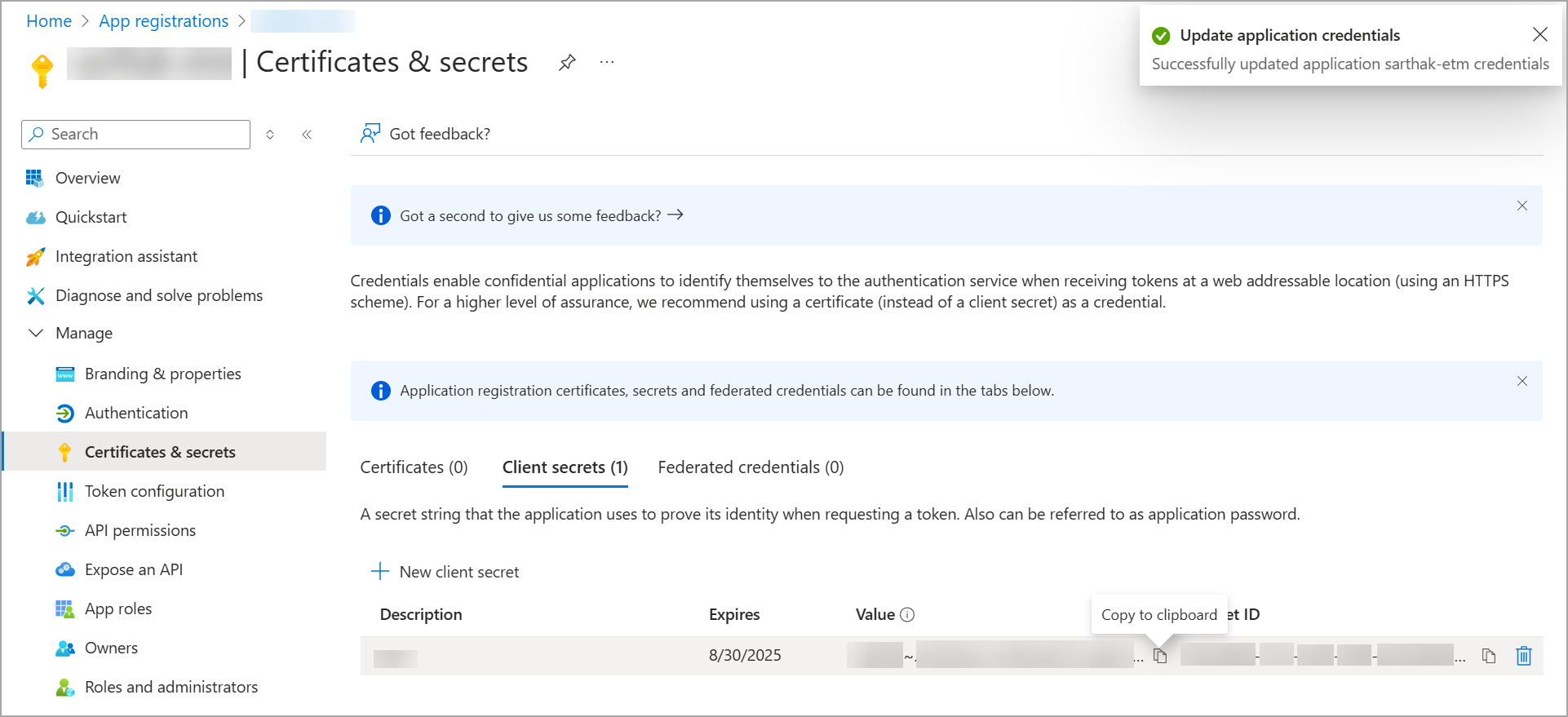
The Client Secret value is shown only once. It cannot be retrieved after you navigate away from the page. Store it securely before closing this view.
Permissions Required
The connector ingests Host Asset records for virtual machines. The data flow is unidirectional, from Microsoft Defender for Cloud to Qualys ETM. Import of installed software and source tags is not supported.
Scope and Data Access
The registered application requires the following permissions to allow the connector to read Defender for Cloud data.
Assign Reader and Security Reader Roles
Navigate to Subscriptions:
- Log in to the Azure portal at
portal.azure.com. - Type Subscriptions in the Azure Portal search bar and click it.
- Select your target subscription from the list.
Open Access Control (IAM):
- In the left sidebar, click Access control (IAM).
- Click + Add and select Add role assignment from the dropdown.
Assign the Reader role:
- Under the Role tab, search for Reader and select it from the results.
- Click Next.
- Under Assign access to, select User, group, or service principal.
- Click + Select members and search for the name of the App Registration you created.
- Select it and click Select.
- Click Next, review the assignment, and click Review + assign to confirm.
- Repeat these steps to also assign the Security Reader role to the same App Registration.
The minimum required permission is the Reader role (or higher) on each Azure subscription whose Defender for Cloud data you want to ingest.
The registered application must be assigned the Reader role (or higher) on each Azure subscription from which you want to ingest Defender for Cloud VM asset data. Microsoft Graph API permissions must also be granted with admin consent.
Key Rotation
When the Client Secret approaches its expiration date, generate a new secret under Certificates & secrets in the application registration. Update the Qualys ETM connector configuration with the new secret value. Verify the connector reaches the Processed state after the next scheduled execution to confirm the new secret is working correctly.
Create a Profile & ConnectionCreate a Profile & Connection
Configure the connector's identity and authenticate with the source system.
Connector Details
| Name | Enter a unique display name for this connector instance. |
| Description | Optional. Enter a description of up to 200 characters to identify the purpose of this connection. |
Authentication Details
| Field | Type | Description |
|---|---|---|
| Subscription | String | The Azure Subscription ID from which VM assets will be ingested. Example: 54505ff6-e254-4e01-a964-d0ce78bf87a9 |
| Tenant ID | String | The Directory (tenant) ID of your tenant. Example: ff4e2413-65ab-4dc2-9e5b-1ea02d3d94eb |
| Client ID | String | The Application (client) ID of the registered Entra ID application. Example: e78a9c6a-7635-45e9-ad52-9c53b6547fe3 |
| Client Secret | Encrypted String | The client secret value generated under Certificates & secrets in the application registration. This field is masked after entry. |
The Client Secret is visible only at the time of creation in the Azure portal. Copy and store it securely before saving the application registration page, as it cannot be retrieved later.

After entering all authentication details, click Test Connection to validate the credentials before proceeding. The following checks are performed:
- Network Reachability — Verifies that the connector endpoint is reachable over HTTPS (port 443).
- TLS Handshake — Confirms that a secure TLS connection can be established with the remote endpoint.
- Authentication Credential Check — Validates the configured credentials against the source system's authentication endpoint.
- Authorization Scope Check — Confirms that the provided credentials have the required permissions to access the configured data scope.
- Data Fetch — Verifies that data can be successfully retrieved from the source system using the configured connection.
All checks must pass before the Next button becomes active. If a check fails, refer to the Troubleshooting section for resolution steps.

Set the Scope & ScheduleSet the Scope & Schedule
This step defines the data to synchronize and sets the connector's execution schedule.
This connector retrieves the following data types on each execution:
- Assets & Misconfigurations
Limit sync to top 1,000 assets and findings - You can select this checkbox to limit the fetch 1000 assets using risk-based filter criteria. The assets, along with their associated findings, are discovered and shared with ETM. The connector applies risk-based filters during asset fetch to ensure the ingested subset represents the most relevant assets in your environment rather than a random or arbitrary sample.
Sampling Mode can restrict data ingestion to a targeted subset of up to 1,000 assets and their associated findings. You can quickly validate integration and review meaningful security data without a full environment sync.
Assets are fetched based on the last-seen timestamp, configured in the connector's advanced settings in the UI. The fetch is scoped to specific endpoint categories such as servers, workstations, and domain controllers, ensuring coverage across your most critical managed device types.
Schedule - Set Occurs to Custom and select the occurrence type:
- Single Occurrence — Runs the connector once at a specified date and time. Select the timezone, Start Date, and Start Time.
- Recurring — Runs the connector on a repeating schedule. Provide start and end date/time along with recurrence interval.
Schedule times are interpreted in the selected timezone. Verify your timezone selection before saving; scheduling in an incorrect timezone may delay the first sync.
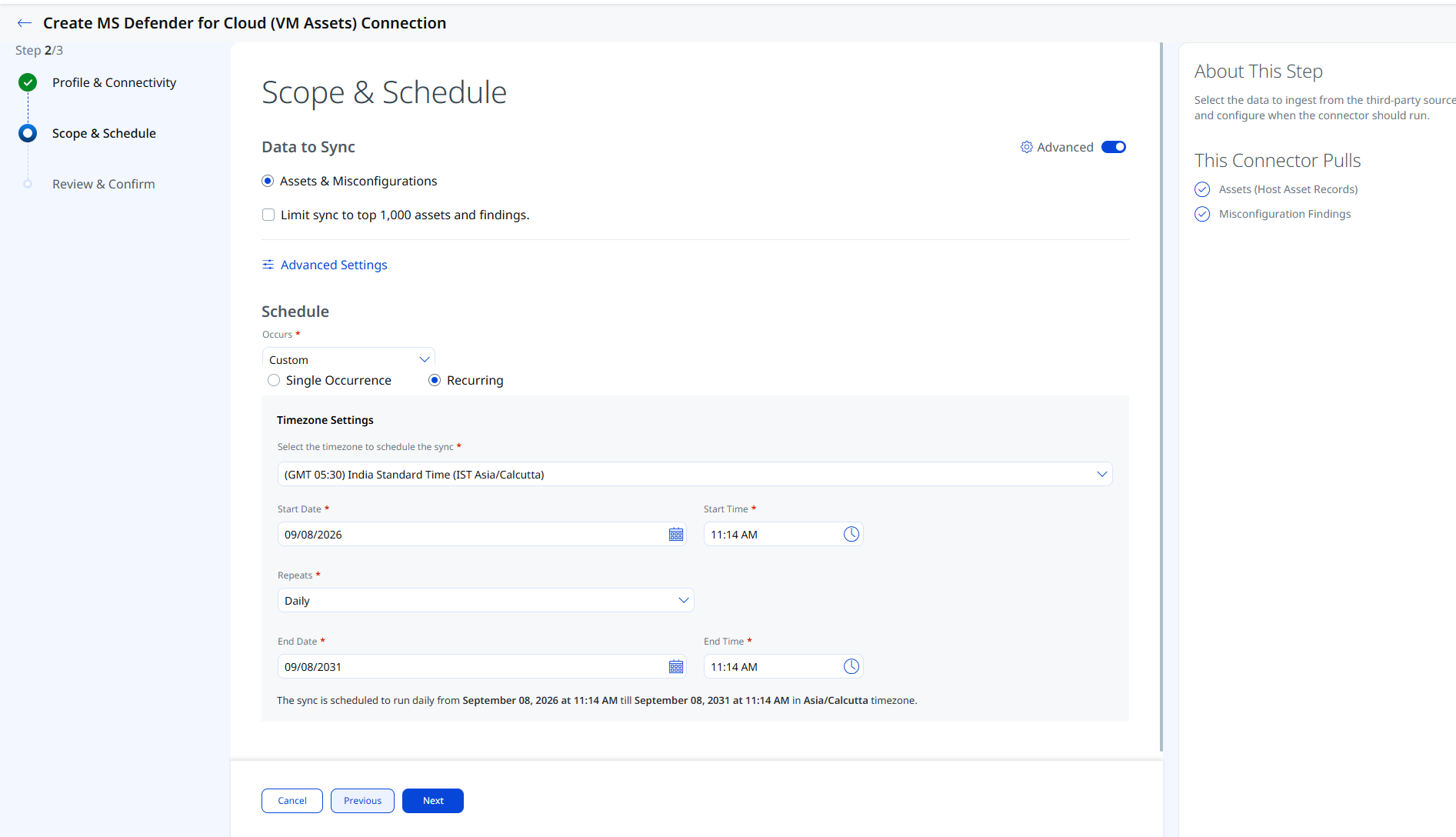
Advanced Settings: Select Advanced settings to optionally configure Filters, Transformation Maps, and Risk Severity Mapping.
Advanced Settings
Enabling the Advanced Settings toggle on the Scope & Schedule page or clicking the Advanced Settings link opens a panel with three tabs: Filters, Transform Map, and Risk Severity Mapping.
Filters
Use the Filters tab to restrict which asset types and findings are ingested.
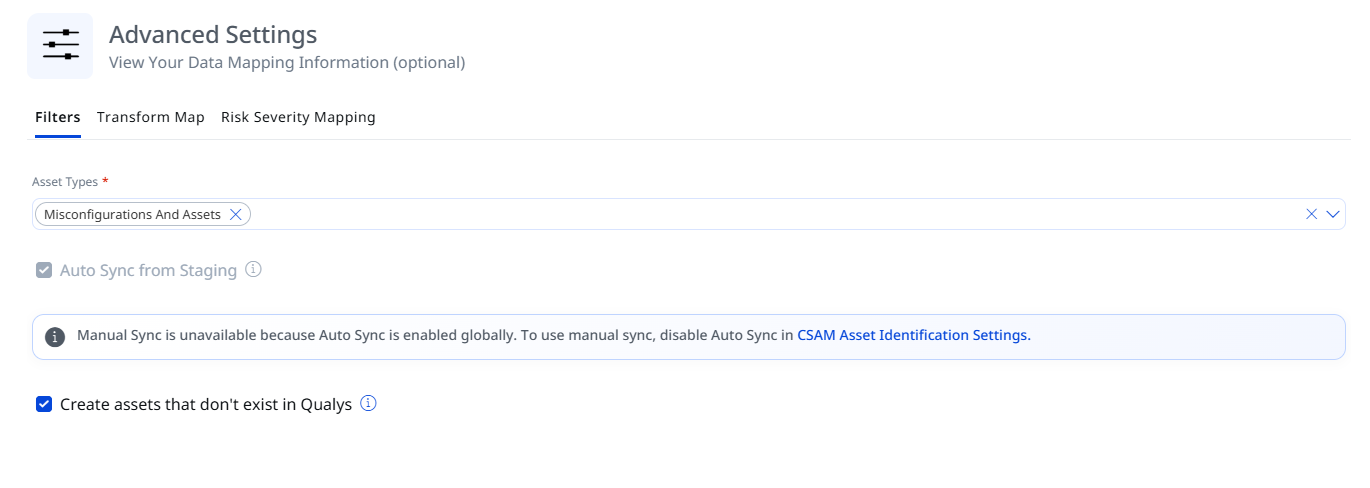
| Filter | Options | Description |
|---|---|---|
| Asset Types | Misconfigurations and Assets | Select the Asset Type for which you want to ingest the data. |
| Create assets that don't exist in Qualys | - | If enabled, the connector ingests all those assets that are not created /exist in Qualys |
Delta synchronization is not supported. Each scheduled execution performs a full sync of all VM assets within the subscription scope.
Transform Map
The Transform Map tab lists the active transformation maps applied to data ingested by this connector. The following map is active for the Microsoft Defender for Cloud (VM Assets) Connector: Microsoft Azure Defender for Cloud Host Asset Map.
Transformation maps define how source fields are translated into Qualys ETM target fields. For field-level mapping details, see Transformation Maps under Additional Information.
Risk Severity Mapping
The Risk Severity Mapping tab defines how CrowdStrike severity values are translated into Qualys severity levels and QDS scores for findings that are not scored automatically by the Qualys Cloud Threat Database.
Qualys automatically updates scores for CVE-based vulnerabilities available in the Qualys Cloud Threat Database. The severity mapping below applies only to findings that are not CVE-based or are not present in the Qualys Cloud Threat Database.
| Expected Source Value | Severity | QVSS Score (Range 1–10) |
|---|---|---|
| 1 | 1 | 2 |
| 2 | 2 | 4 |
| 3 | 3 | 6 |
| 4 | 4 | 8 |
| 5 | 5 | 10 |
The default Severity is 2. This value is applied when the severity value from CrowdStrike is unavailable for a given finding.
Review all configuration settings before saving. Once confirmed, save the connector to complete setup.
Review and ConfirmReview and Confirm
Review the connection, then click the Create button.
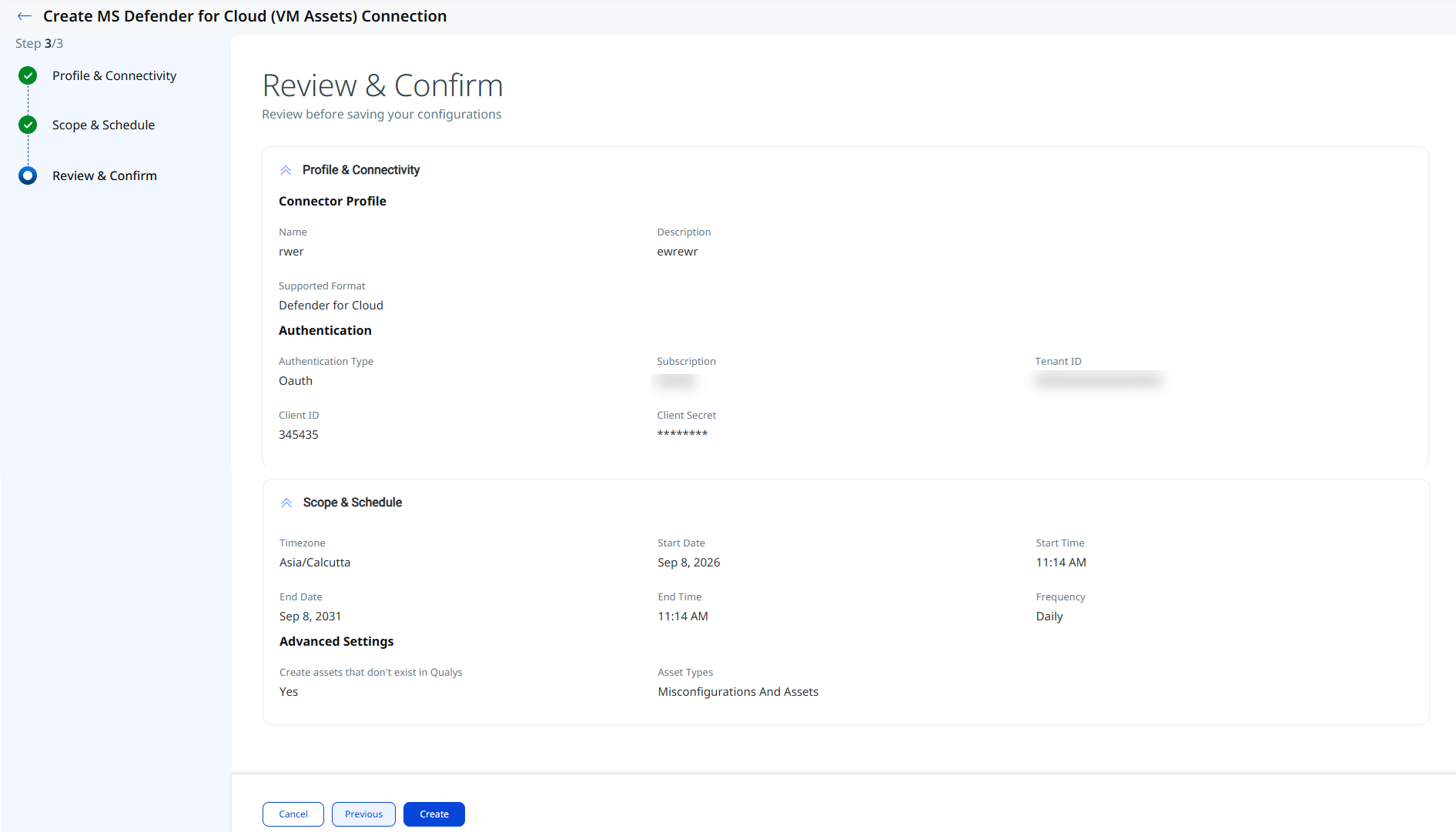
After saving, the connector appears in the Connections list in the Registered state and transitions automatically through its processing states.
How the Connection Works
Each run retrieves Host Asset records for virtual machines and associated Misconfiguration findings from Microsoft Defender for Cloud. Asset records include instance metadata, operating system details, network information, and cloud resource identifiers. Import of installed software, misconfiguration findings source tags, and filter queries are not supported for this connector variant.
The MS Defender for Cloud (VM Assets) connector executes according to its configured schedule, performing a full sync of all VM assets within the subscription scope on each run. There is no incremental (delta) sync mode.
Connector States
A successfully configured connector transitions through the following states:
- Registered – The connector has been successfully created and registered to fetch data from Microsoft Defender for Cloud.
- Scheduled – The connector is queued and scheduled to execute a connection with the vendor.
- Processing – A connection is executing and the connector is actively fetching asset and findings data.
- Processed – The connector has successfully fetched the assets. Findings ingestion may still be in progress.
The Processed state indicates that asset records have been imported, but findings (misconfigurations) may still be processing. The complete first-run import process can take up to 2 hours. If no data appears after this period, verify that the Reader role is assigned at the subscription level and that the subscription contains Defender for Cloud VM asset data.
Viewing Assets and Findings in ETM
Once the connector reaches the Processed state, navigate to Enterprise TruRisk Management (ETM) to analyze the imported data.
To view imported VM assets: Go to Inventory and use the following filter token:
inventory:(source:"Defender for Cloud")

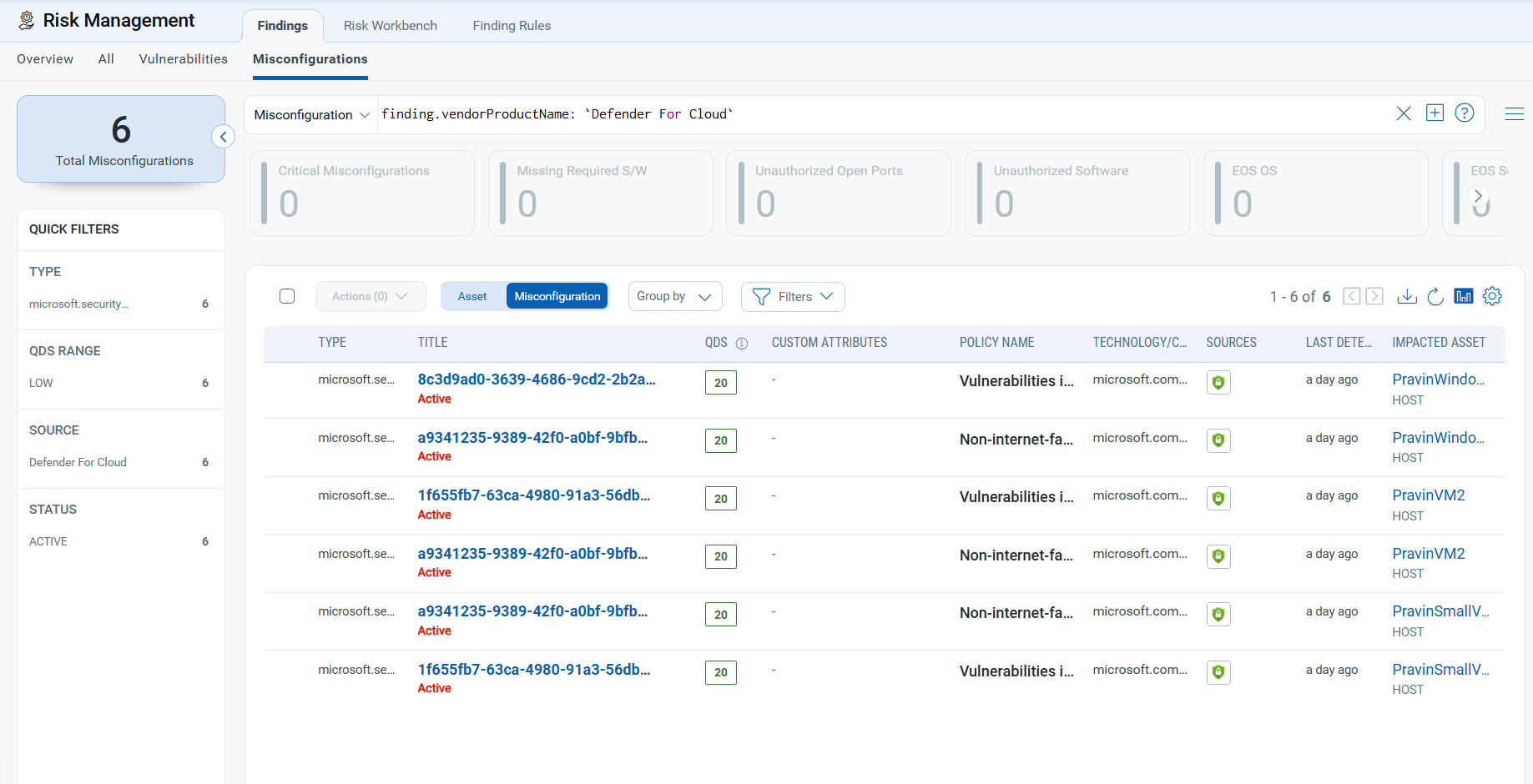
To view Misconfiguration findings: Go to Risk Management > Findings > Misconfigurations and use the following filter token:
findings.vendorProductname:"Defender for Cloud"
Troubleshooting
Use the following reference to resolve common connector errors.
| Issue | Resolution |
|---|---|
| 401 Unauthorized | The Client Secret is invalid, expired, or incorrectly entered. Verify the secret has not expired in the Azure portal under Certificates & secrets. Generate a new secret if needed and update the connector configuration with the new value. |
| 403 Forbidden | The registered application does not have sufficient permissions. Verify the application has been assigned the Reader role on the target subscription and that Microsoft Graph API permissions have been granted with admin consent. |
| Connection test fails | Confirm the Tenant ID and Client ID match the values shown on the application Overview page in the Azure portal. Verify network connectivity from the Qualys cloud to the Microsoft authentication endpoint at https://login.microsoftonline.com/. |
| No assets imported after first run | The connector progresses through Registered, Scheduled, Processing, and Processed states. The full import process may take up to 2 hours to complete. If no data appears after this period, verify the Reader role is assigned at the subscription level and that the subscription contains Defender for Cloud VM asset data. |
Additional Information
API Reference
The following APIs are executed during each connector run.
| Name | Endpoint | Description |
|---|---|---|
| Auth API | https://login.microsoftonline.com/ |
Obtains an OAuth 2.0 access token using the Tenant ID, Client ID, and Client Secret. |
| Fetch Asset | https://management.azure.com/providers/ |
Retrieves virtual machine resource records. Sample query: Resources | where type =~ 'microsoft.compute/virtualmachines' |
| Fetch Resources and Assessments | https://management.azure.com/providers/ |
Retrieves security assessment findings linked to each VM resource. Sample query: securityresources | where type == "microsoft.security/assessments" |
| Fetch Network Interfaces | https://management.azure.com/providers/ |
Retrieves network interface details including MAC address, private IP, and public IP for each VM resource. |
Transformation Maps
The connector includes an out-of-box transformation map that translates Microsoft Defender for Cloud attributes to the corresponding Qualys ETM schema fields. The table below documents each field mapping.
MDC Vulnerability Transformation MappingMDC Vulnerability Transformation Mapping
| Defender Attribute Key | Qualys Attribute Label |
|---|---|
vmId |
externalAssetId |
assessments_name |
findingName |
assessments_id |
externalFindingId |
assessments[].properties.metadata.severity |
findingSeverity |
name |
assetName |
imageReference_offer |
operatingSystemName |
networkInterfaces_macAddress |
macAddress |
networkInterfaces_publicIP |
ipAddress |
imageReference_version |
operatingSystemVersion |
assessments_firstEvaluationDate |
findingFirstFoundOn |
assessments_displayName |
findingDescription |
assessments_recommendationCategory |
recommendation |
assessments_links_azurePortal |
policyFindingUrl |
assessments_userImpact |
impact |
assessments_type |
findingSubType |
assessments_metadata_displayName |
policyTitle |
assessments_severity
Informational | Low | Medium | High |
findingSeverity
0 | 1 | 2 | 3 | 4 |
assessments_status_code
PASS | FAIL | PASS | FAIL | PASS |
findingStatus
open | resolved | active | closed |
assessments_metadata_description |
policyDescription |
assessments_managedBy |
createdBy |
assessments_managedBy |
updatedBy |
assessments_policyDefinitionId |
policyId |
assessments_remediationDescription |
remediationStrategy |
ResourceType |
productVendor |
assessments_statusChangeDate |
updatedOn |
assessments_assessmentType |
policyType |
ResourceProvider |
productName |
Additional Resources
- Qualys ETM Documentation
- Microsoft Defender for Cloud Documentation
- Microsoft Entra ID – Register an Application
- Azure Built-in Roles – Reader