Software
Generic software refers to complete software products or applications that are installed and used in an environment, viewed at a high level rather than at the level of individual components. It represents the overall software offering, such as an operating system, database, web server, middleware, or utility, including its name and release information.
The software running on your assets is displayed on this tab along with their details. You can inventory installed software, understand software classifications, and track licensing and lifecycle information.
Navigate to Inventory > Software to view the software details.
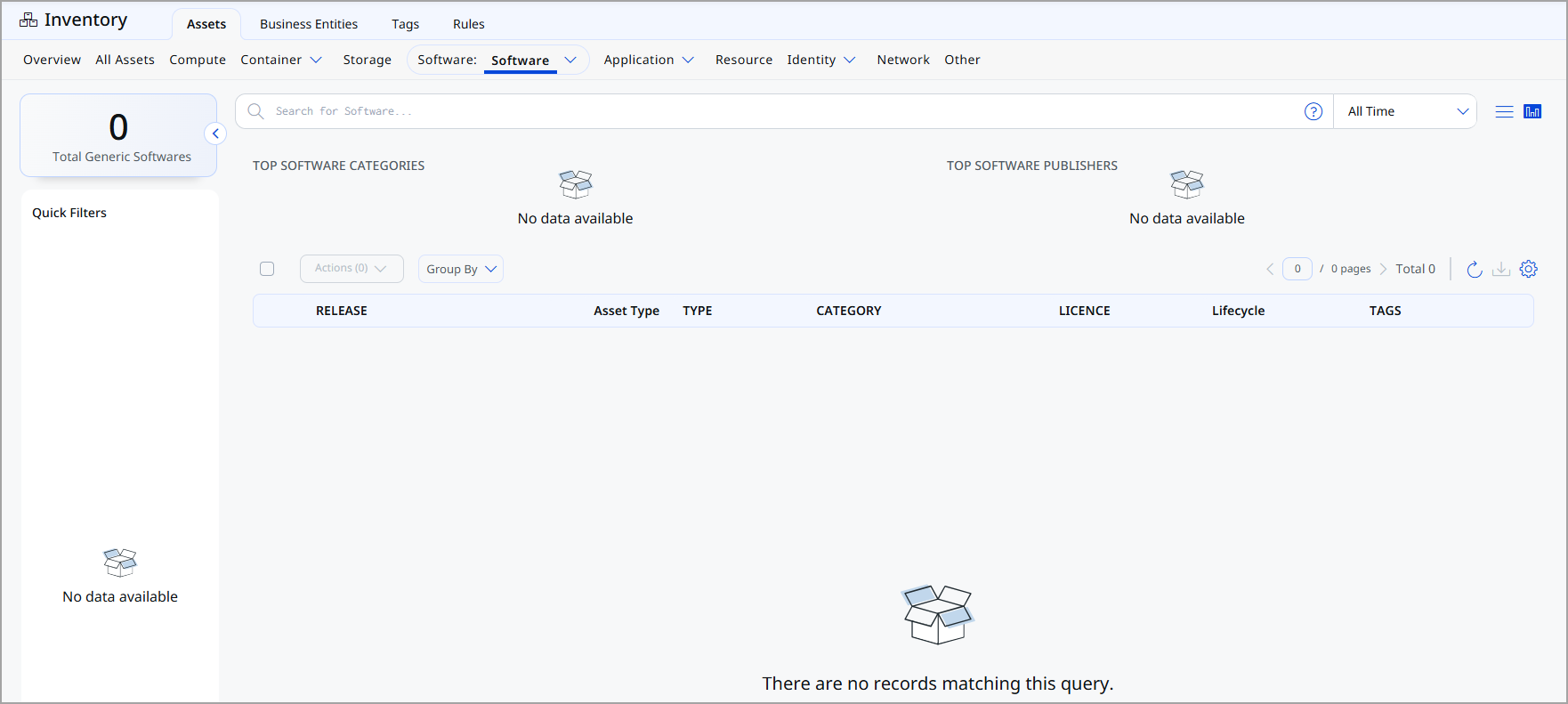
For each software, the following details are displayed:
| Column | Description |
|---|---|
| Release | Name and version of the software release. |
| Asset Type | Asset classification for the software. |
| Type | Indicates whether the software is generic or component software. |
| Category | Category under which the software is classified (for example, Database, Utility, Middleware). |
| License | Licensing information associated with the software, if available. |
| Lifecycle | Lifecycle status of the software (for example, supported, deprecated, EOL, EOS). |
| Tags | Tags associated with the software asset for organization and filtering. |
Group Software
The Group By dropdown enables you to organize and analyze software by grouping them according to a selected attribute. When you select an option from the Group By dropdown, the software list is reorganized into groups based on the chosen attribute.
Grouping Attributes
You can organize the software based on the following attributes:
| Group By Attribute | Description |
|---|---|
| Category | Group software assets based on their functional category, such as database, middleware, utility, or application software. |
| Publisher | Group software assets by the organization or vendor that publishes the software. |
| Product | Group software assets based on product-related attributes. This option expands to the following sub-options: |
| Product > Name | Group software assets by the product name, allowing you to see all releases associated with a specific product. |
| Product > Market Version | Group software assets by the marketed version of the product, helping differentiate major product versions. |
| Product > Edition | Group software assets by edition (for example, Standard, Enterprise) when edition information is available. |
Add or Remove Tags
You can manage tags of the software from the Quick Actions or Actions menu. For more information on managing tags, refer to Manage Asset Tags.
Download Software List
You can download the list of software in a report from the Software tab in the following formats:
- Comma-Separated Value (CSV)
- Hypertext Markup Language (HTML)
- Extensible Markup Language (XML)
- Portable Document Format (PDF)
If you want to download the report in PDF format, you can select a maximum of 5 columns. If you select the Tags column, the report for up to 5,000 assets is downloaded.
To download, follow these steps:
- Click
 .
. - Select the download format and the columns you want in the report.
-
Select the timezone.
-
Click Download.