Web Applications
A Web Application is an application that is accessed over the web through a URL and provides functionality to users or other systems via a browser or web-based interface. Web applications typically run on web servers or cloud platforms and may include login portals, dashboards, APIs exposed through HTTP endpoints, or business applications delivered over the internet or internal networks.
Web applications are treated as assets, and each web application asset represents a specific web endpoint or application instance, allowing organizations to track its criticality, understand where it is hosted, identify discovery sources, and associate ownership and tags. This visibility helps teams manage web application exposure, prioritize security efforts, and maintain an accurate inventory of web-facing applications across the environment.
The Web Applications tab provides details of all web applications discovered across your environment. This view helps you identify, track, and analyze web-facing applications that are accessible through URLs and exposed over HTTP or HTTPS.
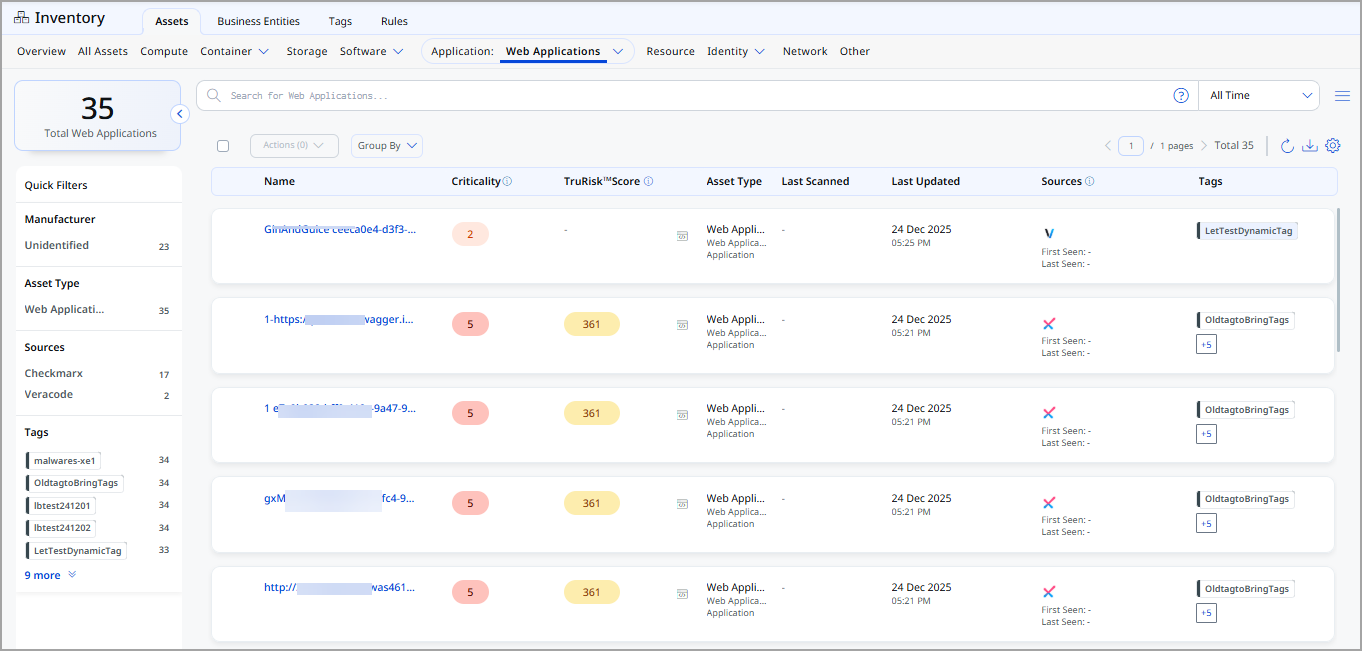
The following information is displayed for each web application:
| Column | Description |
|---|---|
| Name | URL or identifier of the web application. |
| Criticality | Business criticality score assigned to the web application. |
| TruRisk™ Score | Risk-based TruRisk™ score for the application. |
| Asset Type | Indicates the asset type as Web Application. |
| Last Scanned | Date and time when the application was last scanned, if applicable. |
| Last Updated | Date and time when the application details were last updated. |
| Sources | Discovery sources that detected the web application. |
| Tags | Tags associated with the web application for organization and filtering. |
Group Web Applications
Use the Group By option to organize web applications based on supported attributes.
| Attribute | Description |
|---|---|
| Operating System | Group assets based on operating system details such as category, publisher, name, market version, and edition. |
| Hardware | Group assets by hardware characteristics, including category, manufacturer, product, and model. |
View Web Application Details
The Web Application Details page provides comprehensive information about a selected web application asset.
You view the details of an application by selecting a web application.
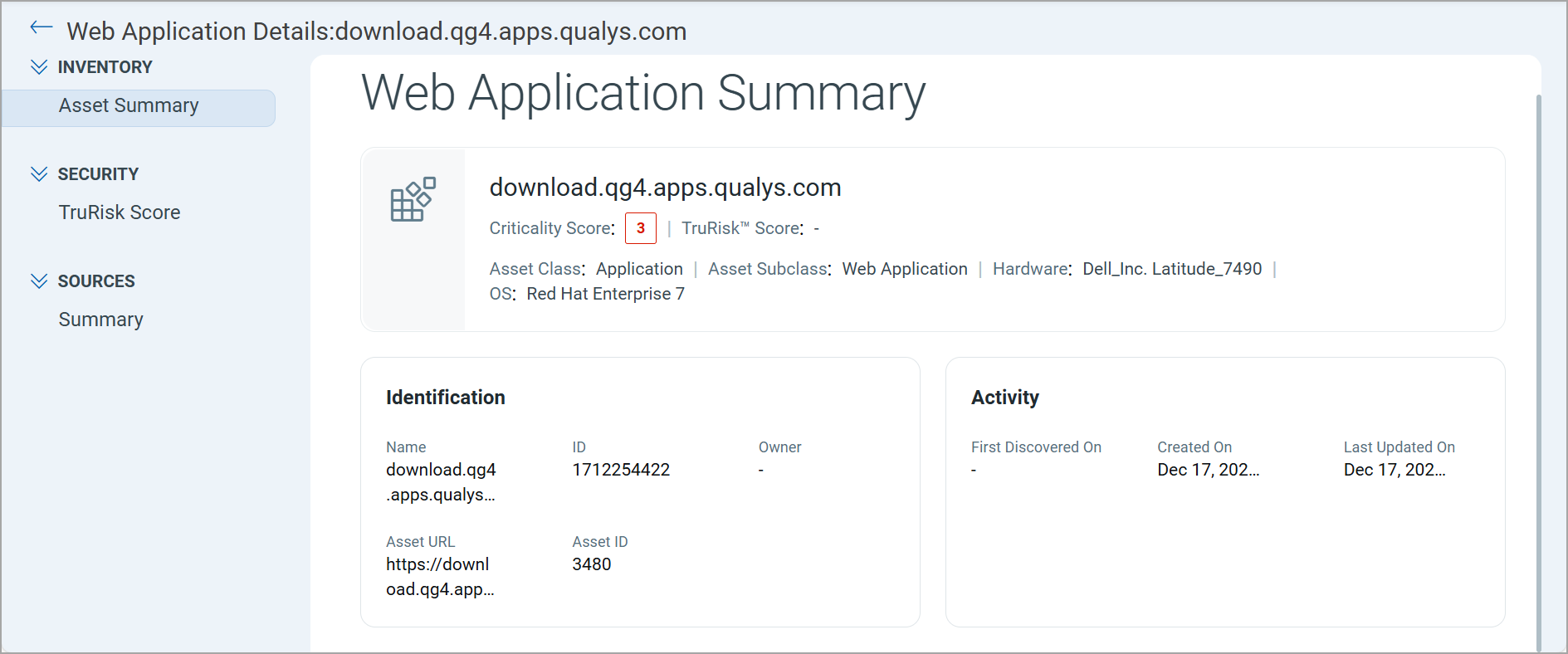
Expand the Inventory, Security, and Sources sections from the left pane and see various tabs under each section. To know more about the details you can see from these tabs, refer to the following topics:
Inventory Section
The Inventory section provides detailed information about the selected web application.
The following tab is available under the Inventory section:
The web application Asset Summary tab provides an overview of the selected web application, including identification, classification, and lifecycle details.
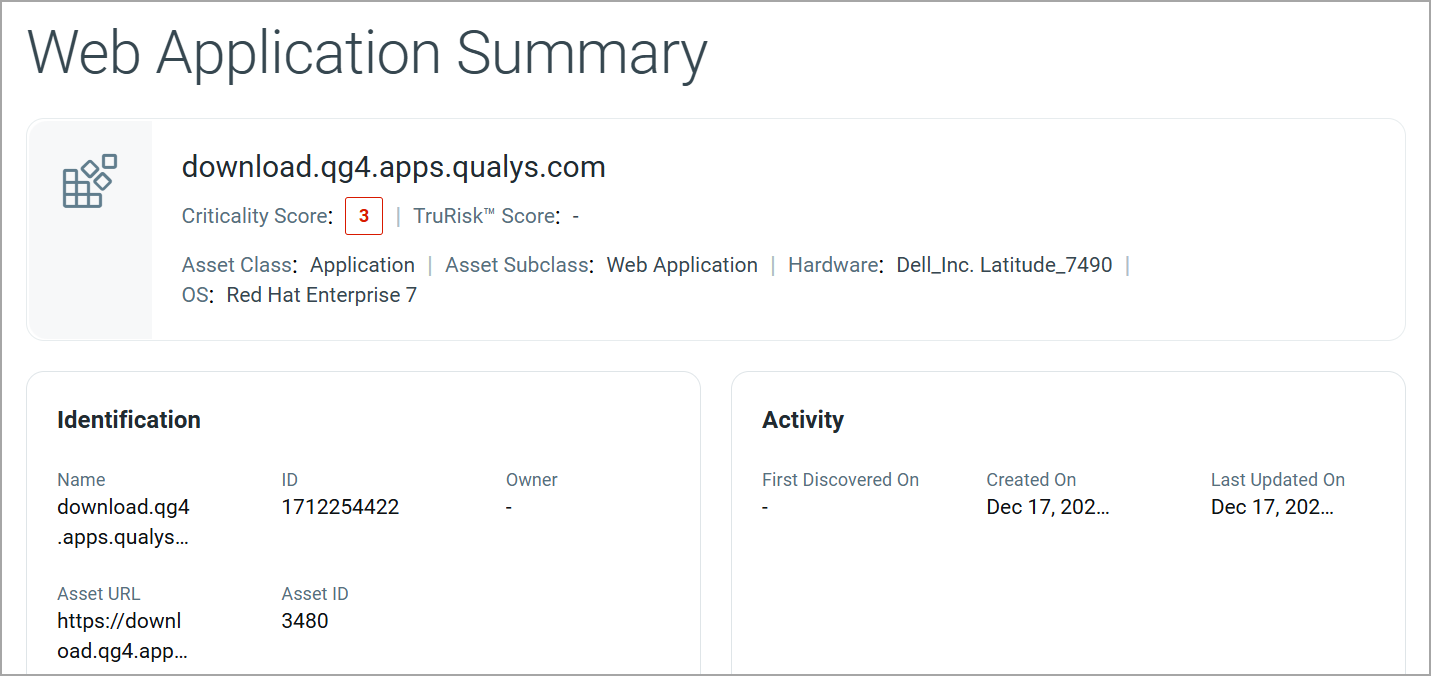
The summary header displays high-level information about the container image, including:
| Field | Description |
|---|---|
| Application Name | Name of the web application. |
| Criticality Score | Business criticality assigned to the web application. |
| TruRisk™ Score | Displays the TruRisk™ score. |
| Asset Class and Subclass | Asset classification for the web application. |
| Hardware and Operating System | Hardware and operating system of the web application. |
Identification
The Identification section displays the core identity attributes of the web application.
| Field | Description |
|---|---|
| Name | Name or identifier of the web application. It is derived from the domain or URL. |
| ID | Unique identifier assigned to the web application by the discovery source. |
| Asset URL | Complete URL associated with the web application. |
| Asset ID | Unique asset identifier. |
| Owner | Owner information for the web application. |
Activity
The Activity section provides timeline-related information for the web application.
| Field | Description |
|---|---|
| First Discovered On | Date and time when the web application was first detected. |
| Created On | Date and time when the asset record was created. |
| Last Updated On | Most recent date and time when the web application details were updated. |
Security Section
The Security section provides risk and security-related insights for web applications. This section helps you assess the security posture of the application and prioritize remediation efforts based on risk indicators.
The following tab is available under the Security section:
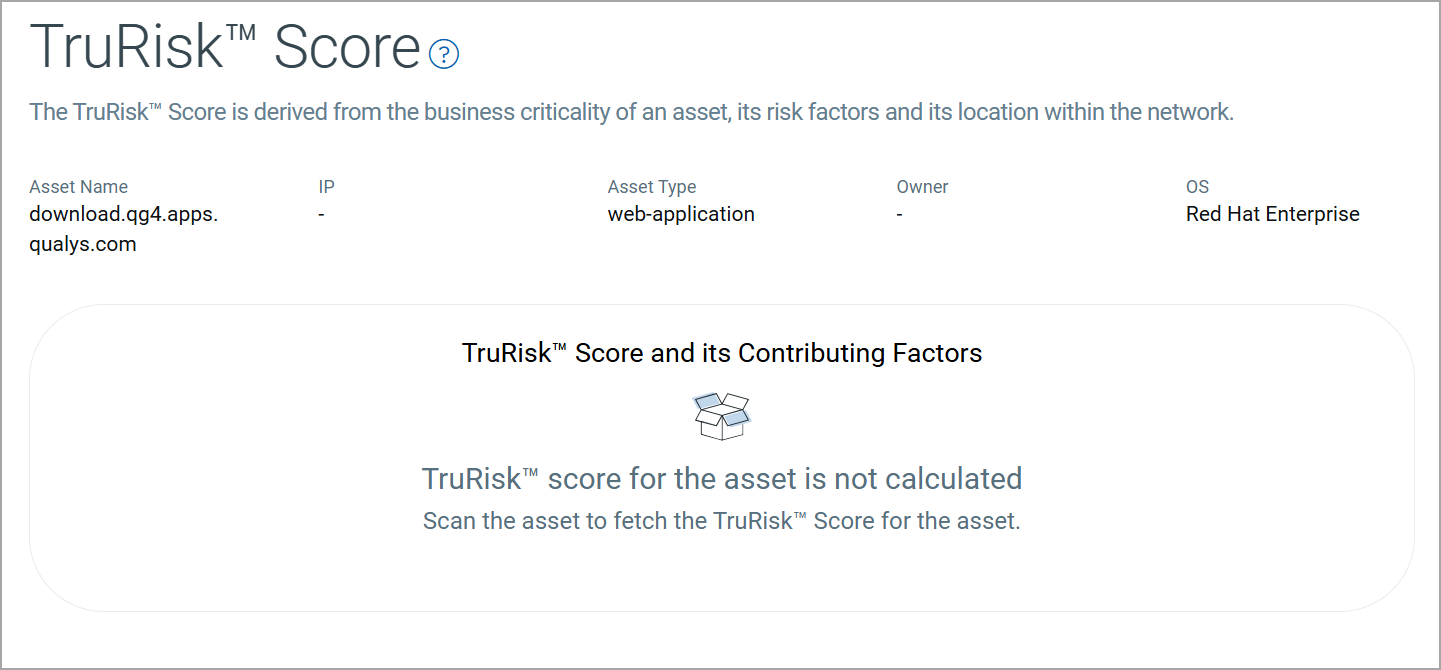
The TruRisk™ Score tab provides insight into the security posture and risk exposure of the selected web application by aggregating multiple contributing factors.
Sources Section
The Sources section provides visibility into how and from where a web application was discovered.
The following tab is available under the Sources section:
The Summary tab provides a consolidated view of all external and internal sources that discovered the web application.
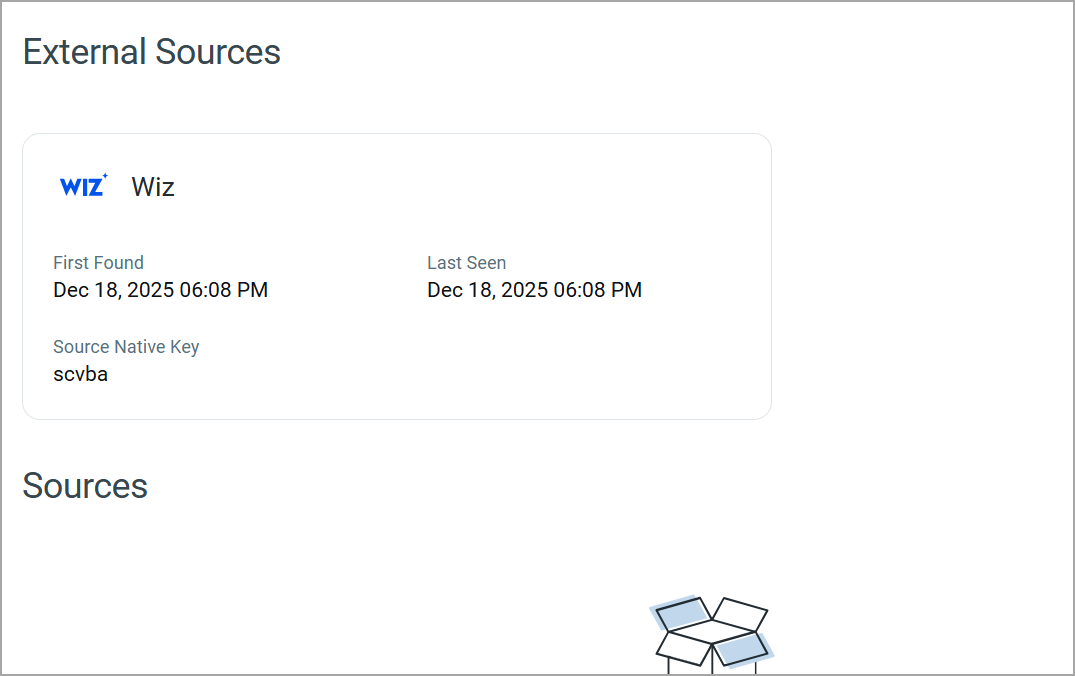
External Sources
The External Sources section displays details of third-party platforms or integrations that discovered the web application.
For each external source, the following information is displayed:
| Field | Description |
|---|---|
| Source Name | The external tool or integration that discovered the web application asset (for example, Wiz). |
| First Found | The date and time when the asset was first identified by the external source. |
| Last Seen | The most recent date and time when the asset was detected or confirmed by the source. |
| Source Native Key | A unique identifier assigned to the asset by the external source. |
Add or Remove Tags
You can manage tags of the web application from the Quick Actions or Actions menu. For more information on managing tags, refer to Manage Asset Tags.
Download Web Applications List
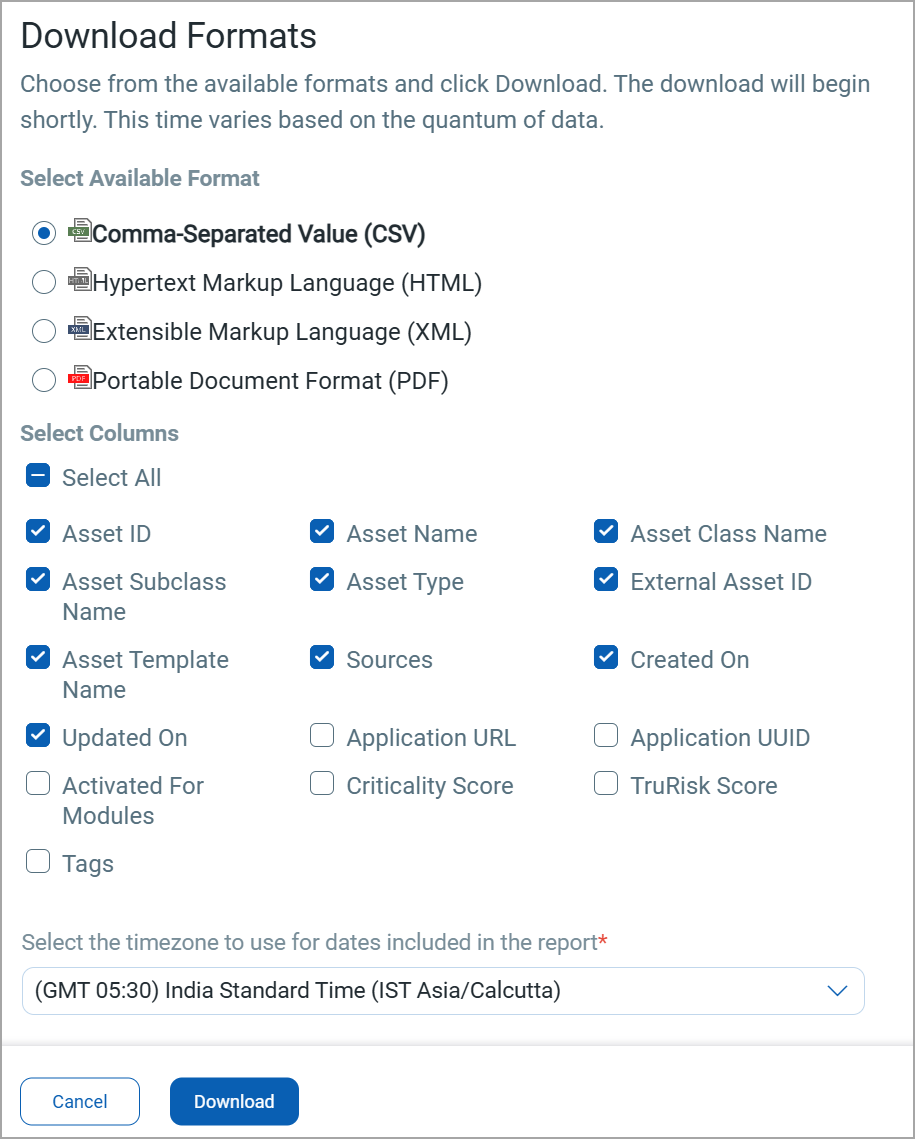
You can download the list of web applications in a report from the Application > Web Applications tab in the following formats:
- Comma-Separated Value (CSV)
- Hypertext Markup Language (HTML)
- Extensible Markup Language (XML)
- Portable Document Format (PDF)
If you want to download the report in PDF format, you can select a maximum of 5 columns. If you select the Tags column, the report for up to 5,000 assets is downloaded.
To download, follow these steps:
- Click
 on the Web Applications tab.
 - Select the download format and the columns you want in the report.
-
Select the timezone.
-
Click Download.