Support for Attaching Evidence to Findings
The Supporting Artifacts feature lets you attach files or links as evidence to findings. This makes it easier to review or close findings and keep records. You can use this feature from the Findings Listing Page for one or more findings at a time. You can upload several files at once.
This feature is available upon request; contact Qualys support or your Technical Account Manager (TAM) to activate it for your account.
Key Features
You can use this feature to:
- Justify why you closed findings.
- Attach proof (files or links) to findings.
- Track the history of actions and evidence.
- Store all proof within the platform.
- Consolidate all files and links in one place.
The benefits of Adding Supporting Artifacts are:
- Audit and Compliance
Creating a clear audit trail by attaching evidence lowers compliance risks and accelerates audits.
- Transparency and Accountability
Providing verifiable proof supports evidence-based decisions and builds trust and accountability.
- Knowledge Retention
Keeping records of past decisions and evidence streamlines onboarding and delivers better insights.
- Risk Reduction
Validating findings prevents mistakes and avoids premature issue closure.
Access Permissions
The Manager user can add, update, or delete supporting evidence, while all other users can view it.
Add Supporting Artifacts
Follow these steps to add supporting artifacts
- Go to Risk Management > Select the Finding.
You can add evidence from All, Vulnerabilities, and Misconfigurations tabs. - From the Actions menu, click Add Supporting Artifacts.
Add Supporting Artifacts window is displayed.
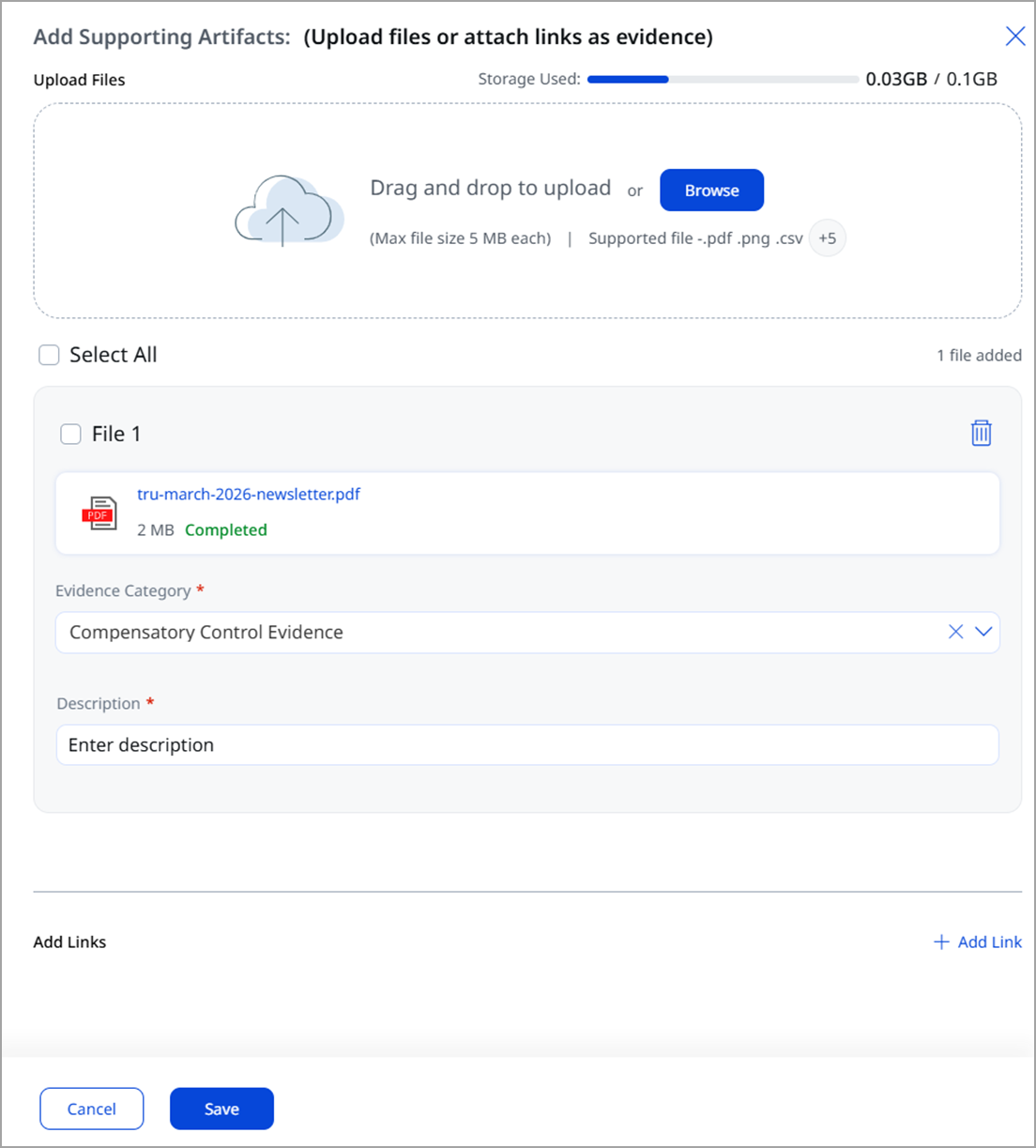
You can upload the file or add the link.
- Upload a File.
- Drag and drop your file into the upload area, or
- Click Browse and select a file from your device
- Max file size: 5 MB per file
- Supported formats include:.pdf, .png, .docx, .xml, .doc, .xlsx, .xls, .csv
- Review the uploaded file.
The file is displayed under File 1
You can:- Check the box to select it
- Click the trash icon to delete it if needed
- Select Evidence Category
-
Click the dropdown under Evidence Category.
-
Choose the appropriate category (for example, Compensatory Control Evidence)
-
Add Description
In the Description field, enter a clear explanation of the artifact
-
- (Optional) Add Links Instead of Files
-
Scroll to Add Links
-
Click + Add Link
-
Paste a URL if your evidence is hosted externally
-
-
Click Save to finalize
Or Cancel if you want to discard changes.
Treat the description like audit evidence context: it should answer what the artifact is, why it matters, and how it supports the control.
Your evidence is reflected in the Supporting Artifact column.
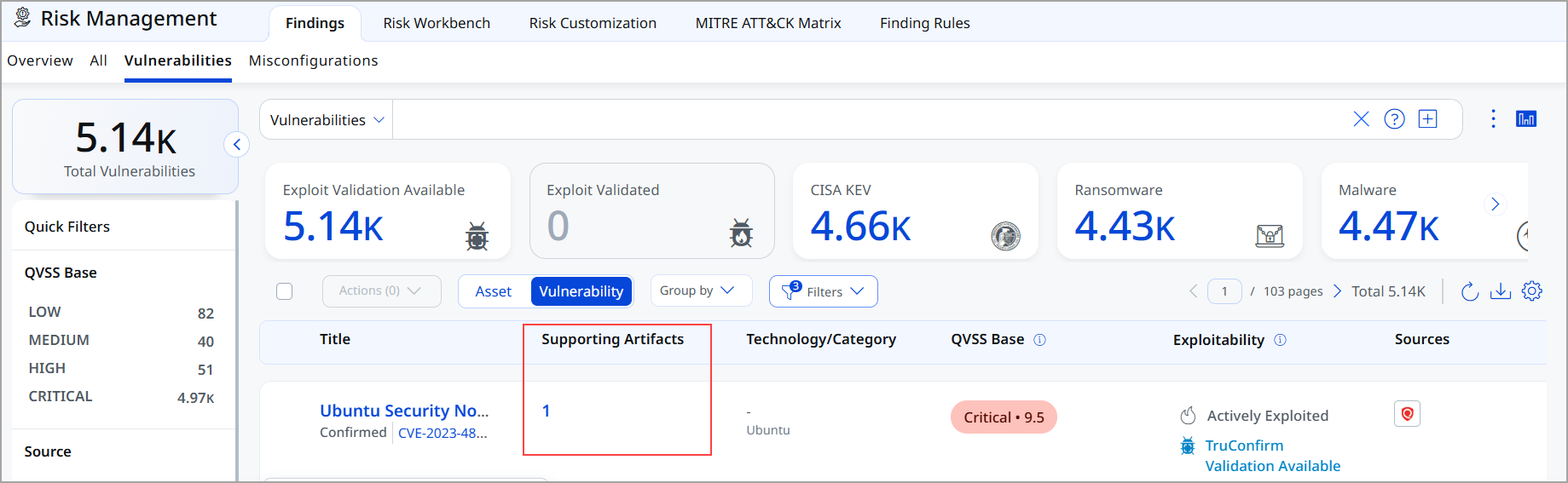
You can update Supporting Artifacts in either of the following ways
- Use the Quick Action menu of the Finding
- By clicking artifact count or No Artifacts present in the Supporting Artifact column.
Add Supporting Artifacts from Findings Details
You can view the option to add supporting artifacts on the Findings Details page.
- Go to Risk Management > Select the Finding from the Vulnerabilities tab.
(You can add evidence from All, Vulnerabilities, and Misconfigurations tabs .)
- View the details of the selected findings.
The highlighted section in Finding Details displays the option to add Supporting Artifacts. -
Follow the steps 3 mentioned in Add Supporting Artifacts
