TruRisk™ Customization Using Risk and Compensatory Factors
A customizable rule that adjusts the TruRisk™ score of an asset based on specific conditions without changing the raw security data itself. This aligns security scoring with business priorities and risk appetite.
The impact of customization of TruRisk™ Score:
- Original data remains intact and unaltered
- Scores become more business-contextual
- Adjustments are non-destructive
- Fully auditable and reversible
You can customize the TruRisk™ score by using risk and compensatory factors.
Custom Factors
Focus remediation efforts on what truly impacts your organization by dynamically adjusting TruRisk™ scores based on contextual risk.
- Increase Risk for High-Exposure Assets
Automatically elevate TruRisk™ scores for internet-facing systems, privileged accounts, critical business assets, or unpatched high-risk vulnerabilities—ensuring environmental risk is accurately reflected. - Enhance TruRisk™
Improve scoring precision by incorporating real-world exposure and business context into risk calculations. - Highlight Critical Exposures
Identify and amplify conditions that significantly increase the likelihood of attack or business impact. - Add Custom Risk Factors
Tailor risk scoring to your organization’s industry, geography, regulatory requirements, or asset role.
Custom Risk Factor
To create the custom Risk Factor, follow these steps:
- Navigate to Risk Management tab > Risk Customization > Risk Factors > Create Risk Factor.
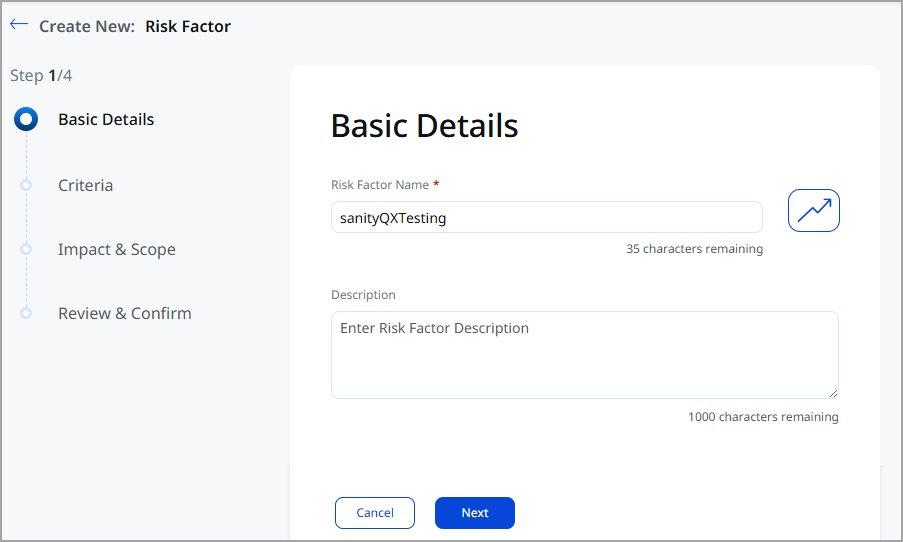
- Enter the Basic Details, such as Risk Factor Name and Description, and click Next.
- Enter the Criteria for the Risk Factor Settings.
- To create criteria for the rule, enter Asset Criteria and Label and click Next.
Optionally, you can select criteria for Vulnerability and Misconfiguration.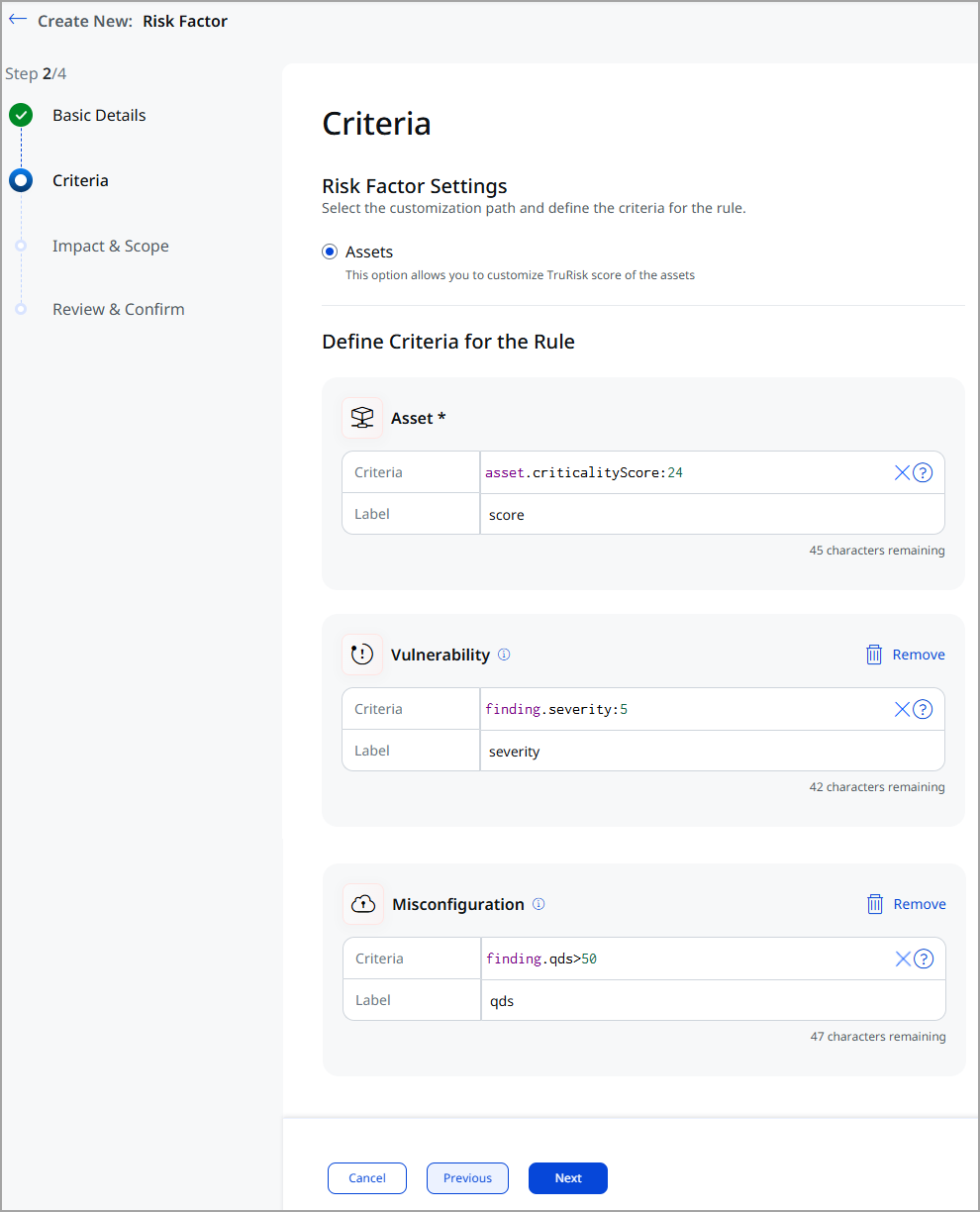
Criteria apply only to active vulnerabilities. Fixed vulnerabilities are excluded.
-
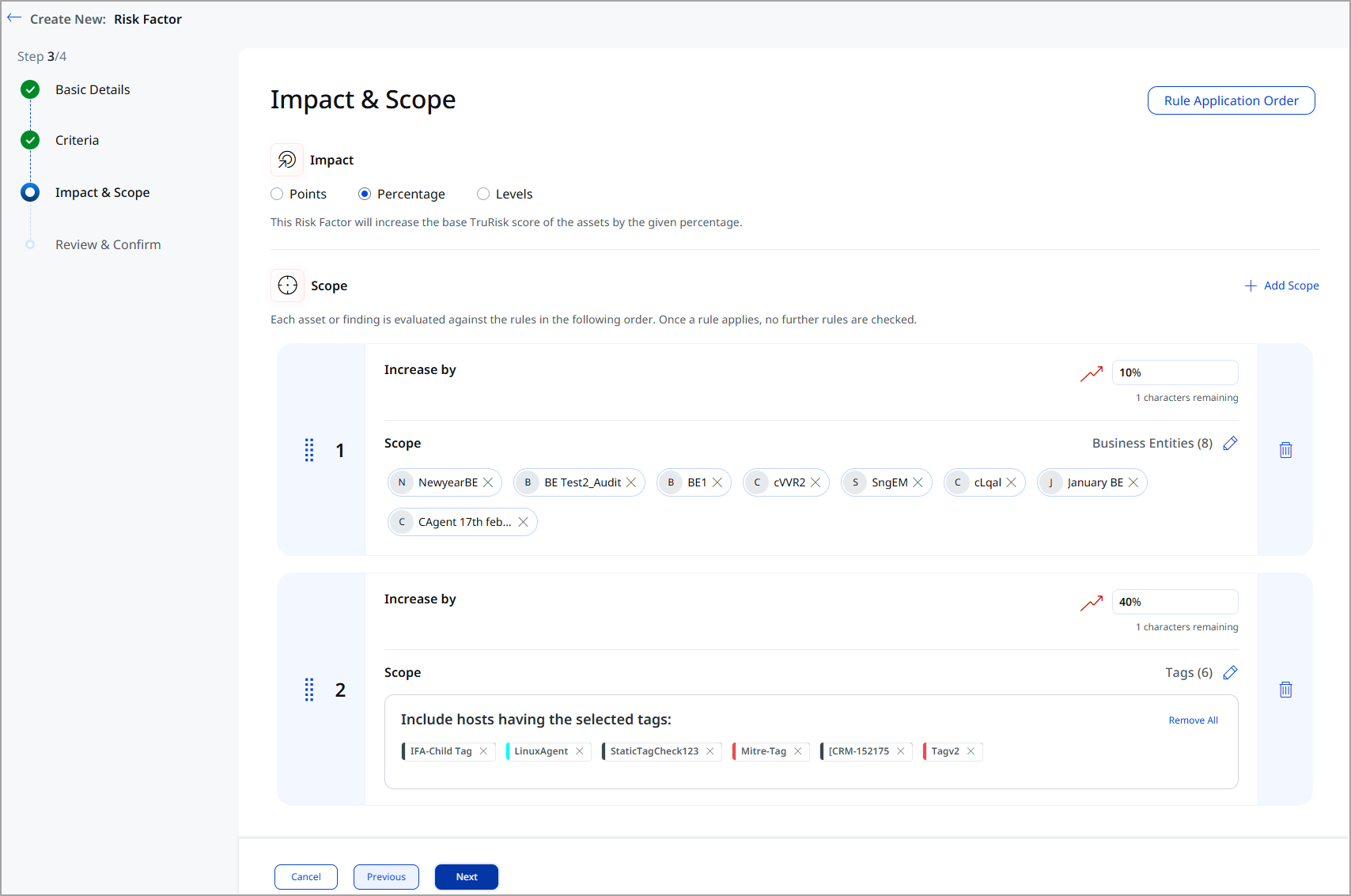
In Impact & Scope, you can select Impact in the form of Points, Percentage, or Levels.
-
Select the Scope, add the factors, and click Next.
-
Review all the details you have entered, and click Create.
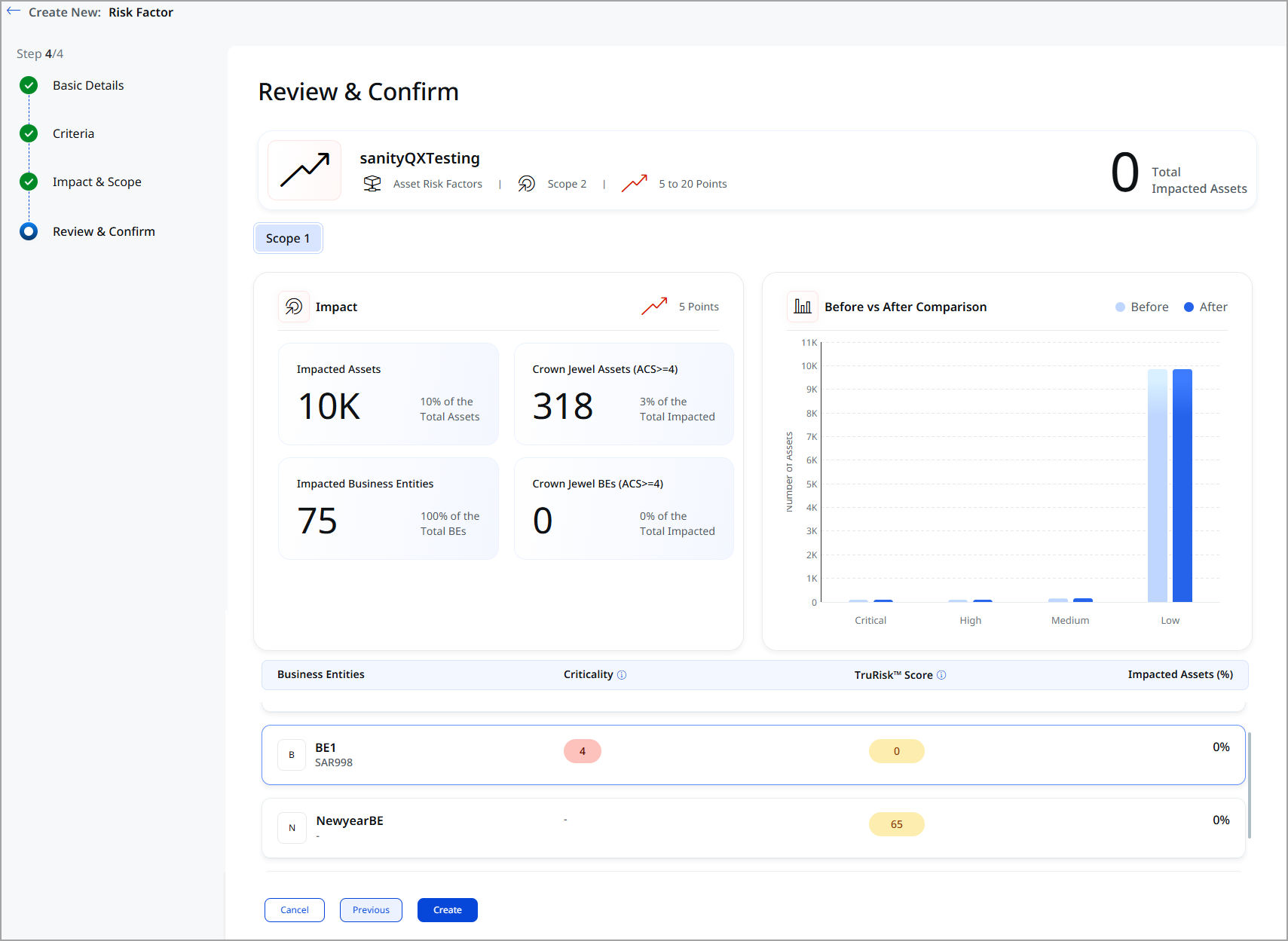
Your Risk Factor has been created and is available in the Risk Factor tab.
Custom Compensatory Factors
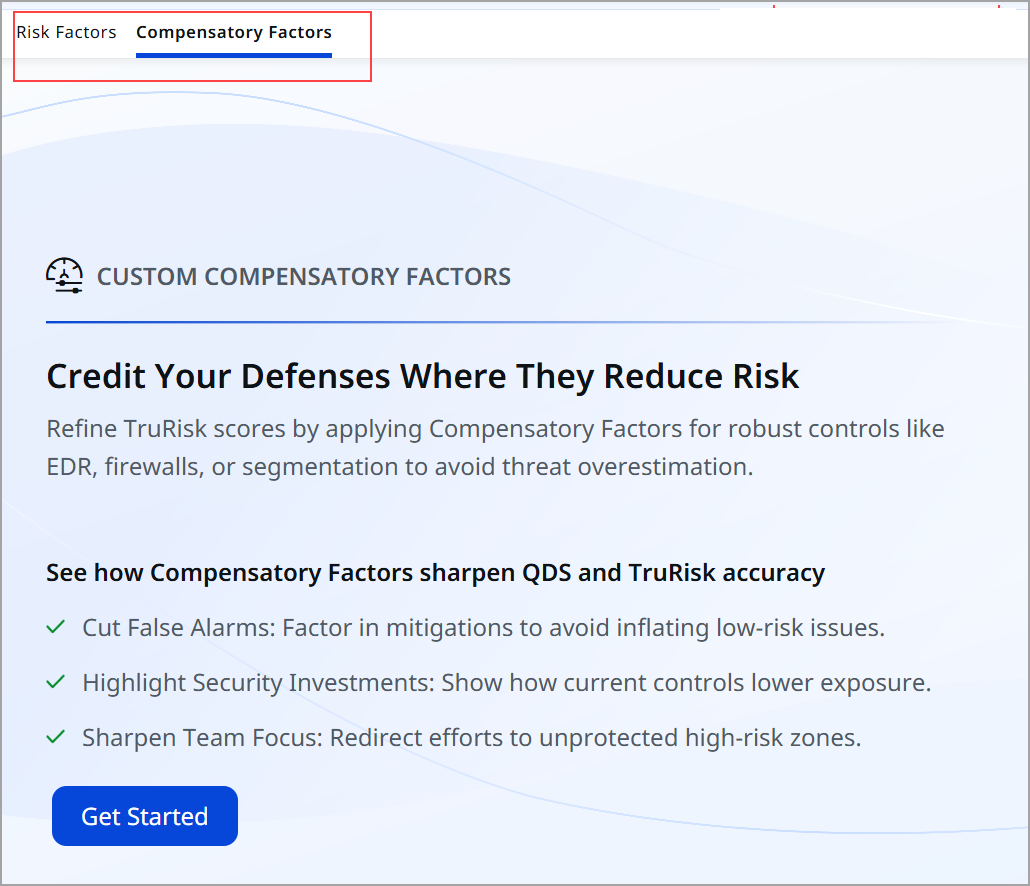
Refine TruRisk™ scoring by accounting for existing security controls that meaningfully reduce exposure. Compensatory Factors allow you to adjust risk downward when strong protections such as EDR, firewalls, or network segmentation are in place.
Navigate to Risk Management tab > Risk Customization > Risk Factors or Compensatory Factors to define and apply custom factors tailored to your environment.
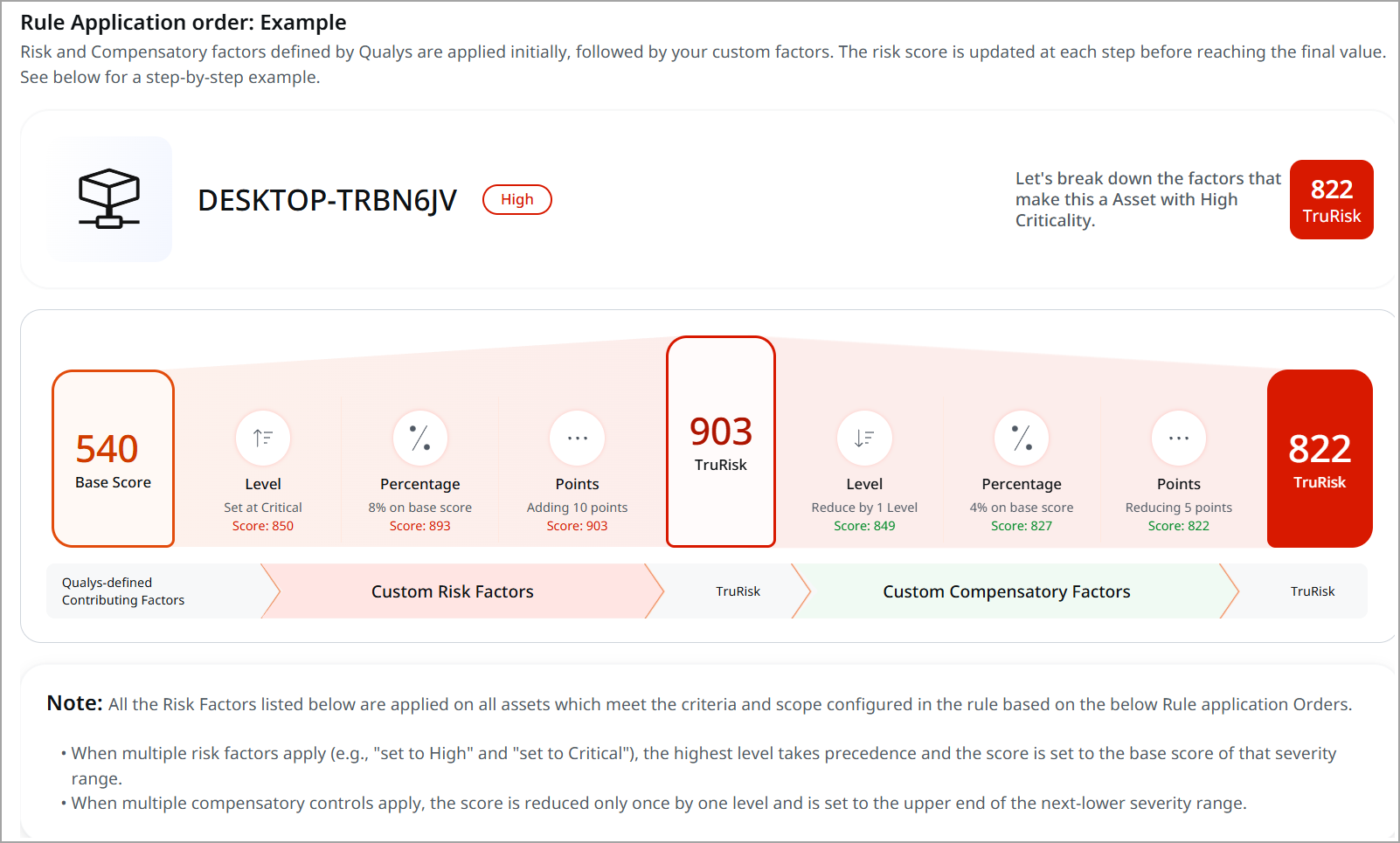
The following screenshot shows one example of the TruRisk™ Customization. The image illustrates how TruRisk™ scoring is dynamically customized through a structured rule application order that combines system-defined and user-defined factors. The TruRisk™ is fully customizable through additive and subtractive factors, applied in a defined order, enabling organizations to transition from static vulnerability severity to dynamic, environment-aware, business-aligned risk scoring.
Risk Factors amplify exposure. Compensatory Factors credit defenses. The order of application ensures a controlled, predictable score transformation.
To create the custom Compensatory Factor, follow these steps:
- Navigate to Risk Management tab > Risk Customization > Compensatory Factors > Create Compensatory Factor.
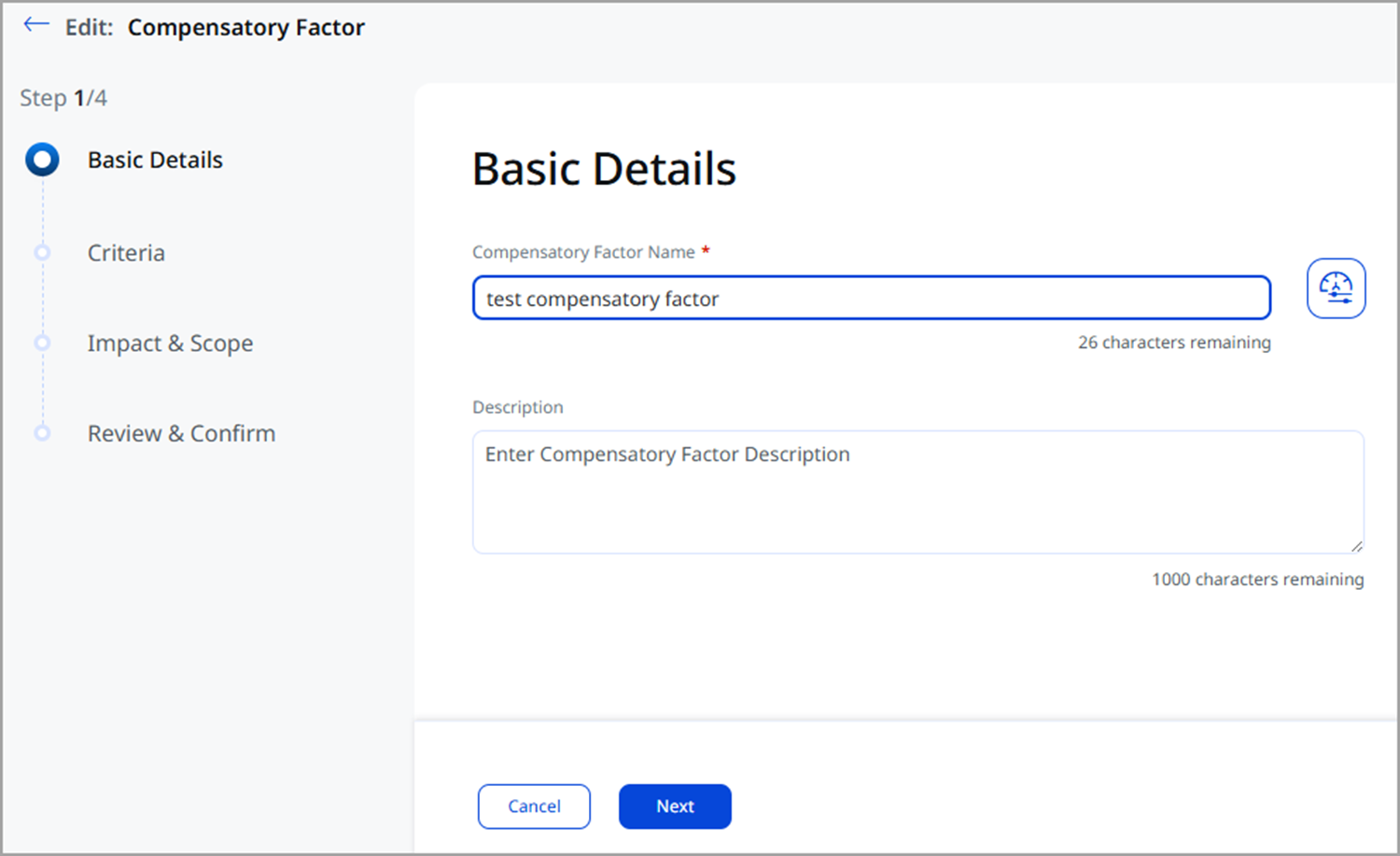
- Enter the Basic Details, such as Compensatory Factor Name and Description, and click Next.
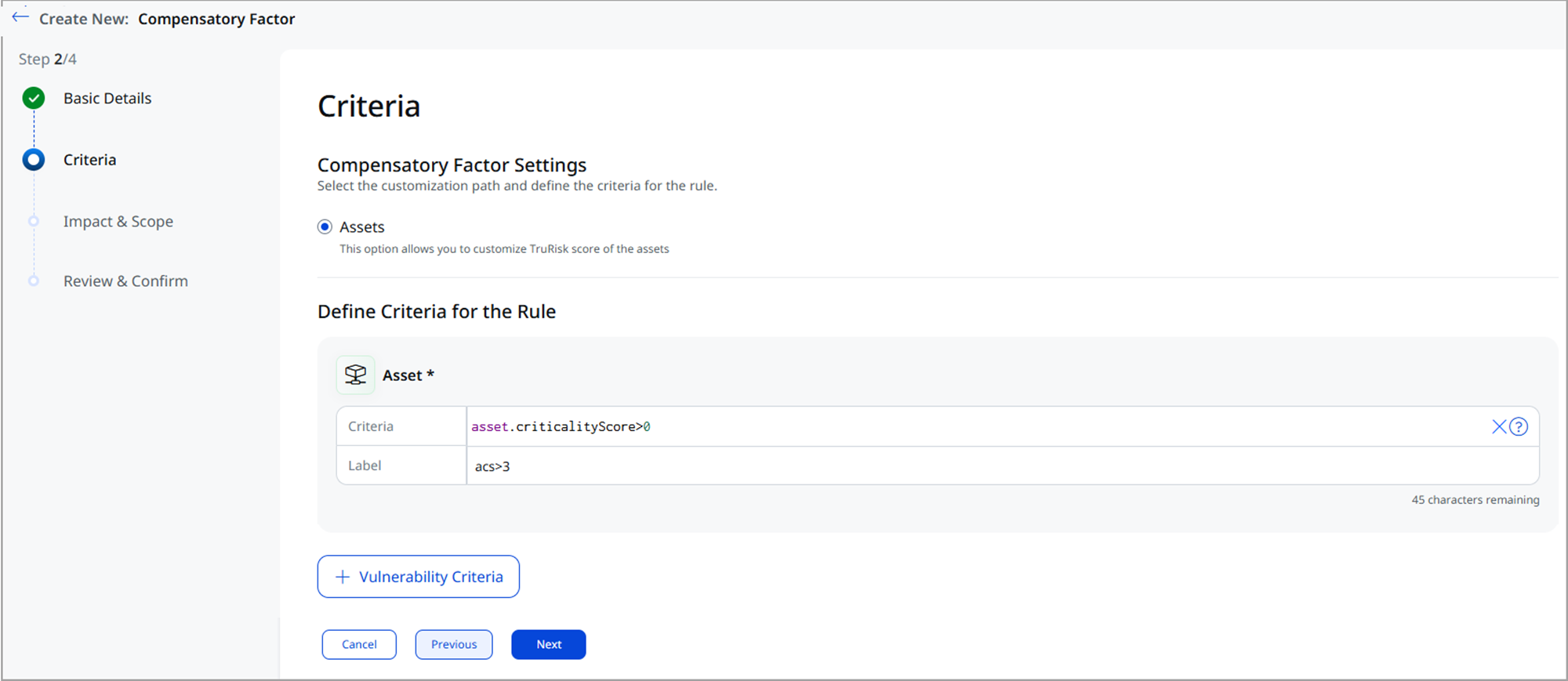
- Enter the Criteria for the Compensatory Factor Settings.
- To create criteria for the rule, enter Asset Criteria and Label and click Next.
Optionally, you can select criteria for Vulnerability and Misconfiguration.Criteria apply only to active vulnerabilities. Fixed vulnerabilities are excluded.
-
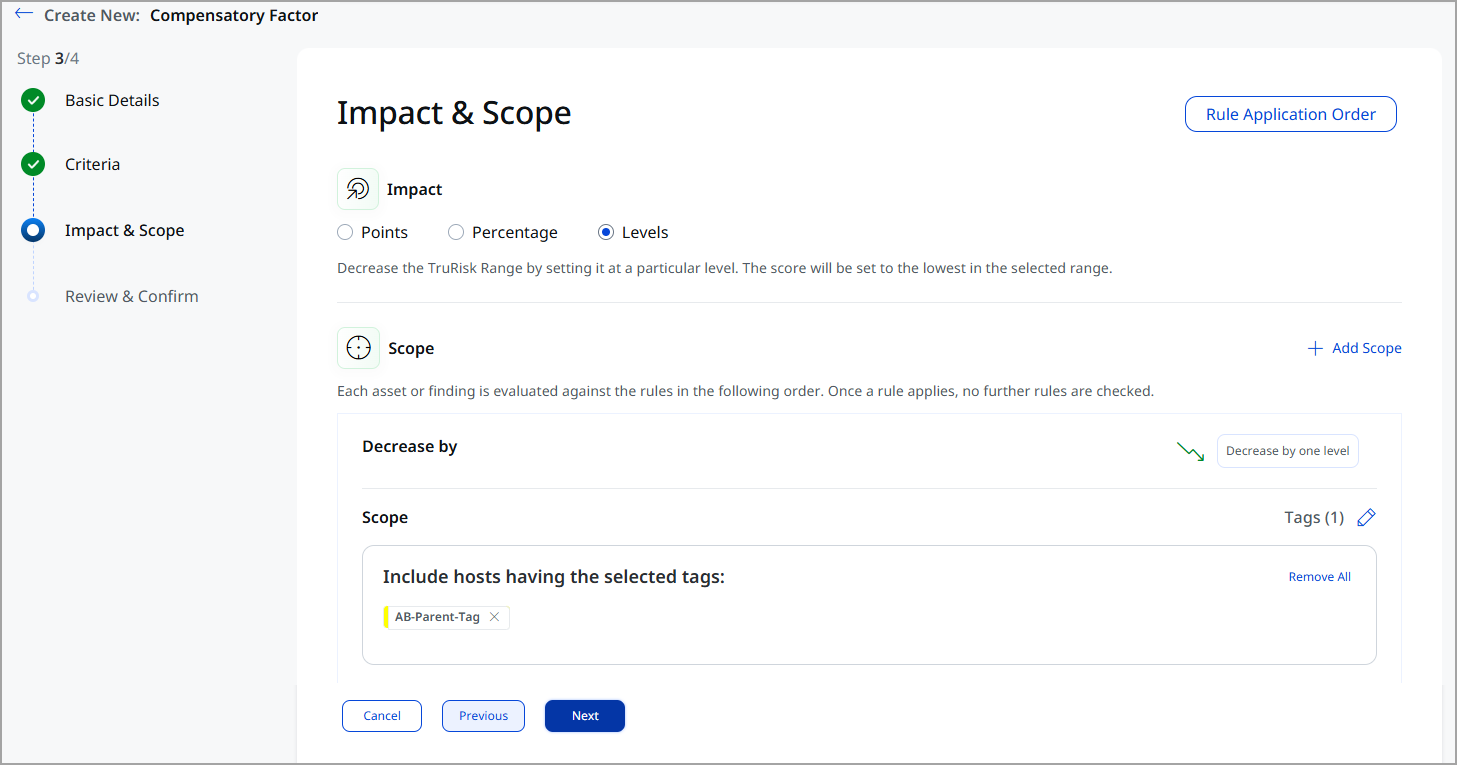
In Impact & Scope, you can select Impact in the form of Points, Percentage, or Levels.
-
Select the Scope, add the factors, and click Next.
-
Review all the details you have entered, and click Create.
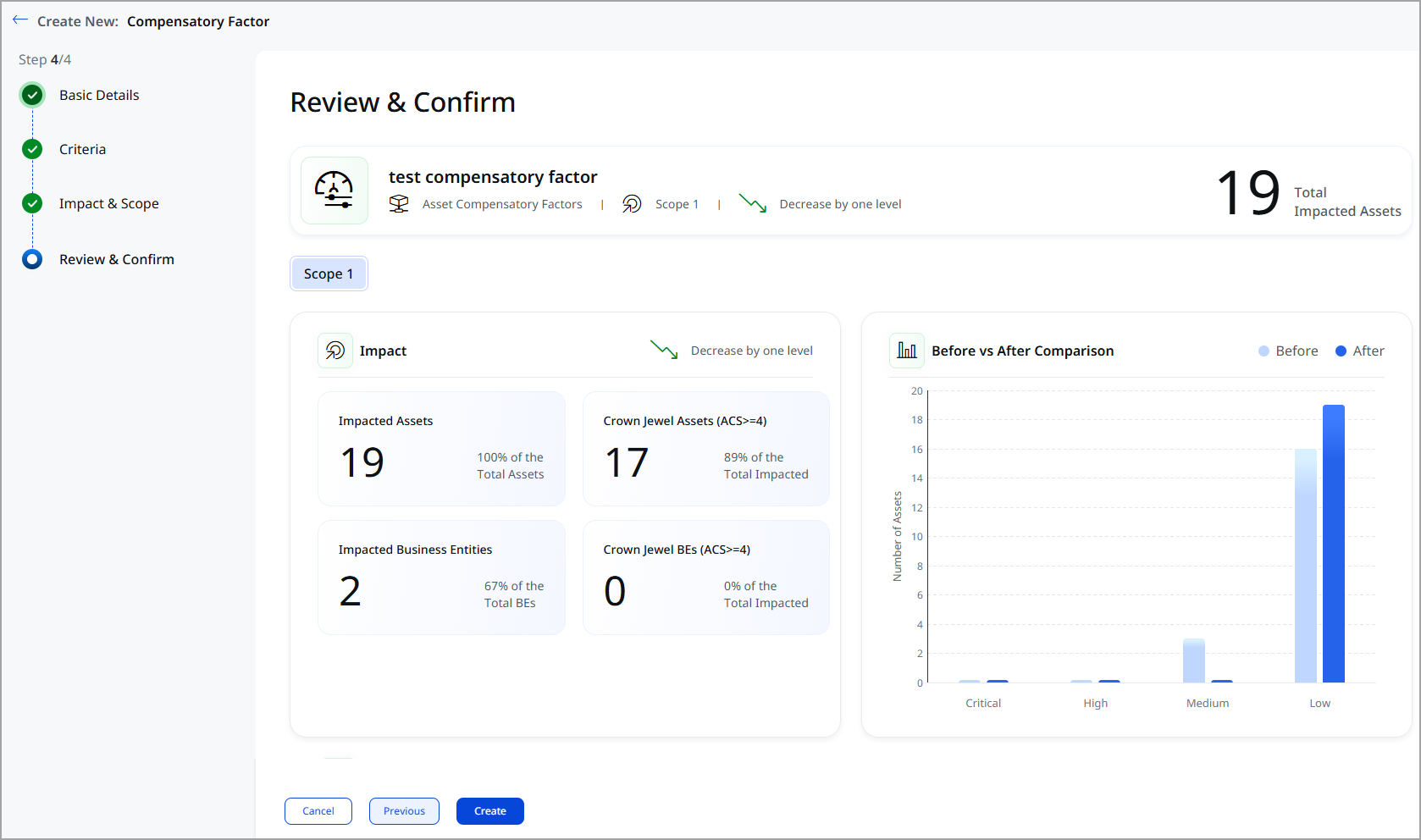
Your Compensatory Factor has been created and is available in the Risk Factor tab.