File Access Monitoring (FAM)
FIM can capture file access attempts, providing detailed information about who, what, when, and where access attempts occur. You can view this information on the View Details page. The View Details page provides detailed information about a detected File Read event for a monitored file. You can use this page to analyze the event, identify the affected asset, and review the associated monitoring rule and user activity.
Go to the Event Details page to view the events in detail.
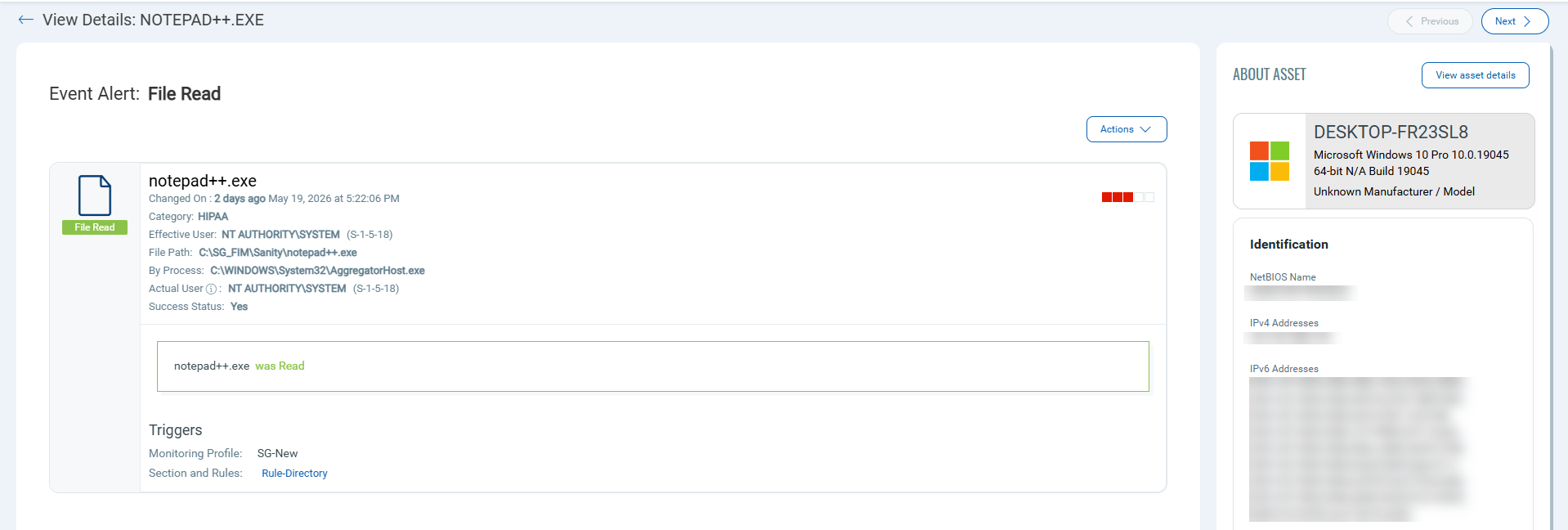
| Field | Description |
| File Name | Displays the name of the monitored file. |
| Changed On | Displays the date and time when the event occurred. |
| Category | Displays the compliance category associated with the event. |
| Effective User | Displays the user account that effectively performed the action. |
| File Path | Displays the complete path of the monitored file. |
| By Process | Displays the process that triggered the event. |
| Actual User | Displays the actual user account associated with the activity. |
| Success Status | Indicates whether the file operation was successful. |
Example:
An employee attempts to access a confidential file. FIM logs who accessed it, when, and what actions they tried.
Generating a Read Event
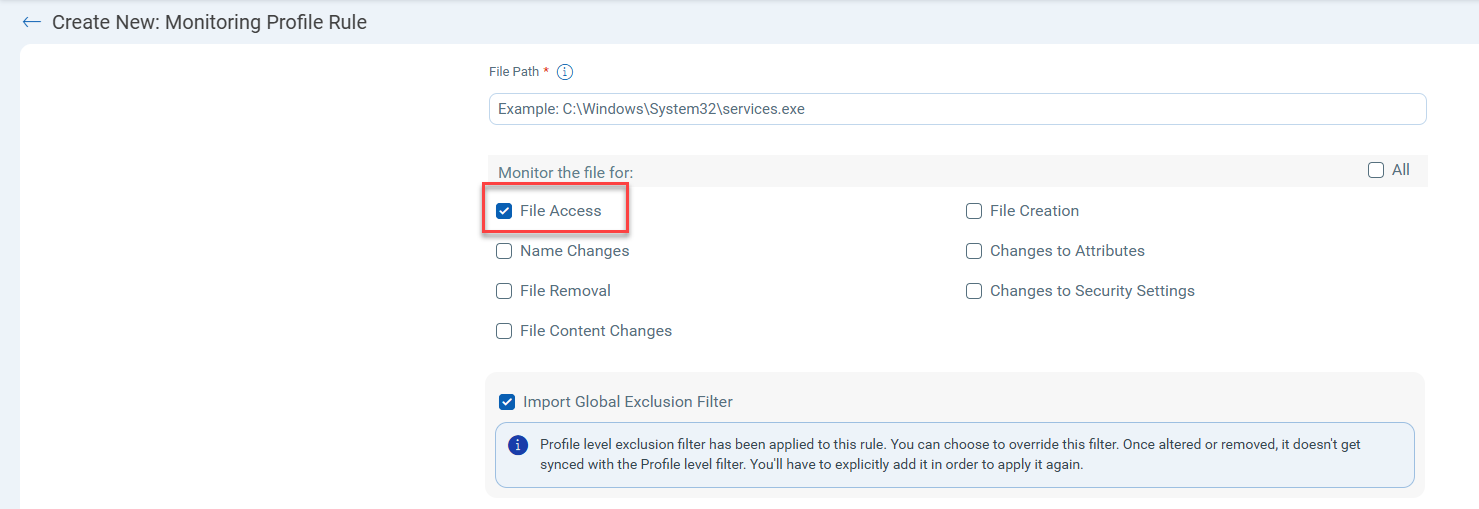
FIM generates the Read event when the monitored file is accessed or read. To generate a Read event, create a File Access rule from the Monitoring Profile Rule page.
Navigate to Configuration > Profiles > New Profile, go to the Monitoring Profile Rule page, and select File Access.
FIM generates Read events only for files configured with the File Access monitoring option.