View Database Information
Databases often contain sensitive information, such as customer or user data. This makes them attractive targets for cyber-attacks and misuse. As a result, various organizations are required to comply with regulations such as GDPR and PCI-DSS for the protection of databases. Access to detailed information about specific database instances enables organizations to assess whether a particular instance falls within the scope of GDPR, PCI compliance, or any other regulation.
The Database tab allows you to view detailed information about database Instances and Database Servers. You can use the Group By to filter or QQL token to search for a specific instance or server. You can filter the instances based on the Database or Asset using the QQL tokens. For more information on tokens, refer to Search Tokens.
Instances
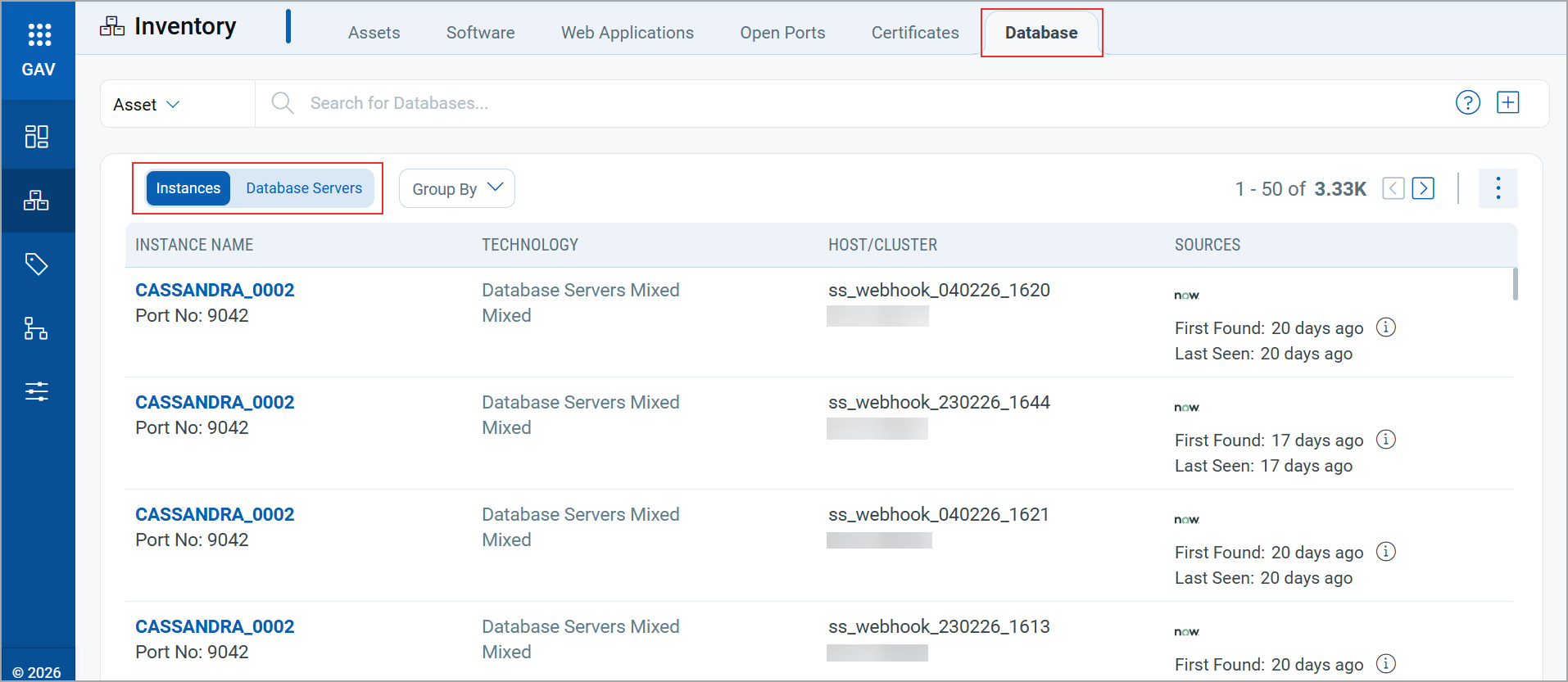
This section provides a comprehensive view of your database instances. Each column provides detailed insights into:
-
Instance Name: This column provides the Instance name and the Port details.
-
Technology: This column provides the database name and version.
-
Host/Cluster: Provides the hostname/cluster where the database is installed, along with its IP addresses.
-
Sources: Provides the source of the instance along with their first found and last seen timestamps.
You can view more details about an instance by clicking View Details from the Quick Actions Menu.
Database Servers
The Database Servers tab provides detailed information about the database servers.
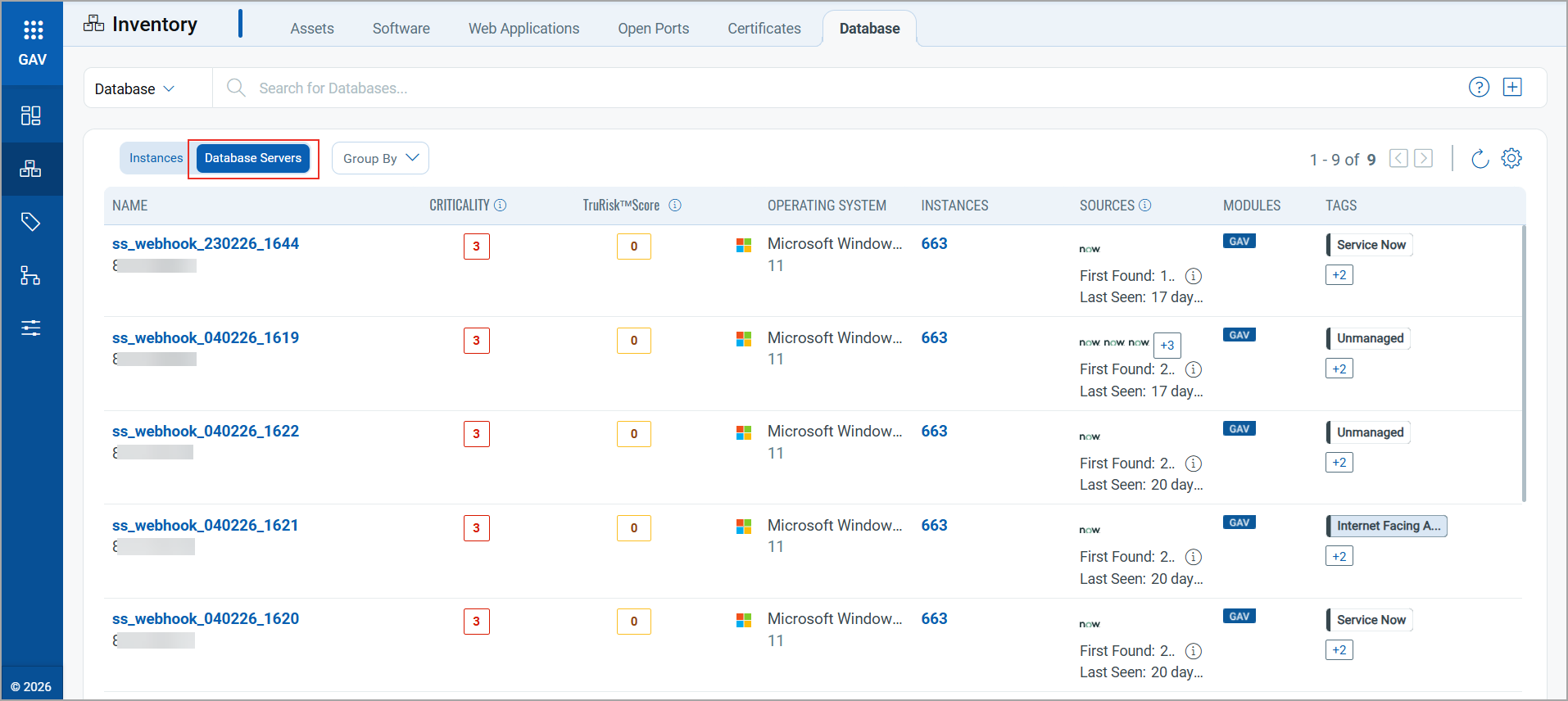
The following details are displayed for each server record:
| Column | Description |
|---|---|
| Name | The name of the database server host. Click the name to view detailed information about the server and its associated database instances. |
| Criticality | Displays the asset criticality score assigned to the database server. |
| TruRisk™ Score | Displays the TruRisk score calculated for the asset. |
| Operating System | Displays the operating system running on the database server. |
| Instances | Displays the number of database instances running on the server. Click the number to view instance details. |
| Sources | Indicates the sources that discovered the database server. The First Found and Last Seen timestamps show when the source first detected and most recently observed the asset. |
| Modules | Displays the Qualys module managing the asset. |
| Tags | Displays the tags associated with the database server. |
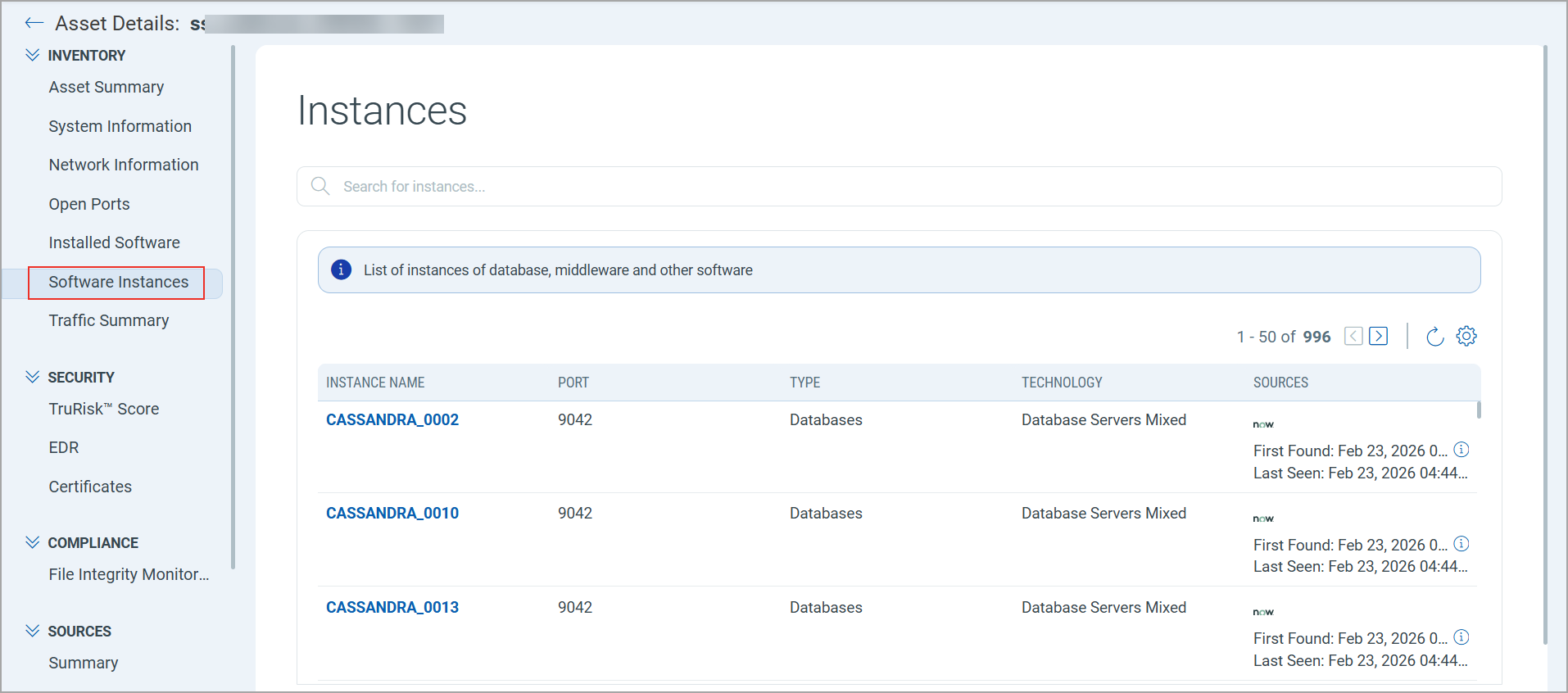
Clicking on the Instances number redirects you to the Asset Details > Software Instances tab. This tab provides more details on instances.