Download Report Files
Using this job, you can control the schedule at which it gets executed to process the downloaded report’s JSON files, which are queued under the Report Download Queue.
- Navigate to Schedule Jobs under Qualys ETM Integration.
- In the Schedule Jobs table, open ETM Download Report Files.
- Provide the following configuration details and save the job.
Repeat Interval – Set a frequency in minutes to check the report status of the downloaded queued files.
We recommend setting the Repeat Interval for 10 minutes.
View Report Status
This table lists all the requests generated from the ETM Findings Report Request job. It displays the request ID, Asset QQL, and Finding QQL used to generate the request and their respective statuses.
To view the requested report status, perform the following steps:
- Navigate to the ETM report status under Qualys ETM Integration.
- You can check the following information in the report:
|
Field |
Description |
|---|---|
|
Name |
Name of the requested report, returned by ETM API. |
|
ID |
Report request ID |
|
Asset QQL |
QQL filter added for Asset in ETM Findings Report Request job. |
|
Findings QQL |
QQL filter added for Findings in ETM Findings Report Request job. |
|
Schedule Job |
Scheduled Job through which the request is created. |
|
Status |
The status of the request changes based on the API response from ETM APIs. When Qualys ETM APIs return the status as COMPLETED for a given request, and all the downloaded JSON files of the report are queued in the ETM Report Download Queue, then the retrieved status is updated in the ETM Report Status table. |
ETM Report Download Queue
The ETM Report Download Queue list shows the status of the downloaded report's queued files. Initially, the files are in the New state, and as the processing progresses, the state changes to In Progress, Success, or Failed.
To view the ETM Report Download Queue, perform the following steps:
- Navigate to Qualys ETM Integration.
-
Click ETM Report Download Queue.
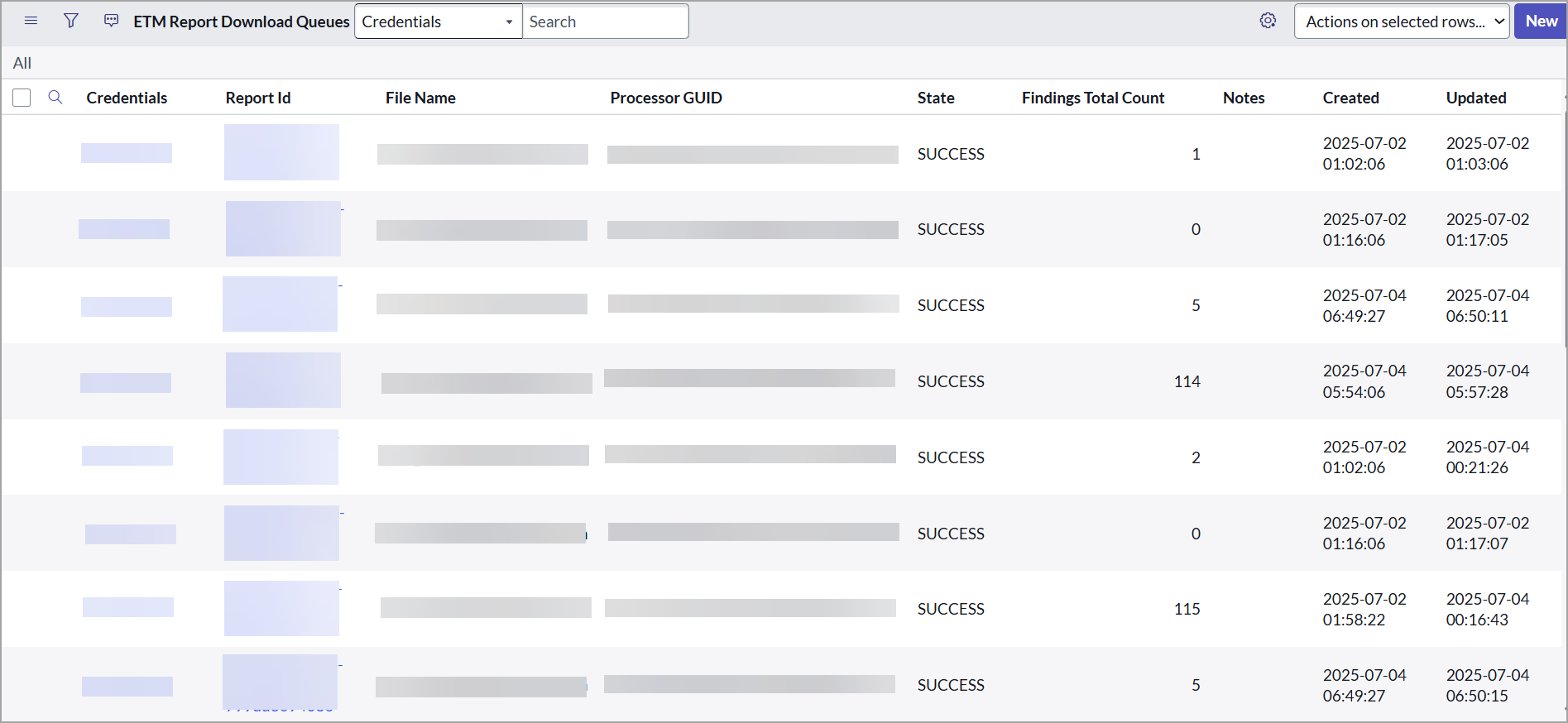
The ETM Report Download Queue Table includes details such as Credentials, Report ID, File Name, Processor GUID, State, Finding Total Count, Notes, and other details.