Deploy Qualys Scanner in Azure Portal
To deploy the Qualys Virtual Scanner Appliance using the image created in the previous step, perform the following steps:
- Select the scanner image.
- Click Create VM.
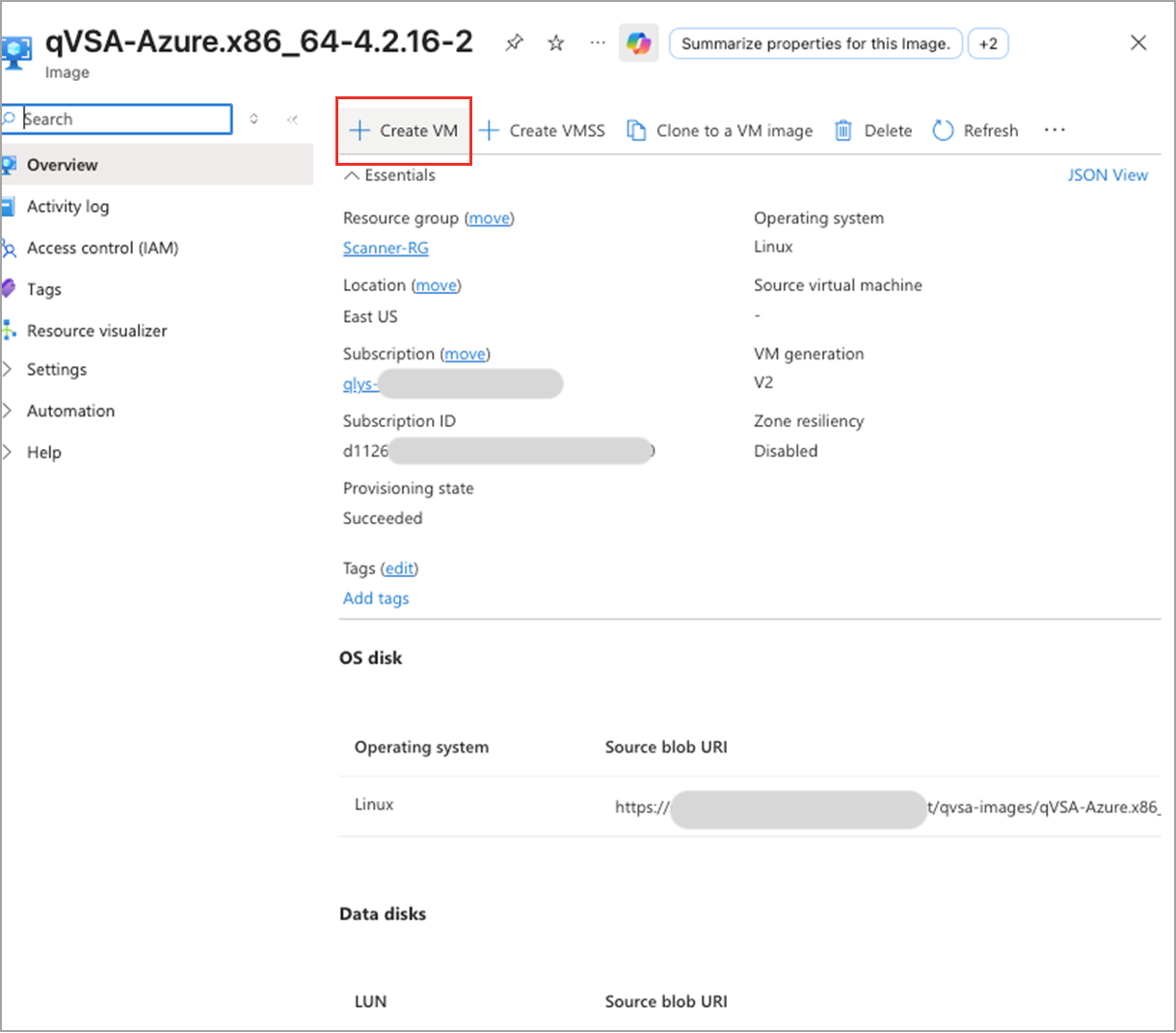
Size: Select a VM size to support the workload you want to run; select a size where the number of CPUs to allocated RAM ratio is 1:2, e.g., 4 CPUs and 8 GB RAM, or 1:3 ratio, depending on the platform’s availability.
-
Click Disks tab to make your Disk preferences.
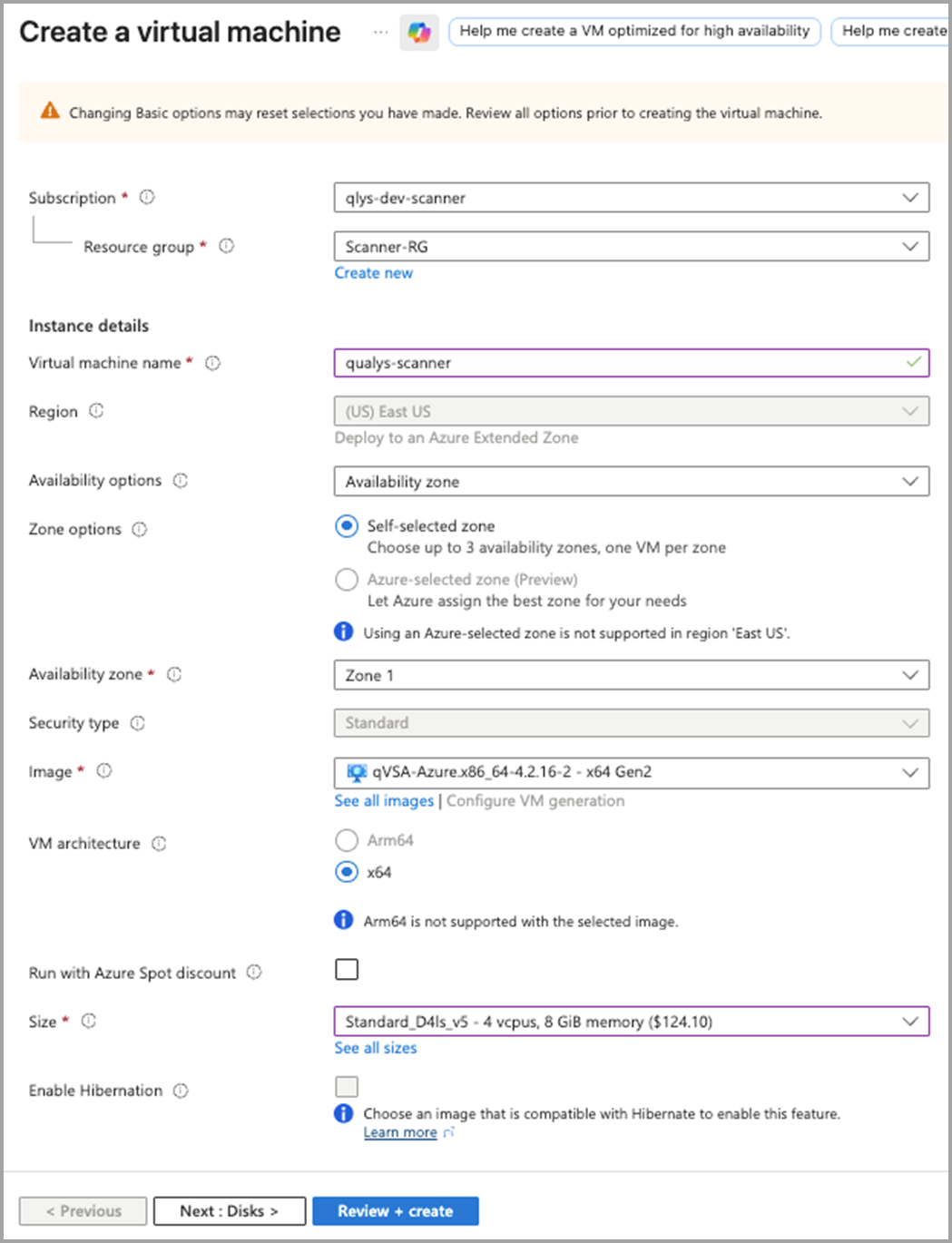
Enabling boot diagnostics is not mandatory for deploying Qualys Virtual Scanners, but it is highly recommended to facilitate troubleshooting scanner issues. A storage account is required to enable boot diagnostics.
OS Disk Type: Select Premium to enable Boot Diagnostic. - Click Networking to make your networking preferences.
Virtual network: Select an existing or create a new virtual network. -
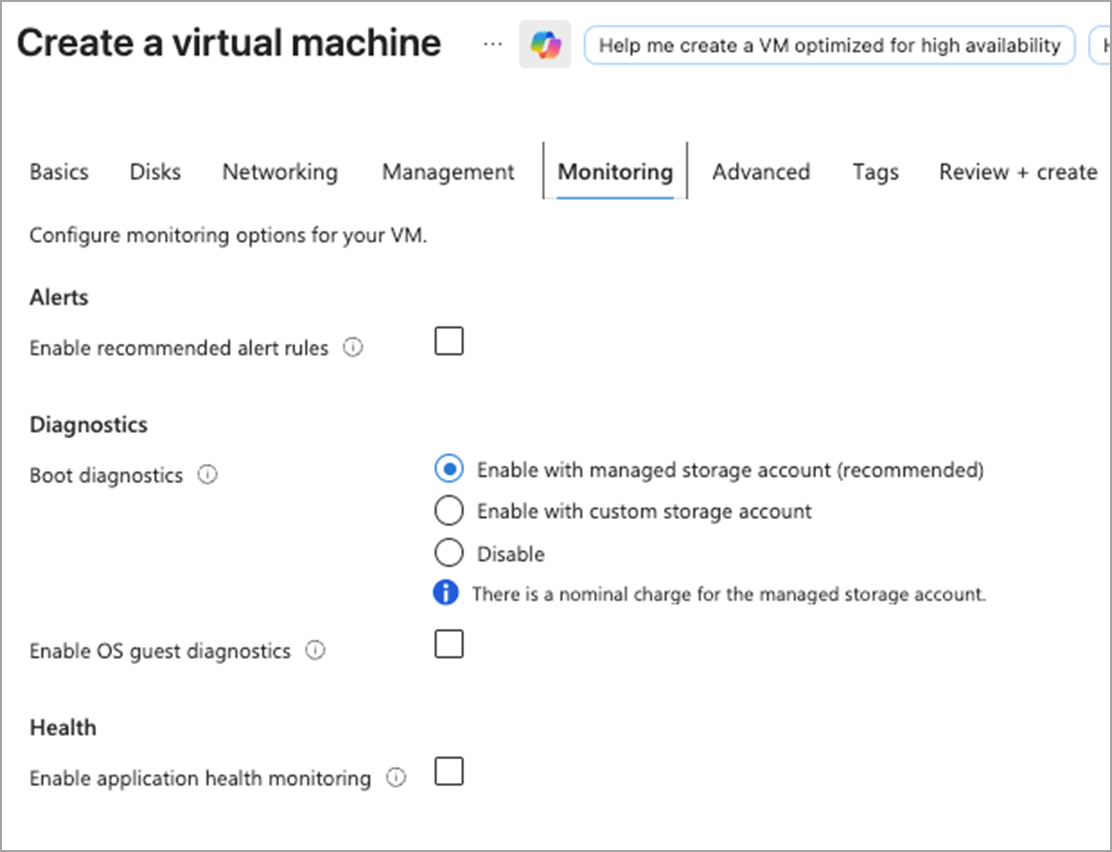
Click Monitoring tab and make your Boot diagnostics selection:
Enable boot diagnostics to troubleshoot issues with your scanner. Diagnostics include log output from the scanner. To learn more refer to Boot diagnostics section of Boot diagnostics section from Azure documents.
-
Click Advanced tab and click Enable user data to enter PERSCODE and optional PROXY_URL:
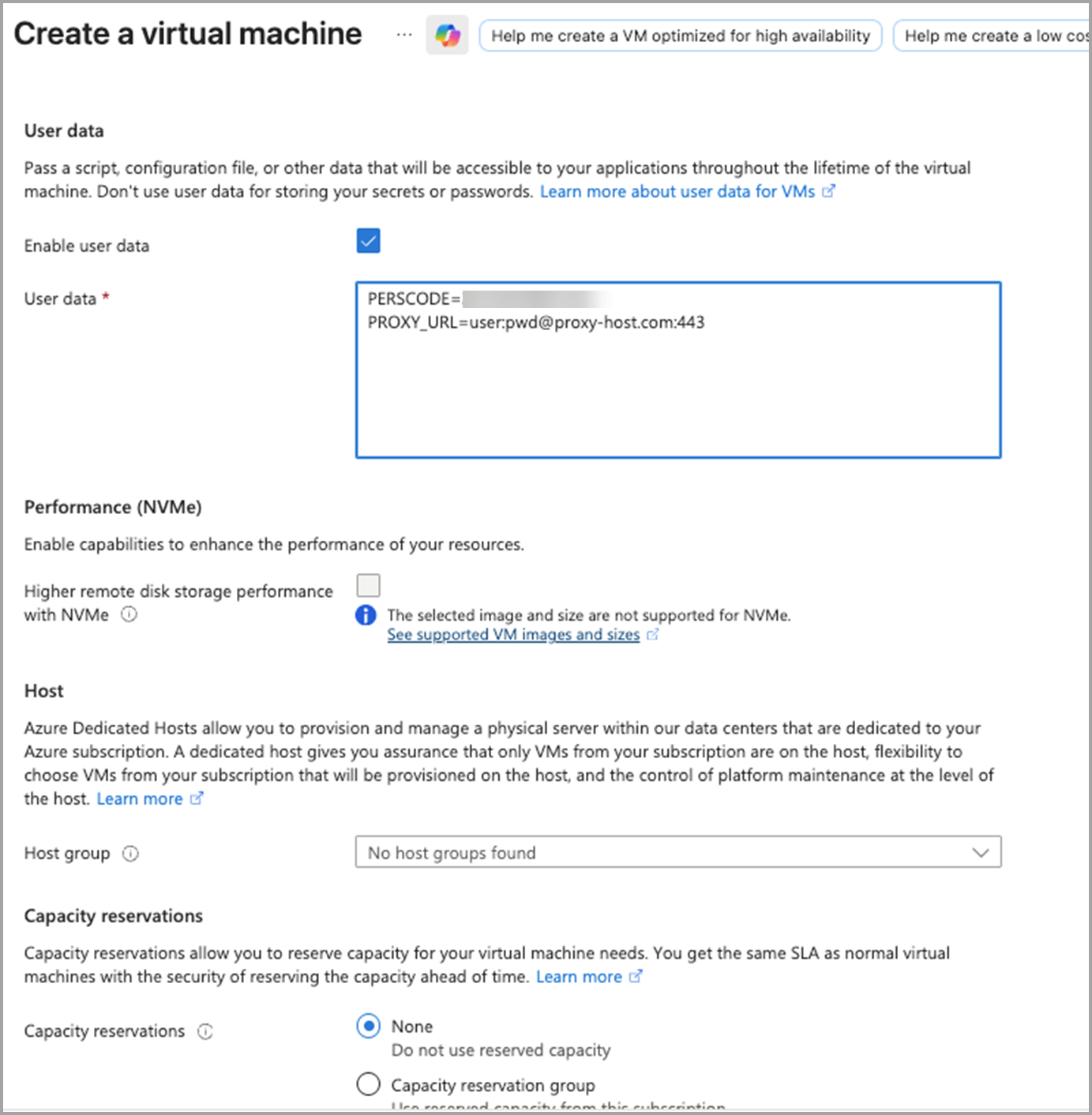
PERSCODE (mandatory field): 14-digit Personalization Code obtained from Qualys.
PROXY_URL (optional field): used to configure the Qualys Scanner to use SSL proxy for all outbound communication with the Qualys Enterprise TruRisk™ Platform. We support both IP and FQDN for the proxy server configuration.Provide optional proxy configuration in one of the following formats:
<host>:<port> (No auth proxy)

	<user>:<password>@<host>:<port> (Auth proxy)

<domain\user>:<password>@<host>:<port> (Auth proxy with domain user)- If validation passes, click Create.
- If validation fails, correct the fields highlighted in red.
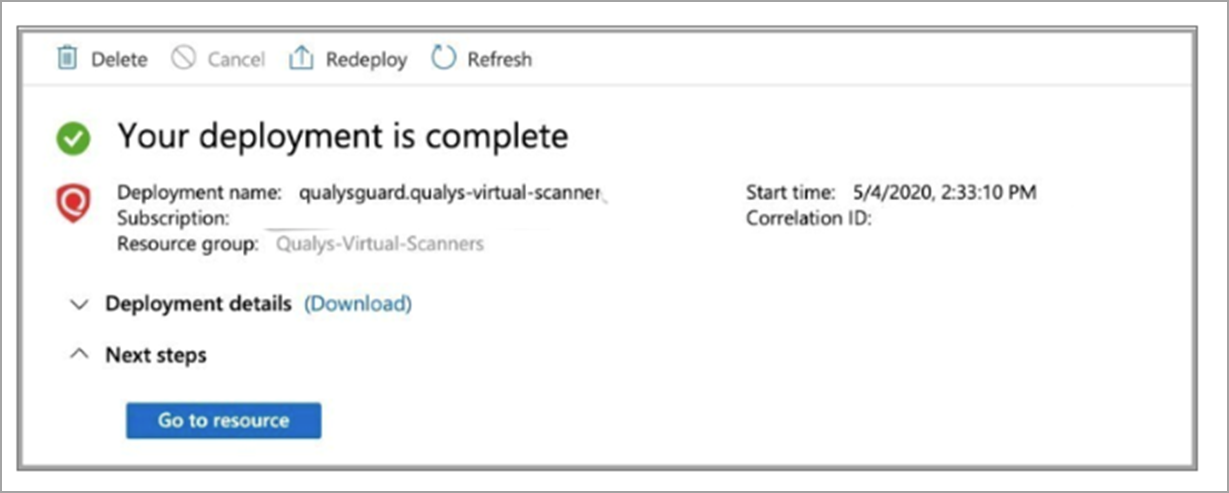
Once Azure completes the deployment, click Go to Resource to access the scanner deployment in your resource group.
Your scanner is connected to the Qualys Enterprise TruRisk™ Platform and downloads software updates. This process may take some time, depending on the location. Once connected, you can use your Azure scanner from the Qualys Enterprise TruRisk™ Platform like any virtual scanner appliance.